



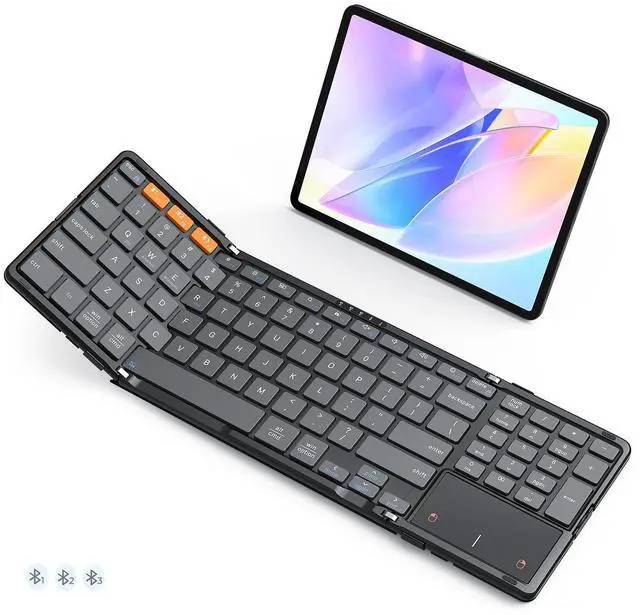
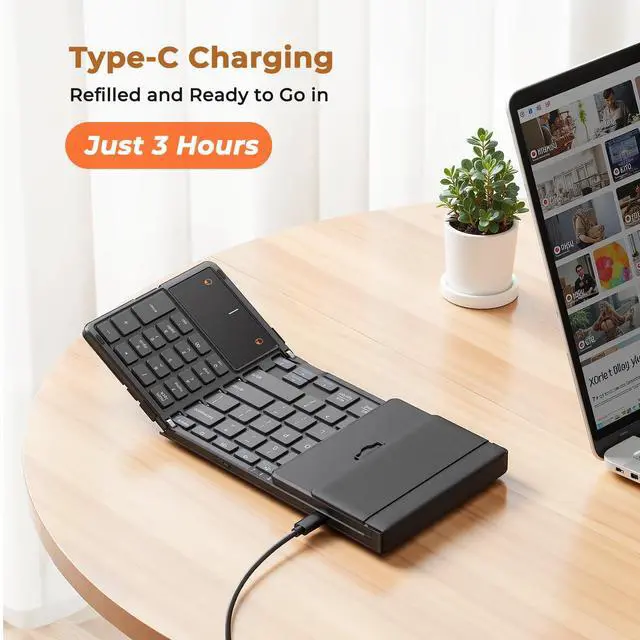
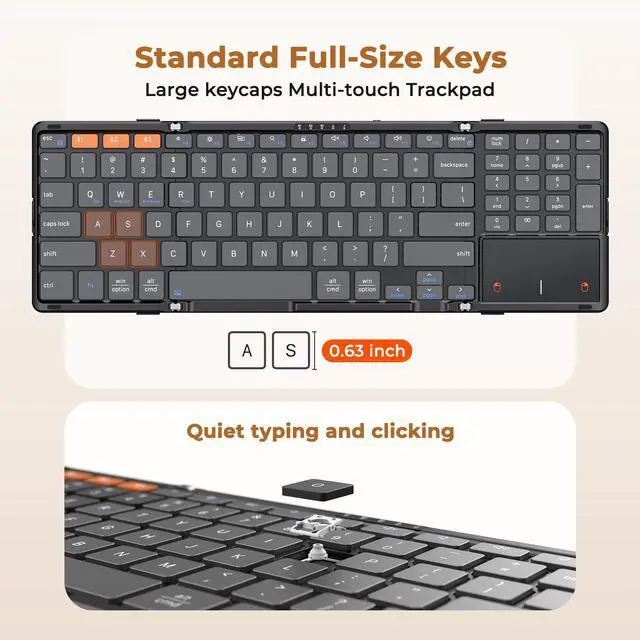


K9552 MEETION New Foldable Keyboard with Touchpad and Numeric Keypad


Abundant indicator Lights
Each Bluetooth channel features a dedicated indicator light, making connection status instantly clear.

Wide Compatibility
It’s compatible with iOS/Android/Windows/Mac OS (switch via FN+Q/W/E/R). One keyboard fits most devices.

Precision Tracking Touchpad
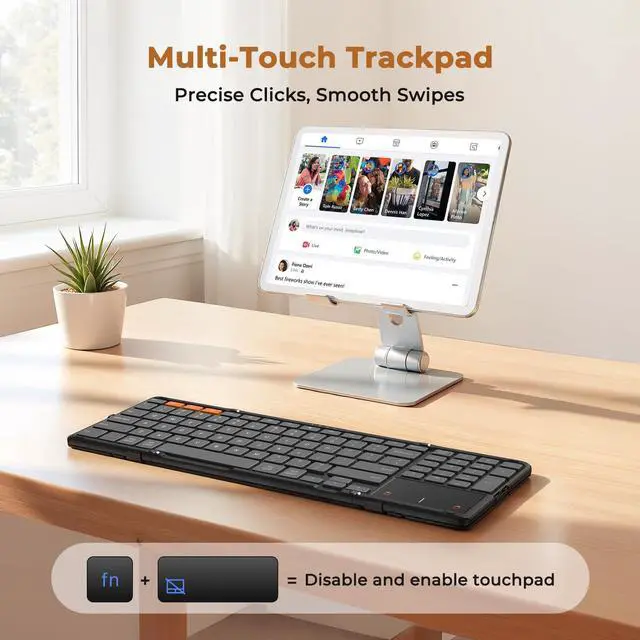
Supports multi-gesture controls, responding precisely to every command, making mobile working a breeze and boosting productivity.

Physical Switch
The touchpad consumes relatively more power. You can disable it by pressing FN + Spacebar, or turn off the keyboard when not in use to save battery.


What do the metal wire clasps on both sides of the keyboard do?
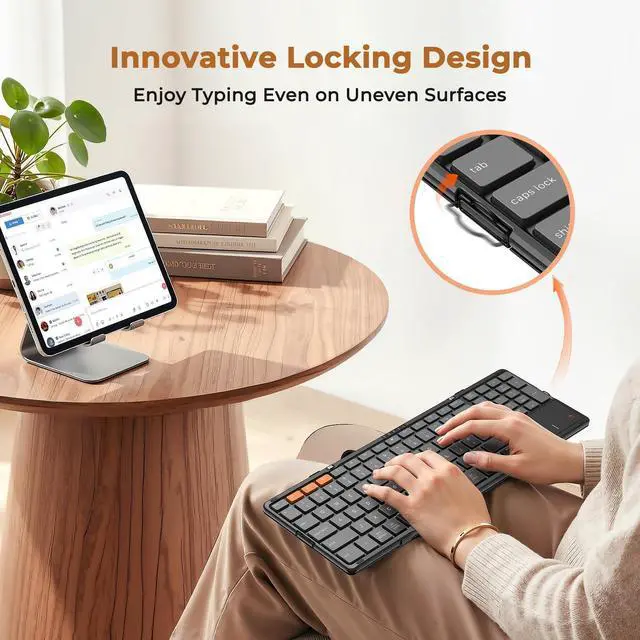
Fastening these two clasps keeps the keyboard open and prevents folding. It delivers better flatness and stable support than ordinary clasp locks, allows comfortable use on uneven surfaces (sofas/knees) and expands usage scenarios.
How many connection methods does the keyboard support?
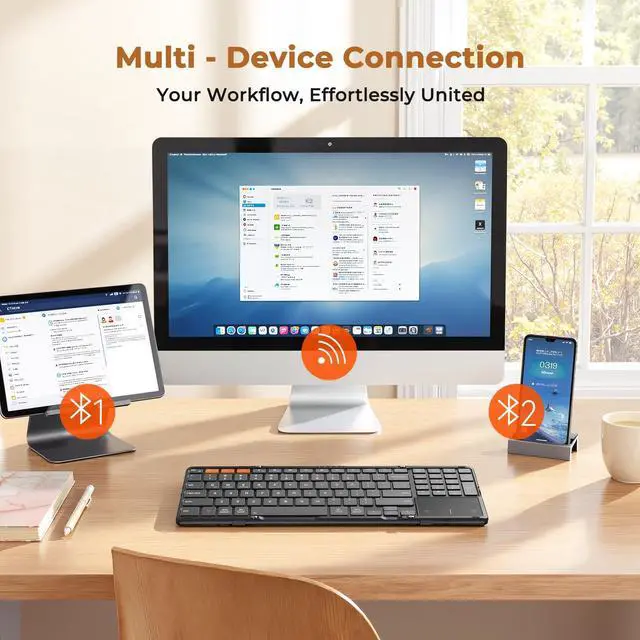
Keyboard supports Bluetooth only. Charging cable only supports charging; no wired connection. It features 3 Bluetooth, connecting 3 devices with one-click switch. You don't need to disconnect existing devices when connecting new ones.
What should I do if the keyboard is connected but the trackpad isn't working?
1. Press FN+Space to enable the keyboard touchpad;
2. For iPhone/iPad, go to Settings > Accessibility > Touch > AssistiveTouch to check if it’s on;
3. For Windows tablets, go to Settings > Bluetooth & devices > Touchpad to confirm it’s enabled.
Why isn't anything happening when I press the Bluetooth 2 button, and why isn't the Bluetooth 2 indicator light on?
Please first press FN+ESC to disable the FN lock. If FN lock is enabled, Bluetooth 1–3 will function as F1–F3 keys. After disabling FN lock, Bluetooth functionality will restore, allowing normal device switching and Bluetooth re-pairing.
My keyboard suddenly stopped working. What should I do?
1. Charge the keyboard.
2. Remove MEETION from device's Bluetooth settings.
3. Tap Bluetooth 1, long-press 5s until light flashes fast. Reconnect in Bluetooth settings.
4. If none of the above works, get in touch with us via your order.
MEETION. Your Portable Partner. Find Your Perfect Match.
 K9552 |  K9553 |  K9880 Pink |  K9880 | |
|---|---|---|---|---|
Customer Reviews | — | — | — | — |
Price | — | — | — | — |
Connectivity | BT*3 | BT*3 | BT*3 | BT*3 |
Keyboard Folded Size | 7.87*4.72*0.79in | 5.98*3.86*0.78in | 7.05*4.7*0.67in | 7.05*4.7*0.67in |
Keyboard Open Size | 14.25*4.72*0.39in | 11.42*3.86*0.39in | 13.98*4.7*0.3in | 13.98*4.7*0.3in |
Keyboard Layout | Full Size+6 Row+Trackpad | Compact+Trackpad | Compact+6 Row Layout | Compact+6 Row Layout |
Number of Keys | 96 | 64 | 80 | 80 |


MEETION is a play on the concept of "meeting". All the products we develop revolve around this theme.
In terms of investment in the scientific research of new products, we never hold back. We have dedicated quality control for every single product, every detail in the production process is precise and controlled. Our product and intellectual property rights are top priorities.

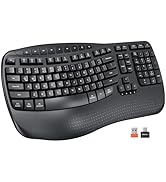
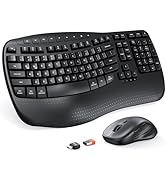
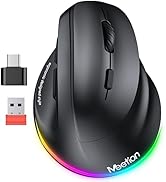
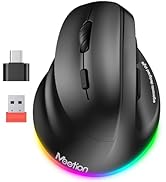
Ergonomic Hot Series
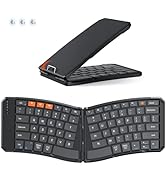
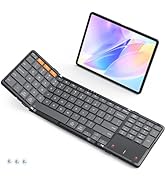
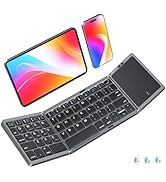
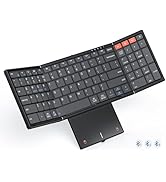
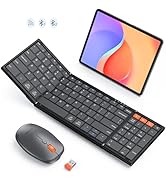
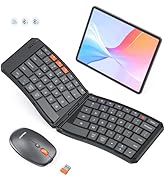
Foldbale Hot Series
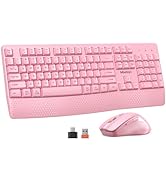
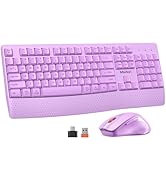
Wireless Hot Series
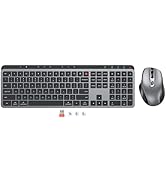
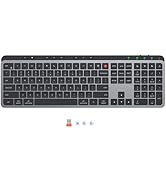
New Products Hot Series
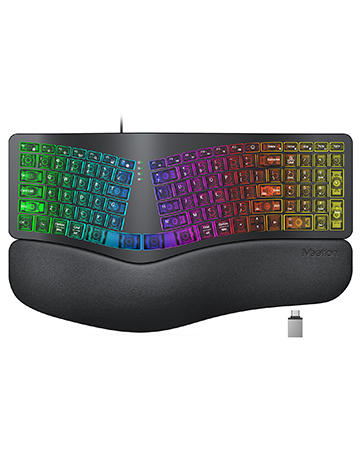
Backlit Ergonomic Keyboard
K9552 MEETION New Foldable Keyboard with Touchpad and Numeric Keypad


Abundant indicator Lights
Each Bluetooth channel features a dedicated indicator light, making connection status instantly clear.
Wide Compatibility
It’s compatible with iOS/Android/Windows/Mac OS (switch via FN+Q/W/E/R). One keyboard fits most devices.
Precision Tracking Touchpad
Supports multi-gesture controls, responding precisely to every command, making mobile working a breeze and boosting productivity.
Physical Switch
The touchpad consumes relatively more power. You can disable it by pressing FN + Spacebar, or turn off the keyboard when not in use to save battery.


What do the metal wire clasps on both sides of the keyboard do?
Fastening these two clasps keeps the keyboard open and prevents folding. It delivers better flatness and stable support than ordinary clasp locks, allows comfortable use on uneven surfaces (sofas/knees) and expands usage scenarios.
How many connection methods does the keyboard support?
Keyboard supports Bluetooth only. Charging cable only supports charging; no wired connection. It features 3 Bluetooth, connecting 3 devices with one-click switch. You don't need to disconnect existing devices when connecting new ones.
What should I do if the keyboard is connected but the trackpad isn't working?
1. Press FN+Space to enable the keyboard touchpad;
2. For iPhone/iPad, go to Settings > Accessibility > Touch > AssistiveTouch to check if it’s on;
3. For Windows tablets, go to Settings > Bluetooth & devices > Touchpad to confirm it’s enabled.
Why isn't anything happening when I press the Bluetooth 2 button, and why isn't the Bluetooth 2 indicator light on?
Please first press FN+ESC to disable the FN lock. If FN lock is enabled, Bluetooth 1–3 will function as F1–F3 keys. After disabling FN lock, Bluetooth functionality will restore, allowing normal device switching and Bluetooth re-pairing.
My keyboard suddenly stopped working. What should I do?
1. Charge the keyboard.
2. Remove MEETION from device's Bluetooth settings.
3. Tap Bluetooth 1, long-press 5s until light flashes fast. Reconnect in Bluetooth settings.
4. If none of the above works, get in touch with us via your order.
MEETION. Your Portable Partner. Find Your Perfect Match.
K9552 | K9553 | K9880 Pink | K9880 |
|---|---|---|---|
| Customer Reviews | |||
| — | — | — | — |
| Price | |||
| — | — | — | — |
| Connectivity | |||
| BT*3 | BT*3 | BT*3 | BT*3 |
| Keyboard Folded Size | |||
| 7.87*4.72*0.79in | 5.98*3.86*0.78in | 7.05*4.7*0.67in | 7.05*4.7*0.67in |
| Keyboard Open Size | |||
| 14.25*4.72*0.39in | 11.42*3.86*0.39in | 13.98*4.7*0.3in | 13.98*4.7*0.3in |
| Keyboard Layout | |||
| Full Size+6 Row+Trackpad | Compact+Trackpad | Compact+6 Row Layout | Compact+6 Row Layout |
| Number of Keys | |||
| 96 | 64 | 80 | 80 |
MEETION is a play on the concept of "meeting". All the products we develop revolve around this theme.
In terms of investment in the scientific research of new products, we never hold back. We have dedicated quality control for every single product, every detail in the production process is precise and controlled. Our product and intellectual property rights are top priorities.
Ergonomic Hot Series
Foldbale Hot Series
Wireless Hot Series
New Products Hot Series
Backlit Ergonomic Keyboard