
Your Browsing History





Any questions? Our AI beta will help you find out quickly.
Keyboard connection method:
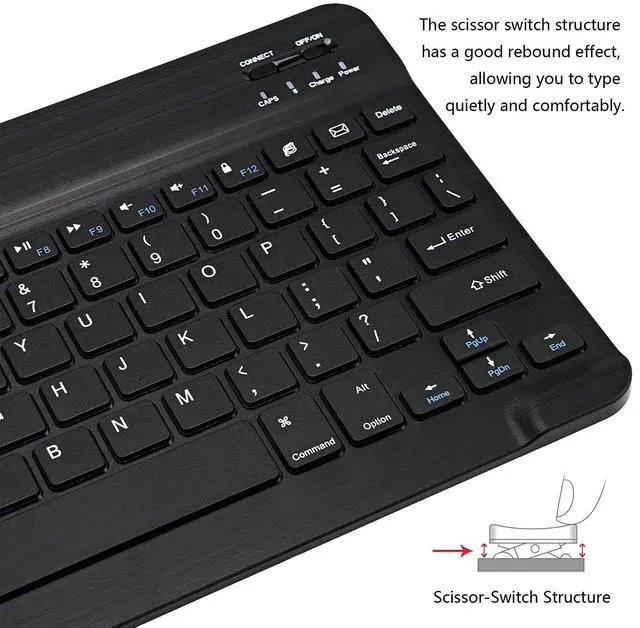
1: Turn on the ON/OFF switch.
2: Press CONNECT, the indicator of the Bluetooth logo will flash.
3: Turn on the Bluetooth switch of the tablet/smartphone, search for Bluetooth Keyboard.
4: Click the Bluetooth Keyboard on the tablet/smartphone to connect.
2. Dual-Mode mouse: Bluetooth + 2.4GHz connection
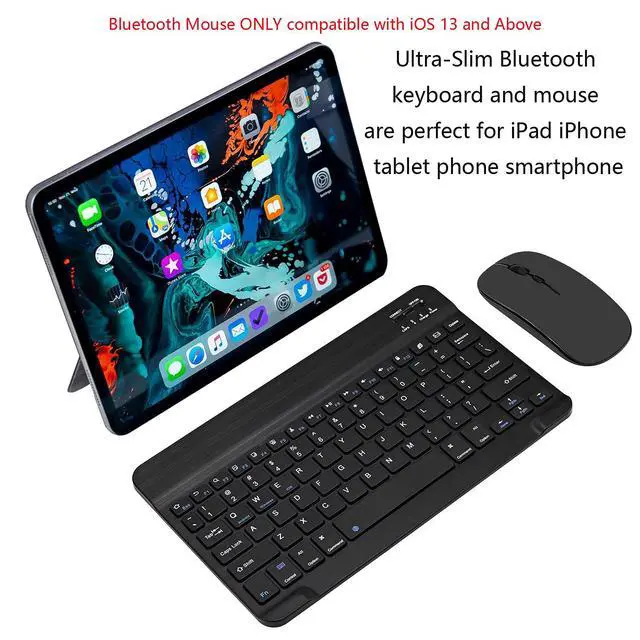
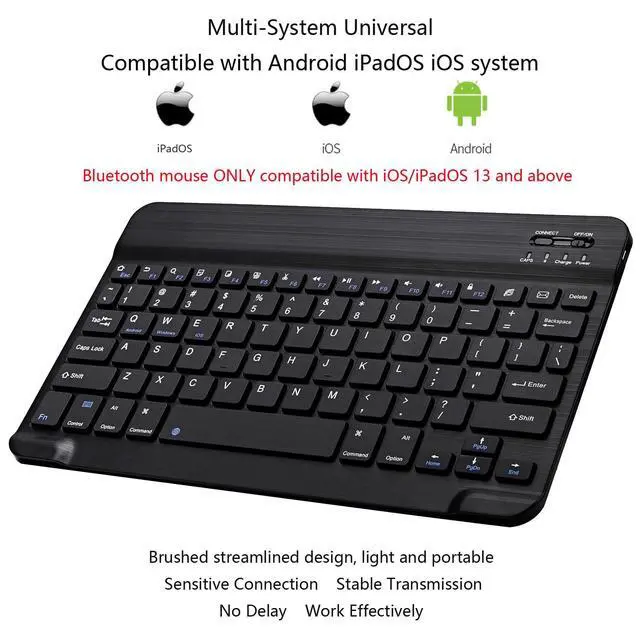
Note: You need to update the system of your iPad and iPhone to iOS 13 and above. And then turn on Assistive Touch : Open Setting> Accessibility> Touch> Assistive Touch.
1. Bluetooth mouse connection method:
1: Turn on the ON/OFF switch to switch to Bluetooth.
2: Turn on the Bluetooth switch of the tablet/smartphone, and search for the Bluetooth mouse.
3: Click the BT5.2 Mouse on the tablet/smartphone to connect.
2. 2.4G mouse connection method:
1: Turn on the ON/OFF switch to switch to 2.4G.
2: Just plug the USB receiver into the USB port of the computer and you can start using it.
Note: The keyboard/ mouse cannot be connected to two devices at the same time. Therefore, if you want to replace another device, you must first disconnect the pairing connection of the original device.
Product Specifications:
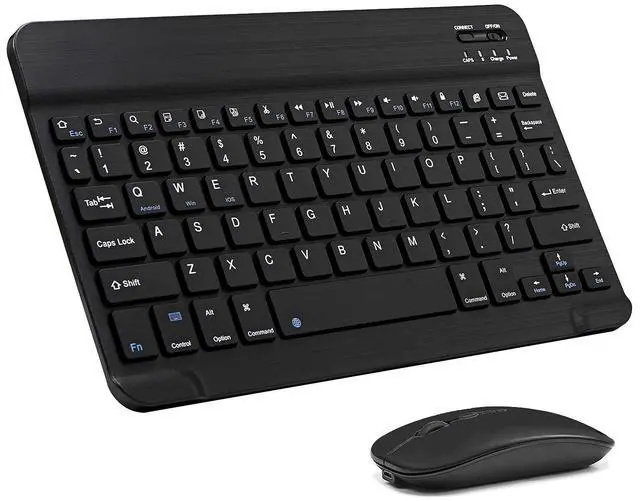
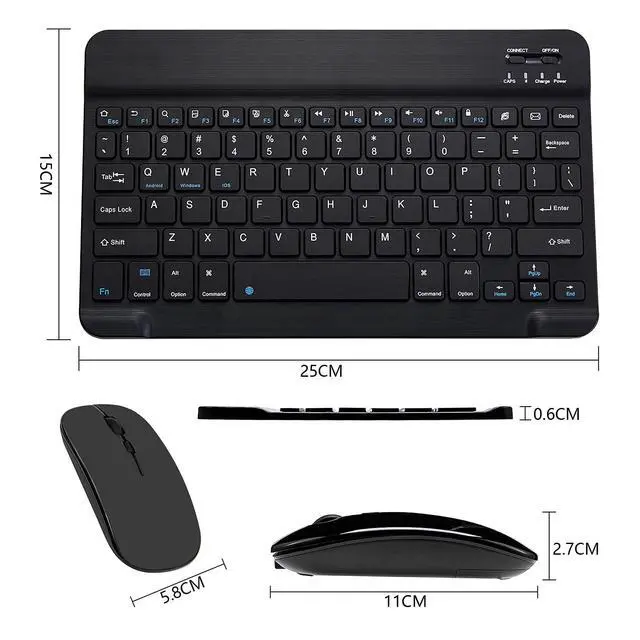
Keyboard Layout: US QWERTY
Connection Method: Bluetooth
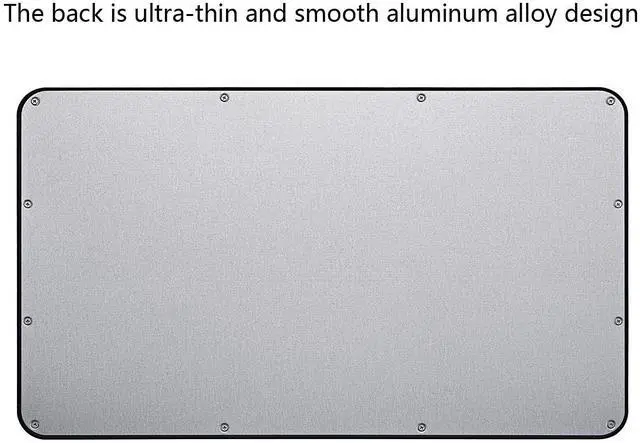
Material: ABS +Aluminum alloy
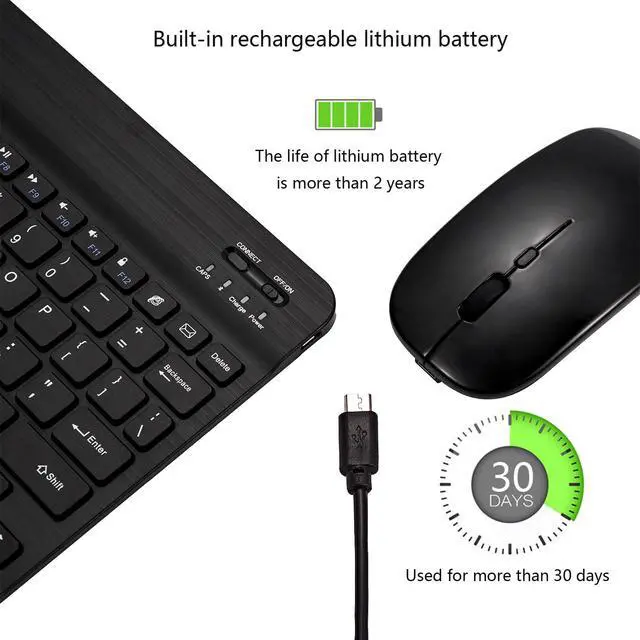
Charging Interface: Type-C
Hot Keys: Press Fn + F function keys
Package including:
1 * Bluetooth Keyboard
1 * Bluetooth Mouse
1 * Type-C Charging Cable
If you have any questions, please contact us. We provide one year warranty service, so you do not have any risk. If you are not satisfied with our products, we can replace you with a brand new product or a full refund to you.