



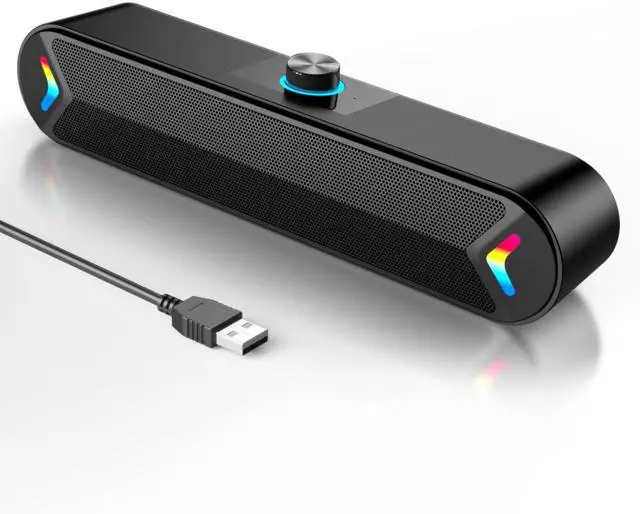


LENRUE A39PRO Computer Speakers with one usb cable for Desktop, Laptop, PC
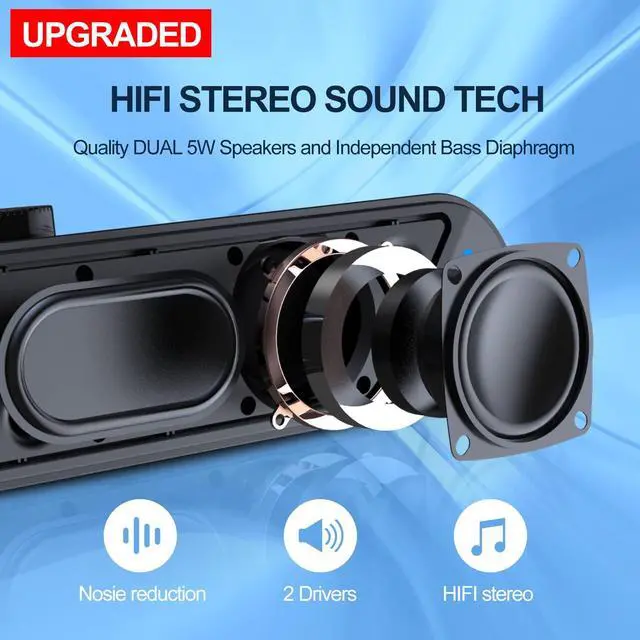
The 2*5W speakers can enhance your listening experience when you enjoying indoor movies, videos, music and games

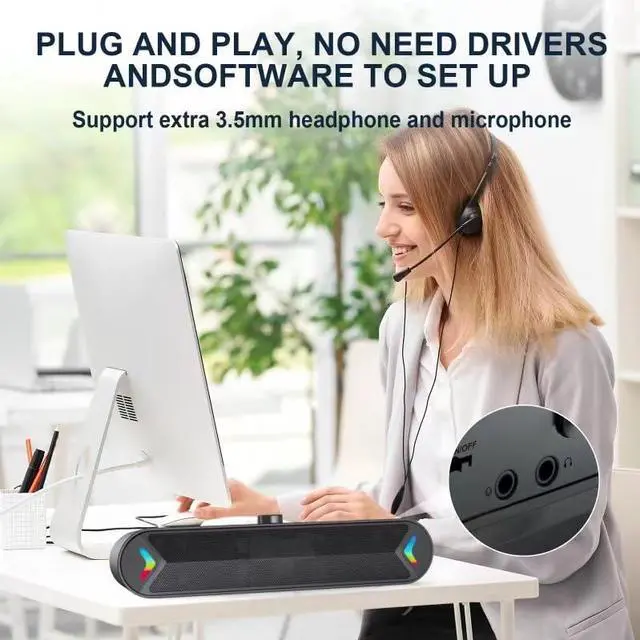
Support Extra 3.5mm Computer Headphone and Microphone
There are microphone port and headphone port on the back of the speaker , more convenient to connect your computer headphone or microphone for video calls and movies.
Note: There is no built-in microphone of the computer speaker.

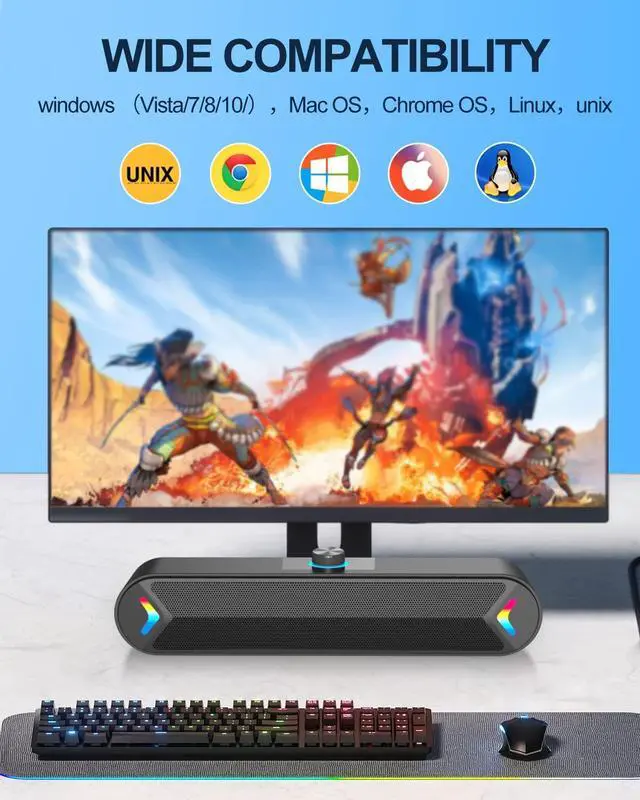
Wide Compatibility
This Laptop Speaker can work great for various brands of PCs, such as Apple Mac mini, Lenovo, ThinkPad, HP, Samsung, ASUS, Dell, Acer, LG, Google Chromebook, Microsoft Surface or more.
NOTE:This speaker can only be used for PCs, pleaseDO NOT plug it into TV, TV-Box, Projector, Xbox or Play Station for use.

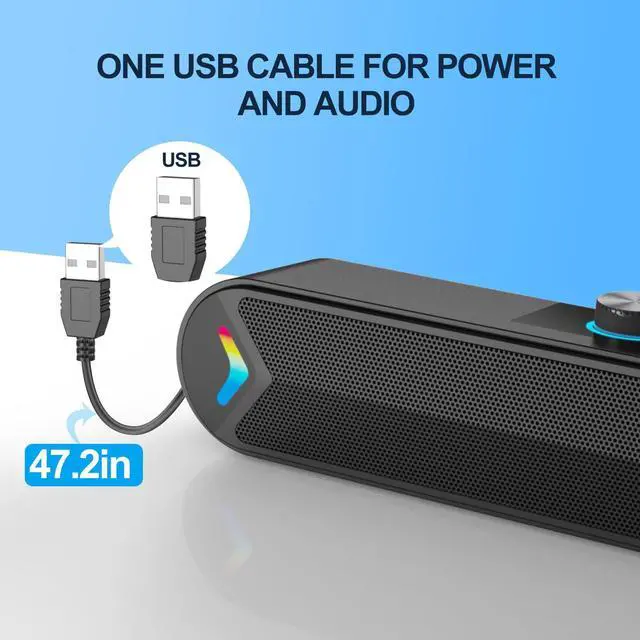
One USB Cable for Power & audio
Easy to Use, just plug-n-play.If the speaker still “Doesn't Work” after plugged in?
Make sure that the USB port of your computer can work properly.
Make sure that you had selected "LENRUE A39PRO" as your computer sound output device.
Frequently Asked Questions (FAQ)
Q: Can I use a 3.5mm aux cable with these speakers?
A: No. This product requires USB-only connectivity for both power and audio transmission.
Q:How to turn on or turn off speaker and light?
A:There is a button on the back of the speaker to control the statue.you can put the button on the relevant position for your need( OFF/ON/light).
Q:How to adjust the volume easily?
1.Set the volume up to about 85% on the computer , you can find the speaker icon on the lower right corner of the taskbar .
2.Adjust the volume up to 100% of your multimedia player.
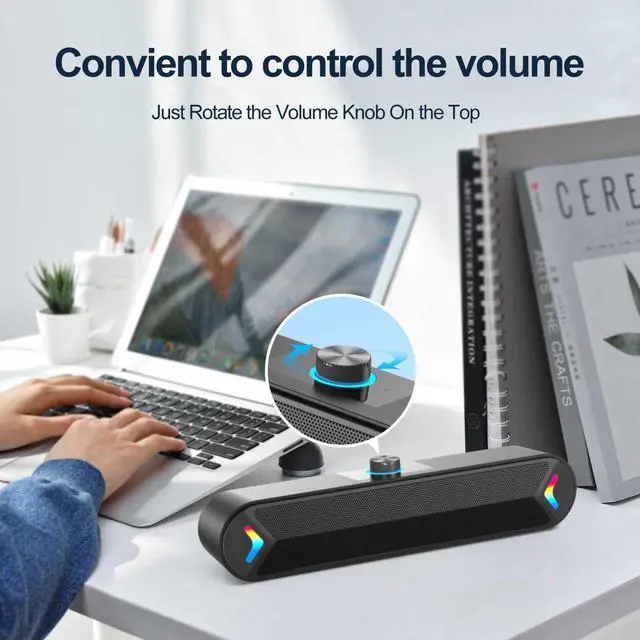
3.Rotate the knob on the top of the speaker to adjust the volume when you need.
Troubleshooting Guide
If your speakers aren’t working properly, try these steps:
Verify System Compatibility
a)Minimum Requirements:
Windows 10/11, macOS 12+, ChromeOS 100+
USB 2.0+ port (Type-A or Type-C)
Check: Go to your section to confirm OS version.
b)Test USB Connections
Try all USB ports (front/back on PCs, both sides on laptops).
For USB-C: Ensure the port supports data transfer (not just charging).
c)Driver/Audio Settings
Windows: Update via Device Manager > Sound Controllers.
macOS: Check System Preferences > Sound > Output.
Disable conflicting audio devices (e.g., Bluetooth headsets).
d)Power Cycle
Unplug the USB, wait 10 seconds, then reconnect.
Restart your computer to reset audio drivers.
e)Interference Check
Move away from high-power devices (routers, microwaves).
Avoid USB hubs – connect directly to the computer.
LENRUE A39PRO Computer Speakers with one usb cable for Desktop, Laptop, PC
The 2*5W speakers can enhance your listening experience when you enjoying indoor movies, videos, music and games
Support Extra 3.5mm Computer Headphone and Microphone
There are microphone port and headphone port on the back of the speaker , more convenient to connect your computer headphone or microphone for video calls and movies.
Note: There is no built-in microphone of the computer speaker.
Wide Compatibility
This Laptop Speaker can work great for various brands of PCs, such as Apple Mac mini, Lenovo, ThinkPad, HP, Samsung, ASUS, Dell, Acer, LG, Google Chromebook, Microsoft Surface or more.
NOTE:This speaker can only be used for PCs, pleaseDO NOT plug it into TV, TV-Box, Projector, Xbox or Play Station for use.
One USB Cable for Power & audio
Easy to Use, just plug-n-play.If the speaker still “Doesn't Work” after plugged in?
Make sure that the USB port of your computer can work properly.
Make sure that you had selected "LENRUE A39PRO" as your computer sound output device.
Frequently Asked Questions (FAQ)
Q: Can I use a 3.5mm aux cable with these speakers?
A: No. This product requires USB-only connectivity for both power and audio transmission.
Q:How to turn on or turn off speaker and light?
A:There is a button on the back of the speaker to control the statue.you can put the button on the relevant position for your need( OFF/ON/light).
Q:How to adjust the volume easily?
1.Set the volume up to about 85% on the computer , you can find the speaker icon on the lower right corner of the taskbar .
2.Adjust the volume up to 100% of your multimedia player.
3.Rotate the knob on the top of the speaker to adjust the volume when you need.
Troubleshooting Guide
If your speakers aren’t working properly, try these steps:
Verify System Compatibility
a)Minimum Requirements:
Windows 10/11, macOS 12+, ChromeOS 100+
USB 2.0+ port (Type-A or Type-C)
Check: Go to your section to confirm OS version.
b)Test USB Connections
Try all USB ports (front/back on PCs, both sides on laptops).
For USB-C: Ensure the port supports data transfer (not just charging).
c)Driver/Audio Settings
Windows: Update via Device Manager > Sound Controllers.
macOS: Check System Preferences > Sound > Output.
Disable conflicting audio devices (e.g., Bluetooth headsets).
d)Power Cycle
Unplug the USB, wait 10 seconds, then reconnect.
Restart your computer to reset audio drivers.
e)Interference Check
Move away from high-power devices (routers, microwaves).
Avoid USB hubs – connect directly to the computer.