




Troubleshooting: No Sound or Low Volume in PC Mode
1. Check Windows Sound Settings:
- Click the speaker icon in your taskbar.
- Make sure the volume is up and the correct speaker "MF01" is selected as the playback device.
2. Check Physical Connections:
- Ensure the USB cable is firmly plugged directly into a computer USB port (not a hub).
3. Test the Speaker:
- Turn the speaker knob clockwise to ensure its volume is turned up.
4. Try a Different Port/Device:
- Plug the USB cable into a different USB port on your computer.
- If possible, test the speaker on another computer to see if the problem persists.
5.Check Application Volume:
- Ensure the volume is turned up in your specific application (e.g., media player, browser, game).
Troubleshooting: No Sound in Bluetooth Mode
1. Power & Mode Check:
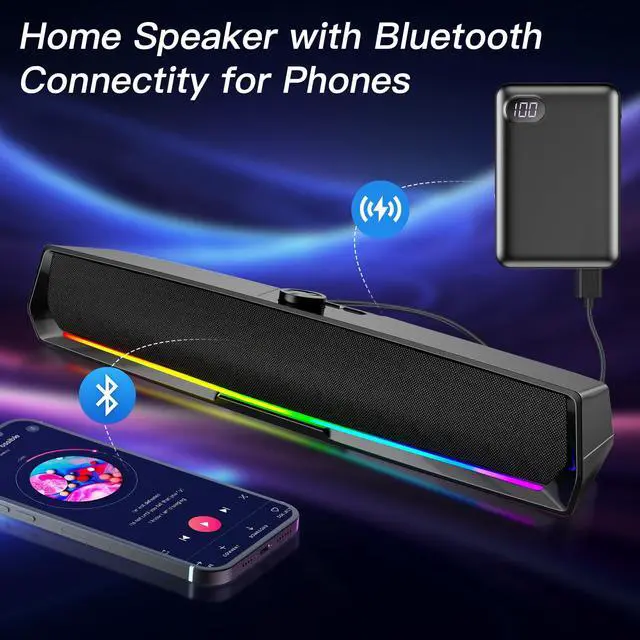
- Make sure the USB cable is plugged into a wall charger or power bank. It will not enter Bluetooth Mode if plugged into your computer.
- Wait for the "Bluetooth Mode" voice prompt. If not heard, press the "M" button to switch to it.
2. Connection & Pairing:
- Check that the speaker "MF01" is connected to your device. Go to your phone/tablet's Bluetooth settings and confirm the speaker MF01 is listed as "Connected".
- If not, select the speaker's name "MF01" from the list to pair.
3. Volume & Audio Output:
- Rotate the speaker knob to increase its volume.
- Also, turn up the volume on your phone or tablet.
- Ensure the audio is playing through the speaker. Check your device's sound settings to confirm.
4. Reconnect & Retry:
- Turn your phone's Bluetooth off and on again.
- In Bluetooth settings, "Forget" the speaker and pair again from the beginning.
- Restart the speaker by unplugging and replugging the USB cable.
2 Modes Computer Speakers
Q & A:
Q1:Why I can hear "Tinging" sound when Rotate the Knob to adjust the volume?
A1:It's the ”Max Sound “Prompt of the computer speaker.If the sound is still low, please adjust the "computer sound"
and the "App sound " to the max volume .
Q2:How to change the mode to bluetooth?
A2:
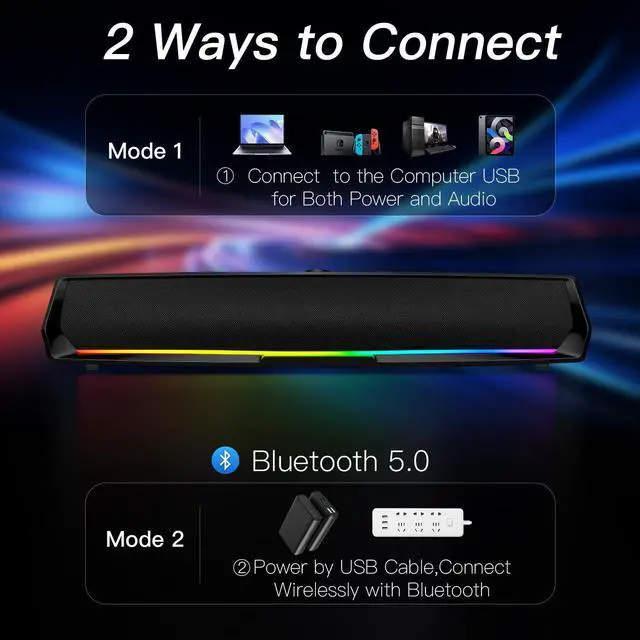
1.Plug the USB Plug to the computer USB port,Such as desktop,laptop,tablet etc,the computer speaker defaults to"PC Mode"with voice prompt, you should press the"M"button to switch to"Bluetooth Mode".
2.Plug the USB Plug to USB Power Port,Such as a usb power bank,a power strip with USB port,the speaker defaults to"Bluetooth Mode" with voice prompt.
Q3:Does the PC speaker have built-in Microphone?
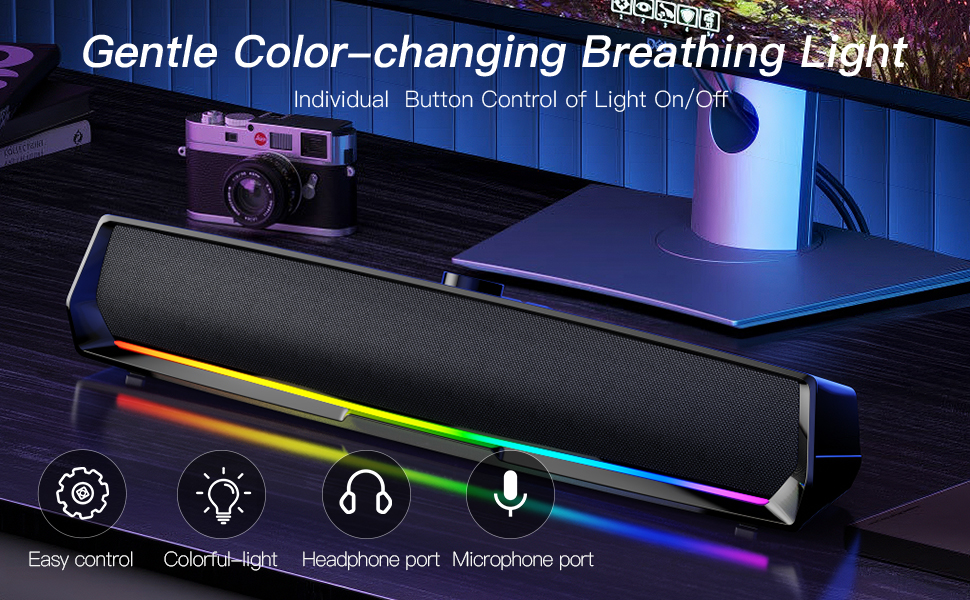
A3:No, it does not. It Just has a microphone port and headphone port to support to plug your microphone (TRS 3 section plug) and your headphone(TRS 3 section Plug).
Troubleshooting: No Sound or Low Volume in PC Mode
1. Check Windows Sound Settings:
- Click the speaker icon in your taskbar.
- Make sure the volume is up and the correct speaker "MF01" is selected as the playback device.
2. Check Physical Connections:
- Ensure the USB cable is firmly plugged directly into a computer USB port (not a hub).
3. Test the Speaker:
- Turn the speaker knob clockwise to ensure its volume is turned up.
4. Try a Different Port/Device:
- Plug the USB cable into a different USB port on your computer.
- If possible, test the speaker on another computer to see if the problem persists.
5.Check Application Volume:
- Ensure the volume is turned up in your specific application (e.g., media player, browser, game).
Troubleshooting: No Sound in Bluetooth Mode
1. Power & Mode Check:
- Make sure the USB cable is plugged into a wall charger or power bank. It will not enter Bluetooth Mode if plugged into your computer.
- Wait for the "Bluetooth Mode" voice prompt. If not heard, press the "M" button to switch to it.
2. Connection & Pairing:
- Check that the speaker "MF01" is connected to your device. Go to your phone/tablet's Bluetooth settings and confirm the speaker MF01 is listed as "Connected".
- If not, select the speaker's name "MF01" from the list to pair.
3. Volume & Audio Output:
- Rotate the speaker knob to increase its volume.
- Also, turn up the volume on your phone or tablet.
- Ensure the audio is playing through the speaker. Check your device's sound settings to confirm.
4. Reconnect & Retry:
- Turn your phone's Bluetooth off and on again.
- In Bluetooth settings, "Forget" the speaker and pair again from the beginning.
- Restart the speaker by unplugging and replugging the USB cable.
2 Modes Computer Speakers
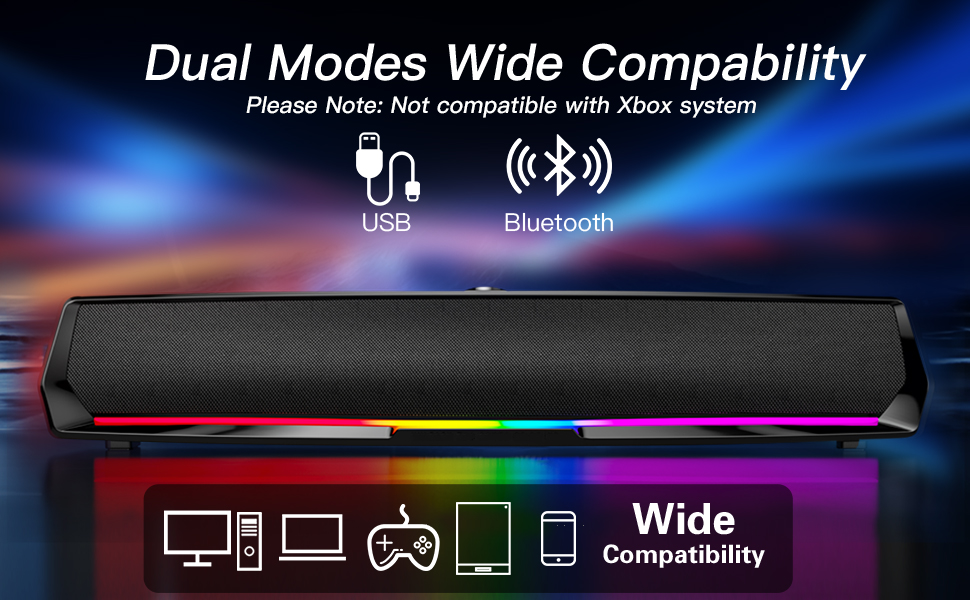
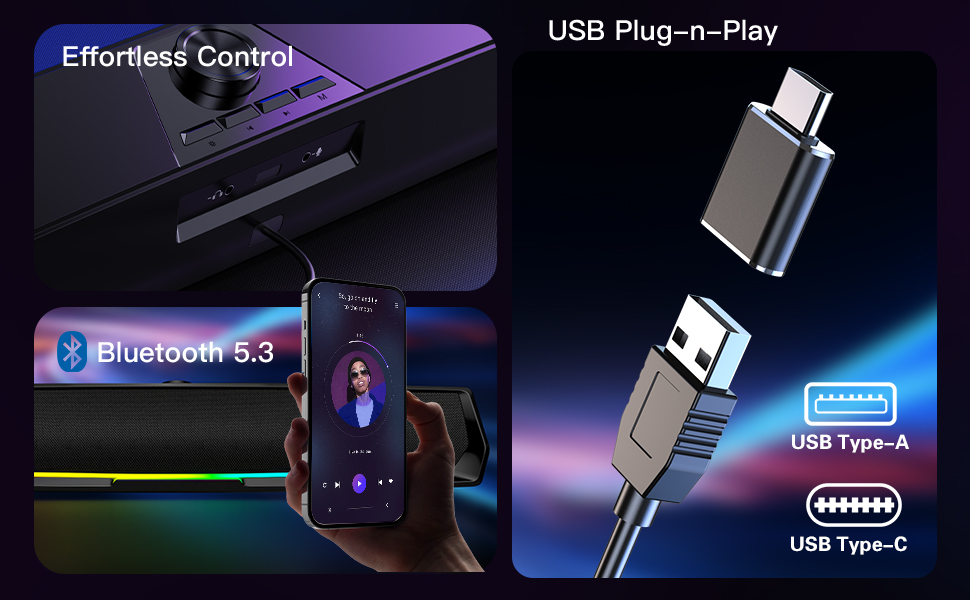
| PC Mode | USB Plug for Both Power and Audio |
| Bluetooth Mode | USB Plug for Power, Bluetooth for Audio |
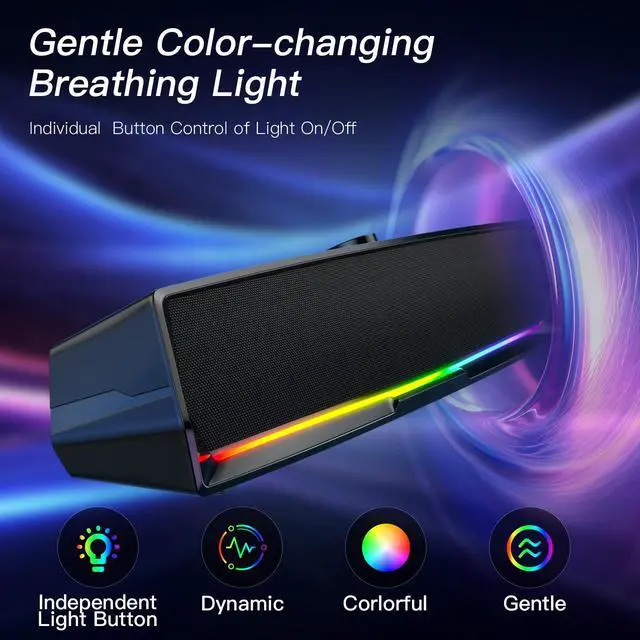
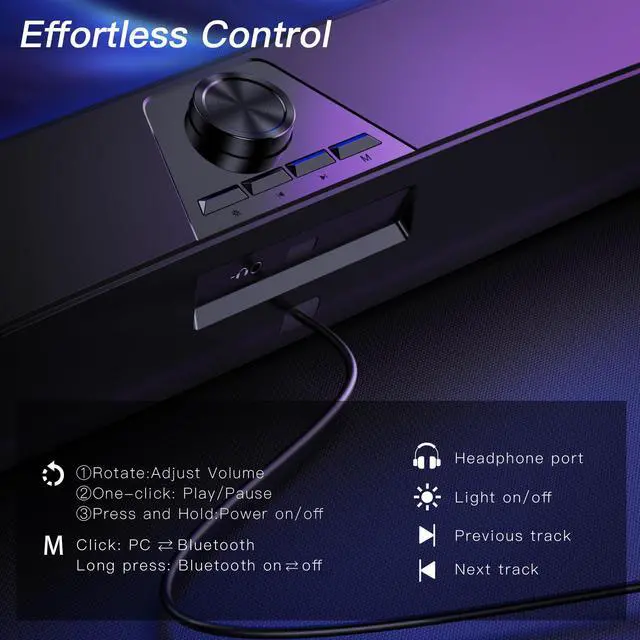
| Light button | Click to turn on/off the light |
| "M" Button | Click to switch PC/bluetooth Mode, Long press for bluetooth on/off |
| Volume Knob | Long press power on/off ;Click for Pause;Rotate for Volume up/down; |
| Headphone port | Support headphone with 3.5mm TRS Plug |
| Microphone port | Support microphone with 3.5mm TRS Plug |
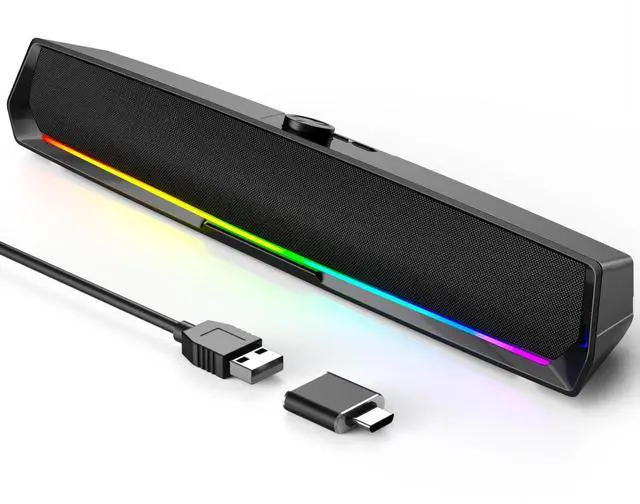
| Cable Length | Single USB Cable 47.2ins |
| Product Dimension | 2.6"D x 16.7"W x 3.0"H |
| Packaging Includes | 1 × Type C Adapter; 1 × Computer Speakers; 1 × Manual |
Q & A:
Q1:Why I can hear "Tinging" sound when Rotate the Knob to adjust the volume?
A1:It's the ”Max Sound “Prompt of the computer speaker.If the sound is still low, please adjust the "computer sound"
and the "App sound " to the max volume .
Q2:How to change the mode to bluetooth?
A2:
1.Plug the USB Plug to the computer USB port,Such as desktop,laptop,tablet etc,the computer speaker defaults to"PC Mode"with voice prompt, you should press the"M"button to switch to"Bluetooth Mode".
2.Plug the USB Plug to USB Power Port,Such as a usb power bank,a power strip with USB port,the speaker defaults to"Bluetooth Mode" with voice prompt.
Q3:Does the PC speaker have built-in Microphone?
A3:No, it does not. It Just has a microphone port and headphone port to support to plug your microphone (TRS 3 section plug) and your headphone(TRS 3 section Plug).