• $18.99
  • Free 30-day Returns
  • Sold by SGfgg
    4 (1 seller ratings)

    Shipped by SGfgg

    Price alert
    Shop it at NeweggBusiness.

    Meet Your Seller

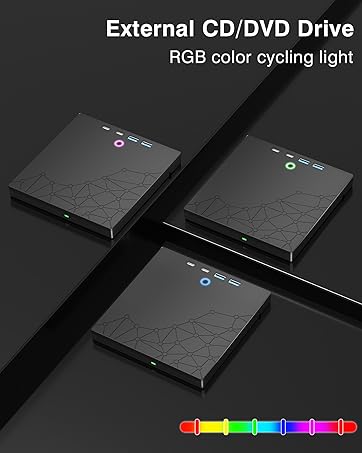
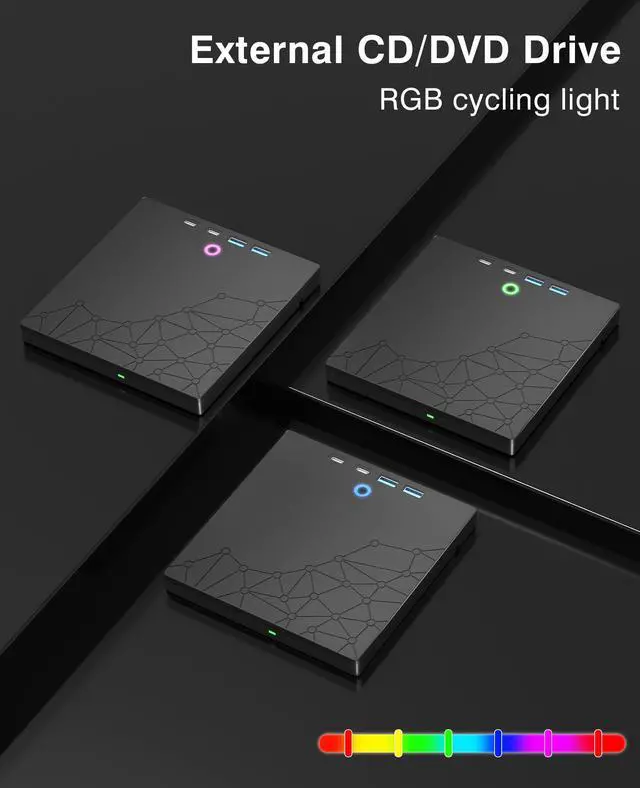
    External CD/DVD Drive for Laptop, DVD Burner CD Reader for Laptop, 8-in-1 USB 3.0 Portable CD Players with SD/TF Ports, External Disk Drive Optical for MacBook Windows 11 10 PC Linux OS

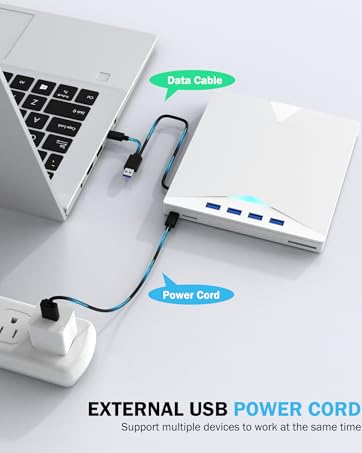
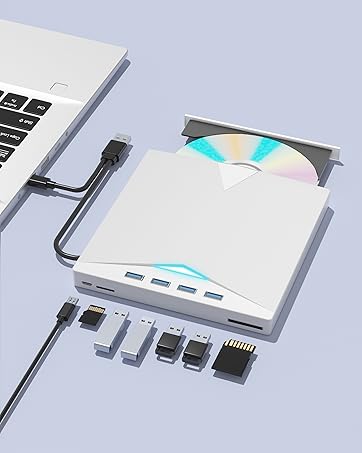
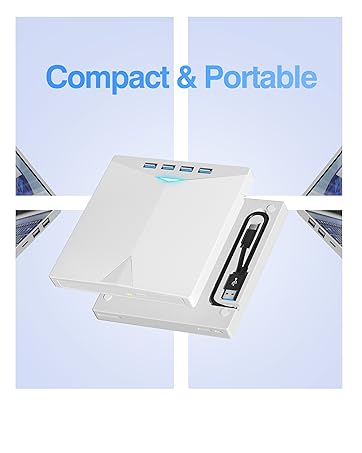
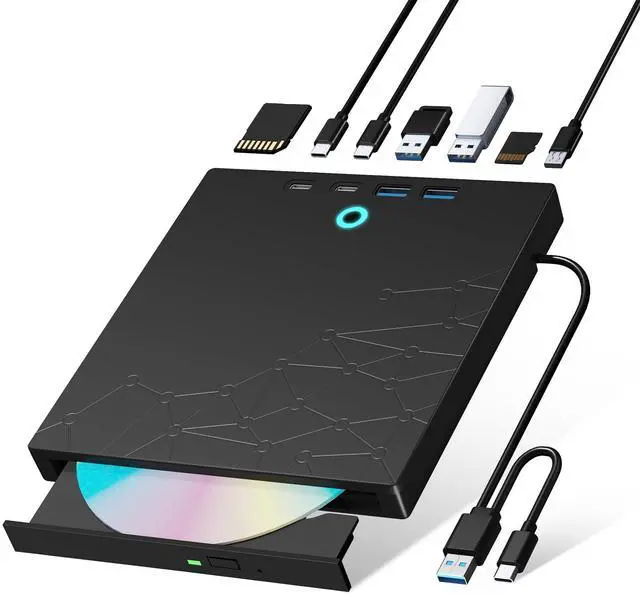
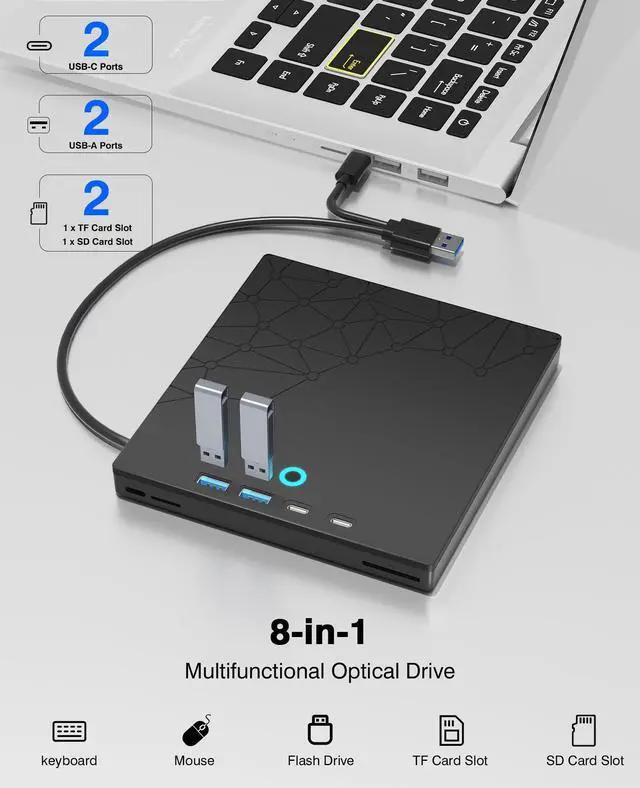
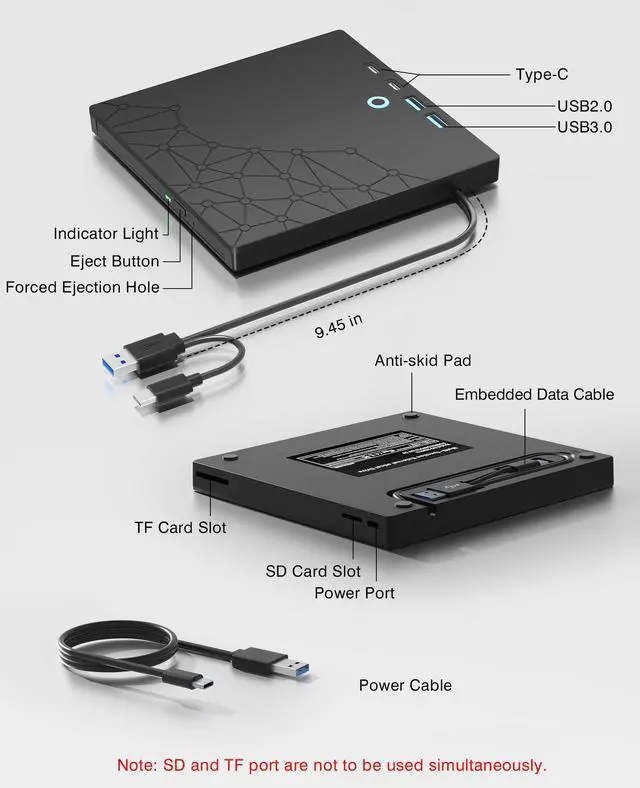
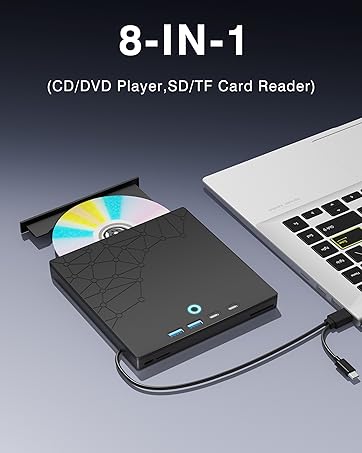
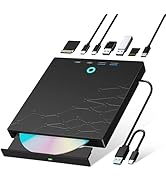
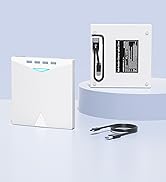
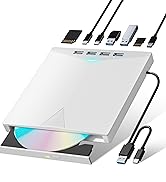
    • [8-in-1 Optical Drive]Our external CD/DVD drive is a versatile device that serves as a disc reader, cd burner, writer, rewriter, ripper, and multi-port hub (with 2 USB-A ports, 2 Type-C ports, and 2 TF/SD card slots). Use it with compatible media software to play DVDs or CDs, burn MP3s, videos, photos, and files to blank discs, import content from cameras, install software/games, and handle all other CD/DVD tasks. Please note: SD and TF cards cannot be used simultaneously.
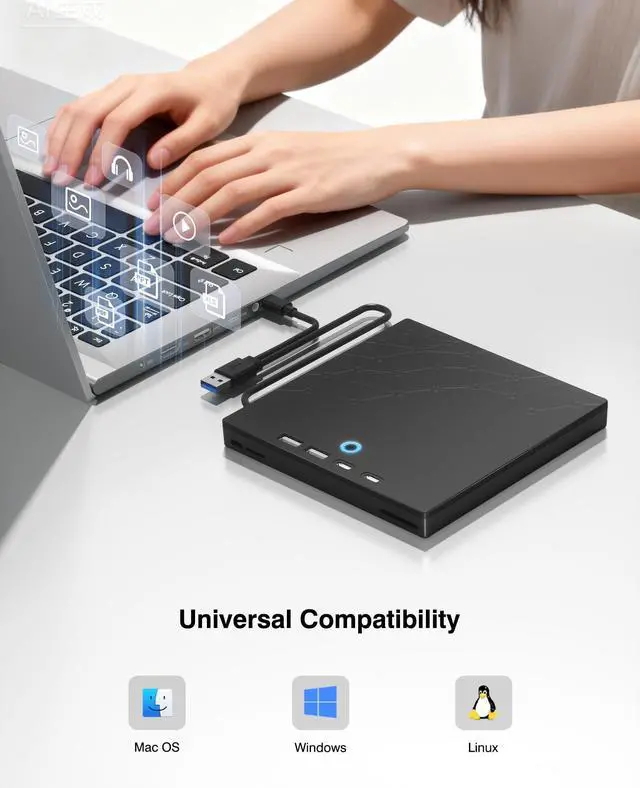
    • [Broad Compatibility]This external CD drive supports Windows 11/10/8.1/7/Vista/XP/98/SE/ME/2000, Linux, and all versions of Mac OS. It works with nearly all computers including MacBook Pro/Air, iMac, Mac Mini, laptops, desktops, PCs, and all-in-ones. Please note: This external DVD drive is NOT compatible with iPads/tablets/projectors/TVs/Chrome OS/car stereos/phones/ Blu-ray/4K discs.
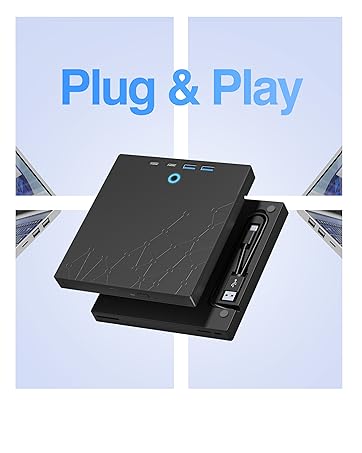
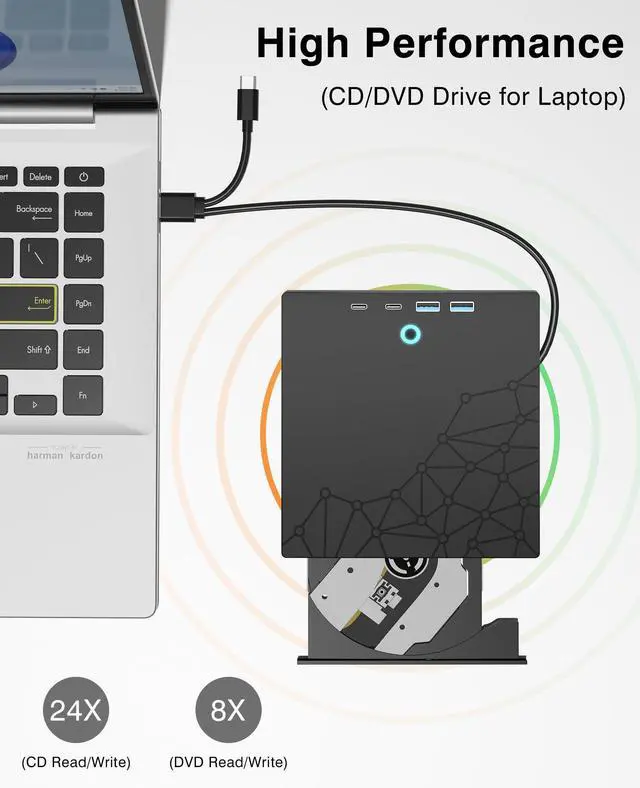
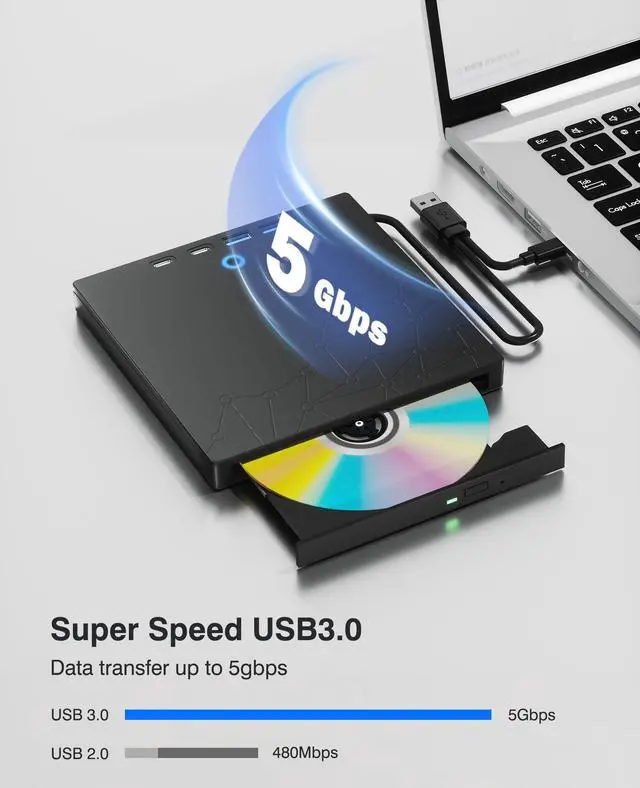
    • [Plug & Play]Super simple to set up just plug it into a USB port! This CD/DVD burner has a high-speed USB 3.0 data transfer port with speeds of up to 5 Gbps (625 MB/s). It offers maximum DVD writing/reading speeds of up to 8X and CD writing/reading speeds of up to 24X, which are faster than you would expect. This external DVD drive also features robust error correction, anti-skip and quiet operation.
    +
    +
    Overview
    Specs
    Reviews
    avatar

    Any questions? Our AI beta will help you find out quickly.

    external cd/dvd drive for laptop
    external cd drive

    How to use the external cd/dvd drive?

    Step1 : Plug the USB A or USB C connector into your computer's USB port instead of USB extension hub.

    Step2 : [For Windows OS] Your computer will recognize the drive and shows "CD/DVD-ROM" folder for optical drive.

    [For Mac OS] The Mac OS computer will not display the device icon until the disc is inserted into the optical drive and the disc is read successfully.

    Step3 : Set the DVDs region code (CDs do not have region code). The disc can only be played when there on code of the DVD drive matchesthe DVD. (Note: Only allows to change the region code 4-5 times)

    The steps of changing the region codes:

    1. Right-click My Computer and click Properties.

    2. Click Hardware. - Click Device Manager. - Expand DVD-ROM drives and select the optical drive. - Click Action and select Properties.

    3. Select the DVD Region tab.

    4. Choose the desired region.

    Step4 : The CD/DVD disk drive Not compatible with Blu ray,TV, car, tablet, phone, projector,PS5 and Chrome OS.

    external cd/dvd drive for laptop
    external cd drive

    How to use the external cd/dvd drive?

    Step1 : Plug the USB A or USB C connector into your computer's USB port instead of USB extension hub.

    Step2 : [For Windows OS] Your computer will recognize the drive and shows "CD/DVD-ROM" folder for optical drive.

    [For Mac OS] The Mac OS computer will not display the device icon until the disc is inserted into the optical drive and the disc is read successfully.

    Step3 : Set the DVDs region code (CDs do not have region code). The disc can only be played when there on code of the DVD drive matchesthe DVD. (Note: Only allows to change the region code 4-5 times)

    The steps of changing the region codes:

    1. Right-click My Computer and click Properties.

    2. Click Hardware. - Click Device Manager. - Expand DVD-ROM drives and select the optical drive. - Click Action and select Properties.

    3. Select the DVD Region tab.

    4. Choose the desired region.

    Step4 : The CD/DVD disk drive Not compatible with Blu ray,TV, car, tablet, phone, projector,PS5 and Chrome OS.

    1. Important Usage and Safety Instructions A. For Your Safety: -Laser Hazard: Never look directly at the laser inside the drive, as it can cause serious eye damage. Setup & Placement: -Stable Surface: Place the drive on a stable, flat surface to ensure proper operation. -Avoid Magnets: Keep the drive away from strong magnetic fields to prevent damage. 2.Troubleshooting Common Issues: A. Drive Not Recognized? - Connect the drive directly to a USB port on your computer (avoid using unpowered hubs). For desktop computers, use the USB ports on the back of the tower. B. Discs Not Playing or Reading? -Ensure the disc is inserted correctly and is clean and free of scratches. -Verify that your computer has a media player installed (e.g., VLC Media Player). -Check that the correct region code is set in your player software for the disc you are trying to play. 3. Performance Notes: A. Data Transfer Speed: The actual read/write speed can vary depending on your computer's hardware and system performance. B. Driver Software: The drive should automatically install basic drivers on modern systems. If it doesn't, try using it on another computer to see if the issue is with the drive or your computer's configuration. external cd/dvd drive for laptop cd burner for laptop external cd drive disk reader for laptop usb dvd drive external cd drive external usb cd burner external external disk drive dvd burner for laptop external cd drive for laptop usb cd drive cd burner for windows 11 dvd drive for laptop portable cd reader for laptop portable dvd burner for laptop portable dvd drive usb dvd burner dvd and cd drive external cd burner for laptop external cd drive windows 11 external dvd disk drive external dvd burner for laptops external dvd reader for pc external usb dvd drive for laptop windows laptop external dvd burner portable cd/dvd drive portable dvd disk player usb cd/dvd drive usb cd/dvd external drive cd burner external cd/dvd drive for laptop dvd player for laptop external cd drive external dvd drive cd reader for laptop external cd drive for laptop usb dvd drive external dvd burner external dvd drive for pc cd drive reproductor de cd external dvd player for laptop dvd drive usb cd drive cd burner for mac cd drive for laptop dvd burner external external disc drive compact portable cd players cd dvd external drive for laptop external dvd burner external dvd drive for laptop disc reader for laptop external dvd player cd burner for pc disco externo


    Product information

    Special Feature Error Correction, Lightweight, Plug & Play, Slip Resistant
    Hardware Interface USB 3.0 Type C
    Brand Xadioei
    Optical Storage Write Speed DVD:8X CD:24X
    Optical Storage Read Speed DVD:8X CD:24X
    Additional Features Error Correction, Lightweight, Plug & Play, Slip Resistant
    Hardware Platform Laptop, PC
    Compatible Devices Laptops, Desktops, All-in-Ones (Windows, Mac OS, Linux)
    Data Transfer Rate 5 Gigabits Per Second
    Specific Uses For Product computer use, laptop use
    Media Speed Max.24X(CD), Max.8X (DVD)
    Connectivity Technology USB
    Form Factor External, Portable

    Warranty & Returns

    Warranty, Returns, And Additional Information

    Warranty

    • Please contact the Seller directly for warranty information. Warranty information may also be found on the Manufacturer's website.
    • CONTACT

    Return Policies

    • Return for refund within: 30 days
    • Return for replacement within: 30 days
    • This item is covered by SGfgg Return Policy

    Manufacturer Contact Info

    LOADING...