





2.4G 1080P Wireless HD Screen Cast Adapter

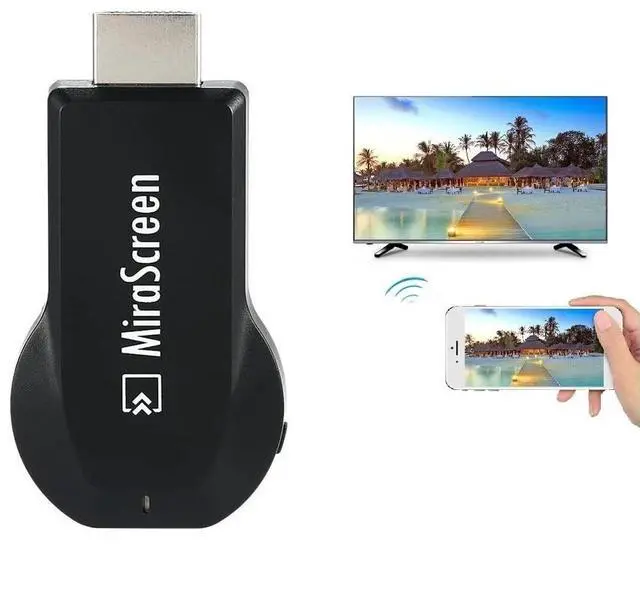
With SmartSee adapter, you can easily cast images, videos or games from a small screen to a big screen wirelessly.
What is an HD Wireless Display Adapter?
An HD Wireless Display Adapter is to cast what you see on your mobile device(smartphone/tablet) to another big screen(TV/monitor/projector).
Do I need this Wireless display adapter?
Yes, this wireless display adapter brings you convenience everywhere.
At home: you can mirror your phone/tablet to your TV, no need to stare at the phone alone, watch TV together and free your hands.
At hotel: Setting the TV or TV box is a little troublesome? Just mirror your mobile device to TV or projector by using this item.
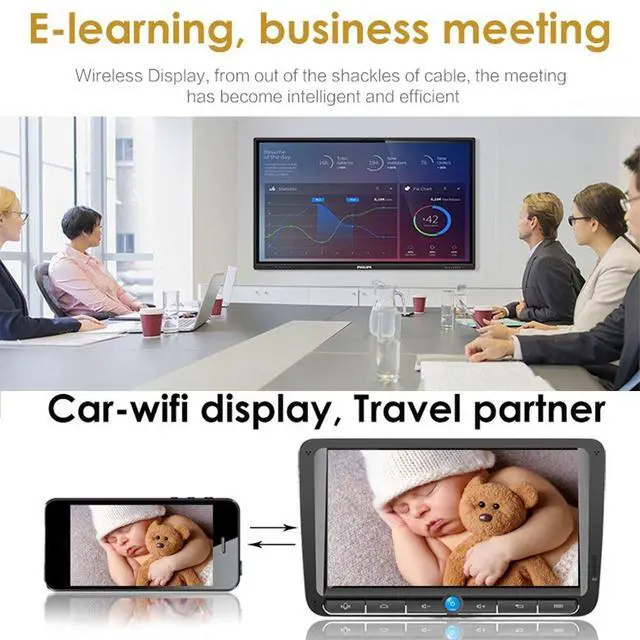
In a meeting room: No need other cables, just connect this item to mirror your tablet pc on your projector wirelessly.
In a classroom: Share your content of courses on big screen wirelessly.
Wide Usage:
Share Presentation in Meeting/Conference-Mirroring screen to projector, share PPT, mail, documents and other content wirelessly.
Presentation Lecture in Classroom-Mirroring screen to big screen, share teaching content wirelessly.
Enjoy Big Screen with Family-Mirroring screen to TV, share photos, videos, movies wirelessly. Carry it while travelling, share your phone to TV anytime.
Installation

Plug it
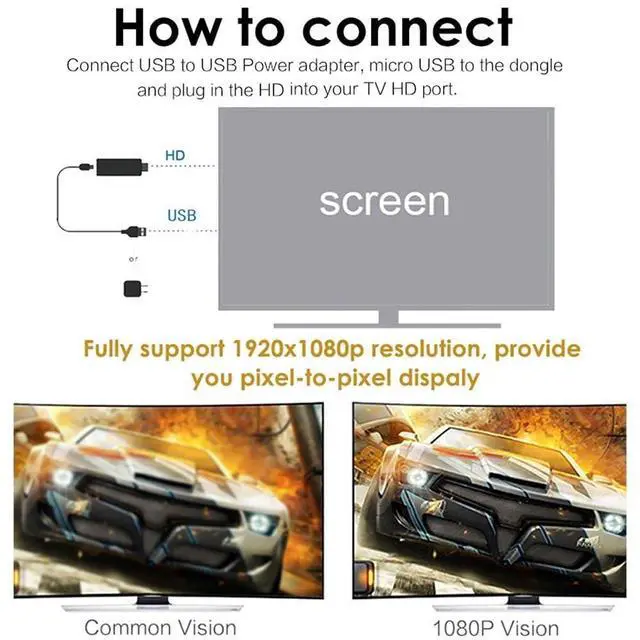
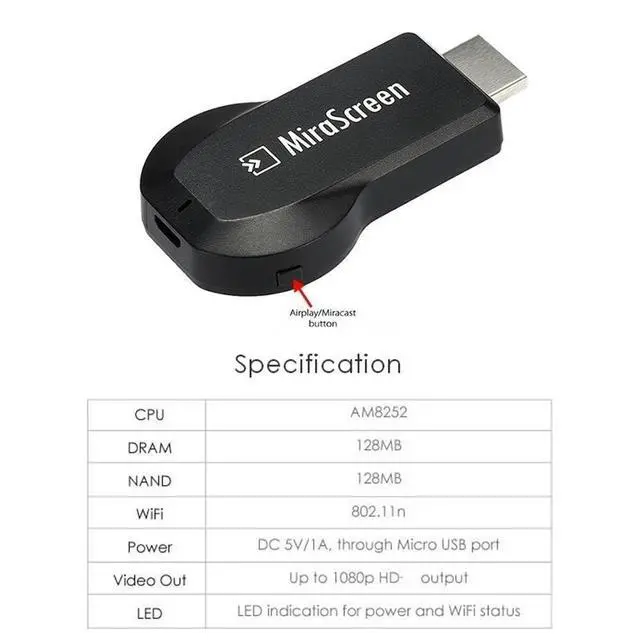
Plug the MiraScreen dongle into the HD port on your display.

Power it
Connect WiFi cable (micro USB head) to MiraScreen dongle. Plug USB cable into an external USB power adapter(power adapter is not inculded).

Show it
Once install properly, please switch your display into selected HD channel, then MiraScreen page shows up on your display.
Compatibility of the Wireless HD Display Dongle

Connection Tips
Setup on your iPhone/iPad/Mac:
- Connect MiraScreen WiFi with your iOS/macOS device.
- Turn on Screen mirroring/Airplay mirroring and select MiraScreen dongle to mirror screen.
- Your iOS/macOS device screen will mirror to the TV immediately.
Note: As your device is connected to MiraScreen WiFi, so your WiFi network disconnects from your device, it is normal function.
If you need to reconnect your WiFi Network with your device, here are the steps:
- Cut off Airplay Mirroring firstly if it is in mirroring.
- Access Settings Menu and connect to your WiFi network: Go to Safari and input the IP address: 192.168.203.1 on the very top searching bar, this will open the setting menu, now connect to your WiFi network via Internet. Once the dongle connects to your WiFi network successfully, your WiFi name shows up on the right top of your TV.
After this step, both your device and this dongle are connected to the same WiFi network. Do Screen Mirroring directly for next use, no need to other connection.
Note: Once the mirroring dongle connects to your WiFi network successfully, the IP address 192.168.203.1 goes invalid, this generates a new IP address on your TV to access the dongle setup page if needed.
Mirroring comes to be much easier after this step.
Setup on your Android devices:
- Press the button on the dongle to switch to Android mode(This dongle comes in iOS Mode by default).
- Find Miracast(wireless display/smartview/play to etc) on your Android device, and pair with Anycast to start mirror.
Setup on your Windows(available for Windows 8.1 and Windows 10) devices:
- Press the short key “Win+K” on your keyboard and select the dongle to connect, your Windows screen mirrors on your monitor or TV.
Notes:
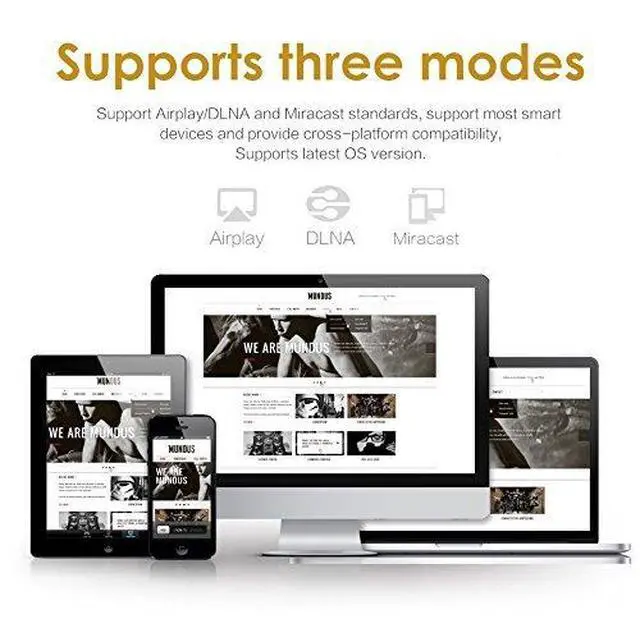
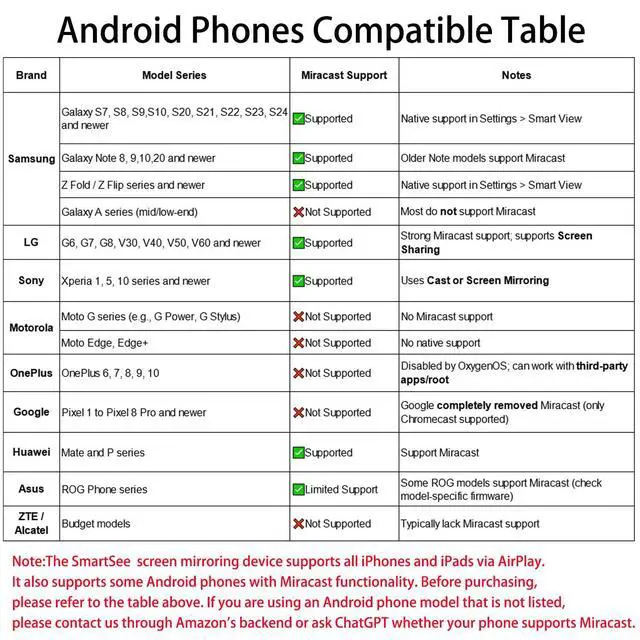
- Miracast Required–Android and Windows devices must support the Miracast protocol for screen mirroring.
- Device Limitations–Not compatible with Google Pixel or Motorola phones.
- Stream Freely–Supports YouTube, Facebook, Twitter, and most online video apps for smooth wireless display.
- App Restrictions–Not compatible with copyright-protected apps such as Netflix, iTunes, Video, HBO Go, Hulu Plus, Honda Motor, ESPN, etc.

Support Mirror Screen From Devices:
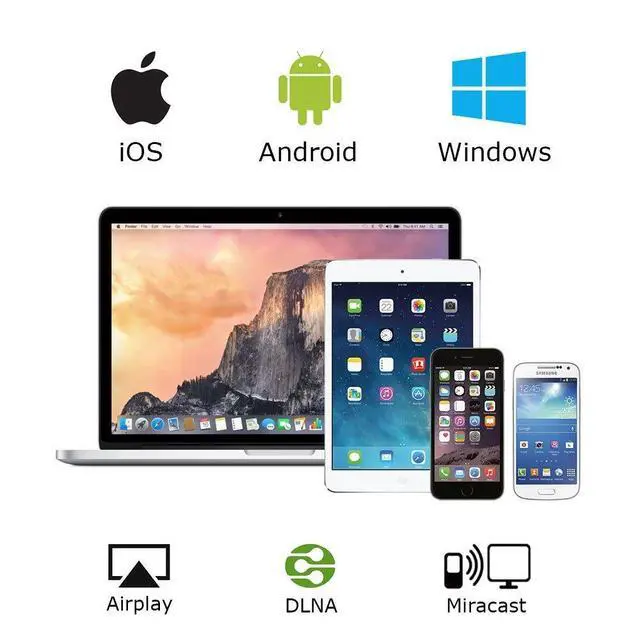
- For iPhone: For iPhone 16/16plus/16 pro/16pro max, 15/15 plus/15 pro/15 pro Max/14/13 Pro Max/13 Pro/1312/11Pro Max/11Pro/ 11/XS Max/XS/XR/X/8P/8/7P
- For iPad: For iPad 8/7/6/5, for iPad Air 3/4, for iPad Mini 5, for iPad Pro 11/12.9inch etc
- For Mac OS: For MacBook Pro 13.3/15.4, for MacBook Air 13.3
- For Android: All Android phones/tablets which support Miracast protocol.
- For Windows: Windows 8.1/10 which support Miracast protocol.
Importandt Note: Android devices and Windows devices which not support Miracast protocol can not work.
Support Mirror Screen To Devices:
- Supports mirroring screen to TV, Projector, Monitor, Display, etc. The only requirement for the devices is HD input port Equipped.
 Wireless USB C to HD Display Adapter |  4K HD Wireless Display Adapter |  4K 5G Dual Band HD Wireless Display Adapter | 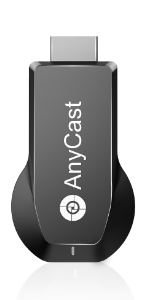 Anycast 4K 5G Dual Band Dongle | Anycast 4K 2.4G Dongle | |
|---|---|---|---|---|---|
| Customer Reviews | — | — | — | — | — |
| Price | — | — | — | — no data | — |
| Support WiFi Connection | No Need WiFi Setting. Support Running in dual band 2.4G and 5G network | 2.4GHz | Supports all your wireless networks with Wi-Fi 802.11ac (2.4 GHz/5 GHz) | 2.4GHzSupports all your wireless networks with Wi-Fi 802.11ac (2.4 GHz/5 GHz) | 2.4GHz |
| Support Resolution | 4K/1080P | 4K/1080P | 4K/1080P | 4K/1080P | 4K/1080P |
| Support System | USB C Equiped Phone Laptop | Android 5.0+, IOS 9.0+, Mac OS 10.0+, Windows 8+ | Android 5.0+, IOS 9.0+, Mac OS 10.0+, Windows 8+ | Android 5.0+, IOS 9.0+, Mac OS 10.0+, Windows 8+ | Android 5.0+, IOS 9.0+, Mac OS 10.0+, Windows 8+ |
| Features Support | Screen Mirroring and Extending | Airplay/MiraCast Mirroring/DLNA Streaming/Google Home app/Chrome Browser Casting | Airplay/MiraCast Mirroring/DLNA Streaming/Google Home app/Chrome Browser Casting | Airplay/MiraCast Mirroring/DLNA Streaming/Google Home app/Chrome Browser Casting | Airplay/MiraCast Mirroring/DLNA Streaming/Google Home app/Chrome Browser Casting |
2.4G 1080P Wireless HD Screen Cast Adapter
With SmartSee adapter, you can easily cast images, videos or games from a small screen to a big screen wirelessly.
What is an HD Wireless Display Adapter?
An HD Wireless Display Adapter is to cast what you see on your mobile device(smartphone/tablet) to another big screen(TV/monitor/projector).
Do I need this Wireless display adapter?
Yes, this wireless display adapter brings you convenience everywhere.
At home: you can mirror your phone/tablet to your TV, no need to stare at the phone alone, watch TV together and free your hands.
At hotel: Setting the TV or TV box is a little troublesome? Just mirror your mobile device to TV or projector by using this item.
In a meeting room: No need other cables, just connect this item to mirror your tablet pc on your projector wirelessly.
In a classroom: Share your content of courses on big screen wirelessly.
Wide Usage:
Share Presentation in Meeting/Conference-Mirroring screen to projector, share PPT, mail, documents and other content wirelessly.
Presentation Lecture in Classroom-Mirroring screen to big screen, share teaching content wirelessly.
Enjoy Big Screen with Family-Mirroring screen to TV, share photos, videos, movies wirelessly. Carry it while travelling, share your phone to TV anytime.
Installation
Plug it
Plug the MiraScreen dongle into the HD port on your display.
Power it
Connect WiFi cable (micro USB head) to MiraScreen dongle. Plug USB cable into an external USB power adapter(power adapter is not inculded).
Show it
Once install properly, please switch your display into selected HD channel, then MiraScreen page shows up on your display.
Compatibility of the Wireless HD Display Dongle
Connection Tips
Setup on your iPhone/iPad/Mac:
- Connect MiraScreen WiFi with your iOS/macOS device.
- Turn on Screen mirroring/Airplay mirroring and select MiraScreen dongle to mirror screen.
- Your iOS/macOS device screen will mirror to the TV immediately.
Note: As your device is connected to MiraScreen WiFi, so your WiFi network disconnects from your device, it is normal function.
If you need to reconnect your WiFi Network with your device, here are the steps:
- Cut off Airplay Mirroring firstly if it is in mirroring.
- Access Settings Menu and connect to your WiFi network: Go to Safari and input the IP address: 192.168.203.1 on the very top searching bar, this will open the setting menu, now connect to your WiFi network via Internet. Once the dongle connects to your WiFi network successfully, your WiFi name shows up on the right top of your TV.
After this step, both your device and this dongle are connected to the same WiFi network. Do Screen Mirroring directly for next use, no need to other connection.
Note: Once the mirroring dongle connects to your WiFi network successfully, the IP address 192.168.203.1 goes invalid, this generates a new IP address on your TV to access the dongle setup page if needed.
Mirroring comes to be much easier after this step.
Setup on your Android devices:
- Press the button on the dongle to switch to Android mode(This dongle comes in iOS Mode by default).
- Find Miracast(wireless display/smartview/play to etc) on your Android device, and pair with Anycast to start mirror.
Setup on your Windows(available for Windows 8.1 and Windows 10) devices:
- Press the short key “Win+K” on your keyboard and select the dongle to connect, your Windows screen mirrors on your monitor or TV.
Notes:
- Miracast Required–Android and Windows devices must support the Miracast protocol for screen mirroring.
- Device Limitations–Not compatible with Google Pixel or Motorola phones.
- Stream Freely–Supports YouTube, Facebook, Twitter, and most online video apps for smooth wireless display.
- App Restrictions–Not compatible with copyright-protected apps such as Netflix, iTunes, Video, HBO Go, Hulu Plus, Honda Motor, ESPN, etc.
Support Mirror Screen From Devices:
- For iPhone: For iPhone 16/16plus/16 pro/16pro max, 15/15 plus/15 pro/15 pro Max/14/13 Pro Max/13 Pro/1312/11Pro Max/11Pro/ 11/XS Max/XS/XR/X/8P/8/7P
- For iPad: For iPad 8/7/6/5, for iPad Air 3/4, for iPad Mini 5, for iPad Pro 11/12.9inch etc
- For Mac OS: For MacBook Pro 13.3/15.4, for MacBook Air 13.3
- For Android: All Android phones/tablets which support Miracast protocol.
- For Windows: Windows 8.1/10 which support Miracast protocol.
Importandt Note: Android devices and Windows devices which not support Miracast protocol can not work.
Support Mirror Screen To Devices:
- Supports mirroring screen to TV, Projector, Monitor, Display, etc. The only requirement for the devices is HD input port Equipped.
Wireless USB C to HD Display Adapter | 4K HD Wireless Display Adapter | 4K 5G Dual Band HD Wireless Display Adapter | Anycast 4K 5G Dual Band Dongle | Anycast 4K 2.4G Dongle | |
|---|---|---|---|---|---|
| Customer Reviews | — | — | — | — | — |
| Price | — | — | — | — no data | — |
| Support WiFi Connection | No Need WiFi Setting. Support Running in dual band 2.4G and 5G network | 2.4GHz | Supports all your wireless networks with Wi-Fi 802.11ac (2.4 GHz/5 GHz) | 2.4GHzSupports all your wireless networks with Wi-Fi 802.11ac (2.4 GHz/5 GHz) | 2.4GHz |
| Support Resolution | 4K/1080P | 4K/1080P | 4K/1080P | 4K/1080P | 4K/1080P |
| Support System | USB C Equiped Phone Laptop | Android 5.0+, IOS 9.0+, Mac OS 10.0+, Windows 8+ | Android 5.0+, IOS 9.0+, Mac OS 10.0+, Windows 8+ | Android 5.0+, IOS 9.0+, Mac OS 10.0+, Windows 8+ | Android 5.0+, IOS 9.0+, Mac OS 10.0+, Windows 8+ |
| Features Support | Screen Mirroring and Extending | Airplay/MiraCast Mirroring/DLNA Streaming/Google Home app/Chrome Browser Casting | Airplay/MiraCast Mirroring/DLNA Streaming/Google Home app/Chrome Browser Casting | Airplay/MiraCast Mirroring/DLNA Streaming/Google Home app/Chrome Browser Casting | Airplay/MiraCast Mirroring/DLNA Streaming/Google Home app/Chrome Browser Casting |