




Wireless HDMI Display Dongle Adapter
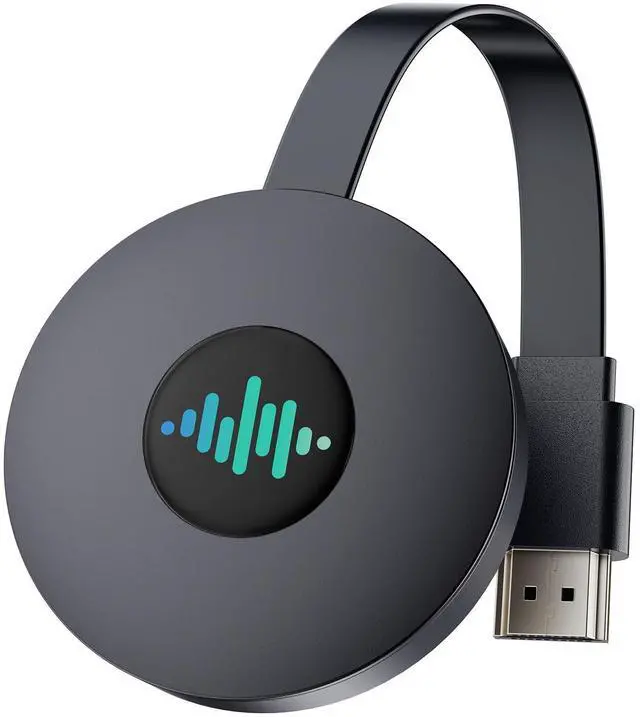
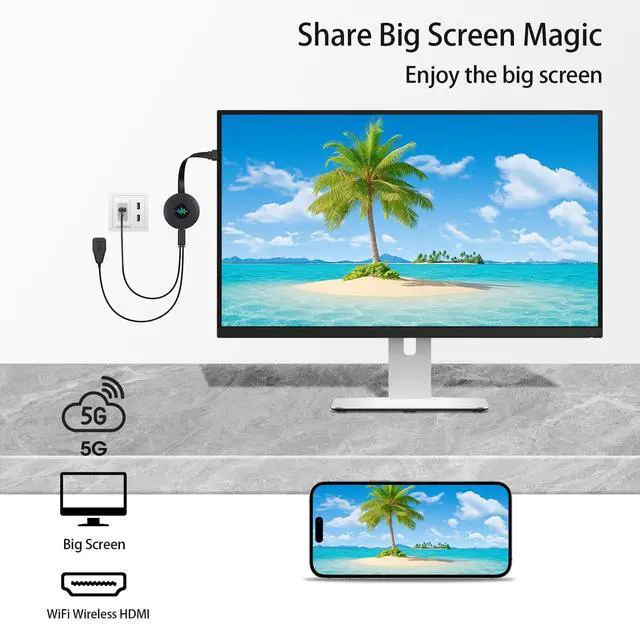
4k/5G Wireless HDMI Display Dongle Adapter can transmit high-definition videos, game images and real-time data faster, ensuring that you have a smooth and fluid viewing experiencek on the big screen. Whether it is home entertainment, office meetings or online education, the 5G Miracast HDMI dongle can easily cope with it. Even if multiple devices are connected at the same time, the 5G wireless hdmi dongle can stably reproduce high-quality images, allowing each image to play smoothly.

Widely compatible
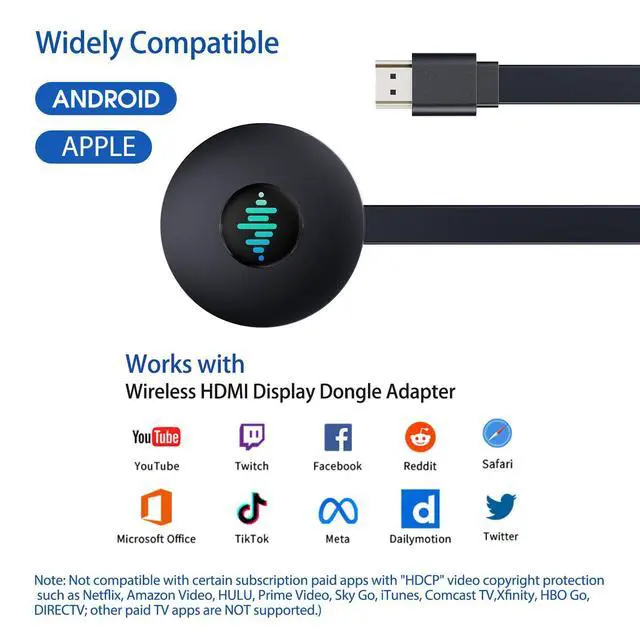
The 5G Wireless HDMI Display Dongle Adapter is compatible with a variety of devices and operating systems. Whether you are using an A-Android phone, iPhone device, projector or Windows computer, you can easily connect and project the screen. Supports simultaneous connection and switching of multiple devices, allowing you to freely switch the projection content between multiple devices, greatly improving the flexibility of use.

Content from mobile phones, tablets or computers can be presented on the big screen with the most realistic and clear image quality. Whether you are watching a movie, browsing photos or making a professional presentation, the 5G Wireless HDMI Display Dongle Adapter can restore every detail and bring you a cinema-level visual enjoyment.

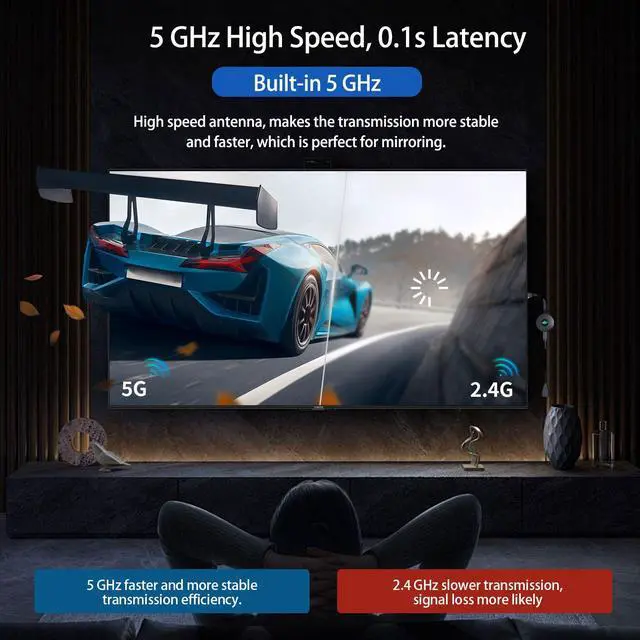
Thanks to excellent connection stability, you don't have to worry about screen projection interruptions or image delays due to weak signals. It uses advanced dual-band WiFi technology, which can intelligently switch frequency bands to avoid network congestion and ensure stable signal transmission. Whether it is training, office meetings or online training, the 5G screen projector can handle it easily.

Easy to carry
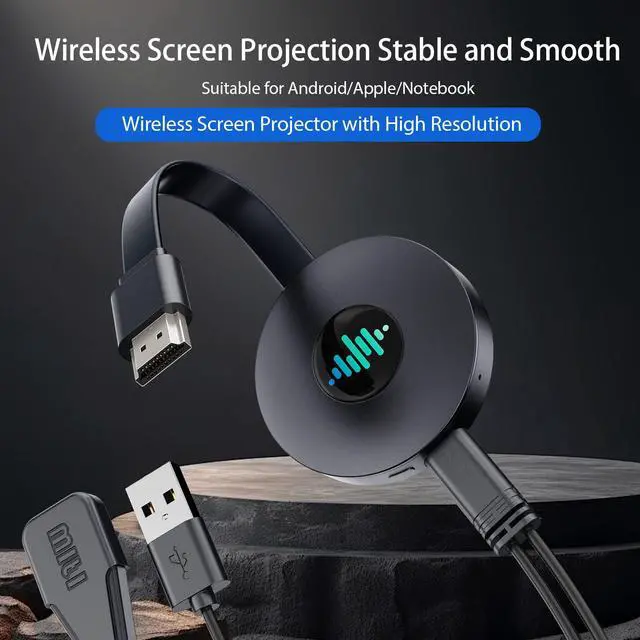
The 5G screen projector is simple in design and easy to use. Its compact and portable design allows you to project the screen anytime and anywhere, making it ideal for home, office and travel.

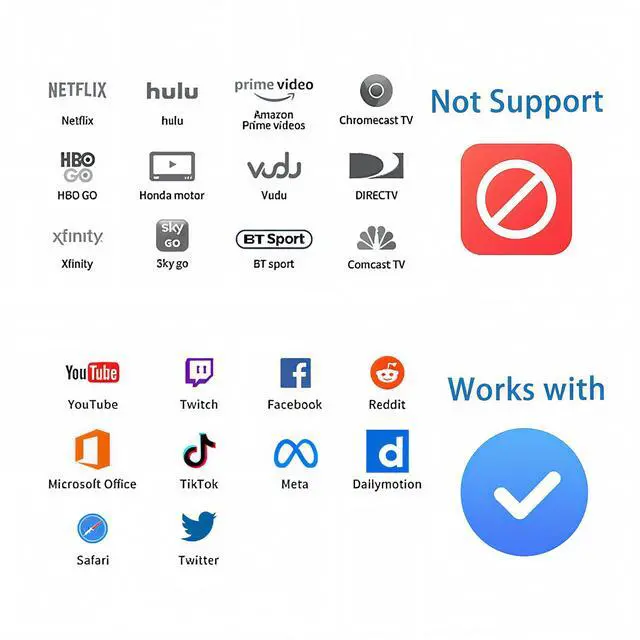
• i-OS devices: support non-subscription apps like YouTube, Tiktok, Office, Safari, FaceTime, do not support "HDCP" copyright apps including NEFLIX, prime Video, DIRECTV, etc.
• Windows or Android devices: can mirror all content to TV, including paid apps like Neflix, Prime video, BT Sport, DIRECTV, HULU, Comcast tv, Vudu, Movistar, etc.
Compatible systems: IOS 9 and above, Android 4.2 and above, Windows 8.1 and above.
Compatible devices: i-Phone/i-Pad/Mac/PC/laptop/tablet/Android phone, etc.
Compatible with iPhone 5 /5C /5S, iPhone 6 /6 Plus /6S /6S Plus, iPhone SE (1st generation), iPhone 7 /7 Plus, iPhone 8 /8 Plus, iPhone X /XS /XS Max /XR, iPhone 11 /11 Pro /11 Pro Max, iPhone SE (2nd generation), iPhone 12 /12 mini /12 Pro /12 Pro Max, iPhone 13 /13 mini /13 Pro /13 Pro Max, iPhone 14 /14 Plus/14 Pro /14 Pro Max
Compatible with iPad Air 2/3/4/5, iPad Mini 3/4/5/6, iPad Pro 11/12.9, iPad 5/6/7/8/9/10
Compatible with MacBook Pro 13.3/15.4, MacBook Air 13.3, etc.
Compatible with smartphones or tablets running Android 4.2 or higher.
Troubleshooting
1. Check the power connection
Miracast HDMI dongle requires a stable power source to work properly. Please follow the steps below to ensure the power connection is correct:
A. Use a compatible power adapter:
Miracast HDMI dongle requires a 5V/2A or higher power adapter. If the adapter used is not powerful enough or the USB port output is not enough, it may not power on.
Action: Use the provided USB cable to connect the dongle to a wall charger or a high-power USB port.
B. Check the USB cable:
A damaged or faulty USB cable may cause the dongle to not be powered.
Action: Try using another USB cable to connect the dongle to a power source.
C. Avoid using a TV USB port:
Some TV USB ports do not provide enough power to support the Miracast HDMI dongle
Action: If you are using a TV USB port, use a wall charger or power bank instead.
2. Confirm HDMI Connection
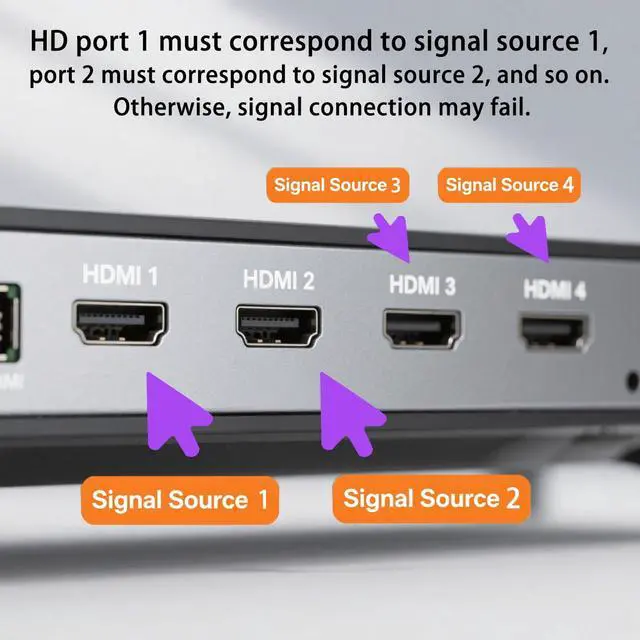
Make sure the dongle is properly connected to the HDMI port and the TV or monitor has the correct input source selected.
A. Check HDMI Port:
Make sure the HDMI cable is securely connected between the dongle and the TV/monitor.
Action: Try using a different HDMI port on the TV or monitor.
B. Select the Correct Input Source:
The TV or monitor must be set to the HDMI input source to which the dongle is connected.
Action: Use the TV remote to switch to the HDMI input source to which the dongle is connected.
3. Check for Compatibility Issues
The dongle may not work properly if your TV, monitor, or streaming device is not compatible.
A. TV/Monitor Compatibility:
Make sure your TV or monitor supports HDMI 1.4 or higher and HDCP (High-bandwidth Digital Content Protection).
Action: Check the TV/Monitor user manual to confirm compatibility.
B. Firmware/Software Update:
Outdated firmware or software on your TV, monitor, or streaming device may cause compatibility issues.
Action: Update the device's firmware or software to the latest version.
Wireless HDMI Display Dongle Adapter
4k/5G Wireless HDMI Display Dongle Adapter can transmit high-definition videos, game images and real-time data faster, ensuring that you have a smooth and fluid viewing experiencek on the big screen. Whether it is home entertainment, office meetings or online education, the 5G Miracast HDMI dongle can easily cope with it. Even if multiple devices are connected at the same time, the 5G wireless hdmi dongle can stably reproduce high-quality images, allowing each image to play smoothly.
Widely compatible
The 5G Wireless HDMI Display Dongle Adapter is compatible with a variety of devices and operating systems. Whether you are using an A-Android phone, iPhone device, projector or Windows computer, you can easily connect and project the screen. Supports simultaneous connection and switching of multiple devices, allowing you to freely switch the projection content between multiple devices, greatly improving the flexibility of use.
Content from mobile phones, tablets or computers can be presented on the big screen with the most realistic and clear image quality. Whether you are watching a movie, browsing photos or making a professional presentation, the 5G Wireless HDMI Display Dongle Adapter can restore every detail and bring you a cinema-level visual enjoyment.
Thanks to excellent connection stability, you don't have to worry about screen projection interruptions or image delays due to weak signals. It uses advanced dual-band WiFi technology, which can intelligently switch frequency bands to avoid network congestion and ensure stable signal transmission. Whether it is training, office meetings or online training, the 5G screen projector can handle it easily.
Easy to carry
The 5G screen projector is simple in design and easy to use. Its compact and portable design allows you to project the screen anytime and anywhere, making it ideal for home, office and travel.
• i-OS devices: support non-subscription apps like YouTube, Tiktok, Office, Safari, FaceTime, do not support "HDCP" copyright apps including NEFLIX, prime Video, DIRECTV, etc.
• Windows or Android devices: can mirror all content to TV, including paid apps like Neflix, Prime video, BT Sport, DIRECTV, HULU, Comcast tv, Vudu, Movistar, etc.
Compatible systems: IOS 9 and above, Android 4.2 and above, Windows 8.1 and above.
Compatible devices: i-Phone/i-Pad/Mac/PC/laptop/tablet/Android phone, etc.
Compatible with iPhone 5 /5C /5S, iPhone 6 /6 Plus /6S /6S Plus, iPhone SE (1st generation), iPhone 7 /7 Plus, iPhone 8 /8 Plus, iPhone X /XS /XS Max /XR, iPhone 11 /11 Pro /11 Pro Max, iPhone SE (2nd generation), iPhone 12 /12 mini /12 Pro /12 Pro Max, iPhone 13 /13 mini /13 Pro /13 Pro Max, iPhone 14 /14 Plus/14 Pro /14 Pro Max
Compatible with iPad Air 2/3/4/5, iPad Mini 3/4/5/6, iPad Pro 11/12.9, iPad 5/6/7/8/9/10
Compatible with MacBook Pro 13.3/15.4, MacBook Air 13.3, etc.
Compatible with smartphones or tablets running Android 4.2 or higher.
Troubleshooting
1. Check the power connection
Miracast HDMI dongle requires a stable power source to work properly. Please follow the steps below to ensure the power connection is correct:
A. Use a compatible power adapter:
Miracast HDMI dongle requires a 5V/2A or higher power adapter. If the adapter used is not powerful enough or the USB port output is not enough, it may not power on.
Action: Use the provided USB cable to connect the dongle to a wall charger or a high-power USB port.
B. Check the USB cable:
A damaged or faulty USB cable may cause the dongle to not be powered.
Action: Try using another USB cable to connect the dongle to a power source.
C. Avoid using a TV USB port:
Some TV USB ports do not provide enough power to support the Miracast HDMI dongle
Action: If you are using a TV USB port, use a wall charger or power bank instead.
2. Confirm HDMI Connection
Make sure the dongle is properly connected to the HDMI port and the TV or monitor has the correct input source selected.
A. Check HDMI Port:
Make sure the HDMI cable is securely connected between the dongle and the TV/monitor.
Action: Try using a different HDMI port on the TV or monitor.
B. Select the Correct Input Source:
The TV or monitor must be set to the HDMI input source to which the dongle is connected.
Action: Use the TV remote to switch to the HDMI input source to which the dongle is connected.
3. Check for Compatibility Issues
The dongle may not work properly if your TV, monitor, or streaming device is not compatible.
A. TV/Monitor Compatibility:
Make sure your TV or monitor supports HDMI 1.4 or higher and HDCP (High-bandwidth Digital Content Protection).
Action: Check the TV/Monitor user manual to confirm compatibility.
B. Firmware/Software Update:
Outdated firmware or software on your TV, monitor, or streaming device may cause compatibility issues.
Action: Update the device's firmware or software to the latest version.