


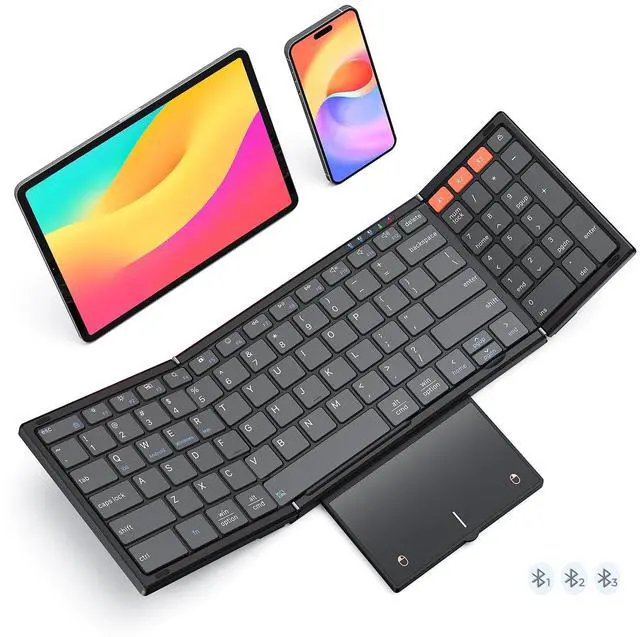
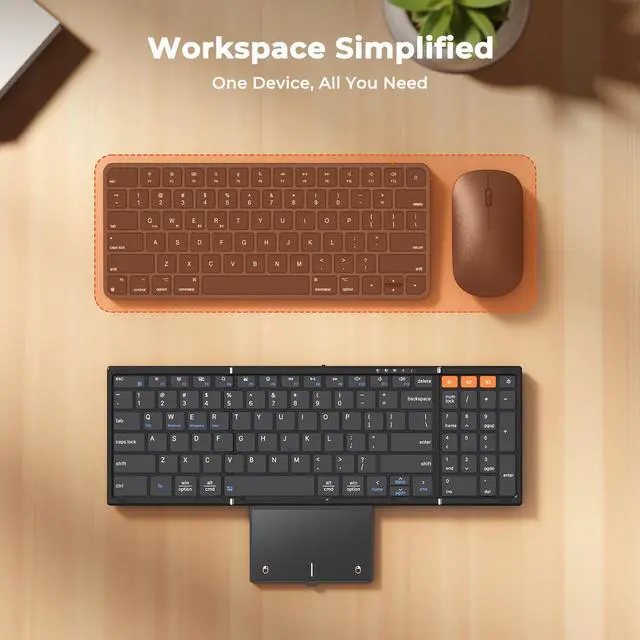
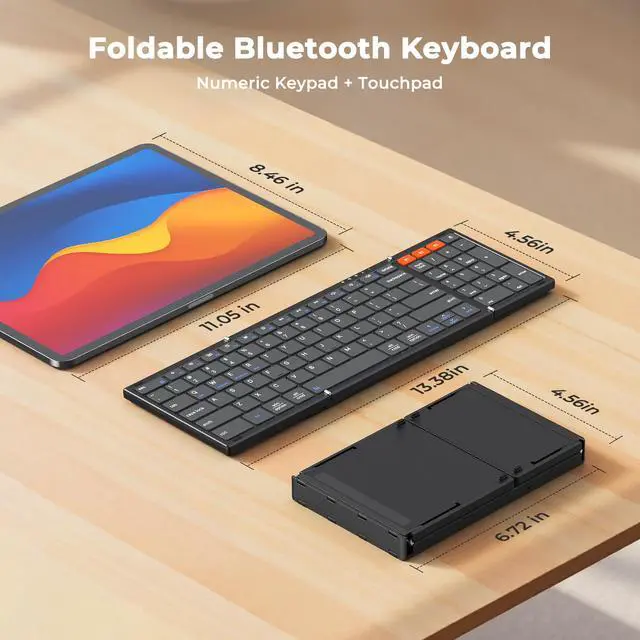
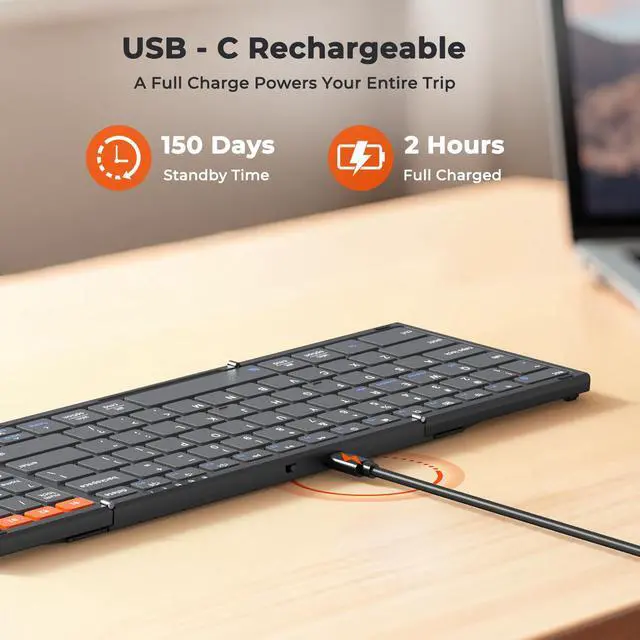
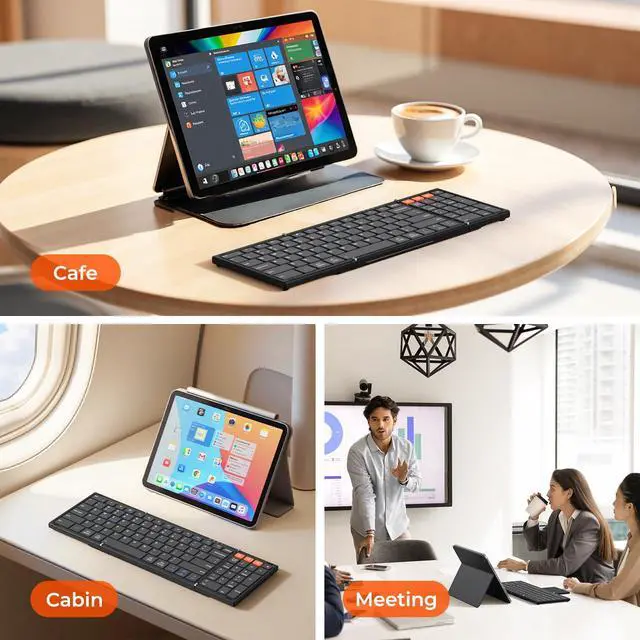


All-in-One Foldable Workstation: Keyboard, Num Pad, and Touchpad
MEETION Foldable Bluetooth Keyboard with Trackpad
Merchant Video


Abundant indicator Lights
Each Bluetooth channel features a dedicated indicator light, making connection status instantly clear.

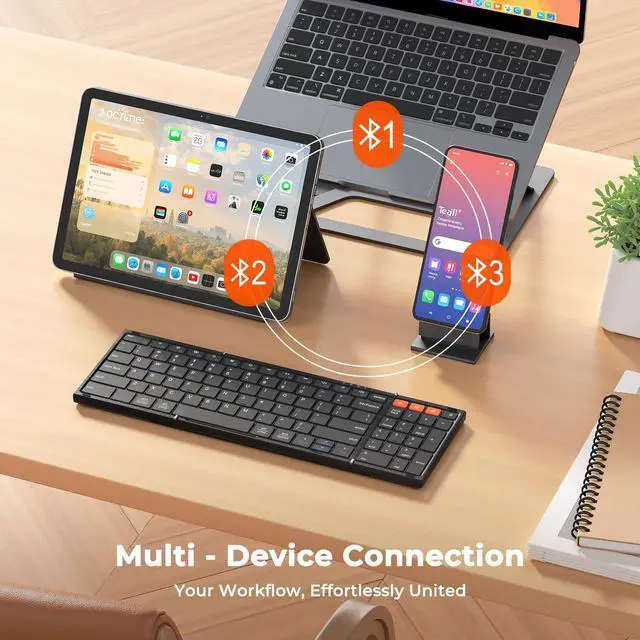
Wide Compatibility
It’s compatible with iOS/Android/Windows/Mac OS (switch via FN+Q/W/E/R). One keyboard fits most devices.

Scissor-Switch Keys
Experience quiet and precise typing with X-shaped scissor-switch keys, which offer perfect rebound feedback for a responsive, laptop-like feel.

Physical Switch
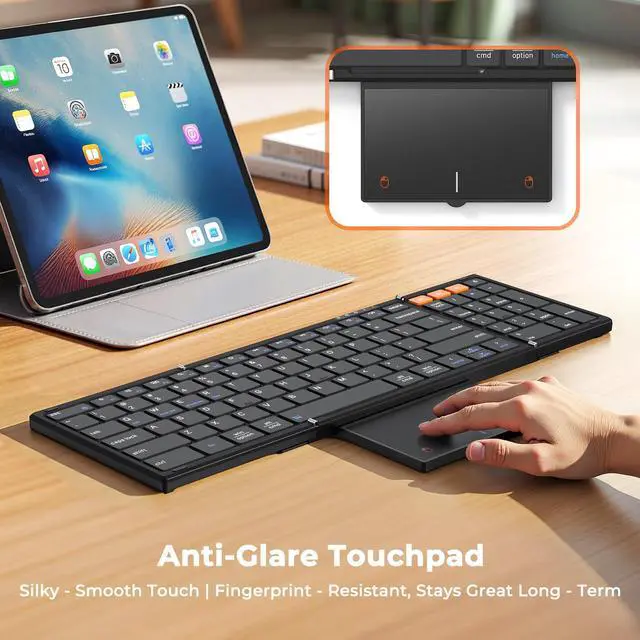
The touchpad consumes relatively more power. You can disable it by pressing FN + Spacebar, or turn off the keyboard when not in use to save battery.


How to solve frequent Bluetooth disconnections?
1. Shorten distance, avoid interference.
2. Check keyboard power, charge when low.
3. Delete paired keyboard, re-pair by long-pressing Bluetooth key.
4. Ensure device Bluetooth =5.3.
What can I do if MEETION keyboard Fail to connect?
1. Charge keyboard for 30 minutes. On your device, delete/remove/forget the previous connection record.
2. On your device, turn Bluetooth off and turn Bluetooth on again.
3. Follow the Pairing Instruction to connect it again.
How do I change the scroll direction of the touchpad?
1. Mac PC open System Settings ? select Trackpad ? find the Scroll Direction option ? directly switch to your desired scroll mode.
2. Windows PC open Settings ? go to Bluetooth and other devices ? select Mouse ? adjust the Scroll Direction parameter.
Touchpad lagging or freezing—can it be fixed?
1. Tap any key to wake first, then check if the low-battery light flashes (charge if low). Stay within 10 ft; re-pair if needed.
2. Windows: raise Pointer Speed & disable “Enhance pointer precision.”
3. macOS: Trackpad > Tracking Speed ? fast.
Touchpad not Working? It's Not Responding?
Press fn + Spacebar to check if trackpad is off.
Check the device battery charge, re-pair via Bluetooth (remove and re-add).
For iOS 13.4+: Enable via Settings > Accessibility > Touch > AssistiveTouch.
Reboot trackpad and device.
MEETION. Your Portable Partner. Find Your Perfect Match.
 K9550 |  K9880 2026 New Upgrade |  K9553 |  C9550 |  C9880 | |
|---|---|---|---|---|---|
Customer Reviews | — | — | — | — | — |
Price | — | — | — | — | — |
Connectivity | BT*3 | BT*3 | BT*3 | 2.4 + BT*2 | 2.4 + BT*2 |
Keyboard Folded Size | 7.17*4.4*0.78in | 7.05*4.7*0.67in | 5.98*3.86*0.78in | 7.17*4.4*0.78in | 7.05*4.7*0.67in |
Keyboard Open Size | 13.34*4.4*0.39in | 13.98*4.7*0.3in | 11.42*3.86*0.39in | 13.34*4.4*0.39in | 13.98*4.7*0.3in |
Number of Keys | 99 | 80 | 64 | 99 | 80 |
Ergonomic | ? | ? | ? | ? | ? |
Combo | ? | ? | ? | ? | ? |
Pouch | ? | ? | ? | ? | ? |
Trackpad | ? | ? | ? | ? | ? |


MEETION is a play on the concept of "meeting". All the products we develop revolve around this theme.
In terms of investment in the scientific research of new products, we never hold back. We have dedicated quality control for every single product, every detail in the production process is precise and controlled. Our product and intellectual property rights are top priorities.

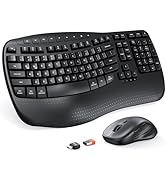
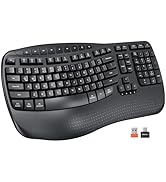
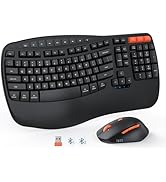
Ergonomic Hot Series
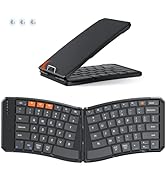
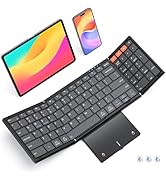
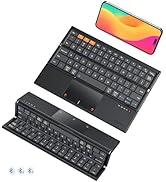
Foldbale Hot Series
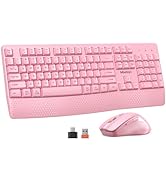
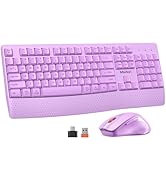
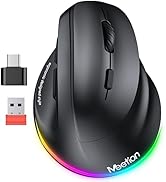
Wireless Hot Series
All-in-One Foldable Workstation: Keyboard, Num Pad, and Touchpad
MEETION Foldable Bluetooth Keyboard with Trackpad
Merchant Video


Abundant indicator Lights
Each Bluetooth channel features a dedicated indicator light, making connection status instantly clear.
Wide Compatibility
It’s compatible with iOS/Android/Windows/Mac OS (switch via FN+Q/W/E/R). One keyboard fits most devices.
Scissor-Switch Keys
Experience quiet and precise typing with X-shaped scissor-switch keys, which offer perfect rebound feedback for a responsive, laptop-like feel.
Physical Switch
The touchpad consumes relatively more power. You can disable it by pressing FN + Spacebar, or turn off the keyboard when not in use to save battery.


For Every Workspace, Everywhere
How to solve frequent Bluetooth disconnections?
1. Shorten distance, avoid interference.
2. Check keyboard power, charge when low.
3. Delete paired keyboard, re-pair by long-pressing Bluetooth key.
4. Ensure device Bluetooth =5.3.
What can I do if MEETION keyboard Fail to connect?
1. Charge keyboard for 30 minutes. On your device, delete/remove/forget the previous connection record.
2. On your device, turn Bluetooth off and turn Bluetooth on again.
3. Follow the Pairing Instruction to connect it again.
How do I change the scroll direction of the touchpad?
1. Mac PC open System Settings ? select Trackpad ? find the Scroll Direction option ? directly switch to your desired scroll mode.
2. Windows PC open Settings ? go to Bluetooth and other devices ? select Mouse ? adjust the Scroll Direction parameter.
Touchpad lagging or freezing—can it be fixed?
1. Tap any key to wake first, then check if the low-battery light flashes (charge if low). Stay within 10 ft; re-pair if needed.
2. Windows: raise Pointer Speed & disable “Enhance pointer precision.”
3. macOS: Trackpad > Tracking Speed ? fast.
Touchpad not Working? It's Not Responding?
Press fn + Spacebar to check if trackpad is off.
Check the device battery charge, re-pair via Bluetooth (remove and re-add).
For iOS 13.4+: Enable via Settings > Accessibility > Touch > AssistiveTouch.
Reboot trackpad and device.
MEETION. Your Portable Partner. Find Your Perfect Match.
K9550 | K9880 2026 New Upgrade | K9553 | C9550 | C9880 |
|---|---|---|---|---|
| Customer Reviews | ||||
| — | — | — | — | — |
| Price | ||||
| — | — | — | — | — |
| Connectivity | ||||
| BT*3 | BT*3 | BT*3 | 2.4 + BT*2 | 2.4 + BT*2 |
| Keyboard Folded Size | ||||
| 7.17*4.4*0.78in | 7.05*4.7*0.67in | 5.98*3.86*0.78in | 7.17*4.4*0.78in | 7.05*4.7*0.67in |
| Keyboard Open Size | ||||
| 13.34*4.4*0.39in | 13.98*4.7*0.3in | 11.42*3.86*0.39in | 13.34*4.4*0.39in | 13.98*4.7*0.3in |
| Number of Keys | ||||
| 99 | 80 | 64 | 99 | 80 |
| Ergonomic | ||||
| ? | ? | ? | ? | ? |
| Combo | ||||
| ? | ? | ? | ? | ? |
| Pouch | ||||
| ? | ? | ? | ? | ? |
| Trackpad | ||||
| ? | ? | ? | ? | ? |
MEETION is a play on the concept of "meeting". All the products we develop revolve around this theme.
In terms of investment in the scientific research of new products, we never hold back. We have dedicated quality control for every single product, every detail in the production process is precise and controlled. Our product and intellectual property rights are top priorities.
Ergonomic Hot Series
Foldbale Hot Series
Wireless Hot Series