

Your Browsing History


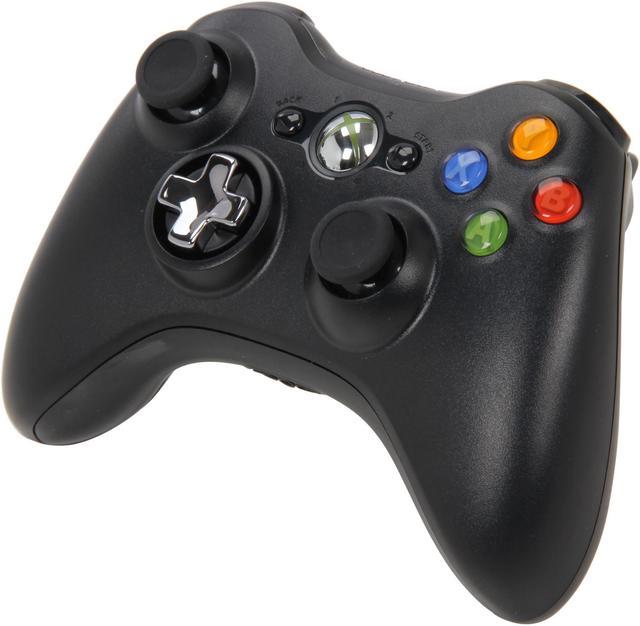
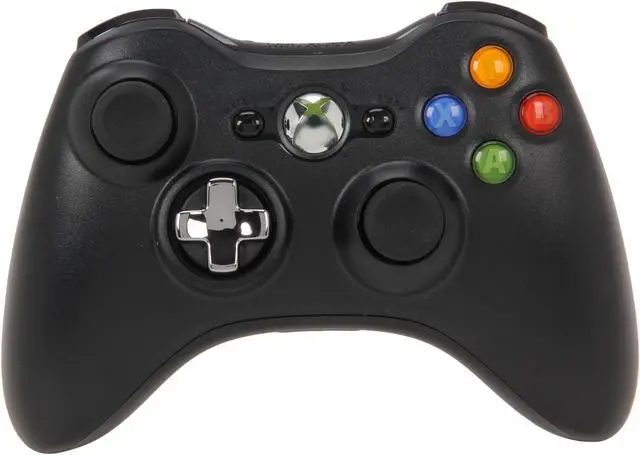
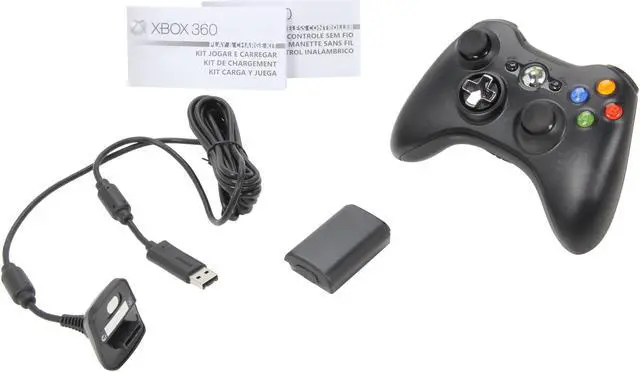
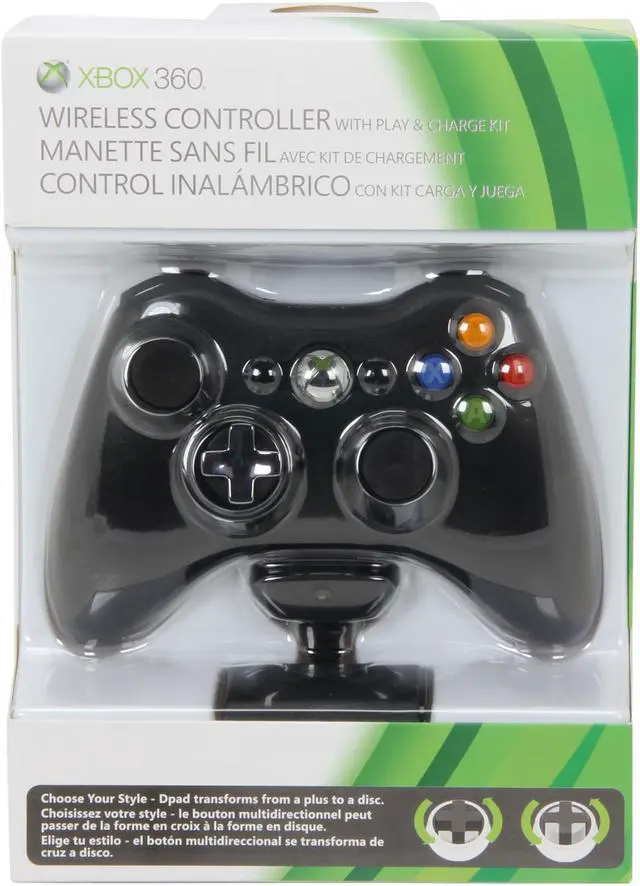


Xbox 360 Wireless Controller with Play & Charge Kit Black
- 30-foot of wereless connection range
- Up to 35 hours of gameplay per charge
- Play & Charge Cable included
- Adjustable vibration feedback
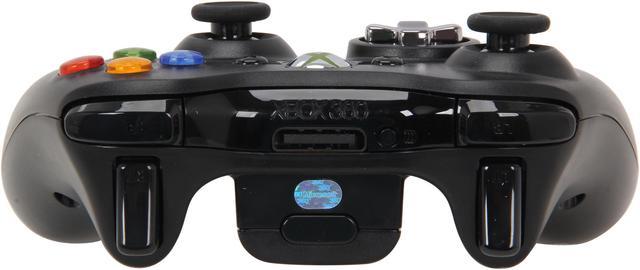
- Integrated headset post for Xbox LIVE play
Overview
Specs
Reviews (8)
See all Q & A 
Any questions? Our AI beta will help you find out quickly.
Try me now
Xbox 360 Wireless Controller
Thanks for checking out the Xbox 360 Wireless Controller. A wireless controller lets you experience the ultimate in wireless freedom with precision, speed, and accuracy.
Wireless Controller Features:
- 2.4GHz wireless technology with 30-foot (9-meter) range
- Integrated headset port
- Adjustable vibration feedback for longer battery life
The Xbox 360 Wireless Controller is for use exclusively with the Xbox 360™ video game and entertainment system. For information about using the Xbox 360 Wireless Controller with a particular game, see your game manual.
To enhance your experience with the wireless controller, try the Xbox 360 Rechargeable Battery Pack and the Xbox 360 Play & Charge Kit. If you're looking to expand your wireless experience, consider the Xbox 360 Universal Media Remote and the Xbox 360 Wireless Networking Adapter.
Setting Up Your XBox 360 Wireless Controller
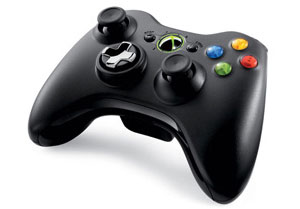
Before you can use your Xbox 360 Wireless Controller with your Xbox 360 console, you need to:
- Insert a battery pack. The wireless controller uses only the AA battery pack (provided) with AA disposable batteries or the Xbox 360 Rechargeable Battery Pack (sold separately).
- Connect the controller to the console wirelessly.
I. Insert Batteries
To insert batteries into the wireless controller AA battery pack:
1. Press the tab on the top of the AA battery pack and pull down to detach it from the controller.
2. Insert two new AA (LR6) batteries with their positive (+) and negative (–) ends positioned as shown on the underside of the battery pack. For best performance, rechargeable batteries are not recommended.
3. Slide the AA battery pack back into place on the controller and push in to lock.
Note: To avoid pinching your fingers when inserting, push only on the flat surface of the battery pack.
Up to four controllers, wired and wireless, can be actively connected to a console at one time. Each connected controller gets a quadrant on the Ring of Light. Before you can connect a wireless controller, at least one quadrant must be free (unlit). To disconnect a wireless controller, press and hold the Xbox Guide button for three seconds, and then turn it off. For a wired controller, disconnect the cable connector.
To connect your wireless controller to your console:
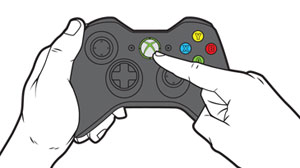
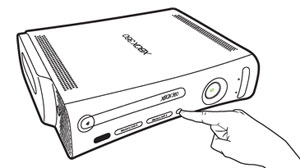
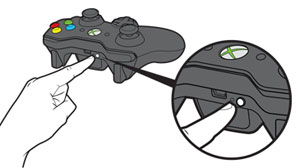
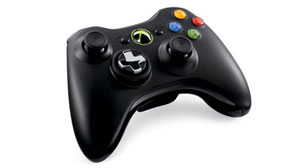
1. Press and hold down the Xbox Guide button until the controller turns on.
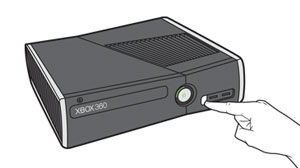
2. If your console is not on, press the Power button to turn on the console.
3. Press and release the connect button on the console.
4. Press and release the connect button on the controller.
5. After the Ring of Light on the controller and console spin and flash once, the controller is connected. The quadrant that remains lit indicates the controller's position.
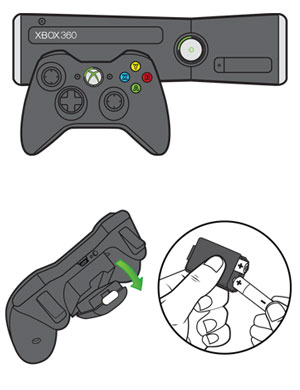
Each connected controller is assigned to one of four positions. Each position corresponds to a lighted section around the console power button and the controller Guide button.
If the controller does not turn on, check the batteries. Insert fresh AA batteries, making sure they are correctly positioned in the battery case.
You can also use the Xbox 360 Play & Charge Kit or the Xbox 360 Quick Charge Kit to power the controller. Learn more about Xbox controllers and chargers.
To connect additional controllers, follow these same steps again. You can connect up to four controllers to the console. Each connected controller is assigned a position that corresponds with the lighted sections that appear around the console's power button and around the Guide button located in the middle of each controller.
- To disconnect a wireless controller, press and hold the Guide button for three seconds, and then choose to turn the controller off.
- When you turn off the console, the controller will reconnect the next time you turn on the console.
- The controller can be connected to only one console at a time. You can connect the controller to a different console, but the connection to the previously connected console will be lost.
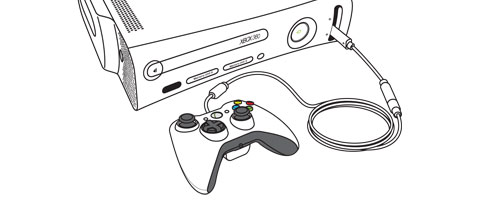
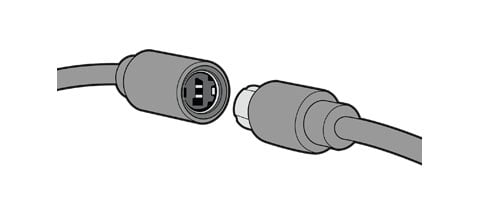
Connect a Wired Xbox Controller
Warranty & Returns
Warranty, Returns, And Additional Information
Warranty
- Limited Warranty period (parts): 90 days
- Limited Warranty period (labor): 90 days
- Read full details
Return Policies
- Return for refund within: 30 days
- Return for replacement within: 30 days
- This item is covered by Newegg.com's 30-Day Return Policy.
- Read full return policy for details.
Manufacturer Contact Info
- Manufacturer Product Page
- Manufacturer Website
- Support Phone: 1-800-642-7676
- Support Website
- View other products from Microsoft
LOADING...
LOADING...