






Alronly-Trusted Optical Drives
- Alronly dedicates to optical drives. We leverage deep expertise and independent R&D to build reliable solutions. While others moved on, we perfected drives delivering cutting-edge performance and backward compatibility with legacy systems.
- Every Alronly drive is rigorously engineered for durability and seamless integration.
- choose Alronly – your trusted partner in preserving digital media
How We Started?
Alronly began in 2003 with a simple mission:
As others abandoned optical drives for newer tech, we recognized a growing need. Professionals, archivists, and everyday users struggled with dying drives and obsolete media. Fueled by a passion for digital preservation, we pioneered independent R&D to build specialized optical drives others wouldn’t.
How to Access More Value-Added Services?
Visit www Alronly com today to unlock exclusive support, extended warranties, and expert resources!
What makes our product unique?
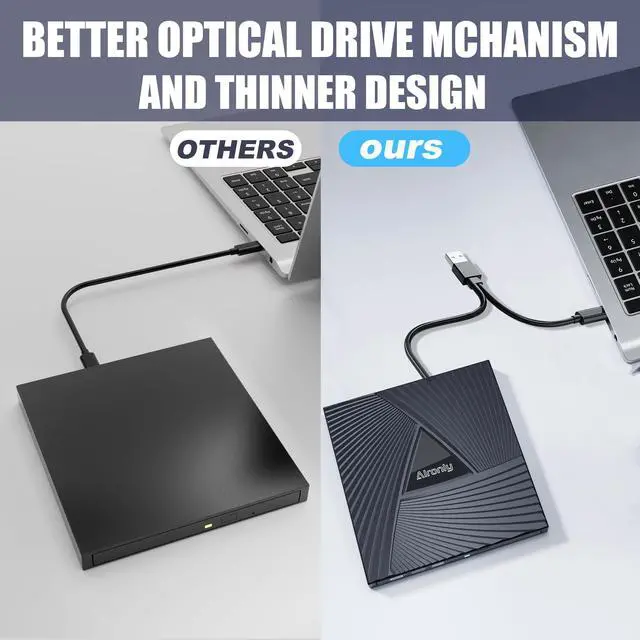
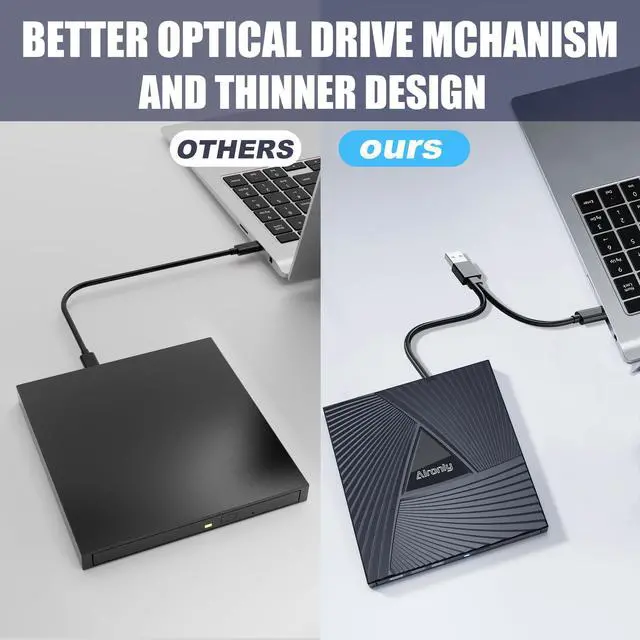
Lightweight design, reliable quality, and thoughtful service
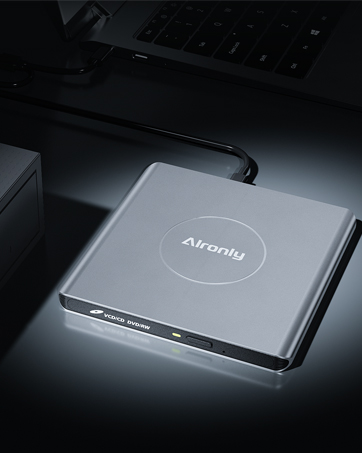
High quality alloy material
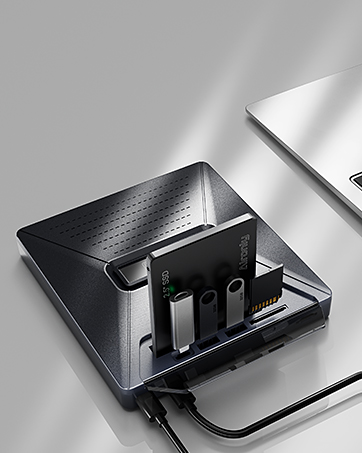
Compatible with SSD/HDD
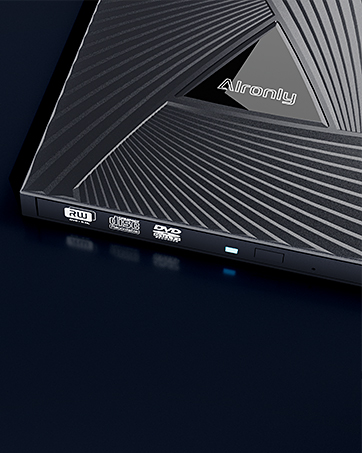
Lightweight and portable
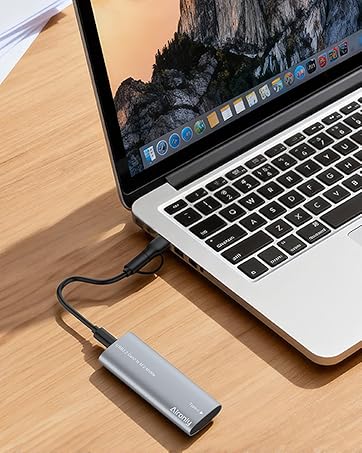
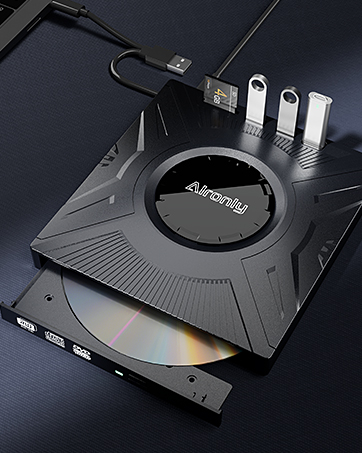
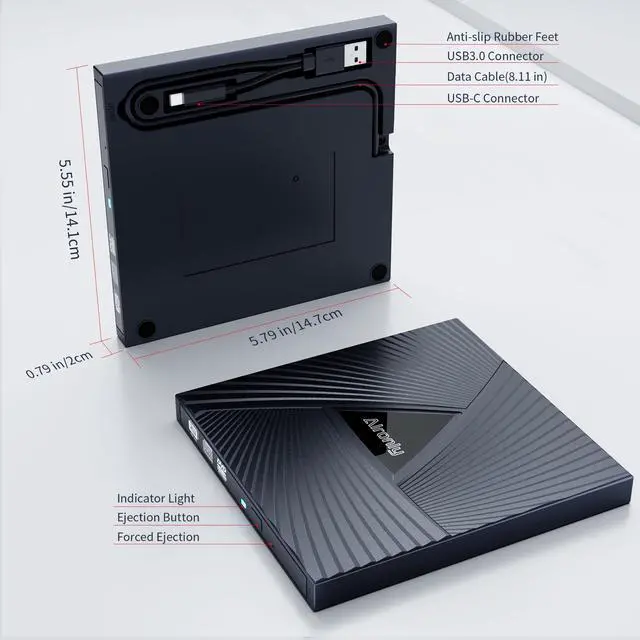
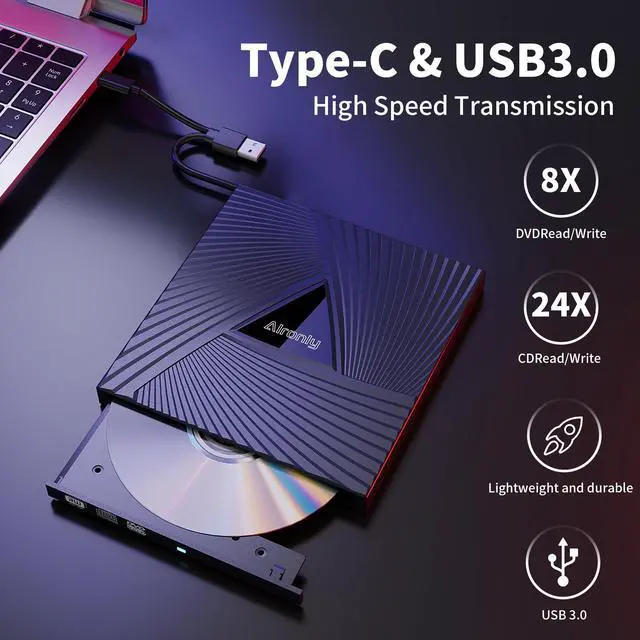
Multi functional interface
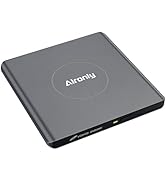
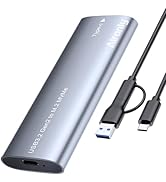
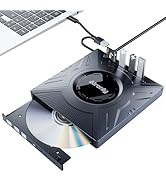
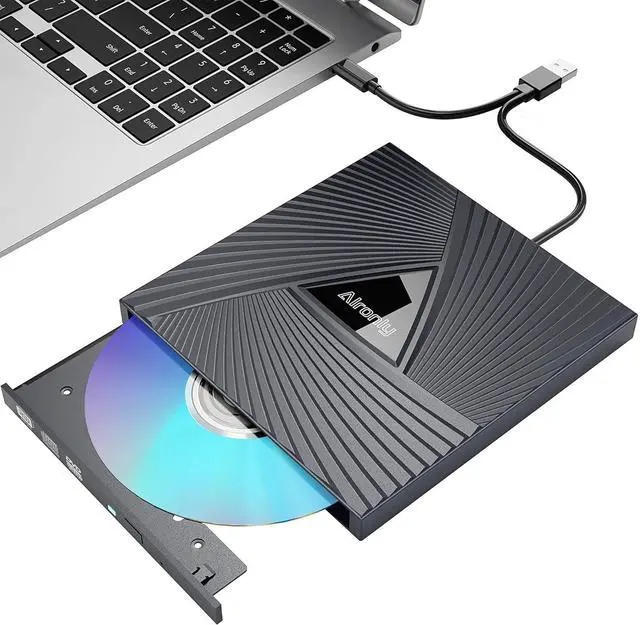
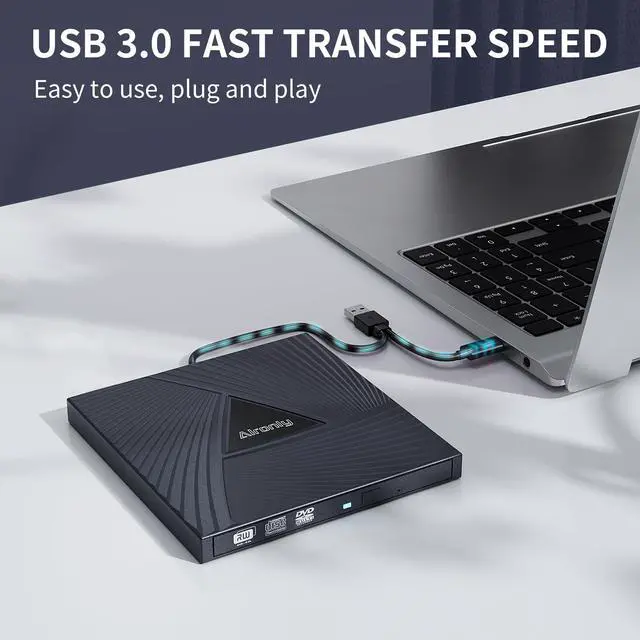
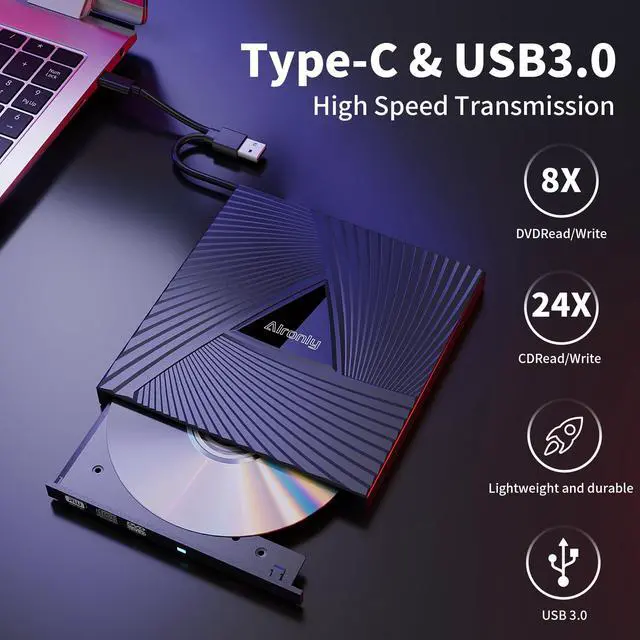
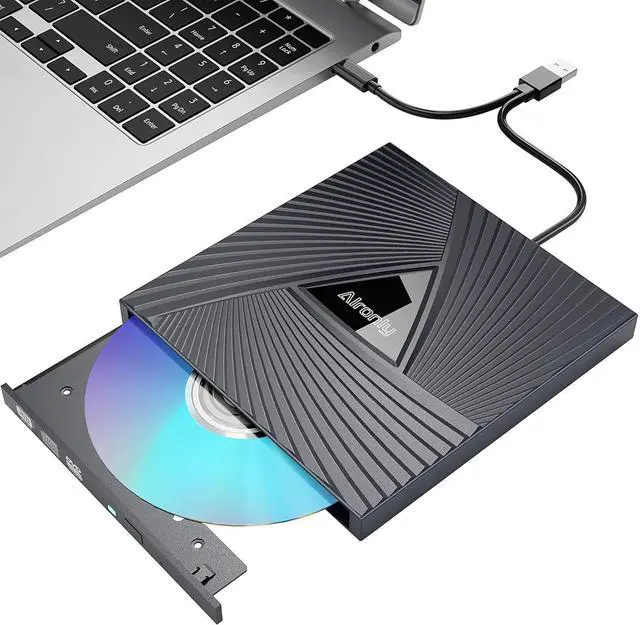
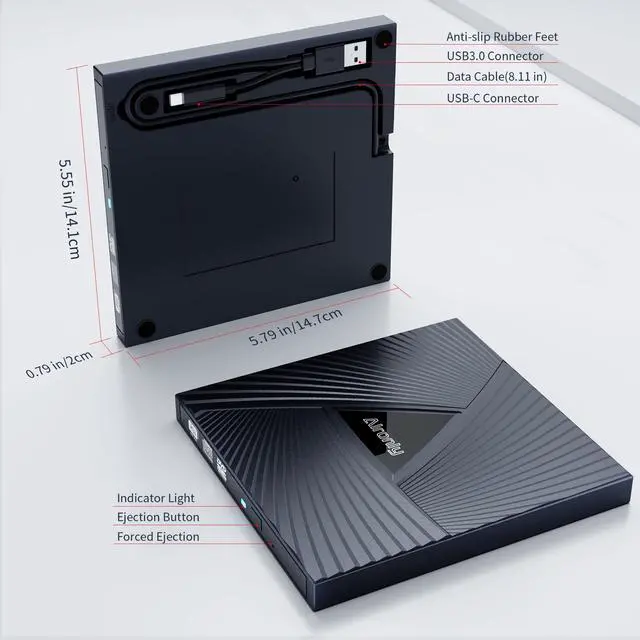
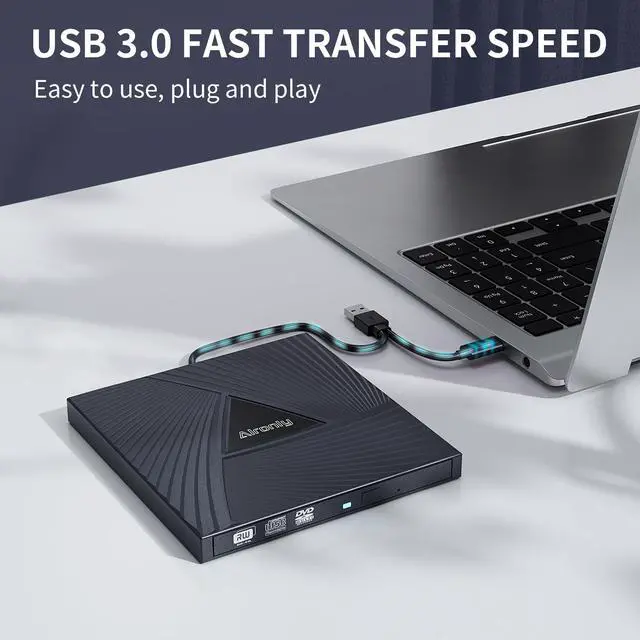
USB 3.0 & USB-C CD/DVD Drive


Common Optical Drive Issues & Fixes
Problem 1: Computer Doesn't See/Recognize the Drive (Windows & Mac)
- Check Connections (Most Important!):Ensure the drive's USB cable (Type-A or Type-C) is securely plugged into your computer's USB port.
- If you have a desktop computer, please use the USB port on the back of the chassis. The port on the front of the chassis may have insufficient voltage, causing the optical drive to not function properly.
- Ensure Enough Power: If your optical drive cannot start properly when connected to the hub, please directly connect the optical drive to the computer interface to ensure sufficient voltage
Windows-Specific Fixes:
Network & Media Player (For Playing Discs): Windows 11/10 needs an internet connection and media player software (e.g., Windows Media Player for music CDs, VLC for music CDs and video DVDs).
Reinstall the Driver:
Right-click the Start button or press Windows key + X>>Select Device Manager>>Click View >>Show hidden devices>>Find DVD/CD-ROM drives, expand it>>Right-click your drive and select Uninstall device>>Restart your computer. Plug the drive back in – Windows should reinstall it automatically
Mac-Specific Fixes:
Finder Settings>>Open Finder>>Go to Finder >> Settings (or Preferences on older macOS)>>In the General tab, ensure CDs, DVDs, and iOS Devices is checked>>In the Sidebar tab, also ensure it's checked under "Locations"
Macs Need a Disc: The drive icon only appears on your Mac after you insert a disc and the drive reads it successfully.
Try Different Discs: Test with a few different CDs or DVDs
Problem 2: Drive Plays Music CDs but NOT Video DVDs (Windows)
- Use the Right Media Player: Programs like Windows Media Player often can't play video DVDs. Use VLC media player instead (free download).
- Check the DVD Region Code (For Video DVDs): Your drive might need to be set to the same region as your DVD (e.g., Region 1 for US/Canada). Warning: You can usually only change this 4-5 times!
Open File Explorer (Windows key + E)>>Right-click your DVD drive icon>>Select Properties>>Go to the Hardware tab>>Select your CD/DVD drive and click Properties>>Go to the DVD Region tab>>Choose the correct region (e.g., Region 1 for US/Canada)>>Click OK
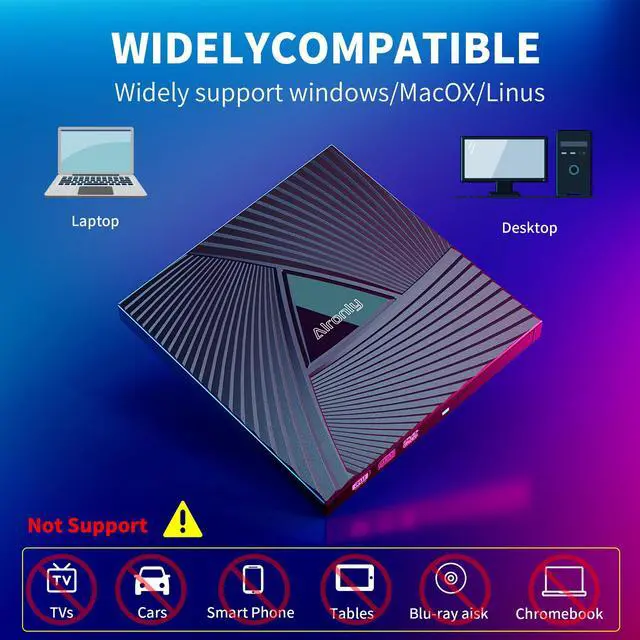
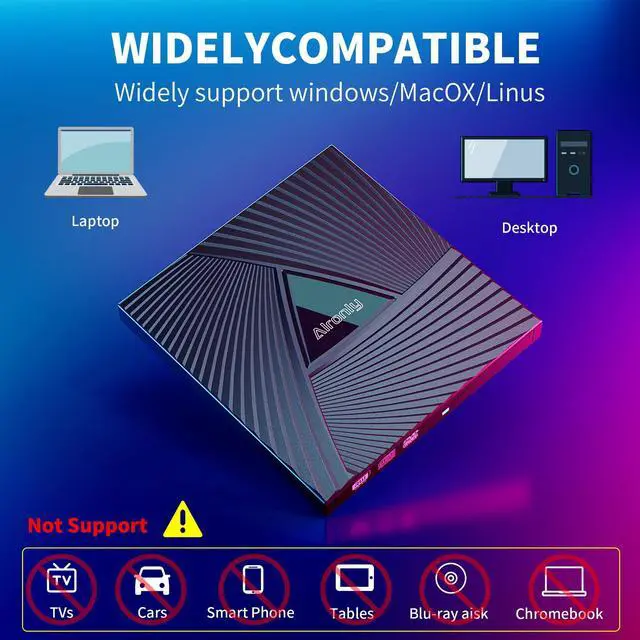
- Chrome OS Limitation: Due to Chrome OS restrictions, this drive is not compatible with Chrome OS devices or Chromebooks.
- Car Stereo Use: The drive itself cannot be connected directly to a car stereo. However, you can burn CDs/DVDs using this drive and then play those discs in your car's CD player.
- Projector Use: This drive cannot connect directly to a projector. To play content on a projector:
- Connect the drive to your computer, then connect your computer to the projector (via HDMI, VGA, etc.).


Common Optical Drive Issues & Fixes
Problem 1: Computer Doesn't See/Recognize the Drive (Windows & Mac)
- Check Connections (Most Important!):Ensure the drive's USB cable (Type-A or Type-C) is securely plugged into your computer's USB port.
- If you have a desktop computer, please use the USB port on the back of the chassis. The port on the front of the chassis may have insufficient voltage, causing the optical drive to not function properly.
- Ensure Enough Power: If your optical drive cannot start properly when connected to the hub, please directly connect the optical drive to the computer interface to ensure sufficient voltage
Windows-Specific Fixes:
Network & Media Player (For Playing Discs): Windows 11/10 needs an internet connection and media player software (e.g., Windows Media Player for music CDs, VLC for music CDs and video DVDs).
Reinstall the Driver:
Right-click the Start button or press Windows key + X>>Select Device Manager>>Click View >>Show hidden devices>>Find DVD/CD-ROM drives, expand it>>Right-click your drive and select Uninstall device>>Restart your computer. Plug the drive back in – Windows should reinstall it automatically
Mac-Specific Fixes:
Finder Settings>>Open Finder>>Go to Finder >> Settings (or Preferences on older macOS)>>In the General tab, ensure CDs, DVDs, and iOS Devices is checked>>In the Sidebar tab, also ensure it's checked under "Locations"
Macs Need a Disc: The drive icon only appears on your Mac after you insert a disc and the drive reads it successfully.
Try Different Discs: Test with a few different CDs or DVDs
Problem 2: Drive Plays Music CDs but NOT Video DVDs (Windows)
- Use the Right Media Player: Programs like Windows Media Player often can't play video DVDs. Use VLC media player instead (free download).
- Check the DVD Region Code (For Video DVDs): Your drive might need to be set to the same region as your DVD (e.g., Region 1 for US/Canada). Warning: You can usually only change this 4-5 times!
Open File Explorer (Windows key + E)>>Right-click your DVD drive icon>>Select Properties>>Go to the Hardware tab>>Select your CD/DVD drive and click Properties>>Go to the DVD Region tab>>Choose the correct region (e.g., Region 1 for US/Canada)>>Click OK
- Chrome OS Limitation: Due to Chrome OS restrictions, this drive is not compatible with Chrome OS devices or Chromebooks.
- Car Stereo Use: The drive itself cannot be connected directly to a car stereo. However, you can burn CDs/DVDs using this drive and then play those discs in your car's CD player.
- Projector Use: This drive cannot connect directly to a projector. To play content on a projector:
- Connect the drive to your computer, then connect your computer to the projector (via HDMI, VGA, etc.).
Alronly-Trusted Optical Drives
- Alronly dedicates to optical drives. We leverage deep expertise and independent R&D to build reliable solutions. While others moved on, we perfected drives delivering cutting-edge performance and backward compatibility with legacy systems.
- Every Alronly drive is rigorously engineered for durability and seamless integration.
- choose Alronly – your trusted partner in preserving digital media
How We Started?
Alronly began in 2003 with a simple mission:
As others abandoned optical drives for newer tech, we recognized a growing need. Professionals, archivists, and everyday users struggled with dying drives and obsolete media. Fueled by a passion for digital preservation, we pioneered independent R&D to build specialized optical drives others wouldn’t.
How to Access More Value-Added Services?
Visit www Alronly com today to unlock exclusive support, extended warranties, and expert resources!
What makes our product unique?
Lightweight design, reliable quality, and thoughtful service
High quality alloy material
Compatible with SSD/HDD
Lightweight and portable
Multi functional interface
USB 3.0 & USB-C CD/DVD Drive