





MAHAHUM External Optical Drive
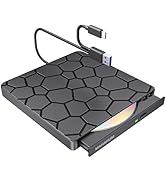
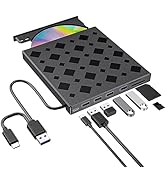
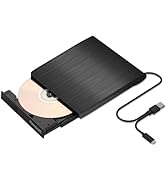
MAHAHUM External Optical Drive
???????
Founded in 2015, MAHAHUM was born from our own struggle to access old data on CDs and DVDs. We created a simple, reliable bridge to the past, ensuring no digital memory is ever lost.
????????????
n a cloud-first world, we champion accessibility. MAHAHUM offers universal plug-and-play compatibility in a minimalist, durable design. It's not just a drive; it's your trusted data time machine.
?????????????
We love preserving stories. The joy of helping someone recover a childhood photo or finish a legacy project is irreplaceable. We are passionate about connecting past and present.
External CD DVD Drive for Laptop
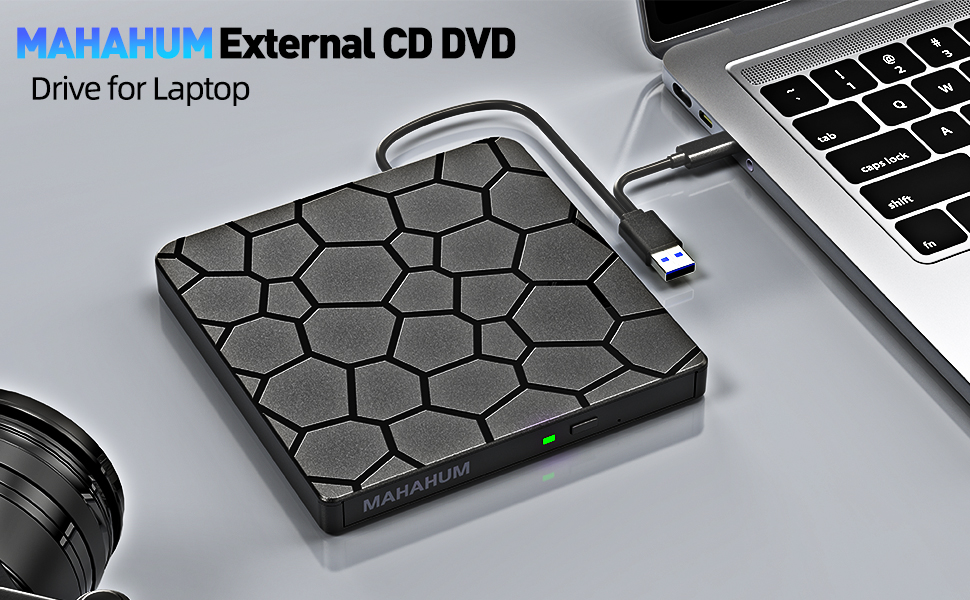
External CD Drive
Classic Reborn Digital Rebirth
MAHAHUM External CD/DVD Drive: A Digital Bridge Back in Time
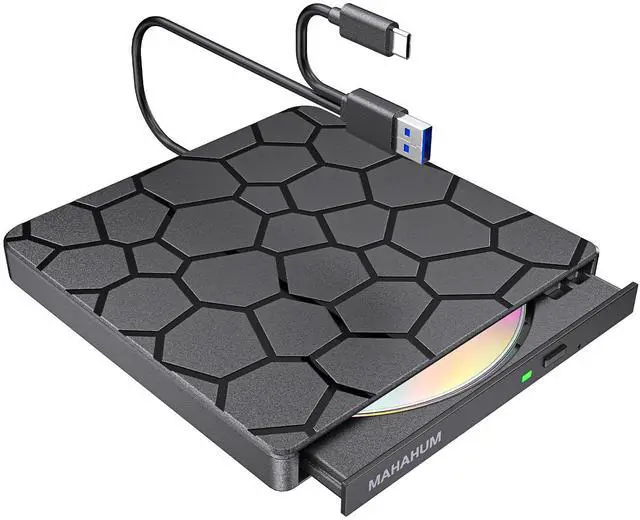
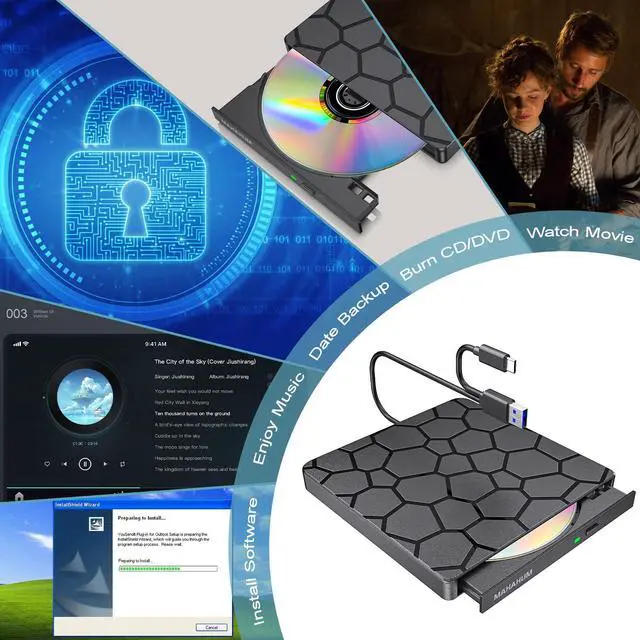
In today's world of ultra-thin laptops, the MAHAHUM external CD/DVD drive bridges the digital gap between your treasured 90's music albums and movie collection. This all-in-one device for playback, burning, transcoding, and backup brings classic media to life in the modern digital world.
Multi-scenario application
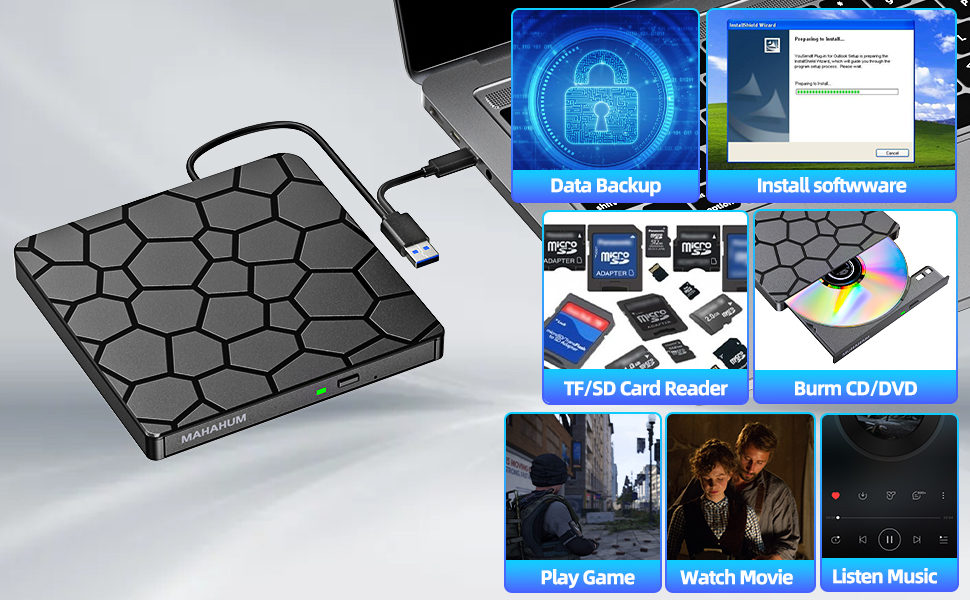
Music Rebirth: Convert old music CDs to MP3 format to create an exclusive digital music library
Image Legacy: Digitize home video DVDs to permanently preserve precious memories
Data Management: Supports 12 media formats such as CD-R/RW, DVD±R/RW, etc., to backup photos/documents/systems
Software Installation: Easily read all kinds of installation discs to solve the pain point of ultra-thin book expansion
Extreme Connected Experience
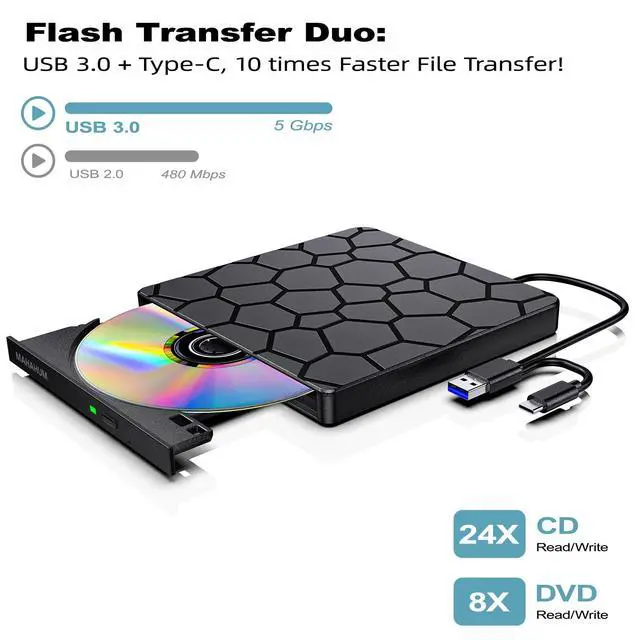
v USB 3.0+Type-C Dual Interface|5Gbps transfer rate|DVD 8X/CD 24X read/write speed
v Intelligent Dual Power Supply System: Single cable direct connection (regular mode) / External 5V power supply (stable mode)
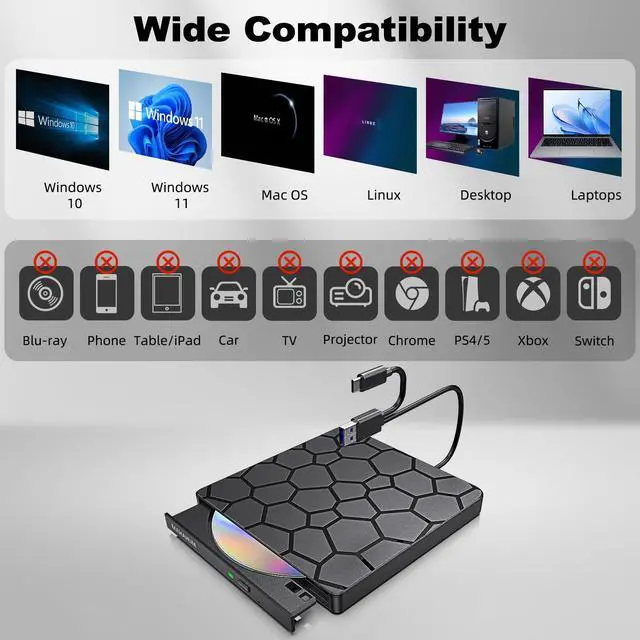
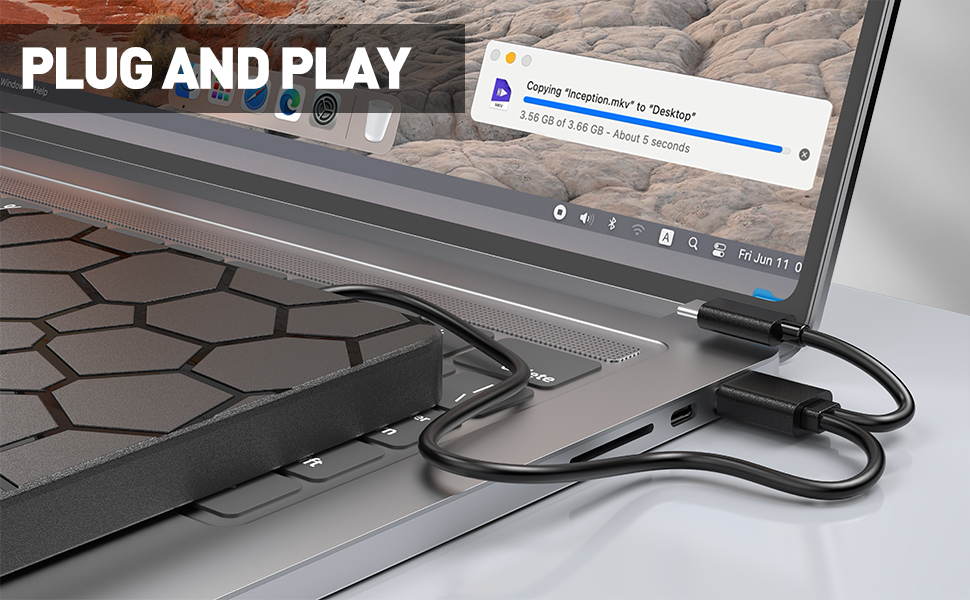
v Plug and Play: Windows/Mac/Linux platform automatic recognition (*Not compatible with Chrome OS)
Mobile Office Companion
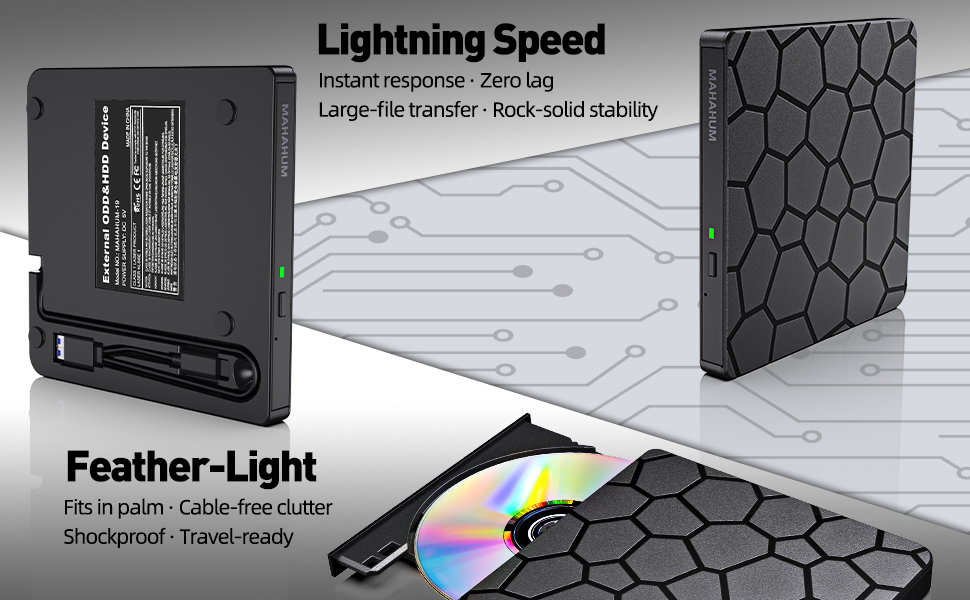
adopts military-grade shock-resistant structure. Teachers' classroom presentations, business people's data backup, students' software calls... USB cable hidden storage design, so that the professional-grade optical drive is always on standby.
IMPORTANT NOTE: This device does not support Blu-ray playback, and is not compatible with game consoles/car systems/Smart TVs and other devices. It is recommended to use with professional playback software such as VLC.
External DVD Drive
??Key Features:??
- Dual Connectivity (USB 3.0 & USB-C):??
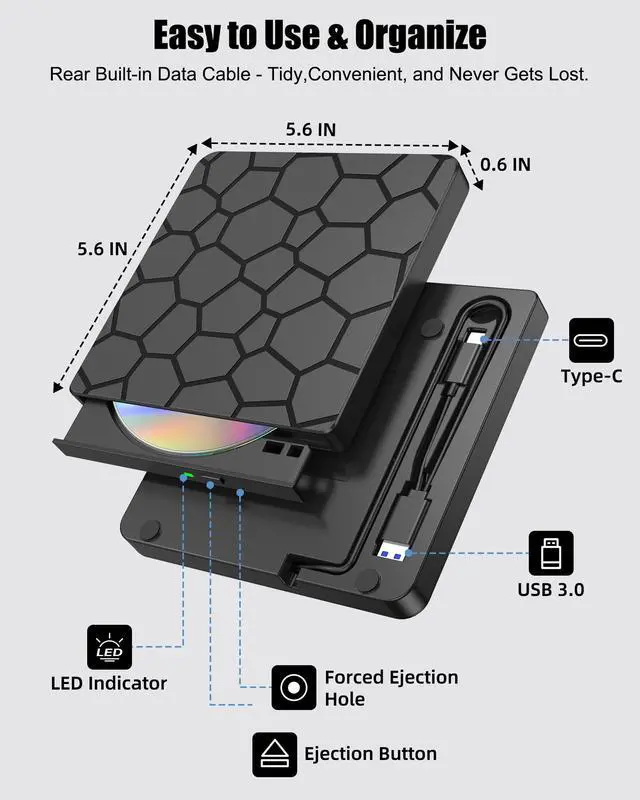
Includes an embedded 9.8-inch data cable with ??USB 3.0 and USB-C connectors??, ensuring compatibility with modern devices (Ultrabooks, M1/M2 MacBooks, desktops) and eliminating the need for adapters.
- ??Plug & Play:??
Automatically installs drivers when connected—no software required.
- ??Blazing-Fast Performance:??
??8x DVD Read / 24x CD Read & Burn:?? Transfer a full 700MB CD in ??3 minutes?? or a 4.7GB DVD in ??10 minutes?? (3x faster than standard drives).
??USB 3.0 SuperSpeed (5 Gbps):?? Stream movies, music, or data with zero lag or audio distortion.
- ??Universal Compatibility:??
Works seamlessly with ??Windows, macOS, Linux??, and other systems. Recognizes discs instantly and displays device icons upon insertion.
- ??Portable & User-Friendly Design:??
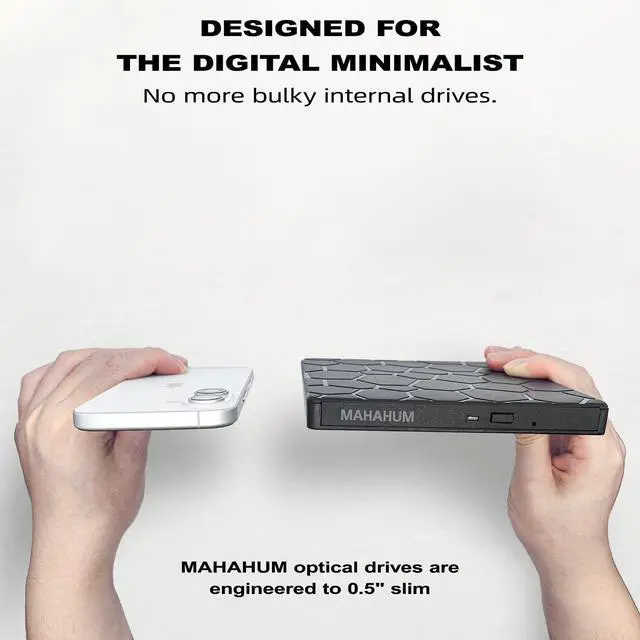
Compact, lightweight build with a short integrated cable for on-the-go use. Ideal for laptops/desktops lacking built-in optical drives.
??Note:??
The 9.8 inches cable length prioritizes portability over flexibility; ensure your device is within close range during use.
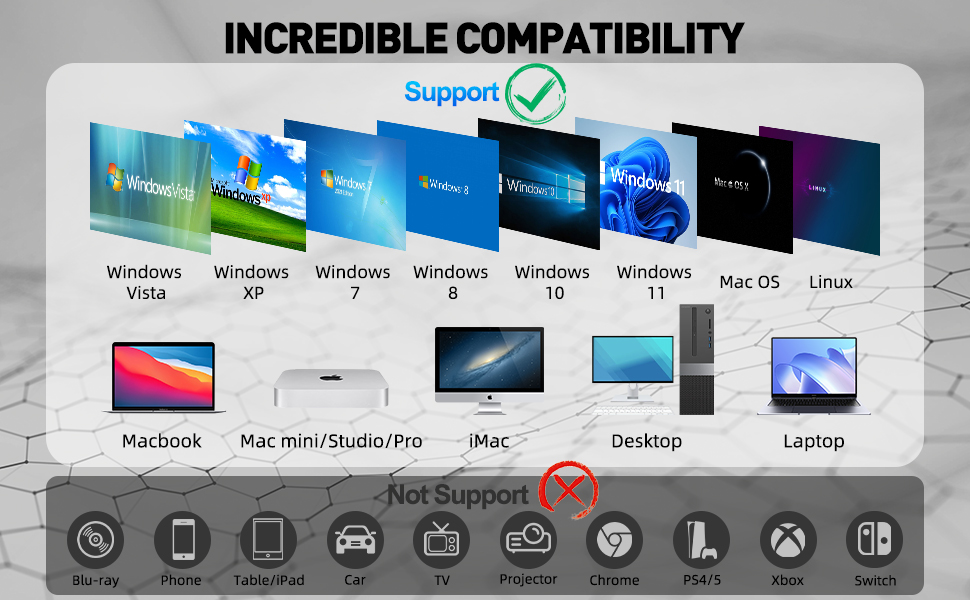
- Compatible with: Windows 11/10/8/7/Vista/XP laptops and desktops, Linux systems, and Mac devices including MacBook Pro, MacBook Air, iMac, Mac mini, and Mac Studio (M1/M2/M3/M4 chip supported).
- Not compatible with: Chromebook (Chrome OS), Ubuntu OS, TVs, vehicles (car/truck), projectors, tablets, iPads, smartphones, gaming consoles (PS4/PS5, Xbox, Nintendo Switch), or Blu-ray discs.
Recommended Free Software (Windows & macOS)
1. Play CDs/DVDs:
- VLC Media Player (cross-platform, supports CD & DVD playback)
- 5KPlayer (HD video playback support for DVD)
- Kodi (open source media center, supports DVD navigation)
- MPlayerX (for Mac, supports CD/DVD)
2. Burn CDs/DVDs:
- CDBurnerXP (for Windows, audio/data/video burning)
- BurnAware Free (for Windows, simple interface)
- ImgBurn (powerful burning tool for Windows) - Burn (for Mac, lightweight and useful)
3. Rip CDs/DVDs:
- HandBrake (cross-platform, extracts video DVD content)
- MakeMKV (cross-platform, DVD to HD MKV)
- Exact Audio Copy (EAC) (for Windows, rip audio CDs)
- Fre:ac (for Windows and Mac, rip audio CDs with format conversion)
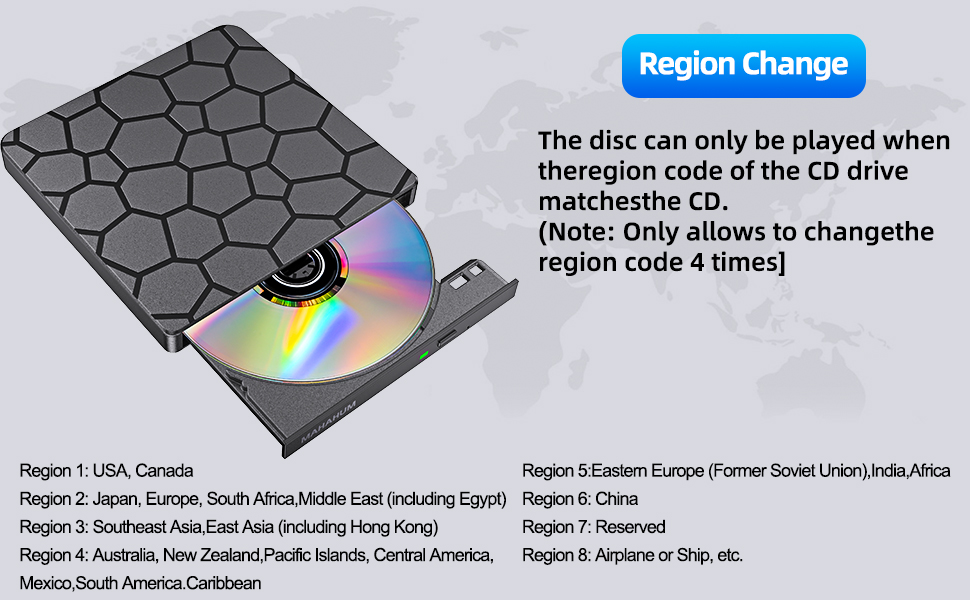
How to Use it on Windows Computers: Prepare the media player, burning, or ripping software based on your needs (not all), and network connection (for Windows 11) > Take out the data cable (located under the drive) and plug it into your computer's USB-A or USB-C port directly or a self-powered USB hub > It will install the driver automatically and you will see a DVD RW icon in Windows Explorer > For video DVDs, set the region code to number #1 to play US or CA DVDs (CDs do not have region code) > Insert your CDs or DVDs > Use the software you’ve prepared to play, burn, or rip the disc > After playback/burning is complete, you can press the button on the panel or right-click the icon to eject the disc.
Recommended Free Software for Windows: Audio CD Media Player (Windows Media Player, VideoLAN VLC Player); Video/Movie DVD Media Player (VideoLAN VLC Player, Kodi, 5KPlayer); Audio CD Burning Software (CDBurnerXP, ImgBurn); Video DVDs Burning Software (ImgBurn, BurnAware Free, CDBurnerXP); Audio CD Ripping Software (Windows Media Player, iTunes, Exact Audio Copy [EAC], Fre:ac); Video DVD Ripping Software (HandBrake, MakeMKV)
How to Set the Region Code in Windows: Right-click the "DVD-RW Drive" icon and select "Properties" > Go to the "Hardware" tab and select your CD/DVD drive > Click "Properties" at the bottom > Open the "DVD Region" tab > Choose the correct region (e.g., USA and CA is 1) and click "OK". (Note: You can only change the region code 4~5 times.)
How to Use it on Apple Mac Computers: Open Finder > Settings (or Preferences, depending on your macOS version) > Ensure "CDs, DVDs, and iOS Devices" is checked in the General Tab and Sidebar Tab if available > Prepare the media player, burning, or ripping software based on your needs (not all) > Take out the data cable (located under the drive) and plug it into your computer's USB-A or USB-C port directly or a self-powered USB hub. If needed, connect the power supply cord to a USB power adapter or bank to ensure sufficient power supply > Insert your CDs or DVDs > Your Mac will recognize the drive, read the disc and an icon will appear on the desktop > Use the software you’ve prepared to play, burn, or rip the disc > To eject a disc on Mac computers after playback/burning, right-click on the desktop icon and select "eject," or choose "File" > "Eject" from the menu. (Note: The tray cannot open via the button due to macOS limitations)
Recommended Free Software for Apple Mac: Audio CDs Media Player (Apple Music, iTunes, VLC Player); Video/Movie DVDs Media Player (VideoLAN VLC Player, Apple DVD Player); Audio CDs Burning Software (Apple Music, Burn, Express Burn); Audio CD Ripping Software (Apple Music, X Lossless Decoder, HandBrake); Video DVDs Burning Software (Burn for Mac, HandBrake, iDVD (Legacy), DVDStyler, iDVD [for old mac]); Video DVD Ripping Software (MakeMKV, HandBrake with VLC - Use VLC to read the DVD, and HandBrake to convert and rip it to your desired format).
Note Before Burning Discs: Before burning an audio or video disc, make sure your blank disc capacity is sufficient, use the right burning software, set the recommended burning speed (10X or lower for CDs and 4X to 8X for DVDs), and the multimedia format is compatible with the blank disc, otherwise the burned disc will not play properly. You can use software (such as HandBrake or Freemake Video Converter) to convert video files to DVD-compatible formats (e.g., MPEG-2) or audio files to CD-compatible formats (e.g., WAV or MP3).
External CD DVD Drive for Laptop
External CD Drive
Classic Reborn Digital Rebirth
MAHAHUM External CD/DVD Drive: A Digital Bridge Back in Time
In today's world of ultra-thin laptops, the MAHAHUM external CD/DVD drive bridges the digital gap between your treasured 90's music albums and movie collection. This all-in-one device for playback, burning, transcoding, and backup brings classic media to life in the modern digital world.
Multi-scenario application
Music Rebirth: Convert old music CDs to MP3 format to create an exclusive digital music library
Image Legacy: Digitize home video DVDs to permanently preserve precious memories
Data Management: Supports 12 media formats such as CD-R/RW, DVD±R/RW, etc., to backup photos/documents/systems
Software Installation: Easily read all kinds of installation discs to solve the pain point of ultra-thin book expansion
Extreme Connected Experience
v USB 3.0+Type-C Dual Interface|5Gbps transfer rate|DVD 8X/CD 24X read/write speed
v Intelligent Dual Power Supply System: Single cable direct connection (regular mode) / External 5V power supply (stable mode)
v Plug and Play: Windows/Mac/Linux platform automatic recognition (*Not compatible with Chrome OS)
Mobile Office Companion
adopts military-grade shock-resistant structure. Teachers' classroom presentations, business people's data backup, students' software calls... USB cable hidden storage design, so that the professional-grade optical drive is always on standby.
IMPORTANT NOTE: This device does not support Blu-ray playback, and is not compatible with game consoles/car systems/Smart TVs and other devices. It is recommended to use with professional playback software such as VLC.
External DVD Drive
??Key Features:??
- Dual Connectivity (USB 3.0 & USB-C):??
Includes an embedded 9.8-inch data cable with ??USB 3.0 and USB-C connectors??, ensuring compatibility with modern devices (Ultrabooks, M1/M2 MacBooks, desktops) and eliminating the need for adapters.
- ??Plug & Play:??
Automatically installs drivers when connected—no software required.
- ??Blazing-Fast Performance:??
??8x DVD Read / 24x CD Read & Burn:?? Transfer a full 700MB CD in ??3 minutes?? or a 4.7GB DVD in ??10 minutes?? (3x faster than standard drives).
??USB 3.0 SuperSpeed (5 Gbps):?? Stream movies, music, or data with zero lag or audio distortion.
- ??Universal Compatibility:??
Works seamlessly with ??Windows, macOS, Linux??, and other systems. Recognizes discs instantly and displays device icons upon insertion.
- ??Portable & User-Friendly Design:??
Compact, lightweight build with a short integrated cable for on-the-go use. Ideal for laptops/desktops lacking built-in optical drives.
??Note:??
The 9.8 inches cable length prioritizes portability over flexibility; ensure your device is within close range during use.
- Compatible with: Windows 11/10/8/7/Vista/XP laptops and desktops, Linux systems, and Mac devices including MacBook Pro, MacBook Air, iMac, Mac mini, and Mac Studio (M1/M2/M3/M4 chip supported).
- Not compatible with: Chromebook (Chrome OS), Ubuntu OS, TVs, vehicles (car/truck), projectors, tablets, iPads, smartphones, gaming consoles (PS4/PS5, Xbox, Nintendo Switch), or Blu-ray discs.
Recommended Free Software (Windows & macOS)
1. Play CDs/DVDs:
- VLC Media Player (cross-platform, supports CD & DVD playback)
- 5KPlayer (HD video playback support for DVD)
- Kodi (open source media center, supports DVD navigation)
- MPlayerX (for Mac, supports CD/DVD)
2. Burn CDs/DVDs:
- CDBurnerXP (for Windows, audio/data/video burning)
- BurnAware Free (for Windows, simple interface)
- ImgBurn (powerful burning tool for Windows) - Burn (for Mac, lightweight and useful)
3. Rip CDs/DVDs:
- HandBrake (cross-platform, extracts video DVD content)
- MakeMKV (cross-platform, DVD to HD MKV)
- Exact Audio Copy (EAC) (for Windows, rip audio CDs)
- Fre:ac (for Windows and Mac, rip audio CDs with format conversion)
How to Use it on Windows Computers: Prepare the media player, burning, or ripping software based on your needs (not all), and network connection (for Windows 11) > Take out the data cable (located under the drive) and plug it into your computer's USB-A or USB-C port directly or a self-powered USB hub > It will install the driver automatically and you will see a DVD RW icon in Windows Explorer > For video DVDs, set the region code to number #1 to play US or CA DVDs (CDs do not have region code) > Insert your CDs or DVDs > Use the software you’ve prepared to play, burn, or rip the disc > After playback/burning is complete, you can press the button on the panel or right-click the icon to eject the disc.
Recommended Free Software for Windows: Audio CD Media Player (Windows Media Player, VideoLAN VLC Player); Video/Movie DVD Media Player (VideoLAN VLC Player, Kodi, 5KPlayer); Audio CD Burning Software (CDBurnerXP, ImgBurn); Video DVDs Burning Software (ImgBurn, BurnAware Free, CDBurnerXP); Audio CD Ripping Software (Windows Media Player, iTunes, Exact Audio Copy [EAC], Fre:ac); Video DVD Ripping Software (HandBrake, MakeMKV)
How to Set the Region Code in Windows: Right-click the "DVD-RW Drive" icon and select "Properties" > Go to the "Hardware" tab and select your CD/DVD drive > Click "Properties" at the bottom > Open the "DVD Region" tab > Choose the correct region (e.g., USA and CA is 1) and click "OK". (Note: You can only change the region code 4~5 times.)
How to Use it on Apple Mac Computers: Open Finder > Settings (or Preferences, depending on your macOS version) > Ensure "CDs, DVDs, and iOS Devices" is checked in the General Tab and Sidebar Tab if available > Prepare the media player, burning, or ripping software based on your needs (not all) > Take out the data cable (located under the drive) and plug it into your computer's USB-A or USB-C port directly or a self-powered USB hub. If needed, connect the power supply cord to a USB power adapter or bank to ensure sufficient power supply > Insert your CDs or DVDs > Your Mac will recognize the drive, read the disc and an icon will appear on the desktop > Use the software you’ve prepared to play, burn, or rip the disc > To eject a disc on Mac computers after playback/burning, right-click on the desktop icon and select "eject," or choose "File" > "Eject" from the menu. (Note: The tray cannot open via the button due to macOS limitations)
Recommended Free Software for Apple Mac: Audio CDs Media Player (Apple Music, iTunes, VLC Player); Video/Movie DVDs Media Player (VideoLAN VLC Player, Apple DVD Player); Audio CDs Burning Software (Apple Music, Burn, Express Burn); Audio CD Ripping Software (Apple Music, X Lossless Decoder, HandBrake); Video DVDs Burning Software (Burn for Mac, HandBrake, iDVD (Legacy), DVDStyler, iDVD [for old mac]); Video DVD Ripping Software (MakeMKV, HandBrake with VLC - Use VLC to read the DVD, and HandBrake to convert and rip it to your desired format).
Note Before Burning Discs: Before burning an audio or video disc, make sure your blank disc capacity is sufficient, use the right burning software, set the recommended burning speed (10X or lower for CDs and 4X to 8X for DVDs), and the multimedia format is compatible with the blank disc, otherwise the burned disc will not play properly. You can use software (such as HandBrake or Freemake Video Converter) to convert video files to DVD-compatible formats (e.g., MPEG-2) or audio files to CD-compatible formats (e.g., WAV or MP3).
MAHAHUM External Optical Drive
MAHAHUM External Optical Drive
???????
Founded in 2015, MAHAHUM was born from our own struggle to access old data on CDs and DVDs. We created a simple, reliable bridge to the past, ensuring no digital memory is ever lost.
????????????
n a cloud-first world, we champion accessibility. MAHAHUM offers universal plug-and-play compatibility in a minimalist, durable design. It's not just a drive; it's your trusted data time machine.
?????????????
We love preserving stories. The joy of helping someone recover a childhood photo or finish a legacy project is irreplaceable. We are passionate about connecting past and present.