




 here!
here!
I’m your shopping assistant for PC builds, upgrades, and everything tech.
Got questions? Ask away!
Start a conversation
here!
I’m your shopping assistant for PC builds, upgrades, and everything tech.
Got questions? Ask away!
Start a conversation



Any questions? Ask CelesteSM will help you find out quickly.


How to work with Matter bulbs?
Only supports 2.4GHz WiFi and IPv6 routers (not compatible with 5GHz)
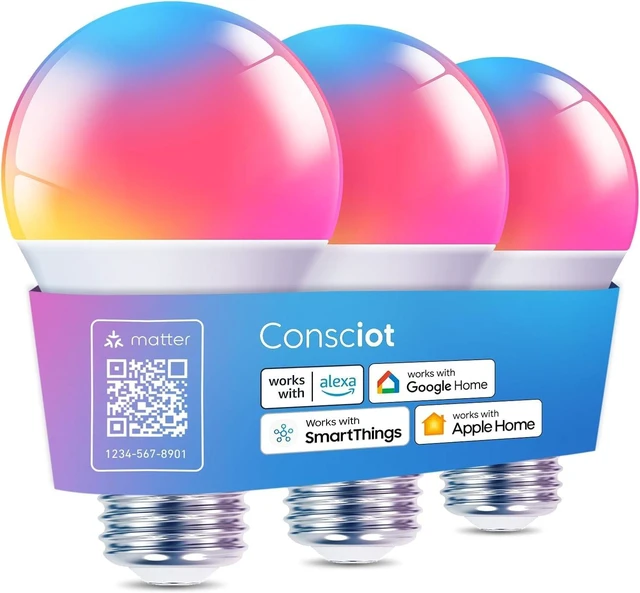
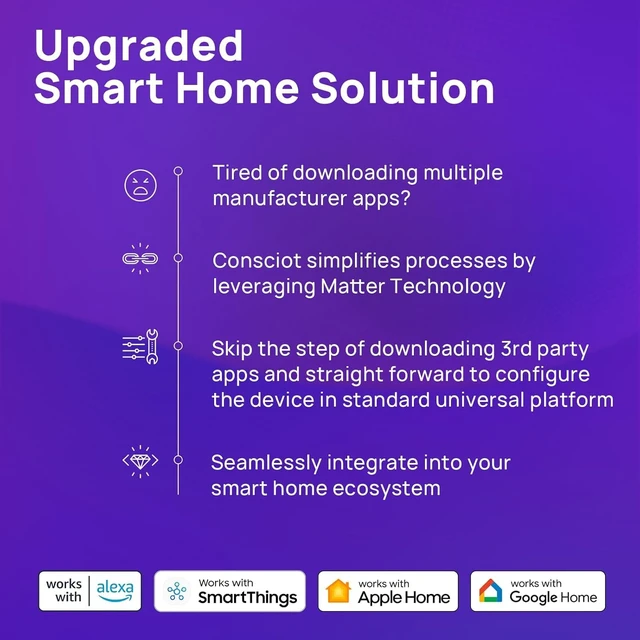
Hub required: A Matter-certified hub or controller is necessary, such as Apple Home, Alexa, Google Home, or SmartThings
No hub: Use the AiDot app instead
When adding the device via a third-party app, scanning the code prompts an error or no response.
Version Requirements:
Apple Home iOS system: Version 16.2 or later
Alexa APP Version 2.2.491118.0 or later
Google Home APP Version 2.62.1.15 or later
SmartThings App: Android Version 1.7.91 or higher, iOS Version 1.6 or higher
After adding to Apple Home, how to add to other platforms?
1.On the device’s settings page, select “Turn On Pairing Mode” to obtain a Setup Code.
2.Manually enter the code on other platform apps for pairing.
SmartThings-Enable for other services
-Other Assistants and Apps
Google -Link apps & services
After adding the device, it shows as offline.
The device may show as offline due to an unstable network connection. You can try manually refreshing to resolve the issue.
When adding the device for the first time, it says the device cannot be found.
Please power on the device again and confirm that it is in factory reset state. Also, make sure Bluetooth is turned on.


How to work with Matter bulbs?
Only supports 2.4GHz WiFi and IPv6 routers (not compatible with 5GHz)
Hub required: A Matter-certified hub or controller is necessary, such as Apple Home, Alexa, Google Home, or SmartThings
No hub: Use the AiDot app instead
When adding the device via a third-party app, scanning the code prompts an error or no response.
Version Requirements:
Apple Home iOS system: Version 16.2 or later
Alexa APP Version 2.2.491118.0 or later
Google Home APP Version 2.62.1.15 or later
SmartThings App: Android Version 1.7.91 or higher, iOS Version 1.6 or higher
After adding to Apple Home, how to add to other platforms?
1.On the device’s settings page, select “Turn On Pairing Mode” to obtain a Setup Code.
2.Manually enter the code on other platform apps for pairing.
SmartThings-Enable for other services
-Other Assistants and Apps
Google -Link apps & services
After adding the device, it shows as offline.
The device may show as offline due to an unstable network connection. You can try manually refreshing to resolve the issue.
When adding the device for the first time, it says the device cannot be found.
Please power on the device again and confirm that it is in factory reset state. Also, make sure Bluetooth is turned on.








| Brand | Consciot |
| Light Type | WIFI Bluetooth Smart Light Bulbs |
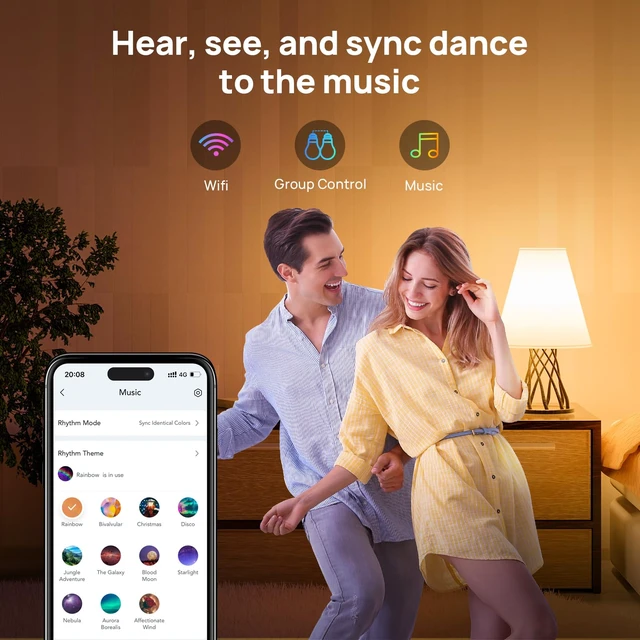
| Special Feature | 1800K-6500K Brightness Dimmable, Energy Efficient, Music Sync, RGBTW Color Changing, WIFI Bluetooth |
| Wattage | 60 watts |
| Bulb Shape Size | A19 |
| Additional Features | 1800K-6500K Brightness Dimmable, Energy Efficient, Music Sync, RGBTW Color Changing, WIFI Bluetooth |
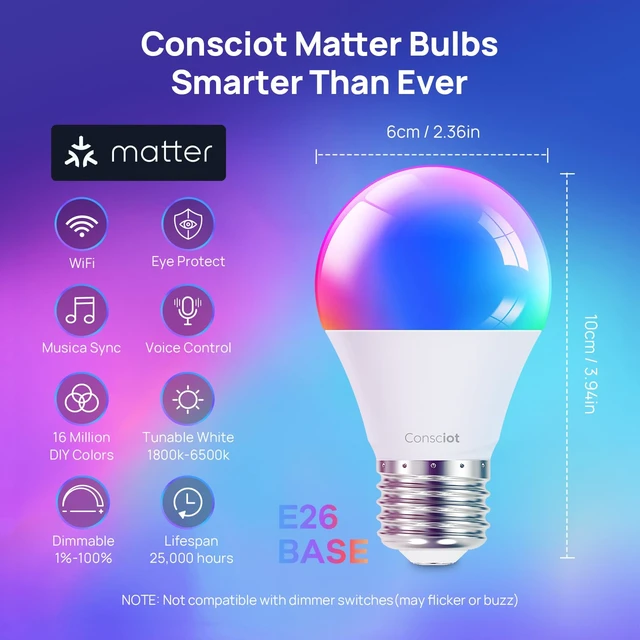
| Bulb Base | E26 |
| Incandescent Equivalent Wattage | 60 watts |
| Specific Uses For Product | For indoor use only |
| Light Color | Multicolor |
| Voltage | 120 volts_of_alternating_current |
| Color Temperature | 6500 Kelvin |
| Light Output Maximum | 800 lumens |
| Indoor Outdoor Usage | Indoor |
| Power Source | Electric |
| Color Rendering Index | 90 |
| Beam Angle | 230 degrees |
| Power Consumption | 9 watts |
| Light Source Type | LED |
| Light Source Wattage | 9 watts |
| Accepted Voltage Frequency | 100 to 120 Volts and 60 Hertz |
| Control Method | App |
| Light Source Operating Life | 25000 hours |
| White Brightness | 800 lumens |
| Efficiency | High |
| Connectivity Protocol | Bluetooth, Wi-Fi |
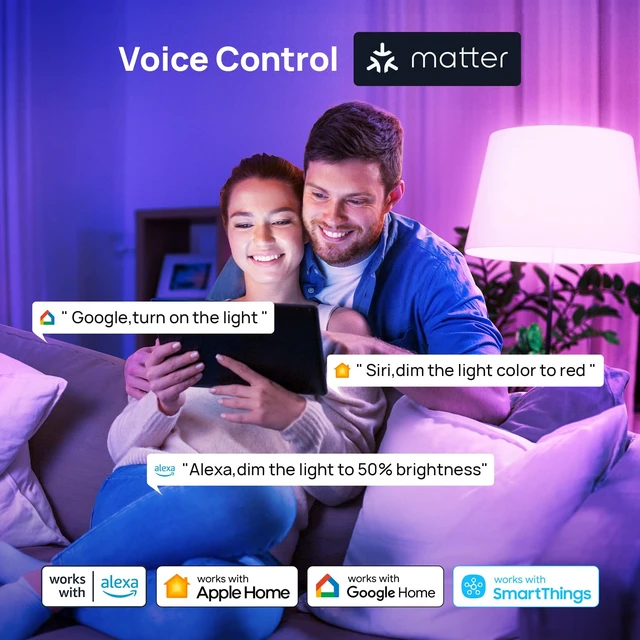
| Controller Type | Amazon Alexa, Apple Home, Google Home, Siri, SmartThings |
| Connectivity Technology | Bluetooth, Wi-Fi |
| Frequency | 60 |
| Brand Name | Consciot |
| Number of Items | 3 |
| Model Name | WIFI Bluetooth Smart Light Bulbs |
| Model Number | CS10005-RGBTW-US-3 |
| Manufacturer | leedarson |
| UPC | 850053671135 |
| Manufacturer Warranty Description | All products provide 5 years warranty. |
| Included Components | 3 packs led bulbs |
| Item Type Name | WIFI Bluetooth Smart Light Bulbs |
| Manufacturer Part Number | CS10005-RGBTW-US-3 |
| Unit Count | 3 Count |
| Package Quantity | 1 |
| Item Dimensions W x H | 2.36"W x 4.25"H |
| Material Type | Polycarbonate (PC) |
| Shape | Arbitrary(A) |
| Style Name | WIFI Bluetooth Smart Light Bulbs |
| Color | Standard |


