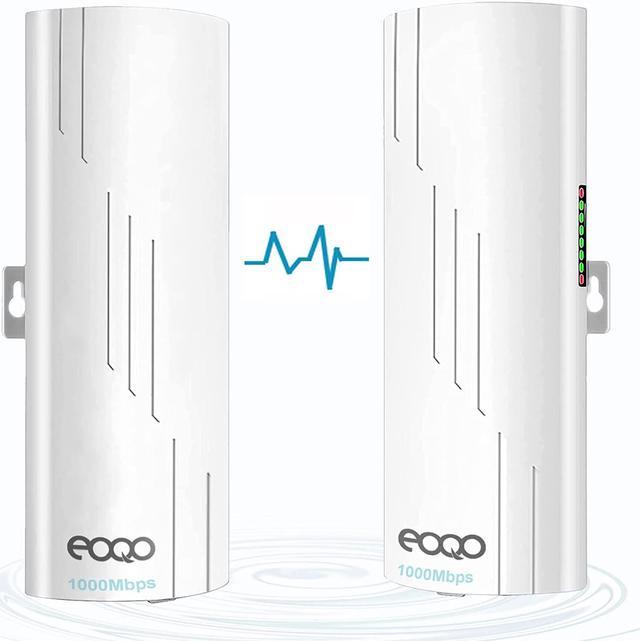
[Point to
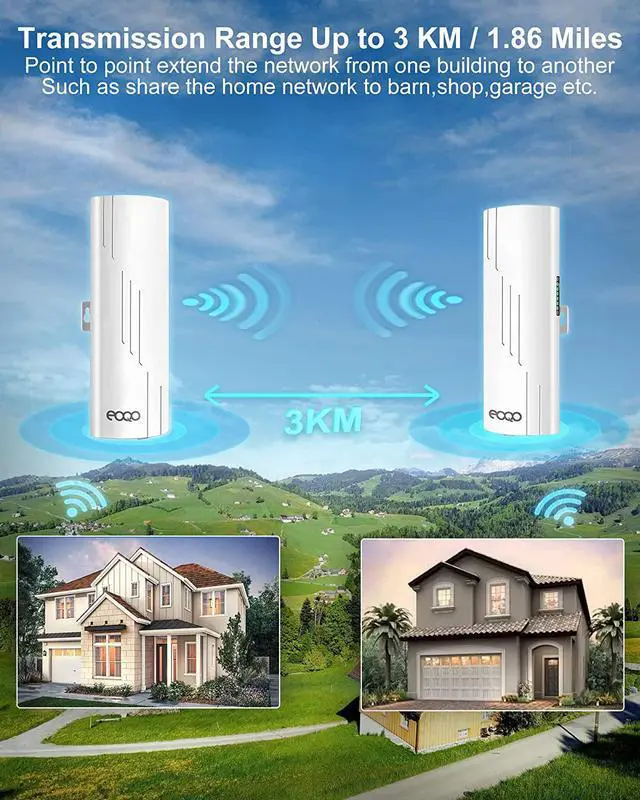
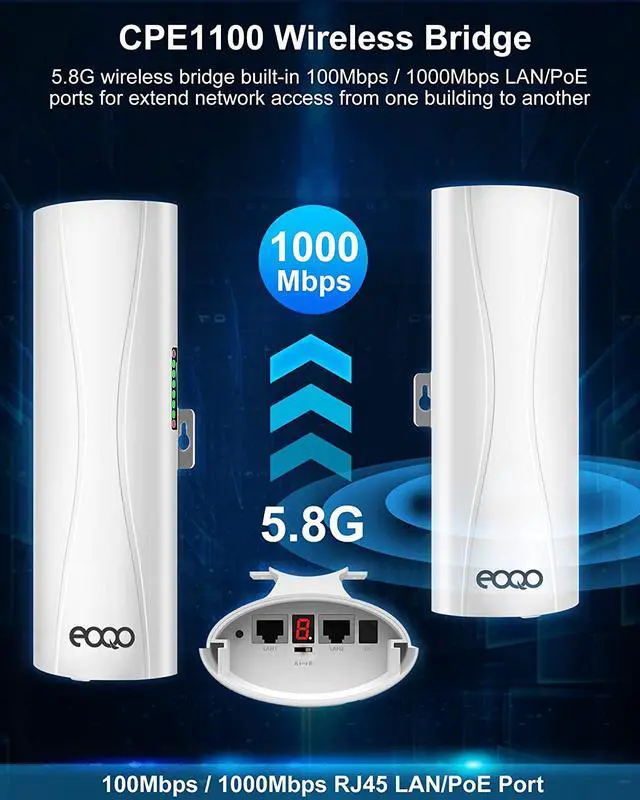
Point Wireless Bridge]: CPE1201 is a 5GHz 1000Mbps Long Range WiFi Extender Outdoor Wireless Bridge CPE Kit with ethernet port. The Wi-Fi range is up to 3KM and with LED display to configure the PTP/PTMP connection, more stable Support AP and bridge operation mode, simple to pair the bridges, meet with multiple Wi-Fi transmission scheme demands. This Outdoor Wireless Point to Point Bridge is Waterproof, dust proof with lighting protection.
Operating Temperature: -30- 65.
[Multiple operation modes]: suit for different network
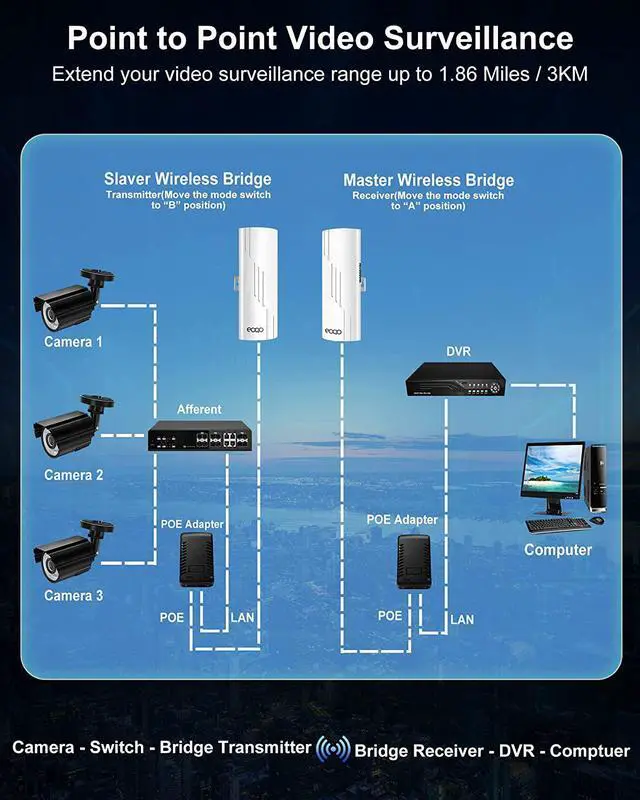
& environment: Connect an IP Surveillance Camera to CPE1201s slave model and utilize its long-range connectivity to send surveillance video back through the wireless network for extended surveillance coverage. Tethering a series of IP Cameras to the point to point WiFi range extender gives you 'eyes on' places you might not otherwise see. Easy to set CPE with IP cameras and networks DVR
[Point to Point Connection for Wireless Coverage]: Multi-Mode wireless WiFi bridge with ethernet port and
LED display: Support Wireless AP, Repeater operation mode; Support DHCP server; WiFi coverage before 2 houses with 3KM distance. It transmits via wireless WiFi, reducing the trouble of wiring cable. This long range WiFi extender outdoor makes outdoor WiFi connection simple and easy.
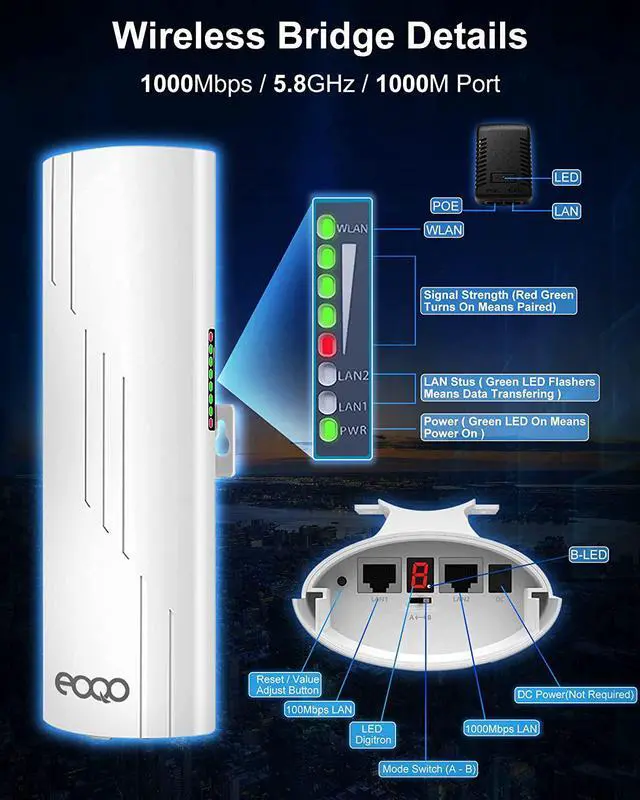
[Tips on product how to use]: CPE1201S Display can show operation mode/channel/signal strength, no need to access into GUI, press reset 1s will automatic paired; avoid the complex setup program. This point to point wireless bridge can save much human work and cost, and making the long-range wireless coverage, data transmission, and wireless monitoring simple and professional.
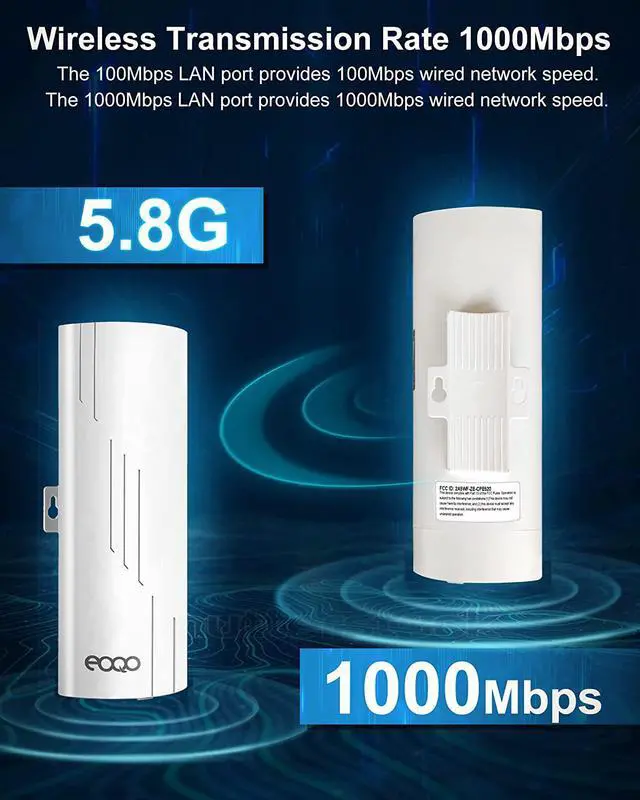
[1000Mpbs digital display wireless bridges]: transmission/receiver automatic networking, support P2P Point-to-multipoint, transmission/receiver flexible switching. WDS networking mode, video network dual compatible. The transmission speed between 2 bridges max is 1000Mbps. The highest network speed that can be achieved max is 1Gbps. Share the same network with your garage, barn, stable, warehouse, shop etc.
Connection Guide
The master bridge and slave bridge must be installed face to face, the antenna is not omnidirectional, it has a 60-degree transmission angle, the straight installation without blocking objects would get the best performance.
Wireless Bridge Master & Slave Set:
1. Master Bridge Setting
Move the mode switch to "A" position, the device works as master bridge
2. Slave Bridge Setting
Move the mode switch to "B" position, the device works as slave bridge
Wireless Bridge Connection
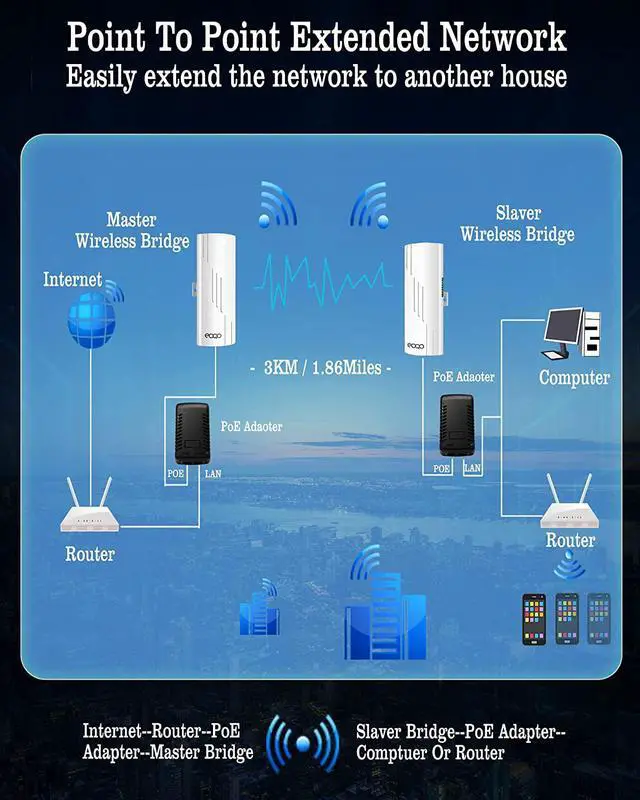
1. Bridge A Connection - Master Bridge
Step 1: the LAN port of the PoE Adapter connects to the router through an ethernet cable.
Step 2: the PoE port of the PoE adapter connects to the LAN port of the master wireless bridge by another ethernet cable.
2. Bridge B Connection - Slave Bridge
Step 1: the PoE port of the PoE adapter connects to the LAN port of slave bridge through an ethernet cable
Step 2: the LAN port of the PoE adapter connects to the LAN port of the computer or router by another ethernet cable
Point-to-Point Connection for Video Surveillance
outdoor router
Connection Guide
The master bridge and slave bridge must be installed face to face, the antenna is not omnidirectional, it has a 60-degree transmission angle, the straight installation without blocking objects would get the best performance.
Wireless Bridge Master & Slave Set:
1. Master Bridge Setting
Move the mode switch to "A" position, the device works as master bridge
2. Slave Bridge Setting
Move the mode switch to "B" position, the device works as slave bridge
Wireless Bridge Connection
1. Bridge A Connection - Master Bridge
Step 1: the LAN port of the PoE Adapter connects to the DVR through an ethernet cable.
Step 2: the PoE port of the PoE adapter connects to the LAN port of the master wireless bridge by another ethernet cable.
2. Bridge B Connection - Slave Bridge
Step 1: the PoE port of the PoE adapter connects to the LAN port of the slave bridge through an ethernet cable
Step 2: the LAN port of the PoE adapter connect to the LAN port of the switch by another ethernet cable
Point-to-Multiple Point Connection for Video Surveillance
outdoor wireless access point
Connection Guide
The master bridge and slave bridge must be installed face to face, the antenna is not omnidirectional, it has a 60-degree transmission angle, the straight installation without blocking objects would get the best performance.
Wireless Bridge Master & Slave Set:
1. Master Bridge Setting
Move the mode switch to "A" position, the device works as master bridge
2. Slave Bridge Setting
Move the mode switch to "B" position, the device works as slave bridge
Wireless Bridge Connection
1. Bridge A Connection - Master Bridge
Step 1: the LAN port of the PoE Adapter connects to the DVR through an ethernet cable.
Step 2: the PoE port of the PoE adapter connects to the LAN port of the master bridge by another ethernet cable.
2. Bridge B Connection - Slave Bridge
Step 1: the PoE port of the PoE adapter connects to the LAN port of slave bridge through an ethernet cable
Step 2: the LAN port of the PoE adapter connects to the LAN port of the IP cameras by another ethernet cable
CPE1201 Wireless Bridge Interface
wireless ethernet bridge outdoor
Overview
The outdoor wifi extender work by two modes, auto pairing mode with pre-programmed suitable for newbie and customize mode suitable for experienced user.
Auto pairing mode:
Connect the bridges to the PoE power adapter, the Power LED lamp turns green, system is power on, when both bridges are power on, they will auto pair in a few minutes, during the pairing the LAN status LED lamps all turn green. The digital LED indicator displays the numeric in red color.
You can find a good frequency without interference by pressing the "RST" button to change the channel, short press the button, the LED indicator will display the numeric "0", "1", "2", "3"... "F" one by one, and change in cycle, each numeric means a different frequency, you can find the details in the user manual.
At the auto pairing mode, the bridge also output WiFi hot point, and the access password is pre-programmed in auto paring mode. When the channel changes, the access password changes as well.
For example: the WiFi hot point name is CPE5G_5G161, and the default password is zllinkcpe123456161, if the WiFi hot point name is CPE5G_5G153, the password would be zllinkcpe123456153. The last three numbers of the password must match the last three numbers of the name.
Customize mode:
At this mode the bridged must be connected to the computer and set different IP addresses and working modes, short press the "RST" button will not be functional at this mode, but you can press and hold this button for over 10 seconds to reset to factory setting.





 here!
here!