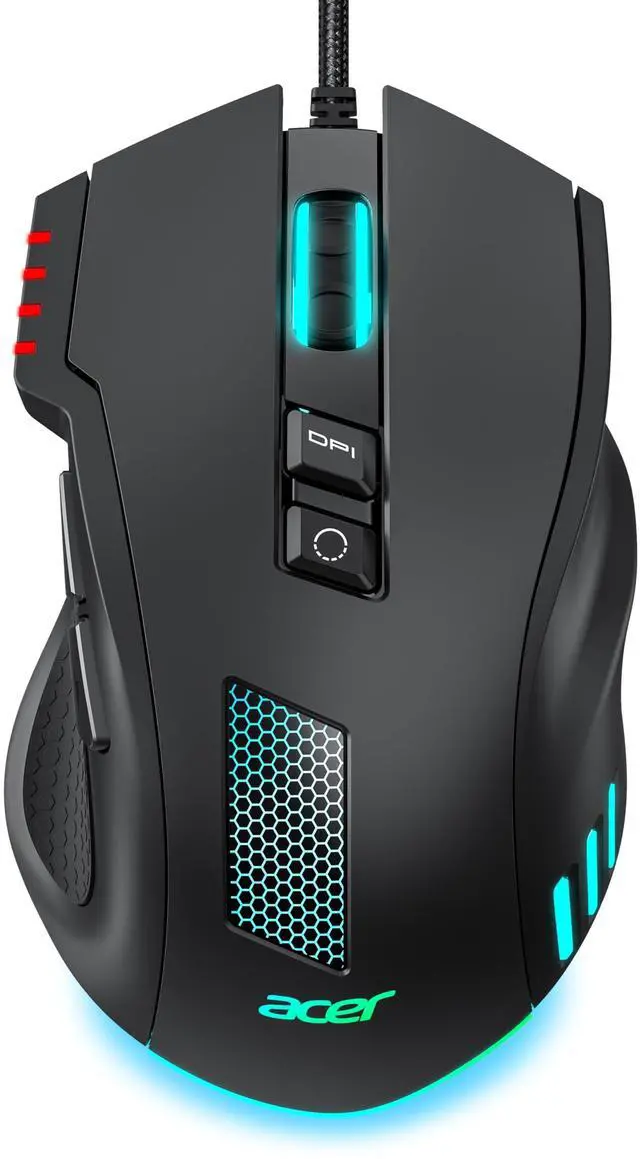
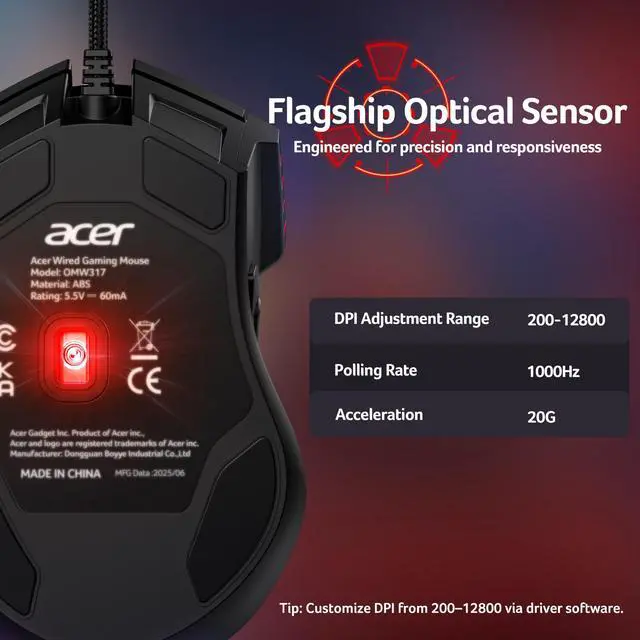
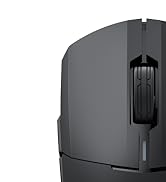
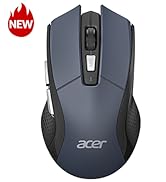
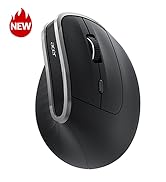
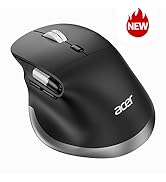
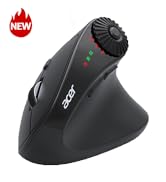
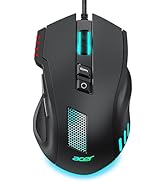
Balanced Weight & Mid-Hand Comfort This wired gaming mouse features a larger ergonomic shape for a comfortable mid-hand grip, letting your hand rest naturally. Its balanced weight adds stability without feeling heavy. With 1000Hz polling, 20G acceleration, and 7000 FPS scanning, it delivers smooth tracking for sniper precision in FPS games and quick reactions in fast-paced battles.
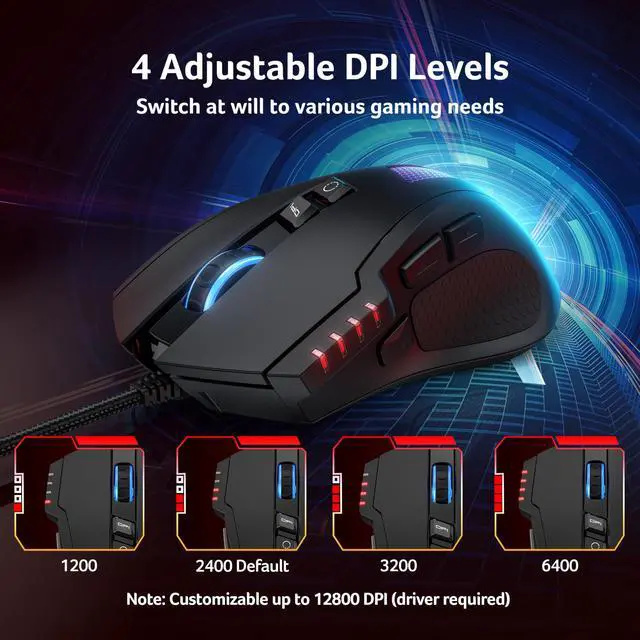
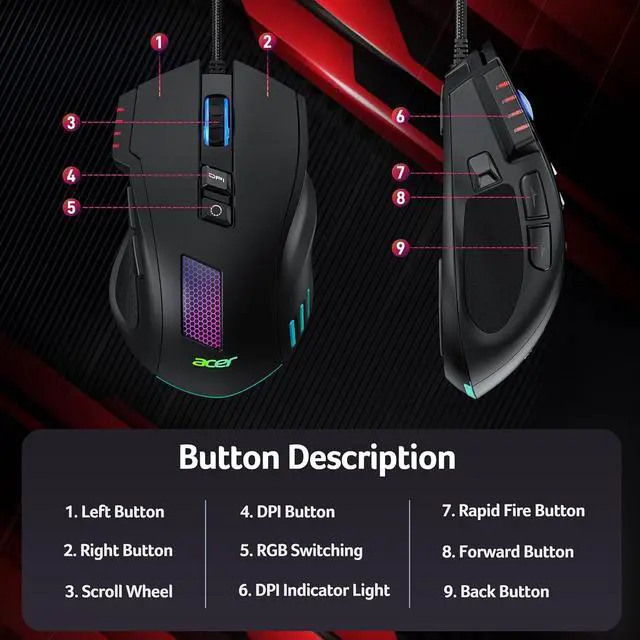
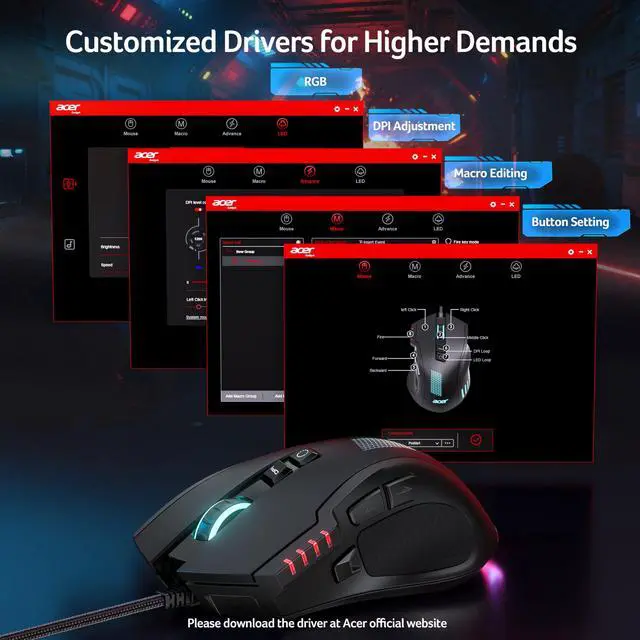
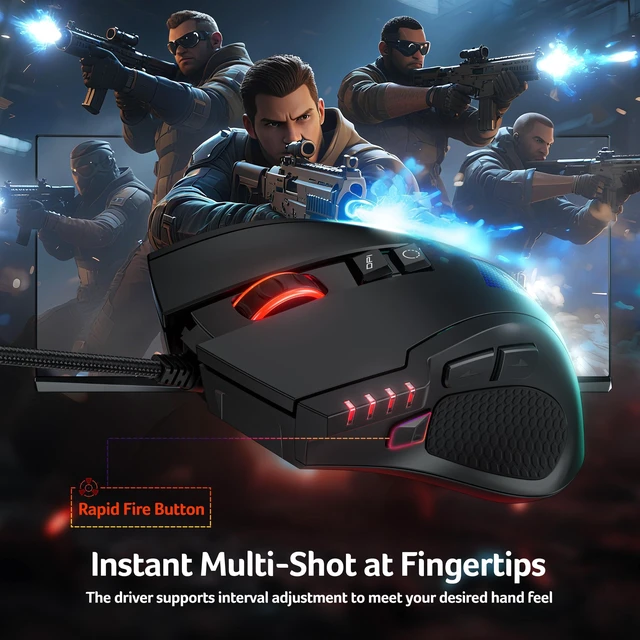
Easy-to-Reach 8 Programmable ButtonsDesigned for quick reactions, this computer mouse features 8 easy-reach buttons for faster execution and customizable control. Remap buttons, assign macros, set rapid fire, and customize DPI/RGB via the driver. Ideal for FPS competitors, MOBA players, and multitaskers, from precision aiming, skill combos and everyday productivity. Click the red to save settings.
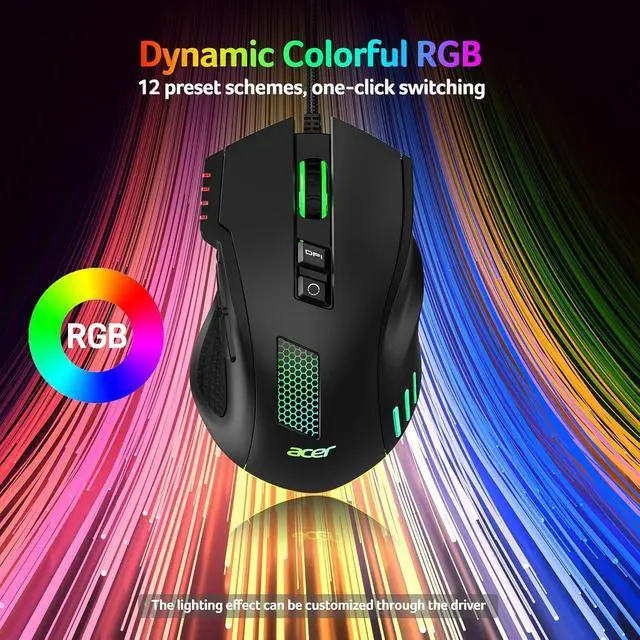
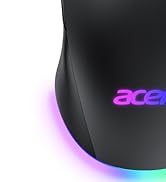
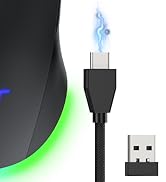
Stylish RGB, Fully CustomizableEnjoy 12 customizable RGB options on this pc mouse for laptop, from static colors to dynamic rainbow effects, with music synchronization for an immersive gaming atmosphere. Cycle effects directly on the mouse or customize them through the driver. Music sync requires the driver. Hold the DPI button for 3 seconds to toggle lighting.
+
+
Overview
Specs
Reviews
Any questions? Our AI mode will help you find out quickly.
Download instructions are provided in the User Manual PDF on this product page. Scroll down and open the User Manual (PDF) for driver installation instructions.
Q2
How do I turn RGB lighting on or off?
A2
You can switch lighting effects either through the driver or by pressing and holding the DPI button for 3 seconds.
Q3
Is this mouse right for my hand size?
A3
This gaming mouse is fit for righted hand. With dimensions of 4.7" L x 2.9" W. Perfect for medium hands. With a 4.7" length, it's ideal for a secure palm grip if your hand measures 6.7 to 7.5 inches (170-190mm). If your hand is over 7.5 inches, you can still use it comfortably with a relaxed palm or claw grip, though it may not fill your palm completely.
Q4
The mouse cursor moves by itself or drifts to the right — how can I fix this?
A4
Please try the following solutions: 1)Make sure the sensor and mouse feet are clean and clear of any dust/hair; 2)Remove the four small protective films on the gliding feet if you haven’t done so; 3)Use a mouse pad (fabric recommended, avoid glass, mirrors, or glossy surfaces); 4)Try a different USB port and avoid using multiple USB 3.0 devices or hubs at the same time to reduce interference; 5)Reconnect the mouse to another USB port or reboot your PC; 6)Lower the DPI setting if it is too high.
Q5
The left/right mouse buttons are difficult to press. How can this be resolved?
A5
When using the mouse, ensure you press the centre of the left and right buttons (aligned with the centre of the scroll wheel).
Q6
Why is my DPI capped at 6400?
A6
The default max DPI is 6400. To unlock 12800 DPI, please install the driver and adjust the settings. After setting, make sure to click the red "v" to save.
GM801 Gaming Mouse Video
Q1
I can’t download the driver — what should I do?
A1
Download instructions are provided in the User Manual PDF on this product page. Scroll down and open the User Manual (PDF) for driver installation instructions.
Q2
How do I turn RGB lighting on or off?
A2
You can switch lighting effects either through the driver or by pressing and holding the DPI button for 3 seconds.
Q3
Is this mouse right for my hand size?
A3
This gaming mouse is fit for righted hand. With dimensions of 4.7" L x 2.9" W. Perfect for medium hands. With a 4.7" length, it's ideal for a secure palm grip if your hand measures 6.7 to 7.5 inches (170-190mm). If your hand is over 7.5 inches, you can still use it comfortably with a relaxed palm or claw grip, though it may not fill your palm completely.
Q4
The mouse cursor moves by itself or drifts to the right — how can I fix this?
A4
Please try the following solutions: 1)Make sure the sensor and mouse feet are clean and clear of any dust/hair; 2)Remove the four small protective films on the gliding feet if you haven’t done so; 3)Use a mouse pad (fabric recommended, avoid glass, mirrors, or glossy surfaces); 4)Try a different USB port and avoid using multiple USB 3.0 devices or hubs at the same time to reduce interference; 5)Reconnect the mouse to another USB port or reboot your PC; 6)Lower the DPI setting if it is too high.
Q5
The left/right mouse buttons are difficult to press. How can this be resolved?
A5
When using the mouse, ensure you press the centre of the left and right buttons (aligned with the centre of the scroll wheel).
Q6
Why is my DPI capped at 6400?
A6
The default max DPI is 6400. To unlock 12800 DPI, please install the driver and adjust the settings. After setting, make sure to click the red "v" to save.
Acer Dual Mode Gaming Mouse
Acer Mouse
Acer Wireless Mice
Wired Gaming Mouse, 12, 800 DPI RGB Ergonomic Computer Mouse for PC | Optical Sensor, 12 Backlit Modes, 8 Programmable Buttons, Software for DIY Keybinds, Rapid Fire, USB Mouse for Laptop
Learn more about the Detailed Specifications
Additional Information
First Listed on Newegg
September 03, 2026
There are no reviews yet.
Do you own this product?
Warranty & Returns
Warranty, Returns, And Additional Information
Warranty
Please contact the Seller directly for warranty information. Warranty information may also be found on the Manufacturer's website.