




Note:
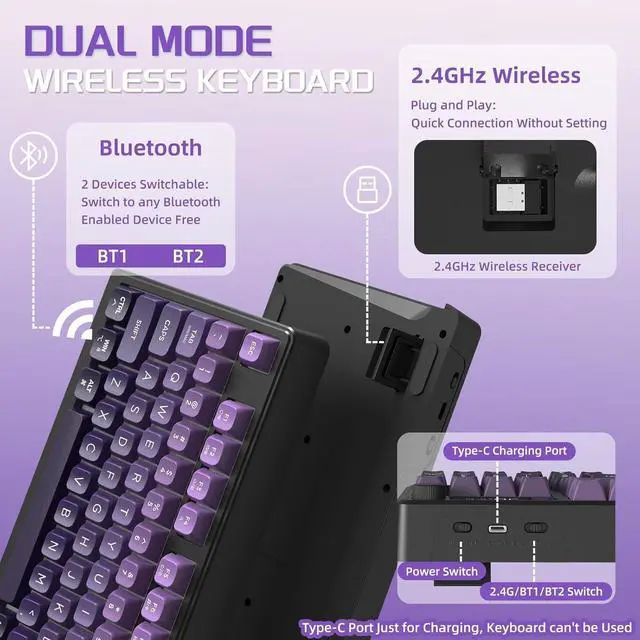
- 1 The keyboard has power switch and mode switch, you need to turn on the keyboard and toggle the switch to the corresponding mode to use it, if you want to use it in 2.4Ghz wirelss mode, you need to toggle the mode switch to the 2.4G sign, and then insert the USB receiver into the corresponding computer USB port to connec it, and if you want to use it in Bluetooth mode,you need to toggle the mode switch to BT sign, and then press ESC+Q key to pair it with your Bluetooth device to connect it, note: the Bluetooth mode support connect 2 Bluetooth device, so it mode sign have BT1 and BT2 for your choice.
- 2 Both the wireless mode and Bluetooth mode have connection range, and the effective connection range is 10 meters, pls ensure your keyboard is not away from the USB receiver or your Bluetooth device over 10 meters when using, otherwise the product will not work.
- 3 For better using, please make sure the keyboard is fully charged in their first use, pls don't use charger over 5V and quick/fast charger, or the built-in battery will be damaged, we recommend plugging the charging cable into your computer USB port to charge them(It wiil need 6-8 hours to fully charge it), when plugging charging cable, pls use gentle strength and ensure the cable was plugged into the charging port from the correct direction, otherwise the charging port might be damaged
- 4 The keyboard will auto enter sleep mode if no operation in about 3 minutes, and press any key can wake it up, and this setting cannot be adjusted.
- 5 Backlight will accelerate battery consumption, if you wanna a long using time for one charge, you can turn off the backlight or decrease the brightness
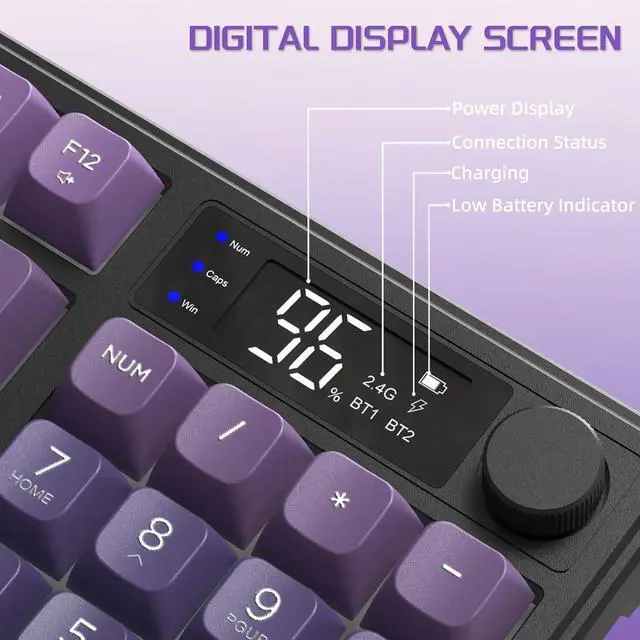
- 6 There will be a little delay or the lights will not turn on when the keyboard battery is too low, please charge it in time, you can check the charging status in the LCD screen of the keyboard
- 7 If the keyboard lose connection with the USB receiver or Bluetooth device, it will not work, rebuilding connection can solve this problem, if the button cannot work, you can check whether there is something stuck inside, and detach the cover to clean it to make it work
- 8 If you have any problems, we will try our best to solve it
Product Specification
How to switch the connection mode?
In the top front of the keyboard, it has power switch and mode switch, after turning on the keyboard, you can toggle the mode switch to choose the mode you want to use
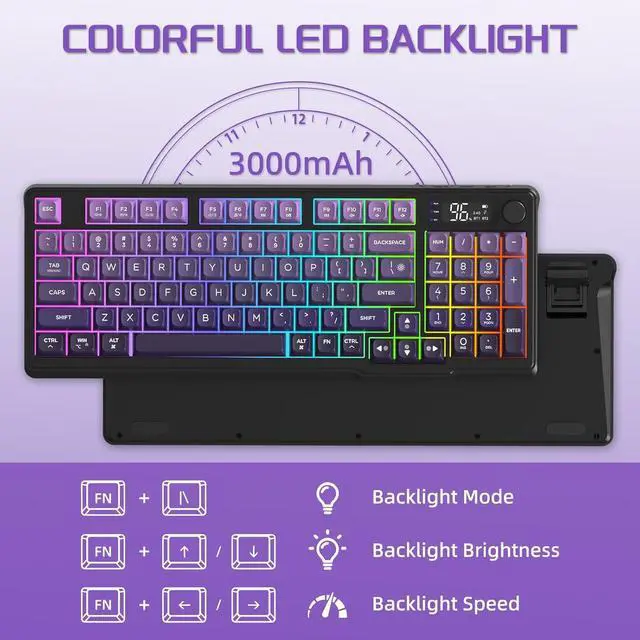
How to adjust the backlight?
Press FN+\| key to adjust backlight mode
Press FN+?/? key to adjust backlight brightness
Press FN+?/? key to adjust backlight flowing speed
Is this a mechanical keyboard?
No, it is membrane keyboard
Does this support RGB backlight?
No, it only has 1 light color-Rainbow backlight


Note:
- 1 The keyboard has power switch and mode switch, you need to turn on the keyboard and toggle the switch to the corresponding mode to use it, if you want to use it in 2.4Ghz wirelss mode, you need to toggle the mode switch to the 2.4G sign, and then insert the USB receiver into the corresponding computer USB port to connec it, and if you want to use it in Bluetooth mode,you need to toggle the mode switch to BT sign, and then press ESC+Q key to pair it with your Bluetooth device to connect it, note: the Bluetooth mode support connect 2 Bluetooth device, so it mode sign have BT1 and BT2 for your choice.
- 2 Both the wireless mode and Bluetooth mode have connection range, and the effective connection range is 10 meters, pls ensure your keyboard is not away from the USB receiver or your Bluetooth device over 10 meters when using, otherwise the product will not work.
- 3 For better using, please make sure the keyboard is fully charged in their first use, pls don't use charger over 5V and quick/fast charger, or the built-in battery will be damaged, we recommend plugging the charging cable into your computer USB port to charge them(It wiil need 6-8 hours to fully charge it), when plugging charging cable, pls use gentle strength and ensure the cable was plugged into the charging port from the correct direction, otherwise the charging port might be damaged
- 4 The keyboard will auto enter sleep mode if no operation in about 3 minutes, and press any key can wake it up, and this setting cannot be adjusted.
- 5 Backlight will accelerate battery consumption, if you wanna a long using time for one charge, you can turn off the backlight or decrease the brightness
- 6 There will be a little delay or the lights will not turn on when the keyboard battery is too low, please charge it in time, you can check the charging status in the LCD screen of the keyboard
- 7 If the keyboard lose connection with the USB receiver or Bluetooth device, it will not work, rebuilding connection can solve this problem, if the button cannot work, you can check whether there is something stuck inside, and detach the cover to clean it to make it work
- 8 If you have any problems, we will try our best to solve it
Product Specification
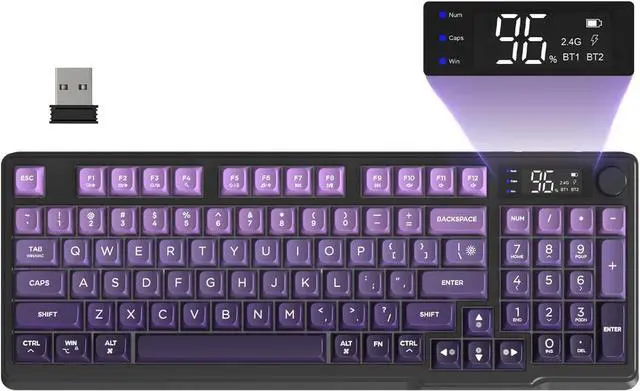
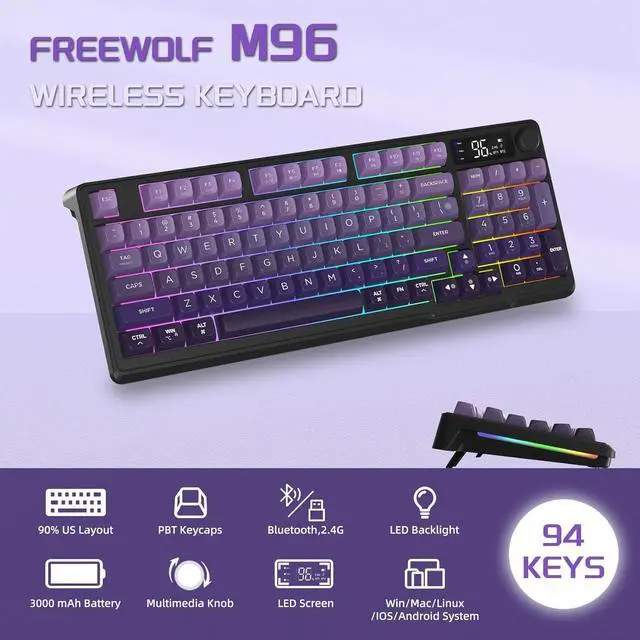
| NUMBER OF KEYS | 94 Keys, 1 Media Knob and 1 LCD Screen |
|---|---|
| SUPPORTED CONNECTIONS | 2.4 Ghz Wireless Connection and Bluetooth Connection |
| BACKLIGHT | Rainbow Backlight |
| BATTERY | 3000mAh |
| FOOT STAND | Double Layer Foot Stand |
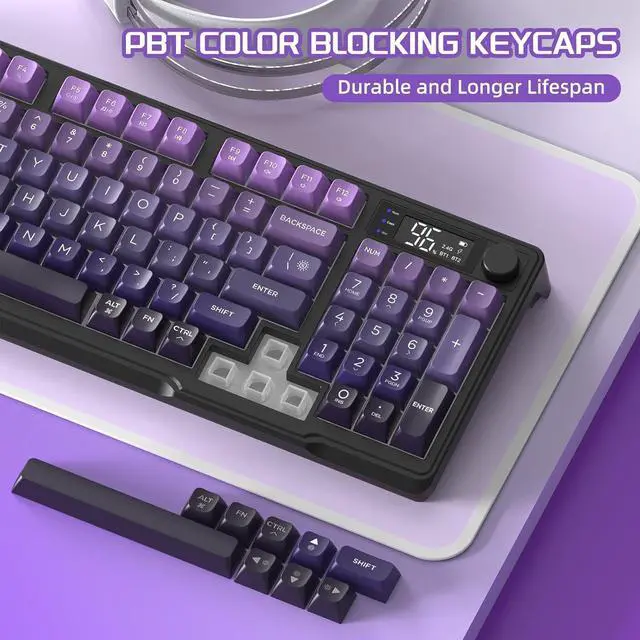
| KEYCAP MATERIAL | PBT Keycap |
| COMPATIBILITY | Supports MAC, Windows, Linux and other systems |
| KEYBOARD TYPE | Membrane Keyboard |
How to switch the connection mode?
In the top front of the keyboard, it has power switch and mode switch, after turning on the keyboard, you can toggle the mode switch to choose the mode you want to use
How to adjust the backlight?
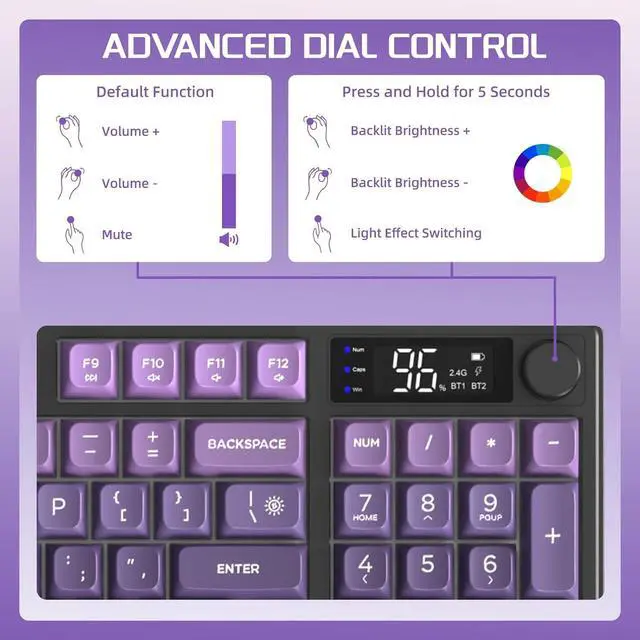
Press FN+\| key to adjust backlight mode
Press FN+?/? key to adjust backlight brightness
Press FN+?/? key to adjust backlight flowing speed
Is this a mechanical keyboard?
No, it is membrane keyboard
Does this support RGB backlight?
No, it only has 1 light color-Rainbow backlight