


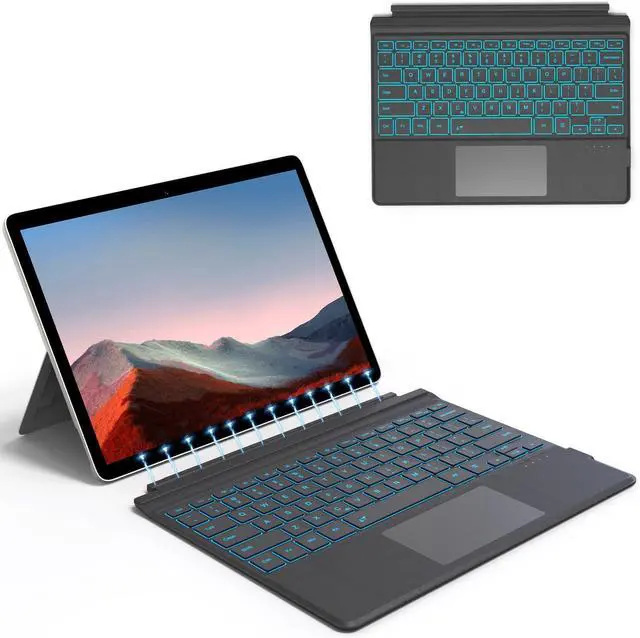
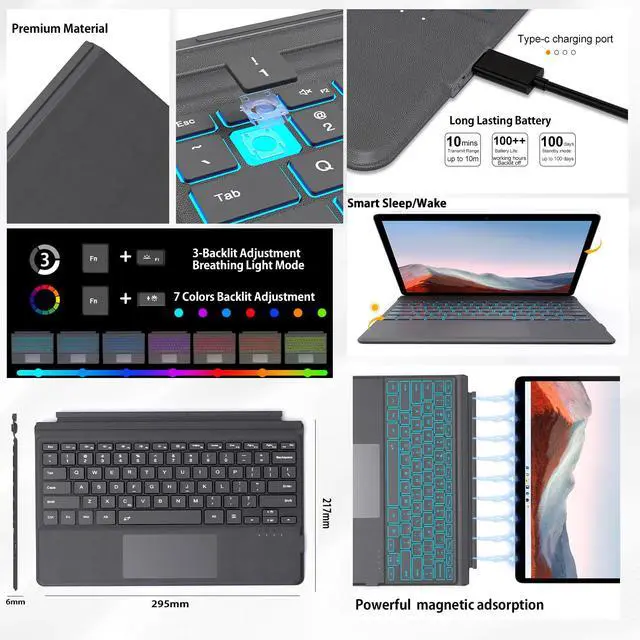
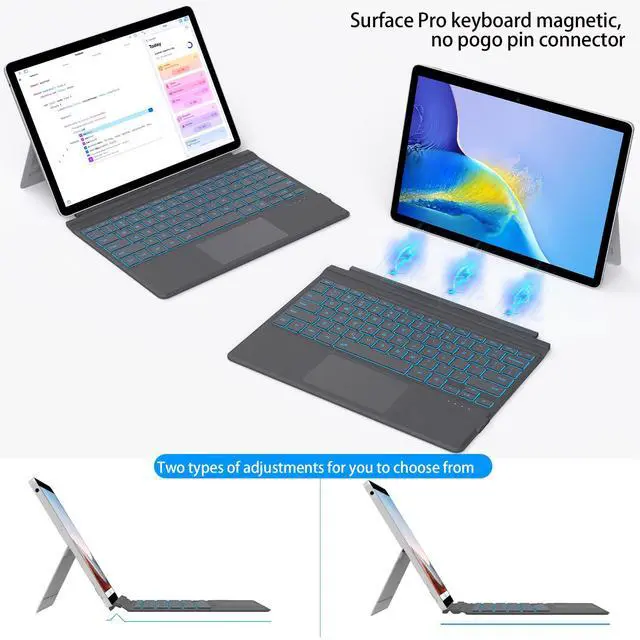
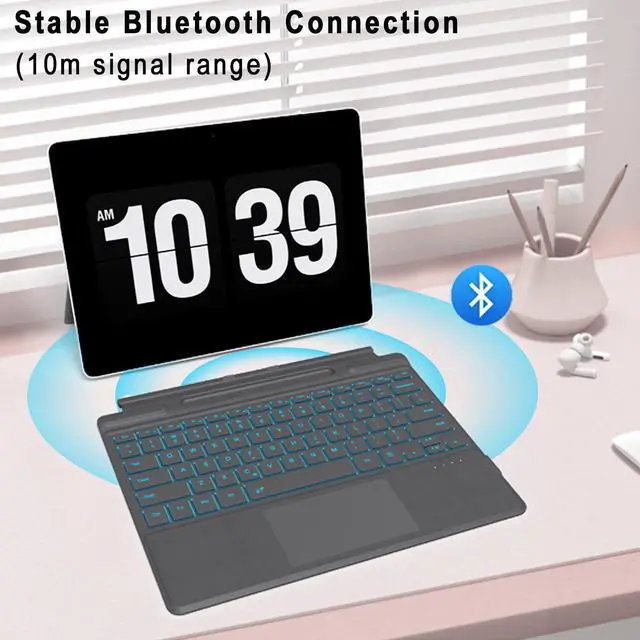


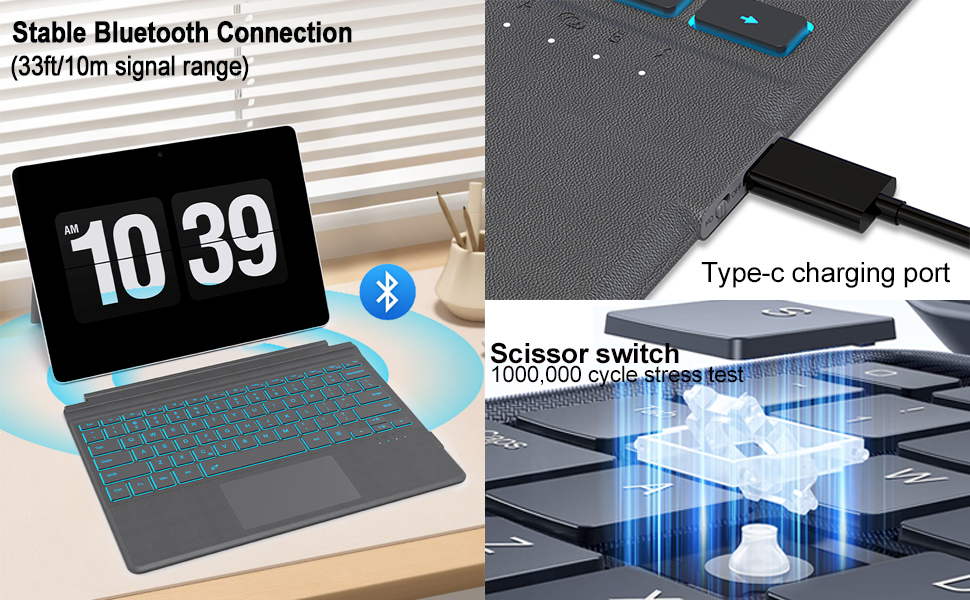
To connect: Use the Bluetooth settings on your device. This keyboard does not have a PIN connection point.
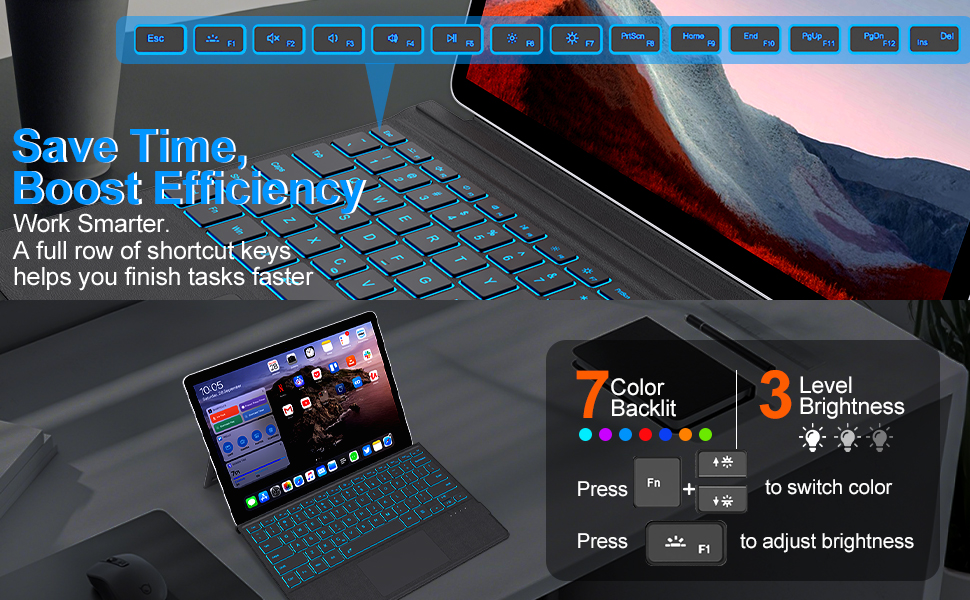
A simple reset can often fix connection or function issues. Please follow these steps:
1. On your keyboard, find these three keys: Fn, F, and J.
2. Press and hold all three keys down at the same time.
3. Keep holding them for about 5 seconds.
4. You will know the reset is complete when the indicator light flashes three times. The keyboard's backlight will also return to its standard white light.
Please note: This reset will fix most common problems (like connection or cursor issues), and your keyboard will be ready to pair with your device again via Bluetooth.
Q:Can it charge your pen? Does it have a pen holder?
- A: No.Cannot charge the pen, no pen holder
Q: Can the keyboard be charged via surface contact?
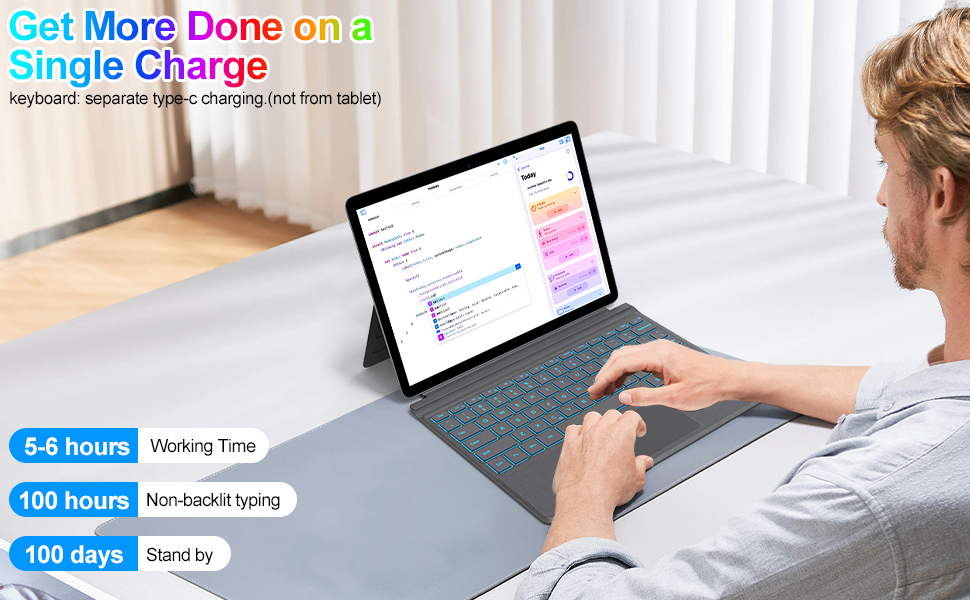
- Note: unlike OEM, the keyboard doesn't have a PIN connection point, and will not charge via surface contacts! (must charge separately)
Q: Can the keyboard charge wirelessly from the computer?
- A: No, the keyboard and computer cannot transfer electricity directly
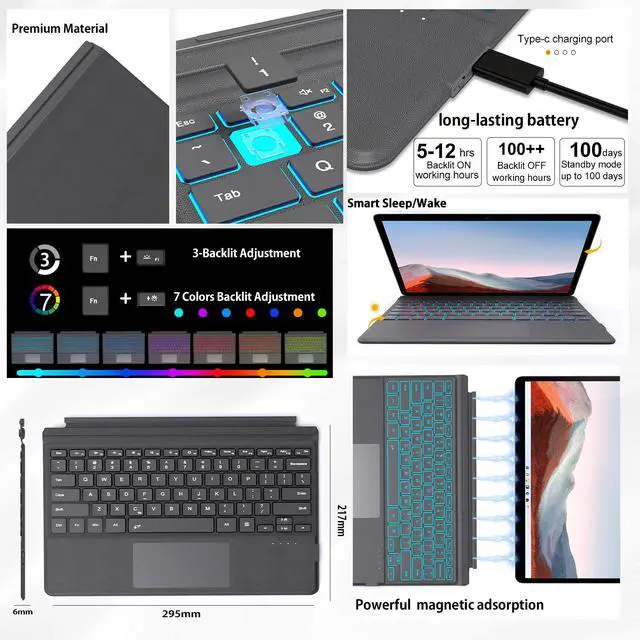
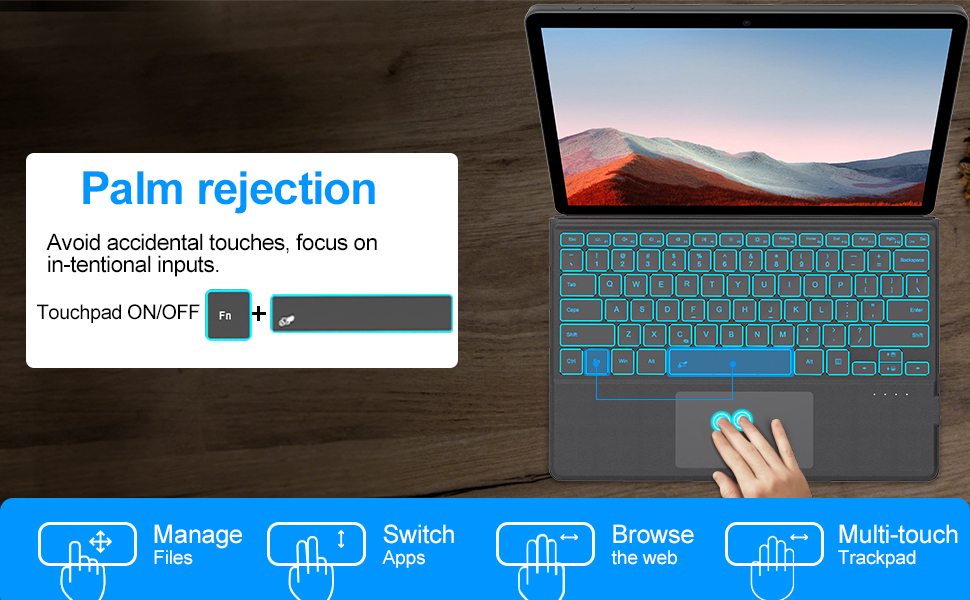
Q: Adjust touchpad on/off/sensitivity?
- A: 1. Sensitivity: Settings ? Devices ? Touchpad ? Touchpad Sensitivity ? Related Settings ? Other Settings (mouse/pointer options).
- 2. Toggle touchpad: Fn + Space.
- 3. If touchpad doesn’t work: Turn it on in Surface Settings
Q: What should I do if I can't type?
- A: Go to Settings ----> Accessibility ----> Keyboard ----> Turn off "Sticky keys" ----> Turn off "Filter keys"
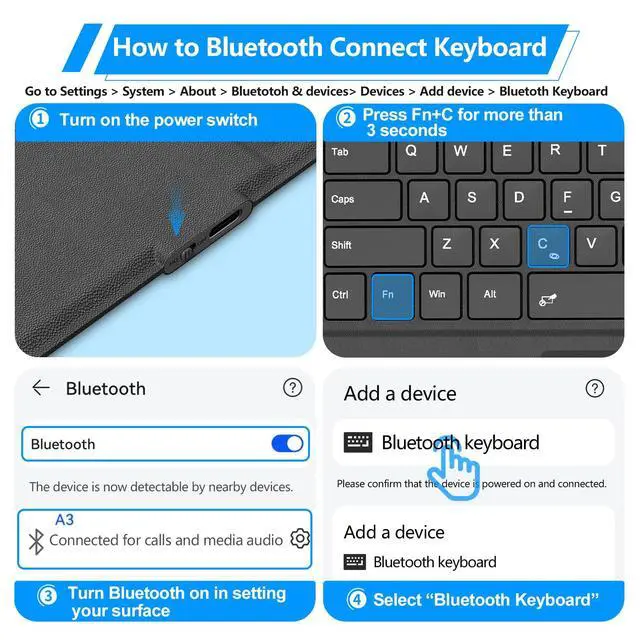
Q: Is it easy to pair?
- A: First pairing takes about 10 seconds:
- Go to Settings ? System ? About ? Bluetooth & devices ? Devices ? Add device ? Bluetooth Keyboard.


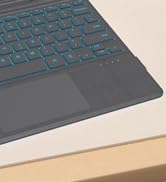
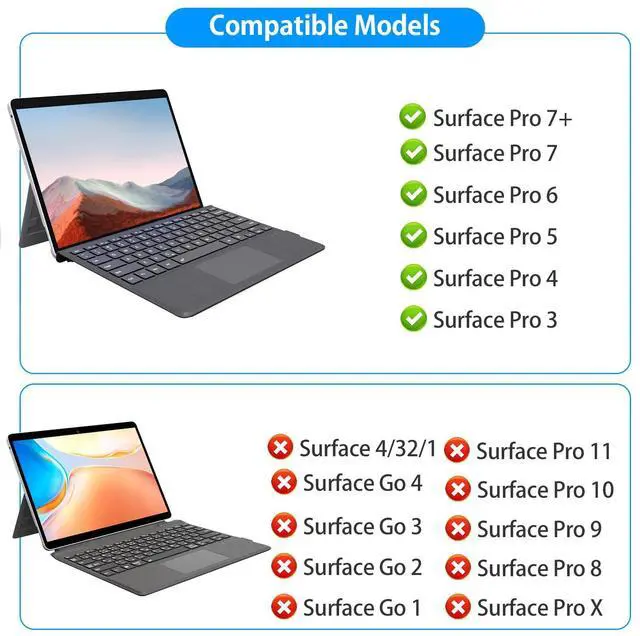
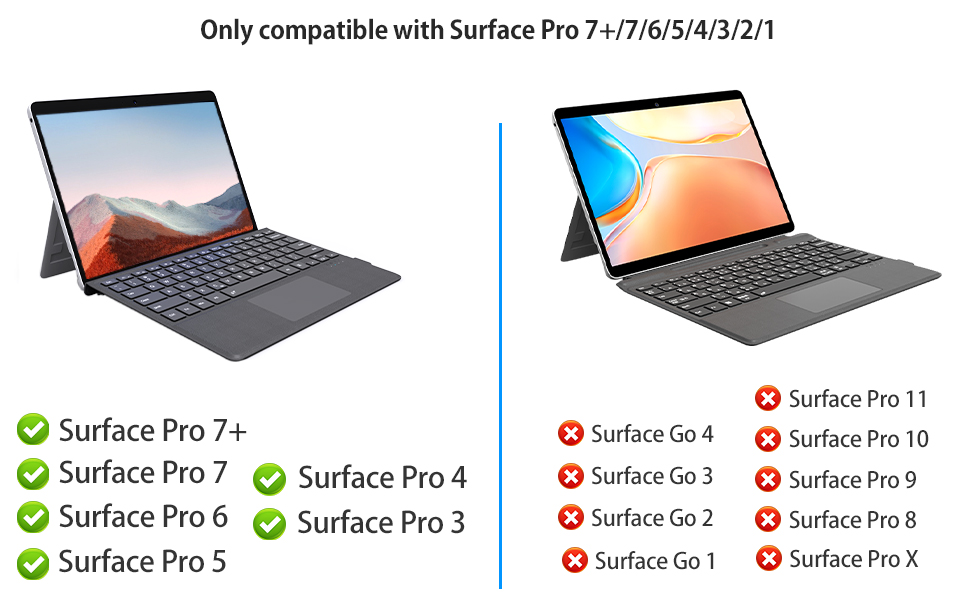
keyboard Pro 11/10/9/8/X

Born from 3C innovation, Foeytaody crafts keyboards that sing—crisp clicks dancing at your touch, thunderous keystrokes conquering worlds. Creators sculpt masterpieces. Pros command respect. Fusing aerospace durability with buttery-smooth switches and ergonomic grace. Feel precision’s rush. Hear performance’s symphony. More than typing—your brilliance unleashed.
Adjust touchpad on/off/sensitivity?
1. Sensitivity: Settings ? Devices ? Touchpad ? Touchpad Sensitivity ? Related Settings ? Other Settings (mouse/pointer options).
2. Toggle touchpad: Fn + Space.
3. If touchpad doesn’t work: Turn it on in Surface Settings
What should I do if I can't type?
Go to Settings ----> Accessibility ----> Keyboard ----> Turn off "Sticky keys" ----> Turn off "Filter keys"
Is it easy to pair?
First pairing takes about 10 seconds:
Go to Settings ? System ? About ? Bluetooth & devices ? Devices ? Add device ? Bluetooth Keyboard.
Can the keyboard charge wirelessly from the computer?
No, the keyboard and computer cannot transfer electricity directly
Can it charge your pen?
No, the pen holder is for storage only.
To connect: Use the Bluetooth settings on your device. This keyboard does not have a PIN connection point.
A simple reset can often fix connection or function issues. Please follow these steps:
1. On your keyboard, find these three keys: Fn, F, and J.
2. Press and hold all three keys down at the same time.
3. Keep holding them for about 5 seconds.
4. You will know the reset is complete when the indicator light flashes three times. The keyboard's backlight will also return to its standard white light.
Please note: This reset will fix most common problems (like connection or cursor issues), and your keyboard will be ready to pair with your device again via Bluetooth.
Q:Can it charge your pen? Does it have a pen holder?
- A: No.Cannot charge the pen, no pen holder
Q: Can the keyboard be charged via surface contact?
- Note: unlike OEM, the keyboard doesn't have a PIN connection point, and will not charge via surface contacts! (must charge separately)
Q: Can the keyboard charge wirelessly from the computer?
- A: No, the keyboard and computer cannot transfer electricity directly
Q: Adjust touchpad on/off/sensitivity?
- A: 1. Sensitivity: Settings ? Devices ? Touchpad ? Touchpad Sensitivity ? Related Settings ? Other Settings (mouse/pointer options).
- 2. Toggle touchpad: Fn + Space.
- 3. If touchpad doesn’t work: Turn it on in Surface Settings
Q: What should I do if I can't type?
- A: Go to Settings ----> Accessibility ----> Keyboard ----> Turn off "Sticky keys" ----> Turn off "Filter keys"
Q: Is it easy to pair?
- A: First pairing takes about 10 seconds:
- Go to Settings ? System ? About ? Bluetooth & devices ? Devices ? Add device ? Bluetooth Keyboard.
keyboard Pro 11/10/9/8/X
Born from 3C innovation, Foeytaody crafts keyboards that sing—crisp clicks dancing at your touch, thunderous keystrokes conquering worlds. Creators sculpt masterpieces. Pros command respect. Fusing aerospace durability with buttery-smooth switches and ergonomic grace. Feel precision’s rush. Hear performance’s symphony. More than typing—your brilliance unleashed.
Adjust touchpad on/off/sensitivity?
1. Sensitivity: Settings ? Devices ? Touchpad ? Touchpad Sensitivity ? Related Settings ? Other Settings (mouse/pointer options).
2. Toggle touchpad: Fn + Space.
3. If touchpad doesn’t work: Turn it on in Surface Settings
What should I do if I can't type?
Go to Settings ----> Accessibility ----> Keyboard ----> Turn off "Sticky keys" ----> Turn off "Filter keys"
Is it easy to pair?
First pairing takes about 10 seconds:
Go to Settings ? System ? About ? Bluetooth & devices ? Devices ? Add device ? Bluetooth Keyboard.
Can the keyboard charge wirelessly from the computer?
No, the keyboard and computer cannot transfer electricity directly
Can it charge your pen?
No, the pen holder is for storage only.