





Bluetooth Connection Guidance:
1. Power on the keyboard first, the connection indicator will light on (if battery indicator is red, please charge it first)
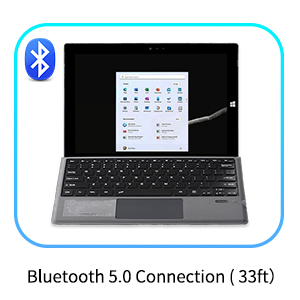
2. Press "Fn+Z" for 1 second, the wireless indicator light will enter into the pairing state, the effective time is about 2 minutes.
3. Open the wireless search function of your Surface Pro 7+/7/6/5/4, choose "Bluetooth Keyboard".
4. After the pairing process completed, the indicator light will extinguish, and you can use the keyboard now. (If it is not in use for 10 minutes, the keyboard will enter into auto sleep mode. Just press any keys to wake the keyboard up in 2-3 seconds.)
Package Includes:
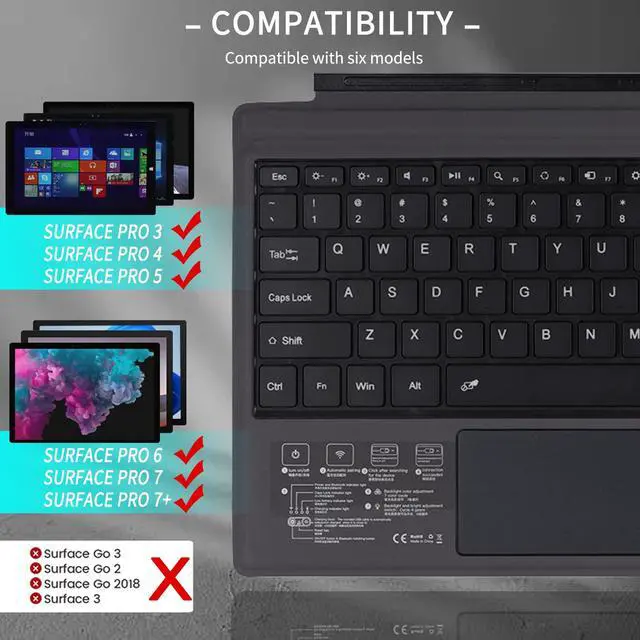
Compatible Models
- For Surface Pro 7+
- For Surface Pro 7
- For Surface Pro 6
- For Surface Pro 5
- For Surface Pro 4
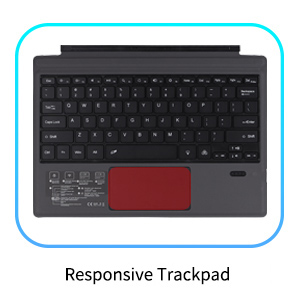

Specification
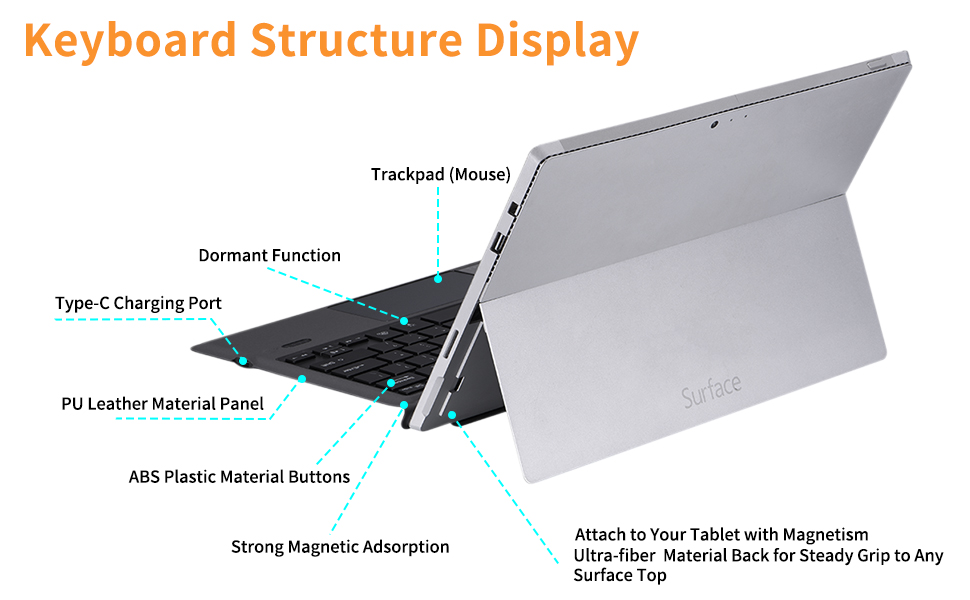
Features:
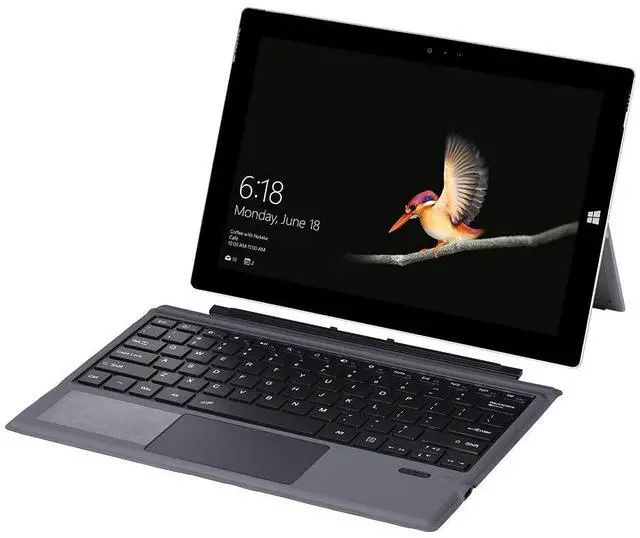
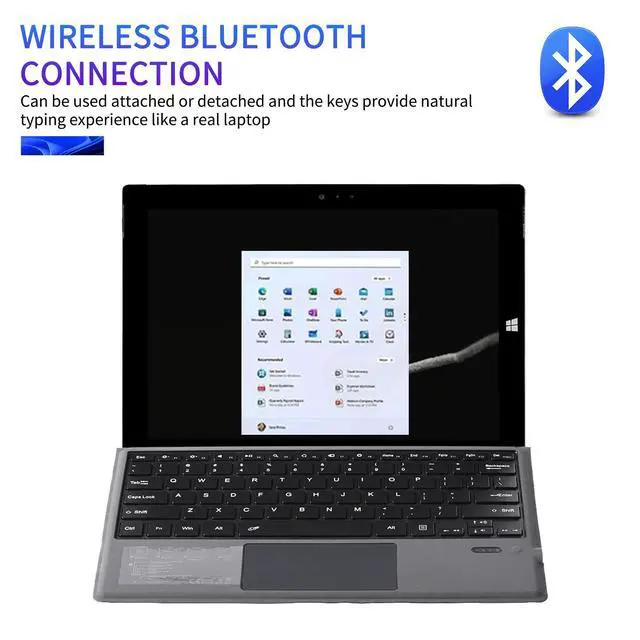
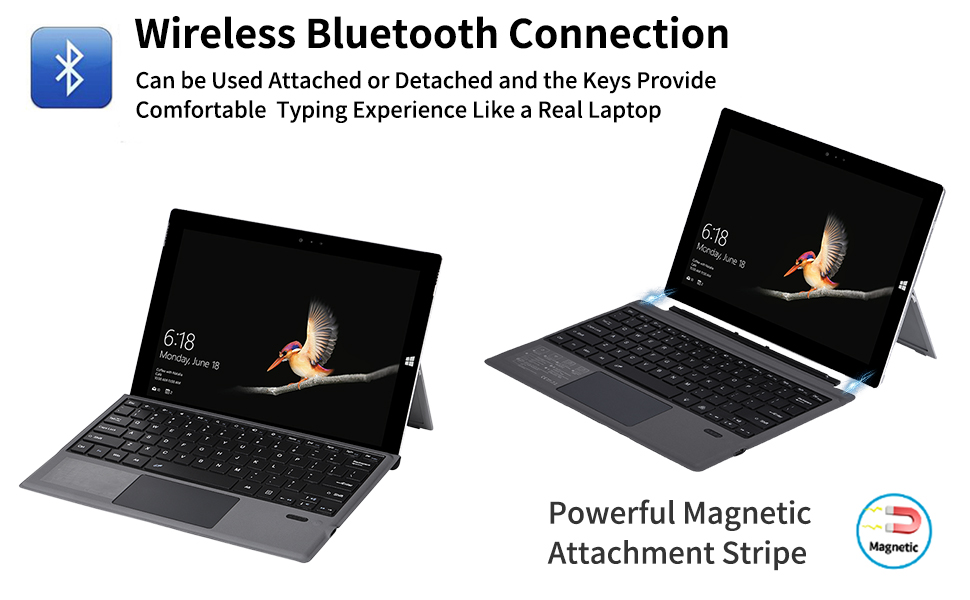
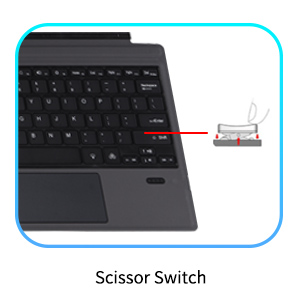
- The sleek ABS keys turn your Surface Pro 4/5/6/7/7+ tablet and the wireless keyboard into one seamless unit.
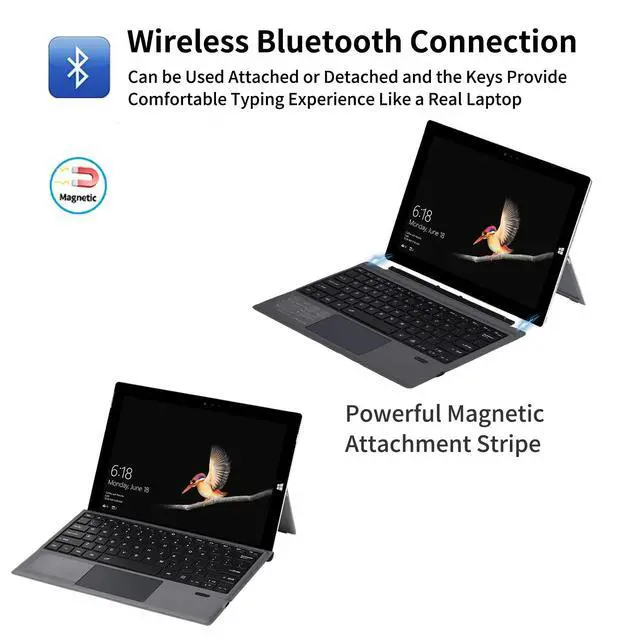
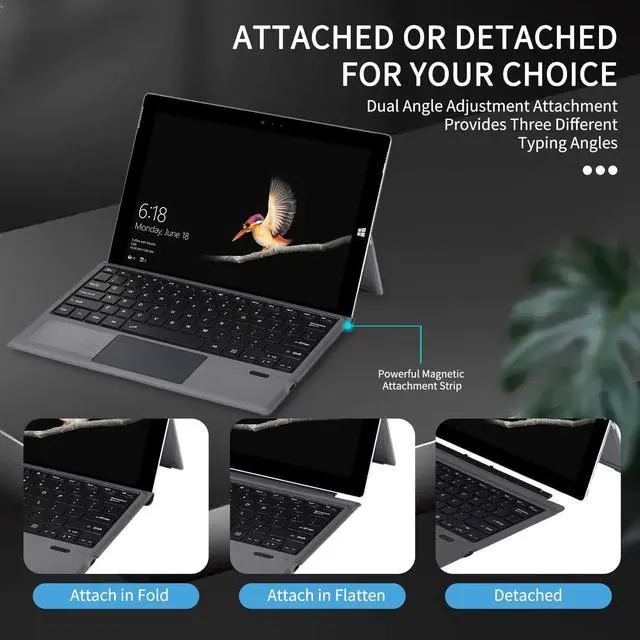
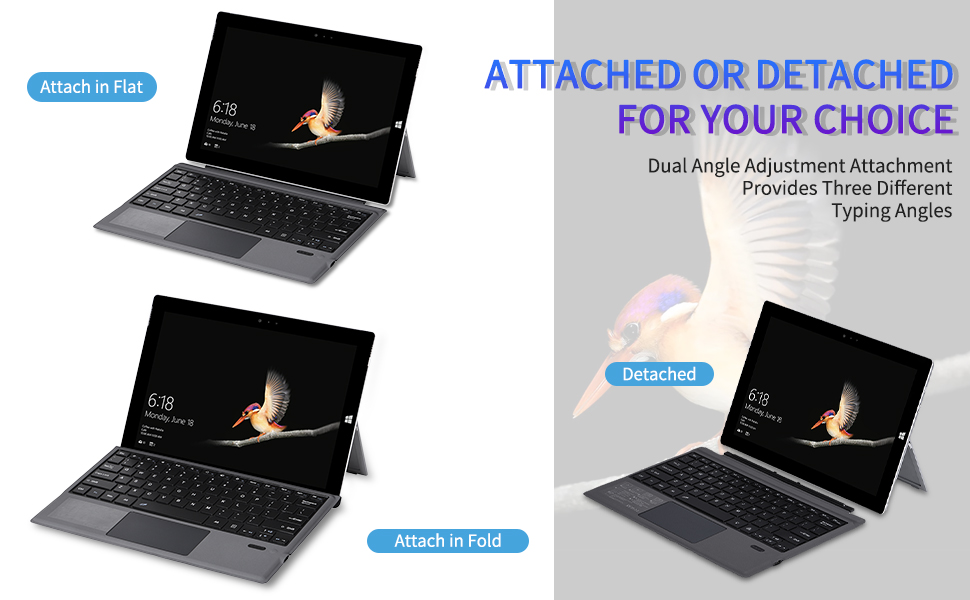
- Wireless bluetooth keyboard & folding protective PU case with stand function.
- Intelligent and simple connection, with wireless operation distance up to 10m.
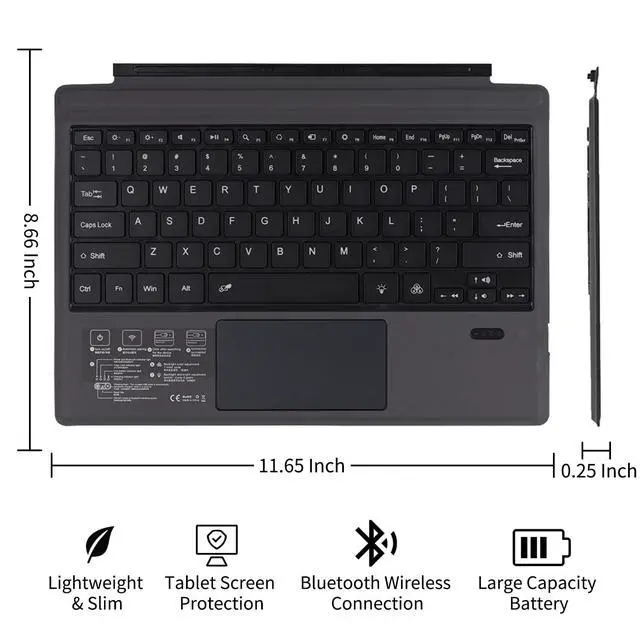
- Lightweight, quiet keystrokes, waterproof and dustproof
- Energy-saving keyboard sleep mode.
Package Includes:
- 1x Bluetooth Keyboard for Microsoft Surface Pro 7+/7/6/5/4
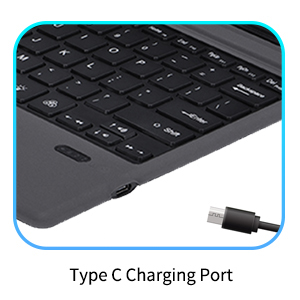
- 1x Type C Charging Cable
- 1x Instruction Manual
- 1x Compact Retail Box
Remark:
- Keyboard Only, Tablet Is Not Included
Tips:
Please charge the keyboard first before use if the battery power is not enough.
Sometimes, the keyboard battery maybe overcharged in your daily use which may result in battery overcharging protection, please follow below steps to reset the keyboard to wake up the battery:
Use a pin to long press the tinny "rst" button at the bottom right side of the keyboard, then power on the keyboard again and press “Fn+Z” button to connect the keyboard.
Bluetooth Connection Guidance:
1. Power on the keyboard first, the connection indicator will light on (if battery indicator is red, please charge it first)
2. Press "Fn+Z" for 1 second, the wireless indicator light will enter into the pairing state, the effective time is about 2 minutes.
3. Open the wireless search function of your Surface Pro 7+/7/6/5/4, choose "Bluetooth Keyboard".
4. After the pairing process completed, the indicator light will extinguish, and you can use the keyboard now. (If it is not in use for 10 minutes, the keyboard will enter into auto sleep mode. Just press any keys to wake the keyboard up in 2-3 seconds.)
Package Includes:
Compatible Models
- For Surface Pro 7+
- For Surface Pro 7
- For Surface Pro 6
- For Surface Pro 5
- For Surface Pro 4
Specification
| Layout: | QWERTY. Full line keys of function (F1-F12) |
| Applicable models: | for Microsoft Surface Pro 7+/7/6/5/4 |
| Bluetooth Version | Bluetooth 5.0 |
| Effective Operating Distance: | 10m/32.81ft |
| Working Voltage: | 3.0-4.2V |
| Working Current: | <8mA (When the touchpad is working) |
| Standby Current: | <0.3mA |
| Charging Current: | 100mA |
| Standby Time: | More Than 100 Days |
| Charging Time: | 4-5 Hours (8 hours for the first charge) |
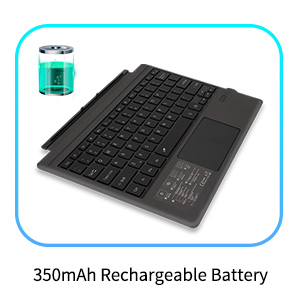
| Lithium Battery Capacity: | 350mAh |
| Sustainable Working Hours: | 100 Hours |
| Lithium Battery Life: | 3 Years |
| Button Force: | 80 ± 10G |
| Key Life: | 5 Million Times Clicks |
| Working Temperature: | -10-55 °C |
Features:
- The sleek ABS keys turn your Surface Pro 4/5/6/7/7+ tablet and the wireless keyboard into one seamless unit.
- Wireless bluetooth keyboard & folding protective PU case with stand function.
- Intelligent and simple connection, with wireless operation distance up to 10m.
- Lightweight, quiet keystrokes, waterproof and dustproof
- Energy-saving keyboard sleep mode.
Package Includes:
- 1x Bluetooth Keyboard for Microsoft Surface Pro 7+/7/6/5/4
- 1x Type C Charging Cable
- 1x Instruction Manual
- 1x Compact Retail Box
Remark:
- Keyboard Only, Tablet Is Not Included
Tips:
Please charge the keyboard first before use if the battery power is not enough.
Sometimes, the keyboard battery maybe overcharged in your daily use which may result in battery overcharging protection, please follow below steps to reset the keyboard to wake up the battery:
Use a pin to long press the tinny "rst" button at the bottom right side of the keyboard, then power on the keyboard again and press “Fn+Z” button to connect the keyboard.