FREQUENTLY ASKED QUESTIONS
Q. My Caps Lock key is only working for the left side of the keyboard. The Shift-keys are only working for the same part of the keyboard, not for both sides. Can this be fixed?
A. You're probably using a system with macOS installed on it. Unfortunately, macOS doesn't let the computer use two keyboards (parts) with one wire which causes the issue that some keys on the one part, aren't working for the other part. But, this can be fixed. Follow the steps below:
Download the application Karabiner-Elements here Install the application and open it. Make sure you are on the tab named 'Simple Modifications' at the top of the window. At the bottom left side, you see a button named 'Add item'. Click on it, and you will see a new line appear in the field above the button. Under 'From key', click on the selector and select 'left_shift'. Now click on the selector under 'To key' and select 'right_shift'. Click 'Add item' at the bottom left side again, a new line will show up in the field above. Under 'From key', click on the newest selector and select 'right_shift'. Now click on the newest selector under 'To key' and select 'left_shift'. Your keyboard should work fine now. If it is still not working, try to reboot your computer or send a message through "ask seller" .
Q. I get the following error: "The last USB device you connected malfunctioned, Windows does not recognize it", what should I do?
A. Press or click the windows button in the left down corner of your screen, then search for "Bluetooth and other devices" and click the result. You will be redirected to the settings screen. Click on the USB Keyboard driver and delete it. Then disconnect and redirect the keyboard to your devices. The drivers will be reinstalled and everything should work now.
Q.Is it possible to turn off the light in the upper left corner?
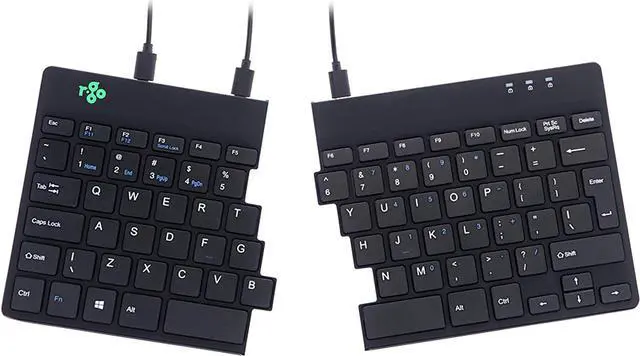
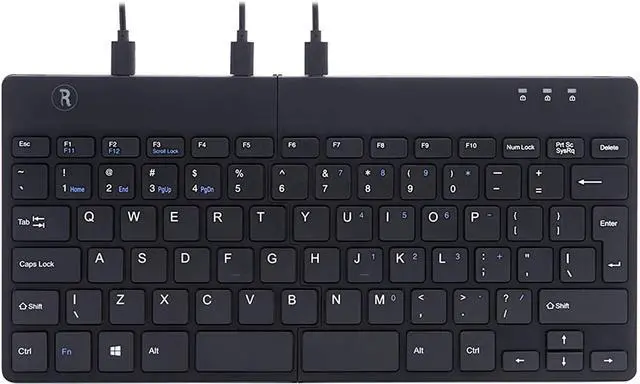
A. Yes, this is possible. You can do so by pressing the keycombination "Fn"+"A". If the light is already turned off and you want to turn it on again, you can press the same combination to do so.
Q. The right side of my keyboard types numbers instead of the letters u,i,o,j,k,l and m. How can I fix this?
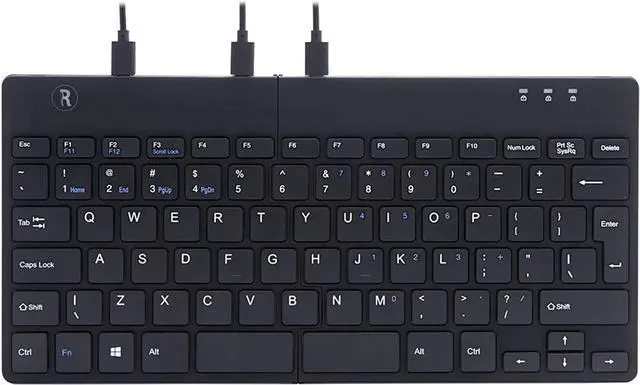
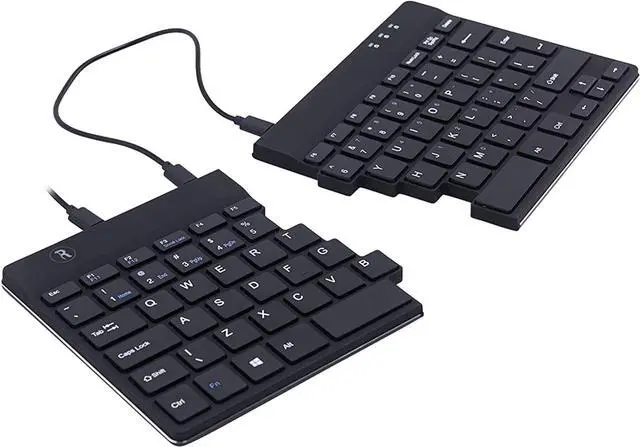
A. When this happens, the internal numpad of the keyboard has been activated. You can turn this off by pressing the Num Lock key on the keyboad. This key is located on the top row, the third key from the right.
Q.Why is this keyboard so flat, that is not ergonomic right?
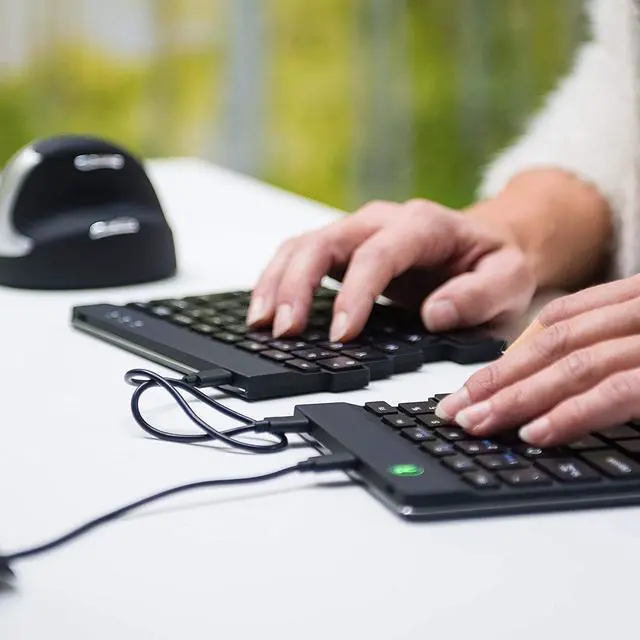
A. Our keyboards are made as flat and thin as possible due to ergonomical reasons. When you use a keyboard with a height adjuster underneath you bend your wrists in order to reach all the keys. By bending your wrists, you block the blood circulation going through your hands. That is why our keyboards are flat and thin so the blood circulation to your wrists does not get blocked.