

Your Browsing History
Ships from China.
Most customers receive within 4-17 days.


Meet Your Seller

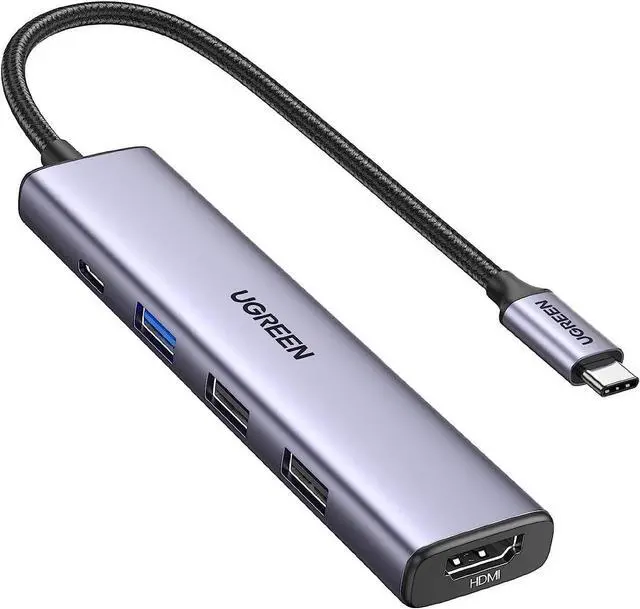
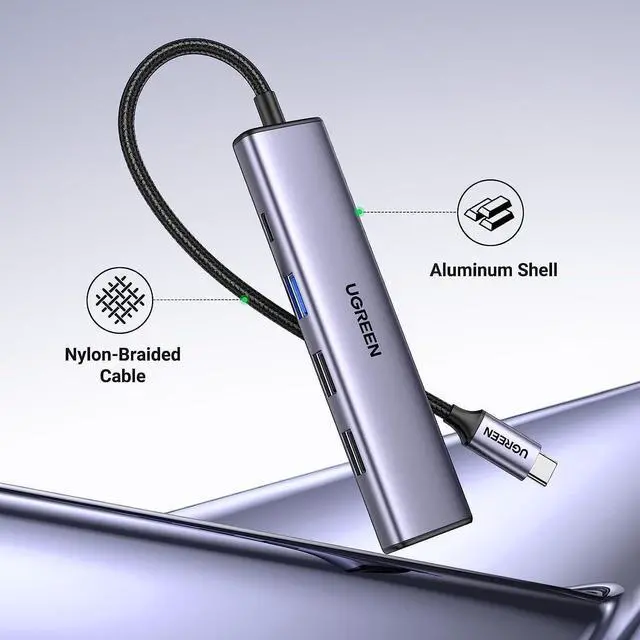
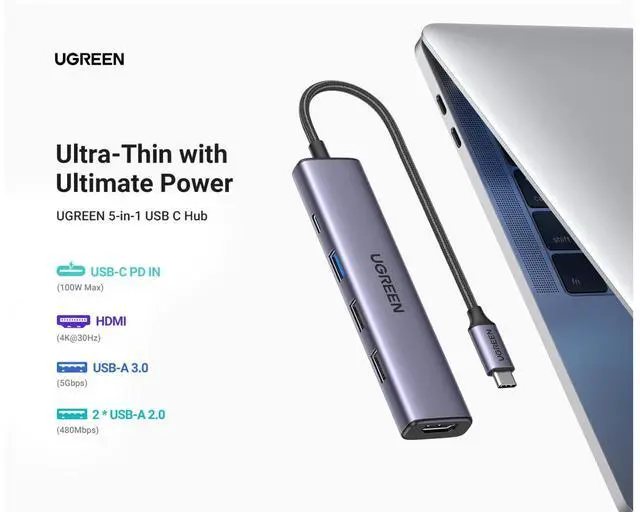


Revodok 105 USB C Hub 5 in 1 Multiport Adapter 4K HDMI, 100W Power Delivery, 3 USB-A Data Ports, USB C Dongle for MacBook Pro/Air, iPad Pro, iMac, iPhone 16 Pro/Pro Max, XPS, Thinkpad
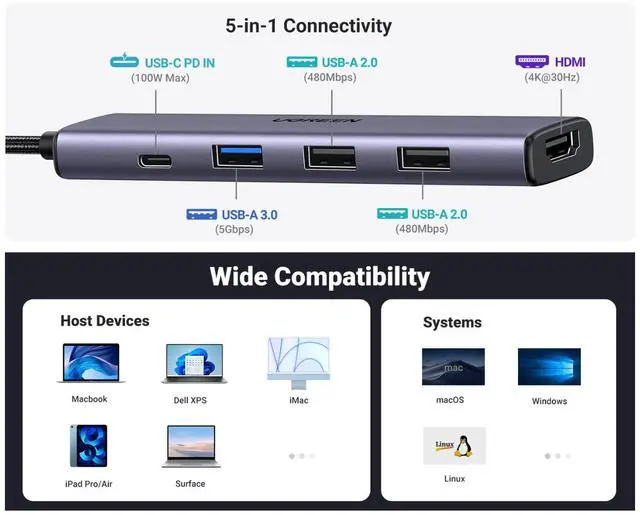
- 5 in 1 Connectivity: The USB C Multiport Adapter is equipped with a 4K HDMI port, a 100W USB C PD port, a 5 Gbps USB A data port, and two 480 Mbps USB A ports
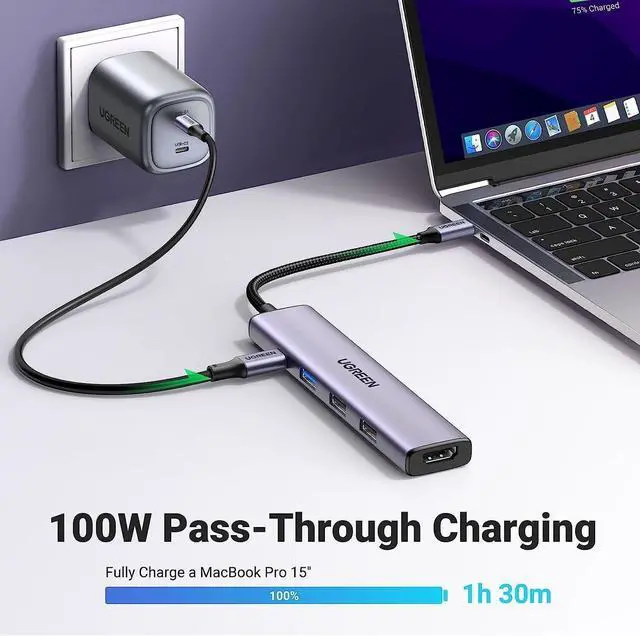
- 100W Charging: Support up to 95W USB C pass-through charging via Type-C port to keep your laptop powered. 5W is reserved for other interface operations. When demonstrating screencasting or transferring files, please do not plug or unplug the PD charger to avoid loss of images or data.
- 4K Stunning Display: The HDMI port supports media display at resolutions up to 4K 30Hz, keeping every incredible moment detailed and ultra vivid. Please note that the C port of the Host device needs to support video output
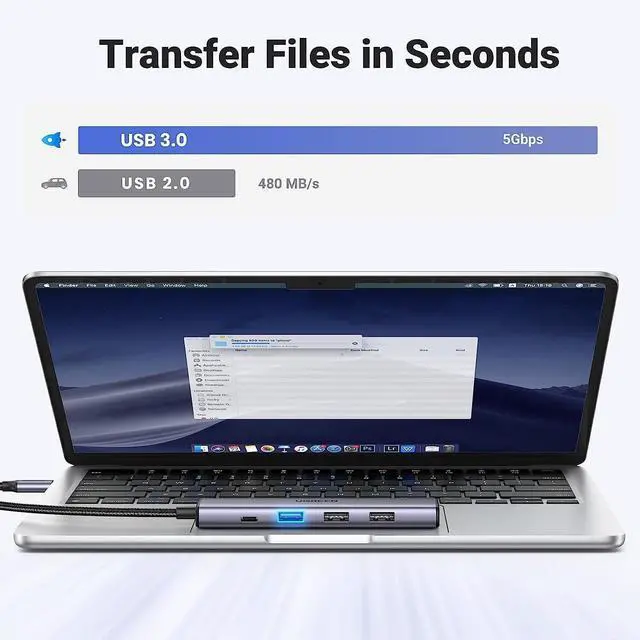
- Transfer Files in Seconds: Transfer files and from your laptop at speeds up to 5 Gbps with USB A 3.0 port. Extra 2 USB A 2.0 ports are perfectly for your keyboards and mouse. Compatible with flash/hard/external drive. The USB 3.0/2.0 port is mainly used for data transmission. Charging is not recommended.
Overview
Specs
Reviews

Any questions? Our AI mode will help you find out quickly.
Try me now
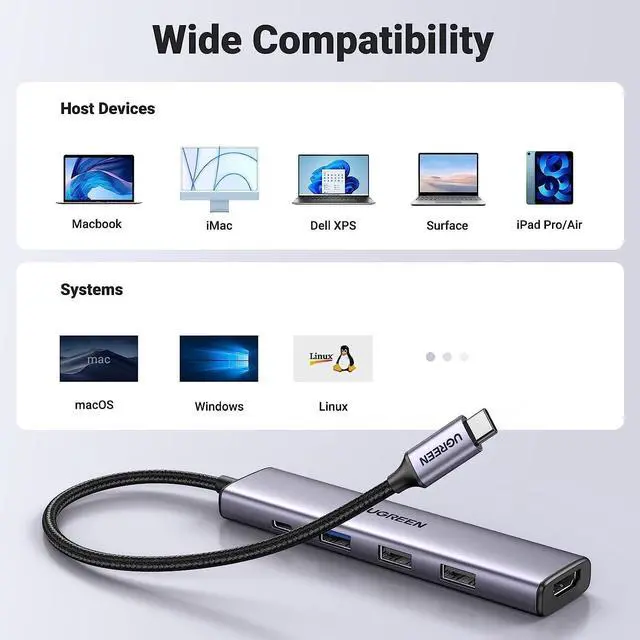
Broad Compatibility: Plug and play for multiple operating systems, including Windows, MacOS, Linux. The USB C Dongle is compatible with almost USB-C devices such as MacBook Pro, MacBook Air, MacBook M1, M2, M3, iMac, iPad Pro, Chrome-book, Sur-face, XPS, ThinkPad, iPhone 16,15, Galaxy S23, etc
1. Why does the iPad Pro series not display images?
Due to the tablet's image output mechanism, it needs to identify the USB 3.0 device to output images. You can first connect the device to the USB 3.0 port of the hub, and then connect the hub to the iPad Pro to display the image.
2. What happens when there is no HDMI image output after the product is connected?
1) Please make sure that the USB-C interface of the laptop supports the video function;
2) Please confirm whether the length and specifications of the connected cable meet the requirements, and whether the interface is firmly plugged;
3) Please adjust the resolution setting of the laptop, the resolution supported by your monitor may be lower than the highest supported resolution of the product;
4) Please select the correct input signal source (some monitors need to manually select the signal source);
5) You can try to restart the laptop, or re-plug the upstream end;
6) If possible, try a different monitor and laptop.
1. Why does the iPad Pro series not display images?
Due to the tablet's image output mechanism, it needs to identify the USB 3.0 device to output images. You can first connect the device to the USB 3.0 port of the hub, and then connect the hub to the iPad Pro to display the image.
2. What happens when there is no HDMI image output after the product is connected?
1) Please make sure that the USB-C interface of the laptop supports the video function;
2) Please confirm whether the length and specifications of the connected cable meet the requirements, and whether the interface is firmly plugged;
3) Please adjust the resolution setting of the laptop, the resolution supported by your monitor may be lower than the highest supported resolution of the product;
4) Please select the correct input signal source (some monitors need to manually select the signal source);
5) You can try to restart the laptop, or re-plug the upstream end;
6) If possible, try a different monitor and laptop.
Warranty & Returns
Warranty, Returns, And Additional Information
Warranty
- Please contact the Seller directly for warranty information. Warranty information may also be found on the Manufacturer's website.
- CONTACT
Return Policies
- Return for refund within: 30 days
- Return for replacement within: 30 days
- This item is covered by Superior Quality Return Policy
Manufacturer Contact Info
- For a directory of all our manufacturers, please click below.
- Manufacturers Directory
LOADING...