



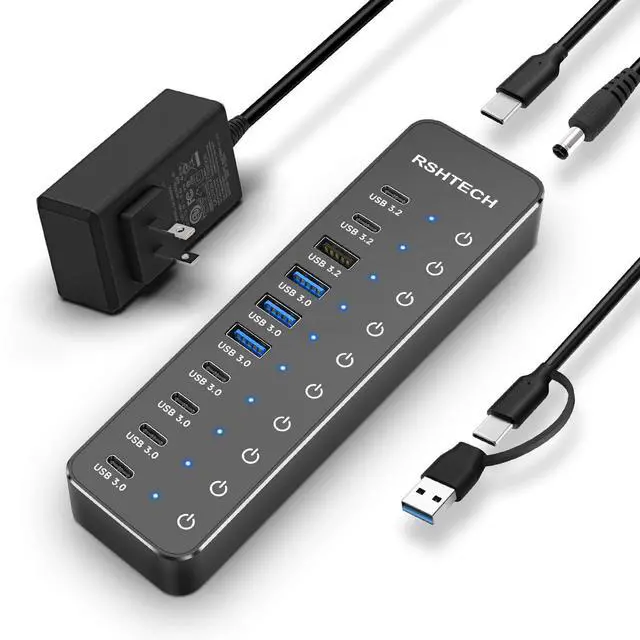
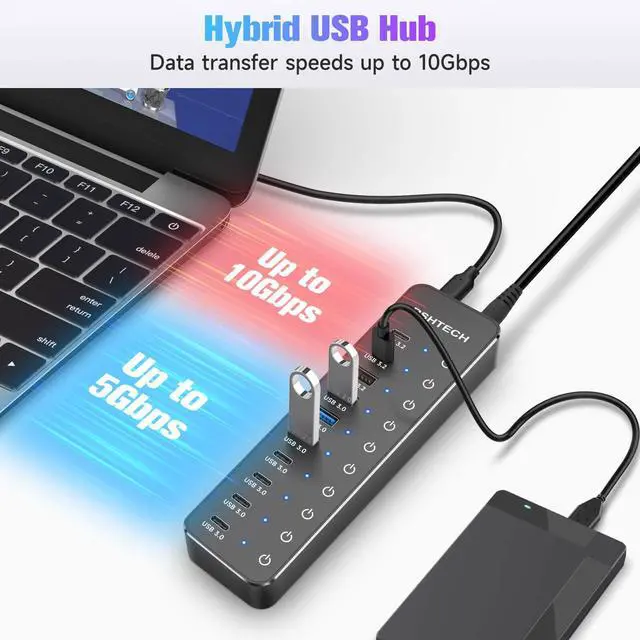


Hybrid USB 3.2 & USB 3.0 Hub
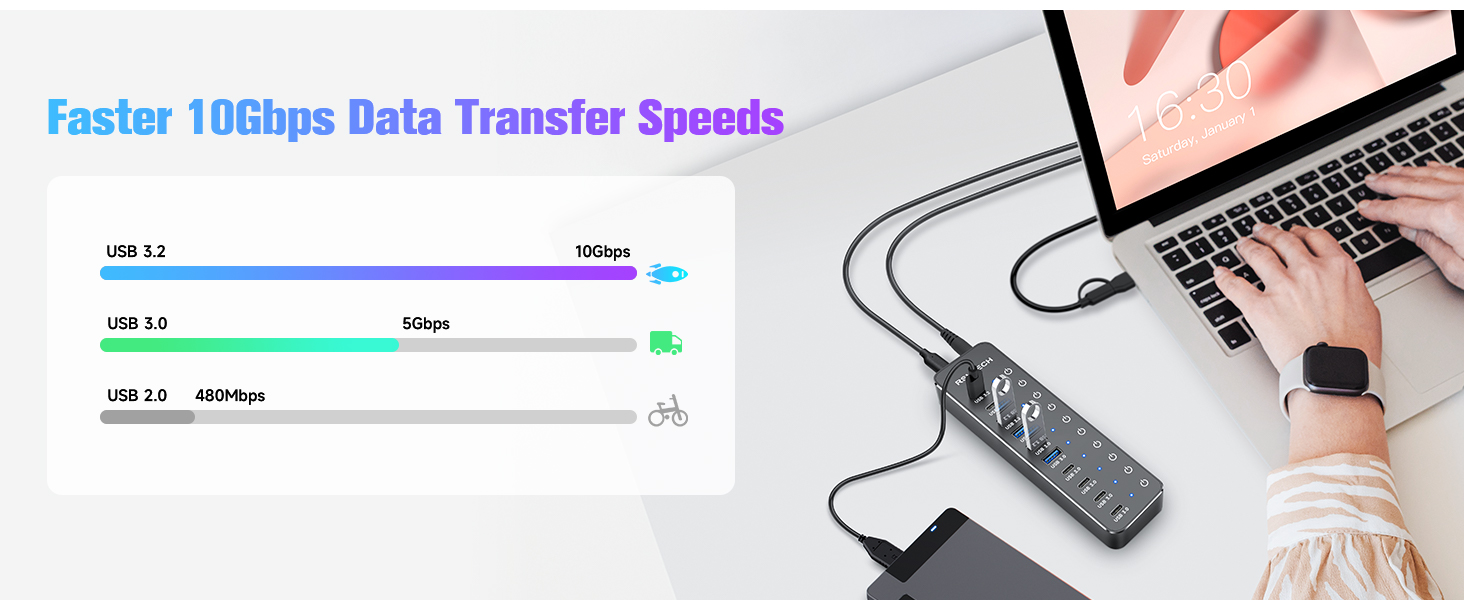
More USB-C, More Possibility
USB Hub Quick Troubleshooting Guide
- Use Included Power Adapter: To ensure optimal performance and stable operation of all connected devices, the USB hub must be used with the included power adapter connected.
- Check Touch Switch:
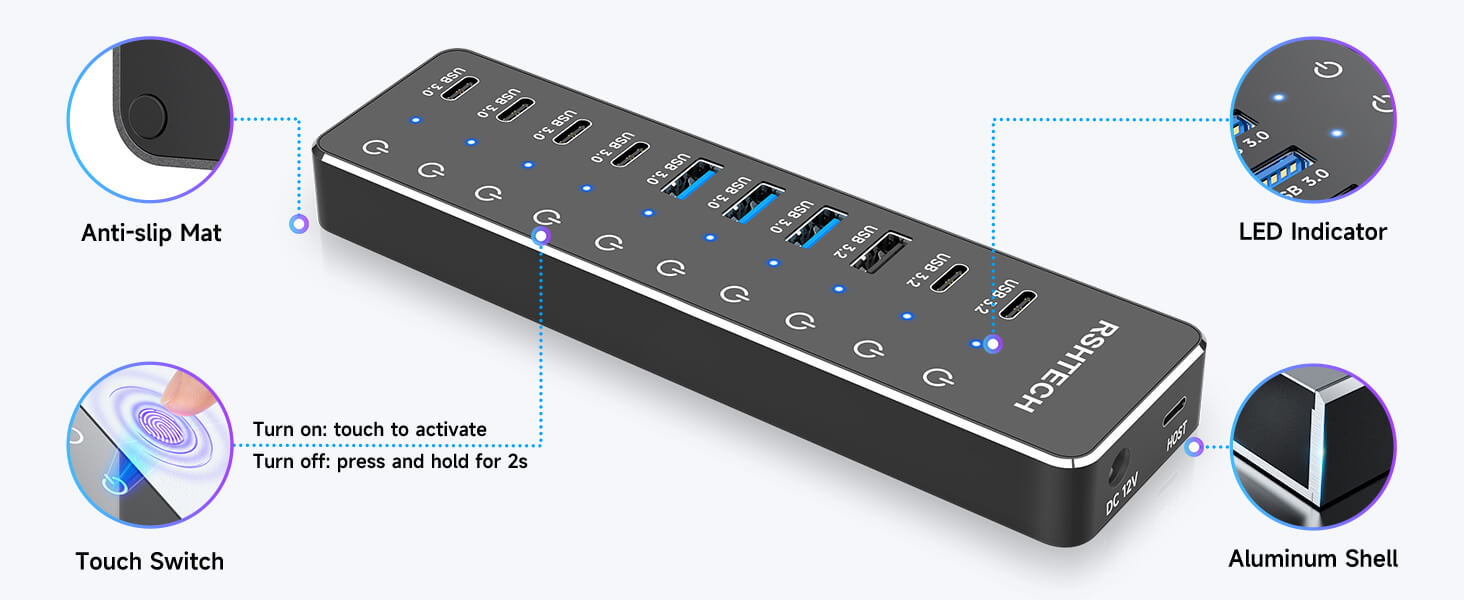
Turn On: Lightly tap the button (Blue LED lights indicate it's on). Turn Off: Press and hold for 2 seconds.
Tip: In dry climates, static electricity may affect touch sensitivity. For best responsiveness, it is recommended to moisturize your hands with water or lotion before operating the touch button.
- Connect Directly to Computer: Plug the hub directly into your computer's port. It is not recommended to connect multiple hubs in a daisy-chain, it may have compatibility issues.
- Note on Charging & Video
Charging: This hub is primarily designed for data transfer. While it supports the BC 1.2 charging protocol for basic charging, it is Not a dedicated charger.
Video: The USB-C port does Not support video output.
If the problem still cannot be identified, we will provide technical support and services.
RSHTECH NexHub Series
6 | Number of USB-C Port | 4 |
4 | Number of USB-A Port | 3 |
USB-A+USB-C | USB Connector Type | USB-A+USB-C |
12V/5A | Power Supply | 5V/3A |
3.3ft | Data Cable Length | 3.3ft |
4.92ft | Power Cable Length | 4ft |
6 | Number of USB-C Port | 2 |
4 | Number of USB-A Port | 5 |
USB-A+USB-C | USB Connector Type | USB-A+USB-C |
12V/5A | Power Supply | 5V/3A |
3.3ft | Data Cable Length | 3.3ft |
4.92ft | Power Cable Length | 4ft |
6 | Number of USB-C Port | 2 |
4 | Number of USB-A Port | 8 |
USB-A+USB-C | USB Connector Type | USB-C |
12V/5A | Power Supply | 12V/5A |
3.3ft | Data Cable Length | 3.3ft |
4.92ft | Power Cable Length | 4.92ft |



"Invent and Simplify."
RSHTECH was founded on the idea that it should be easy to use and manage all your computer peripherals through simple products.
At RSHTECH, we are committed to creating products with top-notch functionality and simplicity. We are constantly on the drive to learn, innovate, and always hear from our customers.
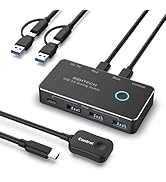
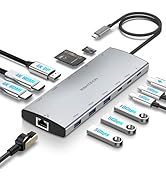
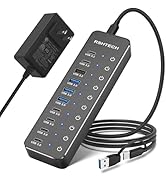
New Series
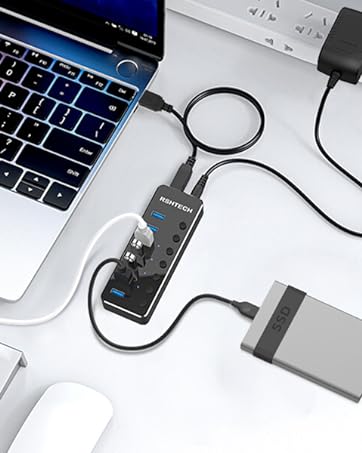
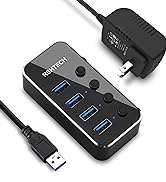
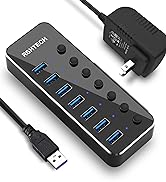
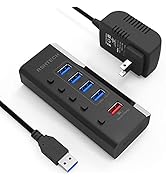
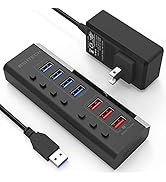
USB 3.0 Hub
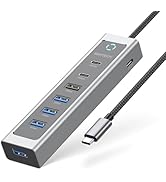
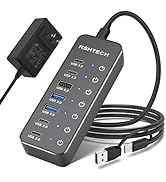
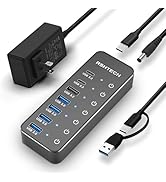
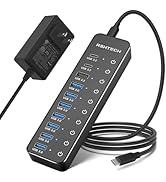
Hybrid USB 3.2+3.0 Hub
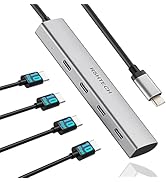
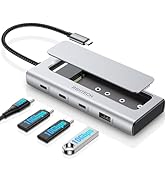
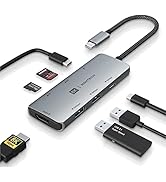
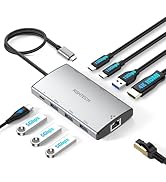
USB C Hub
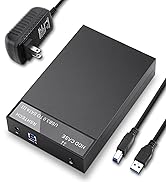
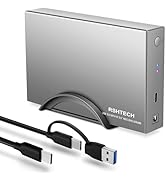
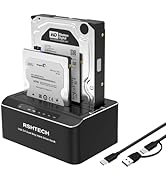
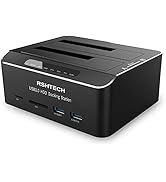
Hard Drive Accessories
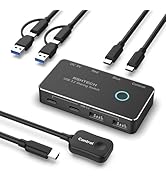
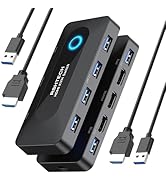
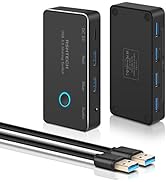
USB Switch
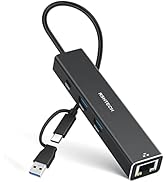
USB Accessories
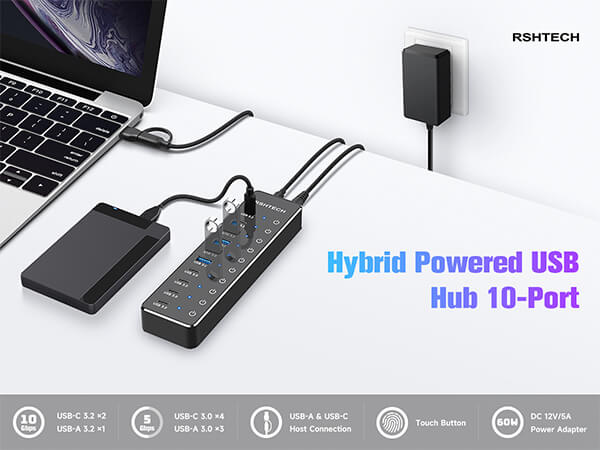
Hybrid USB 3.2 & USB 3.0 Hub
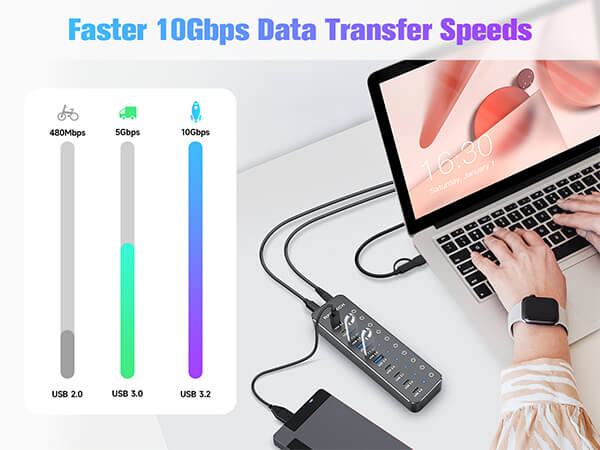
More USB-C, More Possibility
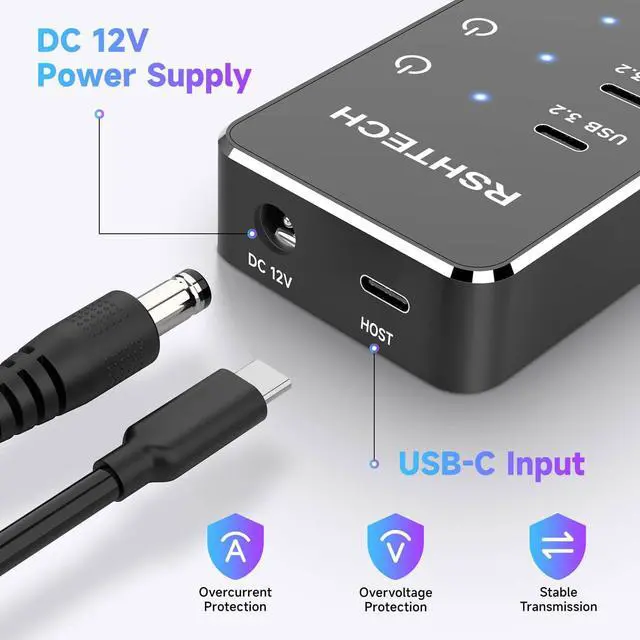
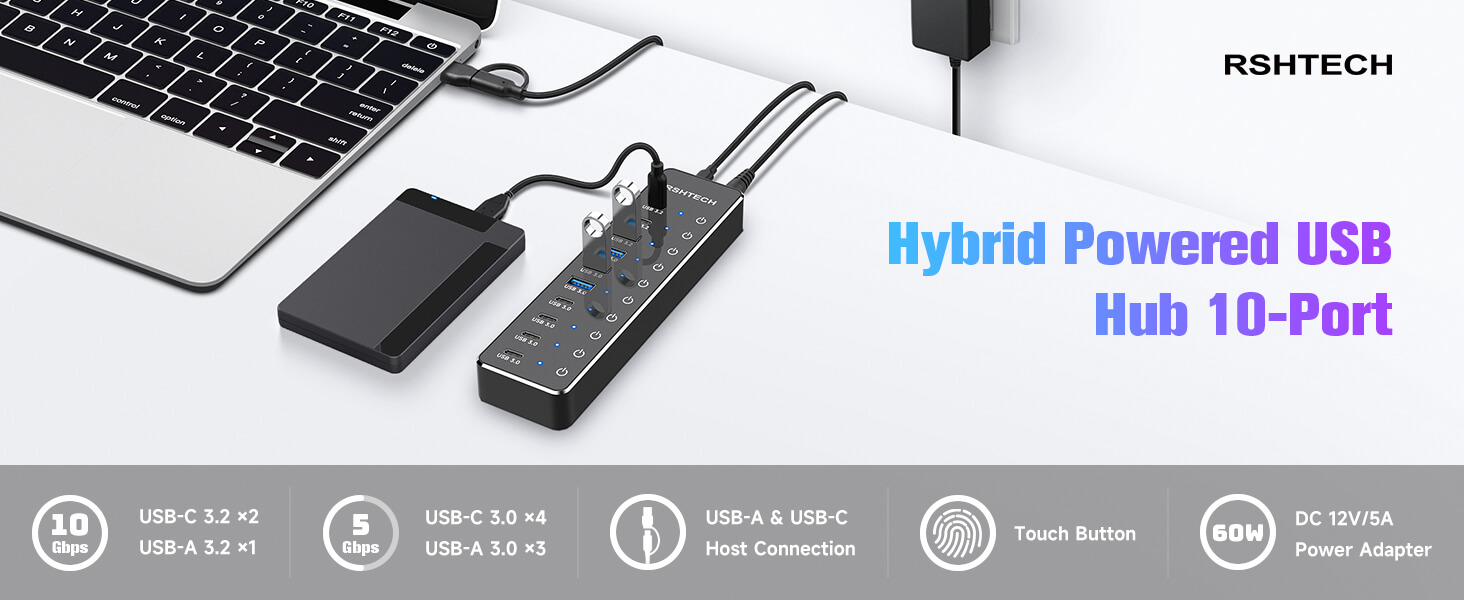
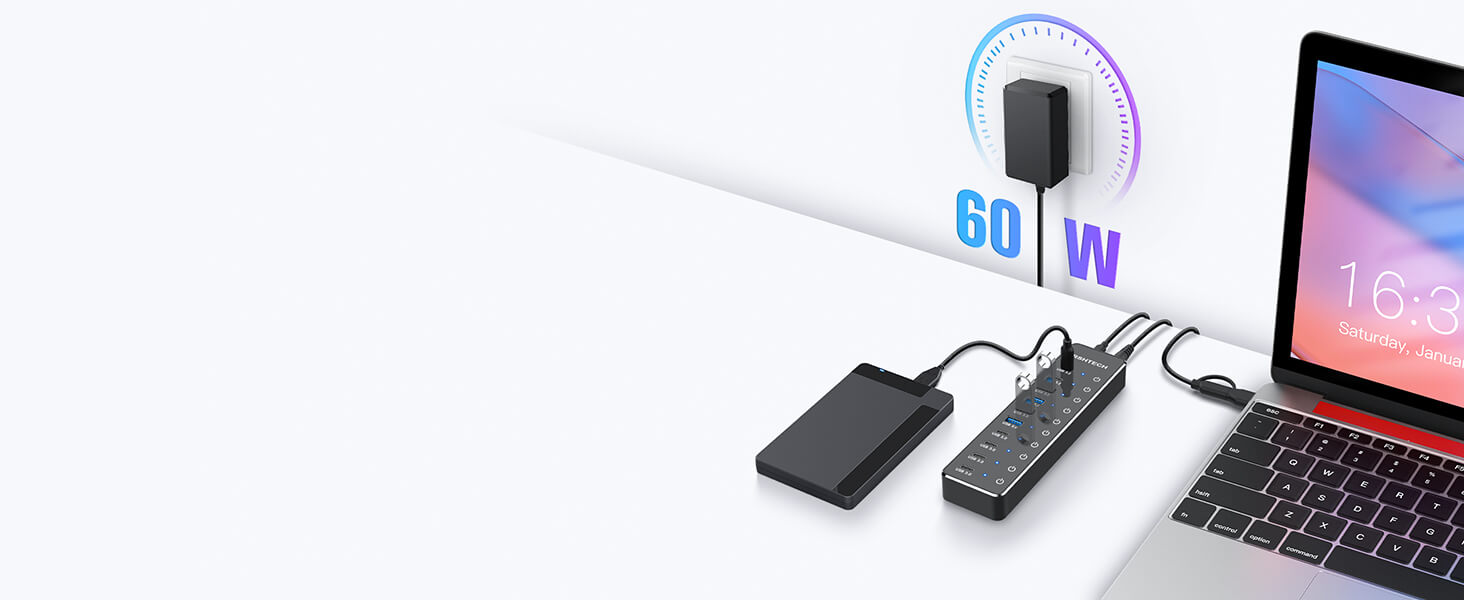
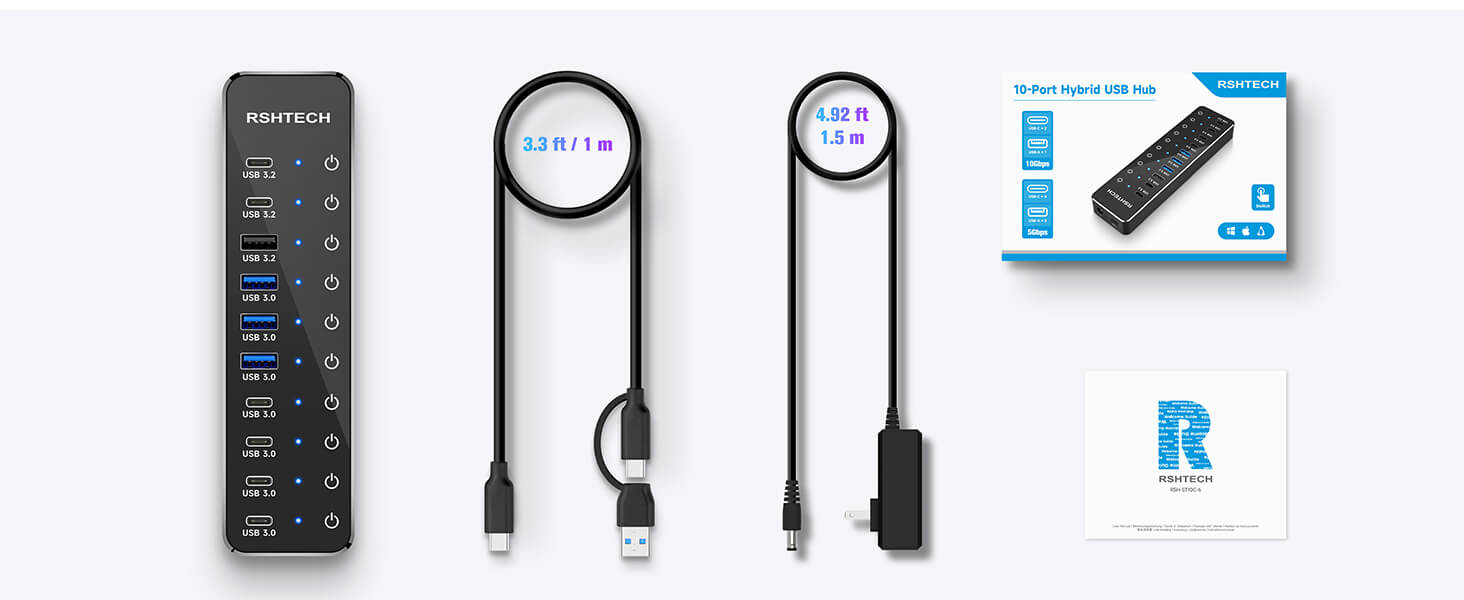
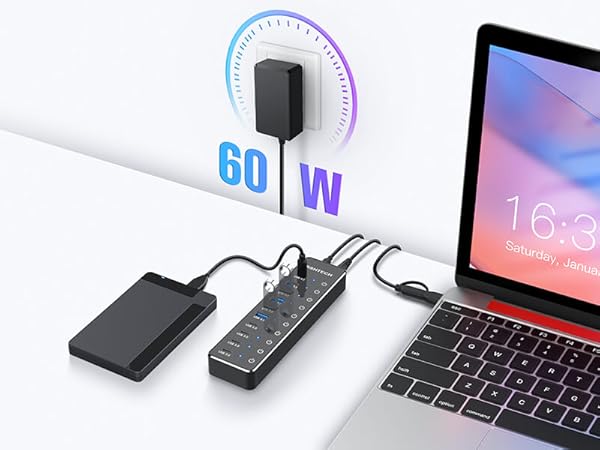
Equipped with a 60W power adapter to provide ample power.
USB hub must be used with a power adapter.
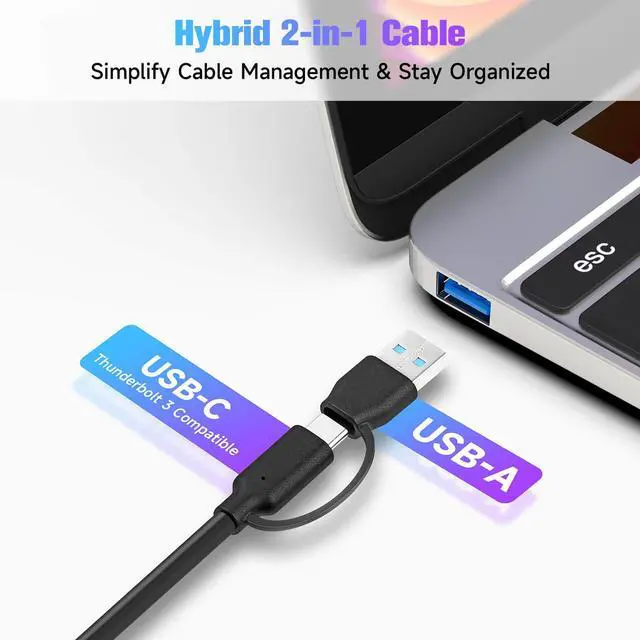
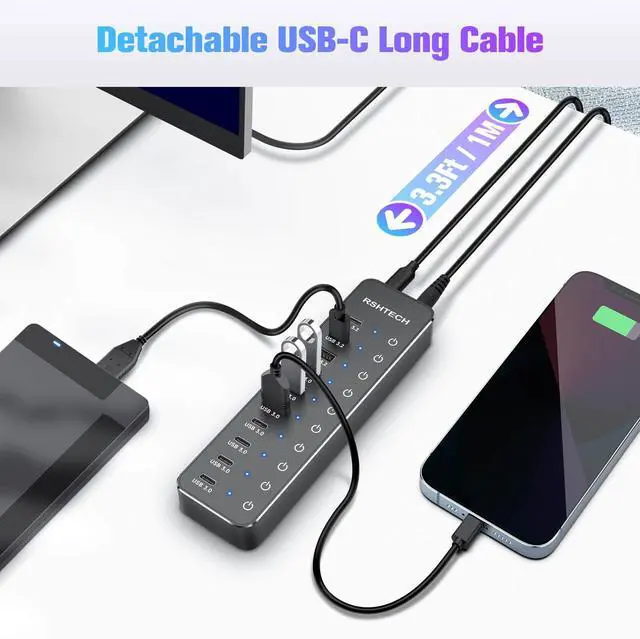
Equipped with 2-in-1 connectors, compatible with hosts/console with USB-A, USB-C or Thunderbolt port
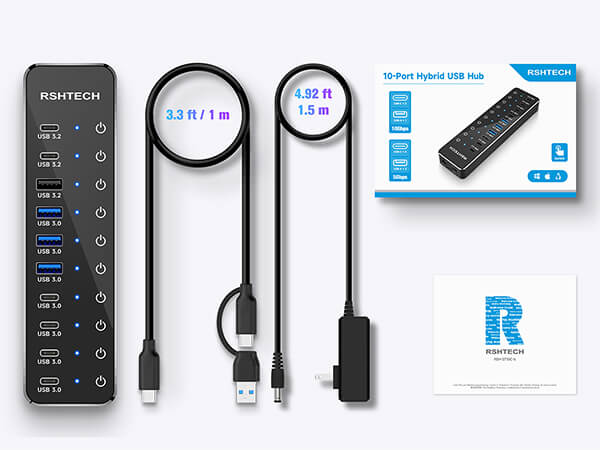
| Model Number | RSH-ST10C-6 |
|---|---|
| Color | Black |
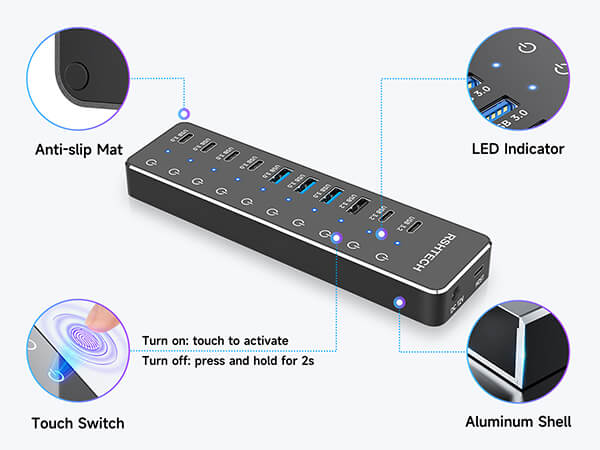
| Material | Aluminium + ABS |
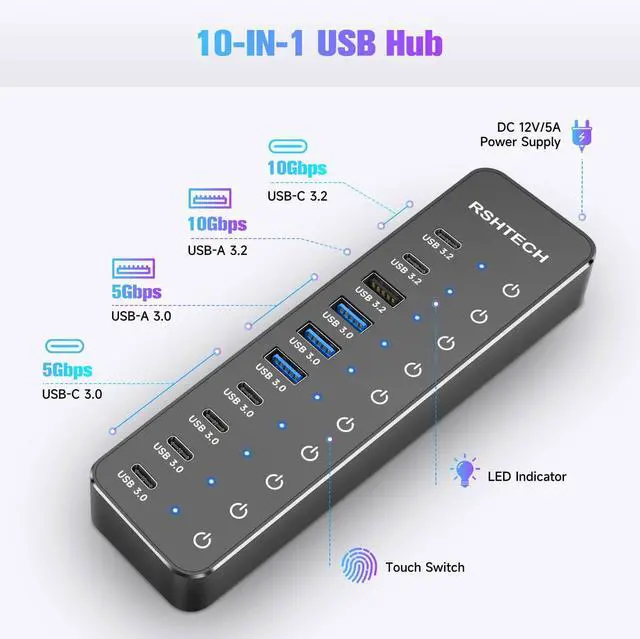
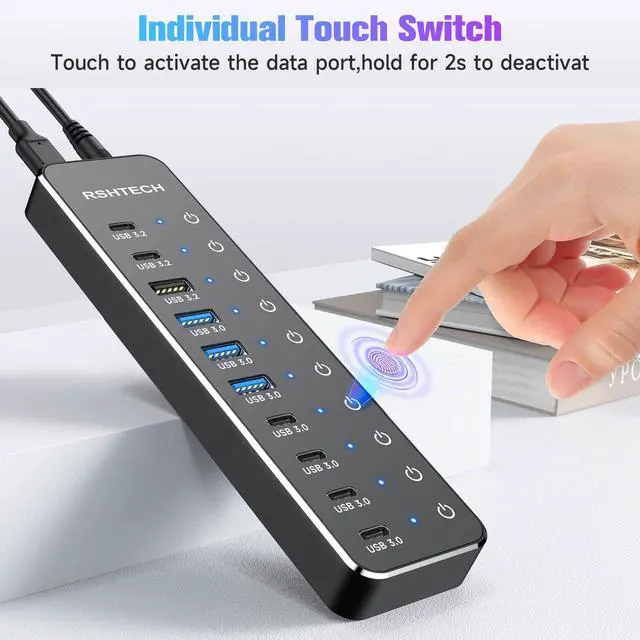
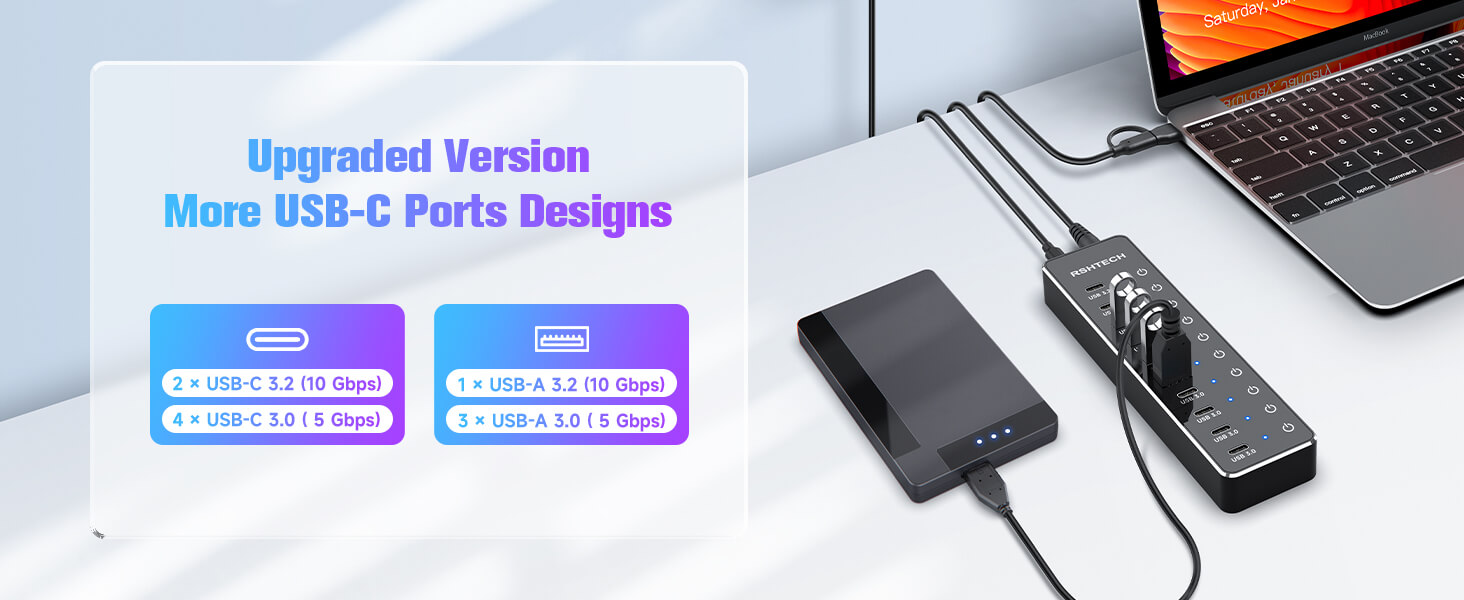
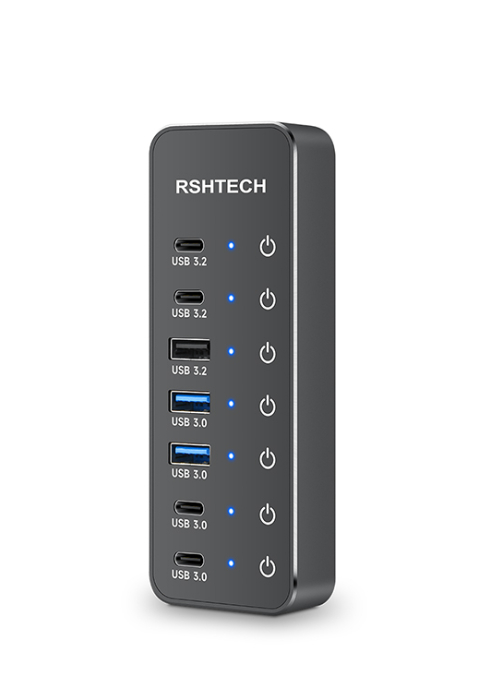
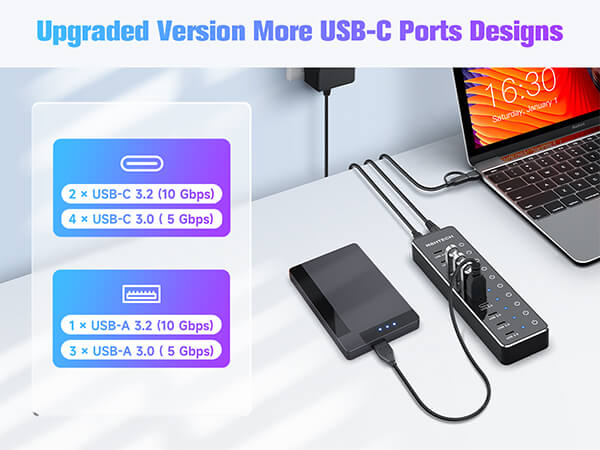
| Number of USB-C Ports | 6 (2x USB 3.2 + 4 USB 3.0) |
| Number of USB-A Ports | 4 (1x USB 3.2 + 3 USB 3.0) |
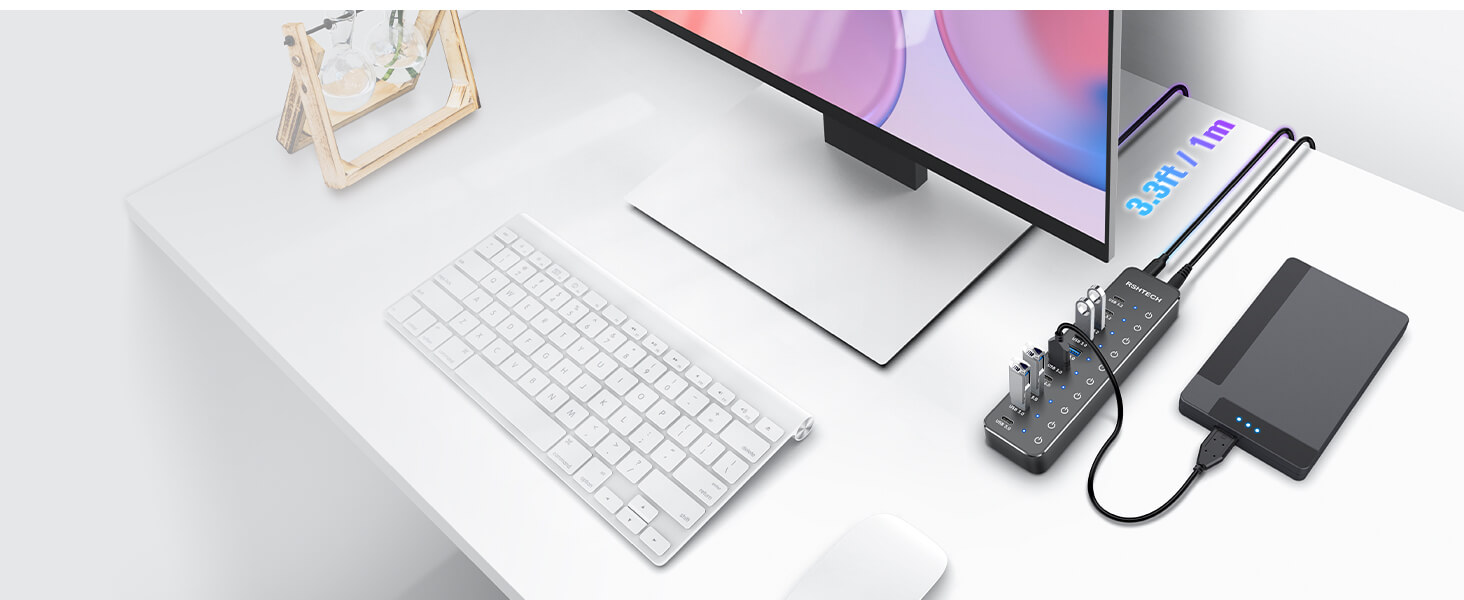
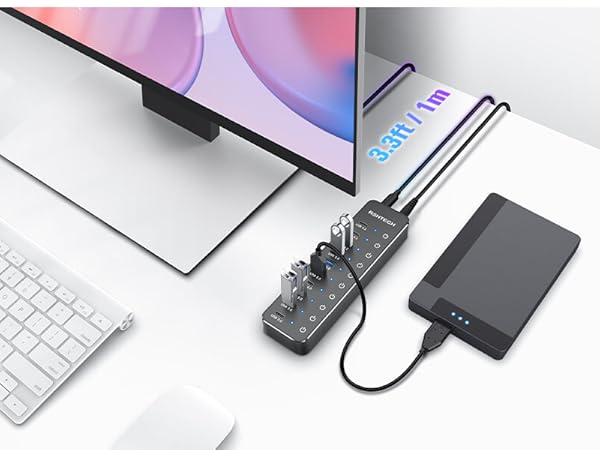
| USB Cable | Versatile USB-A&USB-C connector 3.3ft/1m |
| Power Adapter Input | AC 100-240V 50/60Hz |
| Power Adapter Output | DC 12V/5A (60W) |
| Individual Touch Buttons | Turn on: tap the button; Turn off: press and hold for 2s |
| LED indicator | Soft blue LED during operation |
USB Hub Quick Troubleshooting Guide
- Use Included Power Adapter: To ensure optimal performance and stable operation of all connected devices, the USB hub must be used with the included power adapter connected.
- Check Touch Switch:
Turn On: Lightly tap the button (Blue LED lights indicate it's on). Turn Off: Press and hold for 2 seconds.
Tip: In dry climates, static electricity may affect touch sensitivity. For best responsiveness, it is recommended to moisturize your hands with water or lotion before operating the touch button.
- Connect Directly to Computer: Plug the hub directly into your computer's port. It is not recommended to connect multiple hubs in a daisy-chain, it may have compatibility issues.
- Note on Charging & Video
Charging: This hub is primarily designed for data transfer. While it supports the BC 1.2 charging protocol for basic charging, it is Not a dedicated charger.
Video: The USB-C port does Not support video output.
If the problem still cannot be identified, we will provide technical support and services.
RSHTECH NexHub Series
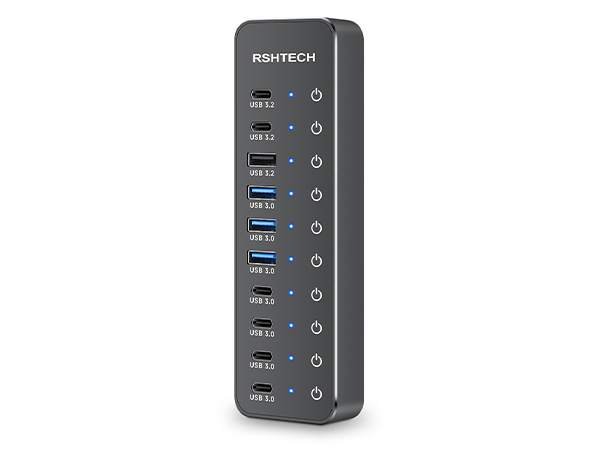
RSH-ST10C-6
Number of USB-C Port
6
Number of USB-A Port
4
USB Connector Type
USB-A+USB-C
Power Supply
12V/5A
Data Cable Length
3.3ft
Power Cable Length
4.92ft
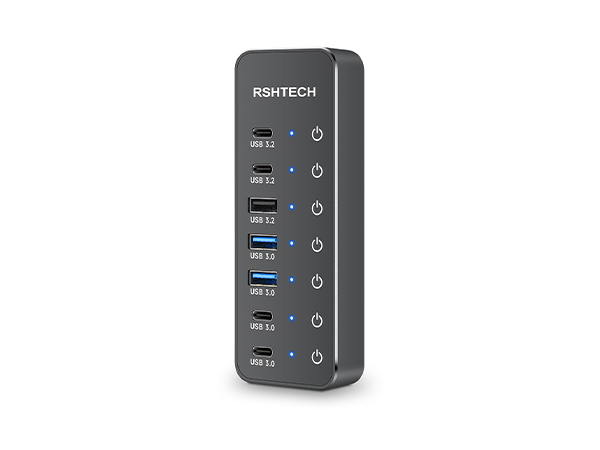
RSH-ST07C-4
Number of USB-C Port
4
Number of USB-A Port
3
USB Connector Type
USB-A+USB-C
Power Supply
5V/3A
Data Cable Length
3.3ft
Power Cable Length
4ft
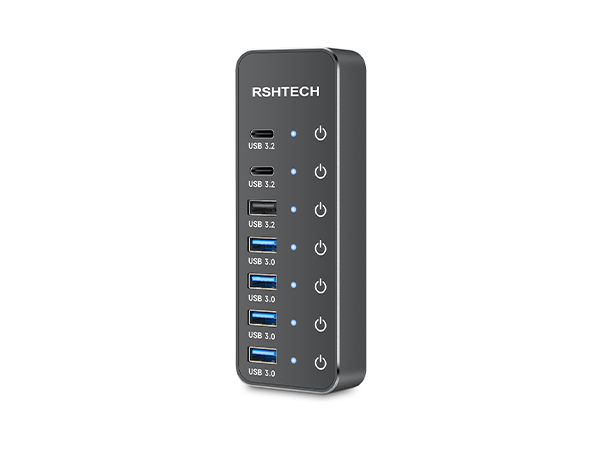
RSH-ST07C
Number of USB-C Port
2
Number of USB-A Port
5
USB Connector Type
USB-A+USB-C
Power Supply
5V/3A
Data Cable Length
3.3ft
Power Cable Length
4ft
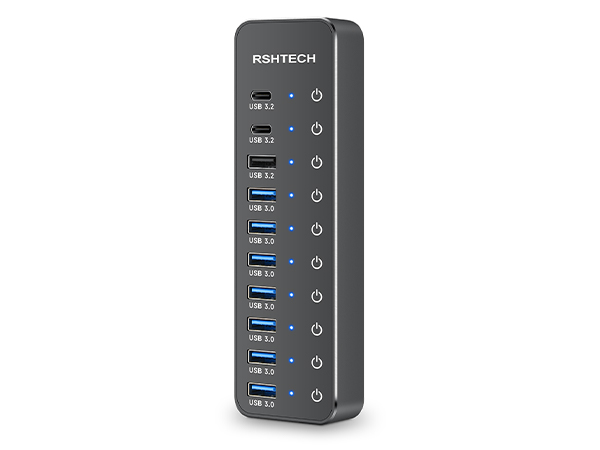
RSH-ST10C
Number of USB-C Port
2
Number of USB-A Port
8
USB Connector Type
USB-C
Power Supply
12V/5A
Data Cable Length
3.3ft
Power Cable Length
4.92ft
"Invent and Simplify."
RSHTECH was founded on the idea that it should be easy to use and manage all your computer peripherals through simple products.
At RSHTECH, we are committed to creating products with top-notch functionality and simplicity. We are constantly on the drive to learn, innovate, and always hear from our customers.
New Series
USB 3.0 Hub
Hybrid USB 3.2+3.0 Hub
USB C Hub
Hard Drive Accessories
USB Switch
USB Accessories