



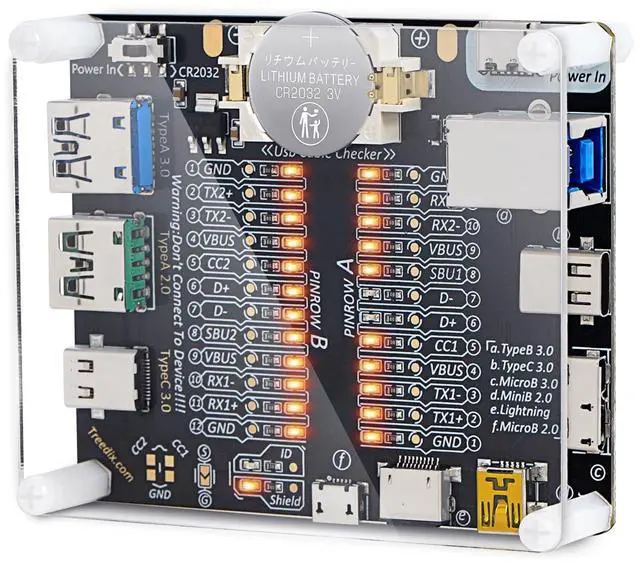
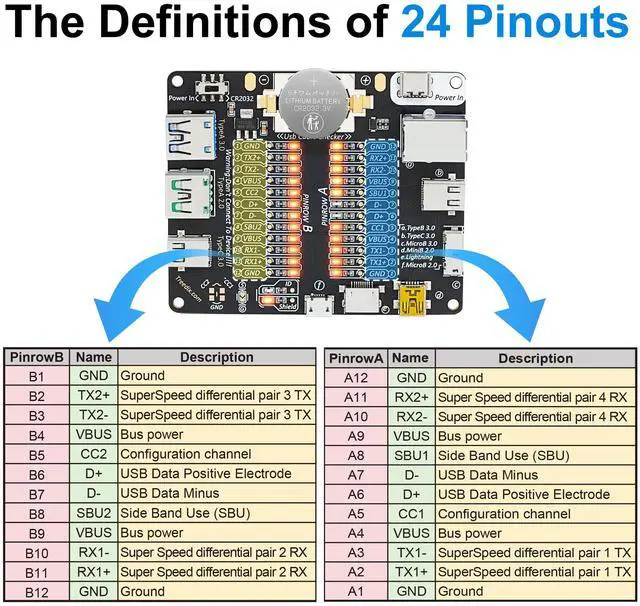
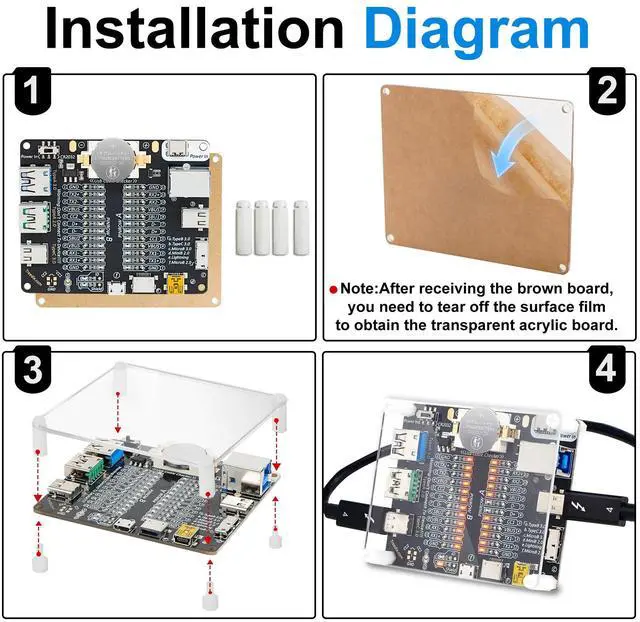


This usb cable tester is specifically designed to tackle cable clutter, enabling quick identification of various USB cable types. By observing the LED indicators on the test board, users can intuitively determine the number of wire cores and transmission performance

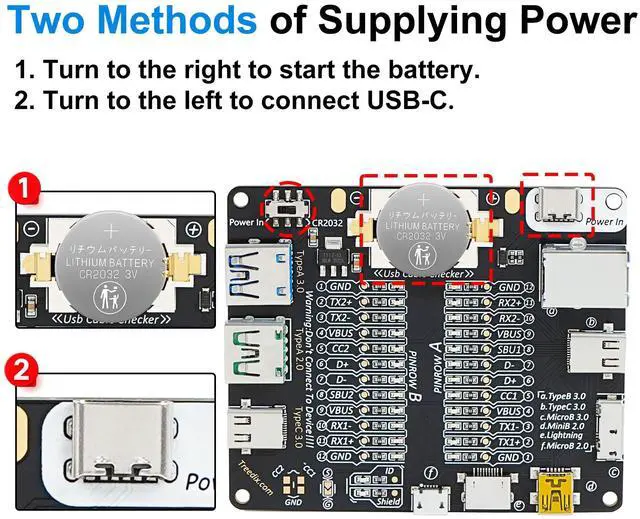
How to Test USB Cables? First, toggle the switch to your chosen power supply mode. Next, insert the USB cable into the corresponding USB port, and the LED indicators will light up, indicating the connection status and functionality of the USB cable.

Do you have a drawer full of USB cables and want to organize them, but don't know which ones are functional and which ones can be discarded? Now you can use our USB Cable Tester Board, which can easily help you identify the right USB cables.

Battery Installation Tip: When inserting the battery, ensure the two yellow metal contacts on the left side of the compartment are properly aligned and not pinned beneath the battery.

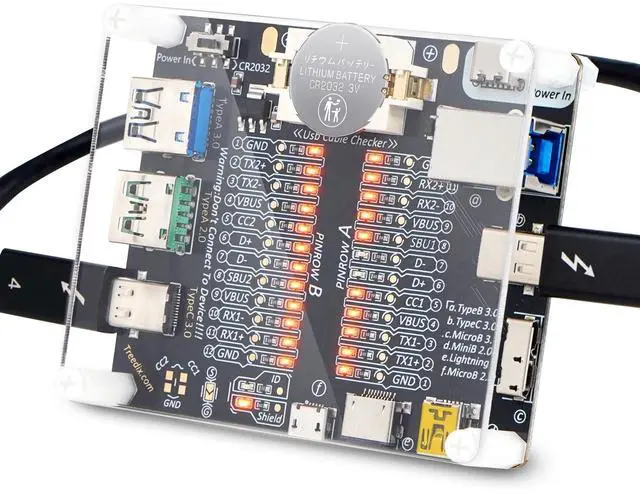
USB Type-C 3.0 to USB Type-C 3.0
When all the lights are on (except for one D+ and one D-), it indicates that the USB data cable supports comprehensive functionality, including charging, data transmission, audio, and video transmission.

USB Type-A 3.0 to Micro B 2.0
When GND and VBUS lights are on, it indicates that the USB data cable only has charging functionality


Treedix—emerged from a love for technology and creation. We believe everyone’s creativity just needs a bit of support to become reality. We offer DIY electronics components and open-source hardware to help makers spark their ideas.
Treedix—Innovating the Future, Rooted in Our Intent! Technology’s power comes from every spark of innovation. Join us to push boundaries, light up the future, and create a new tech era.
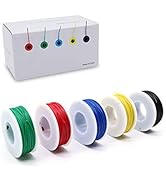
Our Top Picks
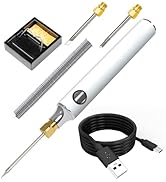
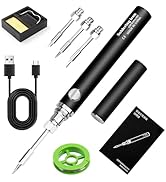
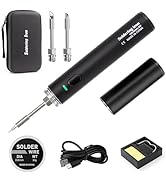
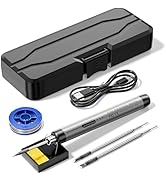
Soldering Iron Kit
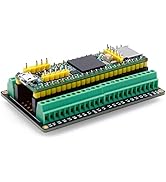
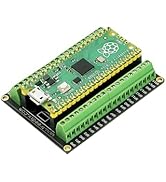
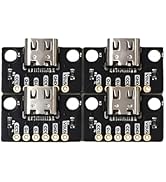
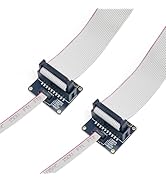
Breakout Board
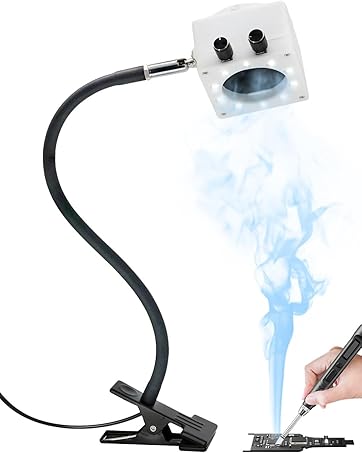
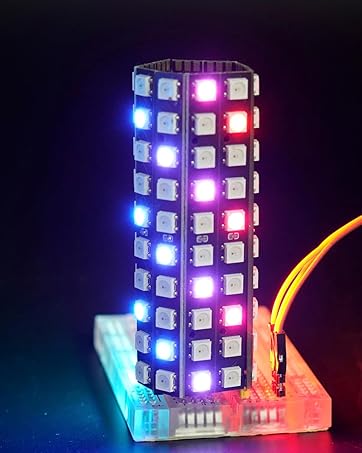

This usb cable tester is specifically designed to tackle cable clutter, enabling quick identification of various USB cable types. By observing the LED indicators on the test board, users can intuitively determine the number of wire cores and transmission performance

How to Test USB Cables? First, toggle the switch to your chosen power supply mode. Next, insert the USB cable into the corresponding USB port, and the LED indicators will light up, indicating the connection status and functionality of the USB cable.

Do you have a drawer full of USB cables and want to organize them, but don't know which ones are functional and which ones can be discarded? Now you can use our USB Cable Tester Board, which can easily help you identify the right USB cables.

Battery Installation Tip: When inserting the battery, ensure the two yellow metal contacts on the left side of the compartment are properly aligned and not pinned beneath the battery.
USB Type-C 3.0 to USB Type-C 3.0
When all the lights are on (except for one D+ and one D-), it indicates that the USB data cable supports comprehensive functionality, including charging, data transmission, audio, and video transmission.
USB Type-A 3.0 to Micro B 2.0
When GND and VBUS lights are on, it indicates that the USB data cable only has charging functionality
Treedix—emerged from a love for technology and creation. We believe everyone’s creativity just needs a bit of support to become reality. We offer DIY electronics components and open-source hardware to help makers spark their ideas.
Treedix—Innovating the Future, Rooted in Our Intent! Technology’s power comes from every spark of innovation. Join us to push boundaries, light up the future, and create a new tech era.
Our Top Picks
Soldering Iron Kit
Breakout Board