• $53.99
  • Free 30-day Returns
  • Sold by Machao shop

    Shipped by Machao shop

    Price alert
    Shop it at NeweggBusiness.

    Meet Your Seller

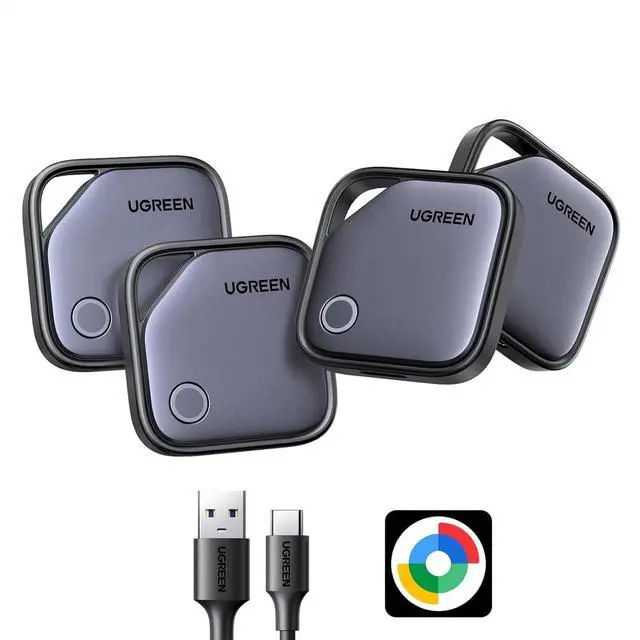
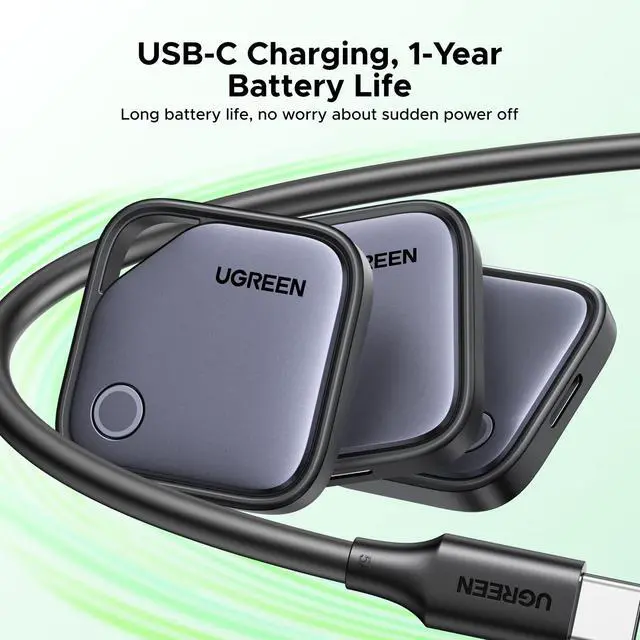
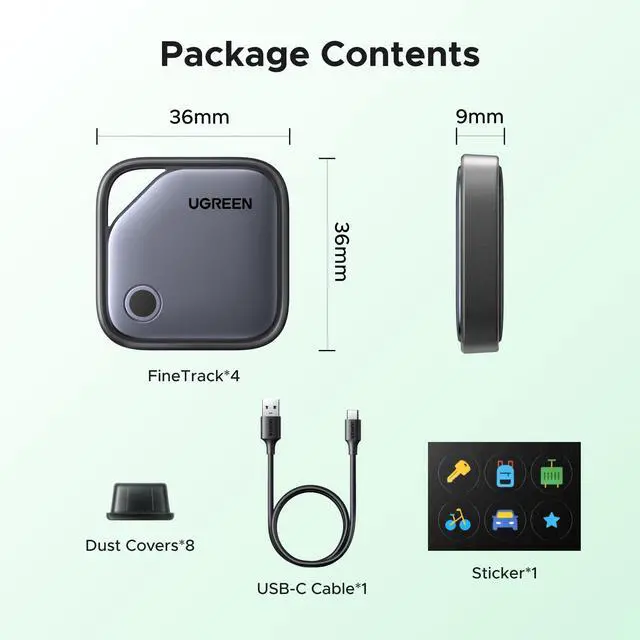
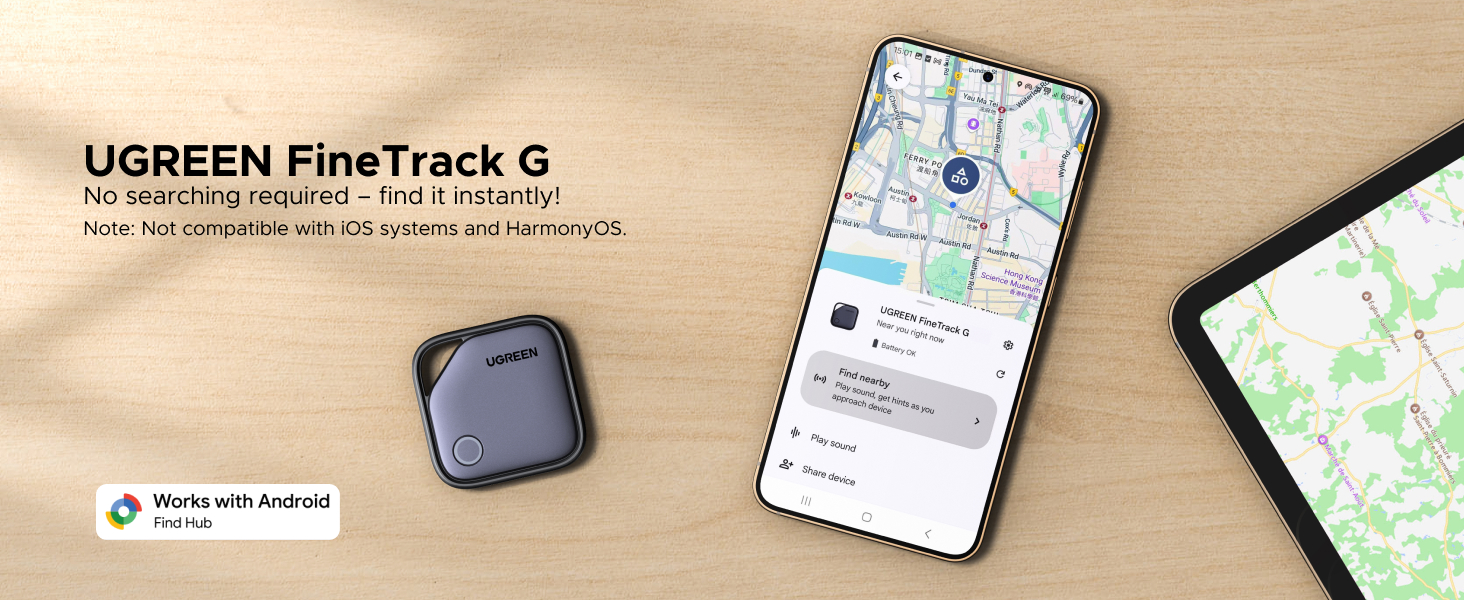
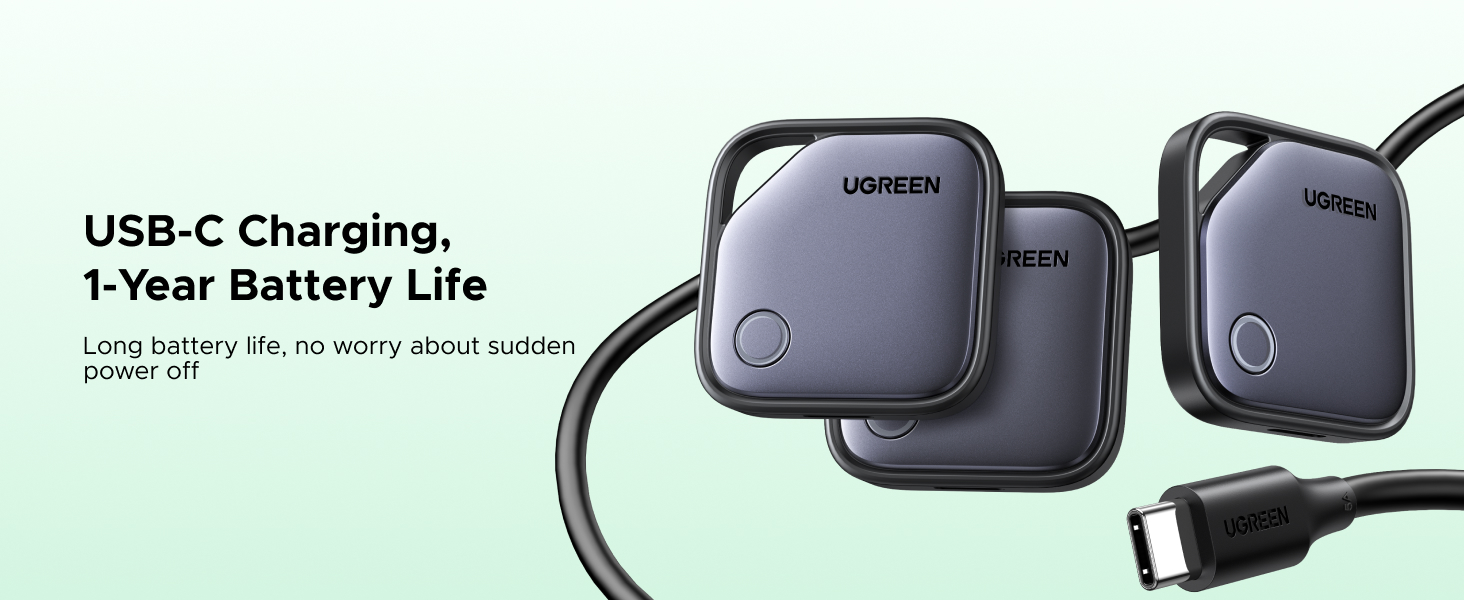
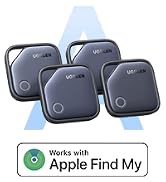
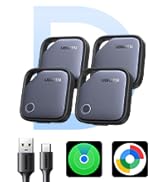
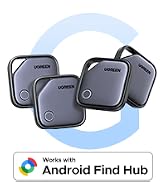
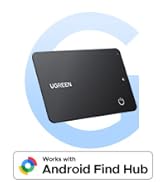
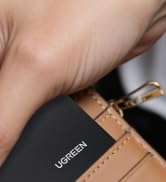
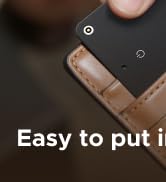
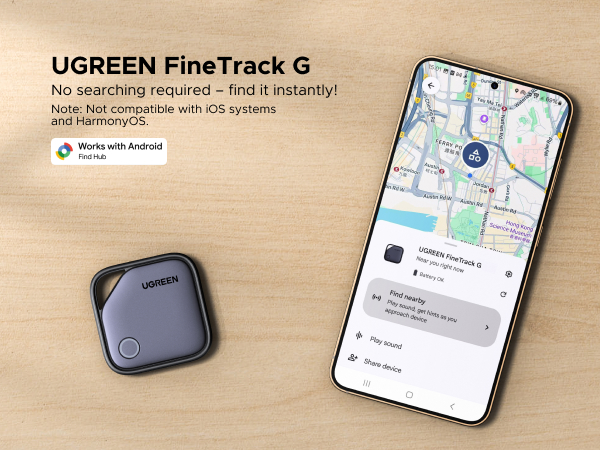
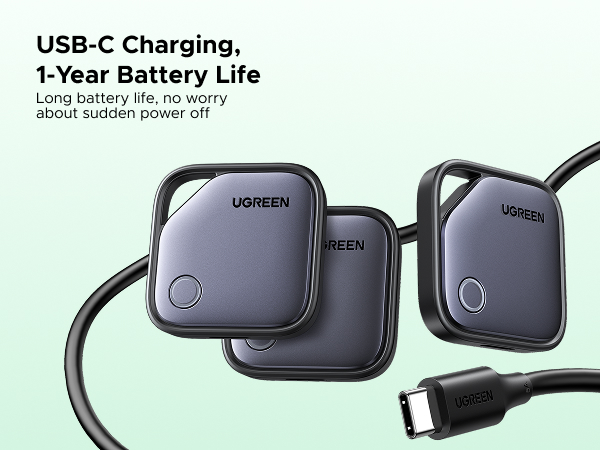
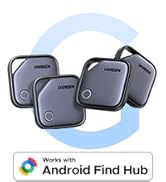
    FineTrack G (Android Only) Air Tracker Tags, USB-C Charging

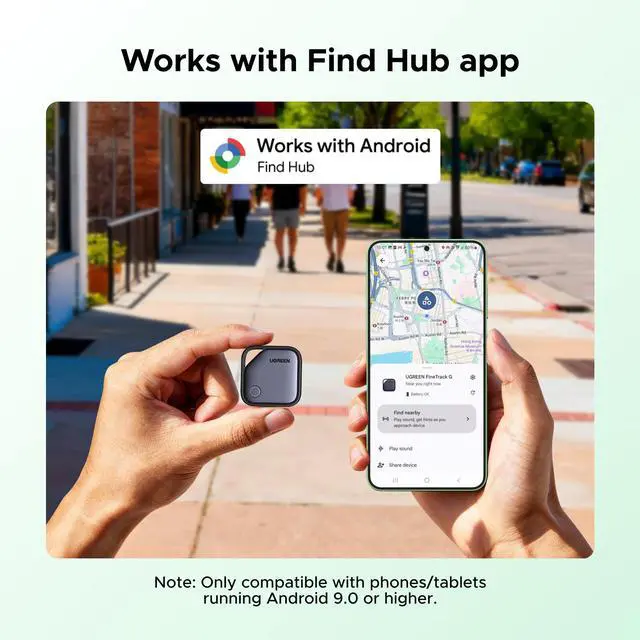
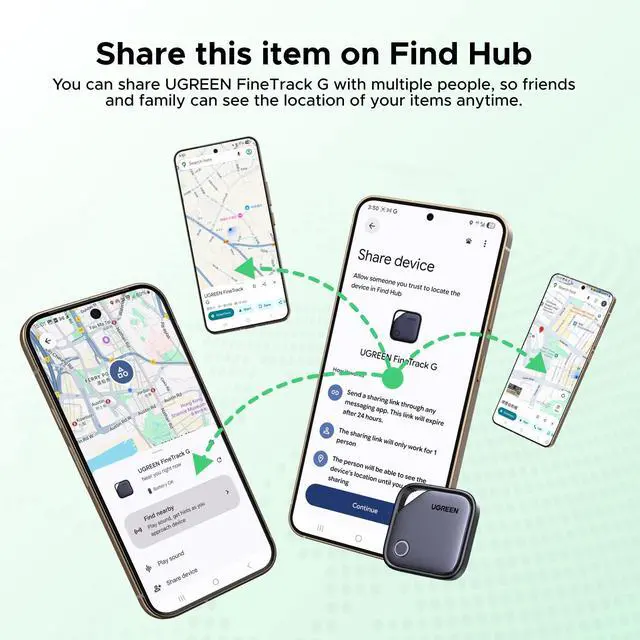
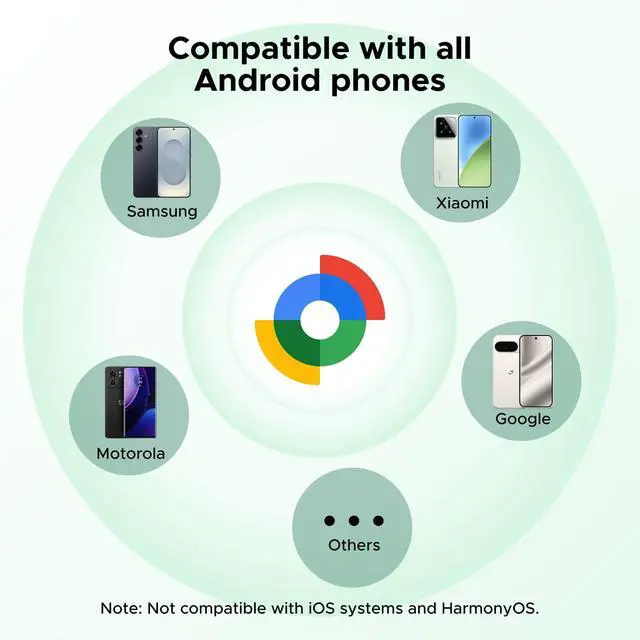
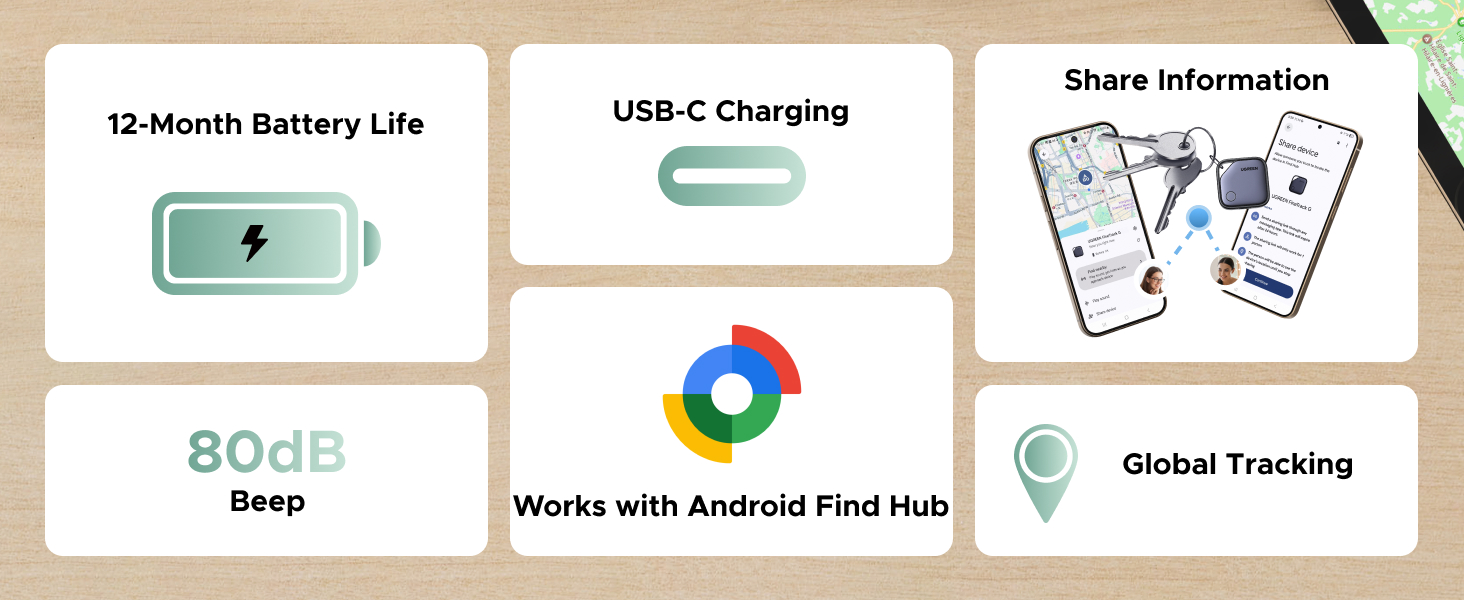
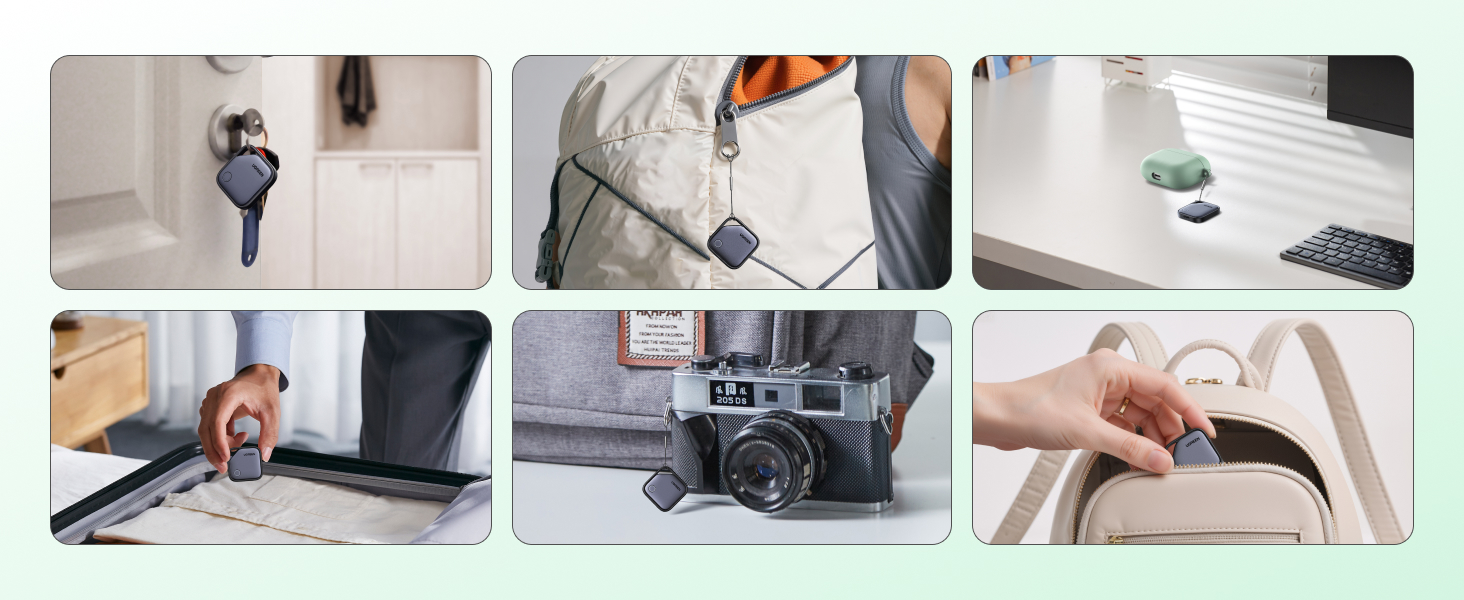
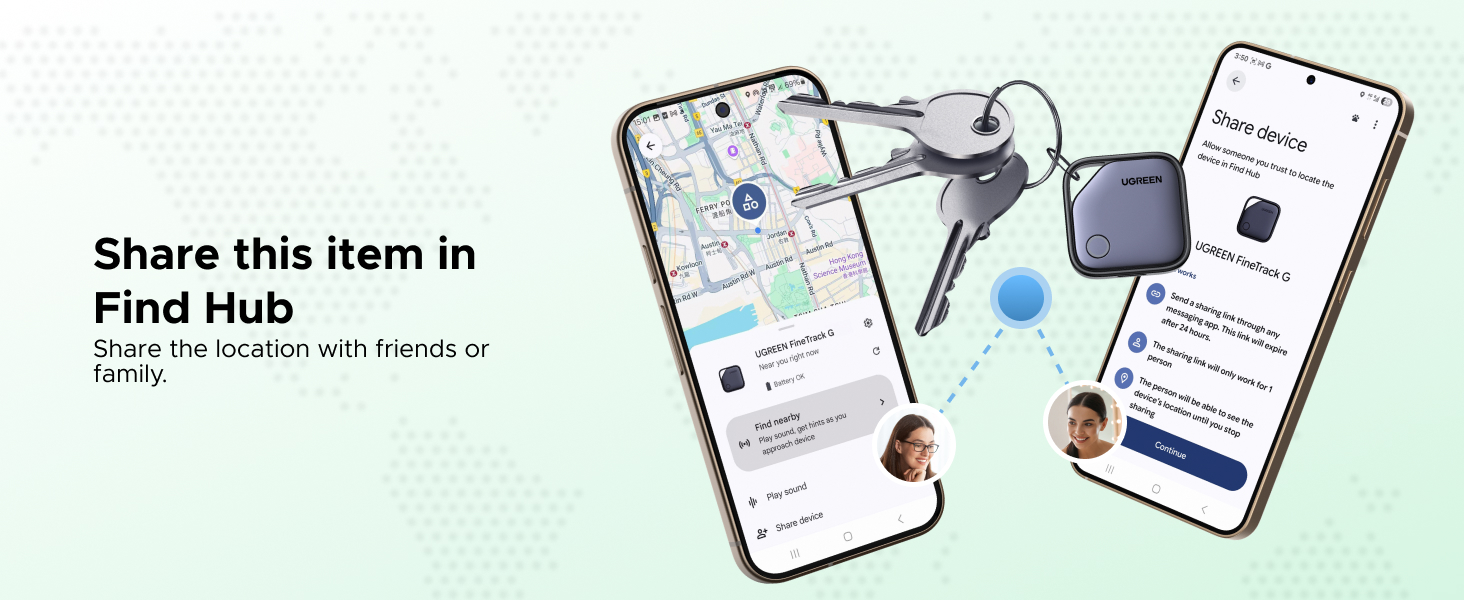
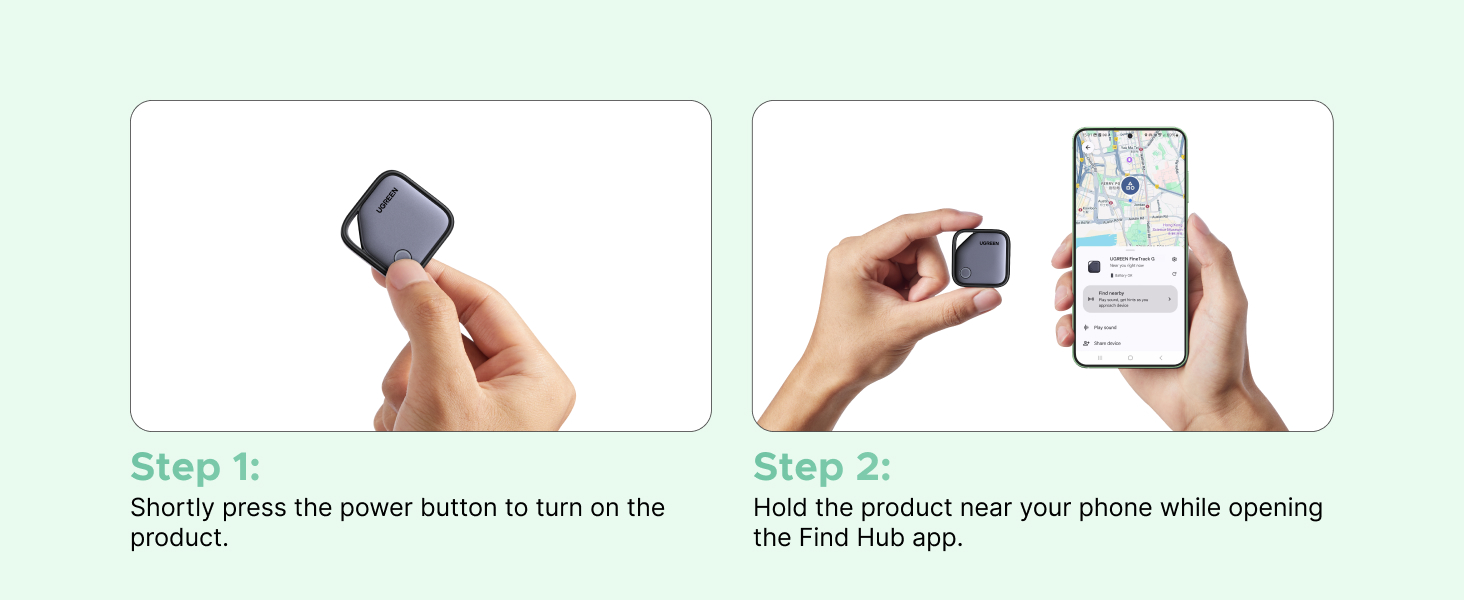
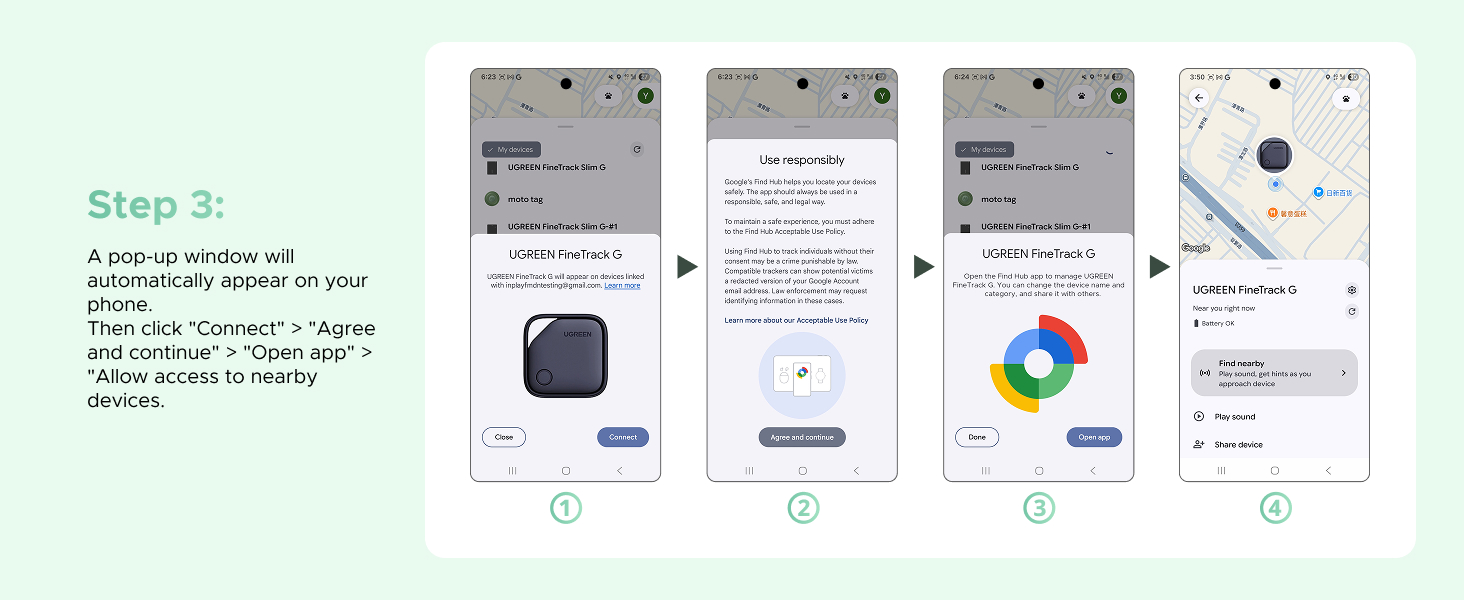
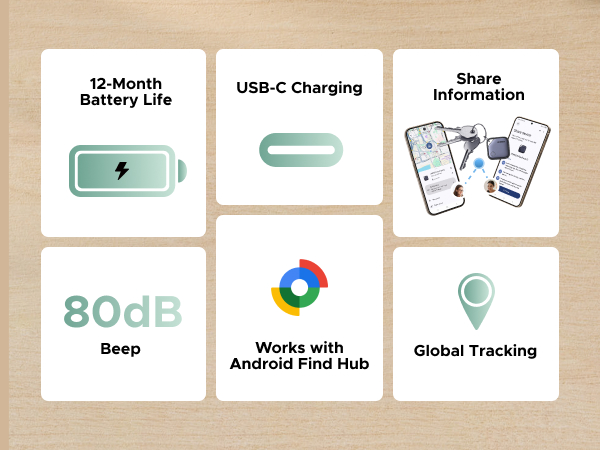
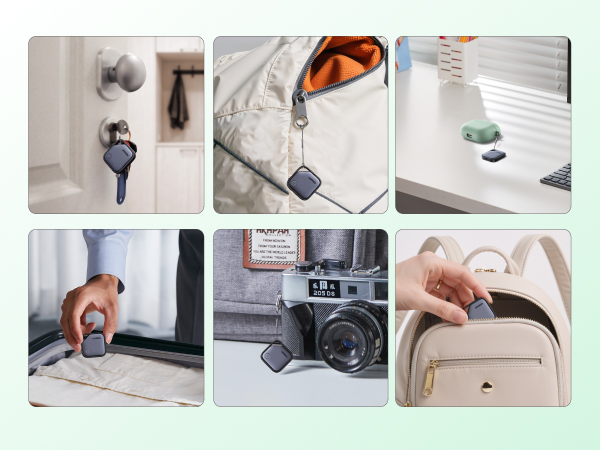
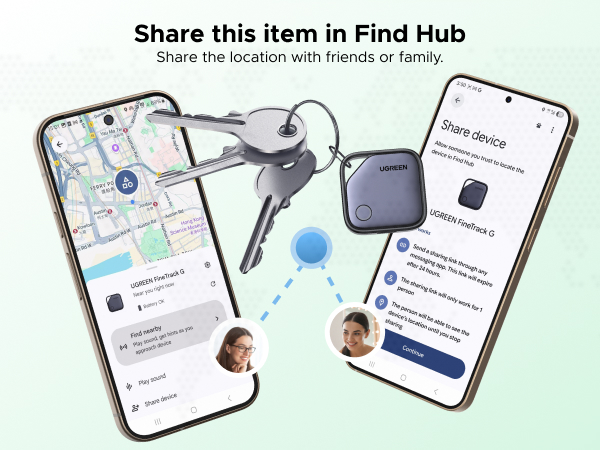
    • Easy Find & Family Sharing with Google Find Hub App: Effortlessly pair the FineTrack G air tracker tags with your Android phone in just one tap. Using the Google Find Hub app (download required), you can easily add the tracker tags to your account to locate and keep track of your key, wallet, luggage, and other valuables. Besides Trackering item, you can also share your trackers location with family members, so everyone can help keep your belongings safe.(Note: Compatible with Android 9.0 and above only, Not for iOS)
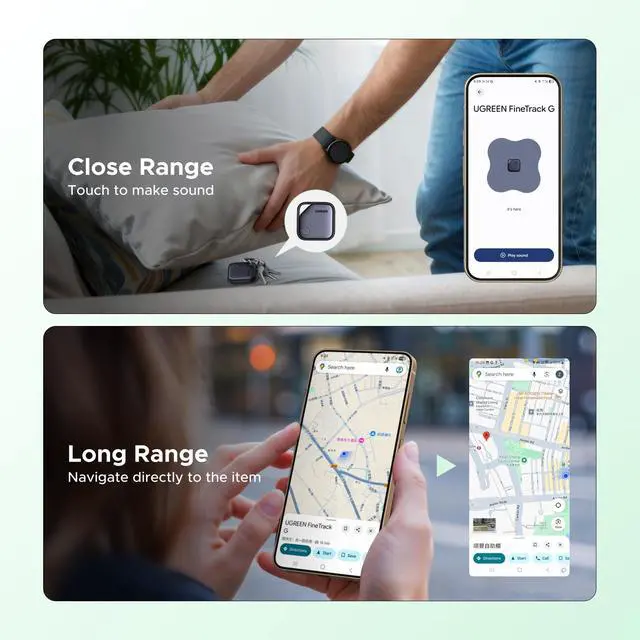
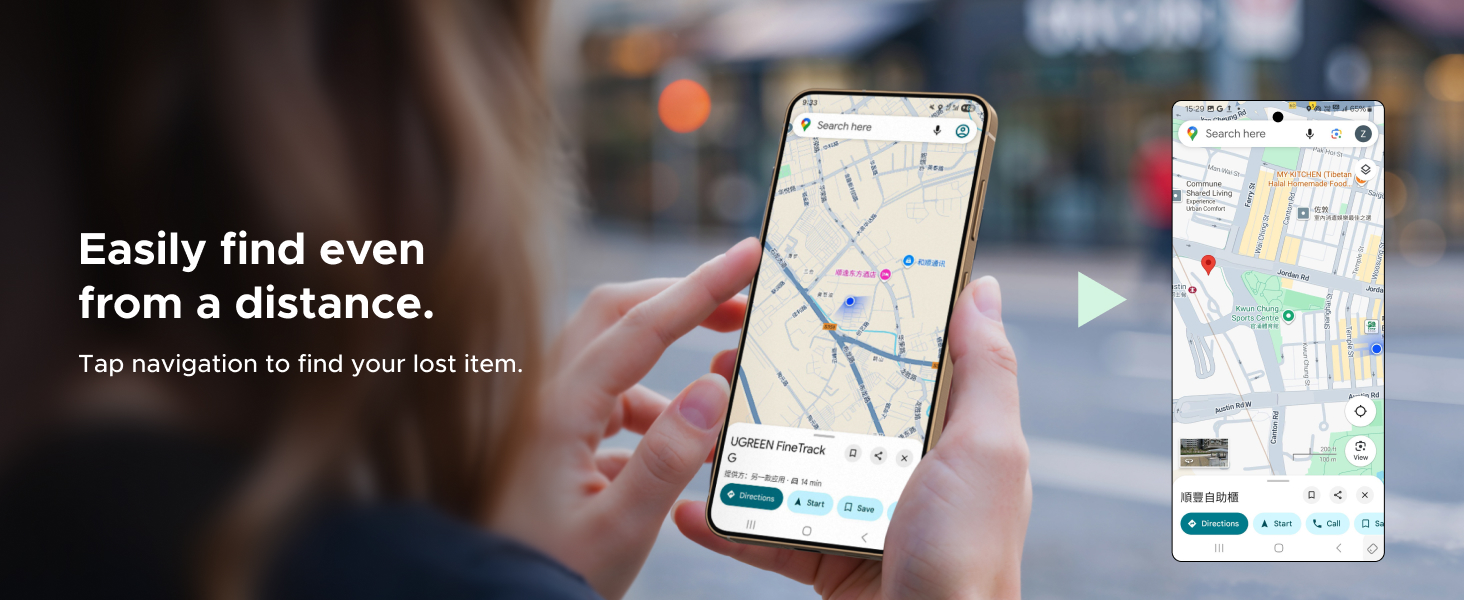
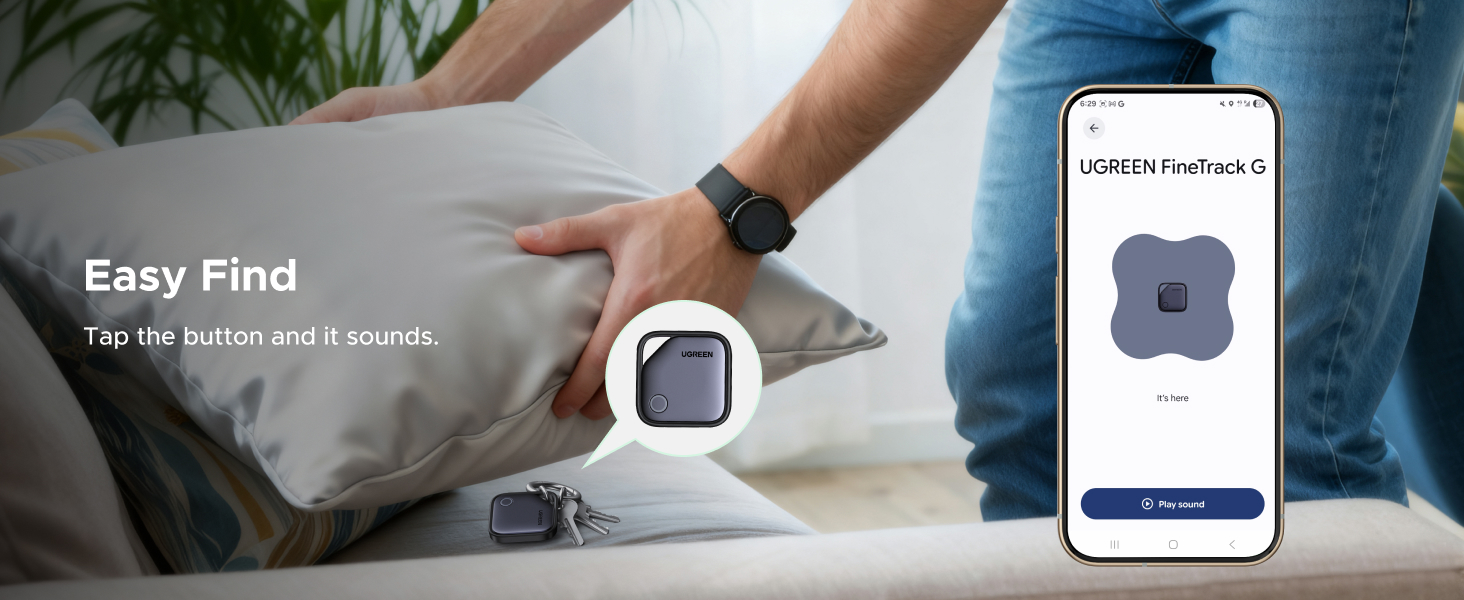
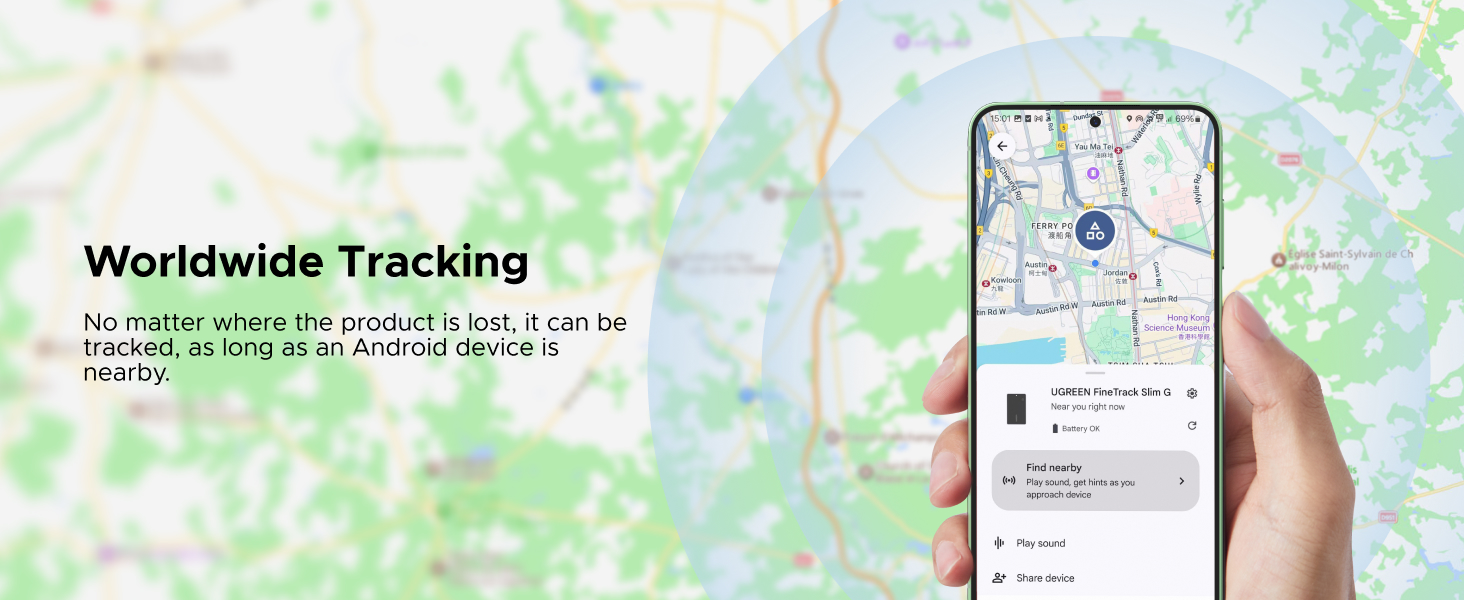
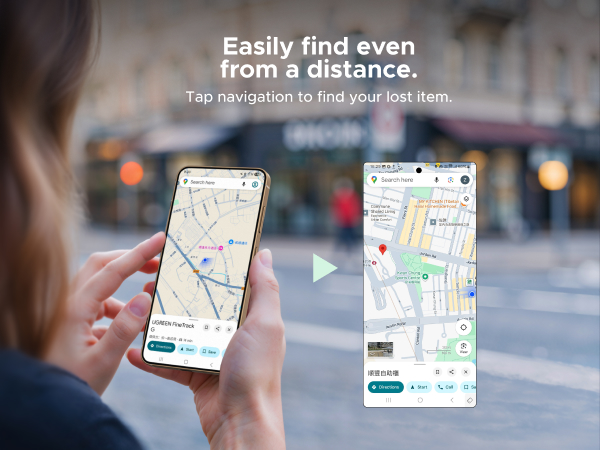
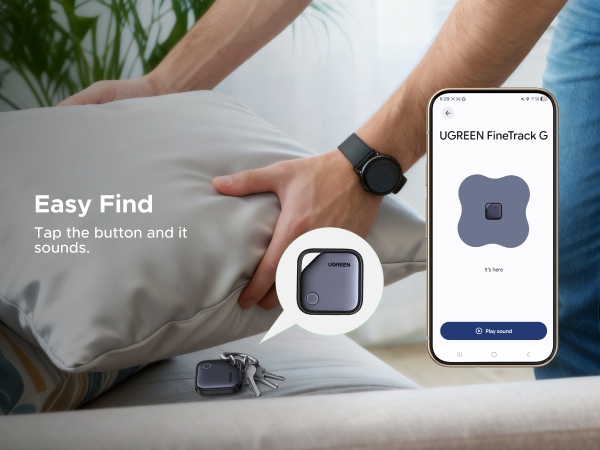
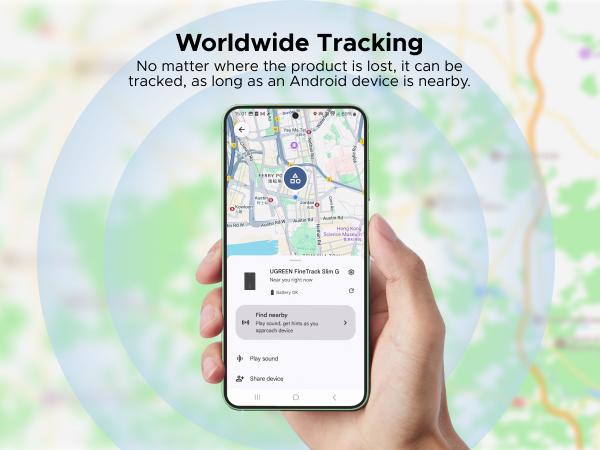
    • Smart Tracking Made Easy: Whether Bluetooth Air Tracker Tag is nearby or far away, locate it easily with the Find Hub app for Android. When within Bluetooth range, play a sound to quickly find the item tracker tag; when out of range, the Google Find Hub app will use the vast ecosystem of Android devices to provide the item finders latest location. Enjoy global tracking with Google Find Hub app without any subscription fees.
    • Lost Item Alerts & Lost Mode: When your Android Tracker Tag moves out of range, the Google Find Hub app sends an lost alert with the last known location. If your item is confirmed lost, you can leave your contact information in Lost Mode and so nearby Android devices can remotely access it and help locate your tracker, making recovery quick and easy. (The above functions need to activate Lost Mode before use)
    +
    +
    Overview
    Specs
    Reviews
    avatar

    Any questions? Our AI mode will help you find out quickly.

    tracker
    tracker
    Question 1 Why doesn't the Google Locator popup appear anymore?
    a. Please make sure your Android phone supports Android 9.0 or above.
    b. It could be because your Google Play Services is not up to date. Updates may be delayed depending on the phone brand. To manually update, go to "Settings," select "Apps," find and click on "Google Play Services," and tap "App details" to update. If the popup still doesn't appear after the update, please restart your phone. If the issue persists, please ask us for assistance.
    Question 2 What should I do if I cannot pair after the Google Locator popup appears?
    a. If your phone shows "Couldn’t connect," it might be due to outdated Google Mobile Services (GMS) or weak network signal. Please ensure that GMS is up to date and check your network connection. If the issue persists, please ask us for assistance.
    b. Click "Close" after the pop-up appears. This will prevent the pop-up from appearing again. You will need to wait 5 minutes or restart your phone before the pop-up appears again.
    Question 3 What should I do if one or more of the 4 tags I ordered are not working?
    When multiple tags are activated at the same time, it may trigger silent mode, which can prevent popups or pairing. We recommend turning on each tag one by one and attempting to connect individually to avoid interference from silent mode.
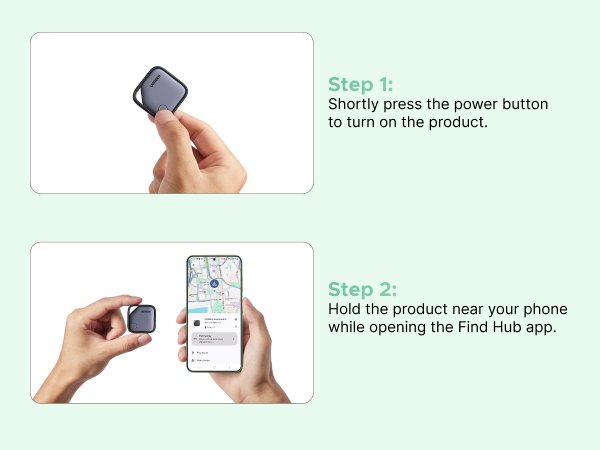
    Quick Operation Guide Power On: Press the button once to power on. You will hear four consecutive "di" prompts (power indicator flashes).
    Shut Down: Double-press the button twice, then hold it for 5 seconds until you hear a "di" sound. Release to hear two "di" prompts, indicating successful shutdown. First-time Power On: Automatically shuts down after 5 minutes if no binding record exists.
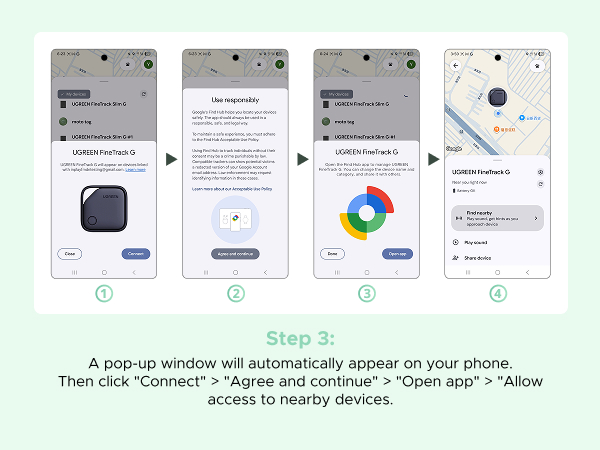
    Pairing: Android phones will receive a pop-up pairing prompt. Select "Pair," then follow instructions to click "Accept & Continue."
    Successful Pairing: Continuous "di-di-di" prompts indicate successful connection.
    Factory Reset 1)Double-press the button twice to hear one "di" prompt. 2)Hold the button for 5 seconds until you hear a "di" every second. 3)Continue holding until two "di" prompts sound, then release. 4) "di" prompts confirm successful reset.
    Incompatible Device List Note: Due to the recent Google system update, some phones (Motorola Moto G Stylus 5G, Motorola Edge, TCL 30XL, TCL 30Z, Google Pixel 8) may experience temporary incompatibility. We are working on optimization and will update the compatibility list once resolved.
    tracker
    tracker
    Question 1 Why doesn't the Google Locator popup appear anymore?
    a. Please make sure your Android phone supports Android 9.0 or above.
    b. It could be because your Google Play Services is not up to date. Updates may be delayed depending on the phone brand. To manually update, go to "Settings," select "Apps," find and click on "Google Play Services," and tap "App details" to update. If the popup still doesn't appear after the update, please restart your phone. If the issue persists, please ask us for assistance.
    Question 2 What should I do if I cannot pair after the Google Locator popup appears?
    a. If your phone shows "Couldn’t connect," it might be due to outdated Google Mobile Services (GMS) or weak network signal. Please ensure that GMS is up to date and check your network connection. If the issue persists, please ask us for assistance.
    b. Click "Close" after the pop-up appears. This will prevent the pop-up from appearing again. You will need to wait 5 minutes or restart your phone before the pop-up appears again.
    Question 3 What should I do if one or more of the 4 tags I ordered are not working?
    When multiple tags are activated at the same time, it may trigger silent mode, which can prevent popups or pairing. We recommend turning on each tag one by one and attempting to connect individually to avoid interference from silent mode.
    Quick Operation Guide Power On: Press the button once to power on. You will hear four consecutive "di" prompts (power indicator flashes).
    Shut Down: Double-press the button twice, then hold it for 5 seconds until you hear a "di" sound. Release to hear two "di" prompts, indicating successful shutdown. First-time Power On: Automatically shuts down after 5 minutes if no binding record exists.
    Pairing: Android phones will receive a pop-up pairing prompt. Select "Pair," then follow instructions to click "Accept & Continue."
    Successful Pairing: Continuous "di-di-di" prompts indicate successful connection.
    Factory Reset 1)Double-press the button twice to hear one "di" prompt. 2)Hold the button for 5 seconds until you hear a "di" every second. 3)Continue holding until two "di" prompts sound, then release. 4) "di" prompts confirm successful reset.
    Incompatible Device List Note: Due to the recent Google system update, some phones (Motorola Moto G Stylus 5G, Motorola Edge, TCL 30XL, TCL 30Z, Google Pixel 8) may experience temporary incompatibility. We are working on optimization and will update the compatibility list once resolved.
    FineTrack G (Android Only) Air Tracker Tags, USB-C Charging

    Warranty & Returns

    Warranty, Returns, And Additional Information

    Warranty

    • Please contact the Seller directly for warranty information. Warranty information may also be found on the Manufacturer's website.
    • CONTACT

    Return Policies

    Manufacturer Contact Info

    LOADING...