













Why isn't the scannable code for compatible Echo devices in my user manual working?
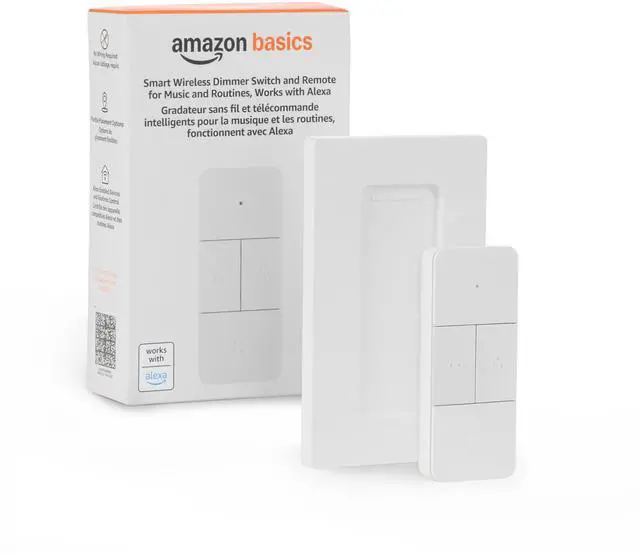
Please use the latest User Manual from the Product guides section for the correct scannable code. You can also confirm which of your Echo devices work with the smart remote in the "Works With Alexa" section above.
What should I do if nothing happens when I press a button?
Be sure to remove the battery pull tab when first setting up the remote. Check battery installation and orientation in the compartment. If issues persist, try replacing with a fresh battery. Ensure battery contacts are clean and free from debris.
What should I do if the LED blinks once when I push a button but nothing happens?
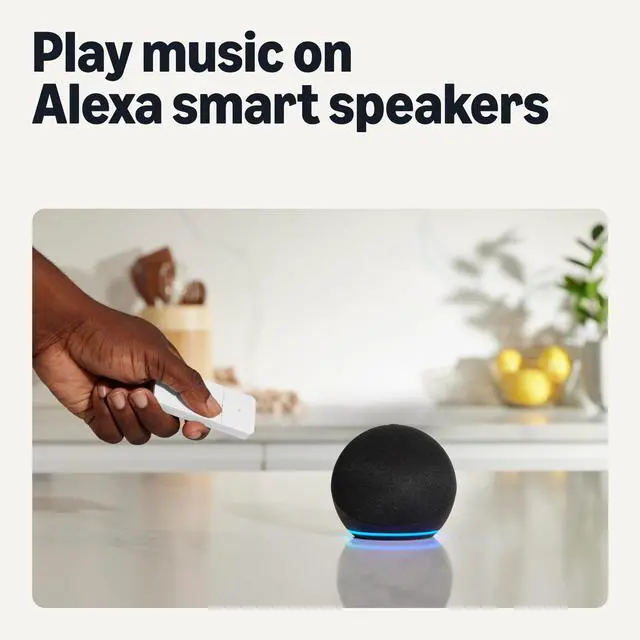
If it blinks red, move the remote closer to the Echo (within 10m/32ft). If green, ensure you've set up a routine for that button in the Alexa app and the controlled device is on and connected. Try running the routine from the app to verify it works.
What should I do if the LED on the remote continuously blinks green?
If the LED blinks green for 60 seconds when pressed, delete the remote from the Alexa app and set it up again. Consult the "Setup in the Alexa App" section in the User Manual for guidance.
I don't seem my issue listed here. What can I do?
For more information on how to get your smart remote working, please refer to the Troubleshooting Guide under the Product guides and documents section on this page.
Echo Compatability with the Smart Remote
Before purchasing, please check the "Works with Alexa" widget above on this product detail page to confirm your Echo device is compatible with the Smart Remote.
Note: The Smart Remote is not compatible with these Echo devices: Echo Dot V1, Echo Plus V1, Echo V1, Echo Show V1, Echo Show V2, Echo Spot V1, Echo Tap V1, Echo Sub V1, Echo Link V1, Echo Link Amp V1, Echo Auto, Echo Loop, Echo Buds, Echo Frames.
Always verify compatibility using the Works with Alexa widget before completing your purchase.
Household Needs
Electronics
Pet Supplies
Why isn't the scannable code for compatible Echo devices in my user manual working?
Please use the latest User Manual from the Product guides section for the correct scannable code. You can also confirm which of your Echo devices work with the smart remote in the "Works With Alexa" section above.
What should I do if nothing happens when I press a button?
Be sure to remove the battery pull tab when first setting up the remote. Check battery installation and orientation in the compartment. If issues persist, try replacing with a fresh battery. Ensure battery contacts are clean and free from debris.
What should I do if the LED blinks once when I push a button but nothing happens?
If it blinks red, move the remote closer to the Echo (within 10m/32ft). If green, ensure you've set up a routine for that button in the Alexa app and the controlled device is on and connected. Try running the routine from the app to verify it works.
What should I do if the LED on the remote continuously blinks green?
If the LED blinks green for 60 seconds when pressed, delete the remote from the Alexa app and set it up again. Consult the "Setup in the Alexa App" section in the User Manual for guidance.
I don't seem my issue listed here. What can I do?
For more information on how to get your smart remote working, please refer to the Troubleshooting Guide under the Product guides and documents section on this page.
Echo Compatability with the Smart Remote
Before purchasing, please check the "Works with Alexa" widget above on this product detail page to confirm your Echo device is compatible with the Smart Remote.
Note: The Smart Remote is not compatible with these Echo devices: Echo Dot V1, Echo Plus V1, Echo V1, Echo Show V1, Echo Show V2, Echo Spot V1, Echo Tap V1, Echo Sub V1, Echo Link V1, Echo Link Amp V1, Echo Auto, Echo Loop, Echo Buds, Echo Frames.
Always verify compatibility using the Works with Alexa widget before completing your purchase.