



• $19.99
  • Free 30-day Returns
  • Price alert
    Shop it at NeweggBusiness.

    Meet Your Seller

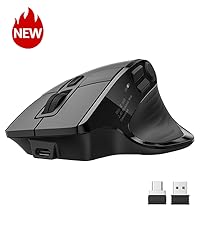
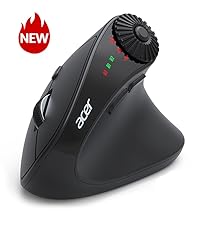
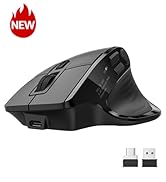
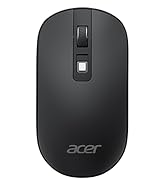
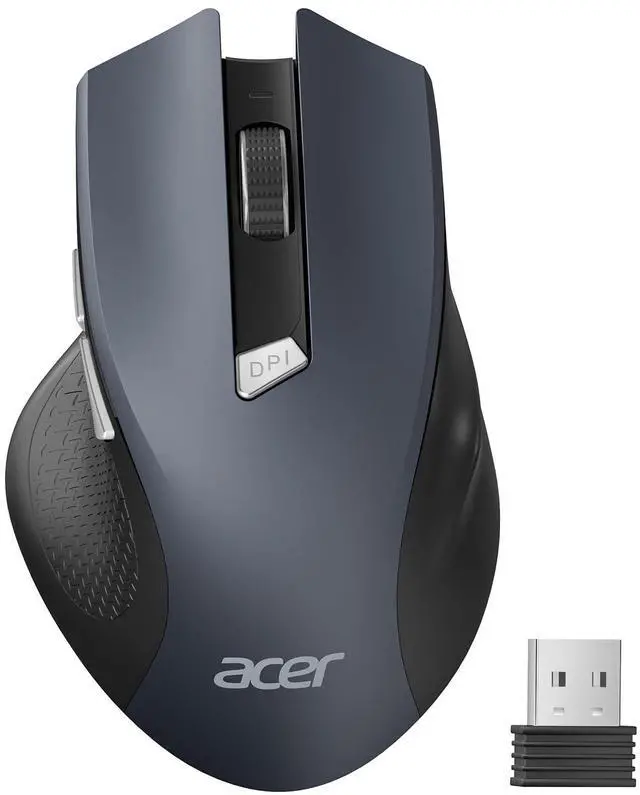
    acer Wireless Mouse for Laptop, 2.4GHz Computer Mouse 3 Adjustable DPI Office Cordless USB Mice with USBA Receiver, 6 Buttons, 1600 DPI, Medium to Large Sized Hands Compatible with PC, Laptop, Desktop

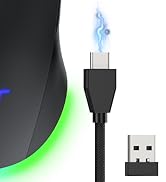
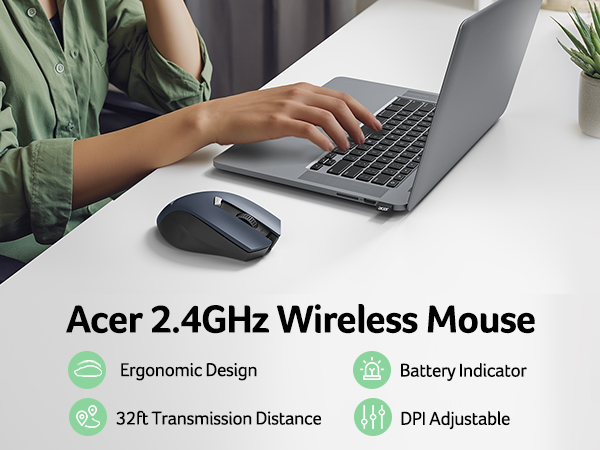
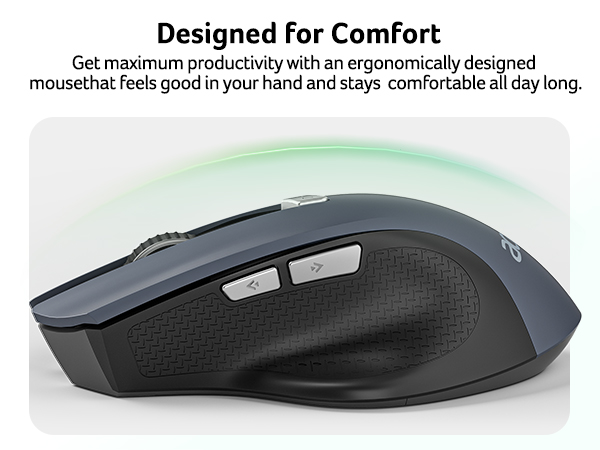
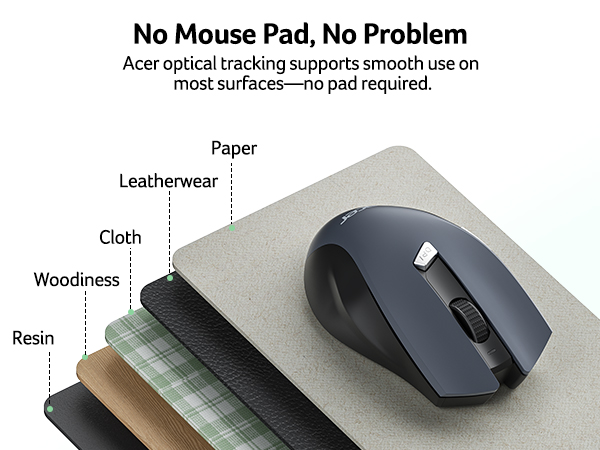
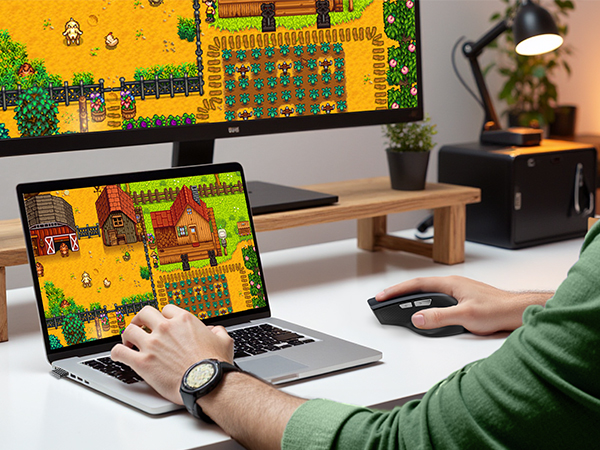
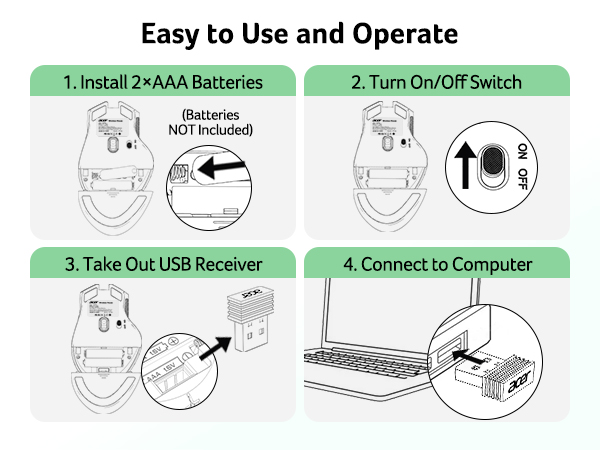
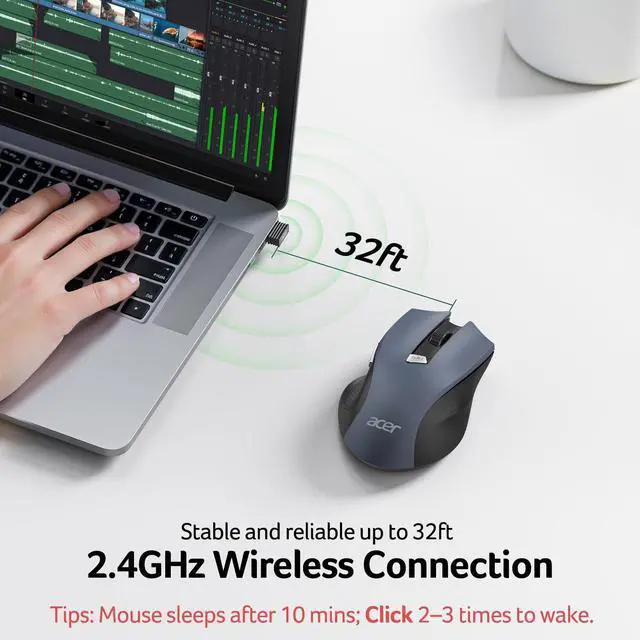
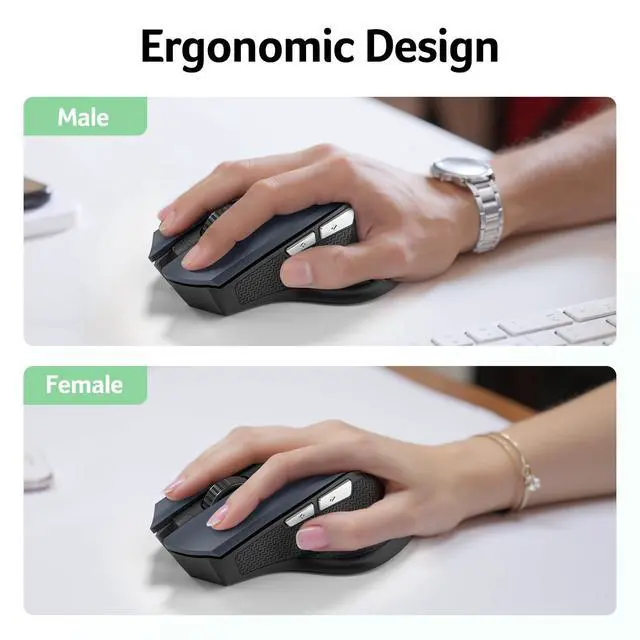
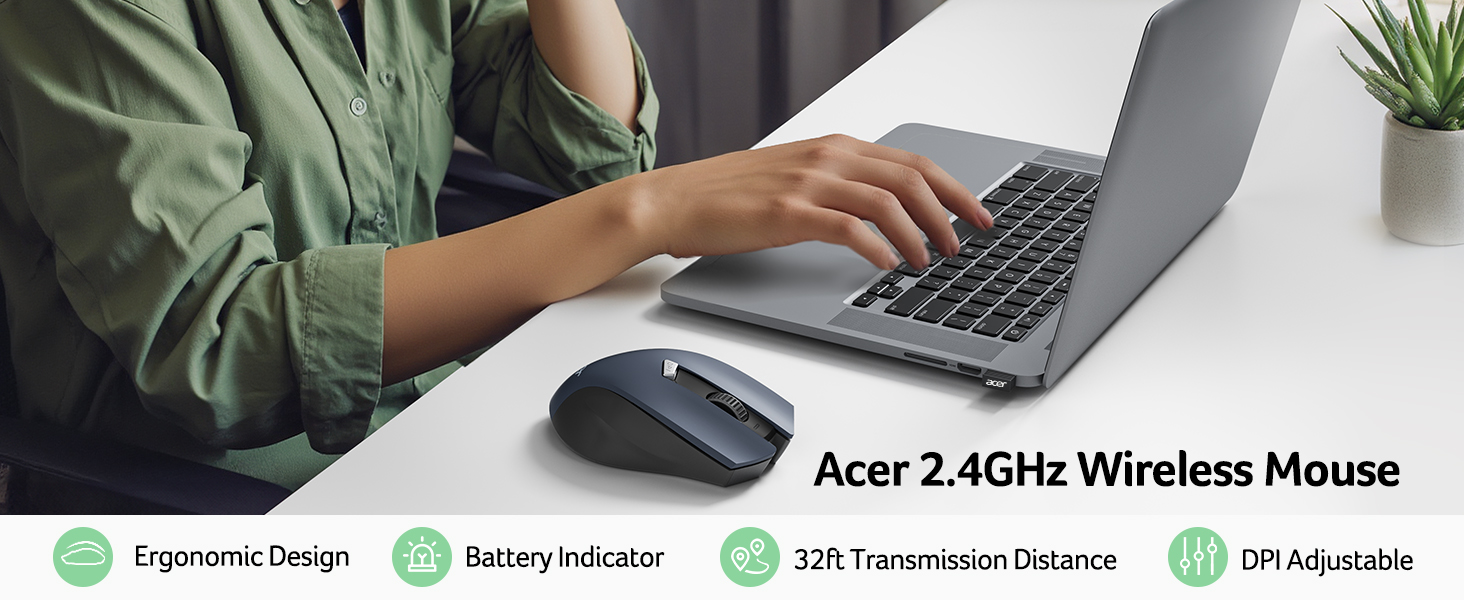
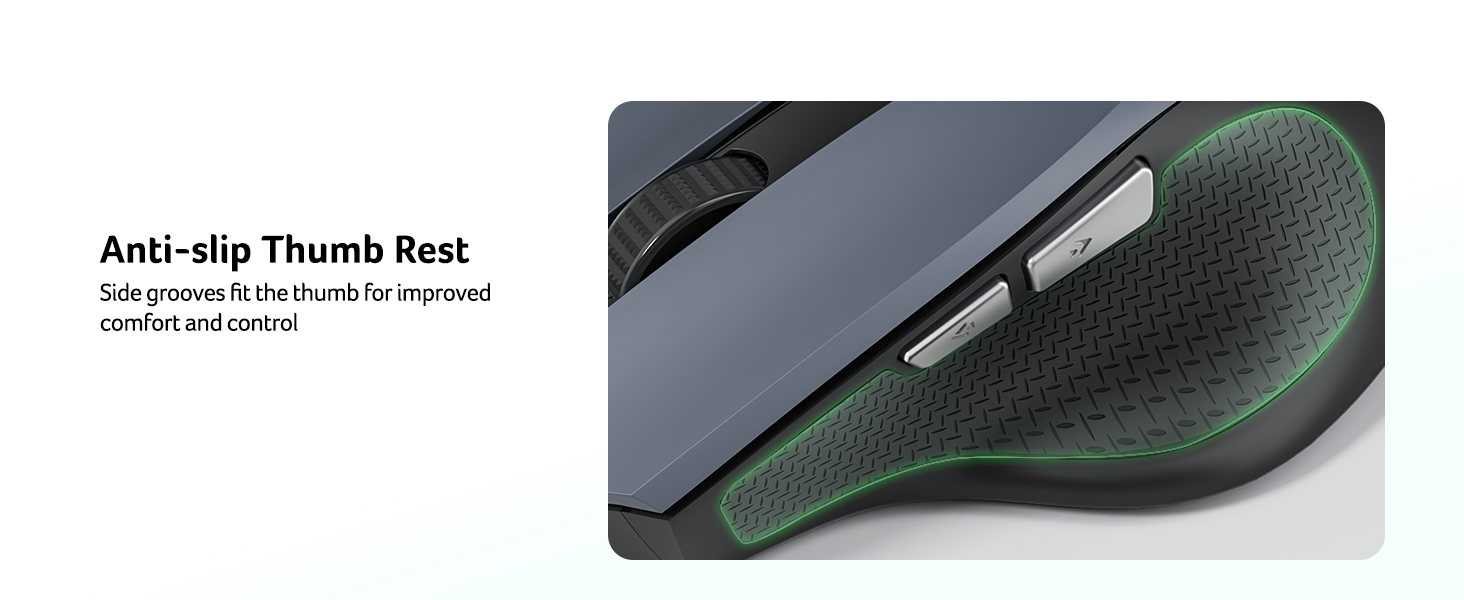
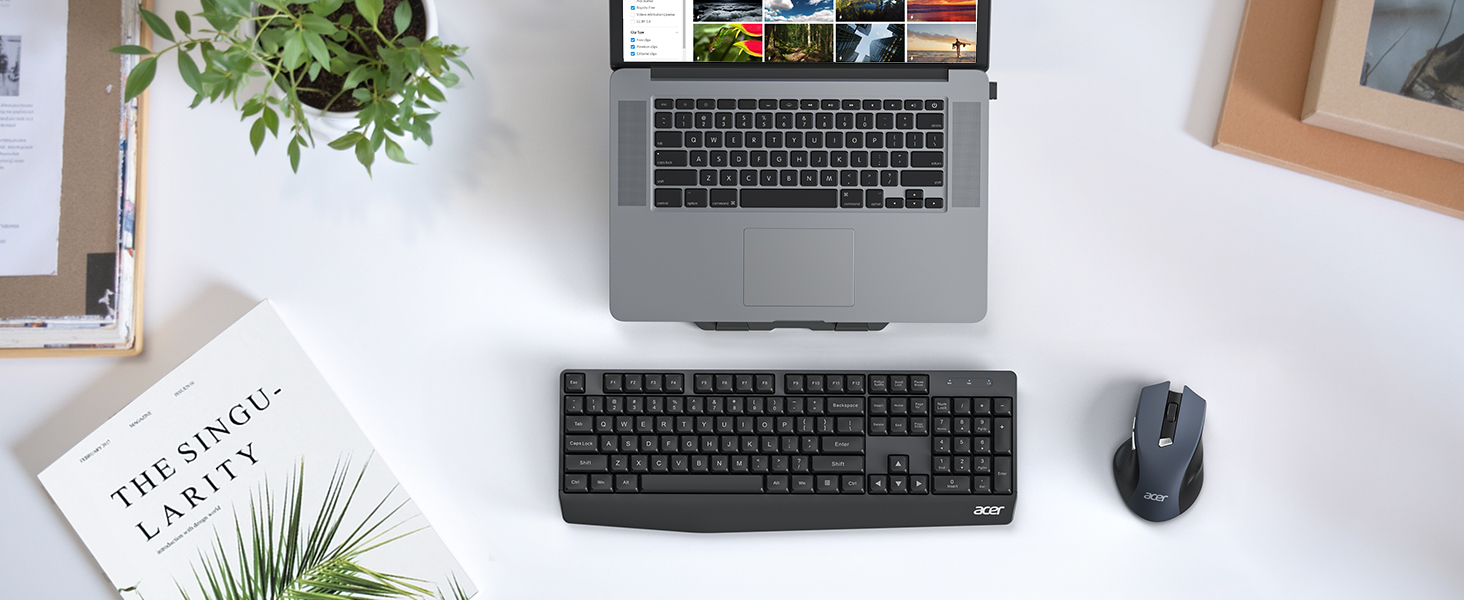
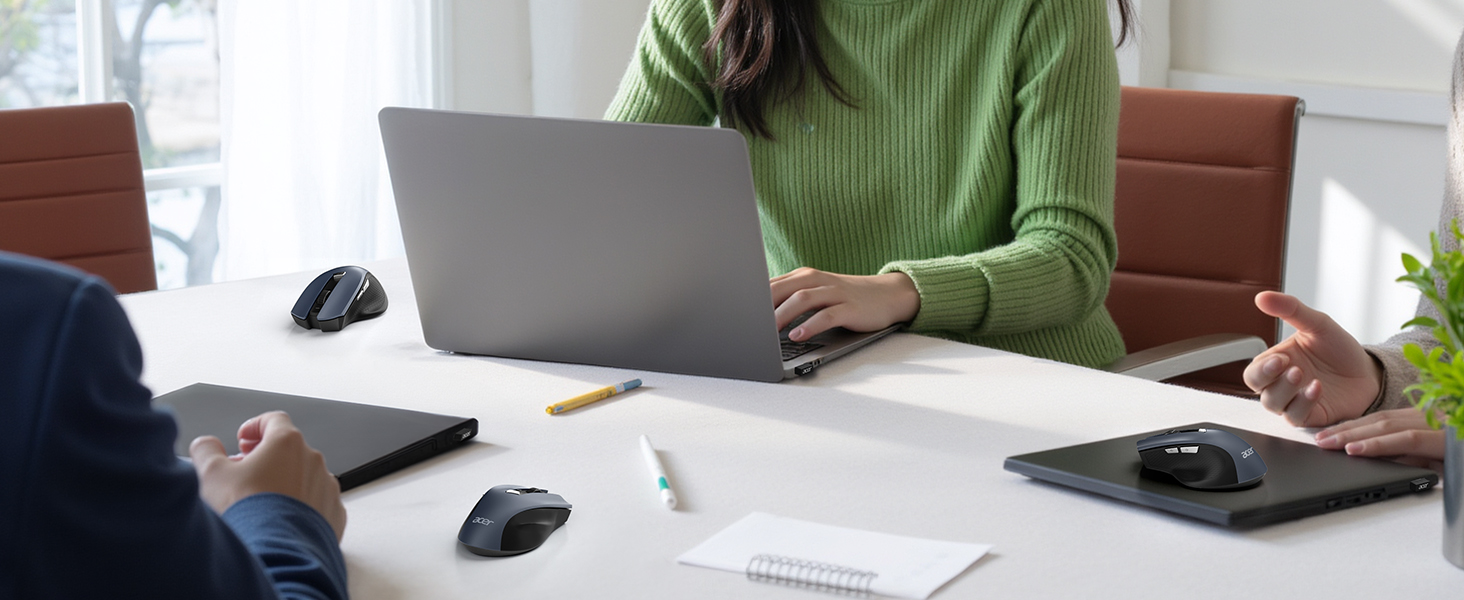
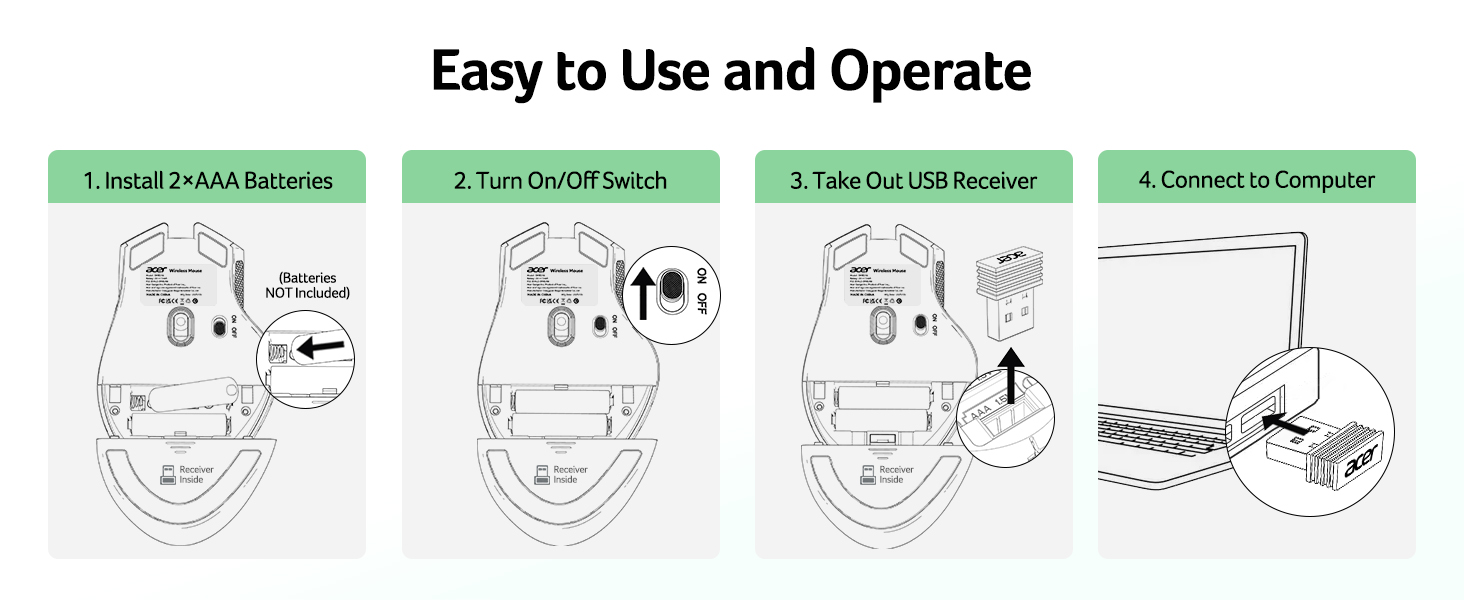
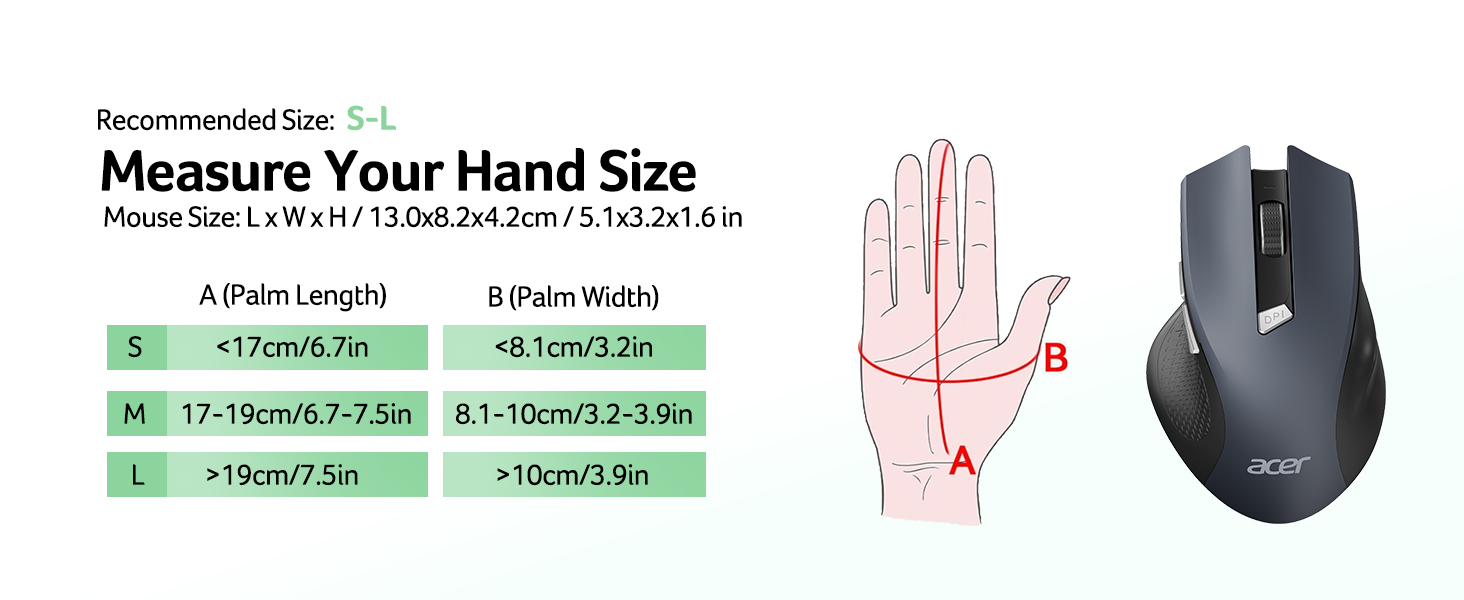
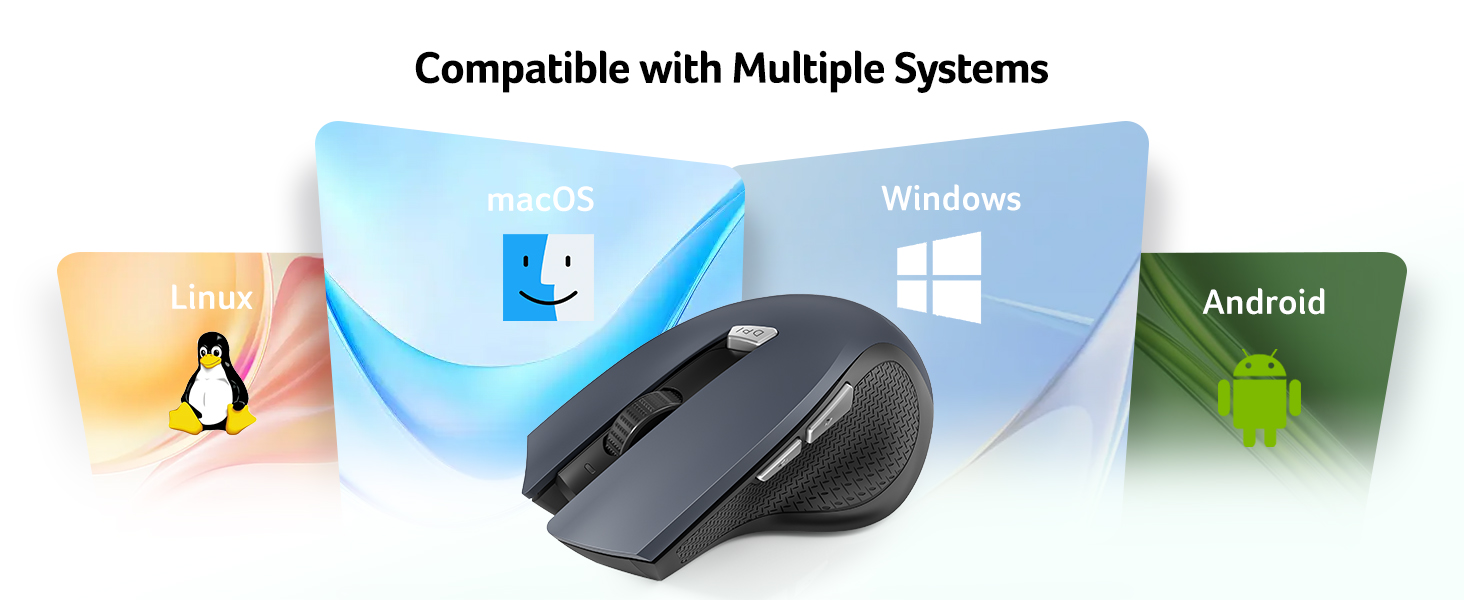
    • [Plug and Play for Home Office]The wireless computer mouse features 2.4GHz connectivity, delivering a stable, interference-free connection up to 32ft. Designed for medium to large sized hands, it ensures comfortable use all day. Simply plug in the USB-A receiver for instant pairingno drivers needed. If the mouse isnt suitable, place the USB receiver in the battery compartment and return both.
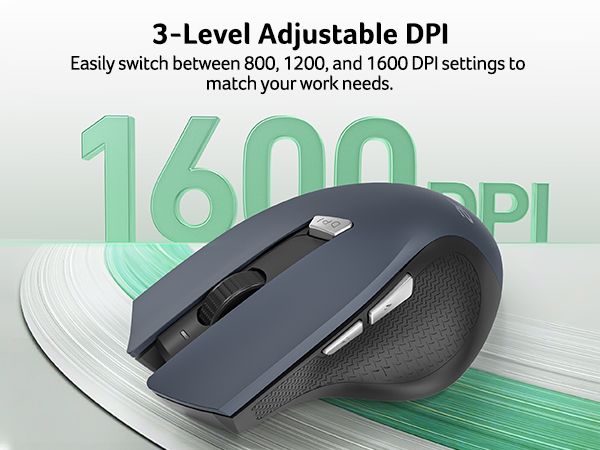
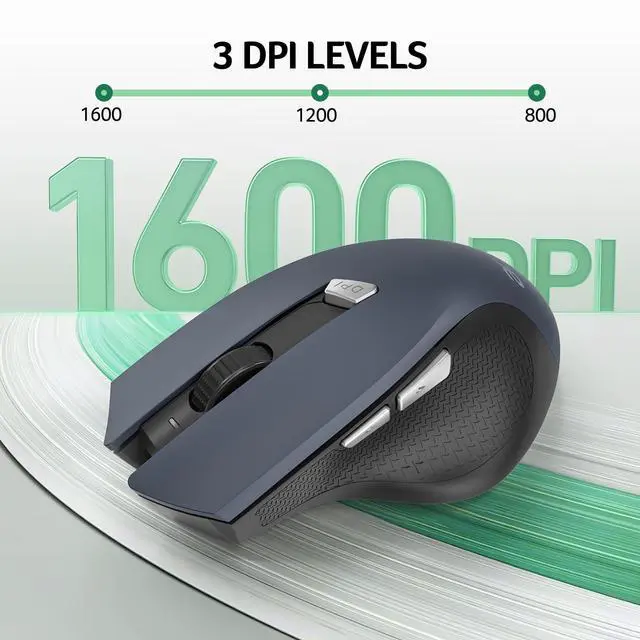
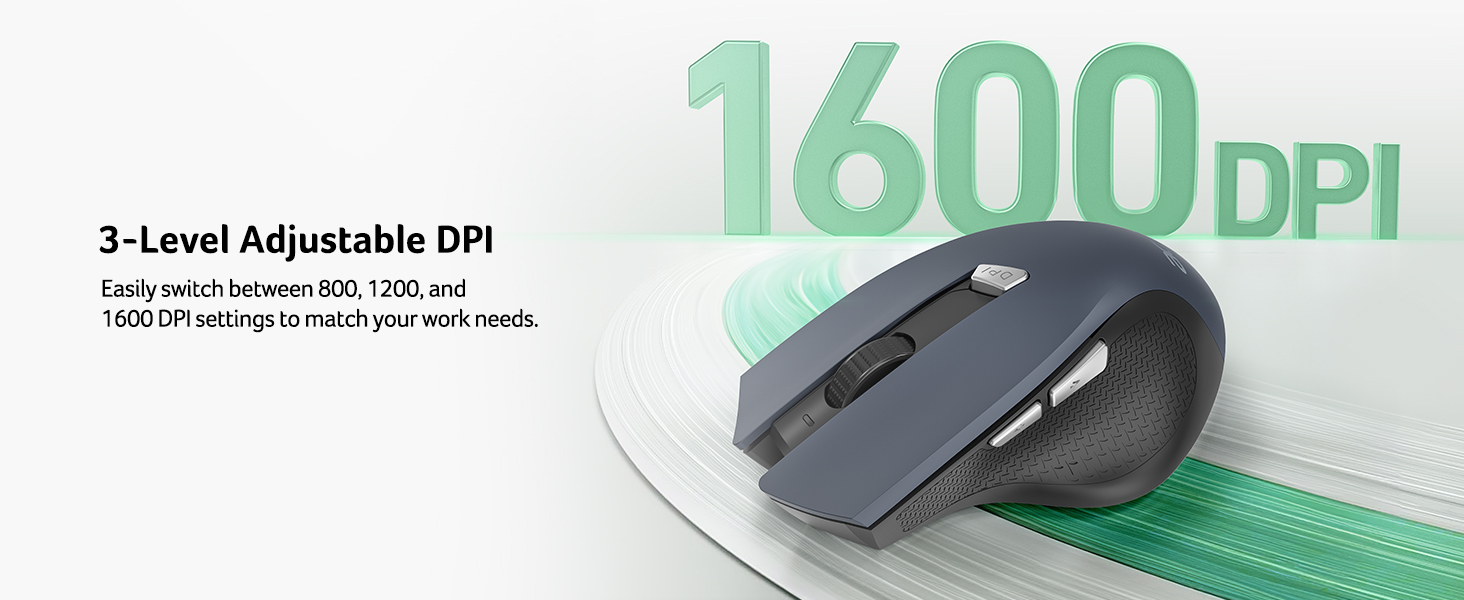
    • [3 Levels Adjustable DPI]This travel USB mouse offers 3 adjustable DPI settings (800, 1200, 1600), allowing you to customize sensitivity for precise design work. Effortlessly switch to match your task and elevate your productivity. Please remove the film at the bottom of the mouse before use.
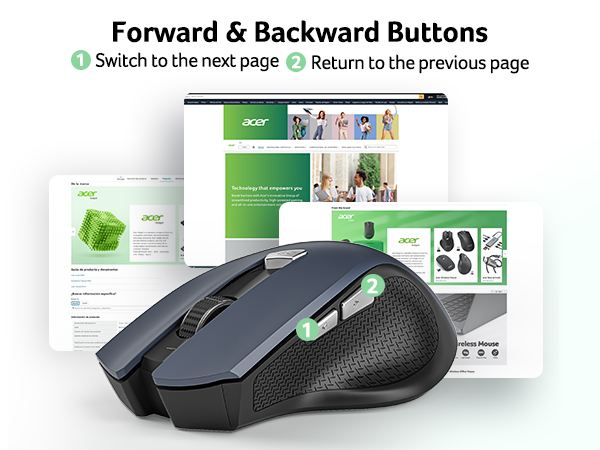
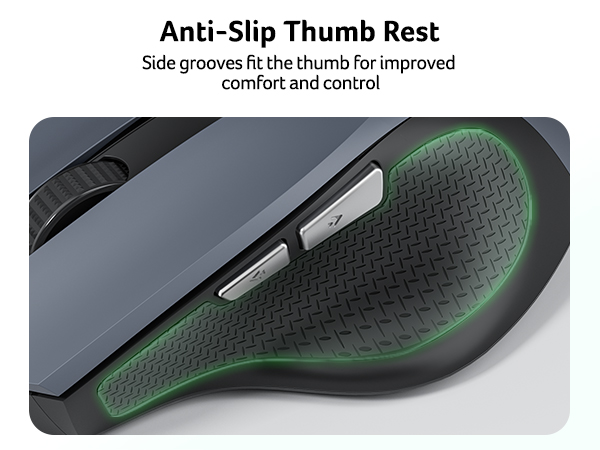
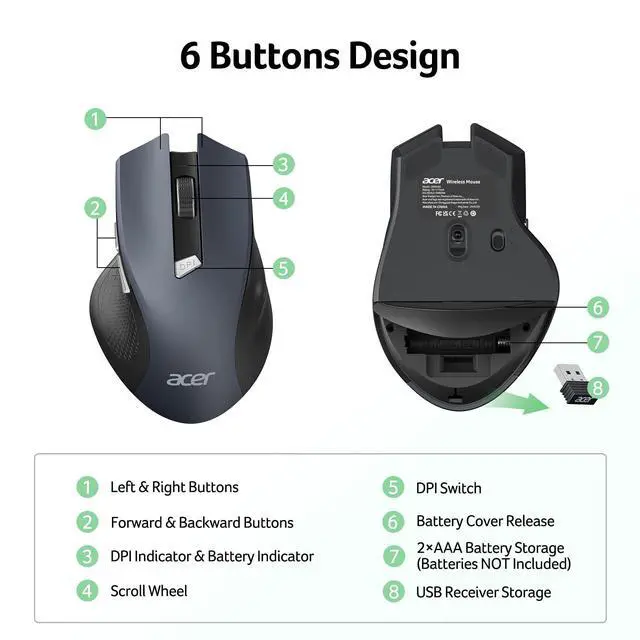
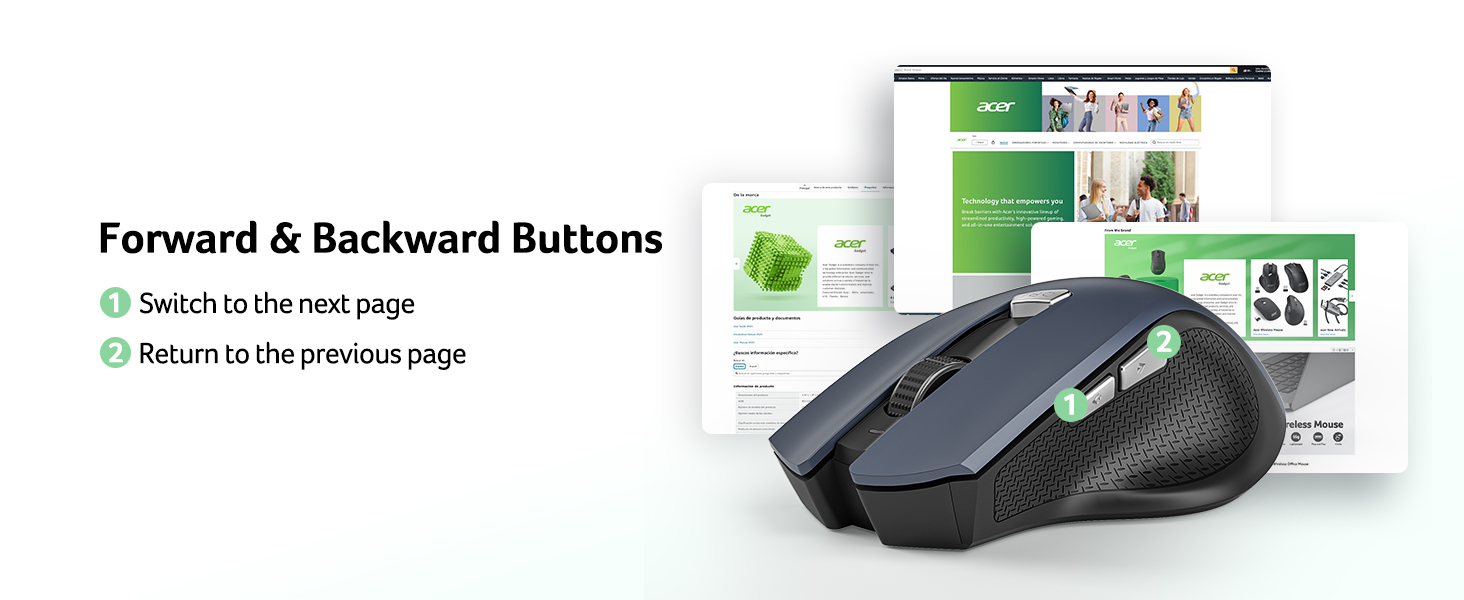
    • [Effortless Browsing]Equipped with forward and backward buttons, this computer mice streamlines your workflow, making it easy to navigate through web pages and files with a simple click. Side button does not work on Mac.
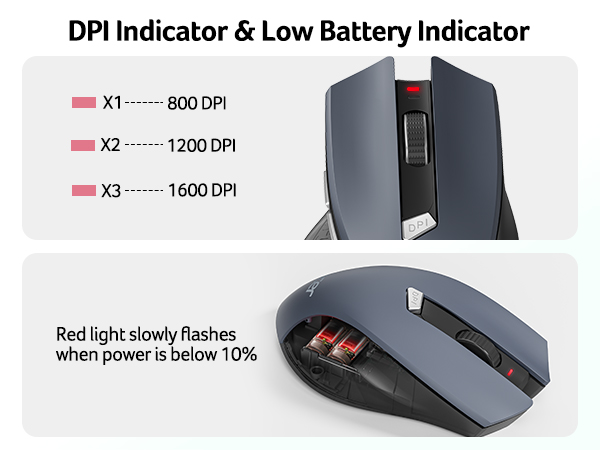
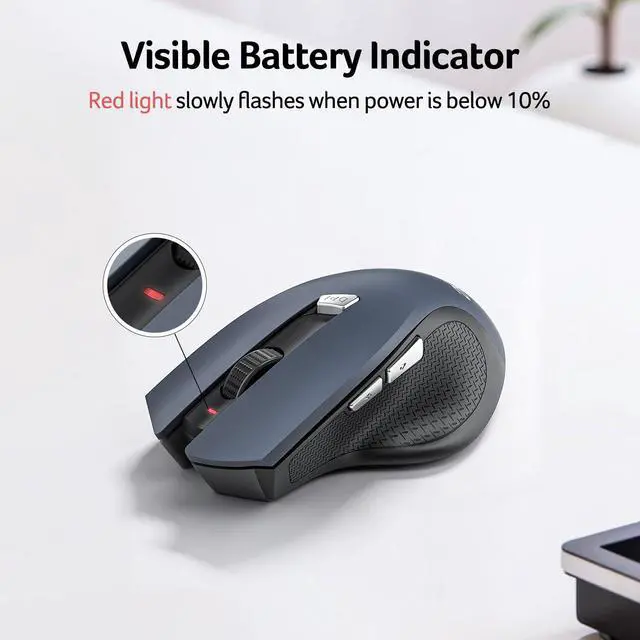
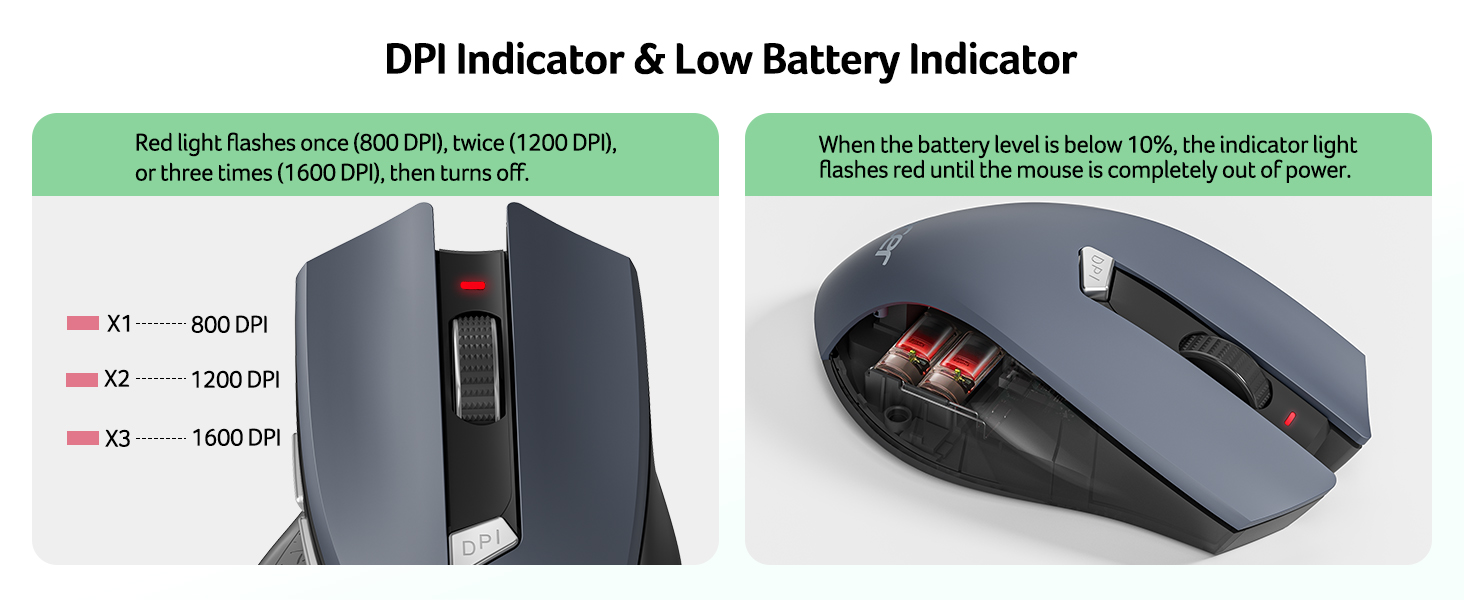
    • [Visible Indicator Light] The pc mouse features a visual indicator for DPI levels and low battery alerts. The red light flashes once for 800 DPI, twice for 1200 DPI, and three times for 1600 DPI. When the battery level is below 10%, the light flashes red until the mouse is completely out of power.
    • NOTE: The AAA batteries are not included. The USB-A receiver is conveniently stored in the battery compartment at the back of the mouse. Make sure the battery cover is fully embedded in the slot to prevent loosening.
    +
    +
    Overview
    Specs
    Reviews
    avatar

    Any questions? Our AI beta will help you find out quickly.

    wireless mouse
    Q1 Why is my wireless mouse not working?
    - 1. Please check if the battery is installed with the correct polarity. Make sure the power switch is set to "ON". 2. Try to plug the receiver into a different USB-A port or Restart the computer. 3. The battery might be dead.
    Q2 Where is the USB A receiver?
    - Please open the battery cover; the receiver is stored underneath the battery compartment.
    Q3 How to wake up the mouse?
    - Powers down after 10 minutes of idle and requires 2-3 clicks to wake it.
    Q4 Why does my wireless mouse occasionally disconnect?
    - 1. Low battery power. Please replace the battery. 2. The mouse is too far from the computer. Please use the mouse at a distance of 32ft. 3. There is significant wireless interference around, leading to an unstable signal.
    Q5 When the mouse responds slowly, has delays, or lacks precision, please follow these steps to re-pair it
    - 1. Insert the batteries into the mouse, switch it to the "NO" position to power it on.
    - 2. Plug in the mouse receiver to computer, then press and hold both the left and right mouse buttons simultaneously.
    - 3. Place the mouse within 20 cm of the receiver and wait for 3–5 seconds until pairing is complete. Your mouse will then be successfully paired with the receiver and ready for normal use.
    Q5 How can I confirm the DPI of the mouse?
    - The DPI indicator light will light up when the DPI is switched. The red light of the first gear DPI (800) will turn off after it turns red since the red light of the second gear DPI (1200) will turn off afterit turns red twice, and the red light of the third gear DPI (1600) will turn off after it turns red three times. Easily switch between 800-1200-1600.
    Q6 What are the dimensions and weight of this mouse?
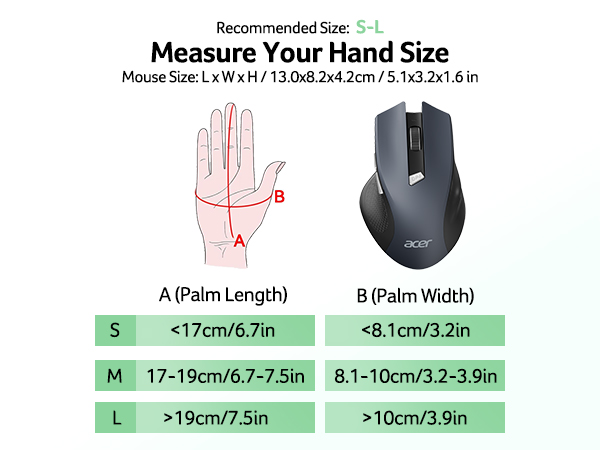
    - This mouse is L 5.1 inches, W 3.2 inches, H 1.6 inches, and a weight of 3oz.

    Acer Mouse

    https://m.media-amazon.com/images/S/aplus-media-library-service-media/dfff1431-e095-44ae-966a-032064c8f0a8.__CR4,0,324,364_PT0_SX200_V1___.jpg

    Wireless Mouse OMR266

    https://m.media-amazon.com/images/S/aplus-media-library-service-media/e2522394-a0e8-432a-9620-2877572c185f.__CR0,0,400,450_PT0_SX200_V1___.jpg

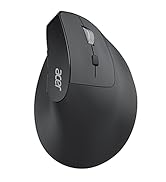
    Ergonomic Mouse OMR289

    https://m.media-amazon.com/images/S/aplus-media-library-service-media/98a6c6c6-715f-44a1-ac67-7117b3f568cf.__CR0,0,400,450_PT0_SX200_V1___.jpg

    Ergonomic Mouse OMR272

    https://m.media-amazon.com/images/S/aplus-media-library-service-media/869d7f7f-67e4-4c9d-8632-063ff54de349.__CR0,0,400,450_PT0_SX200_V1___.jpg

    Ergonomic Mouse OMR290

    https://m.media-amazon.com/images/S/aplus-media-library-service-media/b325ea94-f0a9-409b-a70a-6d1c25cbfe61.__CR0,0,400,450_PT0_SX200_V1___.jpg

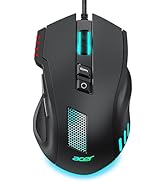
    Gaming Mouse OMR279

    Customer Reviews
    Price
    DPI
    800,1200,1600 1200, 1600, 2400, 3200, 4000 800,1200,1600,2400,3200,4800 1200,2400,3200,4000 1200,1600,2400,5000,12K,24K
    Side Buttons
    ? ? ? ? ?
    Power Supply
    2 AAA batteries (Not Included) Rechargeable Rechargeable 2 AAA batteries (Not Included) Rechargeable
    Bluetooth
    ? ? ? ? ?
    Connection
    2.4Ghz Wireless Bluetooth, 2.4Ghz and Wired Bluetooth and 2.4Ghz Wireless Bluetooth and 2.4Ghz Wireless 2.4Ghz Wireless and Wired
    Buttons
    6 9 8 8 8
    Visible Indicator Light
    ? ? ? ? ?
    OLED Screen
    ? ? ? ? ?
    mouse for laptop
    Q1 Why is my wireless mouse not working?
    - 1. Please check if the battery is installed with the correct polarity. Make sure the power switch is set to "ON". 2. Try to plug the receiver into a different USB-A port or Restart the computer. 3. The battery might be dead.
    Q2 Where is the USB A receiver?
    - Please open the battery cover; the receiver is stored underneath the battery compartment.
    Q3 How to wake up the mouse?
    - Powers down after 10 minutes of idle and requires 2-3 clicks to wake it.
    Q4 Why does my wireless mouse occasionally disconnect?
    - 1. Low battery power. Please replace the battery. 2. The mouse is too far from the computer. Please use the mouse at a distance of 32ft. 3. There is significant wireless interference around, leading to an unstable signal.
    Q5 When the mouse responds slowly, has delays, or lacks precision, please follow these steps to re-pair it
    - 1. Insert the batteries into the mouse, switch it to the "NO" position to power it on.
    - 2. Plug in the mouse receiver to computer, then press and hold both the left and right mouse buttons simultaneously.
    - 3. Place the mouse within 20 cm of the receiver and wait for 3–5 seconds until pairing is complete. Your mouse will then be successfully paired with the receiver and ready for normal use.
    Q5 How can I confirm the DPI of the mouse?
    - The DPI indicator light will light up when the DPI is switched. The red light of the first gear DPI (800) will turn off after it turns red since the red light of the second gear DPI (1200) will turn off afterit turns red twice, and the red light of the third gear DPI (1600) will turn off after it turns red three times. Easily switch between 800-1200-1600.
    Q6 What are the dimensions and weight of this mouse?
    - This mouse is L 5.1 inches, W 3.2 inches, H 1.6 inches, and a weight of 3oz.

    Acer Mouse

    https://m.media-amazon.com/images/S/aplus-media-library-service-media/dfff1431-e095-44ae-966a-032064c8f0a8.__CR4,0,324,364_PT0_SX200_V1___.jpg

    Wireless Mouse OMR266

    https://m.media-amazon.com/images/S/aplus-media-library-service-media/e2522394-a0e8-432a-9620-2877572c185f.__CR0,0,400,450_PT0_SX200_V1___.jpg

    Ergonomic Mouse OMR289

    https://m.media-amazon.com/images/S/aplus-media-library-service-media/98a6c6c6-715f-44a1-ac67-7117b3f568cf.__CR0,0,400,450_PT0_SX200_V1___.jpg

    Ergonomic Mouse OMR272

    https://m.media-amazon.com/images/S/aplus-media-library-service-media/869d7f7f-67e4-4c9d-8632-063ff54de349.__CR0,0,400,450_PT0_SX200_V1___.jpg

    Ergonomic Mouse OMR290

    https://m.media-amazon.com/images/S/aplus-media-library-service-media/b325ea94-f0a9-409b-a70a-6d1c25cbfe61.__CR0,0,400,450_PT0_SX200_V1___.jpg

    Gaming Mouse OMR279

    Customer Reviews
    Price
    DPI
    800,1200,1600 1200, 1600, 2400, 3200, 4000 800,1200,1600,2400,3200,4800 1200,2400,3200,4000 1200,1600,2400,5000,12K,24K
    Side Buttons
    ? ? ? ? ?
    Power Supply
    2 AAA batteries (Not Included) Rechargeable Rechargeable 2 AAA batteries (Not Included) Rechargeable
    Bluetooth
    ? ? ? ? ?
    Connection
    2.4Ghz Wireless Bluetooth, 2.4Ghz and Wired Bluetooth and 2.4Ghz Wireless Bluetooth and 2.4Ghz Wireless 2.4Ghz Wireless and Wired
    Buttons
    6 9 8 8 8
    Visible Indicator Light
    ? ? ? ? ?
    OLED Screen
    ? ? ? ? ?

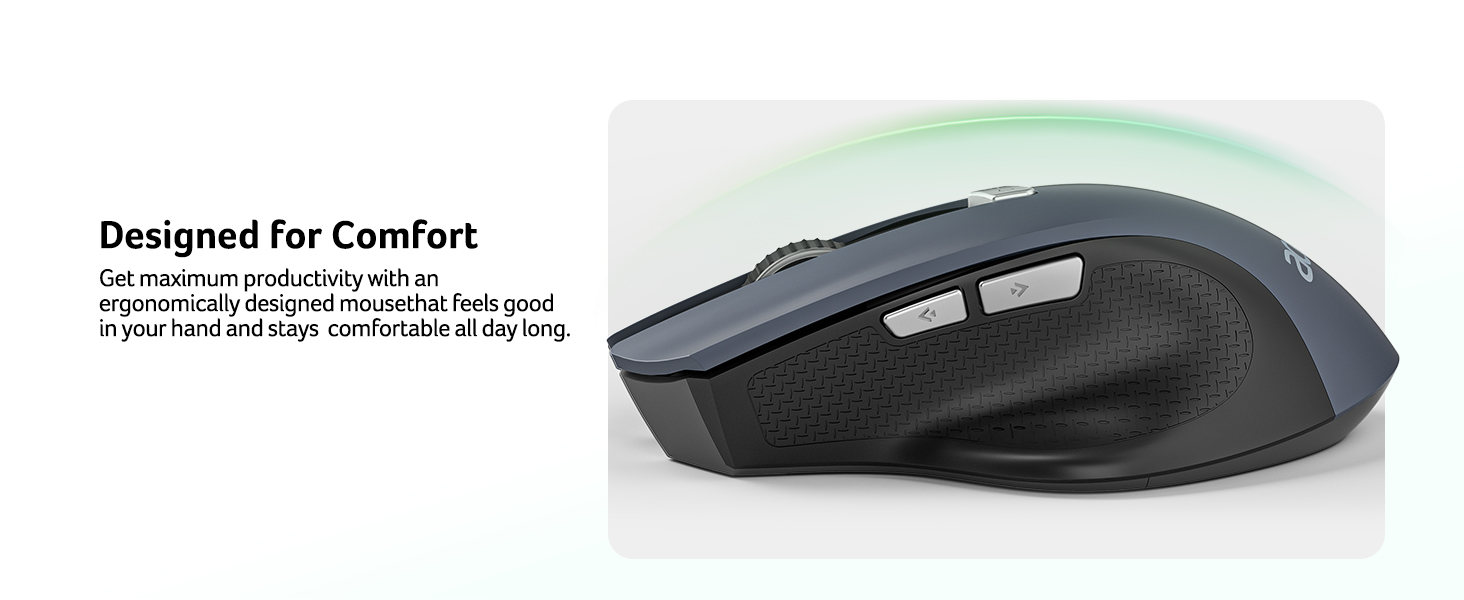
    This wireless mouse features 2.4GHz connectivity, providing a stable, interference-free connection up to 32ft. Simply plug in the USB-A receiver for instant useno drivers needed. It offers 3 adjustable DPI settings (800, 1200, 1600) for precise control, allowing you to switch between sensitivity levels with ease. The forward/backward buttons make browsing and navigating through web pages effortless. Built to last, its tested for up to 10 million clicks. The low battery indicator ensures you never run out of power unexpectedly.


    Product information

    Brand acer
    Color Black
    Connectivity Technology USB A
    Special Feature Adjustable DPI, Medium to Large Sized Hands, Not Bluetooth, Not Rechargeable, Only for Right-handed, light 3oz(86g), [Requires 2 AAA batteries (Not Included)]
    Movement Detection Technology Optical
    Product Dimensions 5.1 x 3.2 x 0.1 inches
    Item Weight 3 ounces
    Item model number OMR266
    Batteries 2 AAA batteries required.
    Date First Available May 28, 2025
    Manufacturer acer

    Additional Features

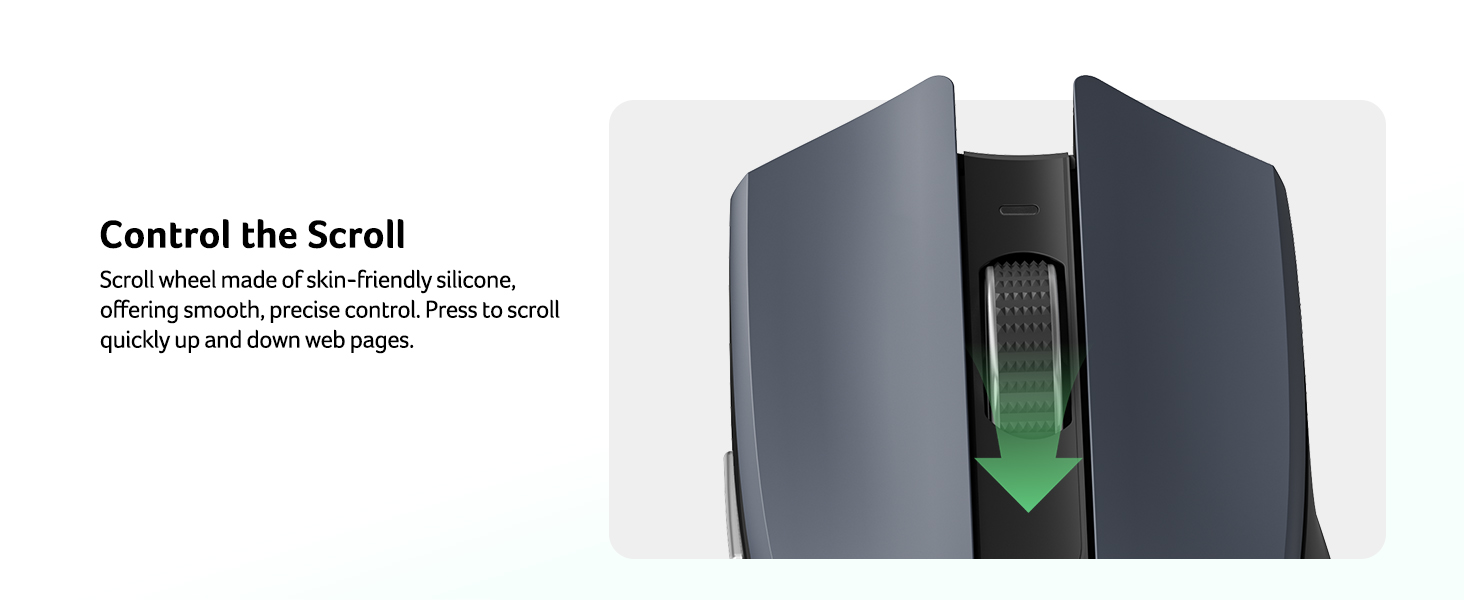
    • [Click to Wake]With smart sleep mode, it saves power by standby after 10 inactive minutes, just 2-3 clicks to wake. This efficient design delivers 3x longer battery life than motion-wake mice. Engineered for durability, its buttons and scroll wheel are tested for 10 million clicks, ensuring long-term reliability and consistent performance.

    Warranty & Returns

    Warranty, Returns, And Additional Information

    Warranty

    • Please contact the Seller directly for warranty information. Warranty information may also be found on the Manufacturer's website.
    • CONTACT

    Return Policies

    Manufacturer Contact Info

    LOADING...