






PLEASE NOTE:
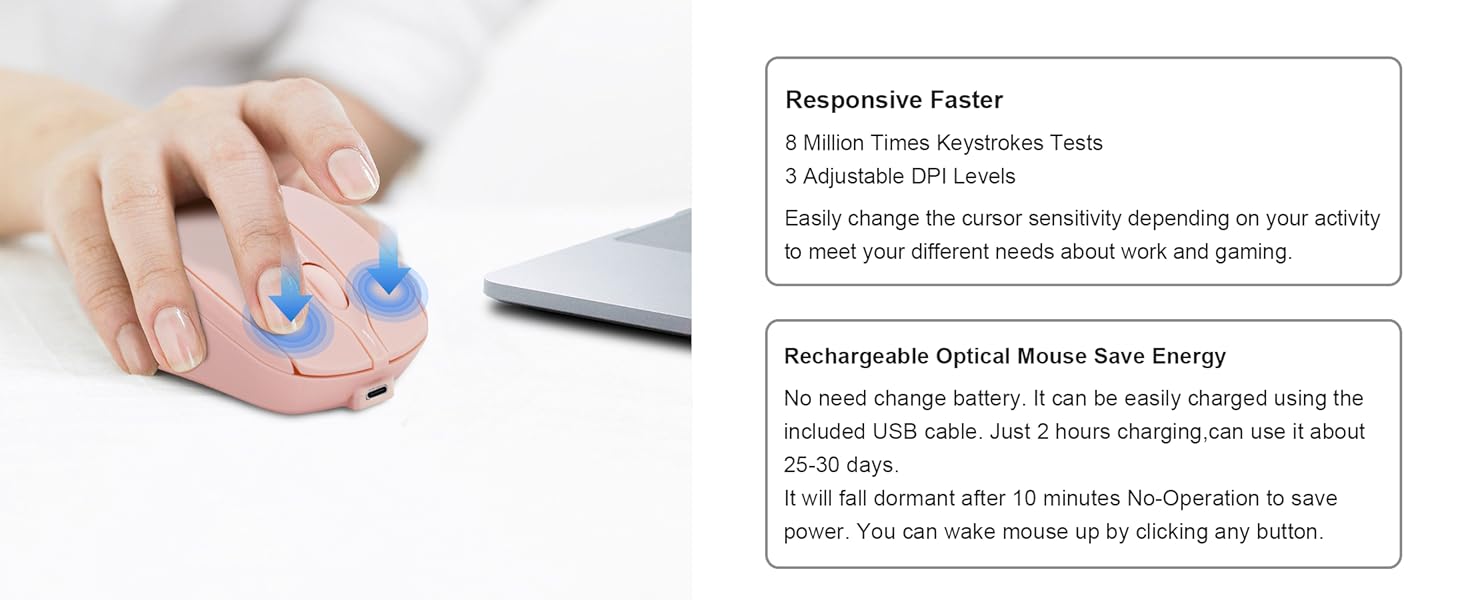
1.Please charge the mouse with the computer interface for about 2 hours before the first time uses it. Do not use the mobile phone charger or fast charger to charge the mouse.
2.It's out of power if the mouse cursor moves slowly or stops moving. Please charge it in time.
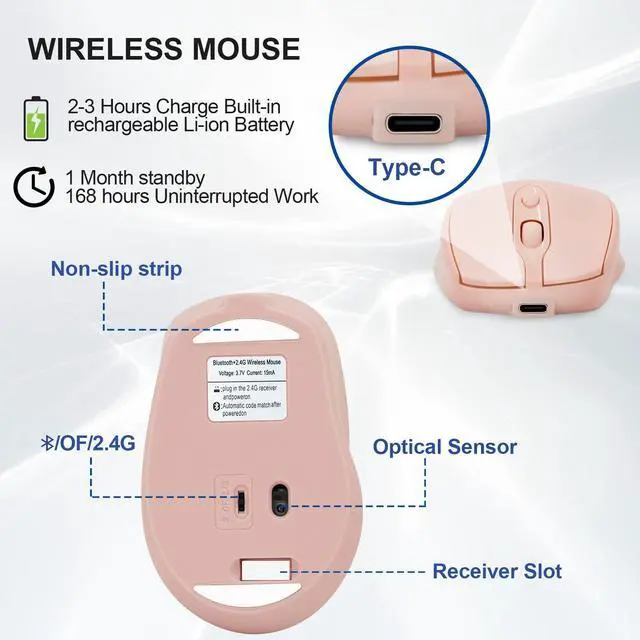
3.The green light beside the scroll wheel will be on while charging, and then goes off when the mouse is fully charged.
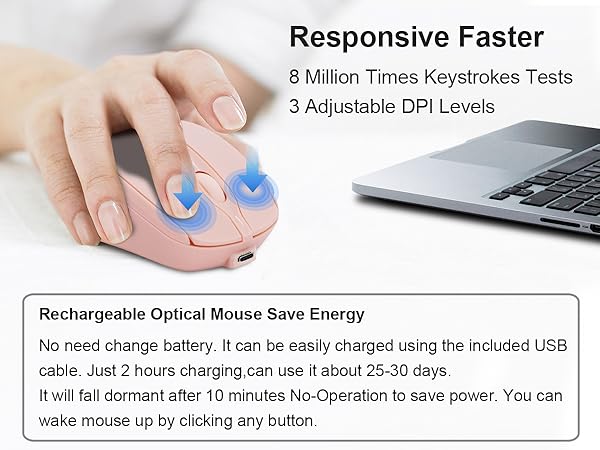
4.When you do not use it for over 10 minute, the mouse will enter into sleeping mode, you can click the left and right buttons to wake it up.
5.When the mouse connect to your iPhone/iPad, the cursor acts like a finger, so the direction of the movement is opposite to what you’re used to on your computer. You can change the settings to make it work like a regular computer mouse. Here’s how:Go to Settings-Select General-Trackpad & Mouse(The option will only appear when the mouse is connected, please confirm that the mouse is Bluetooth-connected to your iPhone/iPad.)-Turn off the “Natural Scrolling”
Questions & Answers:
Q:Why can't the mouse connect to your iPhone/iPad? A: Very sorry! Please check if your version is updated to iOS 13.1..2 or later version.For IOS system, our mouse is only compatible with iOS 13.1.2 or later version.
Q:Why Bluetooth is connected and then disconnected after few minutes? A:1.Low bateery (please charge) 2.Computer hibernation (please set the power mode to 'balance' mode)
Q:Why is the cursor inaccurate or jumps around the screen, scroll wheel has a weird lag? A: 1.The mouse is at low battery status,please charge it. 2. Please use mouse pad
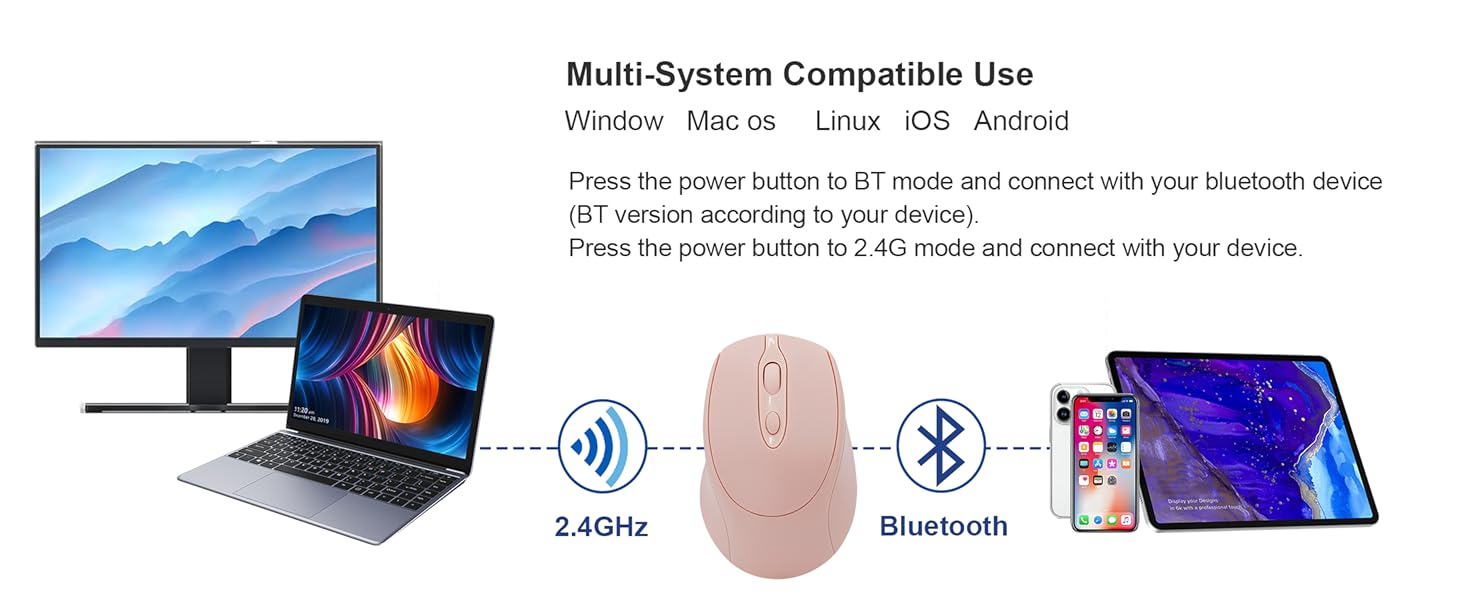
Q:When connected to mac, if appears: no mouse found, what should you do? A: Return operation--press the"connect" of mouse again--blue light flash--click the mouse logo in the mac--you will find "BT5.2 Mouse"again--click continue immediately Q:If found the 'BT5.2 Mouse', but can't connect, what should you do? A: Please delete 'BT5.2 Mouse '--turn off the mouse--turn on the mouse and click button--blue light flash--Reconnect 'BT5.2 Mouse' Q: The first time the mouse is connected to the 'tablet' and work well. I want to use it on my 'laptop' , but the mouse doesn't work anymore.Why? A: If you want to connect to the laptop, please delete the mouse's Bluetooth "BT5.2 Mouse" in the tablet, and then reconnect. If you don't understand, please refer to our manual, thank you very much! Q: What should you fo when the mouse suddenly doesn't work? A: 1.Reconnect the USB receiver. 2.Turn off and turn on the mouse by switching the bottom button. 3. Charge it.


About Us
From Zero to One, Simple and Meaningful.
We want to establish ourselves as a brand that is constantly exploring the future since it could happen at any time. Create countless opportunities for yourself and value!
We design simple and stylish appearances for our products, select high-quality materials, and carefully investigate the experience of international consumers.As more and more people use our products. That's what it's all about.

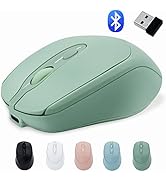
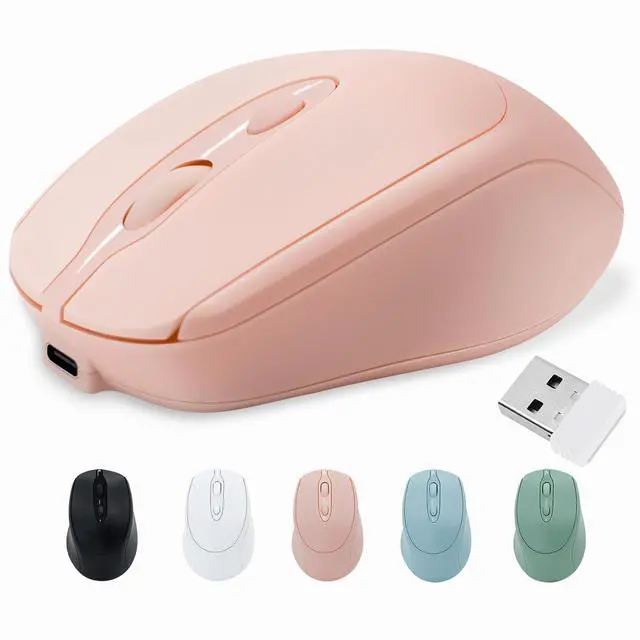
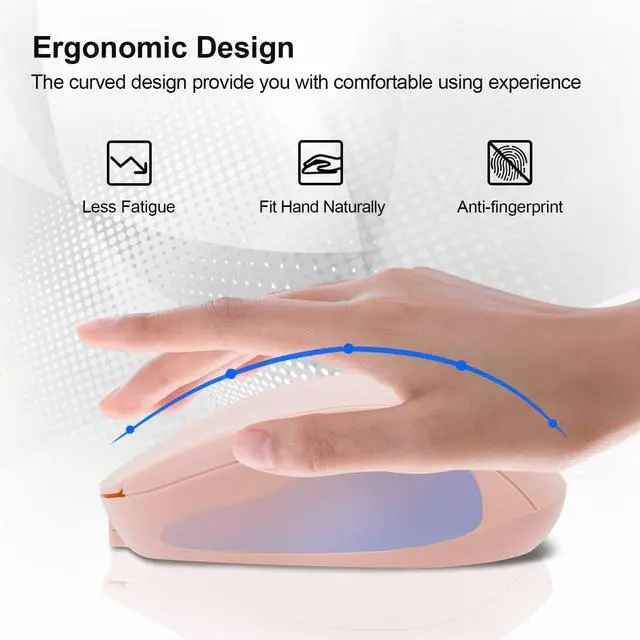
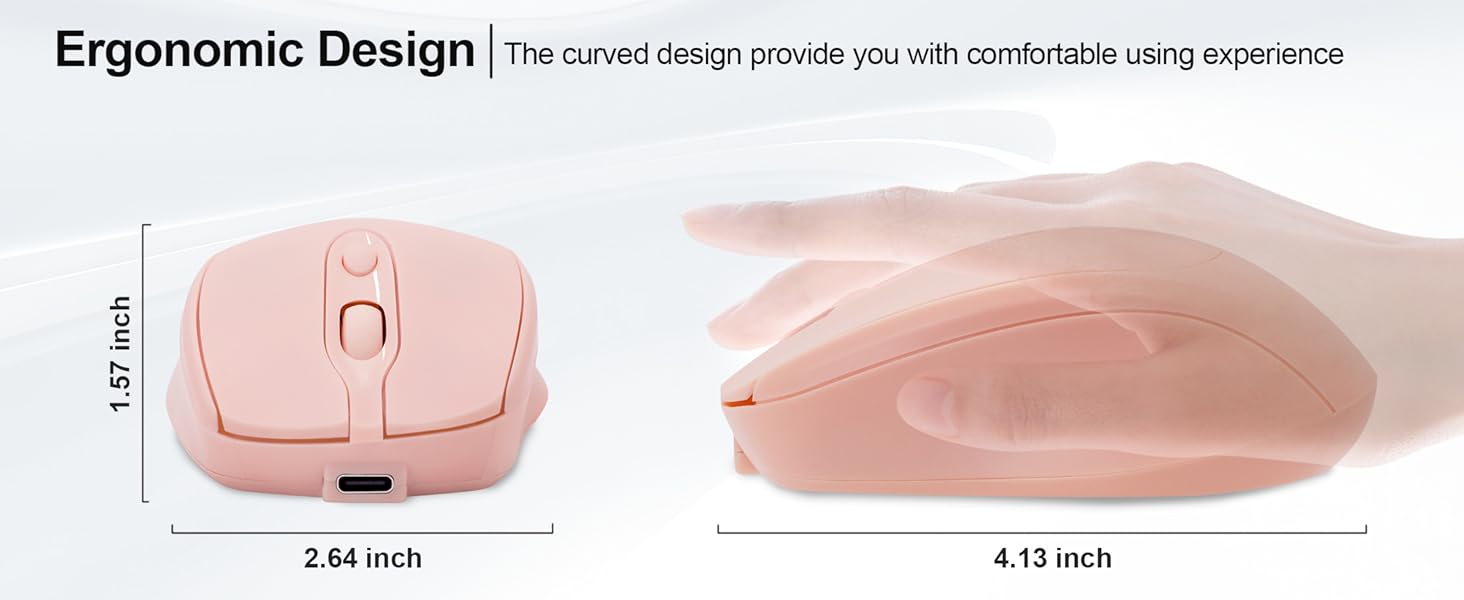
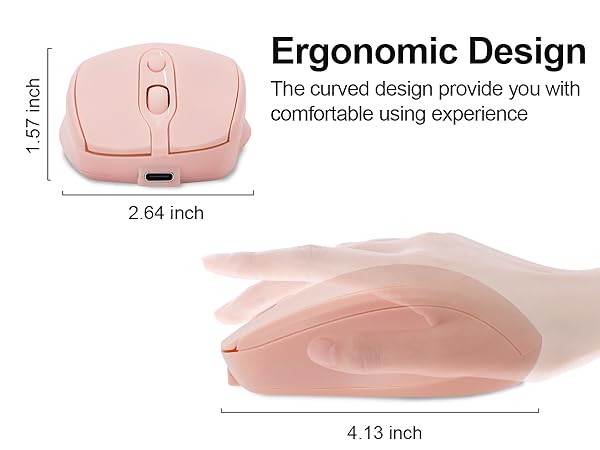
Ergonomic Wireless Mouse
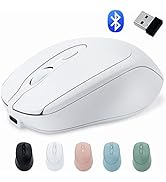
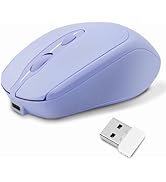
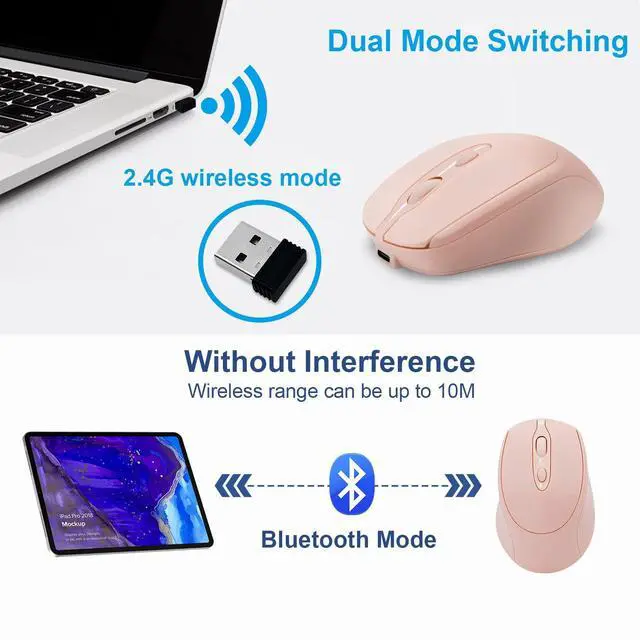
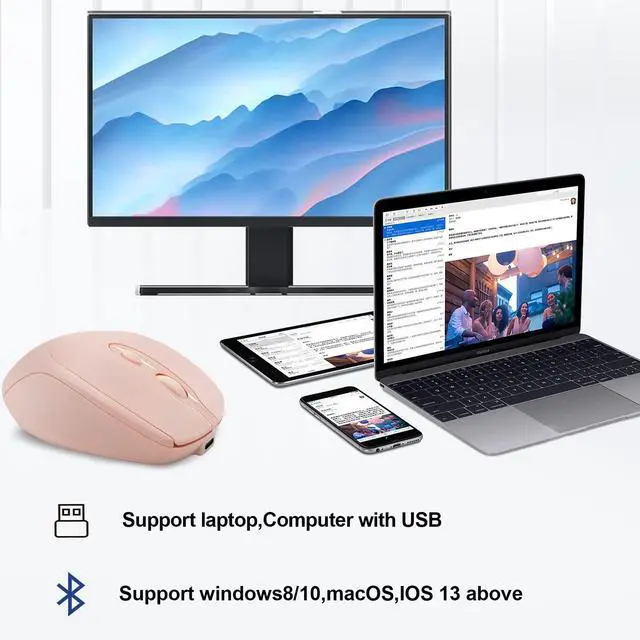
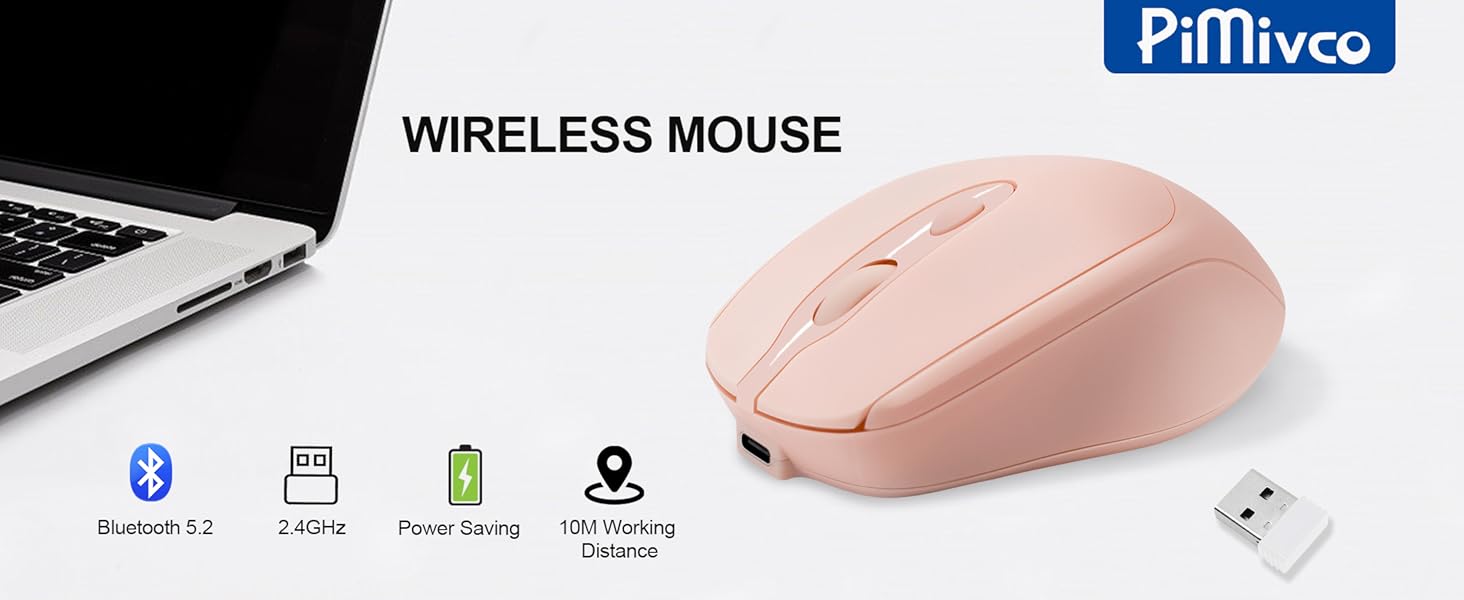
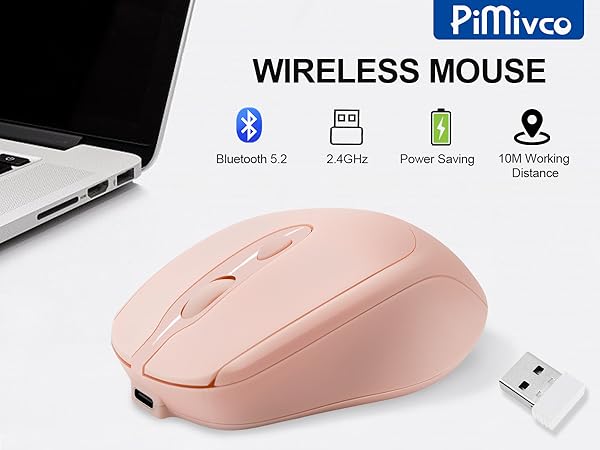
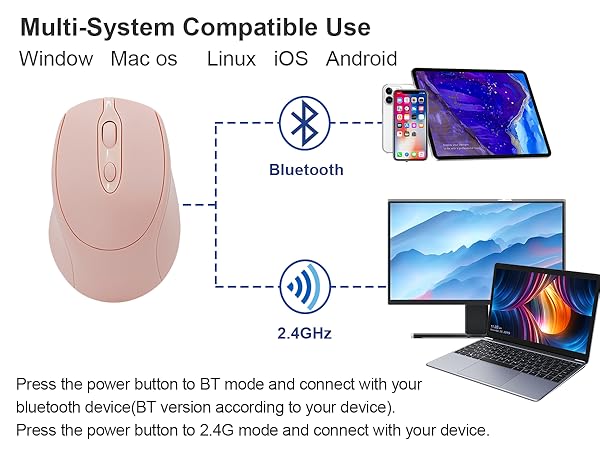
Bluetooth Mouse with Dual Mode

Portable & Silent Mouse
Noiseless Click Soundless design for the right and left buttons, won’t disturb others.
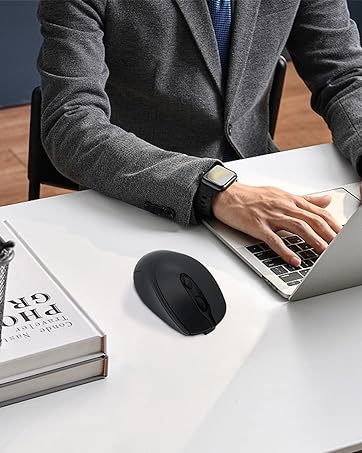
BLUETOOTH MOUSE WITH DUAL MODE(BT 5.2 + 2.4GHz)
How do we start?
We see that most people now have a closer relationship with electronics, and we want to optimize this connection so that our products can bring greater convenience to our lives and work.
What makes our products unique?
We value and listen to customer suggestion. Providing technical team specializes for solving the problems.We emphasize the simple and meaningful design and cost-effective experience of our products.
Why do we love what we do?
We are very happy that our products can solve the daily job problems of thousands of customers. We’ll keep innovating.

PLEASE NOTE:
1.Please charge the mouse with the computer interface for about 2 hours before the first time uses it. Do not use the mobile phone charger or fast charger to charge the mouse.
2.It's out of power if the mouse cursor moves slowly or stops moving. Please charge it in time.
3.The green light beside the scroll wheel will be on while charging, and then goes off when the mouse is fully charged.
4.When you do not use it for over 10 minute, the mouse will enter into sleeping mode, you can click the left and right buttons to wake it up.
5.When the mouse connect to your iPhone/iPad, the cursor acts like a finger, so the direction of the movement is opposite to what you’re used to on your computer. You can change the settings to make it work like a regular computer mouse. Here’s how:Go to Settings-Select General-Trackpad & Mouse(The option will only appear when the mouse is connected, please confirm that the mouse is Bluetooth-connected to your iPhone/iPad.)-Turn off the “Natural Scrolling”
Questions & Answers:
Q:Why can't the mouse connect to your iPhone/iPad? A: Very sorry! Please check if your version is updated to iOS 13.1..2 or later version.For IOS system, our mouse is only compatible with iOS 13.1.2 or later version.
Q:Why Bluetooth is connected and then disconnected after few minutes? A:1.Low bateery (please charge) 2.Computer hibernation (please set the power mode to 'balance' mode)
Q:Why is the cursor inaccurate or jumps around the screen, scroll wheel has a weird lag? A: 1.The mouse is at low battery status,please charge it. 2. Please use mouse pad
Q:When connected to mac, if appears: no mouse found, what should you do? A: Return operation--press the"connect" of mouse again--blue light flash--click the mouse logo in the mac--you will find "BT5.2 Mouse"again--click continue immediately Q:If found the 'BT5.2 Mouse', but can't connect, what should you do? A: Please delete 'BT5.2 Mouse '--turn off the mouse--turn on the mouse and click button--blue light flash--Reconnect 'BT5.2 Mouse' Q: The first time the mouse is connected to the 'tablet' and work well. I want to use it on my 'laptop' , but the mouse doesn't work anymore.Why? A: If you want to connect to the laptop, please delete the mouse's Bluetooth "BT5.2 Mouse" in the tablet, and then reconnect. If you don't understand, please refer to our manual, thank you very much! Q: What should you fo when the mouse suddenly doesn't work? A: 1.Reconnect the USB receiver. 2.Turn off and turn on the mouse by switching the bottom button. 3. Charge it.

About Us
From Zero to One, Simple and Meaningful.
We want to establish ourselves as a brand that is constantly exploring the future since it could happen at any time. Create countless opportunities for yourself and value!
We design simple and stylish appearances for our products, select high-quality materials, and carefully investigate the experience of international consumers.As more and more people use our products. That's what it's all about.
Ergonomic Wireless Mouse
Bluetooth Mouse with Dual Mode
Portable & Silent Mouse
Noiseless Click Soundless design for the right and left buttons, won’t disturb others.
BLUETOOTH MOUSE WITH DUAL MODE(BT 5.2 + 2.4GHz)
How do we start?
We see that most people now have a closer relationship with electronics, and we want to optimize this connection so that our products can bring greater convenience to our lives and work.
What makes our products unique?
We value and listen to customer suggestion. Providing technical team specializes for solving the problems.We emphasize the simple and meaningful design and cost-effective experience of our products.
Why do we love what we do?
We are very happy that our products can solve the daily job problems of thousands of customers. We’ll keep innovating.
