





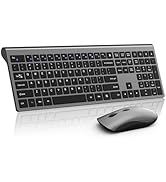
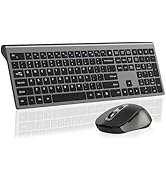
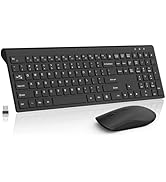
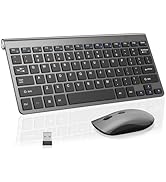
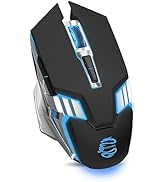
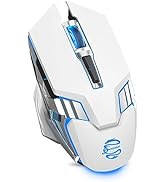
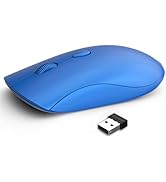
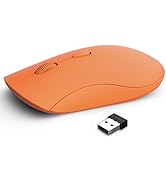
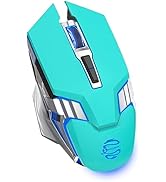
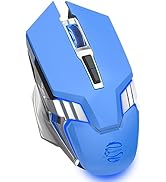
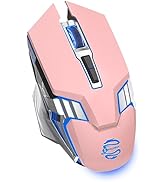
 Orange Wireless+Bluetooth Mouse |  Green Wireless+Bluetooth Mouse |  Blue Wireless+Bluetooth Mouse |  Pink Wireless+Bluetooth Mouse |  Gray Wireless+Bluetooth Mouse |  White Wireless+Bluetooth Mouse | |
|---|---|---|---|---|---|---|
| Customer Reviews | — | — | — | — | — | — |
| Price | — | — | — | — | — | — |
| no data | no data | no data | no data | no data | no data |


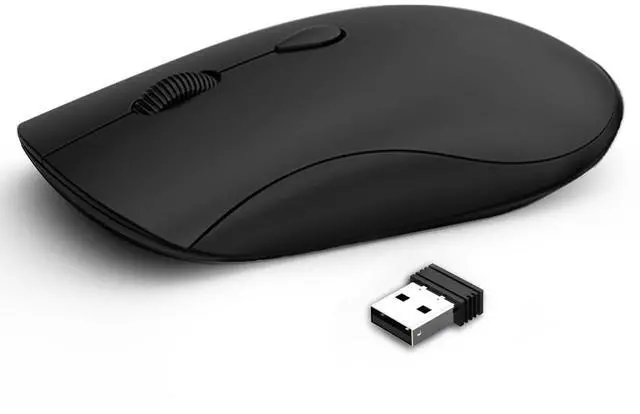
Package Include: 1 * Wireless Mouse ; 1 * USB Receiver ; 1 * User Manual
*Pls kindly note: No battery included in the package*
If wireless mouse not response, please try following tips:
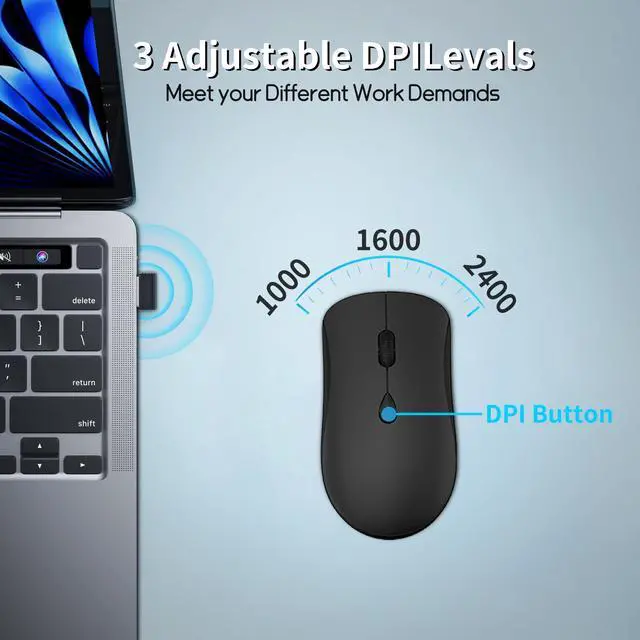
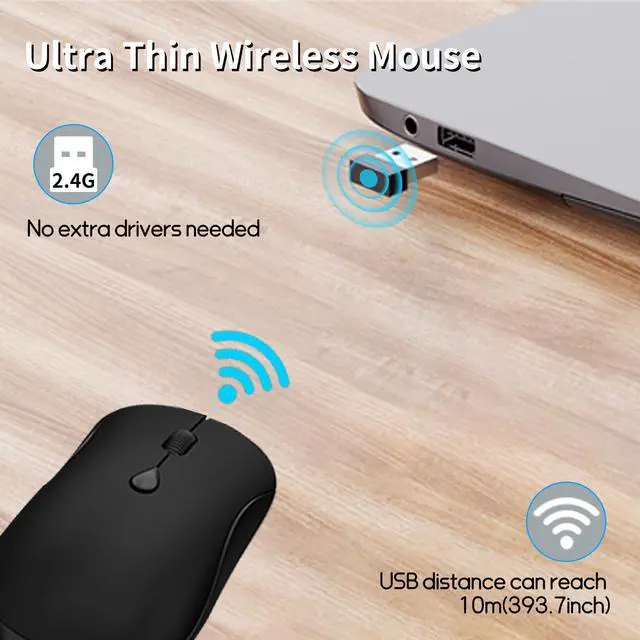
Turn off all 2.4G devices in your room and make sure the product is as close as possible to the Nano receiver.
Repair The Cordless Mouse:
- Turn off the power switch at the bottom of the laptop mouse.
- Unplug the receiver from the computer port.
- Turn on the power switch at the bottom of the computer mouse.
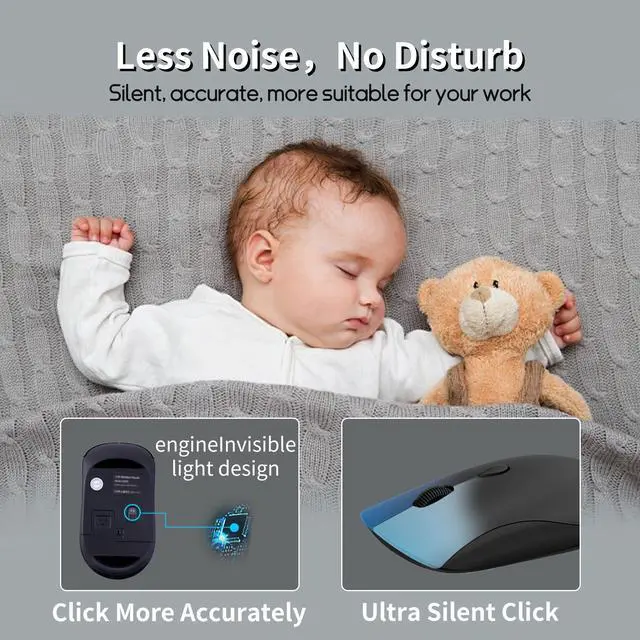
- Simultaneously press and hold the wheel button, the left button, and the right button for 5 seconds, and the mouse enters pairing mode. (The mouse is designed with invisible light and no lights will light up)
- Insert the USB receiver into the computer within 15 seconds.
Note: If the code is not successful, please repeat these steps. After multiple attempts, the mouse still cannot function properly.
Orange Wireless+Bluetooth Mouse |  Green Wireless+Bluetooth Mouse | Blue Wireless+Bluetooth Mouse |  Pink Wireless+Bluetooth Mouse |  Gray Wireless+Bluetooth Mouse | White Wireless+Bluetooth Mouse | |
|---|---|---|---|---|---|---|
| Customer Reviews | — | — | — | — | — | — |
| Price | — | — | — | — | — | — |
| no data | no data | no data | no data | no data | no data |
Package Include: 1 * Wireless Mouse ; 1 * USB Receiver ; 1 * User Manual
*Pls kindly note: No battery included in the package*
If wireless mouse not response, please try following tips:
Turn off all 2.4G devices in your room and make sure the product is as close as possible to the Nano receiver.
Repair The Cordless Mouse:
- Turn off the power switch at the bottom of the laptop mouse.
- Unplug the receiver from the computer port.
- Turn on the power switch at the bottom of the computer mouse.
- Simultaneously press and hold the wheel button, the left button, and the right button for 5 seconds, and the mouse enters pairing mode. (The mouse is designed with invisible light and no lights will light up)
- Insert the USB receiver into the computer within 15 seconds.
Note: If the code is not successful, please repeat these steps. After multiple attempts, the mouse still cannot function properly.
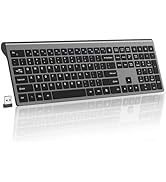
Wireless Keyboard Mouse Combo
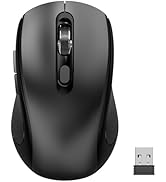
Wireless Mouse
Wireless Mouse
Mouse