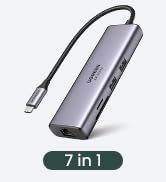
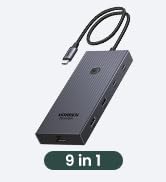
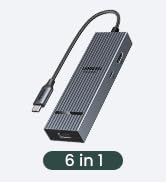
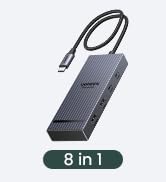
here!
here!
I’m your shopping assistant for PC builds, upgrades, and everything tech.
Got questions? Ask away!
Start a conversation
here!
I’m your shopping assistant for PC builds, upgrades, and everything tech.
Got questions? Ask away!
Start a conversation
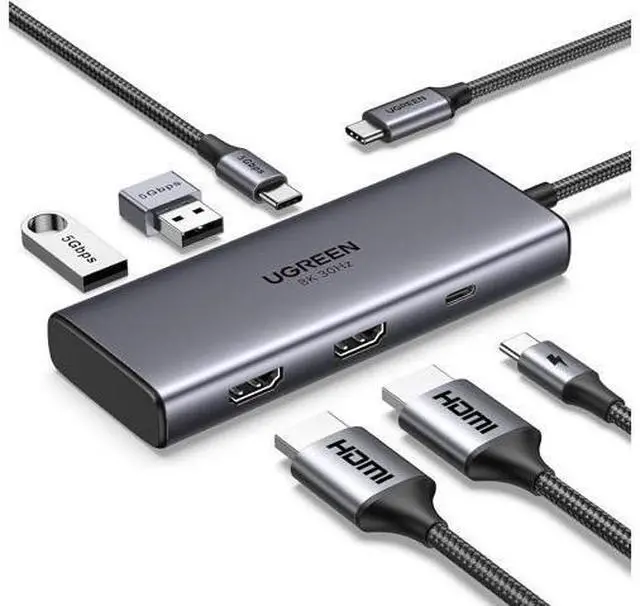
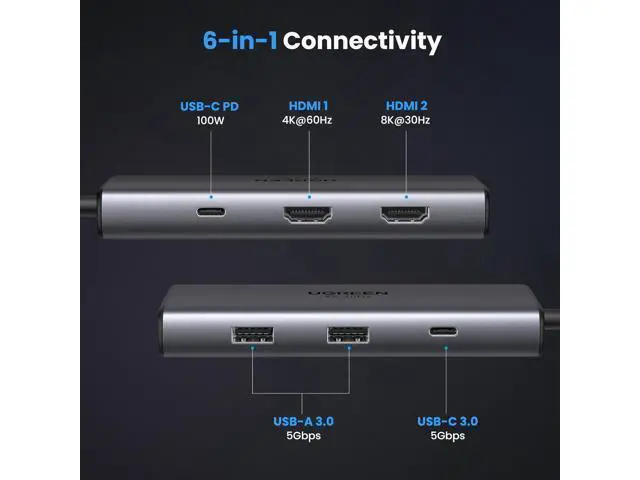
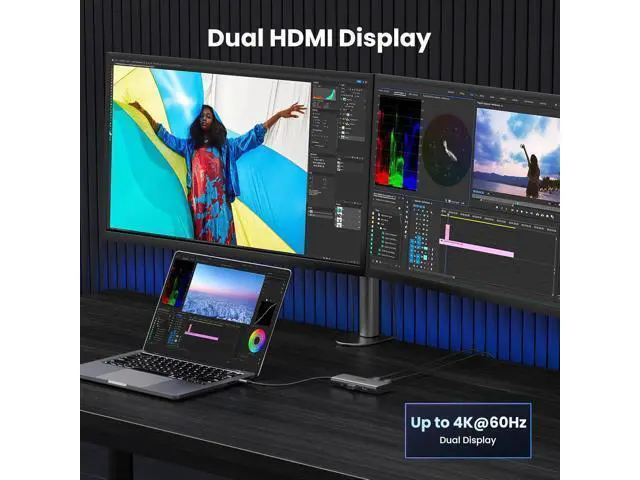
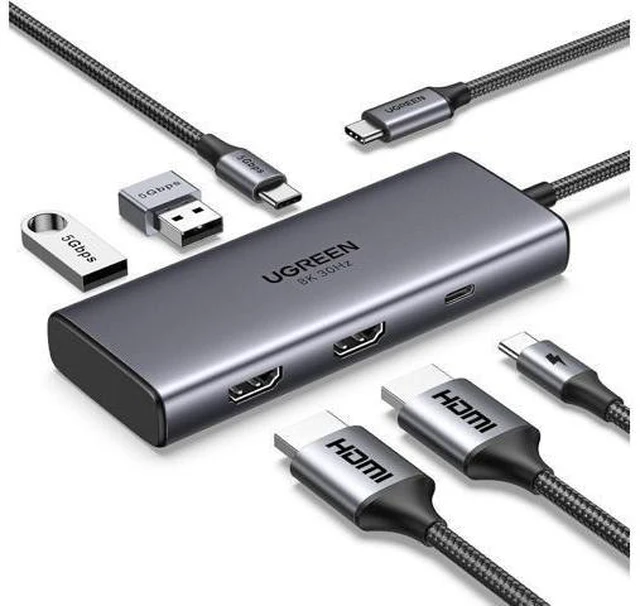
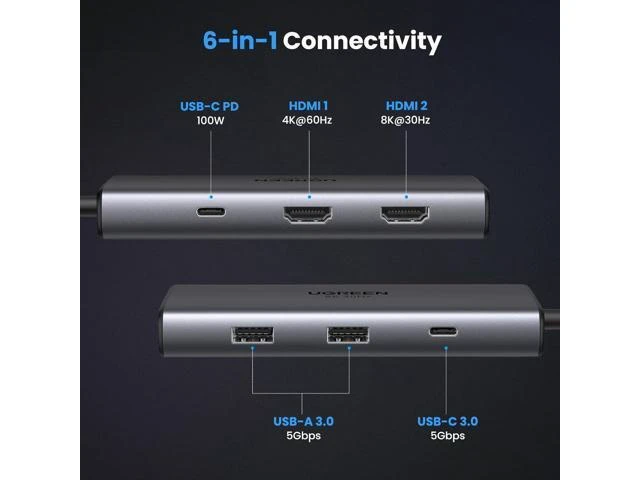
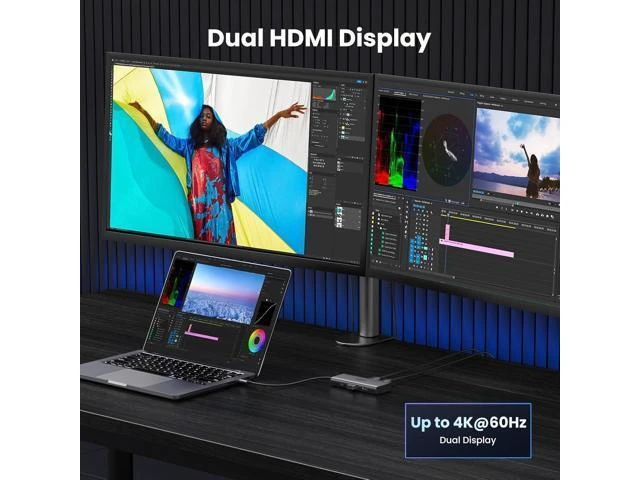
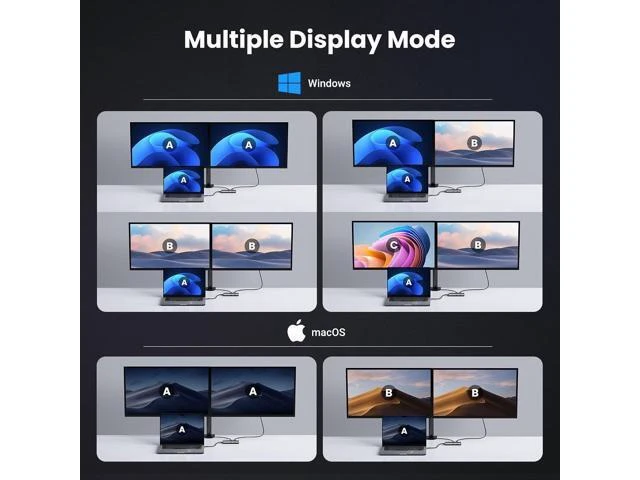



Any questions? Ask CelesteSM will help you find out quickly.


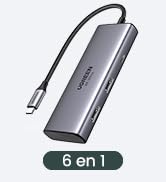
6-in-1 Docking Station |

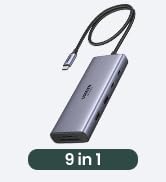
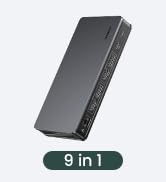
9-in-1 Docking Station |

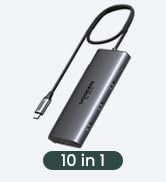
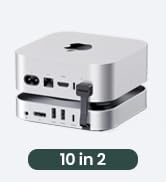
10-in-1 Docking Station |
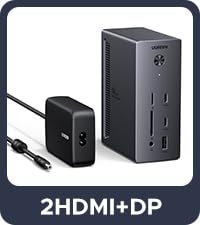
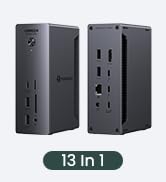
14-in-1 Docking Station |
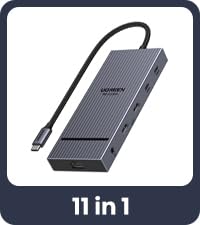
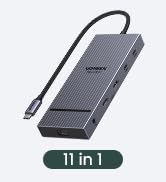
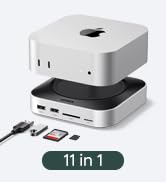
11-in-1 Docking Station |

10-in-1 Docking Station |

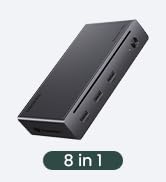
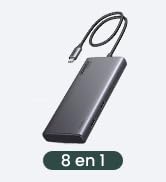
8-in-1 Docking Station |
|
|---|---|---|---|---|---|---|---|
|
Customer Reviews
|
— | — | — | — | — | — | — |
|
Price
|
— | — | — | — | — | — | — |
|
Extended Monitor(s)
|
2 Monitors | 2 Monitors | 2 Monitors | 3 Monitors | 2 Monitors | 2 Monitors | 3 Monitors |
|
Display Ports
|
2xHDMI | 2xHDMI | 2xHDMI | 2xHDMI+DP | HDMI+DP | 2xHDMI | 2xHDMI+VGA |
|
Max Display Resolution
|
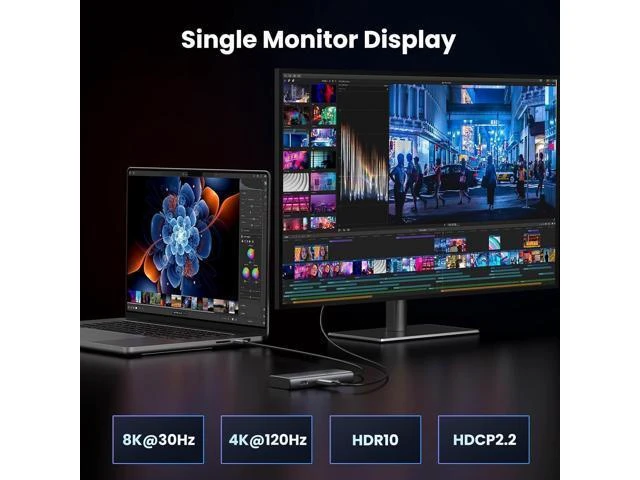
8K@30Hz | 4K@60Hz | 4K@60Hz | 8K@30Hz | 4K@120Hz | 8K@30Hz | 8K@30Hz |
|
Charging Port
|
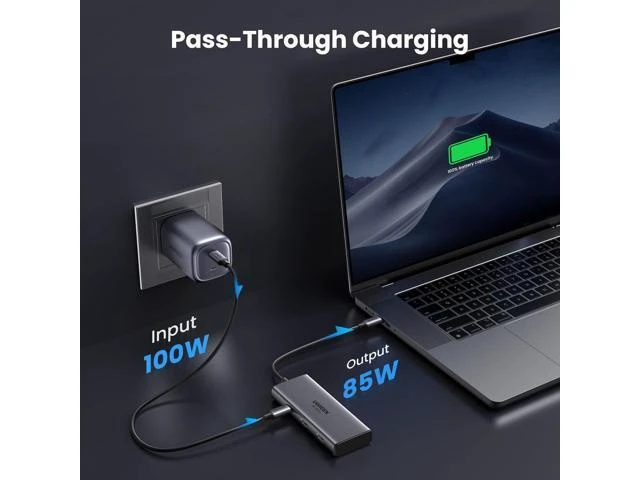
100W | 100W | 100W | 140W (include Charger) | 100W | 100W | 100W |
|
Max Transfer Speed
|
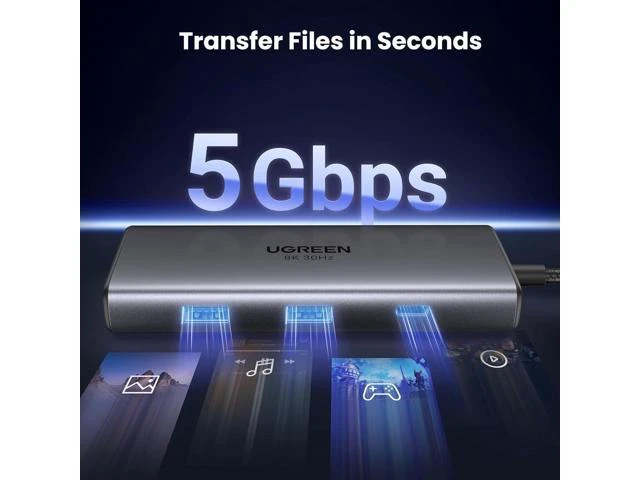
5Gbps | 5Gbps | 10Gbps | 10Gbps | 10Gbps | 5Gbps | 10Gbps |
|
USB Data Ports
|
1xUSB-C, 2xUSB-A | 2xUSB-C, 2xUSB-A | 2xUSB-C, 2xUSB-A | 3xUSB-C, 3xUSB-A | 2xUSB-C, 2xUSB-A | 1xUSB-C, 3xUSB-A | 2xUSB-C, 2xUSB-A |
|
Ethernet
|
/ | / | 1000Mbps | 1000Mbps | 1000Mbps | 1000Mbps | / |
|
3.5mm Audio
|
? | ? | ? | ? | ? | ? | ? |
|
SD/TF Card Reader
|
/ | 170MB/s | 104MB/S | 170MB/s | 104MB/s | 104MB/S | / |
|
Compatible with macOS
|
? | ? | ? | ? | ? | ? | ? |
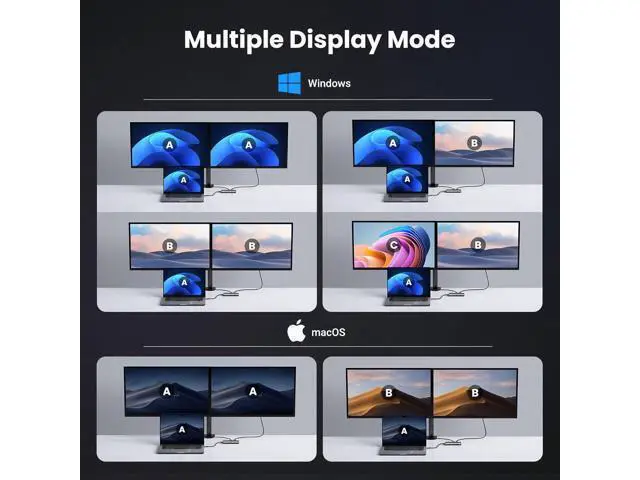
1. Why can't dual HDMI display at the same time?
a) Check the graphics card performance of the laptop or ask the computer manufacturer whether it supports extending two displays at the same time; b) Check the power management settings. In the power options, you can adjust the power plan and select "High performance" or similar settings; c) Check the display settings. In Windows, you need to go to "Display Settings" to configure the display. Make sure you have set the display mode to "Extend these displays" instead of "Show desktop only on 1" or "Show desktop only on 2"; d) Macbook only supports SST mode. If the color gamut of the two HDMI screens is different, it may cause single-screen output. It is recommended to swap the devices connected to HDMI1 and HDMI2; e) Mobile phones and iPads can only support single-screen display but not dual-screen display; It is recommended to connect to HDMI2 first when using mobile phones and iPads.
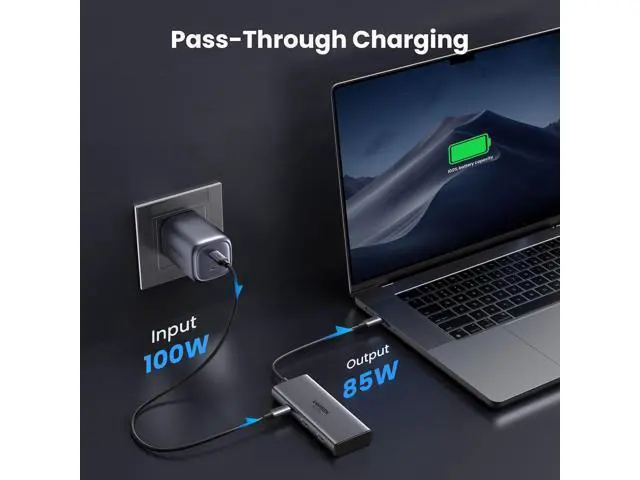
2. Why can't the laptop be charged through the PD interface or is charging slowly?
a. Please confirm whether the USB-C interface of the laptop supports the charging function. If your computer uses a DC interface, please connect the original adapter. b. When your computer is charging slowly, please use the original adapter of the computer or a charger above 65W.
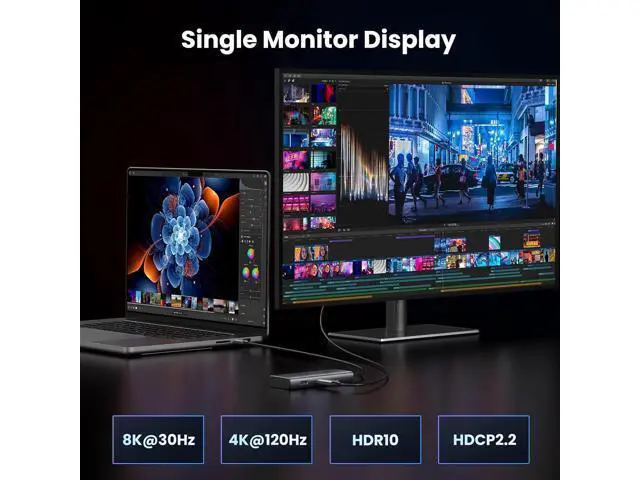
3. How can I troubleshoot if my monitor cannot display?
a.Make sure your laptop's USB-C port supports video output; b. Lower your monitor's resolution or refresh rate; c. Replace another high standard HDMI cable.
4. When I connect to 2 monitors with Mac, why do both monitors show the same image?
Macbooks only support SST mode. In extended mode, two monitors display the same image; Windows supports MST mode. In extended mode, two monitors can display different images (computer processors must be 4th generation or higher, and graphics cards, systems, and external monitors must support DP1.2 and above)
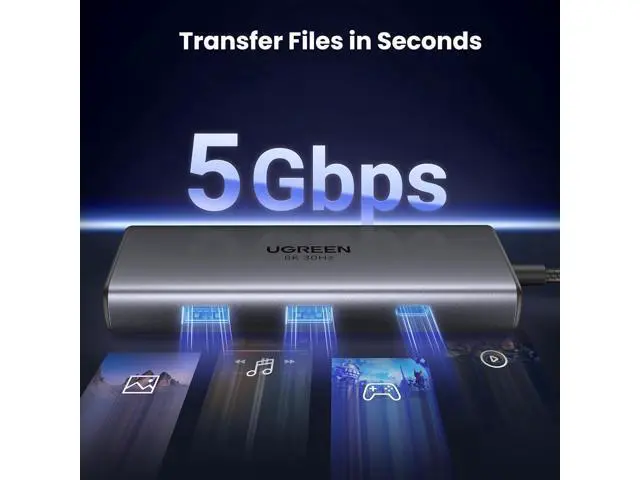
5. Why does the USB-C/A external device disconnect?
a. It is recommended that the power of the external device does not exceed 10W. If more than two high-power devices are connected at the same time, it is recommended to plug in the PD charger for power supply first; b. When the product is connected to a wireless mouse and other USB 3.0 devices at the same time, the wireless mouse can be used at a distance of about 0.4 meters; c. If your computer system is Windows 11, please check the laptop power management settings and make sure they are set not to limit performance in battery mode.


|
6-in-1 Docking Station |
9-in-1 Docking Station |
10-in-1 Docking Station |
14-in-1 Docking Station |
11-in-1 Docking Station |
10-in-1 Docking Station |
8-in-1 Docking Station |
|---|---|---|---|---|---|---|
| Customer Reviews | ||||||
| — | — | — | — | — | — | — |
| Price | ||||||
| — | — | — | — | — | — | — |
| Extended Monitor(s) | ||||||
| 2 Monitors | 2 Monitors | 2 Monitors | 3 Monitors | 2 Monitors | 2 Monitors | 3 Monitors |
| Display Ports | ||||||
| 2xHDMI | 2xHDMI | 2xHDMI | 2xHDMI+DP | HDMI+DP | 2xHDMI | 2xHDMI+VGA |
| Max Display Resolution | ||||||
| 8K@30Hz | 4K@60Hz | 4K@60Hz | 8K@30Hz | 4K@120Hz | 8K@30Hz | 8K@30Hz |
| Charging Port | ||||||
| 100W | 100W | 100W | 140W (include Charger) | 100W | 100W | 100W |
| Max Transfer Speed | ||||||
| 5Gbps | 5Gbps | 10Gbps | 10Gbps | 10Gbps | 5Gbps | 10Gbps |
| USB Data Ports | ||||||
| 1xUSB-C, 2xUSB-A | 2xUSB-C, 2xUSB-A | 2xUSB-C, 2xUSB-A | 3xUSB-C, 3xUSB-A | 2xUSB-C, 2xUSB-A | 1xUSB-C, 3xUSB-A | 2xUSB-C, 2xUSB-A |
| Ethernet | ||||||
| / | / | 1000Mbps | 1000Mbps | 1000Mbps | 1000Mbps | / |
| 3.5mm Audio | ||||||
| ? | ? | ? | ? | ? | ? | ? |
| SD/TF Card Reader | ||||||
| / | 170MB/s | 104MB/S | 170MB/s | 104MB/s | 104MB/S | / |
| Compatible with macOS | ||||||
| ? | ? | ? | ? | ? | ? | ? |
1. Why can't dual HDMI display at the same time?
a) Check the graphics card performance of the laptop or ask the computer manufacturer whether it supports extending two displays at the same time; b) Check the power management settings. In the power options, you can adjust the power plan and select "High performance" or similar settings; c) Check the display settings. In Windows, you need to go to "Display Settings" to configure the display. Make sure you have set the display mode to "Extend these displays" instead of "Show desktop only on 1" or "Show desktop only on 2"; d) Macbook only supports SST mode. If the color gamut of the two HDMI screens is different, it may cause single-screen output. It is recommended to swap the devices connected to HDMI1 and HDMI2; e) Mobile phones and iPads can only support single-screen display but not dual-screen display; It is recommended to connect to HDMI2 first when using mobile phones and iPads.
2. Why can't the laptop be charged through the PD interface or is charging slowly?
a. Please confirm whether the USB-C interface of the laptop supports the charging function. If your computer uses a DC interface, please connect the original adapter. b. When your computer is charging slowly, please use the original adapter of the computer or a charger above 65W.
3. How can I troubleshoot if my monitor cannot display?
a.Make sure your laptop's USB-C port supports video output; b. Lower your monitor's resolution or refresh rate; c. Replace another high standard HDMI cable.
4. When I connect to 2 monitors with Mac, why do both monitors show the same image?
Macbooks only support SST mode. In extended mode, two monitors display the same image; Windows supports MST mode. In extended mode, two monitors can display different images (computer processors must be 4th generation or higher, and graphics cards, systems, and external monitors must support DP1.2 and above)
5. Why does the USB-C/A external device disconnect?
a. It is recommended that the power of the external device does not exceed 10W. If more than two high-power devices are connected at the same time, it is recommended to plug in the PD charger for power supply first; b. When the product is connected to a wireless mouse and other USB 3.0 devices at the same time, the wireless mouse can be used at a distance of about 0.4 meters; c. If your computer system is Windows 11, please check the laptop power management settings and make sure they are set not to limit performance in battery mode.