

Your Browsing History
- Free 30-day Returns
$51.89
Ships from China.

Meet Your Seller


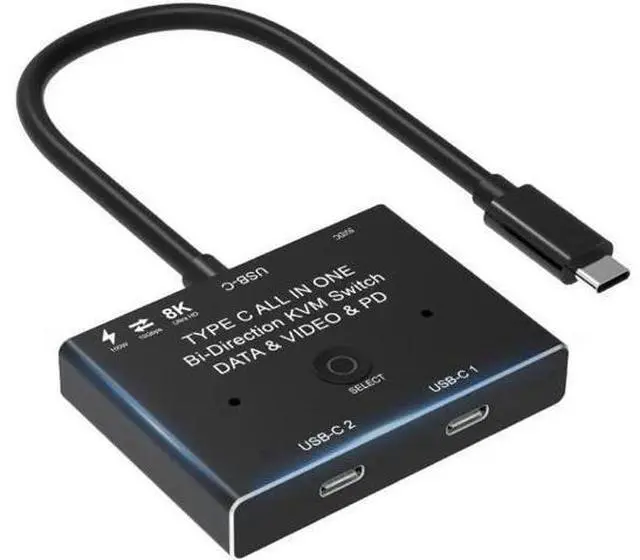
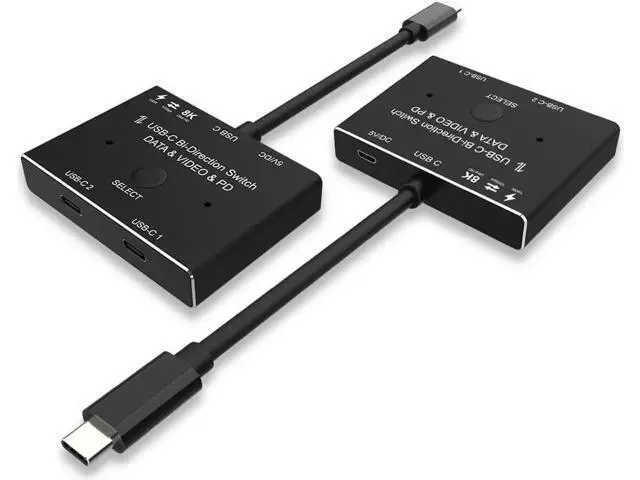
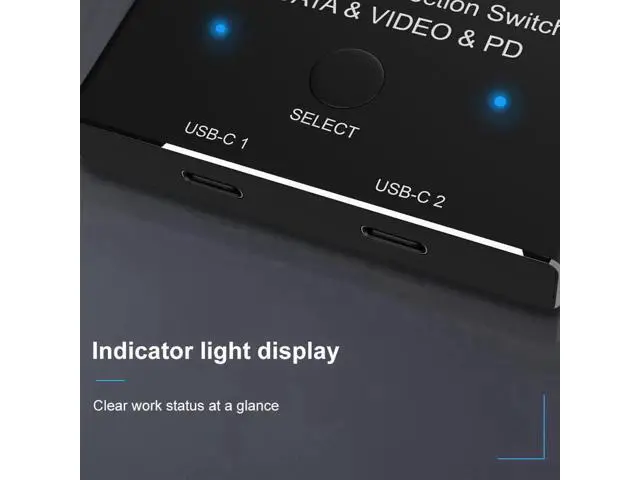


DIXSG USB-C USB3.1 Type-C 8K Switch Bi-Direction 8K@30Hz 4K@120Hz Power Delivery 100w 10Gbps Data Transfer Multi-Function Splitter Converter (8K)
Limited time offer, ends 10/15 By LUOYIMAN
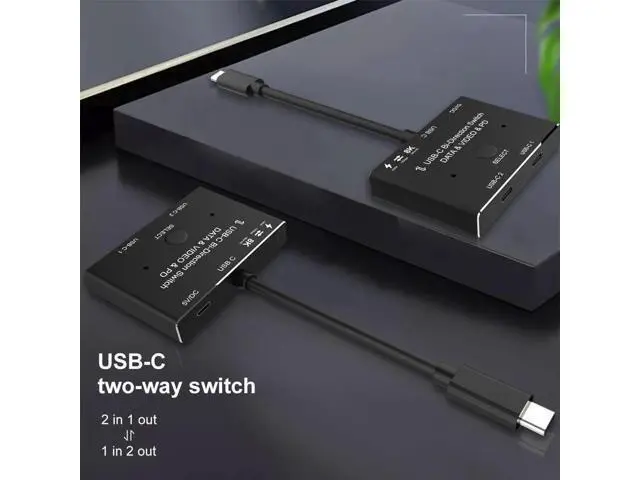
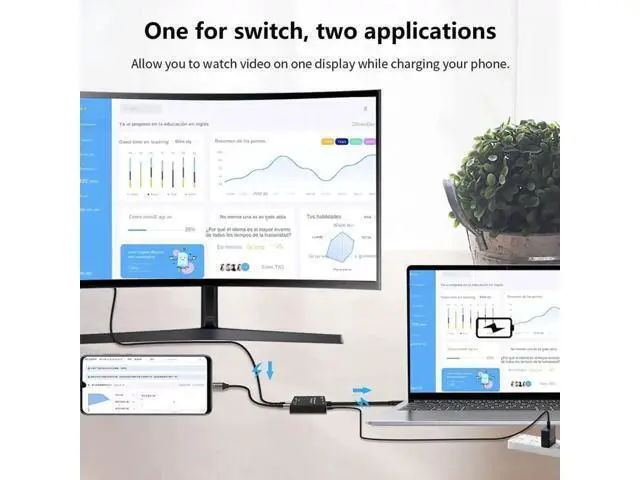
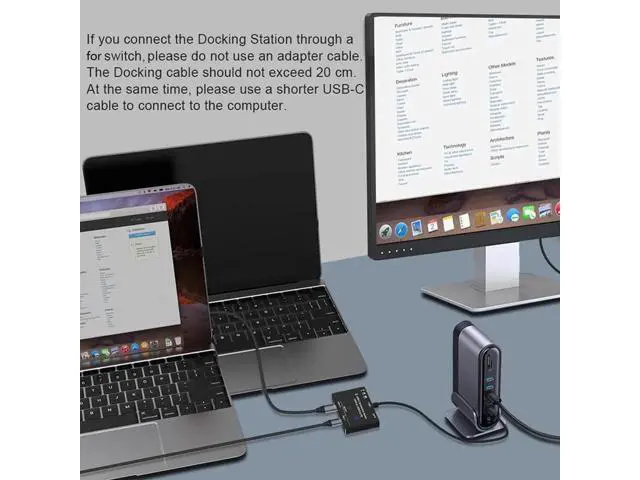
- This USB C switch has two working modes. It can be used as a 2x1 switch, which allows you to connect two sources devices to one display;; It can also be used as a 1x2 splitter that enables you to connect one source to two displays(Note that two displays can not work at the same time).; Complies with USB3.1USB PD 3.0 and DisplayPort 1.4 specification; Supports: 8K@30Hz,5K@60Hz,4K@120Hz60Hz 1440P@165Hz144Hz120Hz60Hz 1080P@165Hz144Hz120Hz60Hz; External 5v power is required. Please be sure to power the switch with the supplied USB to DC cable when you use it.
+
+
Overview
Specs
Reviews

Any questions? Our AI mode will help you find out quickly.
Try me now
Function 1: 2 IN 1Out
1. Connect two sources to the port "USB-C 1" and port "USB-C 2"
2. Connect the display from the Supplied and Fixed USB-C Cable on the switch.
3. Power the switch with the supplied USB to
DC cable 4: Press"Select"Button to switch between two Sources Function 2: 1 In 2Out 1. Connect the source from the supplied and Fixed USB-C cable on the switch.
2. Connect two displays to the port "USB-C 1" and port "USB-C 2"(Note: two displays cannot work at the same time). In this connection, you can also connect USB-C to HDMI or Displayport Cable from the Switch to relatively Monitor.
3. Power the switch with the supplied USB to
DC cable 4: Press"Select"Button to switch between two Displays
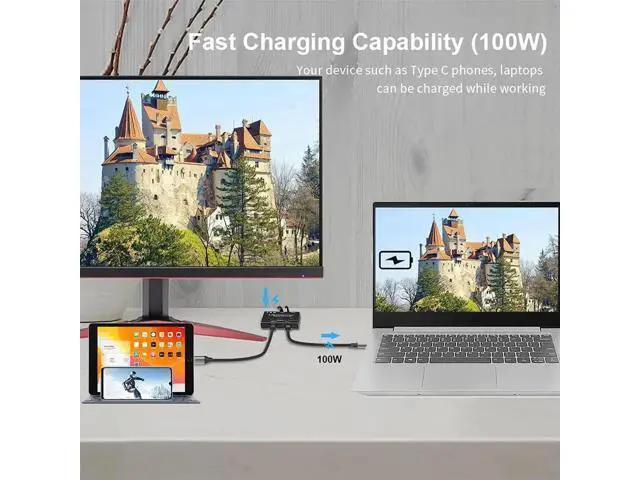
Function 3: Power
Delivery&Data 1: Data Transfer, using USB 3.1 Gen 2 Cable for Max 10Gbps data Transmissions from your Host devices to your data storage devices.
2: Max 100w Power Delivery for your relatively devices.
1. Connect two sources to the port "USB-C 1" and port "USB-C 2"
2. Connect the display from the Supplied and Fixed USB-C Cable on the switch.
3. Power the switch with the supplied USB to
DC cable 4: Press"Select"Button to switch between two Sources Function 2: 1 In 2Out 1. Connect the source from the supplied and Fixed USB-C cable on the switch.
2. Connect two displays to the port "USB-C 1" and port "USB-C 2"(Note: two displays cannot work at the same time). In this connection, you can also connect USB-C to HDMI or Displayport Cable from the Switch to relatively Monitor.
3. Power the switch with the supplied USB to
DC cable 4: Press"Select"Button to switch between two Displays
Function 3: Power
Delivery&Data 1: Data Transfer, using USB 3.1 Gen 2 Cable for Max 10Gbps data Transmissions from your Host devices to your data storage devices.
2: Max 100w Power Delivery for your relatively devices.
Warranty & Returns
Warranty, Returns, And Additional Information
Warranty
- Please contact the Seller directly for warranty information. Warranty information may also be found on the Manufacturer's website.
- CONTACT
Return Policies
- Return for refund within: 30 days
- Return for replacement within: 30 days
- This item is covered by LUOYIMAN Return Policy
Manufacturer Contact Info
- For a directory of all our manufacturers, please click below.
- Manufacturers Directory
LOADING...