

Your Browsing History
- Free 30-day Returns
$126.99

Meet Your Seller

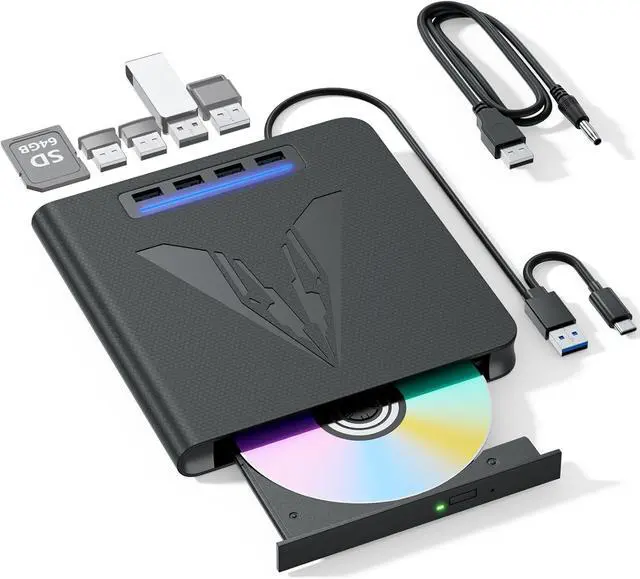
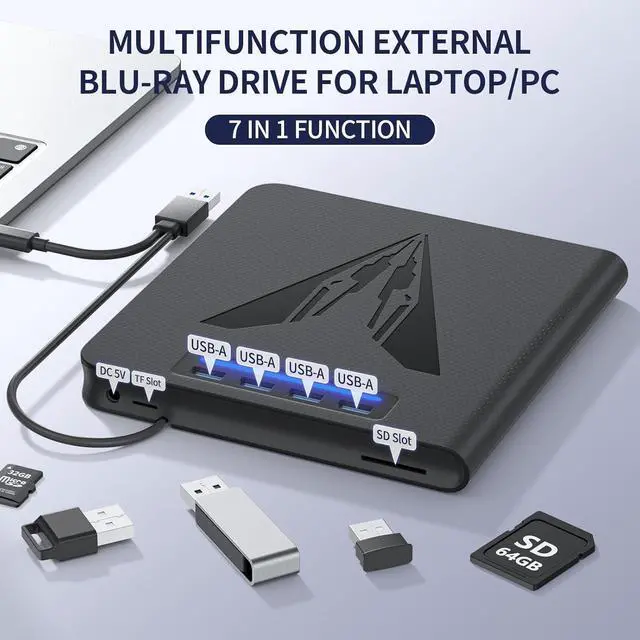
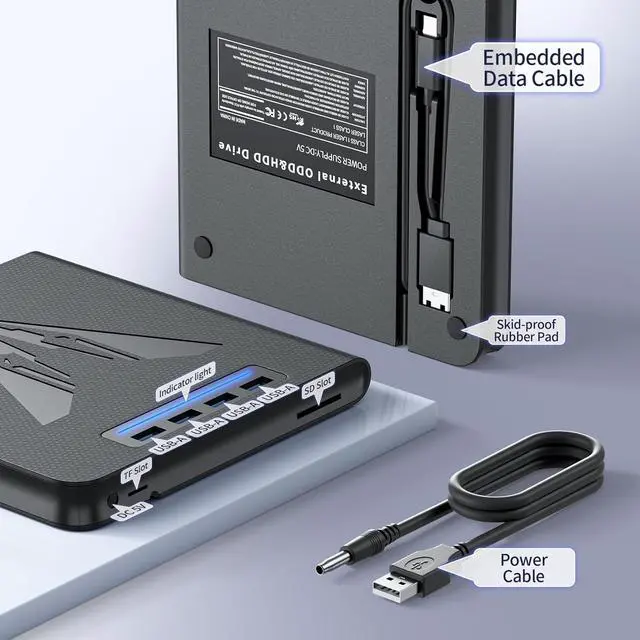
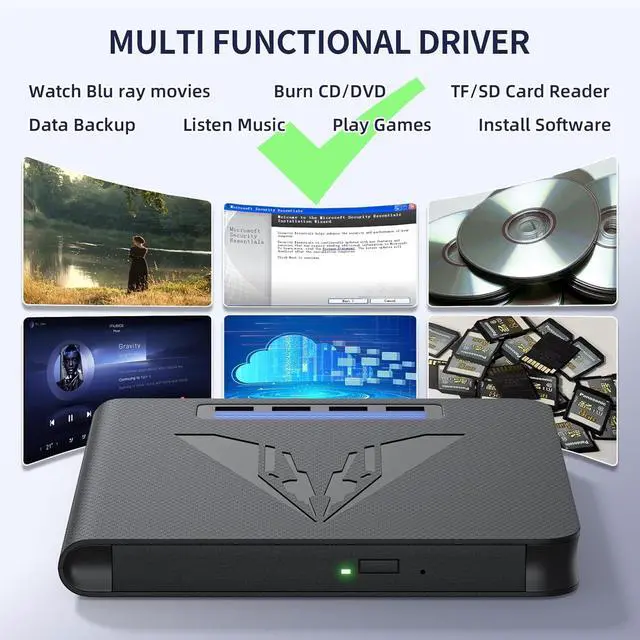
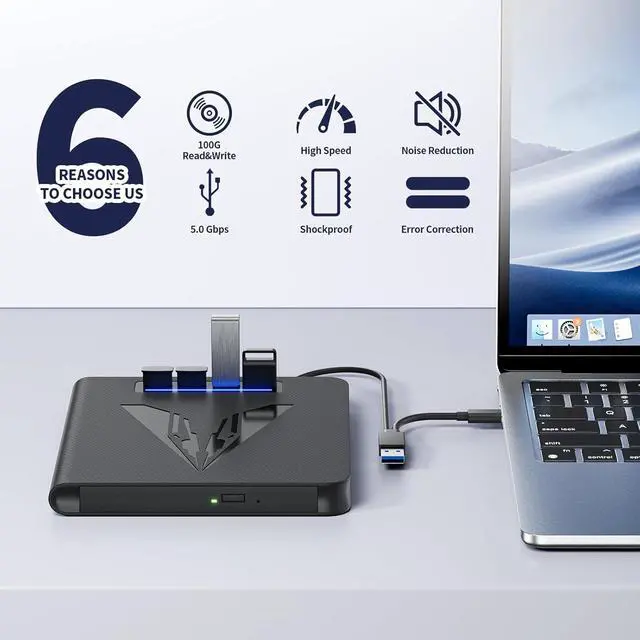


7 in 1 External Blu Ray Drive & Burner for PC Laptop, Portable Blu Ray/DVD/CD Burner with 100GB Disc Support, SD/TF Card Reader & USB 3.0 Hub for Windows MacOS Linux Desktop (7 in 1)
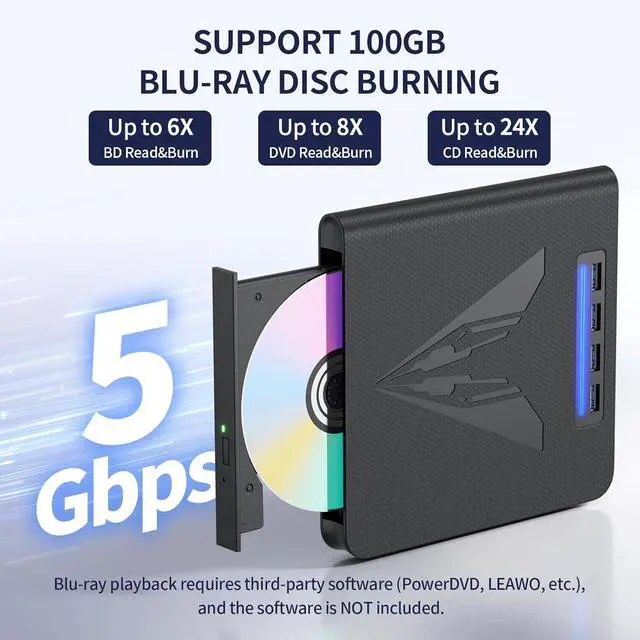
- Support 100GB Blu-ray Disc Burning with 6X Read Speed This external blu-ray drive reads and writes BD, DVD, and CD formats, featuring a 6X BD read speed for quick access to your high-capacity media and an 8X write speed for efficient disc creation
- Versatile 7-in-1 Hub with Card Reader Functionality More than a blu ray burner, this external blueray/dvd drive for pc acts as a data hub with SD/TF card slots and multiple USB ports, allowing easy file transfers between cards, drives, and your computer
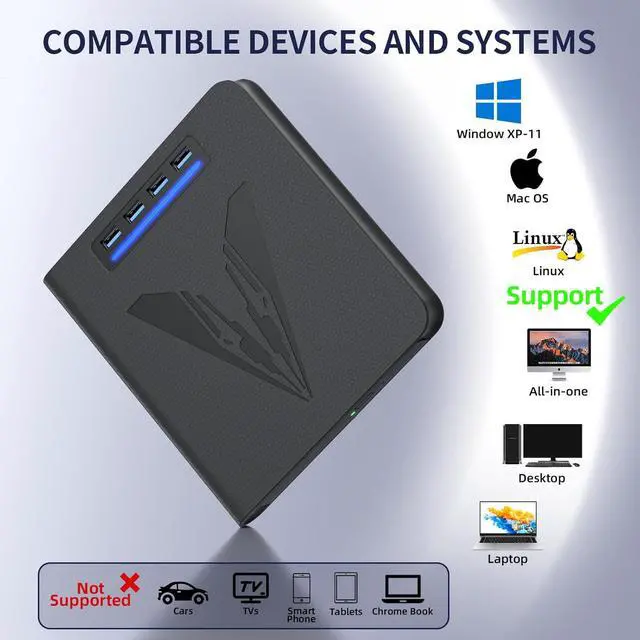
- Important Compatibility Notice for Optimal Use Please note this external blu-ray drive does not support 4K, TVs, tablets, phones, or projectors; In terms of reading speed, Blu ray can reach up to 6x speed, DVD can reach 8x speed, and CD can reach 24x speed.(Note: Playback software is not included. We recommend professional Blu-ray software such as PowerDVD,Leawo Blu-ray Player, or VLC Media Player.Simply install your preferred Bluray software to get started.)
- Convenient All-in-One Cable and Stable Power Supply Equipped with an embedded USB 3.0 + Type-C dual-purpose cable for data and power, plus an additional 5V round power cable, ensuring stable operation for this usb blu ray drive external
- Broad System Compatibility for Laptops and Desktops This bluray burner external is compatible with Windows, macOS, and Linux systems, making it a reliable blu ray player for pc and a versatile blue ray burner for various computing environments
+
+
Overview
Reviews

Any questions? Our AI mode will help you find out quickly.
Try me now
Try a different USB: Move the data cable to different USB ports on your computer.
Reinstall the driver: 1. Right-click the Windows Start Button in the lower left corner of the screen, or press the Windows Logo + X key combination on the keyboard, from the list, and click to select Device Manager. 2. Click View. 3. Click Show Hidden Devices. 4. Find this DVD/CD-ROM drive or similar name. 5. Right-click and select Uninstall. 6. Reboot your computer and replug the external drive, Windows will detect the drive and then reinstall it.
[Windows OS] This drive supports CDs and DVDs. If this drive can only play audio CDs but cannot play video/movie DVDs/BD on your Windows PC, please try the methods below:
Use the right media player software (such as VLC player, Leawo Blu-ray Player). Some media players, such as Windows Media Player, cannot play video DVDs/BD.
Before playing video DVDs, please set the region code to number 1 to play the U.S. or CA DVDs. Steps: 1. Right-click the "DVD-RW Drive" icon and select "Properties". 2. Go to the "Hardware" tab and select your CD/DVD drive. 3. Click "Properties" at the bottom. 4. Open the "DVD Region" tab. 5. Choose the correct region (e.g. Region 1 for US/Canada) and click "OK". (Note: You can only change the region code 4-5 times.)
[Mac OS] The Mac computer will show the device icon after the disc is placed in the optical drive. If your MacBook, iMac, or Mac Pro/Studio cannot recognize this CD/DVD drive, please try the following suggestions:
Open Finder > Settings (or Preferences, depending on your macOS version) > Ensure "CDs, DVDs, and iOS Devices" is checked in General Tab and Sidebar Tab if available.
The Mac OS computer will not display the device icon until the disc is placed in the optical drive and the disc is read successfully, move the data cable to different USB ports on your mac computer, and try different discs.
Common Faults That May Occur & Troubleshooting Steps
Reinstall the driver: 1. Right-click the Windows Start Button in the lower left corner of the screen, or press the Windows Logo + X key combination on the keyboard, from the list, and click to select Device Manager. 2. Click View. 3. Click Show Hidden Devices. 4. Find this DVD/CD-ROM drive or similar name. 5. Right-click and select Uninstall. 6. Reboot your computer and replug the external drive, Windows will detect the drive and then reinstall it.
[Windows OS] This drive supports CDs and DVDs. If this drive can only play audio CDs but cannot play video/movie DVDs/BD on your Windows PC, please try the methods below:
Use the right media player software (such as VLC player, Leawo Blu-ray Player). Some media players, such as Windows Media Player, cannot play video DVDs/BD.
Before playing video DVDs, please set the region code to number 1 to play the U.S. or CA DVDs. Steps: 1. Right-click the "DVD-RW Drive" icon and select "Properties". 2. Go to the "Hardware" tab and select your CD/DVD drive. 3. Click "Properties" at the bottom. 4. Open the "DVD Region" tab. 5. Choose the correct region (e.g. Region 1 for US/Canada) and click "OK". (Note: You can only change the region code 4-5 times.)
[Mac OS] The Mac computer will show the device icon after the disc is placed in the optical drive. If your MacBook, iMac, or Mac Pro/Studio cannot recognize this CD/DVD drive, please try the following suggestions:
Open Finder > Settings (or Preferences, depending on your macOS version) > Ensure "CDs, DVDs, and iOS Devices" is checked in General Tab and Sidebar Tab if available.
The Mac OS computer will not display the device icon until the disc is placed in the optical drive and the disc is read successfully, move the data cable to different USB ports on your mac computer, and try different discs.
Common Faults That May Occur & Troubleshooting Steps
Warranty & Returns
Warranty, Returns, And Additional Information
Warranty
- Please contact the Seller directly for warranty information. Warranty information may also be found on the Manufacturer's website.
- CONTACT
Return Policies
- Return for refund within: 30 days
- Return for replacement within: 30 days
- This item is covered by Zhanfu Technology Co., Limited Return Policy
Manufacturer Contact Info
- For a directory of all our manufacturers, please click below.
- Manufacturers Directory
LOADING...