

Your Browsing History
- Free 30-day Returns
$104.99

Meet Your Seller

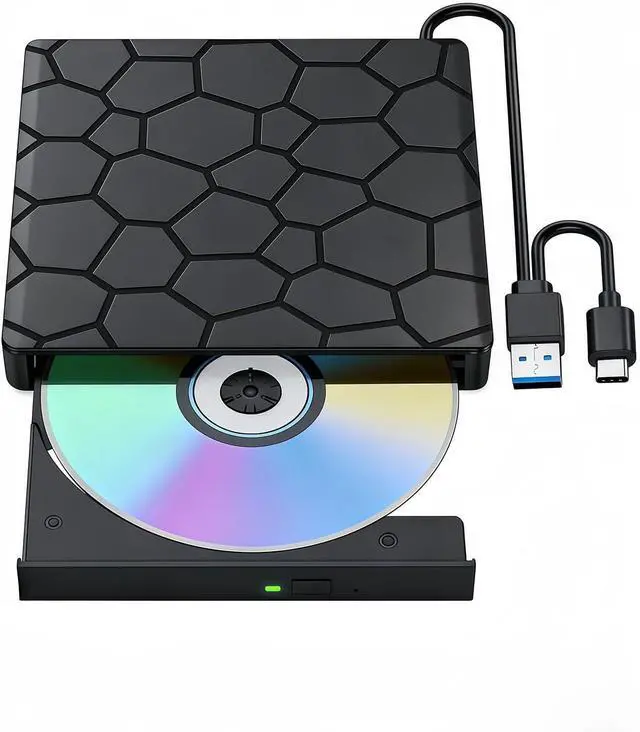
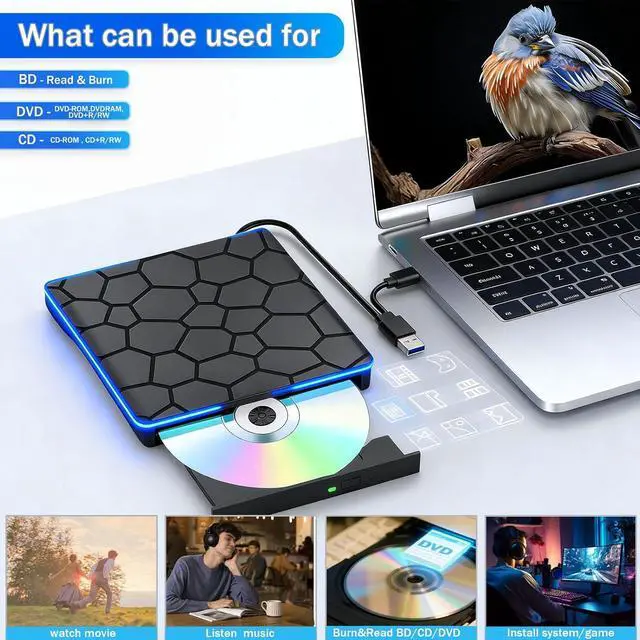
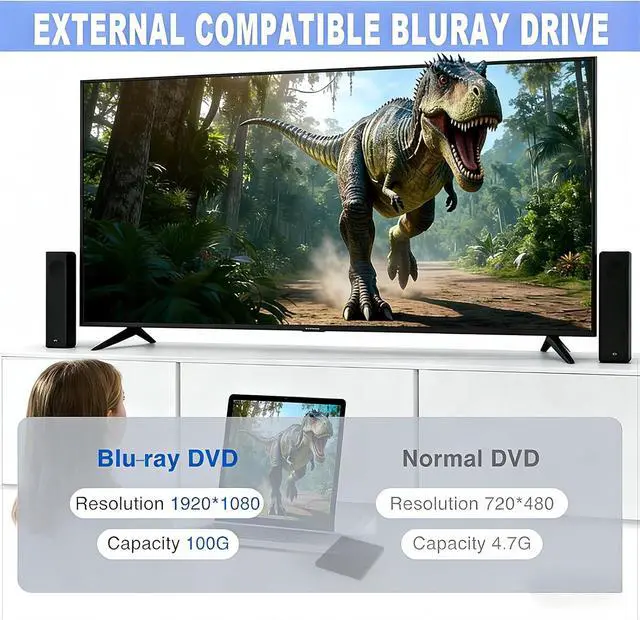
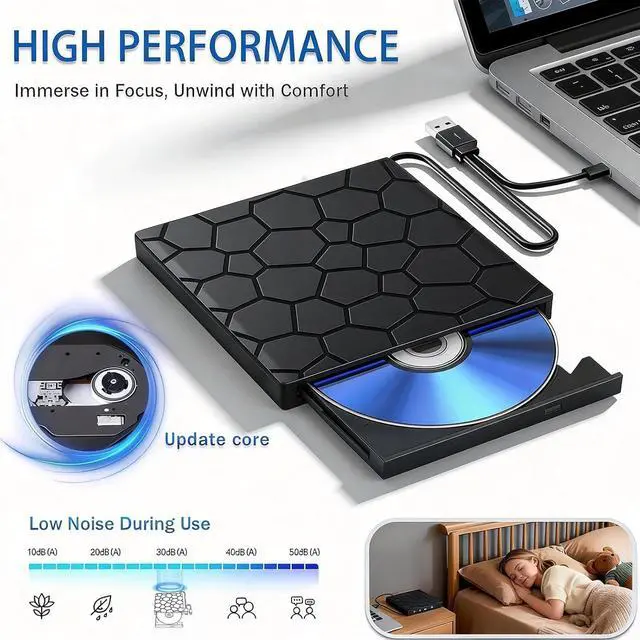
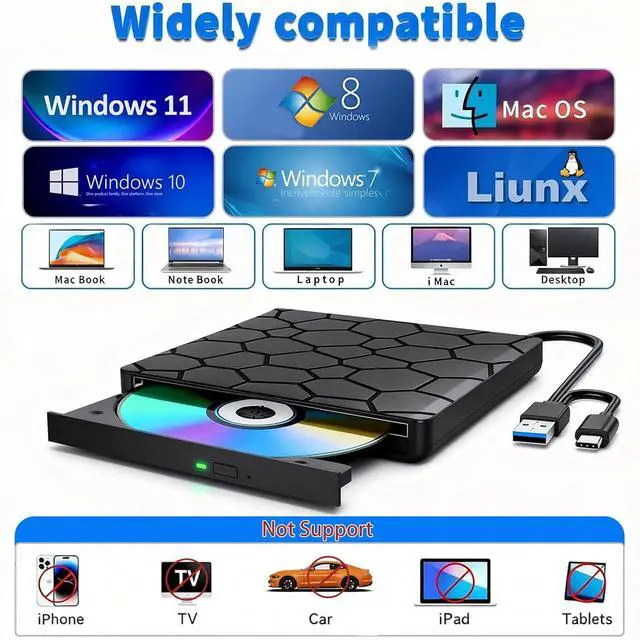


gingo External Blu-ray BD/DVD/CD Drive - USB 3.0 Optical Disc Burner, Reader & Duplicator with 3D Playback, Works Seamlessly with Laptops, Desktops, Windows, Mac & Linux Devices
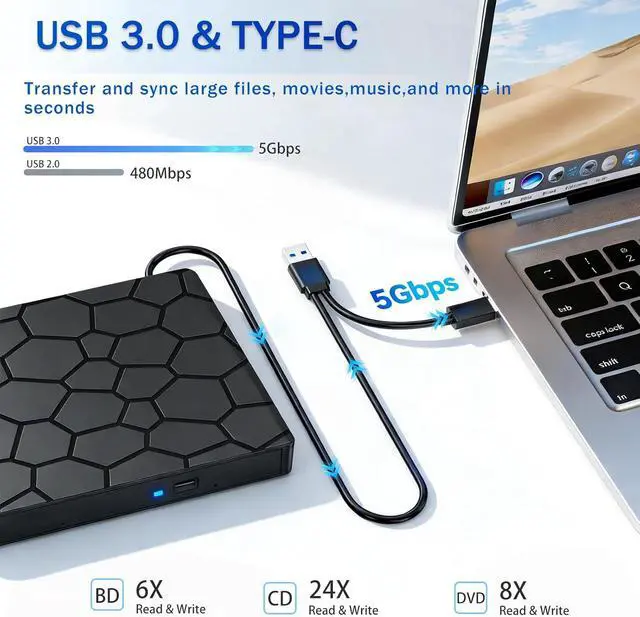
- Ultra-Powerful Performance with Reliable Stability:This portable external Blu-ray drive delivers remarkable reading and burning efficiency for all your disc needs. It reaches a maximum Blu-ray read speed of 6x, DVD read speed of 8x, and CD read speed of 24x, while supporting BD discs with 25G or 50G storage capacity. Equipped with advanced error correction technology, it also features excellent shock resistance, ultra-low noise operation, and minimal power consumption. Whether youre enjoying Blu-ray movies, playing music CDs, burning software installation discs, or setting up operating systems, this drive ensures a smooth and stable experience
+
+
Overview
Reviews

Any questions? Our AI mode will help you find out quickly.
Try me now
DVD discs can only be played on DVD drives that support the corresponding regional codes.
For example, if you are located in the US or Canada, you are in Region 1.
You have to set the regional code of your DVD drive to 1 in order to play Region 1 DVDs.
(Note: Audio CDs are not protected by regional codes.)
Each external optical drive only allows the regional code to be changed 4 to 5 times in total.
Region 1 United States, Canada
Region 2 Europe, Japan, South Africa, Middle East
Region 3 East Asia (including Hong Kong), Southeast Asia
Region 4 Australia, New Zealand, Pacific Islands, Central America, Mexico, South America
Region 5 Eastern Europe, Russia, Indian subcontinent, Africa, North Korea, Mongolia
Region 6 Mainland China
Region 7 Reserved for special unspecified usage
Region 8 Aircraft and marine travel scenarios
How to change region code : Windows :This PC DVD drive- Properties Hardware Tab Properties button Choose Region (US is 1) -Apply. MacMenu-System Preference-Language & Region - Region - Select Country - Apply.Remember you can only reset the country 5 times.
SYSTEM REQUIREMENTS
PC
Intel/AMD CPU 1.6 GHz or faster
USB 3.0- or USB 2.0-Interface
At least 2 GB of free hard disk space (10 GB recommended)
Operating systems: Windows 10, 8 and 7
MAC
PowerPC G5 or Intel Mac
USB 2.0-or USB 3.0-Interface
At least 2 GB of free hard disk space (10 GB recommended)
Operating system: Mac OS X 10.4.8 or higher
Q&A
Question 1: External Blu-ray Drive Cannot Connect / Not Detected by Computer
1.Please check the connection status and power supply
Use the original data cable to connect the drive directly to the computers USB port; do not use a USB hub, extension cable, or docking station.
For desktop computers, it is recommended to connect to the USB port on the back of the host for a more stable power supply. If the drive supports independent power supply, please use the matching power cable at the same time to ensure sufficient power input.
2.Check if the drive is recognized by the system
Windows: Open File Explorer and check if a BD/DVD/CD-ROM drive icon appears. If no disc is inserted, the drive name may still be displayed.
Mac: The drive icon will not appear on the desktop or in Finder until a disc is inserted and recognized. You can go to About This Mac > System Report > USB to check if the device is listed.
3.Check driver issues in Device Manager
Enter Device Manager, expand DVD/CD-ROM drives. If there is a yellow exclamation mark, question mark, or the device is marked as faulty:
Right-click the drive and select Update driver
Or select Uninstall device, restart the computer, then reconnect the drive; the system will automatically reinstall the driver
4.Check BIOS/UEFI settings
Restart the computer and enter the BIOS/UEFI interface. Check whether the USB device or optical drive related options are disabled. If disabled, set to Enable and save the settings to restart.
Question 2: The drive connects successfully, but cannot read/play discs.
Step 1: Confirm disc compatibility and region code
CDs generally do not have region restrictions; DVD and Blu-ray discs have region codes. The drives region code must match the disc to play normally.
Note: The DVD/Blu-ray region code can only be changed 45 times in total. After the limit is reached, the code cannot be modified anymore.
Step 2: Use professional playback software
This drive does not come with playback software. You need to install compatible software in advance:
Windows: PowerDVD, VLC, Leawo Blu-ray Player, etc.
Mac: Macgo Blu-ray Player, IINA, etc.
You can use testing software such as CyberLink BD & 3D Advisor to check whether your computer supports Blu-ray or 3D playback.
Step 3: Check disc and drive cle
For example, if you are located in the US or Canada, you are in Region 1.
You have to set the regional code of your DVD drive to 1 in order to play Region 1 DVDs.
(Note: Audio CDs are not protected by regional codes.)
Each external optical drive only allows the regional code to be changed 4 to 5 times in total.
Region 1 United States, Canada
Region 2 Europe, Japan, South Africa, Middle East
Region 3 East Asia (including Hong Kong), Southeast Asia
Region 4 Australia, New Zealand, Pacific Islands, Central America, Mexico, South America
Region 5 Eastern Europe, Russia, Indian subcontinent, Africa, North Korea, Mongolia
Region 6 Mainland China
Region 7 Reserved for special unspecified usage
Region 8 Aircraft and marine travel scenarios
How to change region code : Windows :This PC DVD drive- Properties Hardware Tab Properties button Choose Region (US is 1) -Apply. MacMenu-System Preference-Language & Region - Region - Select Country - Apply.Remember you can only reset the country 5 times.
SYSTEM REQUIREMENTS
PC
Intel/AMD CPU 1.6 GHz or faster
USB 3.0- or USB 2.0-Interface
At least 2 GB of free hard disk space (10 GB recommended)
Operating systems: Windows 10, 8 and 7
MAC
PowerPC G5 or Intel Mac
USB 2.0-or USB 3.0-Interface
At least 2 GB of free hard disk space (10 GB recommended)
Operating system: Mac OS X 10.4.8 or higher
Q&A
Question 1: External Blu-ray Drive Cannot Connect / Not Detected by Computer
1.Please check the connection status and power supply
Use the original data cable to connect the drive directly to the computers USB port; do not use a USB hub, extension cable, or docking station.
For desktop computers, it is recommended to connect to the USB port on the back of the host for a more stable power supply. If the drive supports independent power supply, please use the matching power cable at the same time to ensure sufficient power input.
2.Check if the drive is recognized by the system
Windows: Open File Explorer and check if a BD/DVD/CD-ROM drive icon appears. If no disc is inserted, the drive name may still be displayed.
Mac: The drive icon will not appear on the desktop or in Finder until a disc is inserted and recognized. You can go to About This Mac > System Report > USB to check if the device is listed.
3.Check driver issues in Device Manager
Enter Device Manager, expand DVD/CD-ROM drives. If there is a yellow exclamation mark, question mark, or the device is marked as faulty:
Right-click the drive and select Update driver
Or select Uninstall device, restart the computer, then reconnect the drive; the system will automatically reinstall the driver
4.Check BIOS/UEFI settings
Restart the computer and enter the BIOS/UEFI interface. Check whether the USB device or optical drive related options are disabled. If disabled, set to Enable and save the settings to restart.
Question 2: The drive connects successfully, but cannot read/play discs.
Step 1: Confirm disc compatibility and region code
CDs generally do not have region restrictions; DVD and Blu-ray discs have region codes. The drives region code must match the disc to play normally.
Note: The DVD/Blu-ray region code can only be changed 45 times in total. After the limit is reached, the code cannot be modified anymore.
Step 2: Use professional playback software
This drive does not come with playback software. You need to install compatible software in advance:
Windows: PowerDVD, VLC, Leawo Blu-ray Player, etc.
Mac: Macgo Blu-ray Player, IINA, etc.
You can use testing software such as CyberLink BD & 3D Advisor to check whether your computer supports Blu-ray or 3D playback.
Step 3: Check disc and drive cle
Warranty & Returns
Warranty, Returns, And Additional Information
Warranty
- Please contact the Seller directly for warranty information. Warranty information may also be found on the Manufacturer's website.
- CONTACT
Return Policies
- Return for refund within: 30 days
- Return for replacement within: 30 days
- This item is covered by Zhanfu Technology Co., Limited Return Policy
Manufacturer Contact Info
- For a directory of all our manufacturers, please click below.
- Manufacturers Directory
LOADING...