





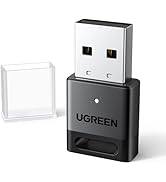


How to Connect Bluetooth Headset to PS5?


Important Note of the usage of the PS5:
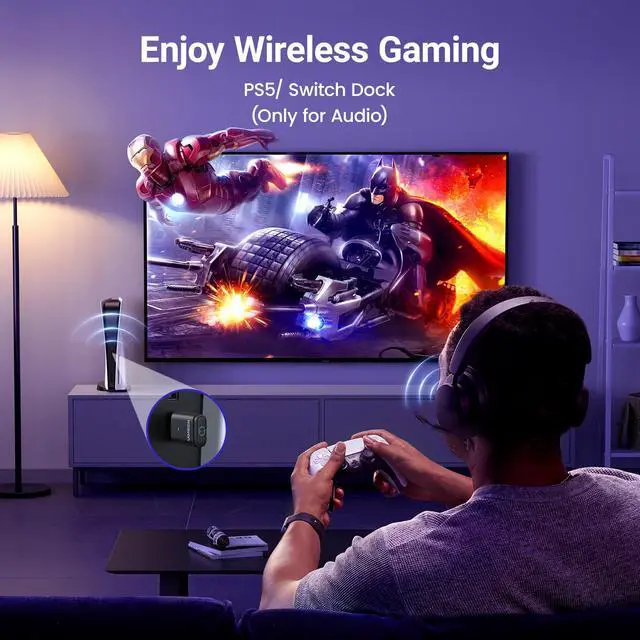
When connecting the product to a PS5, users need to select "UGREEN-BT501" as the audio output device in the PS5 settings and turn off the "switch output device automatically" option for proper functionality.
Abeout lantency Low-Latency mode
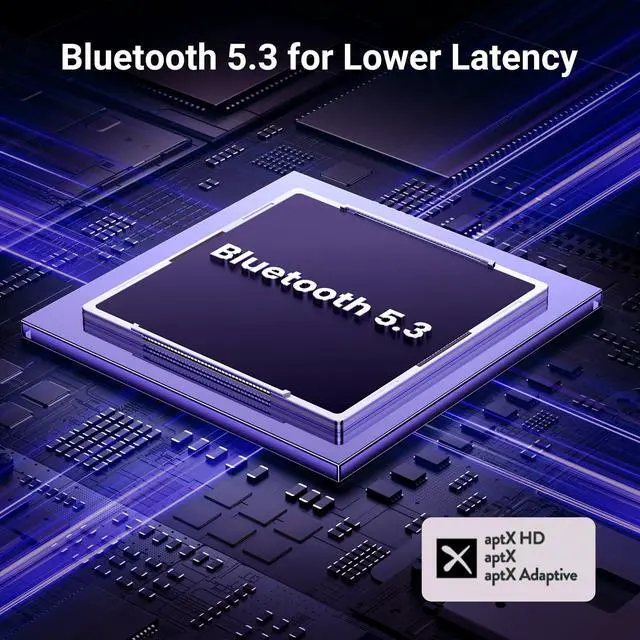
This adapter supports APTX-Adaptive with low latency encoder, the audio delay can be minimized to less than 100ms. Note: The proper functioning of this feature depends on whether the connected device also supports it. For PS5, please try to click the button to switch to low latency mode.
Important Note of the microphone of the headset:
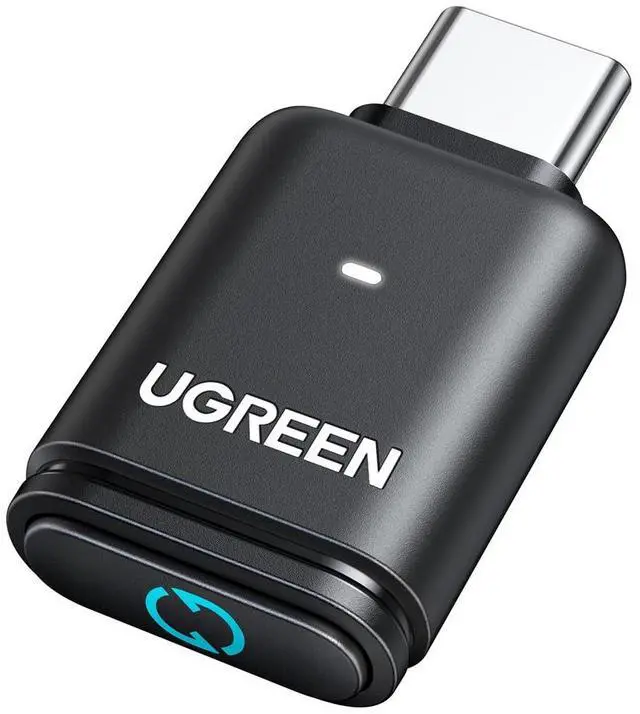
Our transmitter defaults to audio mode, with the HFP protocol (Bluetooth calling) disabled by default. However, by double-clicking the multifunction button, Bluetooth calling mode can be enabled, and on the next power-up it will automatically revert to the previous mode.
Important Note of the voice of the product:
1. Impact of Bluetooth Calling Function on Audio Quality: Enabling the Bluetooth calling mode can degrade audio quality. To ensure optimal sound output, it's advisable to disable the Bluetooth calling function. When doing so, using an external microphone for calls is recommended. Additionally, gamers using the PS5 should consider turning off the Bluetooth calling mode to experience clearer music and game background sounds. 2. Variations in Audio Device Recognition Across Platforms: The product appears as an audio device in the sound settings, supporting volume adjustments. However, due to differences in system recognition across various devices, the audio device may be identified differently. Users should refer to the product manual for guidance on configuring sound settings appropriately.
Important Note of the usage environment of the product:
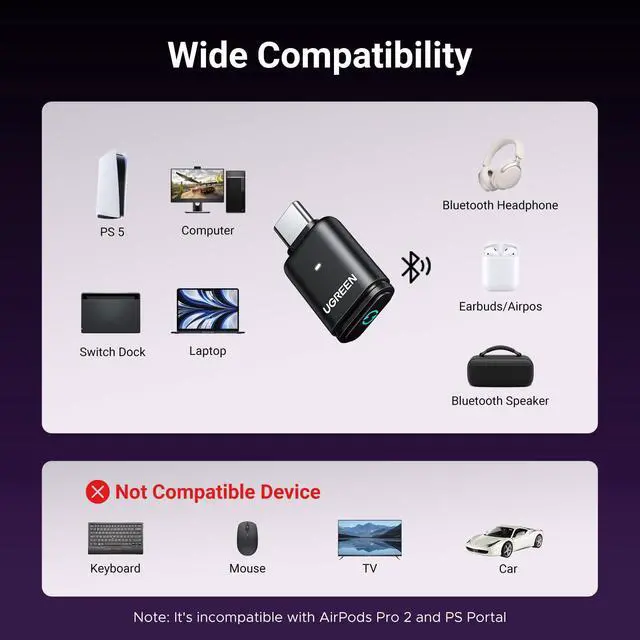
First, when connecting to a computer, the transmitter should be kept away from other USB devices to reduce signal interference; second, the pairing distance varies with different Bluetooth receiving devices—the better the receiving device's antenna performance, the longer the pairing connection distance, which depends on the receiving device's performance.


How to Connect Bluetooth Headset to PS5?


Important Note of the usage of the PS5:
When connecting the product to a PS5, users need to select "UGREEN-BT501" as the audio output device in the PS5 settings and turn off the "switch output device automatically" option for proper functionality.
Abeout lantency Low-Latency mode
This adapter supports APTX-Adaptive with low latency encoder, the audio delay can be minimized to less than 100ms. Note: The proper functioning of this feature depends on whether the connected device also supports it. For PS5, please try to click the button to switch to low latency mode.
Important Note of the microphone of the headset:
Our transmitter defaults to audio mode, with the HFP protocol (Bluetooth calling) disabled by default. However, by double-clicking the multifunction button, Bluetooth calling mode can be enabled, and on the next power-up it will automatically revert to the previous mode.
Important Note of the voice of the product:
1. Impact of Bluetooth Calling Function on Audio Quality: Enabling the Bluetooth calling mode can degrade audio quality. To ensure optimal sound output, it's advisable to disable the Bluetooth calling function. When doing so, using an external microphone for calls is recommended. Additionally, gamers using the PS5 should consider turning off the Bluetooth calling mode to experience clearer music and game background sounds. 2. Variations in Audio Device Recognition Across Platforms: The product appears as an audio device in the sound settings, supporting volume adjustments. However, due to differences in system recognition across various devices, the audio device may be identified differently. Users should refer to the product manual for guidance on configuring sound settings appropriately.
Important Note of the usage environment of the product:
First, when connecting to a computer, the transmitter should be kept away from other USB devices to reduce signal interference; second, the pairing distance varies with different Bluetooth receiving devices—the better the receiving device's antenna performance, the longer the pairing connection distance, which depends on the receiving device's performance.


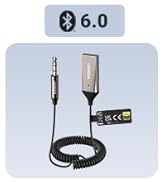
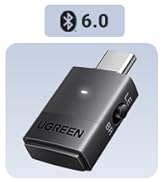
TV/Car Bluetooth 6.0 receiver
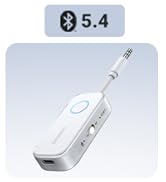
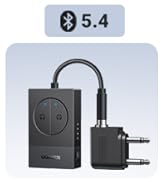
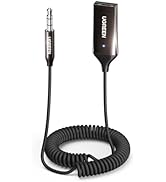
Airplane Bluetooth Tranmitter
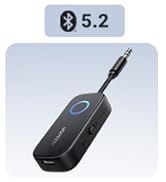
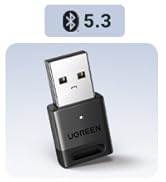
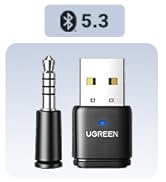
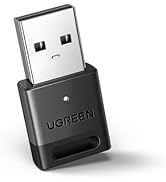
PC/PS5 Bluetooth Adapter
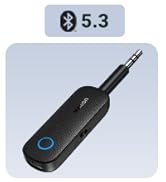
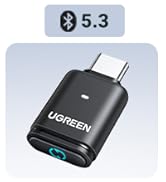
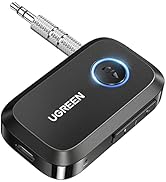
Other Hot Bluetooth Adapter