Your Browsing History
- Free 30-day Returns
$220.99
Meet Your Seller
3-Port USB Network Print Server - Share USB Printers Wirelessly, Compatible with Windows, Mac, Linux, Android - Easy Setup, Multiple User Support
- Supports turning 3 USB printers into network printers.
- Supports printing from Android smartphones and computers.
- Supports multiple users sharing your USB printers simultaneously.
- Supports printing files in image, PDF, PPT, Excel, and Word formats.
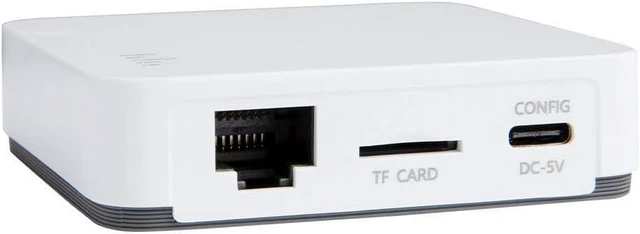
- Features a standard USB 2.0 interface and a user-friendly configuration tool for quick parameter setting, equipped with 1 RJ45 LAN port.
+
+
Overview
Reviews
Any questions? Ask CelesteSM will help you find out quickly.
Try me now
After connected our print server with your USB printers, it makes your family and your team easily stay productive no matter you're working from home or in the office.
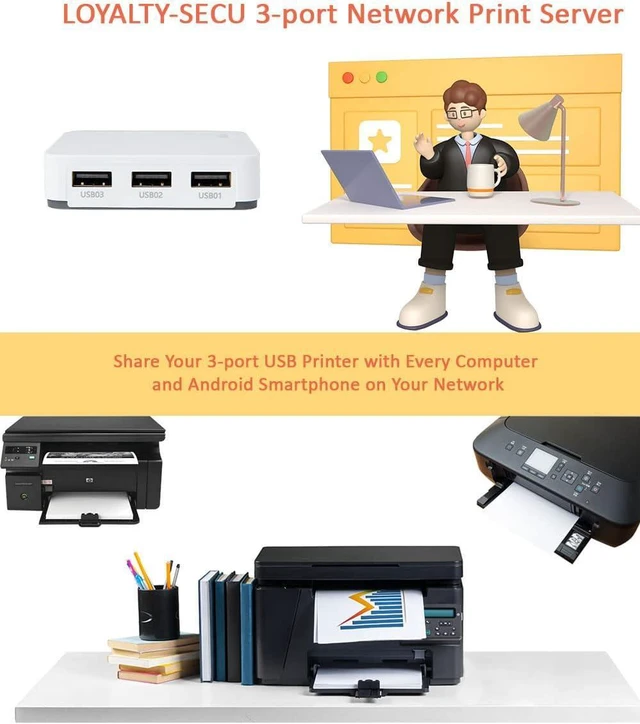
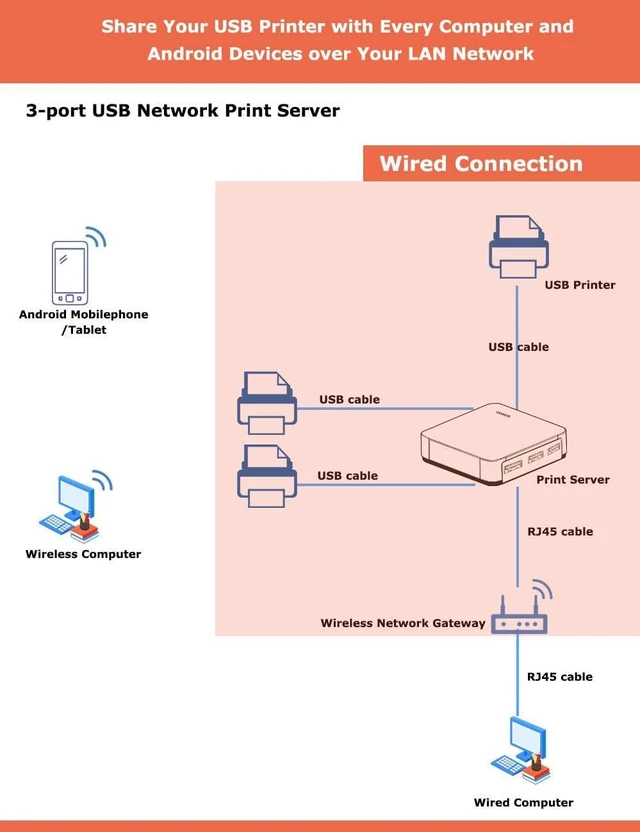
Our 3 USB Ports Network Print Server supports turn 3 USB printers into network printers quickly, when you choose our print server to connect with your USB printers.
Network Print Server supports your USB printers to be shared with multiple users simultaneously over a LAN network.
USB 2.0 Network Print Server allows you print files in format of image, PDF, PPT, Excel, Word via your Android smartphone and computer wirelessly
With 3 Ports Network USB Print Server, there is no need a dedicated computer collocated for your USB printer anymore, everyone can send the print jobs to the USB printer which connects with our USB print server in the same WLAN at any time, avoids the added cost of purchasing individual printer for each workstation or area. Its particularly suitable for home and office who owned several USB printers.
Step 1: Please download Print Server Config Tool from our business site into your Windows computer.
Step 2: Please connect Print Server with your Windows computer via USB cable.
Step 3: Please assign a fixed IP address for the USB Print Server via Print Server Config Tool on Windows computer firstly.
Step 4: Add the IP address and USB port information of USB network print server into your target USB printer in your computer. Then you can explore the excellent printing experience via the Print Server.
Step 5: Download and install APP PrinterShare or PrintHand into your Android smartphone and follow manual user to setup, then you can send print jobs to your USB printer wirelessly in LAN.
Note: Please follow our user manual to finish the above configuration.
LOYALTY-SECU Print Server Products are best suited for users with some familiarity with network settings.
LOYALTY-SECU offers TeamViewer or AnyDesk for quick and easy configuration.
Before using the print function, please ensure you download the Print Server Configuration App and User Manual from our official site.
Requirements:
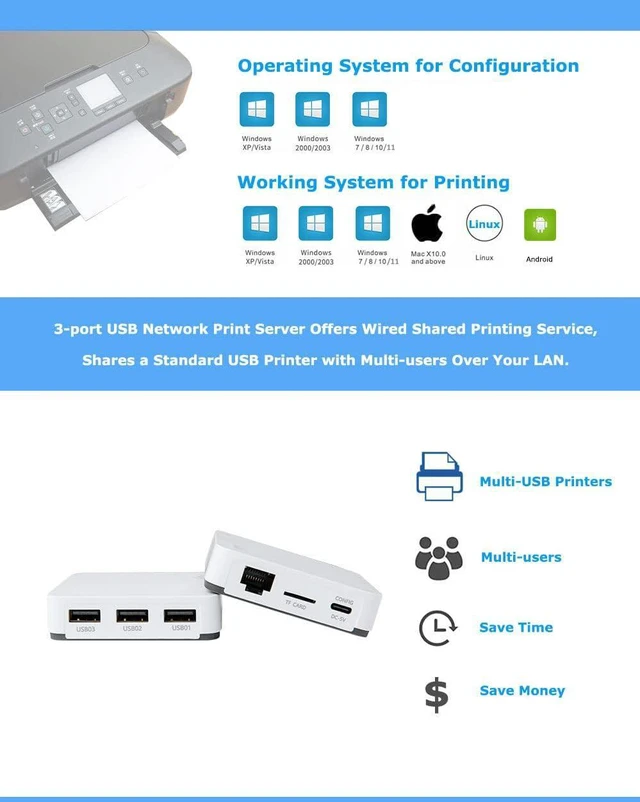
Windows, MAC, and LINUX OS computers are compatible for LAN printing.
Android and Harmony smartphones support LAN printing.
Note for Smartphone Printing: To use LAN printing on your Android or Harmony smartphone, you will need to install a third-party, prepaid app such as "PrinterShare" or "PrintHand."
If you have any questions about the product configuration or usage, we recommend reviewing our product details carefully before placing an order. We are a small startup, and we greatly appreciate your support.
1). Disable Use Printer Offline option.
Right-click on the target printer
choose "See what's printing"
click on the "Printer" menu
and check whether the "Use Printer Offline" option is disabled, as shown above.
2). Disable Enable bidirectional support option as shown above.
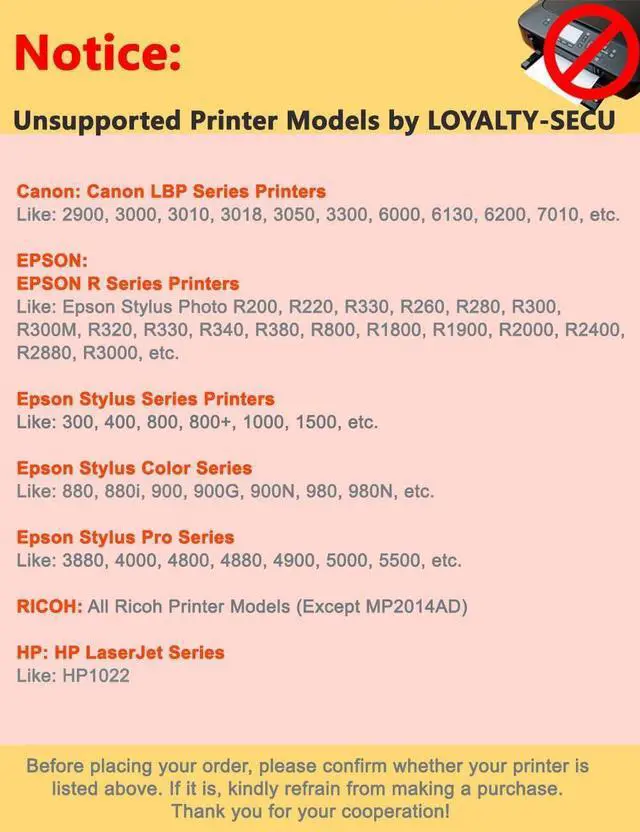
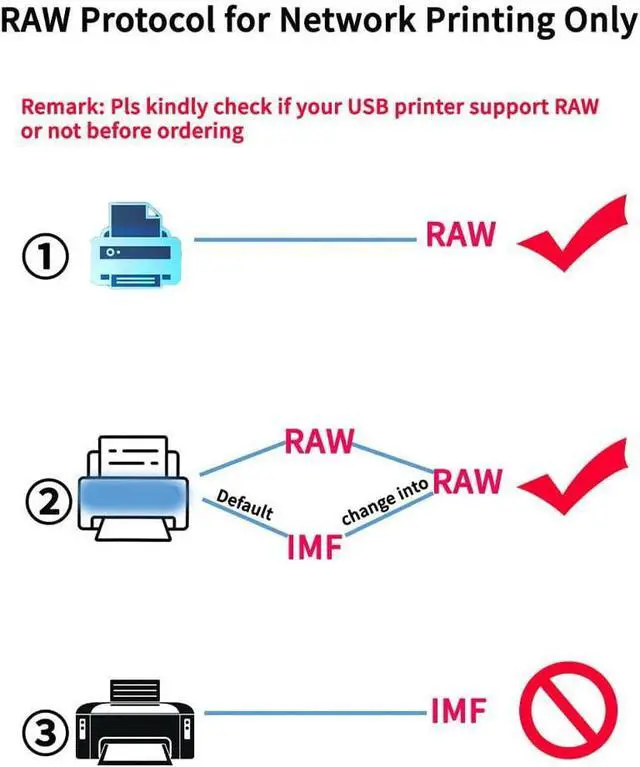
LOYALTY-SECU Ethernet to USB 2.0 Network Print Server for Multiple USB Printers White 1. What 3 ports Network USB Print Server can Bring for You? 2. How to make your USB Printer Work with USB Network Print Server Quickly? A Quick Start of Network USB Print Server 3. The Workflow of USB Network Print Server with Your USB Printer 4. Something Important Needs to be Noted before Order 5. Unsupported Model for USB Printer List (Continuously Updated), Please Double Check Before Order! 6. Quick Troubleshooting

Our 3 USB Ports Network Print Server supports turn 3 USB printers into network printers quickly, when you choose our print server to connect with your USB printers.
Network Print Server supports your USB printers to be shared with multiple users simultaneously over a LAN network.
USB 2.0 Network Print Server allows you print files in format of image, PDF, PPT, Excel, Word via your Android smartphone and computer wirelessly
With 3 Ports Network USB Print Server, there is no need a dedicated computer collocated for your USB printer anymore, everyone can send the print jobs to the USB printer which connects with our USB print server in the same WLAN at any time, avoids the added cost of purchasing individual printer for each workstation or area. Its particularly suitable for home and office who owned several USB printers.
Step 1: Please download Print Server Config Tool from our business site into your Windows computer.
Step 2: Please connect Print Server with your Windows computer via USB cable.
Step 3: Please assign a fixed IP address for the USB Print Server via Print Server Config Tool on Windows computer firstly.
Step 4: Add the IP address and USB port information of USB network print server into your target USB printer in your computer. Then you can explore the excellent printing experience via the Print Server.
Step 5: Download and install APP PrinterShare or PrintHand into your Android smartphone and follow manual user to setup, then you can send print jobs to your USB printer wirelessly in LAN.
Note: Please follow our user manual to finish the above configuration.
LOYALTY-SECU Print Server Products are best suited for users with some familiarity with network settings.
LOYALTY-SECU offers TeamViewer or AnyDesk for quick and easy configuration.
Before using the print function, please ensure you download the Print Server Configuration App and User Manual from our official site.
Requirements:
Windows, MAC, and LINUX OS computers are compatible for LAN printing.
Android and Harmony smartphones support LAN printing.
Note for Smartphone Printing: To use LAN printing on your Android or Harmony smartphone, you will need to install a third-party, prepaid app such as "PrinterShare" or "PrintHand."
If you have any questions about the product configuration or usage, we recommend reviewing our product details carefully before placing an order. We are a small startup, and we greatly appreciate your support.
1). Disable Use Printer Offline option.
Right-click on the target printer
choose "See what's printing"
click on the "Printer" menu
and check whether the "Use Printer Offline" option is disabled, as shown above.
2). Disable Enable bidirectional support option as shown above.
LOYALTY-SECU Ethernet to USB 2.0 Network Print Server for Multiple USB Printers White 1. What 3 ports Network USB Print Server can Bring for You? 2. How to make your USB Printer Work with USB Network Print Server Quickly? A Quick Start of Network USB Print Server 3. The Workflow of USB Network Print Server with Your USB Printer 4. Something Important Needs to be Noted before Order 5. Unsupported Model for USB Printer List (Continuously Updated), Please Double Check Before Order! 6. Quick Troubleshooting
Warranty & Returns
Warranty, Returns, And Additional Information
Warranty
- Please contact the Seller directly for warranty information. Warranty information may also be found on the Manufacturer's website.
- CONTACT
Return Policies
- Return for refund within: 30 days
- Return for replacement within: 30 days
- This item is covered by XinjintongLimited Return Policy
Manufacturer Contact Info
- For a directory of all our manufacturers, please click below.
- Manufacturers Directory
LOADING...