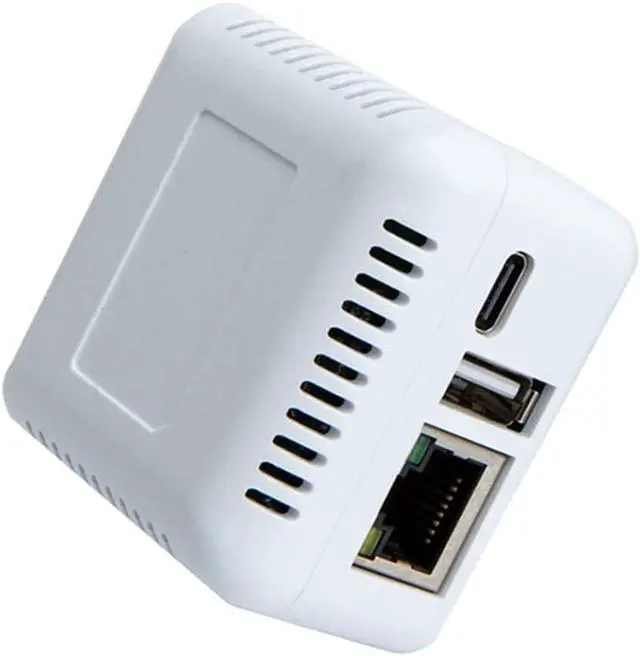
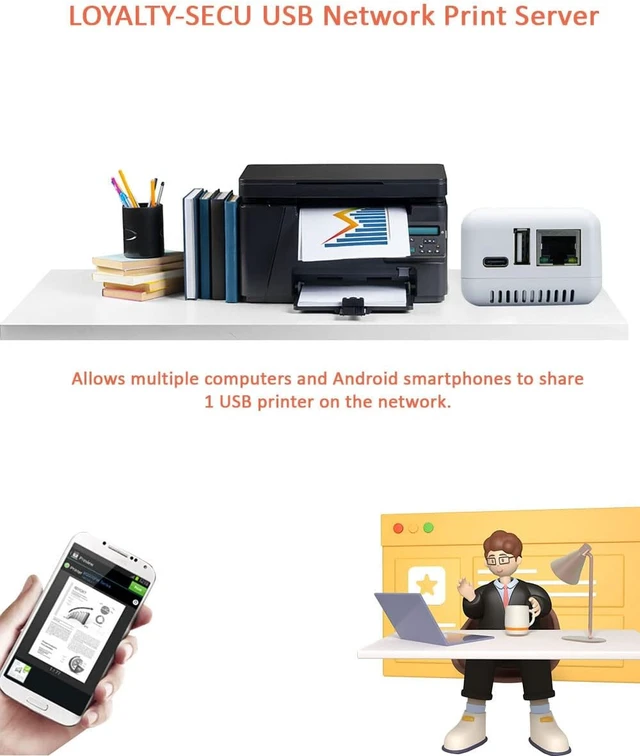
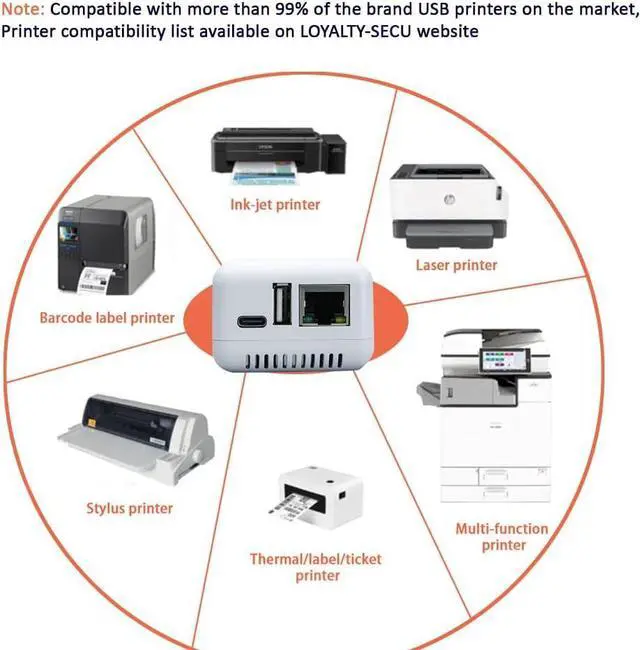
Our Network USB 2.0 LAN Print Server makes you easily stay productive whether you're working from home or in the office after connected our print server with your USB printer.
USB Network Print Server helps you quickly turn your USB printer into a network printer when you choose our print server to connect with your USB printer.
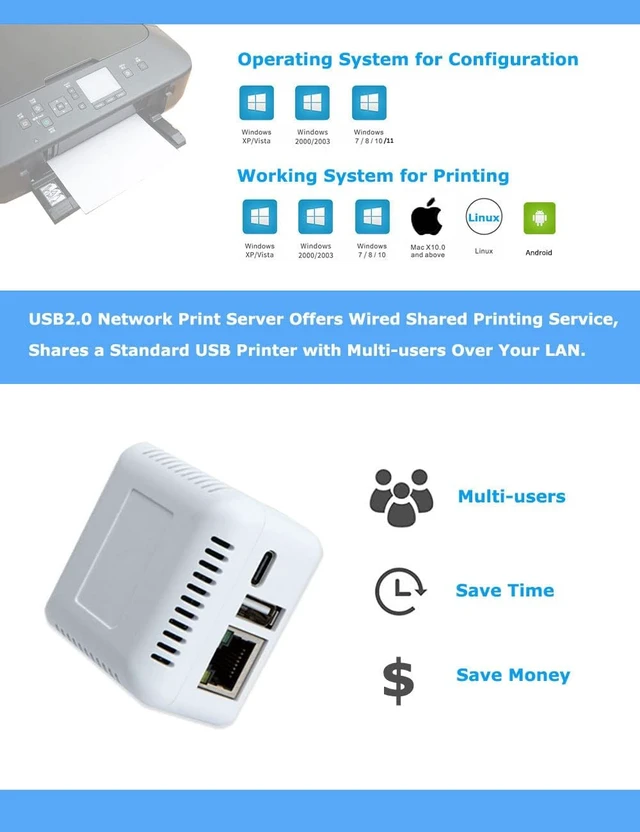
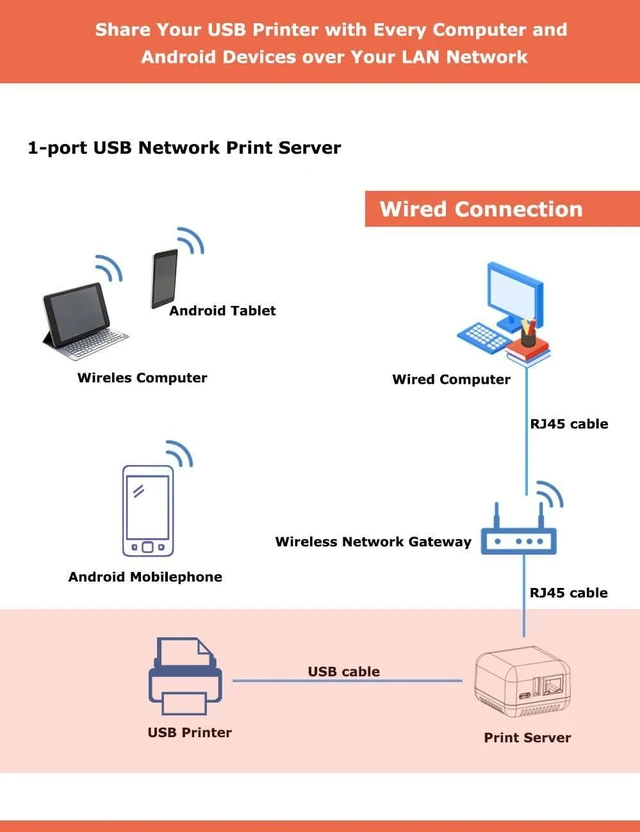
USB Network Print Server supports your USB printer to be shared with multiple users simultaneously over a LAN network.
USB 2.0 Print Server allows you to send the print jobs to your USB printer via your Android smartphone and computer wirelessly.
After connected with our network USB print server with your USB printer, you can print file in format of image, PDF, PPT, Excel, Word via your Android smartphone and computer wirelessly
Step 1: Please download Print Server Config Tool from our business site into your Windows computer.
Step 2: Please connect Print Server with Your Windows computer via USB cable.
Step 3: Please assign a fixed IP address for the USB Print Server via Print Server Config Tool on Windows computer firstly.
Step 4: Add the IP address and USB port information of print server into your target USB printer in your computer. Then you can explore the excellent printing experience via the Print Server.
Step 5: Download and install APP PrinterShare or PrintHand into your Android Smartphone and follow manual user to setup, then you can send print jobs to your USB printer wirelessly in LAN.
Note: Please follow our user manual to finish the above configuration.
LOYALTY-SECU Print Server Products are best suited for users with some familiarity with network settings.
LOYALTY-SECU offers TeamViewer or AnyDesk for quick and easy configuration.
Before using the print function, please ensure you download the Print Server Configuration App and User Manual from our official site.
Requirements:
Windows, MAC, and LINUX OS computers are compatible for LAN printing.
Android and Harmony smartphones support LAN printing.
Note for Smartphone Printing: To use LAN printing on your Android or Harmony smartphone, you will need to install a third-party, prepaid app such as "PrinterShare" or "PrintHand."
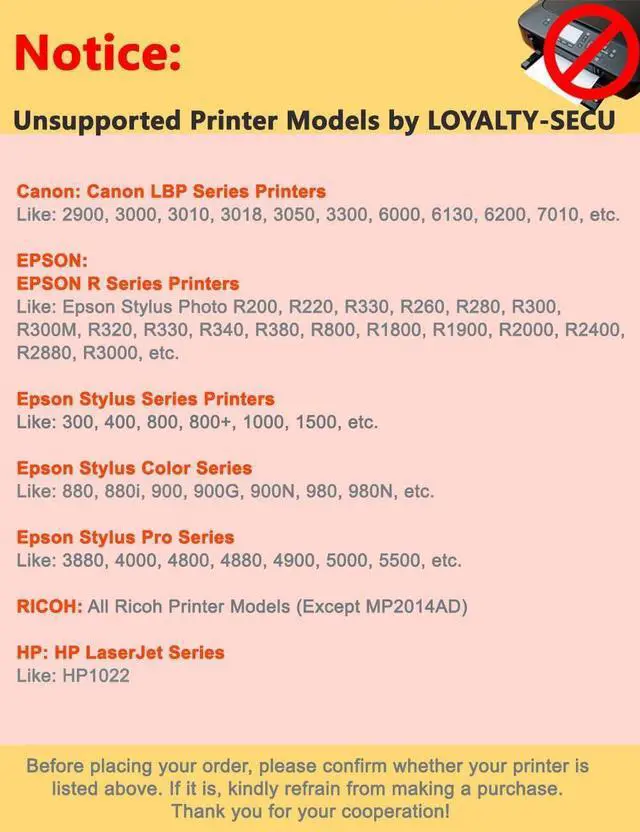
If you have any questions about the product configuration or usage, we recommend reviewing our product details carefully before placing an order. We are a small startup, and we greatly appreciate your support!
1). Disable Use Printer Offline option.
Right-click on the target printer
choose "See what's printing"
click on the "Printer" menu
and check whether the "Use Printer Offline" option is disabled, as shown above.
2). Disable Enable bidirectional support option as shown above.
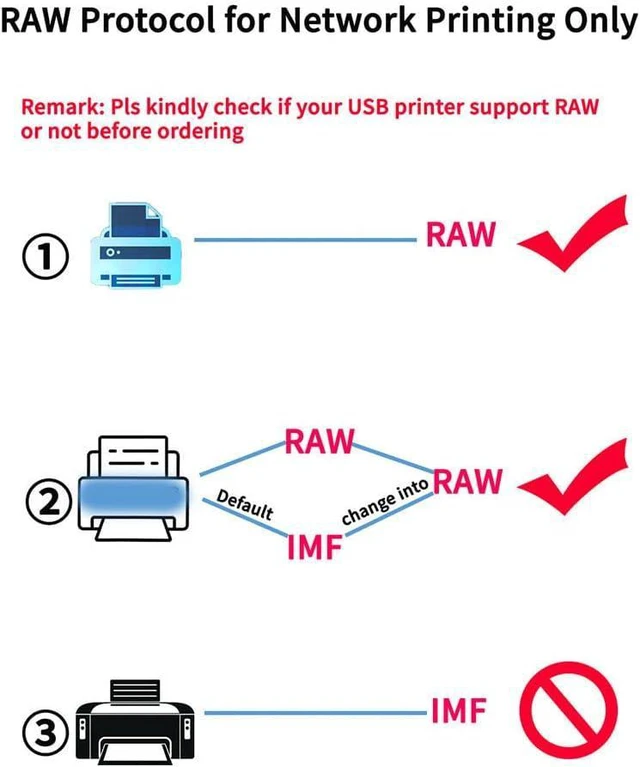
LOYALTY-SECU Mini Network Print server for USB 2.0 Printer 1. What Network USB Print Server can Bring for You? 2. How to make your USB Printer Work with USB Network Print Server Quickly? A Quick Start of Network USB Print Server 3. The Workflow of USB Network Print Server with Your USB Printer 4. Something Important Needs to be Noted before Order The Do's and Don'ts 5. Unsupported Model for USB Printer List (Continuously Updated), Please double check before Order! 6. Quick Troubleshooting





 here!
here!