Your Browsing History
Meet Your Seller
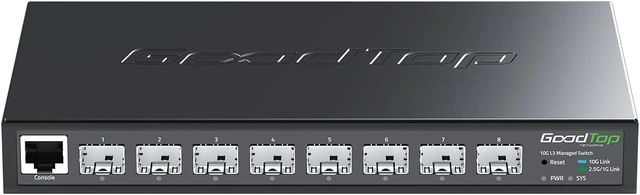
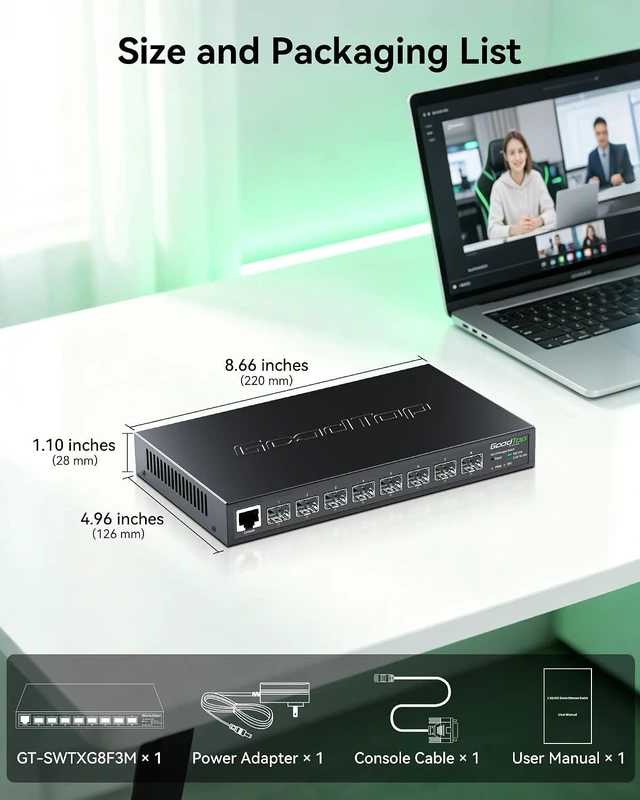
8-Port 10G SFP+ Switch, Layer 3 Managed, Enterprise Network Fiber Switch
- L3 Switch with Console | OSPF/RIP/VLAN/QoS/LACP | for Home Lab, SMB | Fanless | Metal Housing
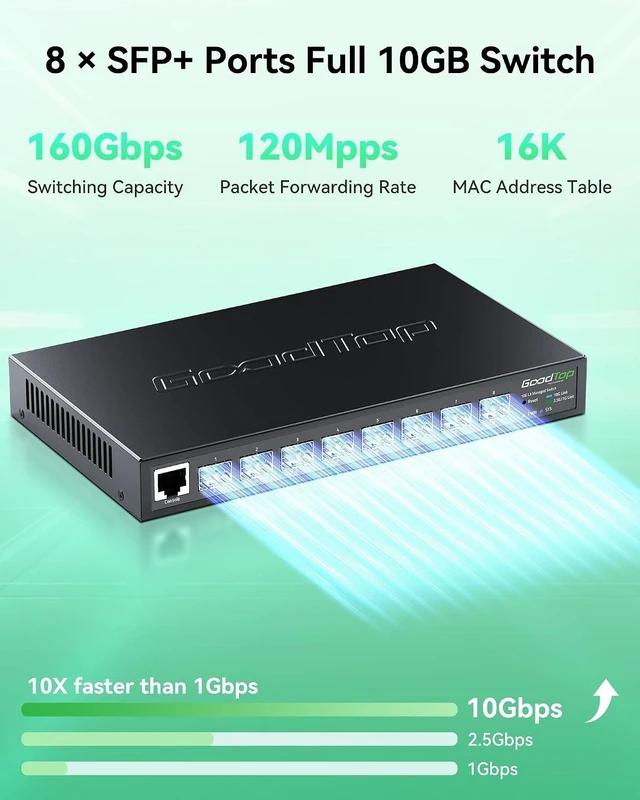
- 10G PerformanceEquipped with 8×10Gbps SFP+ ports and 160Gbps switching capacity. Perfect for NAS, high-speed workstations, and Wi-Fi 7 APs. Enjoy lag-free 8K video editing and lightning-fast file transfers for your home lab or creative studio.
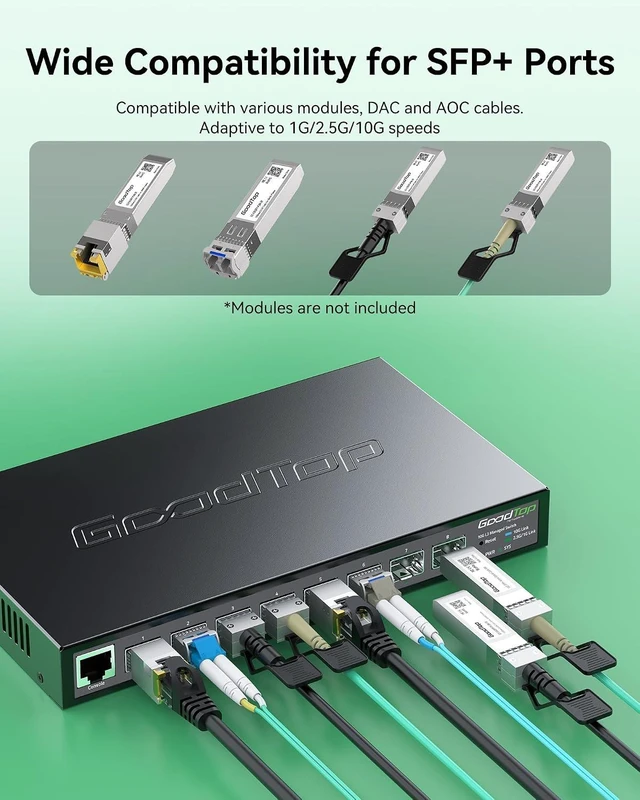
- Important Note Features two switchable global rate modes: 10G/1G (Default) and 10G/2.5G. Changing the mode for any port applies to all 8 ports. Ensure all connected modules (SFP+, DAC, or copper transceivers) match the active mode to avoid disconnection.
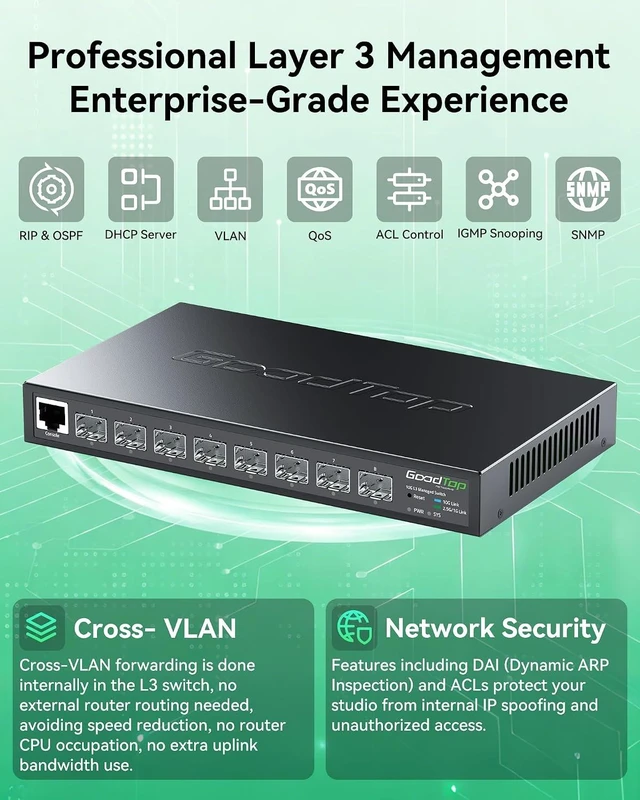
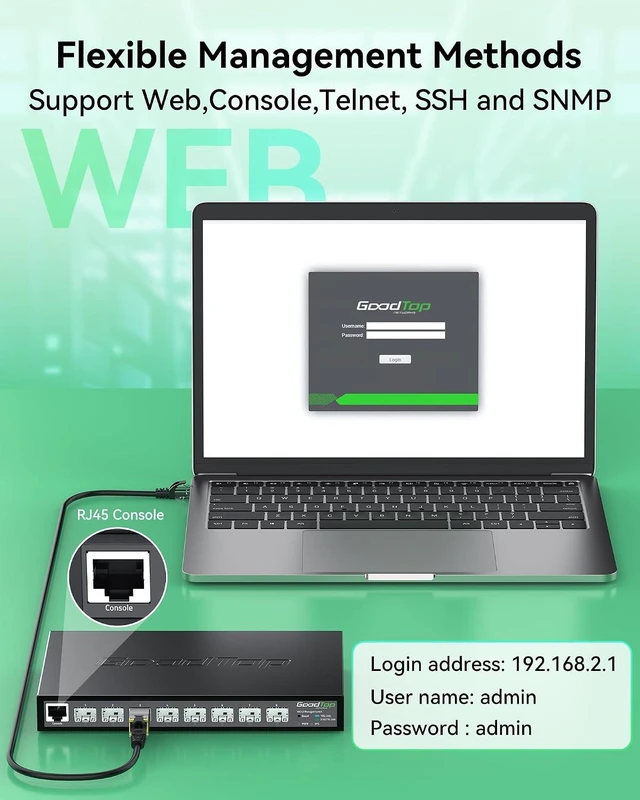
- Advanced L3 Routing & ManagementThis L3 managed switch supports Static Routing, RIP v1/v2, and OSPF v2. It handles inter-VLAN routing internally, drastically reducing load on your primary router. Manage your network like a pro via the intuitive web UI or industry-standard console port, for precise control over all data flows.
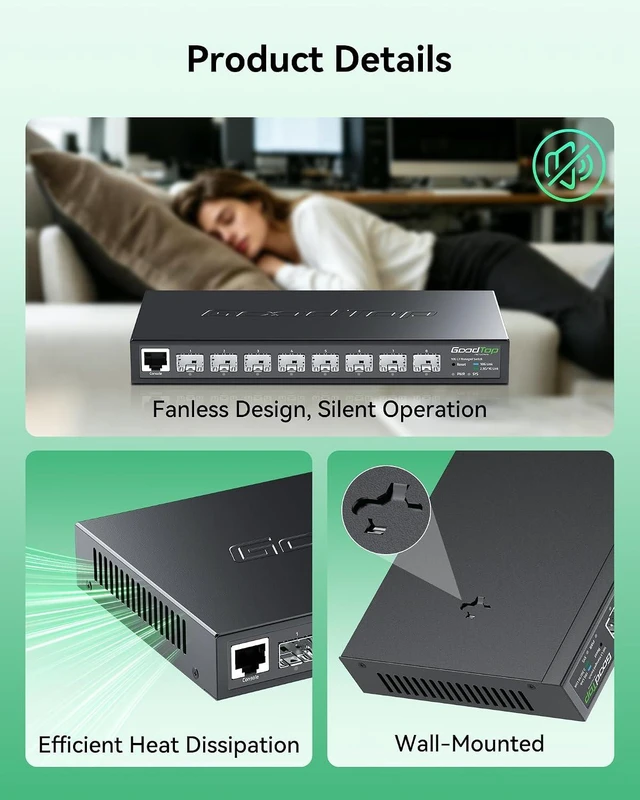
- Fanless Silent OperationFanless design with premium heat-dissipati
+
+
Overview
Specs
Reviews
Any questions? Ask CelesteSM will help you find out quickly.
Try me now
How to Access Web UI (192.168.2.1)?
1. Link PC to SFP+ port via transceiver.
2. Set PC IP: 192.168.2.X (e.g., 192.168.2.10) | Subnet Mask: 255.255.255.0
3. Login: Go to 192.168.2.1 in browser (Default User/Pass: admin).
4. If page fails to load, clear cache or use Incognito mode.
Can I plug a standard RJ45 Ethernet cable directly into the switch?
No. This switch features SFP+ Fiber Ports only. To connect a standard RJ45 Ethernet cable, you must use a SFP+ to RJ45 Copper Transceiver (sold separately). Tip: Ensure the transceiver's supported speed matches the switch's current Rate Mode.
Why are the port LEDs off after I plug in my 1G or 2.5G transceivers?
Possible Rate Mode mismatch. 2.5G devices won't connect in 10G/1G mode. Switch modes(via web UI): 10G/1G (default), 10G/2.5G (manual). Changing the rate mode for one port will apply to ALL 8 ports.
How to Access Web UI (192.168.2.1)?
Can I plug a standard RJ45 Ethernet cable directly into the switch?
Why are the port LEDs off after I plug in my 1G or 2.5G transceivers?
Why is the switch not working? Advanced L3 Routing for Seamless Networks Stop Data Leaks & Intruders Say Goodbye to Video Lag Isolate Devices, Boost Speed

1. Link PC to SFP+ port via transceiver.
2. Set PC IP: 192.168.2.X (e.g., 192.168.2.10) | Subnet Mask: 255.255.255.0
3. Login: Go to 192.168.2.1 in browser (Default User/Pass: admin).
4. If page fails to load, clear cache or use Incognito mode.
Can I plug a standard RJ45 Ethernet cable directly into the switch?
No. This switch features SFP+ Fiber Ports only. To connect a standard RJ45 Ethernet cable, you must use a SFP+ to RJ45 Copper Transceiver (sold separately). Tip: Ensure the transceiver's supported speed matches the switch's current Rate Mode.
Why are the port LEDs off after I plug in my 1G or 2.5G transceivers?
Possible Rate Mode mismatch. 2.5G devices won't connect in 10G/1G mode. Switch modes(via web UI): 10G/1G (default), 10G/2.5G (manual). Changing the rate mode for one port will apply to ALL 8 ports.
How to Access Web UI (192.168.2.1)?
Can I plug a standard RJ45 Ethernet cable directly into the switch?
Why are the port LEDs off after I plug in my 1G or 2.5G transceivers?
Why is the switch not working? Advanced L3 Routing for Seamless Networks Stop Data Leaks & Intruders Say Goodbye to Video Lag Isolate Devices, Boost Speed
Warranty & Returns
Warranty, Returns, And Additional Information
Warranty
- Please contact the Seller directly for warranty information. Warranty information may also be found on the Manufacturer's website.
- CONTACT
Return Policies
- Return for refund within: 30 days
- Return for replacement within: 30 days
- This item is covered by PartsPro Store Return Policy
Manufacturer Contact Info
- For a directory of all our manufacturers, please click below.
- Manufacturers Directory
LOADING...