Your Browsing History
Meet Your Seller
Wireless WiFi Blue-TH Network Print Server with 3 USB Ports, Supporting Three Different Network Segments
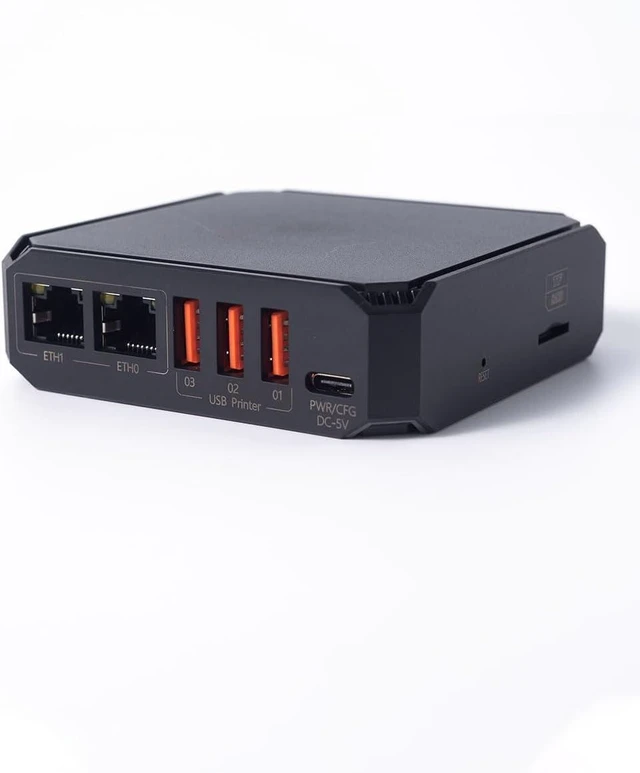
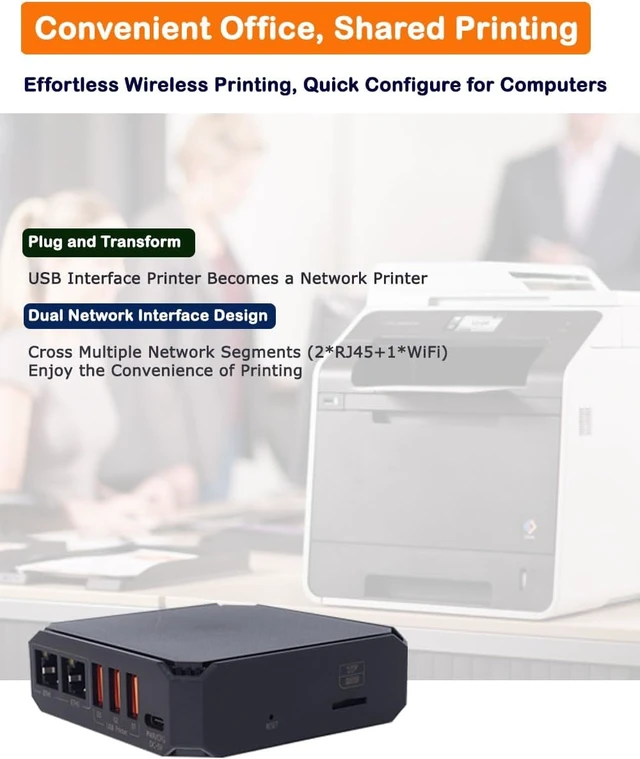
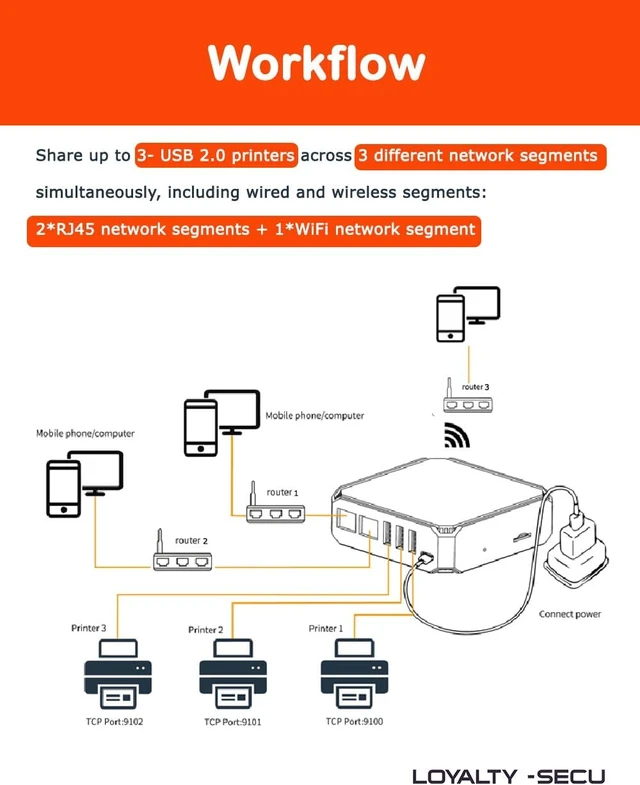
- 1. Instant Wireless Conversion: Effortlessly convert old USB printers into wireless printers for seamless cable-free printing. Dual RJ45 network ports support connectivity with two network segments, enabling simultaneous connection to three local area networks (2 RJ45 ports + WiFi).
- 2. Enhanced Performance and Stability: Experience faster, more reliable printing with the industrial-grade ARM A7 1.2GHz chipset. Upgraded heat radiating design ensures consistent performance and extended lifespan.
- 3. Versatile Printing Options: Print from your smartphone and computer simultaneously. This multifunctional adapter supports wired network, WiFi, and Blue-TH printing, accommodating up to three USB 2.0 printers. High compatibility with over 99.5% of printer models.
- 4. User-friendly Setup: Simplify installation with driver-free design and a user-friendly configuration tool. Easily connect and configure the adapter using the Type-C cable. Compatible with Windows, macOS, Linux, Android, and Harm
+
+
Overview
Specs
Reviews
Any questions? Ask CelesteSM will help you find out quickly.
Try me now
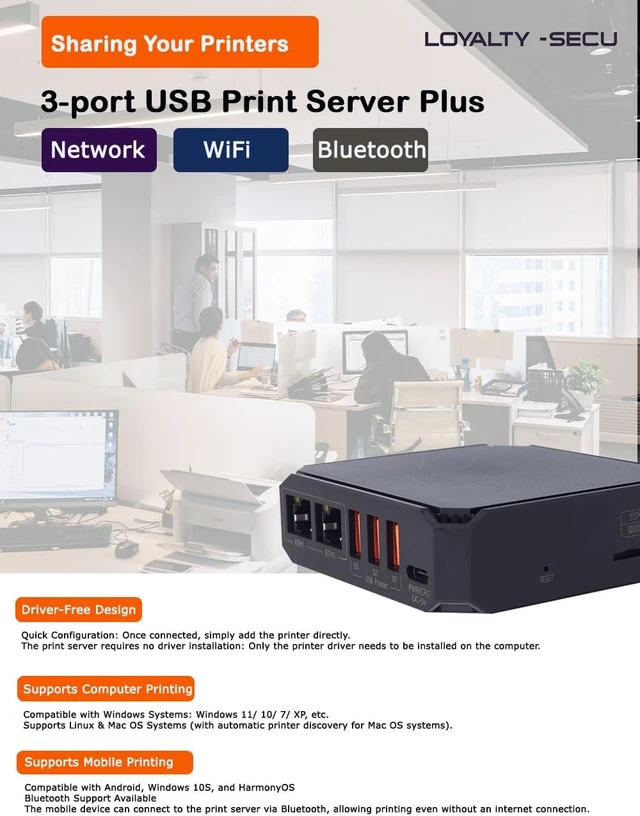
Easily transform old USB printers into wireless printers with the LOYALTY-SECU 3 USB Ports WiFi Bluetooth Print Server. Transform and share USB printers across 3 different network segments ( 2 RJ45 wired Connection + 1 WiFi Connection).
Integrated Bluetooth (4.0) and WiFi (2.4GHz 802.11b/g/n) functionality allow simultaneous printing via WiFi or Bluetooth. (Note: For Bluetooth printing, connect the USB printer to the USB01 port).
Featuring 3 USB 2.0 interfaces and 2 RJ45 ports, this device eliminates the need for dedicated computers or extra print servers. Its ideal for SOHO and office environments with multiple network segments and USB printers.
High Performance and Compatibility Powered by an ARM A7 1.2GHz industrial-grade chipset, the adapter offers fast and reliable performance. Its compatible with over 99.5% of USB printer brands, supporting the CUPS system, enabling flexible printer placement without the limitations of USB cables.
A. Printing via Wired or WiFi in LAN network on Computer:
Step 1: Please download the "Print Server Config Tool" from our business site onto your Windows computer.
Step 2: Connect the Print Server to your Windows computer using a USB cable.
Step 3: First, assign a fixed IP address to the USB Print Server using the "Print Server Config Tool" on your Windows computer.
Step 4: Add the IP address and USB port information of the print server to your target USB printer on your computer. Then you can enjoy excellent printing experience through the Print Server.
B. Printing via Android & Harmony Smartphone:
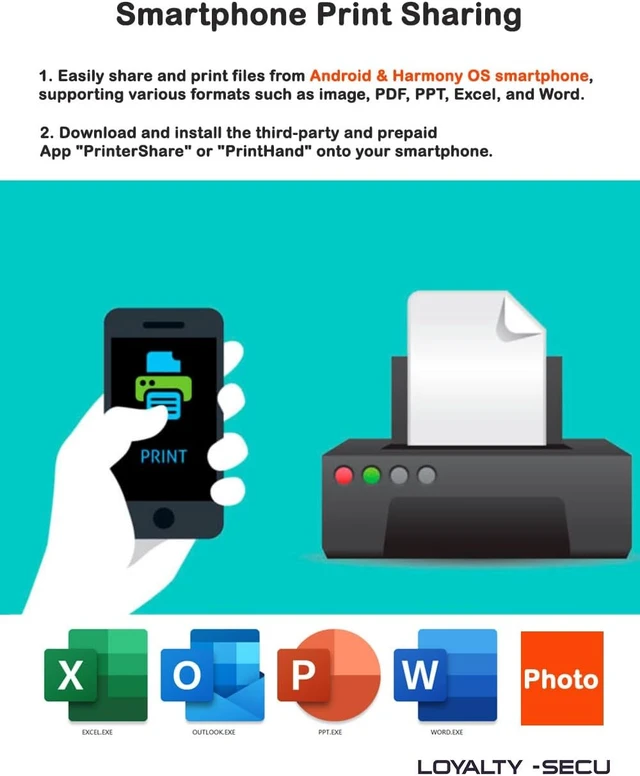
Download and install the third-party and prepaid app "PrinterShare" or "PrintHand" onto your Android & Harmony smartphone. Follow the manual instructions to set up the app, and then you can wirelessly send print jobs to your USB printer in the LAN.
A. Printing via Bluetooth on Windows Computers (No PIN code required):
Step 1: Connect the printer to USB01 PORT ONLY of the print server using a USB cable.
Step 2: Power on the print server and USB printer.
(The Bluetooth print server will be named after the connected USB printer and automatically paired with your computer.)
Step 3: Obtain the Bluetooth Networking COM Number of the Print Server.
Step 4: In Printer Properties on your computer, select the corresponding COM Number for the target USB Printer.
Step 5: Enjoy printing via Bluetooth from your computer to the USB Printer.
B. Printing via Bluetooth on Android & Harmony Smartphones:
Download and install the prepaid third-party app "PrinterShare" or "PrintHand" onto your Android & Harmony smartphone. Start the Bluetooth connection, and then you can send print jobs via Bluetooth from your Android & Harmony smartphone to your USB printer.
LOYALTY-SECU Print Server Products are best suited for users with some familiarity with network settings.
LOYALTY-SECU offers TeamViewer or AnyDesk for quick and easy configuration.
Before using the print function, please ensure you download the Print Server Configuration App and User Manual from our official site.
Requirements:
A Windows OS computer is needed for Bluetooth printing.
Windows, MAC, and LINUX OS computers are compatible for LAN printing.
Android and Harmony smartphones support LAN or Bluetooth printing.
Note for Smartphone Printing: To use LAN or Bluetooth printing on your Android or Harmony smartphone, you will need to install a third-party, prepaid app such as "PrinterShare" or "PrintHand."
If you have any questions about the product configuration or usage, we recommend reviewing our product details carefully before placing an order. We are a small startup, and we greatly appreciate your support!
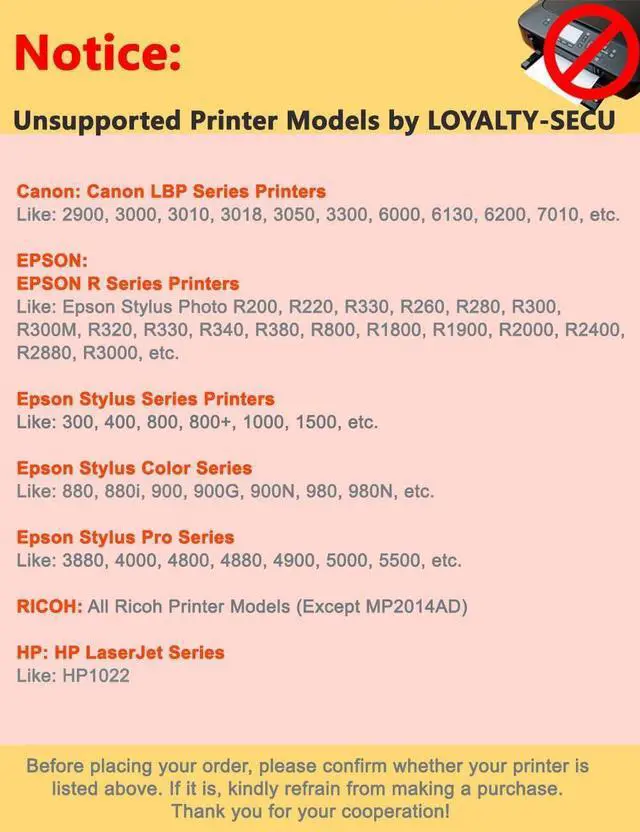
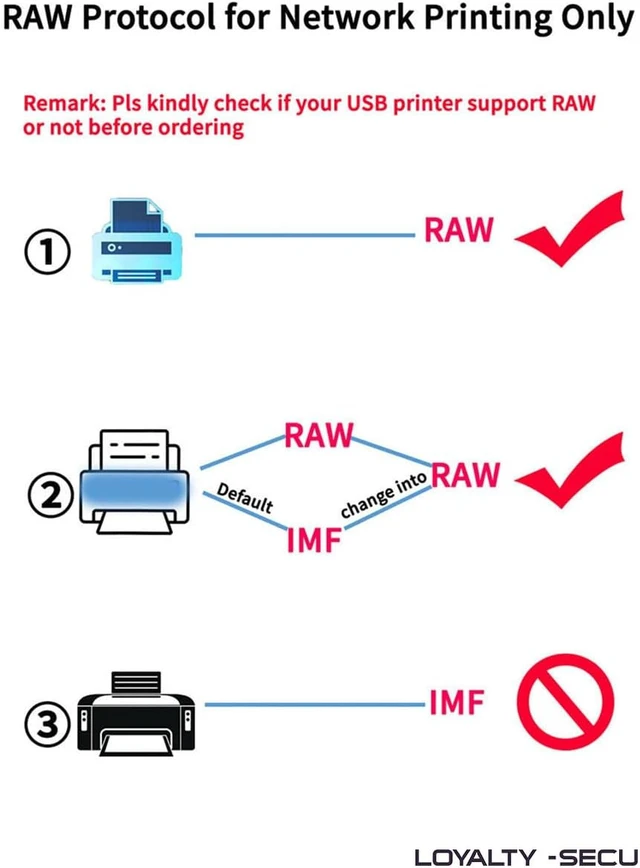
Canon: Canon LBP Series Printers:
For Example : 2900/3000/3010/3018/3050/3300/6000/6130/6200/7010 etc.
EPSON: EPSON R Series Printers:
For Example : Epson Stylus Photo R200/220/330/260/280/300/300M/32

Integrated Bluetooth (4.0) and WiFi (2.4GHz 802.11b/g/n) functionality allow simultaneous printing via WiFi or Bluetooth. (Note: For Bluetooth printing, connect the USB printer to the USB01 port).
Featuring 3 USB 2.0 interfaces and 2 RJ45 ports, this device eliminates the need for dedicated computers or extra print servers. Its ideal for SOHO and office environments with multiple network segments and USB printers.
High Performance and Compatibility Powered by an ARM A7 1.2GHz industrial-grade chipset, the adapter offers fast and reliable performance. Its compatible with over 99.5% of USB printer brands, supporting the CUPS system, enabling flexible printer placement without the limitations of USB cables.
A. Printing via Wired or WiFi in LAN network on Computer:
Step 1: Please download the "Print Server Config Tool" from our business site onto your Windows computer.
Step 2: Connect the Print Server to your Windows computer using a USB cable.
Step 3: First, assign a fixed IP address to the USB Print Server using the "Print Server Config Tool" on your Windows computer.
Step 4: Add the IP address and USB port information of the print server to your target USB printer on your computer. Then you can enjoy excellent printing experience through the Print Server.
B. Printing via Android & Harmony Smartphone:
Download and install the third-party and prepaid app "PrinterShare" or "PrintHand" onto your Android & Harmony smartphone. Follow the manual instructions to set up the app, and then you can wirelessly send print jobs to your USB printer in the LAN.
A. Printing via Bluetooth on Windows Computers (No PIN code required):
Step 1: Connect the printer to USB01 PORT ONLY of the print server using a USB cable.
Step 2: Power on the print server and USB printer.
(The Bluetooth print server will be named after the connected USB printer and automatically paired with your computer.)
Step 3: Obtain the Bluetooth Networking COM Number of the Print Server.
Step 4: In Printer Properties on your computer, select the corresponding COM Number for the target USB Printer.
Step 5: Enjoy printing via Bluetooth from your computer to the USB Printer.
B. Printing via Bluetooth on Android & Harmony Smartphones:
Download and install the prepaid third-party app "PrinterShare" or "PrintHand" onto your Android & Harmony smartphone. Start the Bluetooth connection, and then you can send print jobs via Bluetooth from your Android & Harmony smartphone to your USB printer.
LOYALTY-SECU Print Server Products are best suited for users with some familiarity with network settings.
LOYALTY-SECU offers TeamViewer or AnyDesk for quick and easy configuration.
Before using the print function, please ensure you download the Print Server Configuration App and User Manual from our official site.
Requirements:
A Windows OS computer is needed for Bluetooth printing.
Windows, MAC, and LINUX OS computers are compatible for LAN printing.
Android and Harmony smartphones support LAN or Bluetooth printing.
Note for Smartphone Printing: To use LAN or Bluetooth printing on your Android or Harmony smartphone, you will need to install a third-party, prepaid app such as "PrinterShare" or "PrintHand."
If you have any questions about the product configuration or usage, we recommend reviewing our product details carefully before placing an order. We are a small startup, and we greatly appreciate your support!
Canon: Canon LBP Series Printers:
For Example : 2900/3000/3010/3018/3050/3300/6000/6130/6200/7010 etc.
EPSON: EPSON R Series Printers:
For Example : Epson Stylus Photo R200/220/330/260/280/300/300M/32
Warranty & Returns
Warranty, Returns, And Additional Information
Warranty
- Please contact the Seller directly for warranty information. Warranty information may also be found on the Manufacturer's website.
- CONTACT
Return Policies
- Return for refund within: 30 days
- Return for replacement within: 30 days
- This item is covered by PartsPro Store Return Policy
Manufacturer Contact Info
- For a directory of all our manufacturers, please click below.
- Manufacturers Directory
LOADING...