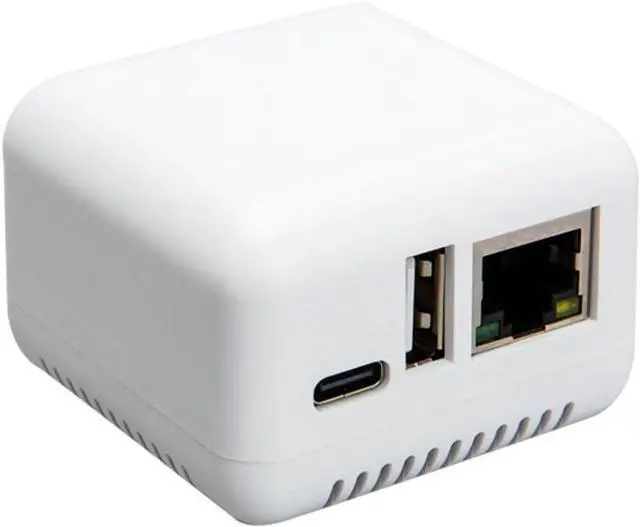
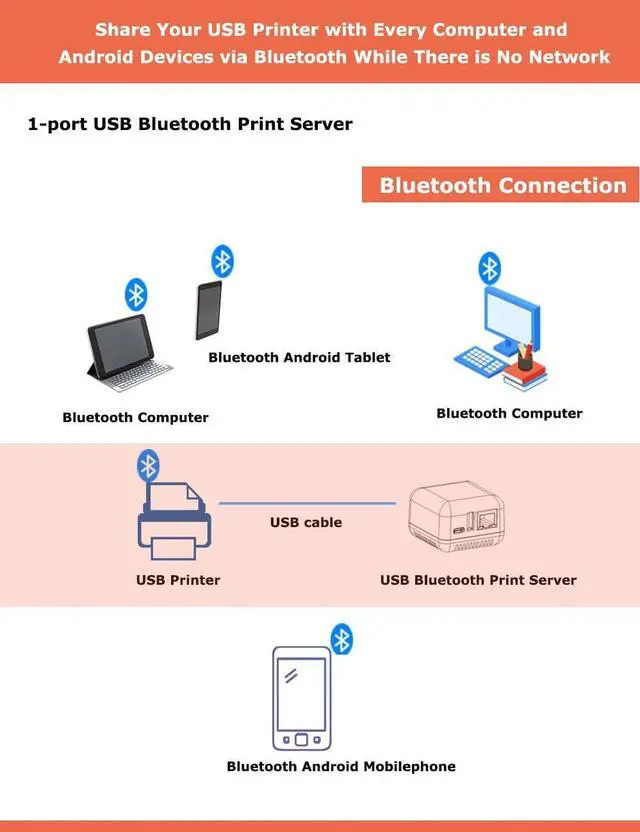
Our Blue TH Network USB Print Server enhances productivity, whether you're working from home or in the office. Connect our print server to your USB printer for seamless operation.
Easily transform your USB printer into a Blue TH network printer with our reliable Blue TH Network Print Server. Connect it to your USB printer and experience the convenience.
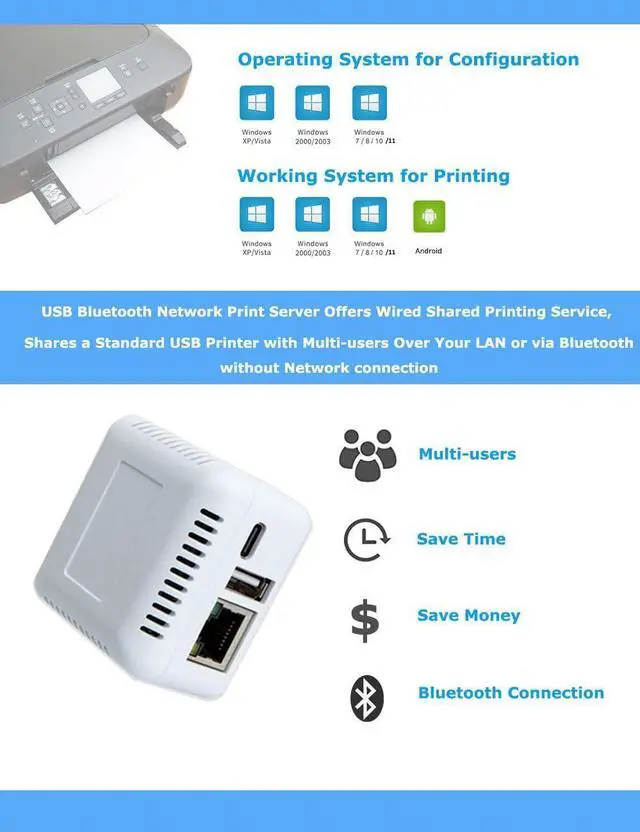
Share your USB printer with multiple users simultaneously over a LAN network using our USB Blue TH Network Print Server. Collaborate effortlessly.
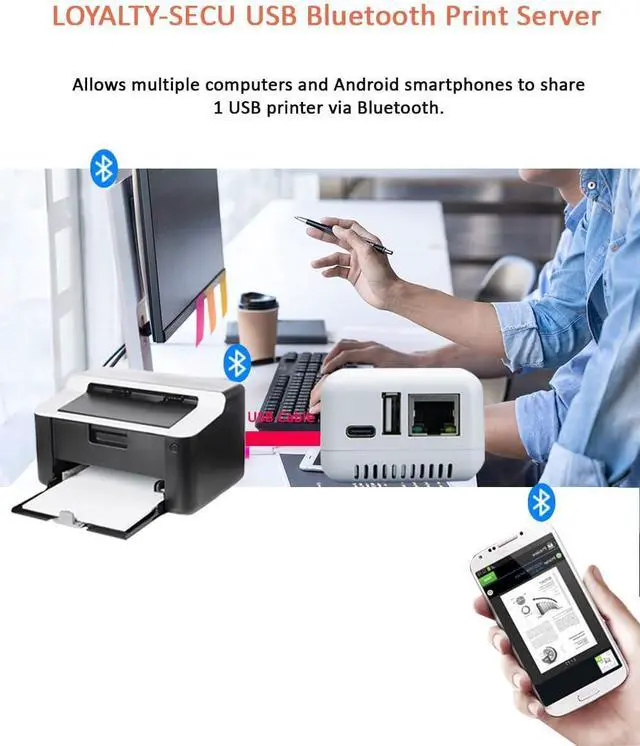
The USB 2.0 Blue TH Network Print Server enables wireless printing from your Android smartphone and computer within the LAN. Enjoy the freedom of Blue TH printing even without an internet connection.
Effortlessly print files in various formats, including images, PDFs, PPTs, Excel, and Word documents wirelessly from your Android smartphone and computer. Experience wireless convenience with our network USB print server.
1. For Printing via Blue TH on Windows Computers (No pin code required):
Step1: Connect the Blue TH print server to the USB Printer using a USB Cable.
Step2: Power on both the print server and USB Printer. (The Blue TH print server will be named after the connected USB Printer)
Step3: Obtain the Blue TH Networking COM Number of the Print Server.
Step4: In the Printer Properties of your computer, select the corresponding COM Number for the target USB Printer.
Step5: Enjoy seamless printing via Blue TH from your computer to the USB Printer.
2. Android Smartphone Printing via Blue TH :
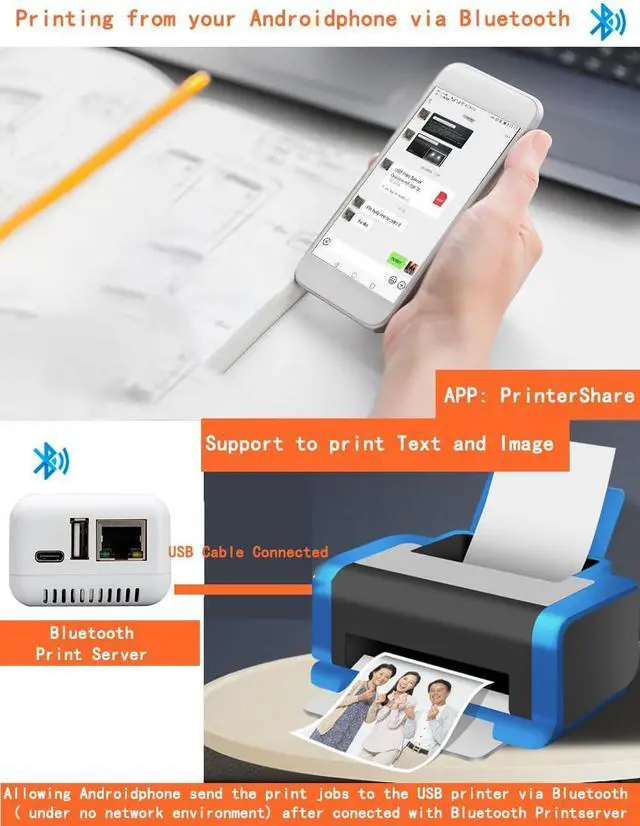
Step1: Download and install the "PrinterShare" or "PrintHand" Pre-paid Third-Party APP on your Android Smartphone.
Step2: Establish a Blue TH connection and send print jobs from your Android smartphone to your USB printer.
Note: Please refer to our user manual for the configuration process.
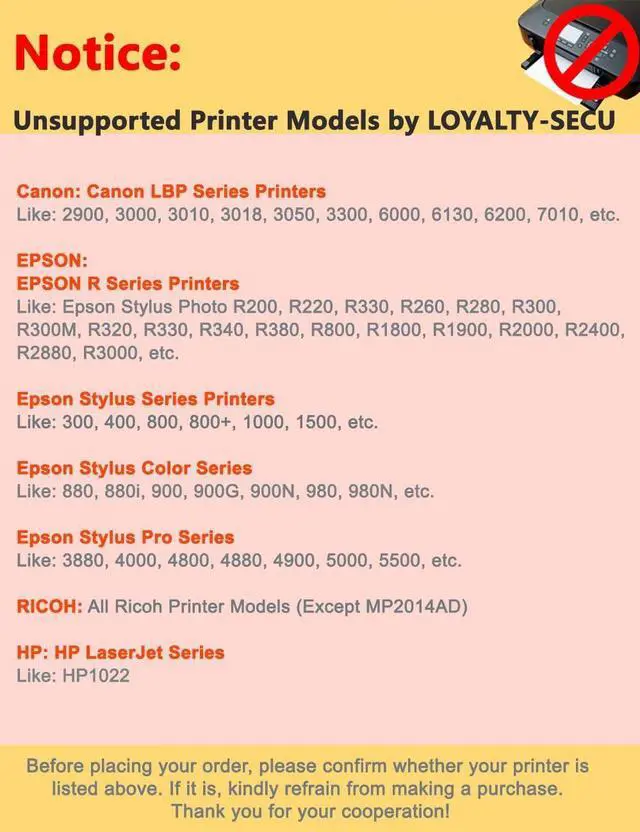
Compatibility: Kindly Note That Printing via Blue TH is Not Supported on iOS Devices (iPhone, Tablet) and Mac OS Systems. Please consider this limitation when making your purchase decision.
Configuration: Please note that our USB Print Server does not support configuration on Mac OS systems. However, once successfully configured from a Windows computer, it can be used for printing from Mac OS computers via LAN only.
We apologize for any inconvenience caused by these limitations. If you have any further questions or concerns, please don't hesitate to contact our customer support team before placing your order.
Step 1: Please download Print Server Config Tool from our business site into your Windows computer.
Step 2: Please connect Print Server with Your Windows computer via USB cable.
Step 3: Please assign a fixed IP address for the USB Print Server via Print Server Config Tool on Windows computer firstly.
Step 4: Add the IP address and USB port information of print server into your target USB printer in your computer. Then you can explore the excellent printing experience via the Print Server.
Step 5: Download and install APP PrinterShare or PrintHand into your Android Smartphone and follow manual user to setup, then you can send print jobs to your USB printer wirelessly in LAN.
USB Print Server Configuration: Please use the "Print Server Config Tool" on a Windows operating system computer for configuring the USB print server. Mac operating system computers do not support this configuration tool.
Print Job Compatibility: Only Android smartphones support sending print jobs to your USB printer via the USB print server. iOS iPhones do not support this feature. Additionally, Mac operating system computers do not support sending print jobs to USB printers via the Blue TH function, only through the network.
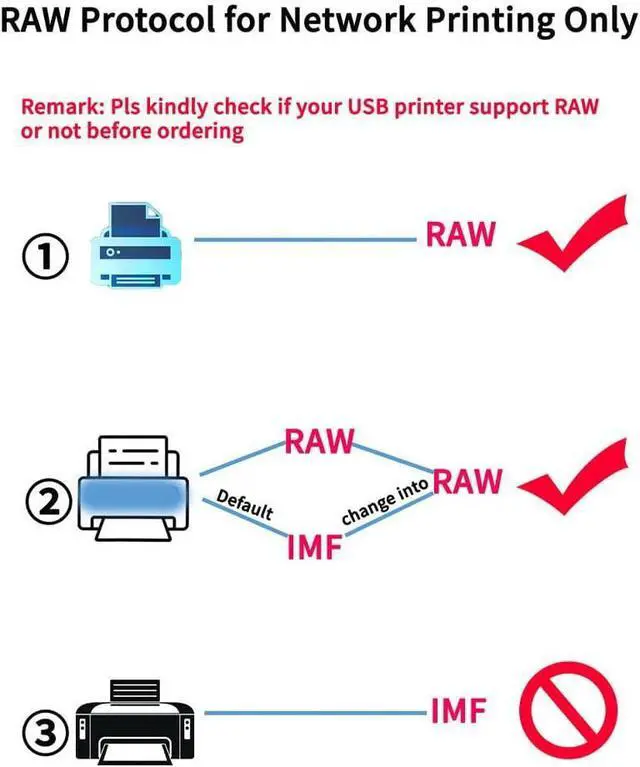
RAW Protocol Requirement: Please ensure that your USB printer supports the RAW protocol, as the IMF protocol is not supported.
App Store Disclaimer: Please note that the apps "PrinterShare" or "PrintHand" may not be available





 here!
here!