Your Browsing History
Meet Your Seller
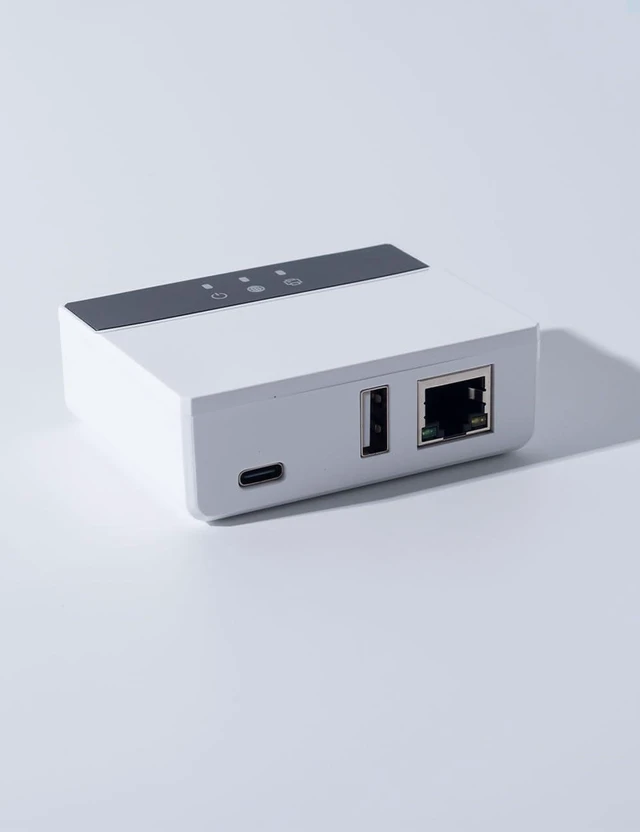
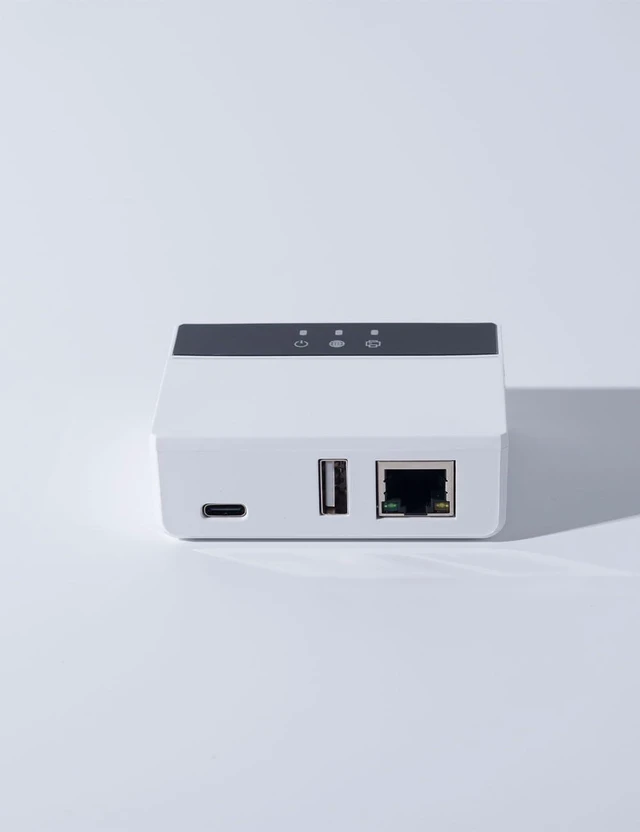
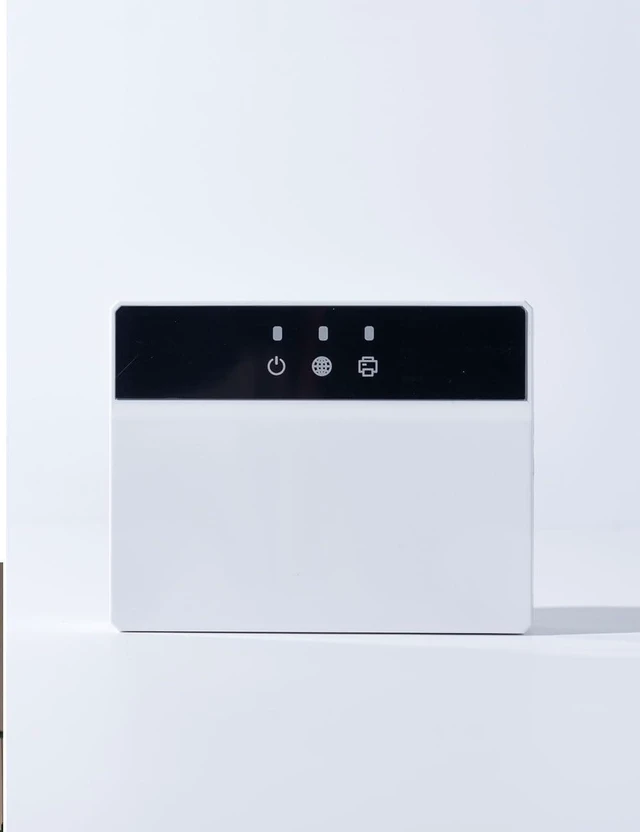
WiFi Bluetooth Cloud Print Server
- Upgrade USB Printers to Wireless LAN & Remote Printing, API & MQTT Supported
- Instant USB-to-Wireless Upgrade Easily turn your traditional USB printer into a wireless device within seconds using the LOYALTY-SECU WiFi & Bluetooth Cloud Print Server enjoy cable-free, smart printing anytime. Warm Reminder: LOYALTY-SECU Print Servers do not support printing from iPhone or iPad, and Bluetooth printing is not supported on Mac OS PCs.
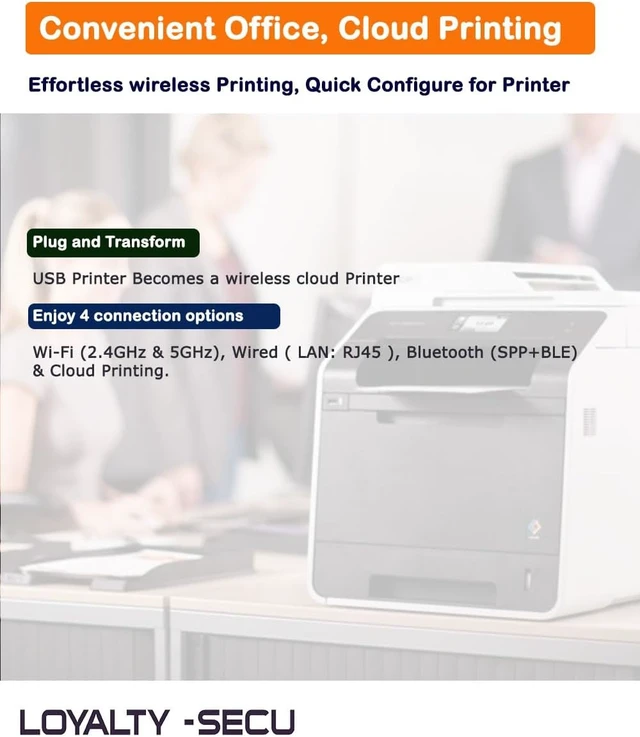
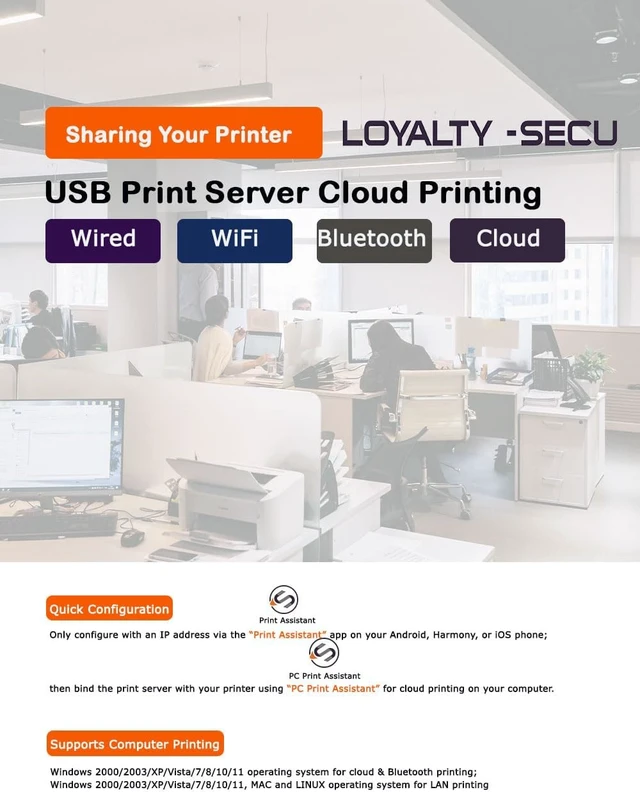
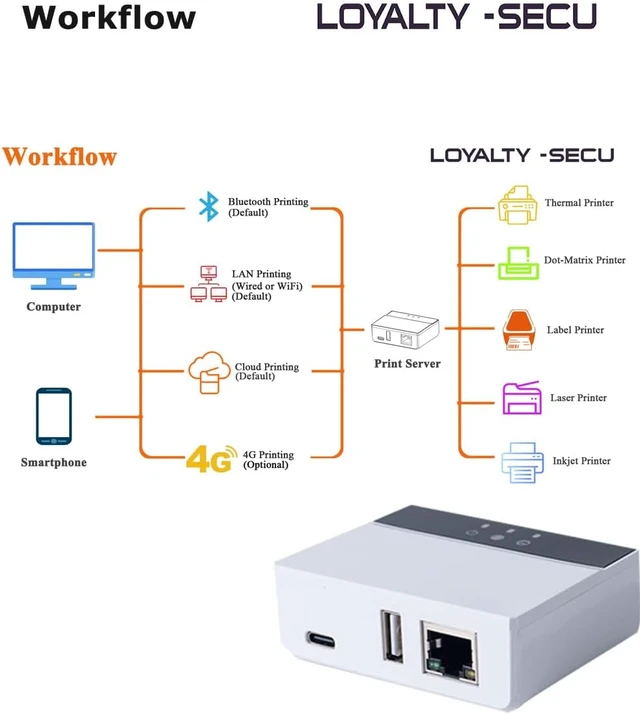
- Multiple Printing Options & Wide Compatibility Supports Wi-Fi (2.4GHz & 5GHz), LAN (RJ45), Bluetooth, and Cloud printing. Compatible with over 99.5% of USB printers, ensuring seamless connection across various devices and systems.
- Bluetooth Printing Without Network Share one USB printer via Bluetooth, even without a network connection simply connect your printer to the Bluetooth print server for instant printing access.
- API & MQTT Integration for Developers Fully supports third-party MQTT servers and custom private cloud solutions, offering flexible inte
+
+
Overview
Specs
Reviews
Any questions? Ask CelesteSM will help you find out quickly.
Try me now
The LOYALTY-SECU WiFi Blue~tooth Cloud Print Server is an industrial-grade print server that transforms any USB printer into a wireless printer, supporting both WiFi and Blue~tooth connections. It allows remote printing via cloud services. Ideal for home, office, business, and educational environments.
This cloud USB print server adapter provides an ideal printing solution, especially suited for home or small office environments, as well as government and educational institutions that need to collaborate across different LAN networks and rely on efficient, shared cloud printing capabilities.
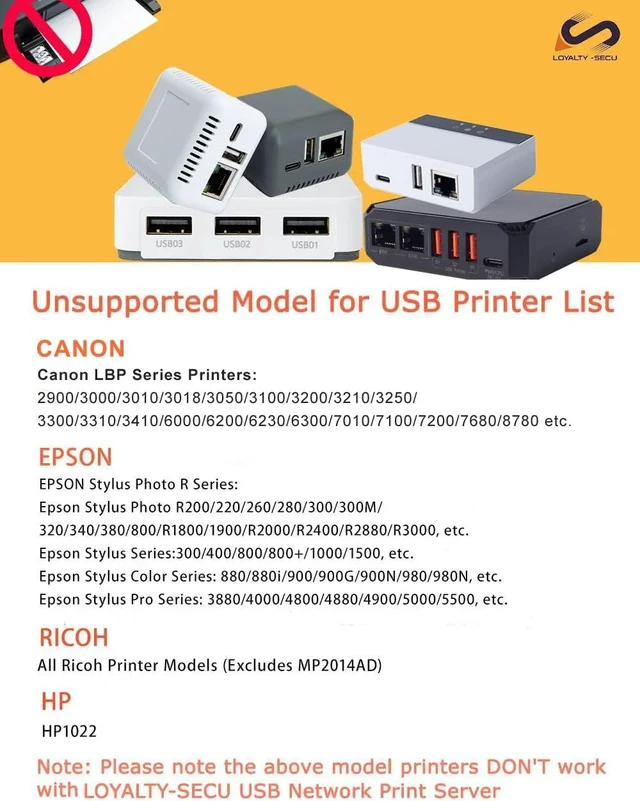
Compatible Devices: Supports inkjet printers, laser printers, label printers, thermal printers, dot matrix printers, and multifunction printers.
Use Cases: Home offices, schools, logistics centers, e-commerce, enterprises, and more.
LOYALTY-SECU Print Server Products are best suited for users with some familiarity with network settings.
LOYALTY-SECU offers TeamViewer or AnyDesk for quick and easy configuration.
Before using the print function, please ensure you download the Print Server Configuration App and User Manual from our official site.
Requirements:
A Windows OS computer is needed for cloud or Blue~tooth printing.
Windows, MAC, and LINUX OS computers are compatible for LAN printing.
Android and Harmony smartphones support LAN or Blue~tooth printing.
Note for Smartphone Printing: To use LAN or Blue~tooth printing on your Android or Harmony smartphone, you will need to install a third-party, prepaid app such as "PrinterShare" or "PrintHand."
Our CMS 'PC Print Assistant' may be mistakenly flagged by antivirus software on some systems with higher security settings. If this is a concern for you, please consider your purchase carefully. Thank you for your understanding.
If you have any questions about the product configuration or usage, we recommend reviewing our product details carefully before placing an order. We are a small startup, and we greatly appreciate your support!
Install APP Print Assistant for Network Configuration on Smartphone
Power On the Print Server: Use LOYALTY-SECU power adapter to turn on the print server.
Enable Blue~tooth: Turn on Blue~tooth on your smartphone, then open the APP Print Assistant.
Connect to the Device: In the app, select the device (e.g., SW123456789) and tap Connect.
Config WiFi: Choose your WiFi network ( 2.4GHz or 5GHz), enter the password, and the device will automatically obtain an IP address.
Connection Confirmation: Once connected, the app will show Connected and display the assigned IP address for print server.
4.3. Printing from Windows Computers For Cloud Printing ( Supports Windows 2000/2003/XP/Vista/7/8/10/11)
Install CMSPC Print Assistantfor Cloud Printing on Windows Computer
Power on the print server and the USB printer; Connect the print server to the printer using a USB cable; Ensure that the print server is connected to the internet; Open the PC Print Assistant.
Add A Print Server in PC Print Assistant
Click the Add New button to add the print server; Input the Device Code (located on the device label); Input the Pin Code (located on the device label); Click the OK button; The print server will be successfully listed in the device list; Bind the Printer to PC (Windows) for Cloud Printing; Click the Bind Printer button; Select the printer driver for the printer; Click the OK button.
Now, you can print via the LAN network or cloud network.
How to Configure Bluetooth Printing
Step 1: Connect your USB printer to the USB port of the print server.
Step 2: Pair with the Bluetooth Print Server
Turn on Bluetooth on your computer or smartphone.
Pair it with the Bluetooth print server. The device name will be the Device Code (e.g., SW123456789).
No PIN code is required for pairing.
Step 3: Assign the COM Number

This cloud USB print server adapter provides an ideal printing solution, especially suited for home or small office environments, as well as government and educational institutions that need to collaborate across different LAN networks and rely on efficient, shared cloud printing capabilities.
Compatible Devices: Supports inkjet printers, laser printers, label printers, thermal printers, dot matrix printers, and multifunction printers.
Use Cases: Home offices, schools, logistics centers, e-commerce, enterprises, and more.
LOYALTY-SECU Print Server Products are best suited for users with some familiarity with network settings.
LOYALTY-SECU offers TeamViewer or AnyDesk for quick and easy configuration.
Before using the print function, please ensure you download the Print Server Configuration App and User Manual from our official site.
Requirements:
A Windows OS computer is needed for cloud or Blue~tooth printing.
Windows, MAC, and LINUX OS computers are compatible for LAN printing.
Android and Harmony smartphones support LAN or Blue~tooth printing.
Note for Smartphone Printing: To use LAN or Blue~tooth printing on your Android or Harmony smartphone, you will need to install a third-party, prepaid app such as "PrinterShare" or "PrintHand."
Our CMS 'PC Print Assistant' may be mistakenly flagged by antivirus software on some systems with higher security settings. If this is a concern for you, please consider your purchase carefully. Thank you for your understanding.
If you have any questions about the product configuration or usage, we recommend reviewing our product details carefully before placing an order. We are a small startup, and we greatly appreciate your support!
Install APP Print Assistant for Network Configuration on Smartphone
Power On the Print Server: Use LOYALTY-SECU power adapter to turn on the print server.
Enable Blue~tooth: Turn on Blue~tooth on your smartphone, then open the APP Print Assistant.
Connect to the Device: In the app, select the device (e.g., SW123456789) and tap Connect.
Config WiFi: Choose your WiFi network ( 2.4GHz or 5GHz), enter the password, and the device will automatically obtain an IP address.
Connection Confirmation: Once connected, the app will show Connected and display the assigned IP address for print server.
4.3. Printing from Windows Computers For Cloud Printing ( Supports Windows 2000/2003/XP/Vista/7/8/10/11)
Install CMSPC Print Assistantfor Cloud Printing on Windows Computer
Power on the print server and the USB printer; Connect the print server to the printer using a USB cable; Ensure that the print server is connected to the internet; Open the PC Print Assistant.
Add A Print Server in PC Print Assistant
Click the Add New button to add the print server; Input the Device Code (located on the device label); Input the Pin Code (located on the device label); Click the OK button; The print server will be successfully listed in the device list; Bind the Printer to PC (Windows) for Cloud Printing; Click the Bind Printer button; Select the printer driver for the printer; Click the OK button.
Now, you can print via the LAN network or cloud network.
How to Configure Bluetooth Printing
Step 1: Connect your USB printer to the USB port of the print server.
Step 2: Pair with the Bluetooth Print Server
Turn on Bluetooth on your computer or smartphone.
Pair it with the Bluetooth print server. The device name will be the Device Code (e.g., SW123456789).
No PIN code is required for pairing.
Step 3: Assign the COM Number
Warranty & Returns
Warranty, Returns, And Additional Information
Warranty
- Please contact the Seller directly for warranty information. Warranty information may also be found on the Manufacturer's website.
- CONTACT
Return Policies
- Return for refund within: 30 days
- Return for replacement within: 30 days
- This item is covered by PartsPro Store Return Policy
Manufacturer Contact Info
- For a directory of all our manufacturers, please click below.
- Manufacturers Directory
LOADING...