

Your Browsing History
- Free 30-day Returns
$522.99

Meet Your Seller


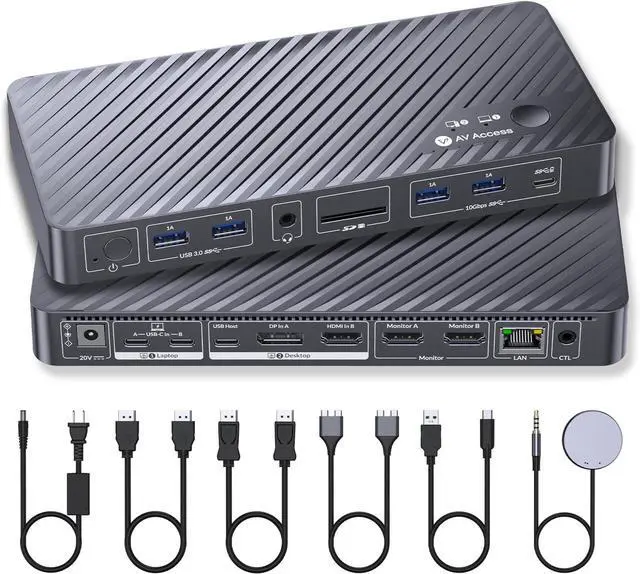
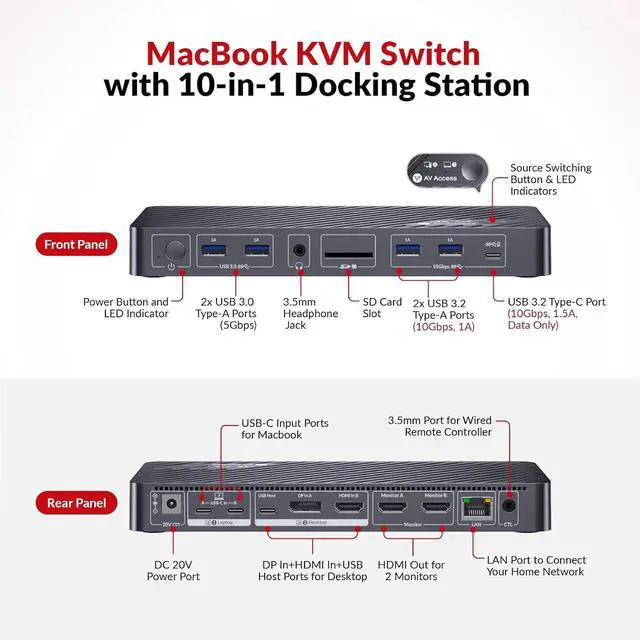
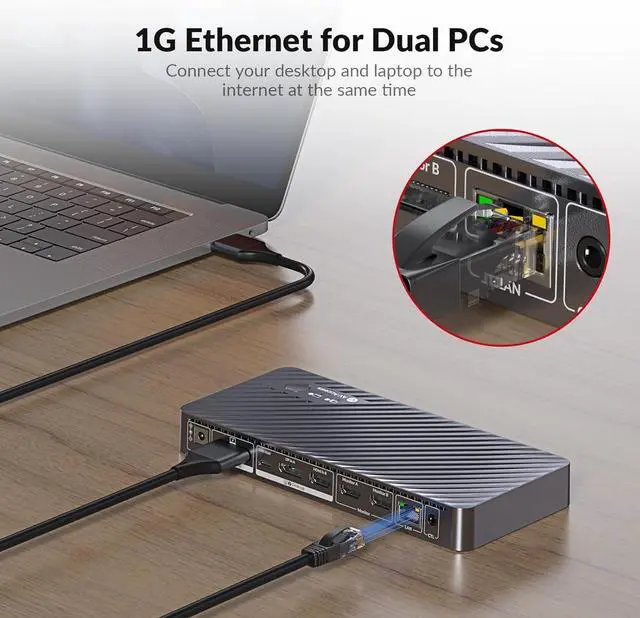
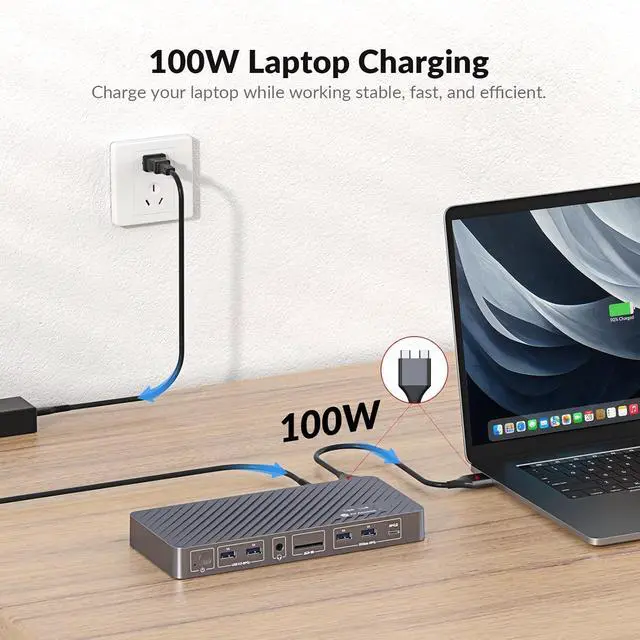


AV Access KVM Switch Docking Station for MacBook, USB-C KVM Switch 2 Monitors 2 Computers, 4K Dual HDMI Displays, 1 Laptop&1 Desktop Switching, Plug&Play, Ethernet, 100W Power Delivery, EDID Emulation
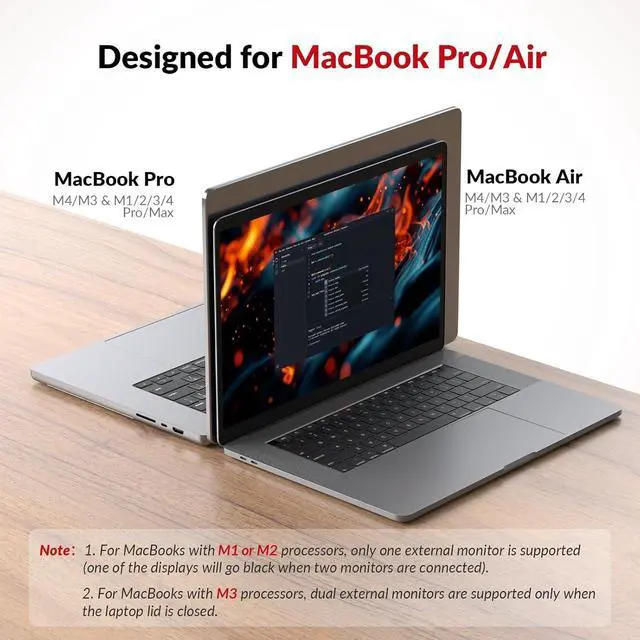
- Important Notes: 1. For MacBooks with M1 or M2 processors, only one external monitor is supported (one of the displays will go black when two monitors are connected). 2. For MacBooks with M3 processors, dual external monitors are supported only when the laptop lid is closed.
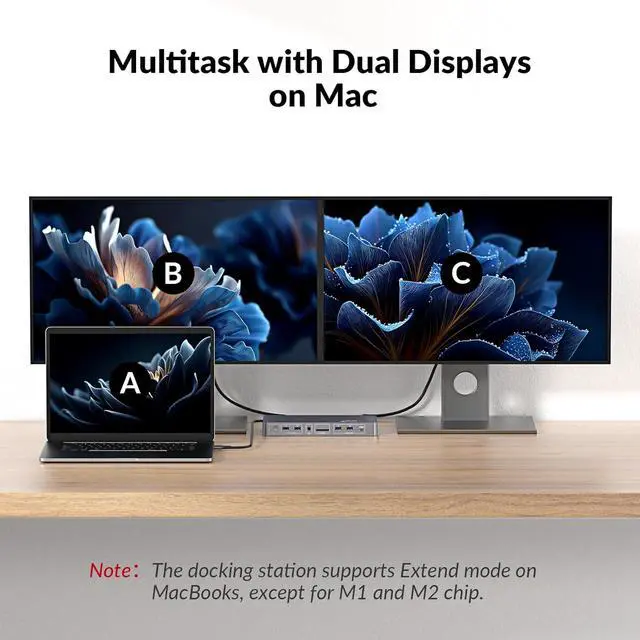
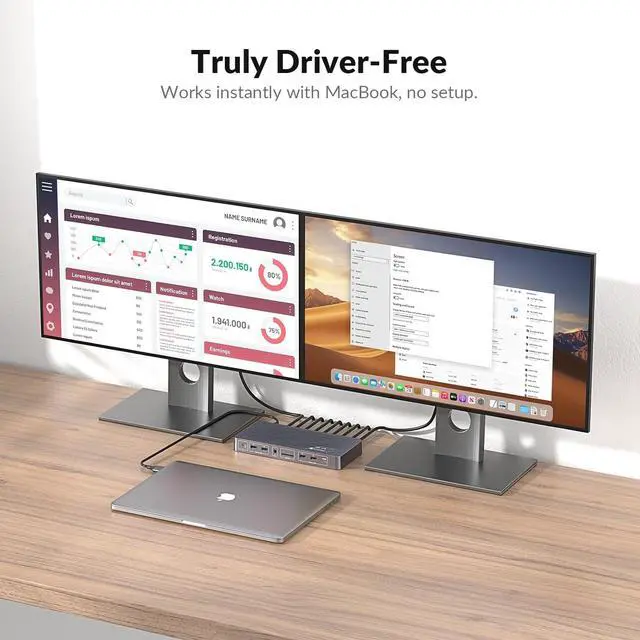
- Designed for Your MacBookThis dual USB-C KVM switch docking station works seamlessly with a wide range of MacBook Pro and MacBook Air models, as well as Mac mini and Mac Studio. It supports dual extended displays on macOS with M1/M2/M3/M4 Pro, M1/M2/M3/M4 Max, and M3/M4 chips. No additional drivers or software required.
- Dual 4K Displays, One Seamless WorkflowConnect 1 laptop (MacBook supported) and 1desktop to two HDMI monitors. Effortlessly switch between systems using the top-mounted button or included wired remote. Ideal for multitasking in office, education, design, and light gaming environments.
- 10-in-1 KVM Docking StationIncludes 2 x HDMI, 3 x USB 3.0, 2 x USB 2.0, 1 x USB-C (host input), SDXC card
+
+
Overview
Reviews

Any questions? Our AI mode will help you find out quickly.
Try me now
1Plug & Play for Mac Users2Dual Screen Mac Setup310Gbps Faster Transfer1EDID Emulation2Two Ways Switching Way1Universal Compatibility2Compact Design3Check Before Purchase How do I know if my MacBook is compatible with this product?
Intel / M1 or M2 (non-Pro/Max): iDock M10 can extend to only one external display.
M3 (non-Pro): up to two extended displays when the lid is closed; lid open supports mirroring only.
M4 or any Pro/Max chip: supports two extended displays.
Does this product support DisplayLink? Do I need to install any software or drivers?
No, this product doesnt use DisplayLink. No software or drivers are neededjust plug and play. It connects to your MacBook using the included dual-head USB-C cable, or you can use two separate USB-C cables of your own.
Can I use iDock M10 with a Mac Mini or Mac Studio?
Yes. To connect a MacBook + Mac mini/Mac Studio:
1. Both devices must have a Pro chip or M3 (or newer).
2. The Mac mini/Mac Studio needs enough ports (adapters allowed) to connect to the HDMI, DP, and USB-C ports labeled Desktop on iDock M10.
Can I use iDock M10 together with an existing docking station?
If you connect the docking station and iDock to separate USB ports on your laptop, they work normally. But if you plug the iDock into the docking station instead of the laptop, compatibility issues may occur.
What are the advantages of iDock M10 over a DisplayLink solution?
1. iDock M10 is fully plug-and-play with no software needed, so it works freely and poses no security risk.
2. iDock M10 sends DP Alt video signals directly over USB-C without compression, ensuring stable and reliable video quality.
How do I know if my MacBook is compatible with this product?
Does this product support DisplayLink? Do I need to install any software or drivers?
Can I use iDock M10 with a Mac Mini or Mac Studio?
Can I use iDock M10 together with an existing docking station?
What are the advantages of iDock M10 over a DisplayLink solution?
Intel / M1 or M2 (non-Pro/Max): iDock M10 can extend to only one external display.
M3 (non-Pro): up to two extended displays when the lid is closed; lid open supports mirroring only.
M4 or any Pro/Max chip: supports two extended displays.
Does this product support DisplayLink? Do I need to install any software or drivers?
No, this product doesnt use DisplayLink. No software or drivers are neededjust plug and play. It connects to your MacBook using the included dual-head USB-C cable, or you can use two separate USB-C cables of your own.
Can I use iDock M10 with a Mac Mini or Mac Studio?
Yes. To connect a MacBook + Mac mini/Mac Studio:
1. Both devices must have a Pro chip or M3 (or newer).
2. The Mac mini/Mac Studio needs enough ports (adapters allowed) to connect to the HDMI, DP, and USB-C ports labeled Desktop on iDock M10.
Can I use iDock M10 together with an existing docking station?
If you connect the docking station and iDock to separate USB ports on your laptop, they work normally. But if you plug the iDock into the docking station instead of the laptop, compatibility issues may occur.
What are the advantages of iDock M10 over a DisplayLink solution?
1. iDock M10 is fully plug-and-play with no software needed, so it works freely and poses no security risk.
2. iDock M10 sends DP Alt video signals directly over USB-C without compression, ensuring stable and reliable video quality.
How do I know if my MacBook is compatible with this product?
Does this product support DisplayLink? Do I need to install any software or drivers?
Can I use iDock M10 with a Mac Mini or Mac Studio?
Can I use iDock M10 together with an existing docking station?
What are the advantages of iDock M10 over a DisplayLink solution?
Warranty & Returns
Warranty, Returns, And Additional Information
Warranty
- Please contact the Seller directly for warranty information. Warranty information may also be found on the Manufacturer's website.
- CONTACT
Return Policies
- Return for refund within: 30 days
- Return for replacement within: 30 days
- This item is covered by Chinathru Trading Co., Limited Return Policy
Manufacturer Contact Info
- For a directory of all our manufacturers, please click below.
- Manufacturers Directory
LOADING...