

Your Browsing History
- Free 30-day Returns
$176.99

Meet Your Seller


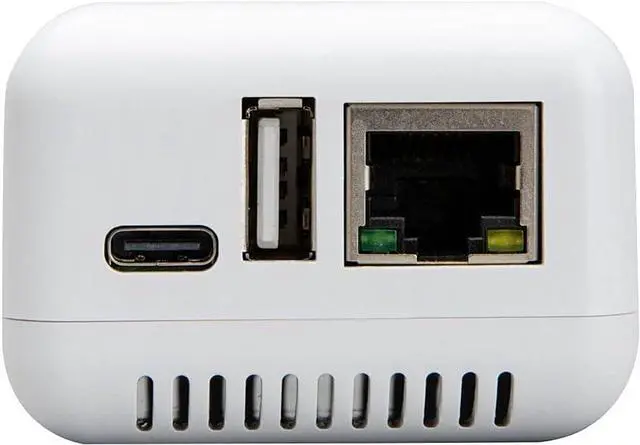
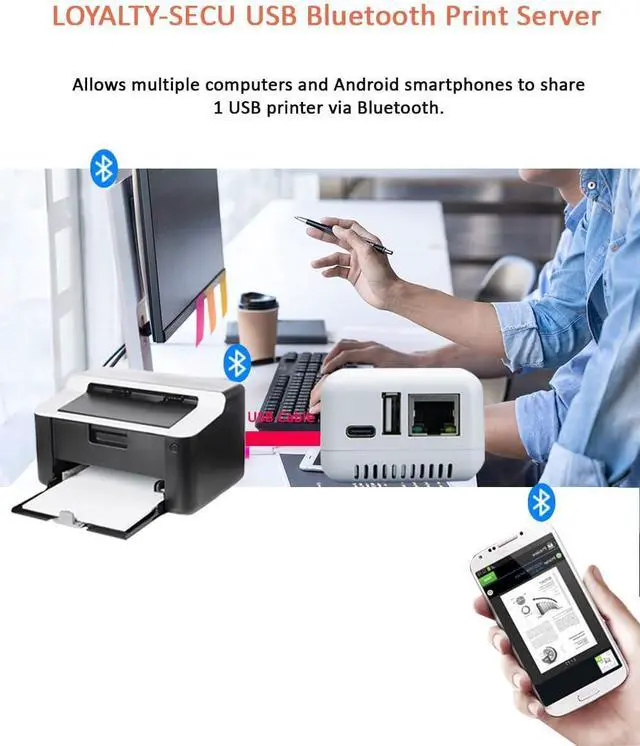
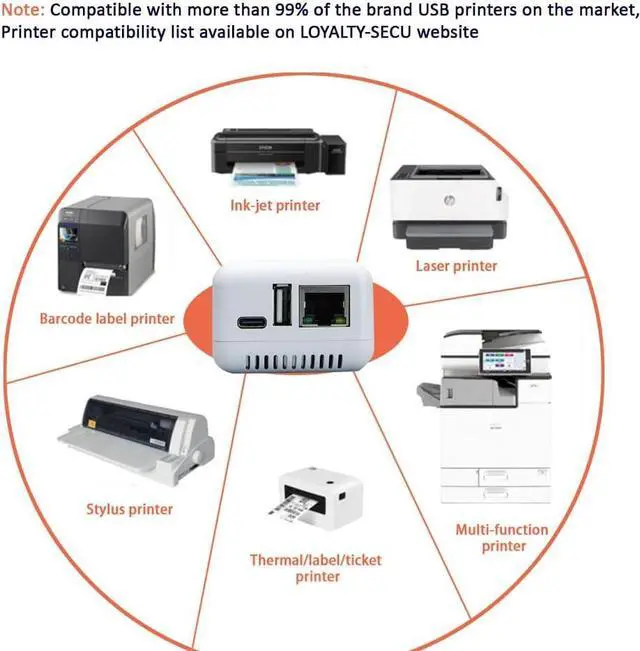


Blue~Tooth USB Print Server - Wireless Printer Sharing for Windows & Android - Supports LAN and Blue~Tooth Printing,Turns Old USB Printer into Blue~Tooth Printer.
- 1.Effortless Wireless Printing: Quickly transform your USB printer into a Blue~tooth network printer, enabling easy printing from Android smartphones and Windows computers via LAN or Blue~tooth.
- 2.Wide Application Scenarios: Ideal for small offices, schools, hotels, airport lounges, and more. Offers a 100-meter Blue~tooth range for printing on the go.
- 3.Multi-User Sharing Support: Share one USB printer with multiple users simultaneously over a LAN network or Blue~tooth for enhanced productivity.
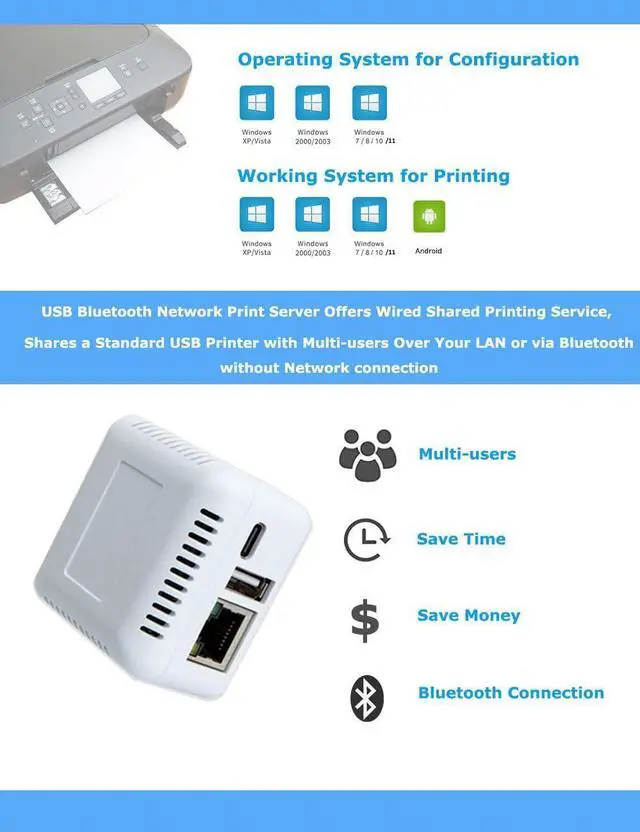
- 4.Broad Compatibility: Supports Windows & Android system. Compatible with various file formats, including PDF, Word & Excel.
- 5.User-Friendly Configuration: Comes with a dedicated Windows Config Tool for quick setup. Easily assign IP addresses and configure settings for hassle-free operation.
+
+
Overview
Specs
Reviews

Any questions? Our AI mode will help you find out quickly.
Try me now
Our Blue THNetwork USB Print Server enhances productivity, whether you're working from home or in the office. Connect our print server to your USB printer for seamless operation.
Easily transform your USB printer into a Blue THnetwork printer with our reliable Blue THNetwork Print Server. Connect it to your USB printer and experience the convenience.
Share your USB printer with multiple users simultaneously over a LAN network using our USB Blue THNetwork Print Server. Collaborate effortlessly.
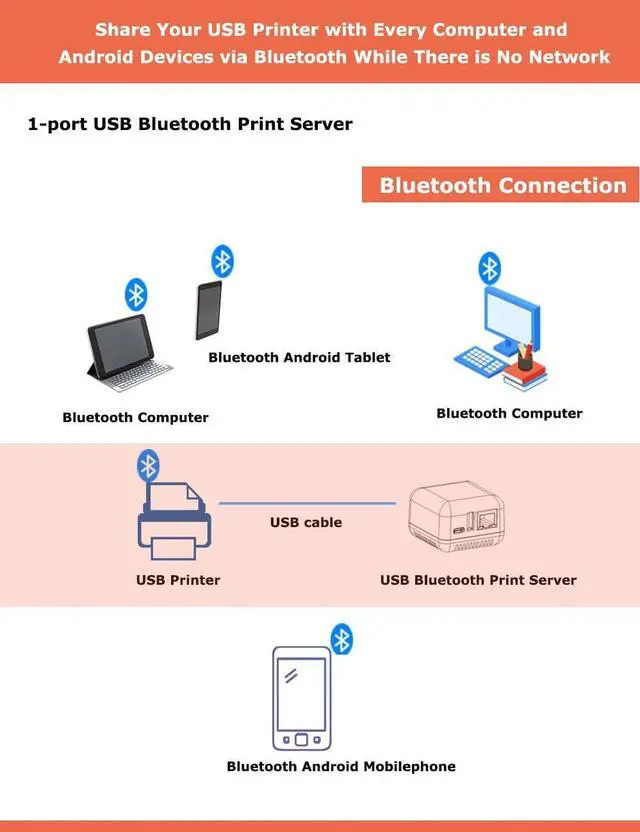
The USB 2.0 Blue THNetwork Print Server enables wireless printing from your Android smartphone and computer within the LAN. Enjoy the freedom of Blue TH printing even without an internet connection.
Effortlessly print files in various formats, including images, PDFs, PPTs, Excel, and Word documents wirelessly from your Android smartphone and computer. Experience wireless convenience with our network USB print server.
1. For Printing via Blue THon Windows Computers (No pin code required):
Step1: Connect the Blue THprint server to the USB Printer using a USB Cable.
Step2: Power on both the print server and USB Printer. (The Blue THprint server will be named after the connected USB Printer)
Step3: Obtain the Blue THNetworking COM Number of the Print Server.
Step4: In the Printer Properties of your computer, select the corresponding COM Number for the target USB Printer.
Step5: Enjoy seamless printing via Blue THfrom your computer to the USB Printer.
2. Android Smartphone Printing via Blue TH :
Step1: Download and install the "PrinterShare" or "PrintHand" Pre-paid Third-Party APP on your Android Smartphone.
Step2: Establish a Blue THconnection and send print jobs from your Android smartphone to your USB printer.
Note: Please refer to our user manual for the configuration process.
Compatibility: Kindly Note That Printing via Blue THis Not Supported on iOS Devices (iPhone, Tablet) and Mac OS Systems. Please consider this limitation when making your purchase decision.
Configuration: Please note that our USB Print Server does not support configuration on Mac OS systems. However, once successfully configured from a Windows computer, it can be used for printing from Mac OS computers via LAN only.
We apologize for any inconvenience caused by these limitations. If you have any further questions or concerns, please don't hesitate to contact our customer support team before placing your order.
Step 1: Please download Print Server Config Tool from our business site into your Windows computer.
Step 2: Please connect Print Server with Your Windows computer via USB cable.
Step 3: Please assign a fixed IP address for the USB Print Server via Print Server Config Tool on Windows computer firstly.
Step 4: Add the IP address and USB port information of print server into your target USB printer in your computer. Then you can explore the excellent printing experience via the Print Server.
Step 5: Download and install APP PrinterShare or PrintHand into your Android Smartphone and follow manual user to setup, then you can send print jobs to your USB printer wirelessly in LAN.
USB Print Server Configuration: Please use the "Print Server Config Tool" on a Windows operating system computer for configuring the USB print server. Mac operating system computers do not support this configuration tool.
Print Job Compatibility: Only Android smartphones support sending print jobs to your USB printer via the USB print server. iOS iPhones do not support this feature. Additionally, Mac operating system computers do not support sending print jobs to USB printers via the Blue TH function, only through the network.
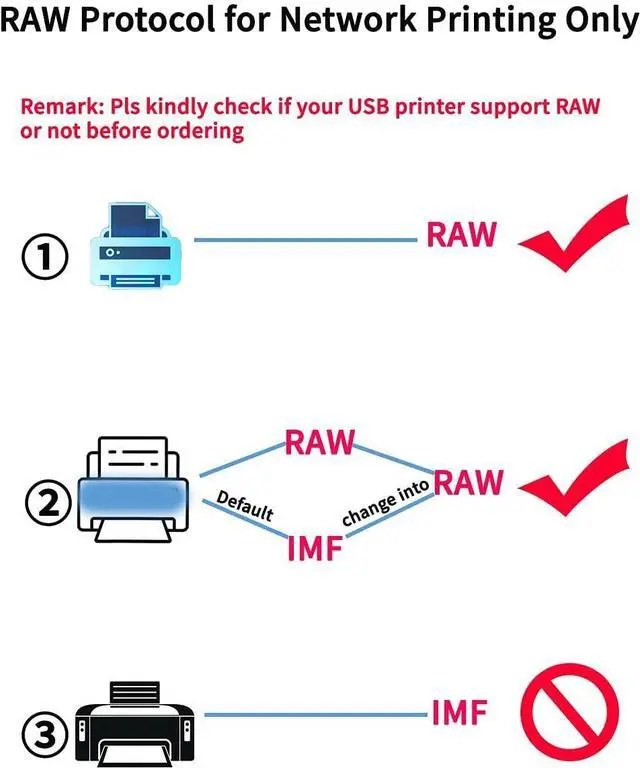
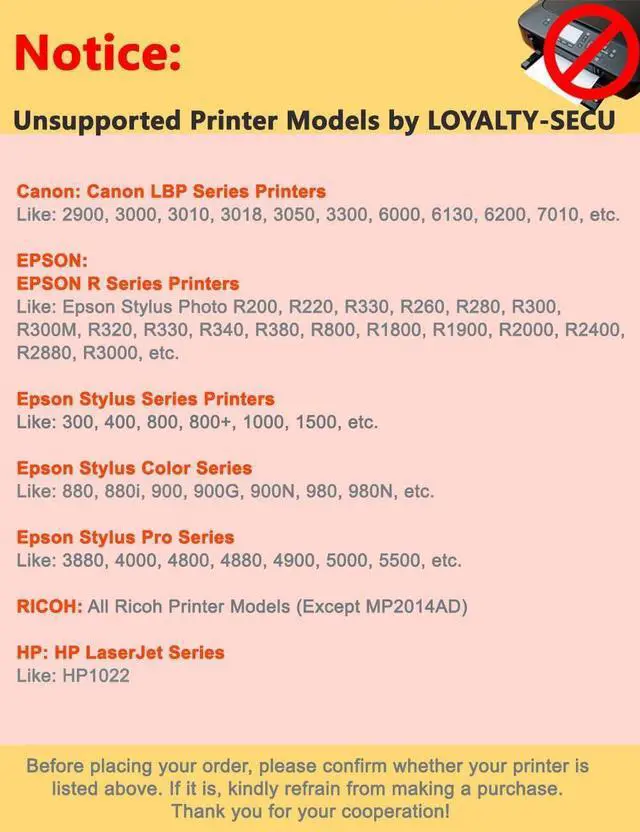
RAW Protocol Requirement: Please ensure that your USB printer supports the RAW protocol, as the IMF protocol is not supported.
App Store Disclaimer: Please note that the apps "PrinterShare" or "PrintHand" may not be available for free downl
Easily transform your USB printer into a Blue THnetwork printer with our reliable Blue THNetwork Print Server. Connect it to your USB printer and experience the convenience.
Share your USB printer with multiple users simultaneously over a LAN network using our USB Blue THNetwork Print Server. Collaborate effortlessly.
The USB 2.0 Blue THNetwork Print Server enables wireless printing from your Android smartphone and computer within the LAN. Enjoy the freedom of Blue TH printing even without an internet connection.
Effortlessly print files in various formats, including images, PDFs, PPTs, Excel, and Word documents wirelessly from your Android smartphone and computer. Experience wireless convenience with our network USB print server.
1. For Printing via Blue THon Windows Computers (No pin code required):
Step1: Connect the Blue THprint server to the USB Printer using a USB Cable.
Step2: Power on both the print server and USB Printer. (The Blue THprint server will be named after the connected USB Printer)
Step3: Obtain the Blue THNetworking COM Number of the Print Server.
Step4: In the Printer Properties of your computer, select the corresponding COM Number for the target USB Printer.
Step5: Enjoy seamless printing via Blue THfrom your computer to the USB Printer.
2. Android Smartphone Printing via Blue TH :
Step1: Download and install the "PrinterShare" or "PrintHand" Pre-paid Third-Party APP on your Android Smartphone.
Step2: Establish a Blue THconnection and send print jobs from your Android smartphone to your USB printer.
Note: Please refer to our user manual for the configuration process.
Compatibility: Kindly Note That Printing via Blue THis Not Supported on iOS Devices (iPhone, Tablet) and Mac OS Systems. Please consider this limitation when making your purchase decision.
Configuration: Please note that our USB Print Server does not support configuration on Mac OS systems. However, once successfully configured from a Windows computer, it can be used for printing from Mac OS computers via LAN only.
We apologize for any inconvenience caused by these limitations. If you have any further questions or concerns, please don't hesitate to contact our customer support team before placing your order.
Step 1: Please download Print Server Config Tool from our business site into your Windows computer.
Step 2: Please connect Print Server with Your Windows computer via USB cable.
Step 3: Please assign a fixed IP address for the USB Print Server via Print Server Config Tool on Windows computer firstly.
Step 4: Add the IP address and USB port information of print server into your target USB printer in your computer. Then you can explore the excellent printing experience via the Print Server.
Step 5: Download and install APP PrinterShare or PrintHand into your Android Smartphone and follow manual user to setup, then you can send print jobs to your USB printer wirelessly in LAN.
USB Print Server Configuration: Please use the "Print Server Config Tool" on a Windows operating system computer for configuring the USB print server. Mac operating system computers do not support this configuration tool.
Print Job Compatibility: Only Android smartphones support sending print jobs to your USB printer via the USB print server. iOS iPhones do not support this feature. Additionally, Mac operating system computers do not support sending print jobs to USB printers via the Blue TH function, only through the network.
RAW Protocol Requirement: Please ensure that your USB printer supports the RAW protocol, as the IMF protocol is not supported.
App Store Disclaimer: Please note that the apps "PrinterShare" or "PrintHand" may not be available for free downl
Warranty & Returns
Warranty, Returns, And Additional Information
Warranty
- Please contact the Seller directly for warranty information. Warranty information may also be found on the Manufacturer's website.
- CONTACT
Return Policies
- Return for refund within: 30 days
- Return for replacement within: 30 days
- This item is covered by E-Transit Limited Return Policy
Manufacturer Contact Info
- For a directory of all our manufacturers, please click below.
- Manufacturers Directory
LOADING...