

Your Browsing History
- Free 30-day Returns
$735.99

Meet Your Seller

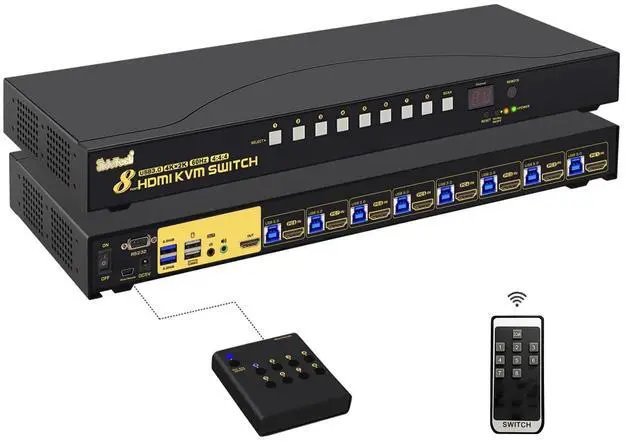



JideTech 8-Port HDMI KVM Switch 4K@60Hz with USB 3.0 Hub, Audio Support, Keyboard & Mouse Hotkey, Remote Control, Rack Mount 1U for Windows/Mac/Linux
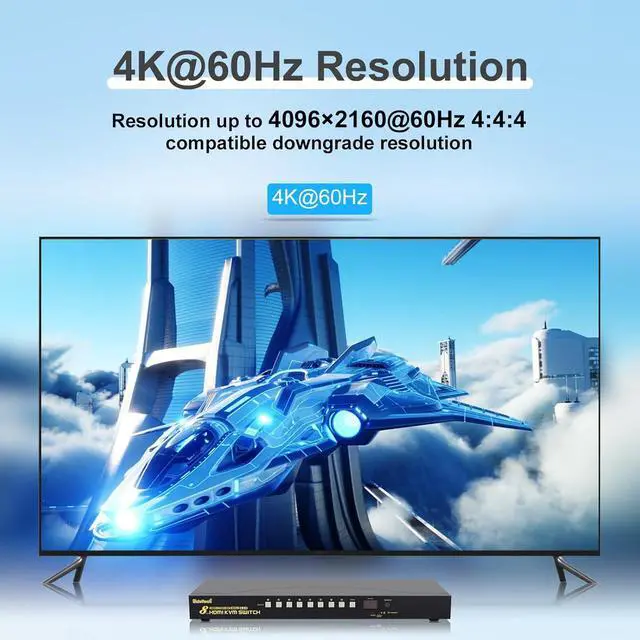
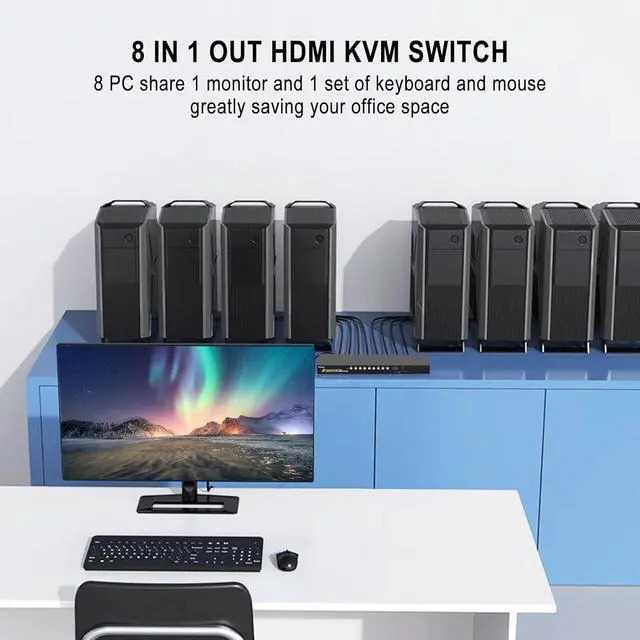
- CONTROL 8 COMPUTERS WITH ONE SETUP: Manage up to 8 PCs with a single keyboard, mouse, and monitor. Integrated USB 3.0 hub provides ultra-fast 5Gbps data transfer, 10× faster than USB 2.0. Supports stunning 4K@60Hz resolution and HDCP2.1 for crystal-clear visuals.
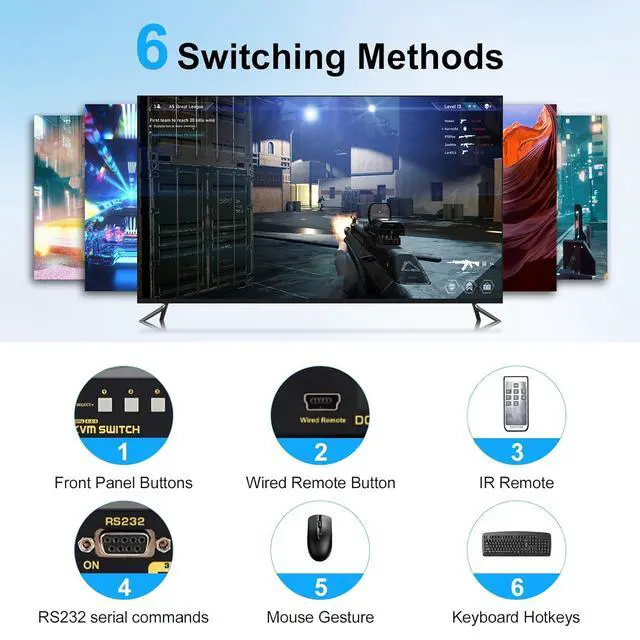
- SIX FLEXIBLE SWITCHING METHODS Front panel buttons, keyboard hotkeys, mouse double-click, wired/wireless remote, IR remote, or RS232 commands. Switch instantly without interrupting workflowperfect for offices, studios, or server rooms.
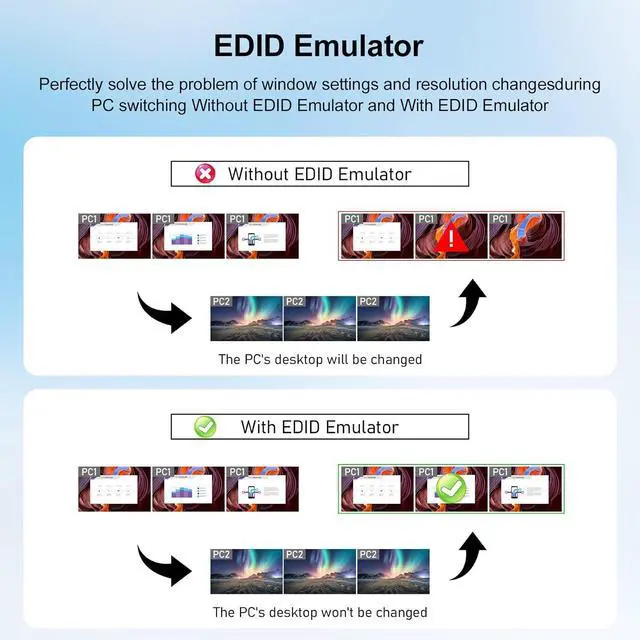
- SMART EDID EMULATOR ENSURES STABLE DISPLAY Each port equipped with EDID emulator to keep display accurate. Prevents flickering, black screens, and signal errors when switching.
- PLUG & PLAY WITH AUTO DETECTION Hot-swappable design allows you to connect or disconnect devices anytime. Automatically detects new devices and switches input source seamlessly.
- PROFESSIONAL 1U 19-INCH RACK MOUNT Standard 1U, 19-inch rack design fits cabinets perfectly. Includes 2 rack ears for secure installati
+
+
Overview
Specs
Reviews

Any questions? Our AI mode will help you find out quickly.
Try me now
Installation Step
1. Connect the KVM switch and computers by HDMI cables, and USB 3.0 cables that come with the KVM switch;
2. Connect the KVM switch and the monitor by HDMI cable;
3. Plug the keyboard into the keyboard slot, plug the mouse into the mouse slot of the KVM switch, plug headset/wired remote push button switch/other USB devices/IR remote into the KVM switch if needed.
Package:
1 x 8 Port KVM switch + 8 x HDMI Cables + 8 x USB 3.0 cable + 1 x DC 5V 2A Power adapter + 1 x IR remote controller + 1 x User manual + 1 x wired remote push button + 2 x rack mount hook
Tips:
1. The IR remote does not include a battery, you need to buy it separately (battery specification is CR2025 3V).
2. The KVM switch comes with a DC5V 2A power adapter, we suggest you plug it into the KVM switch and AC socket, to avoid damaging your devices cause the power supply is not stable.
Compatible System:
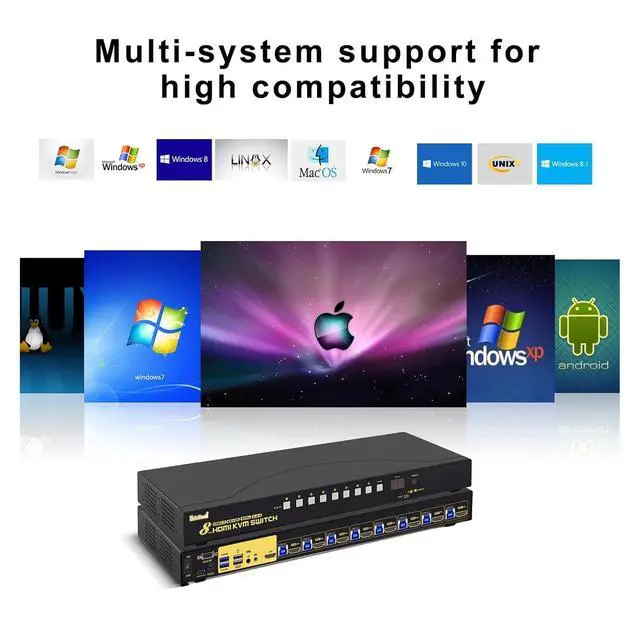
Windows Series, Mac, IOS, Unix, Linux, Dos, Netware
Support 4K@60Hz, 2K@120Hz and backward compatible with lower resolutions.Adaptive to different resolutions of different devices without manual setting.
Questions & Answers:
1. How to reset the KVM switch? (You can reset the KVM switch when you meet USB disconnect or monitor issue)
Step 1. Turn off the KVM switch and all of your computers/laptops, then unplug all the cables;
Step 2. Plug the DC5V 2A power adapter into the KVM switch and AC socket, and turn on the KVM switch (There is an o/f button on the back);
Step 3. Plug the keyboard into the keyboard slot of the KVM switch;
Step 4. Click right [CTRL] on the keyboard 2 times, then click [ESC] 3 times, at last click [ENTER]. (The whole operation time should not be over 2s after you hear a beep sound, that shows operated successfully);
Step 5. Plug USB 3.0 cables, and HDMI cables into the KVM switch and computers, plug HDMI cable into the KVM switch and your monitor; plug the mouse into the mouse slot of the KVM switch; plug other USB devices into the USB 3.0 Hub of the KVM switch if needed;
Step 6. Turn on your computers.
2. How to turn off the Beep sound? (Beep sound default turn on, you can turn it on or turn it off by the step)
You need to keep the HOTKEY ON/OFF key turned on(when it turns on, its LED light), plug the keyboard into the keyboard slot, and make this operate: click right [CTRL] on the keyboard 2 times, then click [B], at last click [ENTER]. (Whole time should not be over 2s, that shows operated successfully when you hear a beep sound.)
3. My gaming keyboard and mouse can't work properly.
The hotkey function default turns on.
For gaming/mechanical/unified keyboard/mouse, that may have a compatible issue, if they can't work properly, we suggest you turn off the HOTKEY ON/OFF key(when it turns off, its LED light turns off). Or you can plug your keyboard/mouse into USB 3.0 Hub port, and then solve the issue.
JideTech 8x1 HDMI Switch 4K@60hz 4:4:4 with RS232 & USB 3.0 Ports 4K HD Resolution
1. Connect the KVM switch and computers by HDMI cables, and USB 3.0 cables that come with the KVM switch;
2. Connect the KVM switch and the monitor by HDMI cable;
3. Plug the keyboard into the keyboard slot, plug the mouse into the mouse slot of the KVM switch, plug headset/wired remote push button switch/other USB devices/IR remote into the KVM switch if needed.
Package:
1 x 8 Port KVM switch + 8 x HDMI Cables + 8 x USB 3.0 cable + 1 x DC 5V 2A Power adapter + 1 x IR remote controller + 1 x User manual + 1 x wired remote push button + 2 x rack mount hook
Tips:
1. The IR remote does not include a battery, you need to buy it separately (battery specification is CR2025 3V).
2. The KVM switch comes with a DC5V 2A power adapter, we suggest you plug it into the KVM switch and AC socket, to avoid damaging your devices cause the power supply is not stable.
Compatible System:
Windows Series, Mac, IOS, Unix, Linux, Dos, Netware
Support 4K@60Hz, 2K@120Hz and backward compatible with lower resolutions.Adaptive to different resolutions of different devices without manual setting.
Questions & Answers:
1. How to reset the KVM switch? (You can reset the KVM switch when you meet USB disconnect or monitor issue)
Step 1. Turn off the KVM switch and all of your computers/laptops, then unplug all the cables;
Step 2. Plug the DC5V 2A power adapter into the KVM switch and AC socket, and turn on the KVM switch (There is an o/f button on the back);
Step 3. Plug the keyboard into the keyboard slot of the KVM switch;
Step 4. Click right [CTRL] on the keyboard 2 times, then click [ESC] 3 times, at last click [ENTER]. (The whole operation time should not be over 2s after you hear a beep sound, that shows operated successfully);
Step 5. Plug USB 3.0 cables, and HDMI cables into the KVM switch and computers, plug HDMI cable into the KVM switch and your monitor; plug the mouse into the mouse slot of the KVM switch; plug other USB devices into the USB 3.0 Hub of the KVM switch if needed;
Step 6. Turn on your computers.
2. How to turn off the Beep sound? (Beep sound default turn on, you can turn it on or turn it off by the step)
You need to keep the HOTKEY ON/OFF key turned on(when it turns on, its LED light), plug the keyboard into the keyboard slot, and make this operate: click right [CTRL] on the keyboard 2 times, then click [B], at last click [ENTER]. (Whole time should not be over 2s, that shows operated successfully when you hear a beep sound.)
3. My gaming keyboard and mouse can't work properly.
The hotkey function default turns on.
For gaming/mechanical/unified keyboard/mouse, that may have a compatible issue, if they can't work properly, we suggest you turn off the HOTKEY ON/OFF key(when it turns off, its LED light turns off). Or you can plug your keyboard/mouse into USB 3.0 Hub port, and then solve the issue.
JideTech 8x1 HDMI Switch 4K@60hz 4:4:4 with RS232 & USB 3.0 Ports 4K HD Resolution
Warranty & Returns
Warranty, Returns, And Additional Information
Warranty
- Please contact the Seller directly for warranty information. Warranty information may also be found on the Manufacturer's website.
- CONTACT
Return Policies
- Return for refund within: 30 days
- Return for replacement within: 30 days
- This item is covered by Chinathru Trading Co., Limited Return Policy
Manufacturer Contact Info
- For a directory of all our manufacturers, please click below.
- Manufacturers Directory
LOADING...