




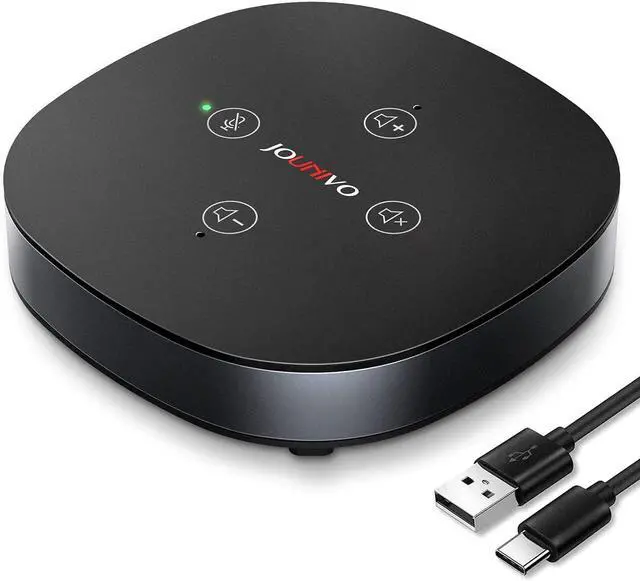
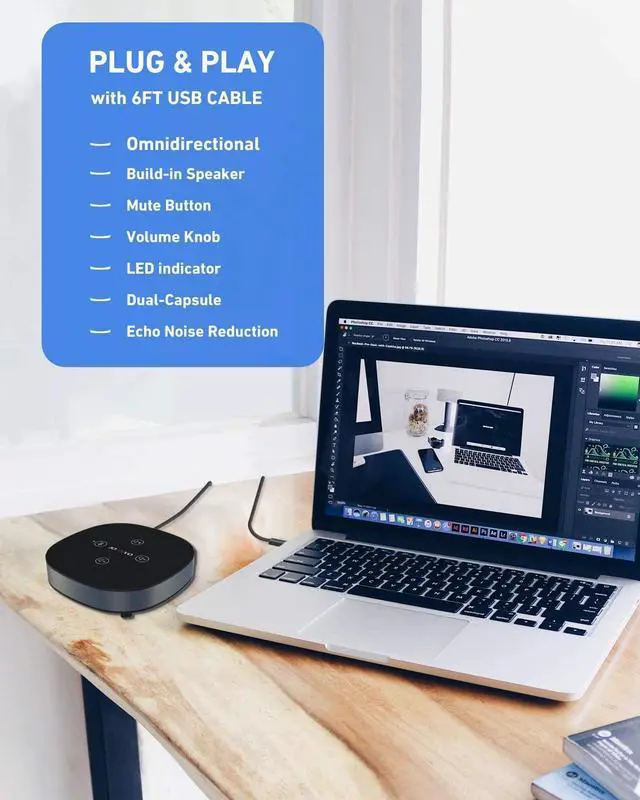
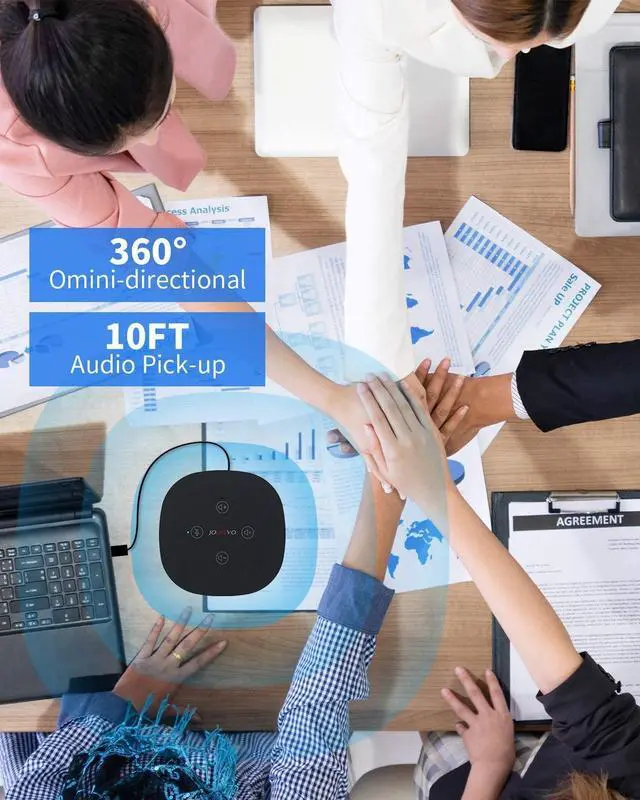
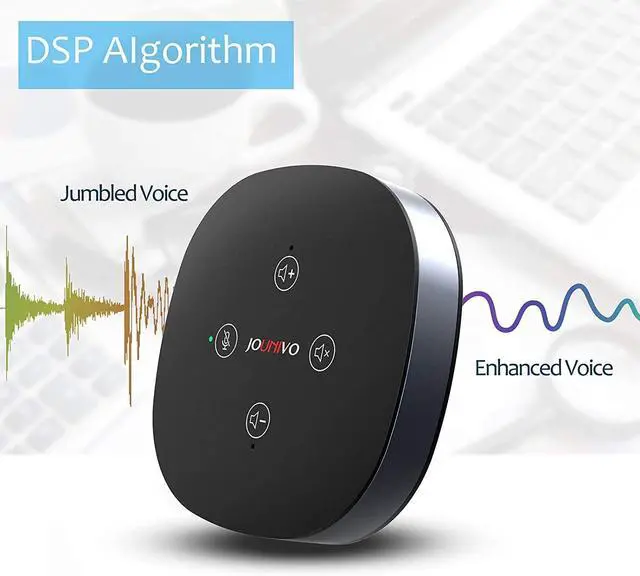
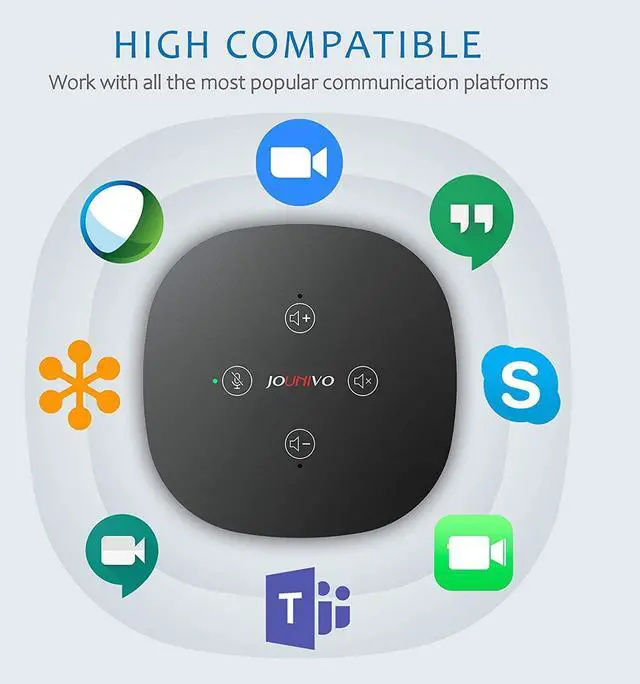
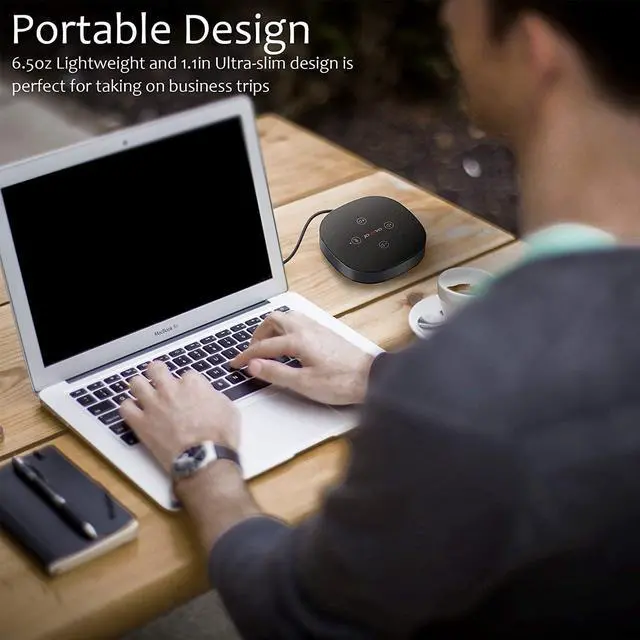
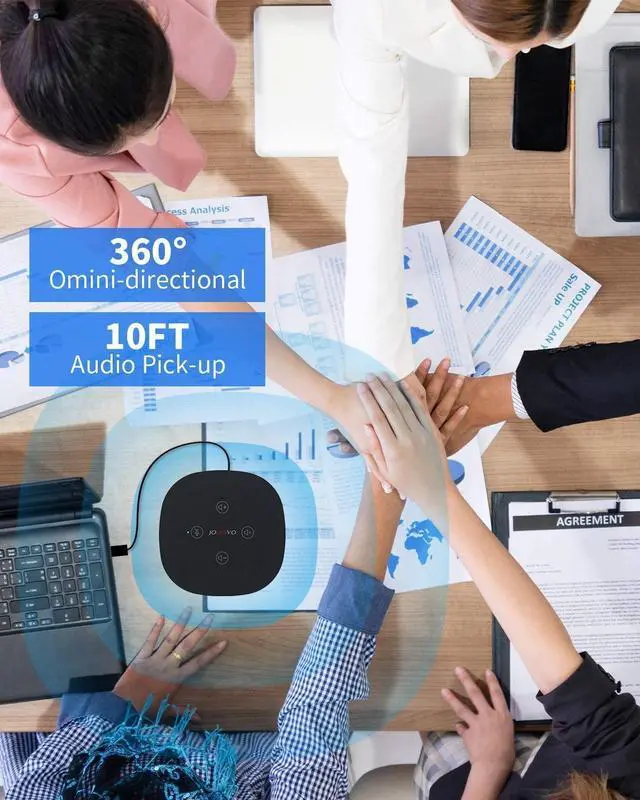
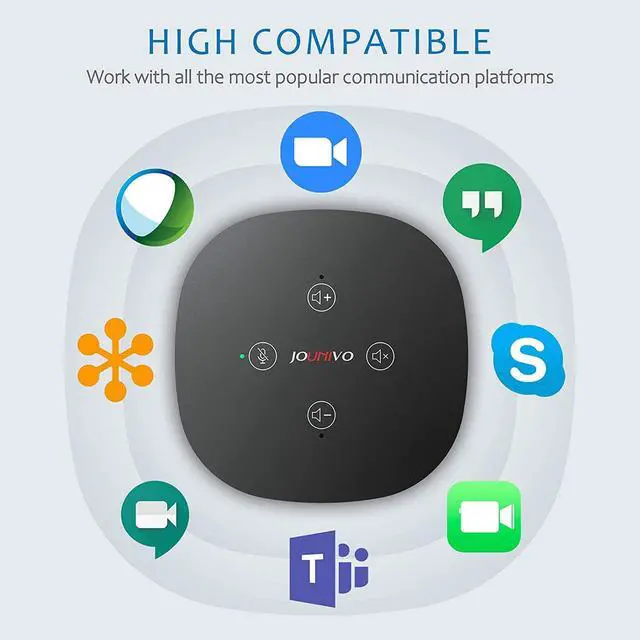
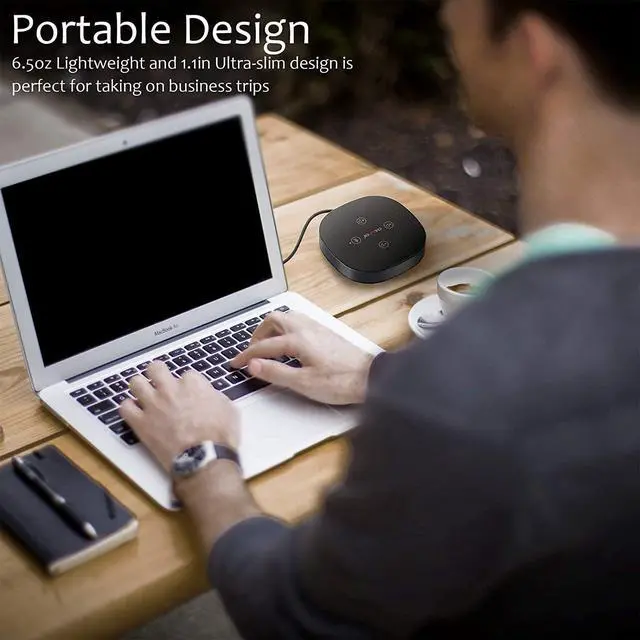


The conference speaker works seamlessly and smoothly with Skype, GoToMeeting, FaceTime, TEAMS, etc, NO DELAY. Suitable for office or working from home. Compatible with PCs, phones, tablets, iPods, etc, plug and play.
Advantages
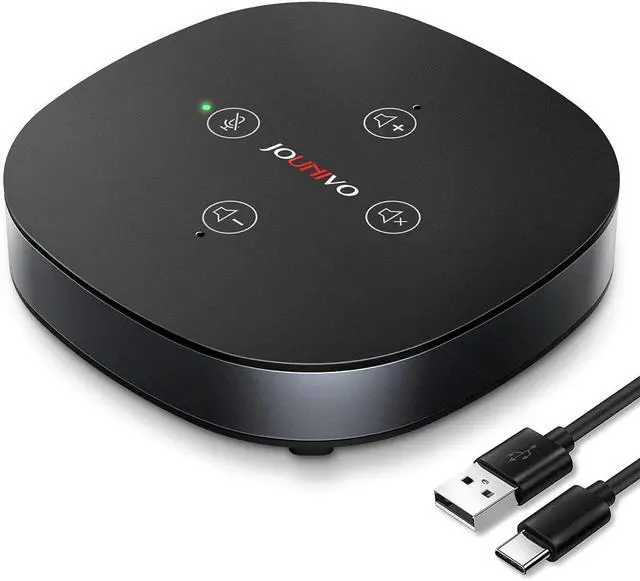
- Connection Mode: USB Type-C
- Superb Sound Quality- Loud & Clear
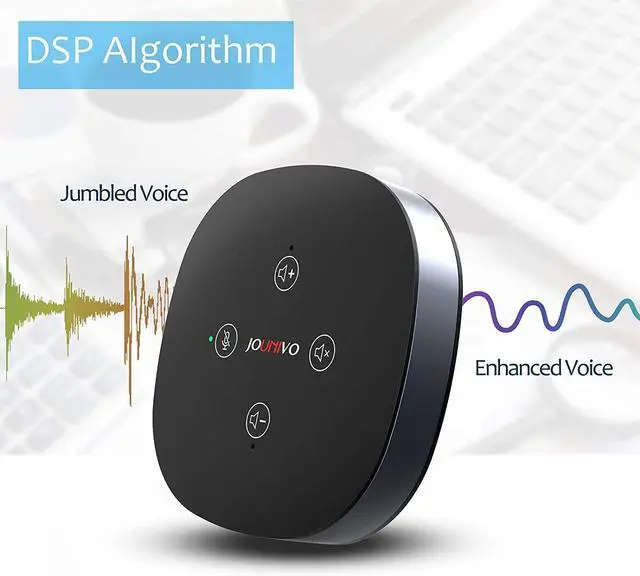
- Cuts Out Background Noise - Great Clarity
- One Button Mute- Protect Your Privacy
- Sensitive Touch button & Intelligent LED Lights


Great Compatibility - Work with Any Program When Connected to PC/Phone/Tablet
- Compatible with Skype, Zoom, WebEx, TEAMS, Chime, GotoMeeting, FaceTime, Google Hangouts, etc
- Works with PCs, laptops, MacBook, Chromebooks.
- Compatible with Mac OS, Windows OS, Chromebook OS.
- Suitable for Home & Office, Online Meeting, Online classes, Video Meeting, Teleconference, etc.
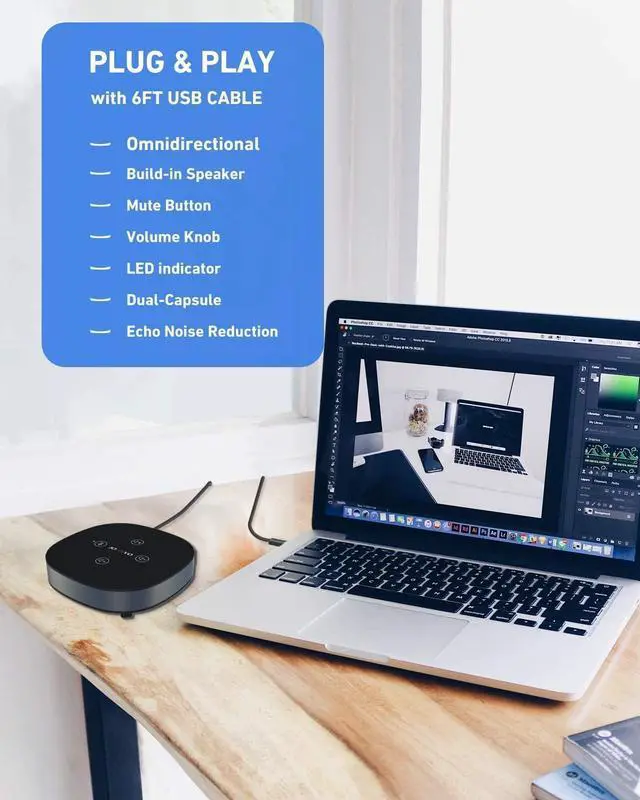
- Plug-N-Play, Trouble-Free Installation

Be Used as a Speaker or Microphone
- When no conference calls, it can be a speaker for listening to music or watching movies
- It can also be used as a microphone. Simply enable the mic from audio settings and it will use the mic part for recording.

Troubleshooting
USB Plug & Play - No drivers to install, easily connected to your PC computer, Laptop, and compatible with systems like Windows XP/Vista/7/8/10/11, Mac OS, etc. ( Not support Raspberry Pi/Android)
If you have difficulty with your speakerphone, please try the suggestions below:
Please kindly check product video for setting. You can find the product video on the product page. For more setting, please kindly check user manual. You can finish all setting within one minute.
- Please choose "Speakers JV803" as output setting". Please choose " Microphones JV803" as input setting.
- Please choose " 2 channel,24 bit,48000Hz"
- Please do UNCHECK " listen to this device"
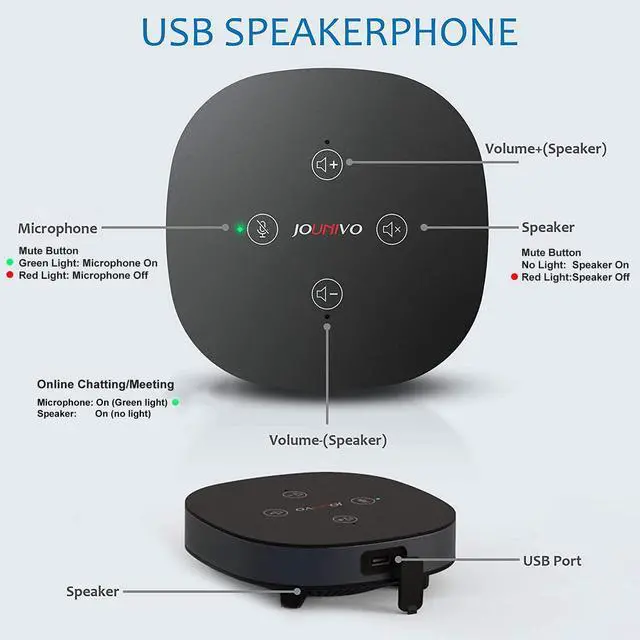
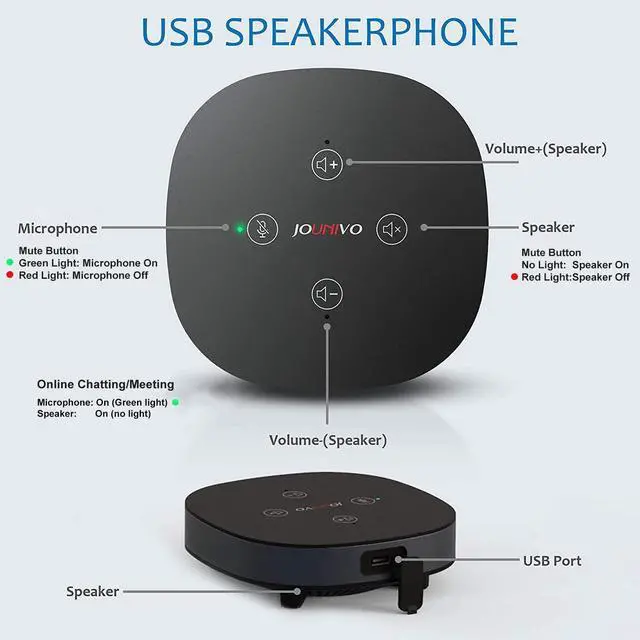
- When you use microphone function, please make sure that the microphone button is on (green light) and the speaker button is on (no light); Please do NOT volume down the volume to zero. You can adjust volume with the volume up button and volume down button.
If you have any questions, please feel free to message to us. We will provide you with satisfied solution.
 New Product |  New Product |  New Product |  New Product |  New Product | |
|---|---|---|---|---|---|
| Customer Reviews | — | — | — | — | — |
| Plug and Play | ? | ? | ? | ? | ? |
| Noise Cancelling | ? | ? | ? | ? | ? |
| Volume Control | ? | ? | ? | ? | ? |
| Tap to Mute | ? | ? | ? | ? | ? |
The conference speaker works seamlessly and smoothly with Skype, GoToMeeting, FaceTime, TEAMS, etc, NO DELAY. Suitable for office or working from home. Compatible with PCs, phones, tablets, iPods, etc, plug and play.
Advantages
- Connection Mode: USB Type-C
- Superb Sound Quality- Loud & Clear
- Cuts Out Background Noise - Great Clarity
- One Button Mute- Protect Your Privacy
- Sensitive Touch button & Intelligent LED Lights
Great Compatibility - Work with Any Program When Connected to PC/Phone/Tablet
- Compatible with Skype, Zoom, WebEx, TEAMS, Chime, GotoMeeting, FaceTime, Google Hangouts, etc
- Works with PCs, laptops, MacBook, Chromebooks.
- Compatible with Mac OS, Windows OS, Chromebook OS.
- Suitable for Home & Office, Online Meeting, Online classes, Video Meeting, Teleconference, etc.
- Plug-N-Play, Trouble-Free Installation
Be Used as a Speaker or Microphone
- When no conference calls, it can be a speaker for listening to music or watching movies
- It can also be used as a microphone. Simply enable the mic from audio settings and it will use the mic part for recording.
Troubleshooting
USB Plug & Play - No drivers to install, easily connected to your PC computer, Laptop, and compatible with systems like Windows XP/Vista/7/8/10/11, Mac OS, etc. ( Not support Raspberry Pi/Android)
If you have difficulty with your speakerphone, please try the suggestions below:
Please kindly check product video for setting. You can find the product video on the product page. For more setting, please kindly check user manual. You can finish all setting within one minute.
- Please choose "Speakers JV803" as output setting". Please choose " Microphones JV803" as input setting.
- Please choose " 2 channel,24 bit,48000Hz"
- Please do UNCHECK " listen to this device"
- When you use microphone function, please make sure that the microphone button is on (green light) and the speaker button is on (no light); Please do NOT volume down the volume to zero. You can adjust volume with the volume up button and volume down button.
If you have any questions, please feel free to message to us. We will provide you with satisfied solution.
New Product | New Product | New Product | New Product | New Product | |
|---|---|---|---|---|---|
| Customer Reviews | — | — | — | — | — |
| Plug and Play | ? | ? | ? | ? | ? |
| Noise Cancelling | ? | ? | ? | ? | ? |
| Volume Control | ? | ? | ? | ? | ? |
| Tap to Mute | ? | ? | ? | ? | ? |