

Your Browsing History
- Free 30-day Returns
$49.89
Ships from China.


Meet Your Seller

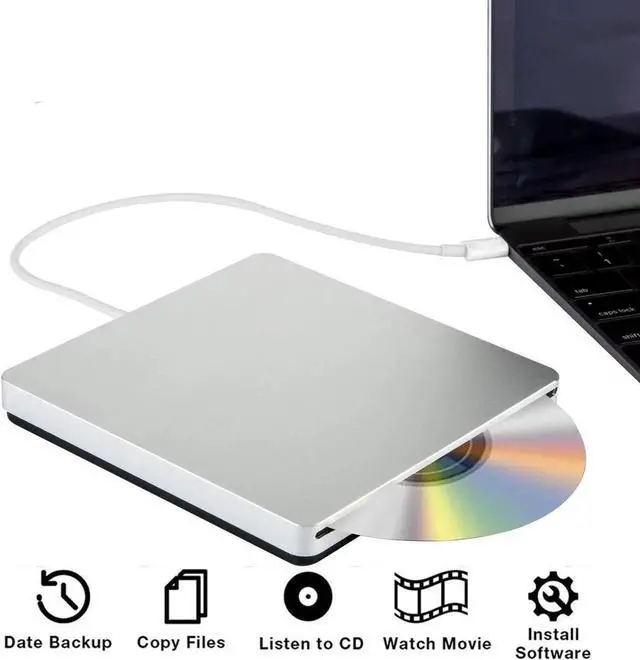
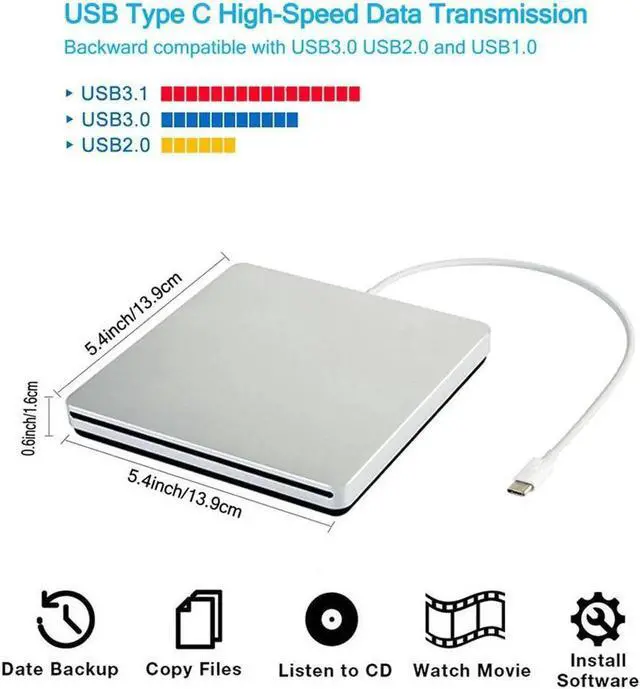
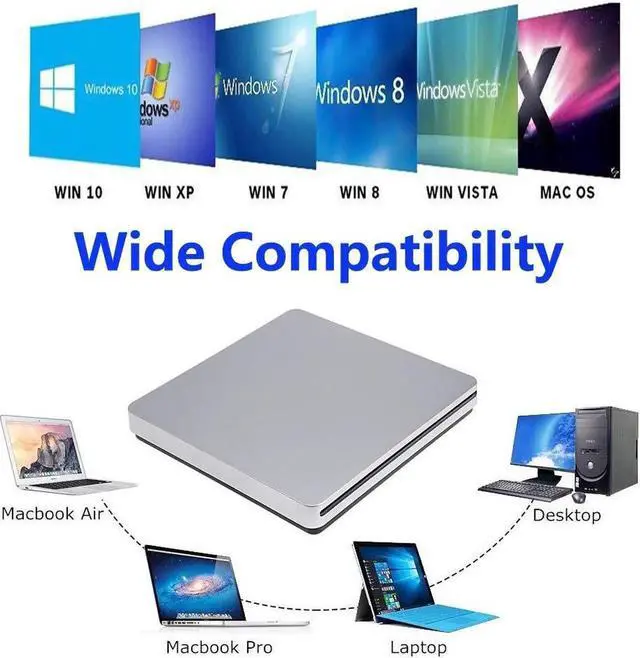
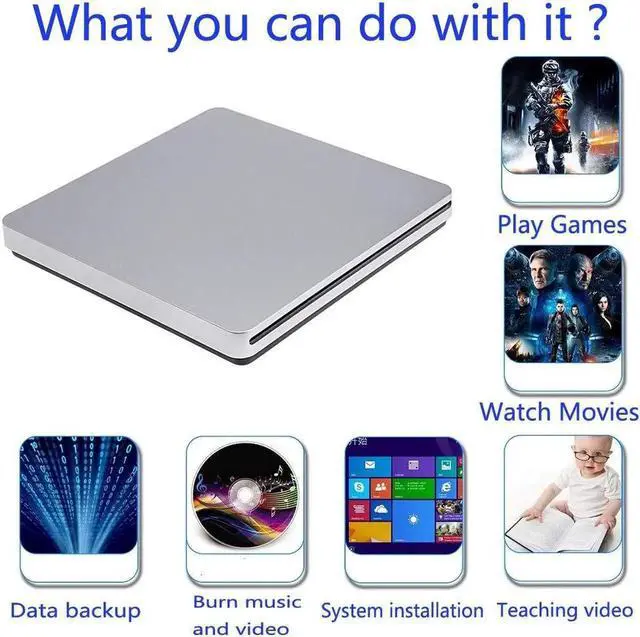
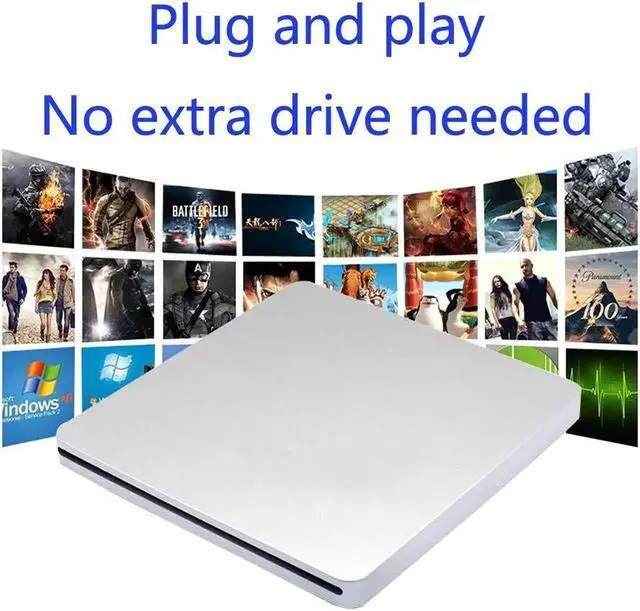


USB-C Superdrive External DVD/CD Reader and DVD/CD Burner for Apple-MacBook Air/Pro/iMac/Mini/MacBook Pro/ASUS/ASUS/DELL Latitude with USB-C Port Plug and Play(Silver)
- Brand new from AUBEAMTO,Mini portable, plug and play. Don't need to install software to set for driver. It features strong error-correcting ability, anti-shock and noise reduction technology, low power consumption, and powered by the USB-C port, no external adapter needed. No drive needed. Plug and play
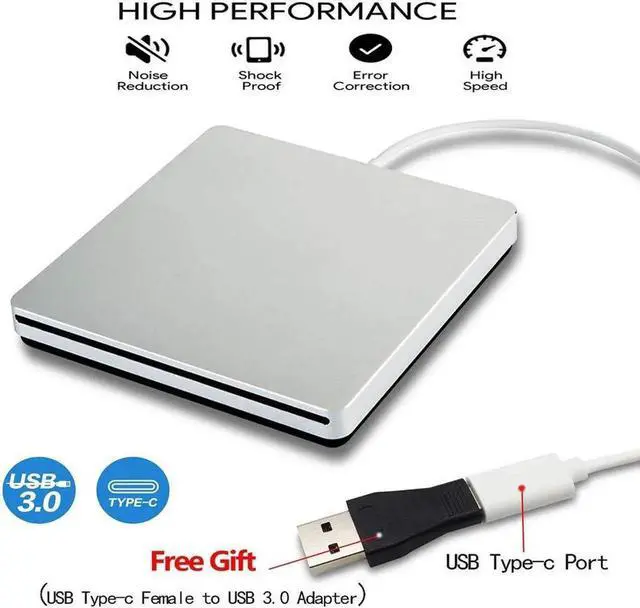
- Specially Designed for Macbook: Use for the latest MacBook Pro/MacBook which has USB Type C. Every item we provide a USB Type c(Female) to USB(Male) converter,so once you want to use for the USB port Macbook Air/Pro or other Notebook,you can use smoothly with it.
- Compatible with Windows 11/ 10/ 8.1/ 7/ XP, Linux, and all versions of Mac OS, so you can use this external optical drive on almost all computers including MacBook Pro, MacBook Air, iMac, Mac Mini, Windows laptop, and desktop PCs
- You'll never have to worry about lost cables with the USB-C SuperDrive. It connects to your MacBook Pro with Retina display, MacBook with a single cable that's built into the Superdrive.
+
+
Overview
Specs
Reviews

Any questions? Our AI mode will help you find out quickly.
Try me now
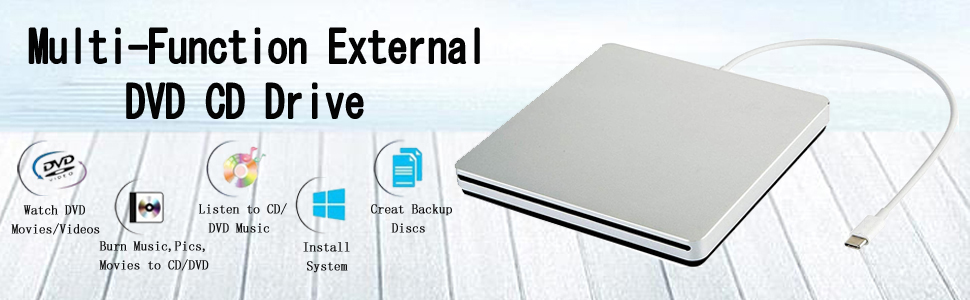
USB C USB 3.0 Type C Portable Drive DVD CD VCD External Drive For MacBook Air MacBook Pro iMac Ultrabook Netbook PC SuperDrive
With AUBEAMTO portable external cd dvd drive, burner, writer, you can enjoy movies, music, burn discs and more. 100% brand new high-quality DVD drive has table working performance and long service life
Features:
Slim portable external CD DVD drive/burner/writer/rewriter/player
Beautiful all-aluminum alloy body, silver USB-C interface.
100% brand new high-quality chip Plug & Play, no driver program required
High speed intelligent burning technology, error-correcting and noise-reduction technology
Specifications:
Support Systems: Windows 98/SE/ME/2000/XP/Vista/Win 7/Win 8/Win 10/Win 11/Mac OS System
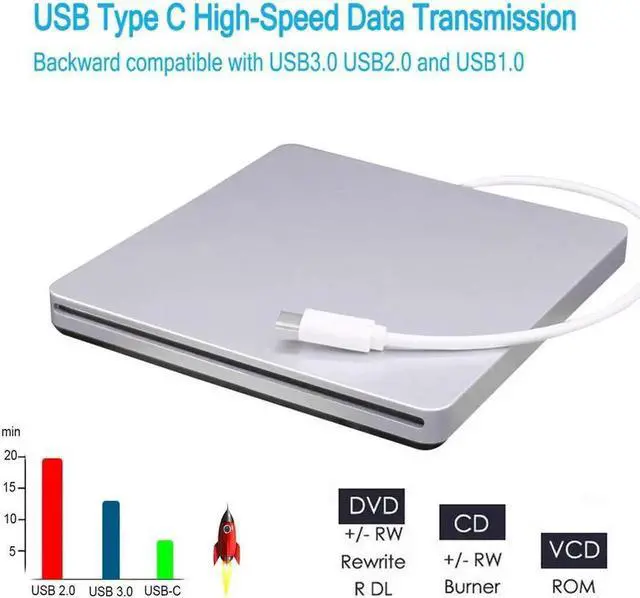
Supported media types: CD-ROM, CD-R/RW, DVD-ROM, DVD±R/DL, DVD±RW
Read Speed: 24x CD-ROM, 8x DVD-ROM, 6x DVD-ROM (DL)
Write speed: 24x CD-R, 16x CD-RW, 8x DVD±R, 6x DVD±R DL
USB-C External CD/DVD Superdrive Usage Method:
-- How to use it on MAC OS:
1.Open up the Finder > Preferences and ensure "CDs, DVDs, and iPods" and"External Disks"have been selected.
2.Plug the USB C or USB A adapter into your Mac USB port instead of a USB hub.
3.Insert your CDs or DVDs.Your Mac will recognize the drive, read the disc and disc icon will appear on the desktop.
4. Open system Preferences to find CDs&DVDs and click CDs&DVDs to go to the Settings. How to open Music CDS, picture CDS, and video CDS (such as Apple Music, iTunes, DVD Player, etc.).
5.After the first setting, you do not need to reset the setting when reading other CDS. The computer automatically retrieves the file format on the disc, and you can play it by double-clicking the disc icon on your desktop.
6.If you use other software to play your CD(such as VLC media player etc.), you will need to reset the way you open the CD, or burn it.
7.For the Mac OS, you need to eject the disc through the Mac OS command. At this point, the touch button on the product does not work, or within 3 seconds after the drive is reconnected, touching the button on the product will eject the CD.
-- Good CD and DVD Burning App on Mac OS:
1.Free Audio CDs burning software (Apple Music, old iTunes, Burn, Express Burn).
2.Free Video DVDs burning software (Burn, HandBrake, iDVD (Legacy), DVDStyler, iDVD [for old MAC]).
NOTES:
Mac OS Built-in Burning Function,Connect the AUBEAMTO usb c superdrive CD DVD Drive , insert a blank disc, then click 'File' in the top menu and select 'New Burn Folder.' Drag the files you want to burn into this folder, click 'Burn to Disc,' and eject the disc when finished. Note that Mac OS only supports burning blank discs, and each disc can be burned only once.
-- How to Use it on Windows OS:
1.Plug the USB C or USB A adapter into your laptop USB port instead of a USB hub. Please connect the drive with USB port behind of computer host if you use a desktop.
2.Your computer will recognize the drive. You can see the "DVD RW Drive" icon in "My Computer" on your computer.
3.Insert your CDs or DVDs,Set the region code to Number 1 to play US or CA DVDs (CDs do not have region code).Note: You are only allowed to change the region code 4-5 times.
4.Use a media player (such as Windows Media Player, VLC player, etc.), burning, or ripping software to play, burn your discs.
5.You can use Windows media player software to play audio CDs and data DVDs (Windows 11 needs a network).If you want to play video/movie DVDs, download the free VideoLAN VLC player from VLC's official site, launch the VLC media player, click on "Media" in the top menu, select "Open Disc", ensure "DVD" is selected, then click "Play."
6.For the Windows OS, the disc can be ejected using the Windows OS command, or by using the touch button on the product. If the disc cannot be ejected, within 3 seconds after the drive is reconnected, touching the button on the product will eject the CD.
-- Good CD and DVD Burning Software on Windows OS:
1. Free Audio CDs burning software (Windows Media Player, CDBurnerXP and ImgBurn).
2.Free video DVDs burning software (ImgBurn, BurnAware Free, CDBurnerXP, Freemake Video Converter, or HandBrake software).
If your MacBook, iMac, Mac Pro/Studio is not recognized please try the following suggestions:
The Mac OS computer will not display the device icon until the disc is placed in the optical drive and the disc is read successfully.Or move the data cable to different USB ports on your mac computer, and try different discs.
If your computer is a windows os laptop or desktop computer is not recognized please try the following suggestions:
Move the data cable to different USB ports on your computer, and try different discs.NOTE: Please connect the drive with USB port behind of computer host if you use a desktop.
Warranty & Returns
Warranty, Returns, And Additional Information
Warranty
- Please contact the Seller directly for warranty information. Warranty information may also be found on the Manufacturer's website.
- CONTACT
Return Policies
- Return for refund within: 30 days
- Return for replacement within: non-replaceable
- This item is covered by Gduccer Return Policy
Manufacturer Contact Info
- For a directory of all our manufacturers, please click below.
- Manufacturers Directory
LOADING...