





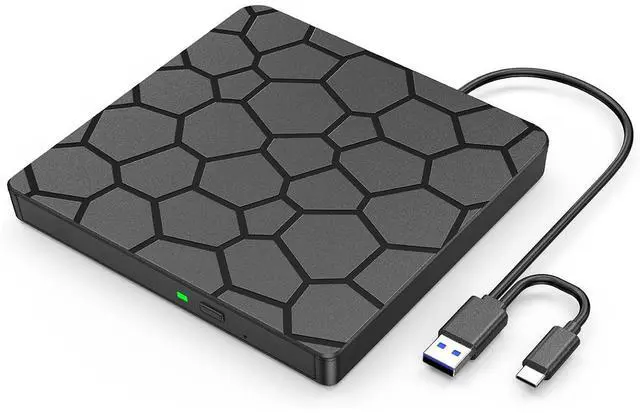
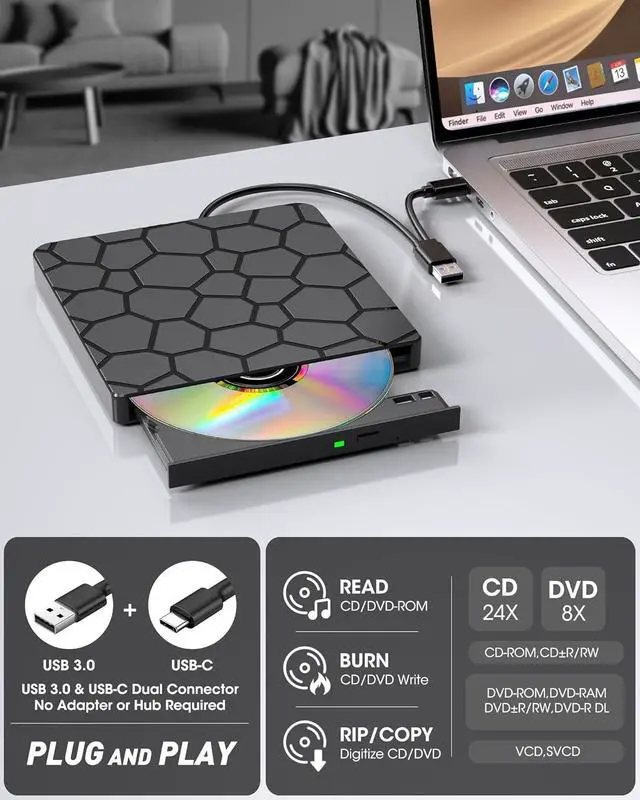
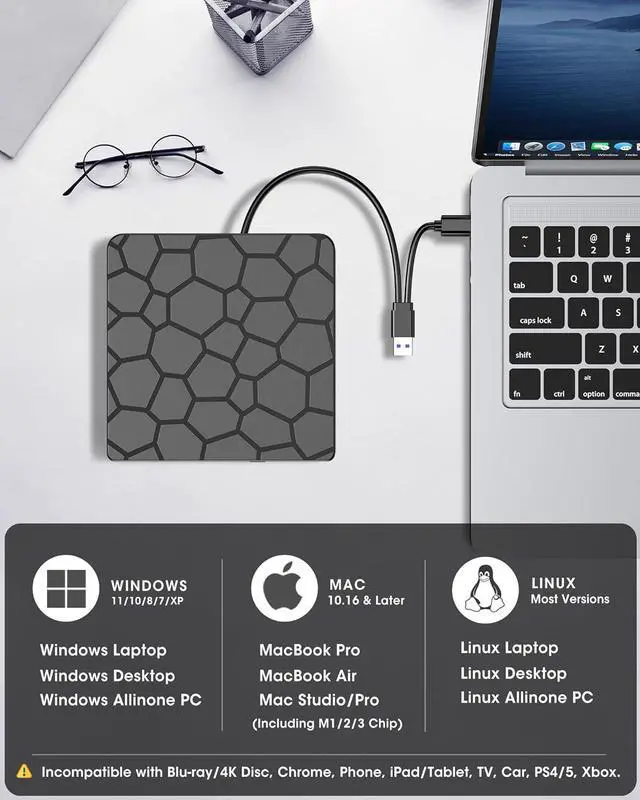


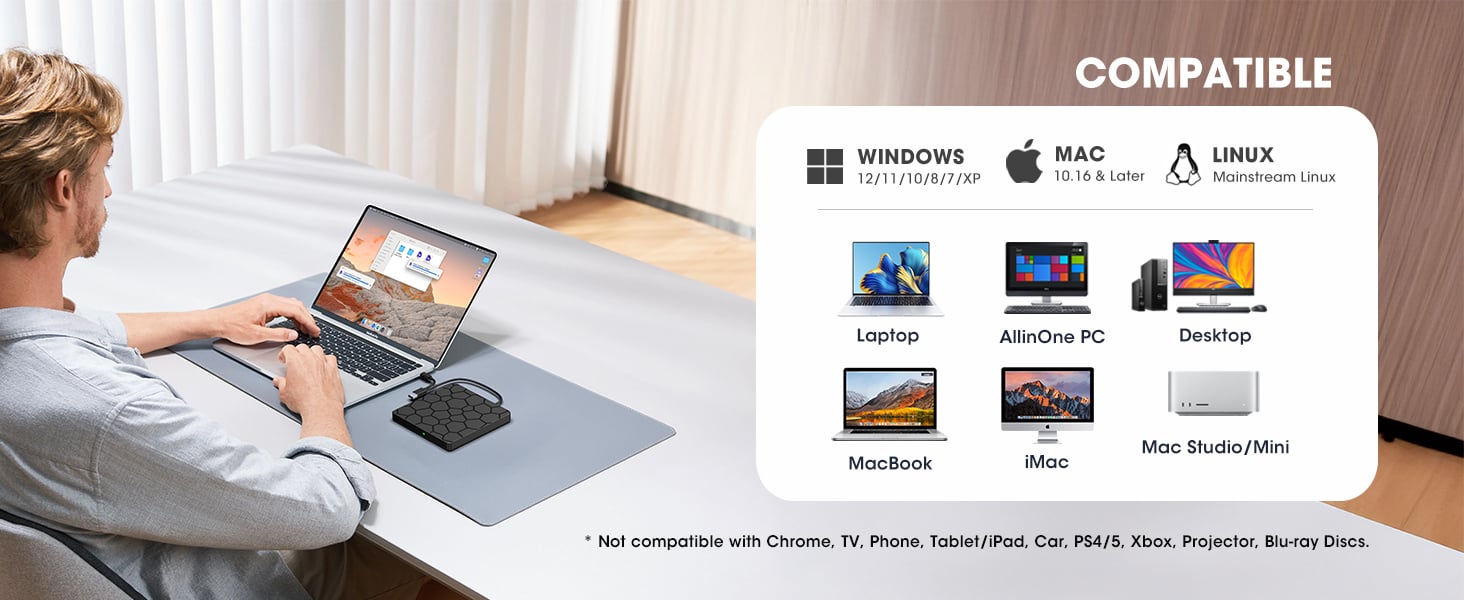
Works with Windows 11/10/8.1/8/7/Vista/XP, macOS 10.6+ (M1/M2/M3), and Linux. Not supported: TVs, cars, tablets, iPads, Chromebooks, Surface Pro, consoles, or Blu-ray/4K/3D discs.
CD/DVD Drive User Guide & Notes
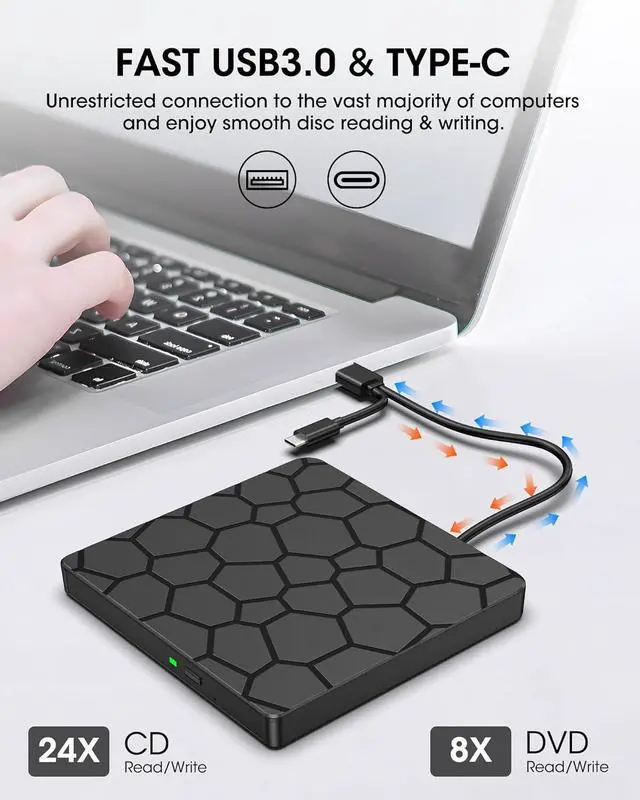
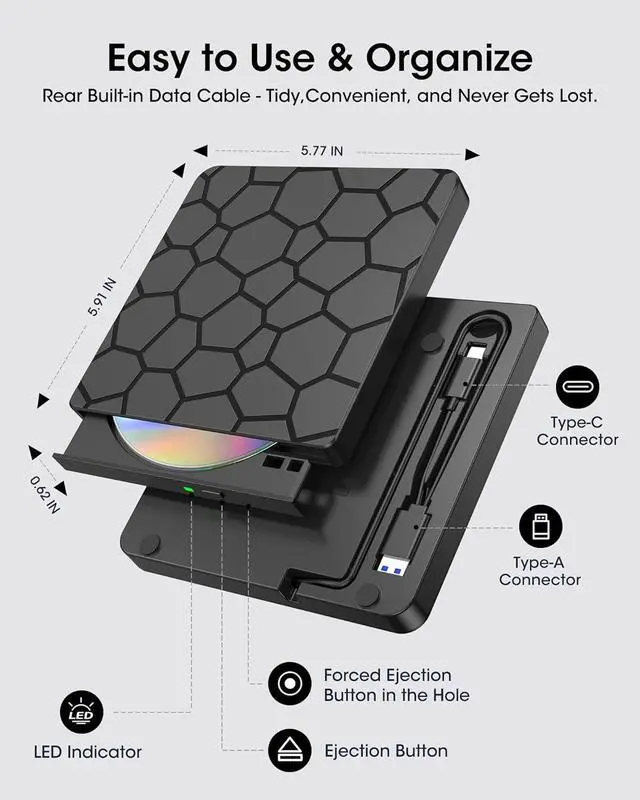
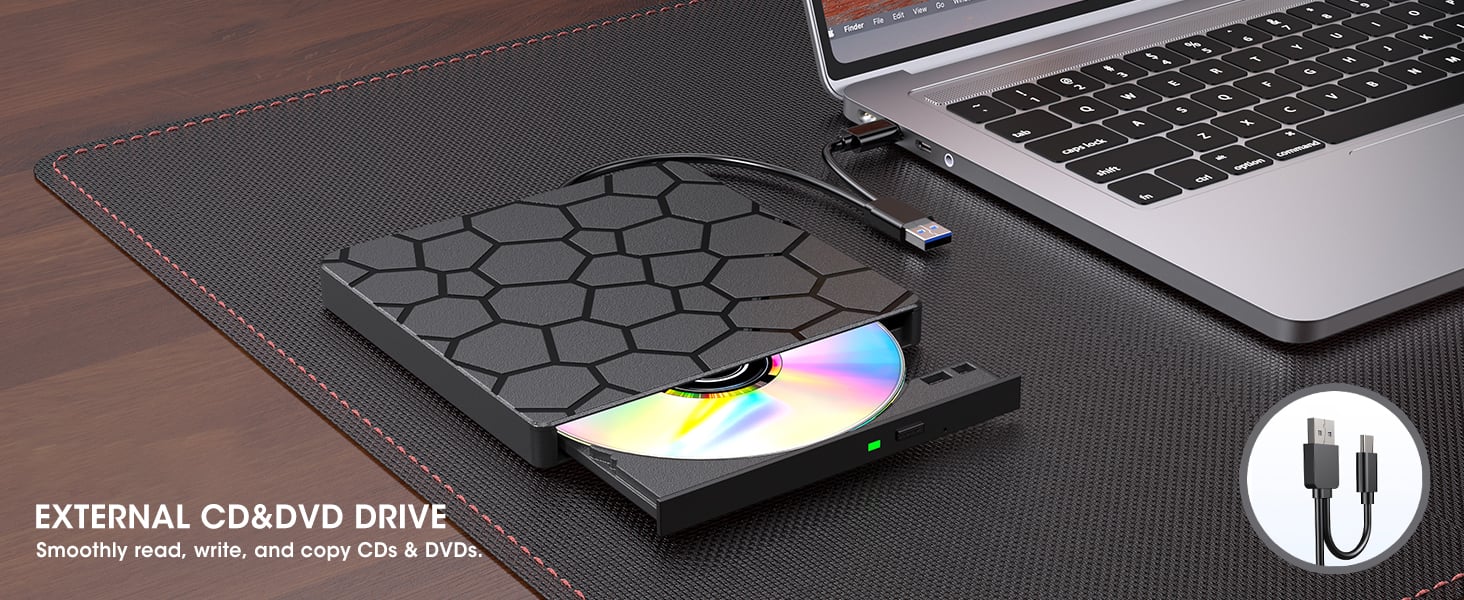
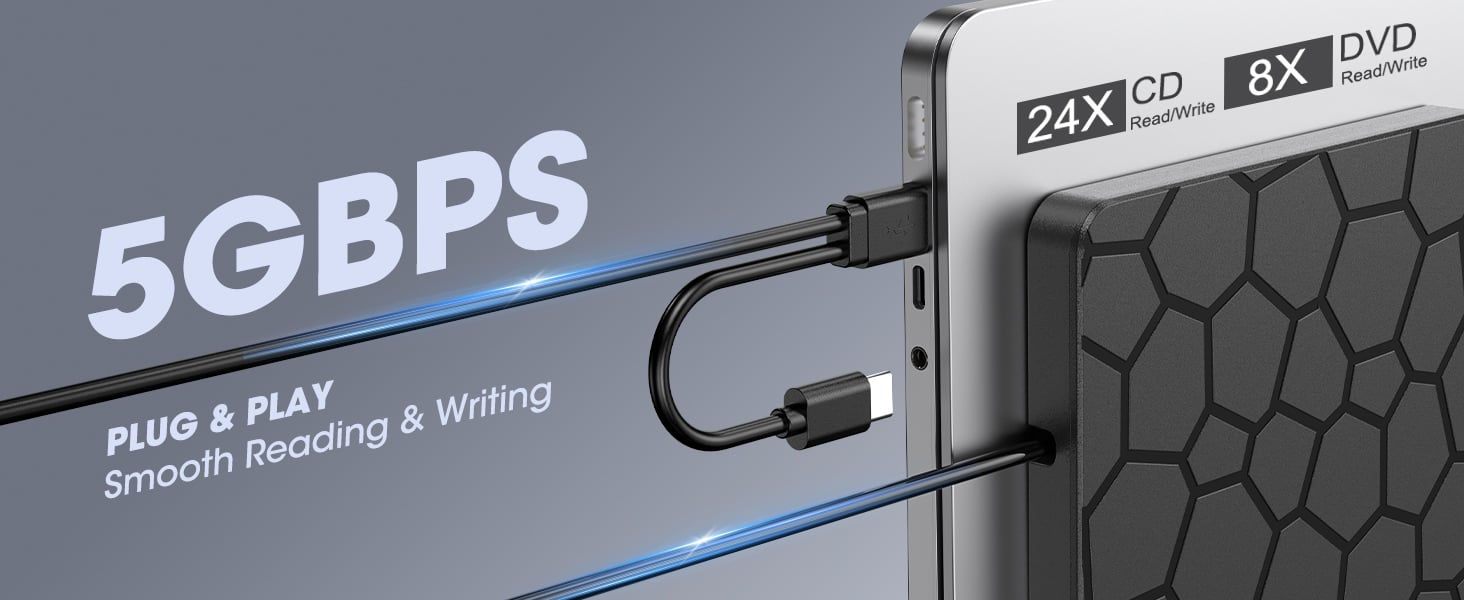
CONNECTION: Powered directly via USB 3.0/USB-C, no extra cable needed. For best results, use built-in USB ports (rear ports on desktops recommended). Avoid hubs or long extension cables.
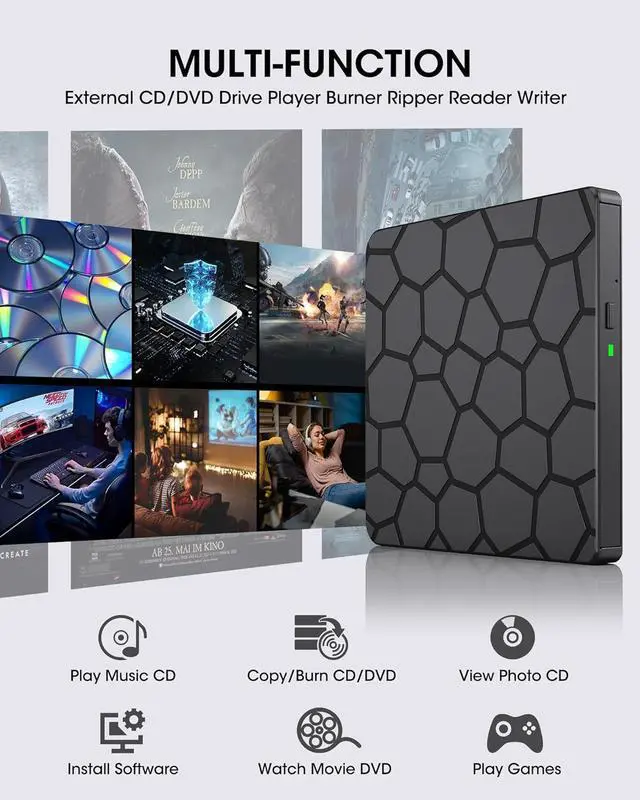
PLAY DISCS: Windows Media Player (audio CDs), VLC (video DVDs). On Mac, CDs open in Music; use VLC for DVDs. Linux: VLC works for both.
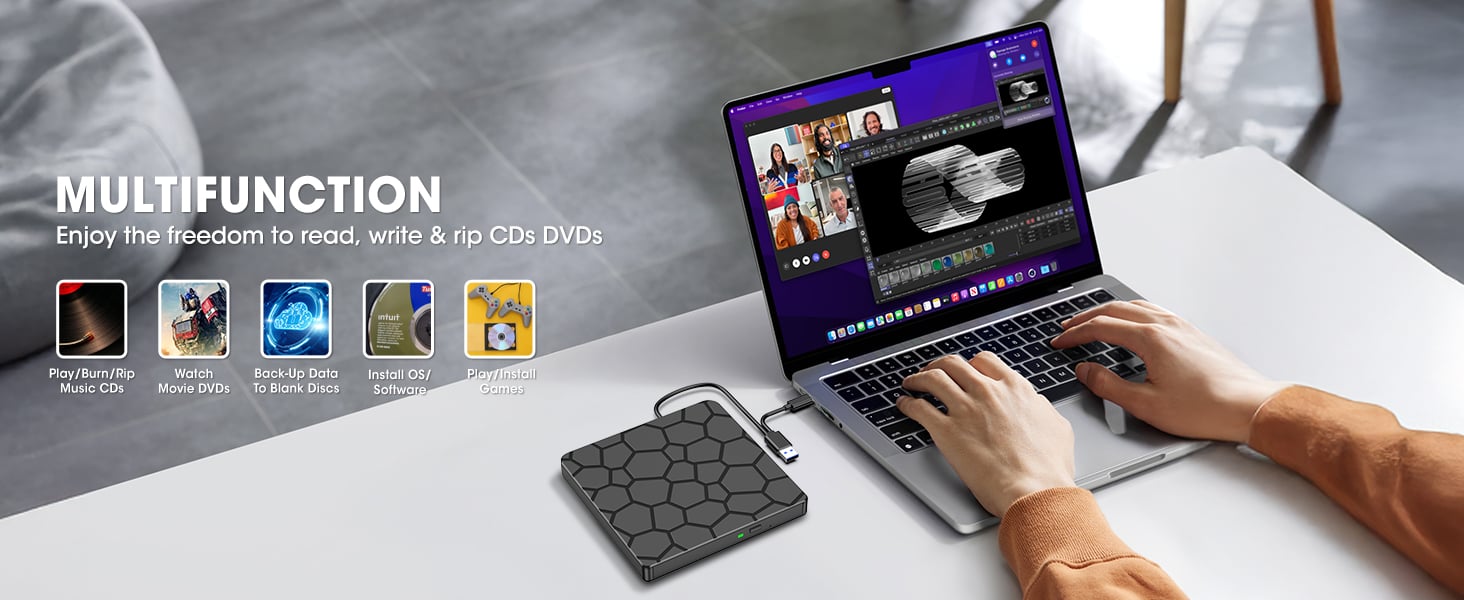
BURN & RIP/COPY DISCS: (You can create data, music, or video discs, copy discs, rip music to digital files, and back up photos or videos.)
* Choose trusted software (Windows: ImgBurn, BurnAware, CDBurnerXP; Mac: Burn, Express Burn, HandBrake, MakeMKV; Linux: K3b).
* Always check that your BLANK disc has ENOUGH space for the files. Write speed matters: use SLOWER speeds (CD <= 10X, DVD <= 8X) to reduce errors. Before burning, convert video files to DVD-compatible formats (e.g., MPEG-2) or audio files to CD-compatible formats (e.g., WAV or MP3).
TROUBLESHOOTING:
* Drive not recognized: connect directly, try another port, restart, or reinstall drivers.
* DVD won't play: install VLC and check Region Code (To play video/movie DVDs, please check the region code setting: On Windows:: Go to This PC > right-click DVD drive > Properties > Hardware > Properties > DVD Region, then set the correct region (USA = Region 1). On Mac: Region setting will appear automatically the first time you insert a DVD. Note: The region code can only be changed 4~5 times. After that, it will stay fixed.).
* Burning fails: use quality discs, lower speed, close other programs.
* To eject a disc on Mac computers after playback/burning, right-click on the desktop icon and select "eject," or choose "File" > "Eject" from the menu.