




 here!
here!
I’m your shopping assistant for PC builds, upgrades, and everything tech.
Got questions? Ask away!
Start a conversation
here!
I’m your shopping assistant for PC builds, upgrades, and everything tech.
Got questions? Ask away!
Start a conversation
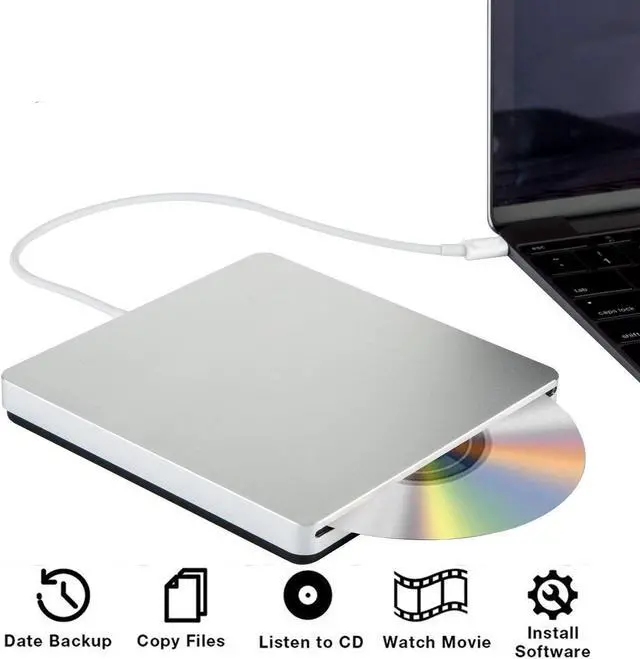
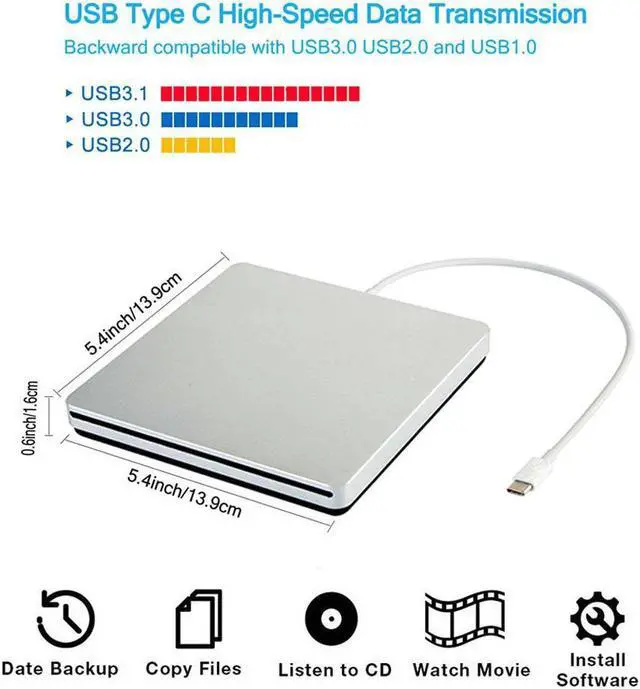
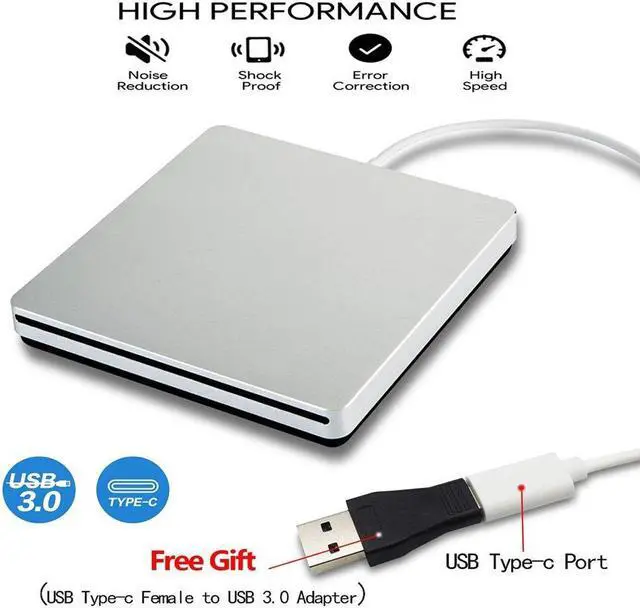
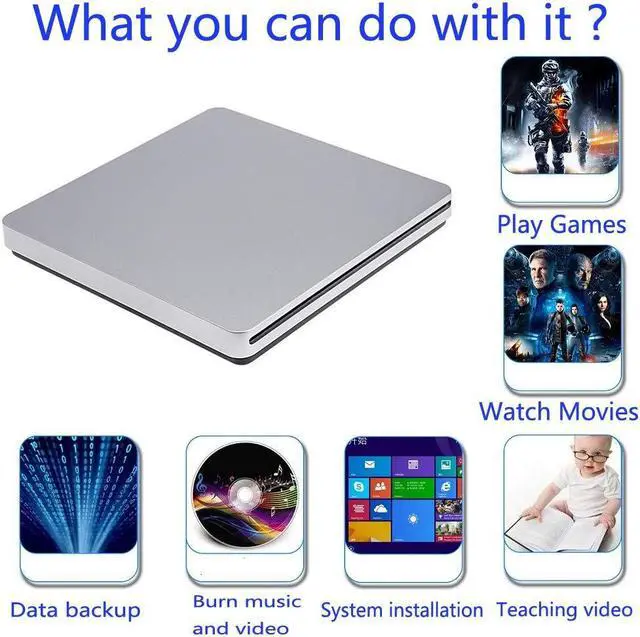
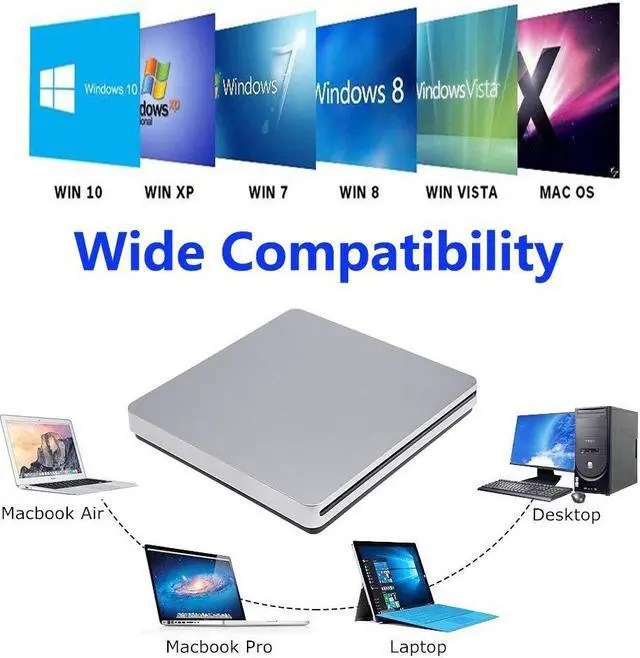



Any questions? Ask CelesteSM will help you find out quickly.

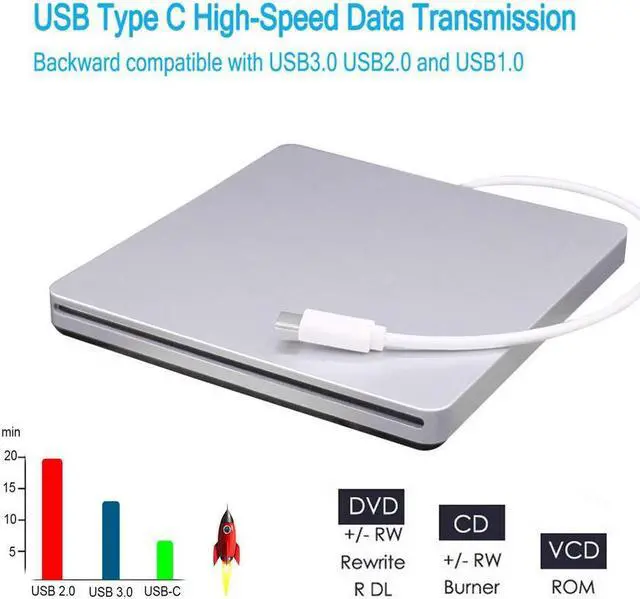
USB C USB 3.0 Type C Portable Drive DVD CD VCD External Drive For MacBook Air MacBook Pro iMac Ultrabook Netbook PC SuperDrive
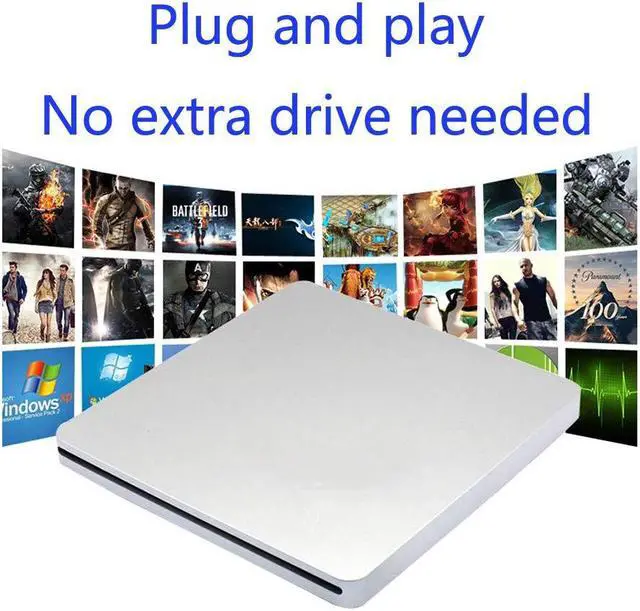
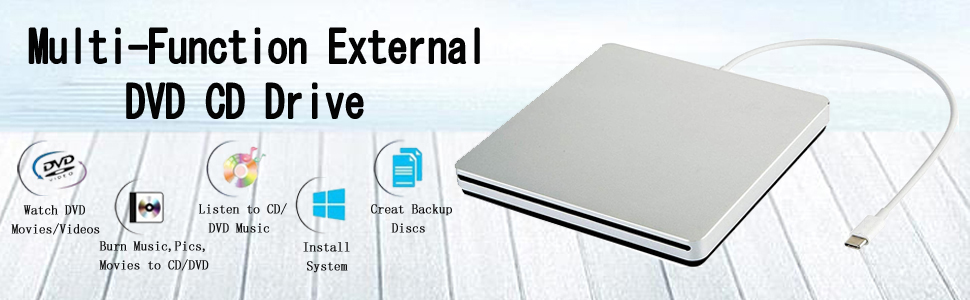
With AUBEAMTO portable external cd dvd drive, burner, writer, you can enjoy movies, music, burn discs and more. 100% brand new high-quality DVD drive has table working performance and long service life
Features:
Specifications:
-- How to use it on MAC OS:
1.Open up the Finder > Preferences and ensure "CDs, DVDs, and iPods" and"External Disks"have been selected.
2.Plug the USB C or USB A adapter into your Mac USB port instead of a USB hub.
3.Insert your CDs or DVDs.Your Mac will recognize the drive, read the disc and disc icon will appear on the desktop.
4. Open system Preferences to find CDs&DVDs and click CDs&DVDs to go to the Settings. How to open Music CDS, picture CDS, and video CDS (such as Apple Music, iTunes, DVD Player, etc.).
5.After the first setting, you do not need to reset the setting when reading other CDS. The computer automatically retrieves the file format on the disc, and you can play it by double-clicking the disc icon on your desktop.
6.If you use other software to play your CD(such as VLC media player etc.), you will need to reset the way you open the CD, or burn it.
7.For the Mac OS, you need to eject the disc through the Mac OS command. At this point, the touch button on the product does not work, or within 3 seconds after the drive is reconnected, touching the button on the product will eject the CD.
-- Good CD and DVD Burning App on Mac OS:
1.Free Audio CDs burning software (Apple Music, old iTunes, Burn, Express Burn).
2.Free Video DVDs burning software (Burn, HandBrake, iDVD (Legacy), DVDStyler, iDVD [for old MAC]).
NOTES:
Mac OS Built-in Burning Function,Connect the AUBEAMTO usb c superdrive CD DVD Drive , insert a blank disc, then click 'File' in the top menu and select 'New Burn Folder.' Drag the files you want to burn into this folder, click 'Burn to Disc,' and eject the disc when finished. Note that Mac OS only supports burning blank discs, and each disc can be burned only once.
-- How to Use it on Windows OS:
1.Plug the USB C or USB A adapter into your laptop USB port instead of a USB hub. Please connect the drive with USB port behind of computer host if you use a desktop.
2.Your computer will recognize the drive. You can see the "DVD RW Drive" icon in "My Computer" on your computer.
3.Insert your CDs or DVDs,Set the region code to Number 1 to play US or CA DVDs (CDs do not have region code).Note: You are only allowed to change the region code 4-5 times.
4.Use a media player (such as Windows Media Player, VLC player, etc.), burning, or ripping software to play, burn your discs.
5.You can use Windows media player software to play audio CDs and data DVDs (Windows 11 needs a network).If you want to play video/movie DVDs, download the free VideoLAN VLC player from VLC's official site, launch the VLC media player, click on "Media" in the top menu, select "Open Disc", ensure "DVD" is selected, then click "Play."
6.For the Windows OS, the disc can be ejected using the Windows OS command, or by using the touch button on the product. If the disc cannot be ejected, within 3 seconds after the drive is reconnected, touching the button on the product will eject the CD.
-- Good CD and DVD Burning Software on Windows OS:
1. Free Audio CDs burning software (Windows Media Player, CDBurnerXP and ImgBurn).
2.Free video DVDs burning software (ImgBurn, BurnAware Free, CDBurnerXP, Freemake Video Converter, or HandBrake software).
If your MacBook, iMac, Mac Pro/Studio is not recognized please try the following suggestions:
The Mac OS computer will not display the device icon until the disc is placed in the optical drive and the disc is read successfully.Or move the data cable to different USB ports on your mac computer, and try different discs.
If your computer is a windows os laptop or desktop computer is not recognized please try the following suggestions:
Move the data cable to different USB ports on your computer, and try different discs.NOTE: Please connect the drive with USB port behind of computer host if you use a desktop.
| Not Support Devices and Discs | This CD/DVD drive cannot play Blu-ray discs. And it is not compatible with cars, trucks, TVs, projectors, smartphones, iPhones, tablets, iPads, PS4/5, Nintendo Switch, Xbox, surface (some models), Chromebooks and Ubuntu OS. |
|---|---|
| Eject the Disc After Use | For Windows, simply touch the button above the drive to eject the disc. For Mac OS, drive Touch button is limited by Mac OS and cannot eject discs, right-click the drive icon on the desktop and select "Eject". If disc cannot be ejected by the preceding methods, touch the button on the product within 3 sec of reconnecting the product,discs will eject. Still can't eject discs, don't worry and let us know, and we'll fix the problem for you or resend a new drive for free. |
| Setting Region Code in Windows | To play video DVDs with a media player other than VLC player, the region code on your drive must match the DVD. Here's how to set it on Windows: 1. Right-click the "DVD-RW Drive" icon and select "Properties". 2. Go to the "Hardware" tab and select your CD/DVD drive. 3. Click "Properties" at the bottom. 4. Open the "DVD Region" tab. 5. Choose the correct region (e.g., USA is 1) and click "OK". (Note: You can only change the region code 4-5 times.) |
| Reading and Writing Speed | For CDs: Max reading speed: 24X, max writing speed: 24X,For DVDs: Max reading speed: 8X, max writing speed: 8X |
| Disc Cannot be inserted | The CD cannot be put into the product before use. When the product is connected to the computer, you can touch the button on the product and then put the CD into the product. If the discs still cannot be inserted, don't worry and let us know, and we'll fix the problem for you or resend a new drive for free. |
| Windows 11 Requirements | Windows 11 needs a media player (such as VLC media player) and a network connection. |
| Burn Files Not Compatible DVDs | Because the video formats of most computers and mobile phones are not compatible with DVD, you need third-party software to convert the file format to a format that can be displayed on the disc (e.g., MPEG-2,WAV or MP3) , otherwise, even if you burn the file to a disc, it will not work. |
| Playback video is not clear | The disc has been used for a long time and scratches or the product is placed near a strong magnetic object, resulting in this problem for the disc to read. |
| Product Put Unstable? | Product may be placed on the office desktop too smooth, resulting in slight shaking, but this does not affect the drive to read the disc, can also be placed on the mouse pad, increasing friction, this will not happen. |


