

Your Browsing History
- Free 30-day Returns
$43.89
Ships from China.

Meet Your Seller


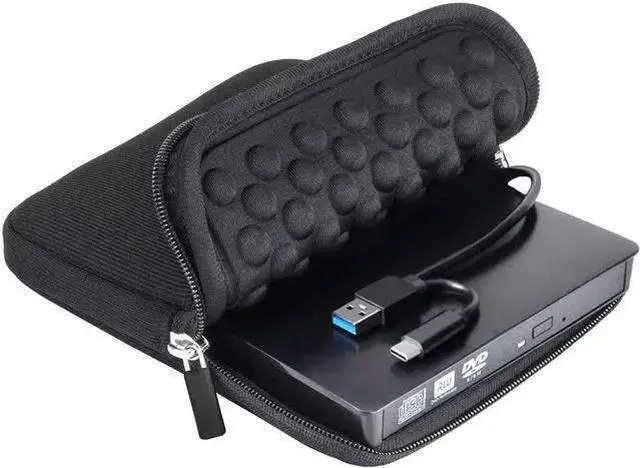
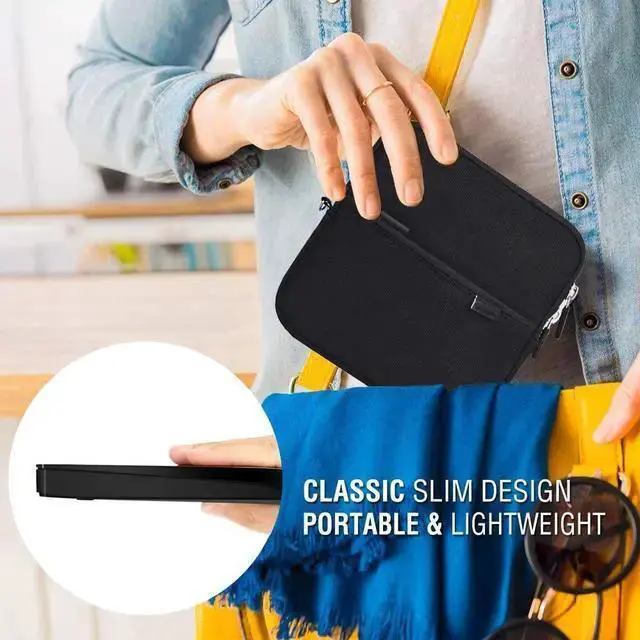


External CD DVD Drive USB 3.0 Type-C Portable DVD/CD ROM +/-RW Drive Burner Rewriter with Protective Storage Carrying Case Bag for Windows Linux Mac Laptop Desktop, MacBook Pro/ Air, iMac
Limited time offer, ends 10/13 By TechMax Depot
- High Quality External CD DVD Drive USB 3.0 Type-C Portable DVD/CD ROM +/-RW Drive Burner Rewriter with Protective Storage Carrying Case Bag for Windows Linux Mac Laptop Desktop, MacBook Pro/ Air, iMac
- Best External CD/DVD Drive for Laptop Mac - This USB
- 0 external CD/DVD drive is a perfect solution
- How to use it on Windows?: STEP#1. The data cable is on the back of the drive. STEP#2. Plug the USB-A or USB-C connector on the data cable into your computer's USB port (remove the USB hub). STEP#3. Your Windows laptop PC will recognize this drive. STEP#4. Set the region code to number 1 to play the U.S. or CA video DVDs (CDs are not region-coded). STEP#5. Insert your CDs or DVDs. STEP#6. Use a media player (e.g. Windows media player, VLC player, etc.) or burning/ripping software to read/write your discs.
- Set region code in Windows: STEP#1. Right-click the DVD-RW drive icon. STEP#2. Select Properties. STEP#3. Open the Hardware tab. STEP#4. Select the name of the player, and at the bottom, do Properties. STEP#5. Click the DVD Region tab. STEP#6. Select the code then press OK
+
+
Overview
Specs
Reviews

Any questions? Our AI mode will help you find out quickly.
Try me now
High Quality External CD DVD Drive USB 3.0 Type-C Portable DVD/CD ROM +/-RW Drive Burner Rewriter with Protective Storage Carrying Case Bag for Windows Linux Mac Laptop Desktop, MacBook Pro/ Air, iMac. Best External CD/DVD Drive for Laptop Mac - This USB. 0 external CD/DVD drive is a perfect solution. How to use it on Windows?: STEP#1. The data cable is on the back of the drive. STEP#2. Plug the USB-A or USB-C connector on the data cable into your computer's USB port (remove the USB hub). STEP#3. Your Windows laptop PC will recognize this drive. STEP#4. Set the region code to number 1 to play the U. S. or CA video DVDs (CDs are not region-coded). STEP#5. Insert your CDs or DVDs. STEP#6. Use a media player (e. g. Windows media player, VLC player, etc. ) or burning/ripping software to read/write your discs.. Set region code in
Windows: STEP#1. Right-click the DVD-RW drive icon. STEP#2. Select Properties. STEP#3. Open the Hardware tab. STEP#4. Select the name of the player, and at the bottom, do Properties. STEP#5. Click the DVD Region tab. STEP#6. Select the code then press OK
Windows: STEP#1. Right-click the DVD-RW drive icon. STEP#2. Select Properties. STEP#3. Open the Hardware tab. STEP#4. Select the name of the player, and at the bottom, do Properties. STEP#5. Click the DVD Region tab. STEP#6. Select the code then press OK
Warranty & Returns
Warranty, Returns, And Additional Information
Warranty
- Please contact the Seller directly for warranty information. Warranty information may also be found on the Manufacturer's website.
- CONTACT
Return Policies
- Return for refund within: 30 days
- Return for replacement within: non-replaceable
- This item is covered by TechMax Depot Return Policy
Manufacturer Contact Info
- For a directory of all our manufacturers, please click below.
- Manufacturers Directory
LOADING...