
Your Browsing History




Any questions? Our AI beta will help you find out quickly.
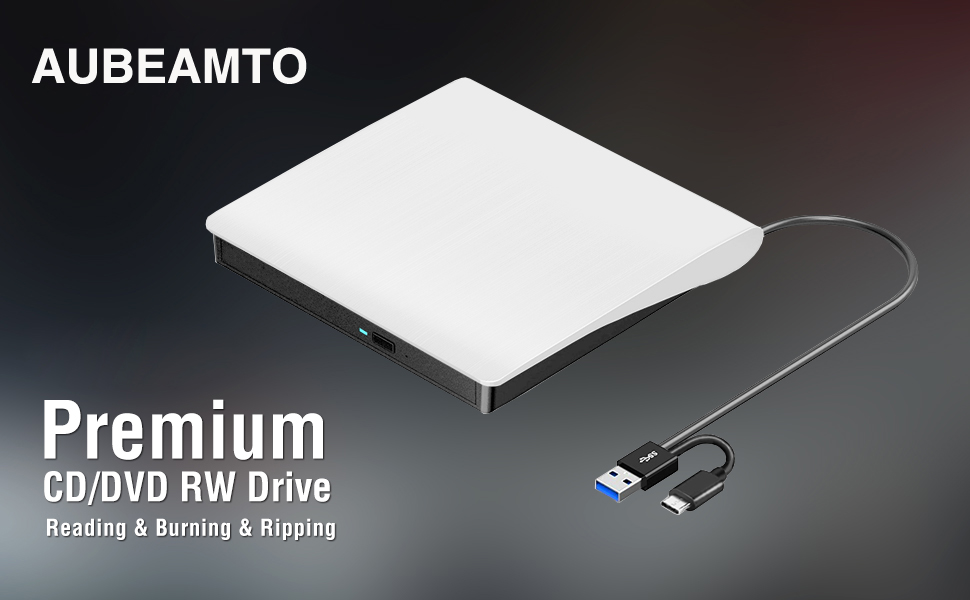
AUBEAMTO ED001 USB-C External CD/DVD RW Drive Burner for Apple Mac & Windows Laptop PC
In the age of streaming and cloud services, CDs and DVDs have become outdated formats. As a result, most laptop and desktop manufacturers have opted to remove built-in optical drives to make their devices slimmer and more compact. However, if you want to relive your favorite '90s music CDs and movie DVDs, burn custom music CDs, archive valuable videos or photos to discs for long-term storage, import media from discs to your computer or phone, or install software and system updates, the best and most convenient solution is a reliable USB external optical drive.
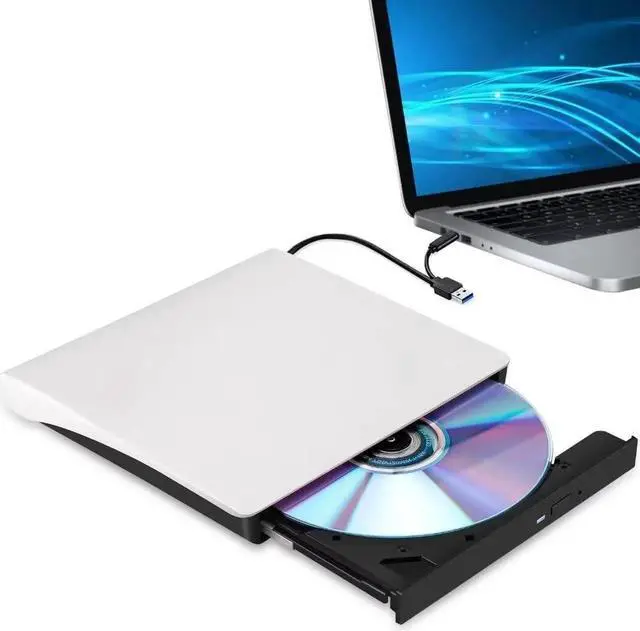
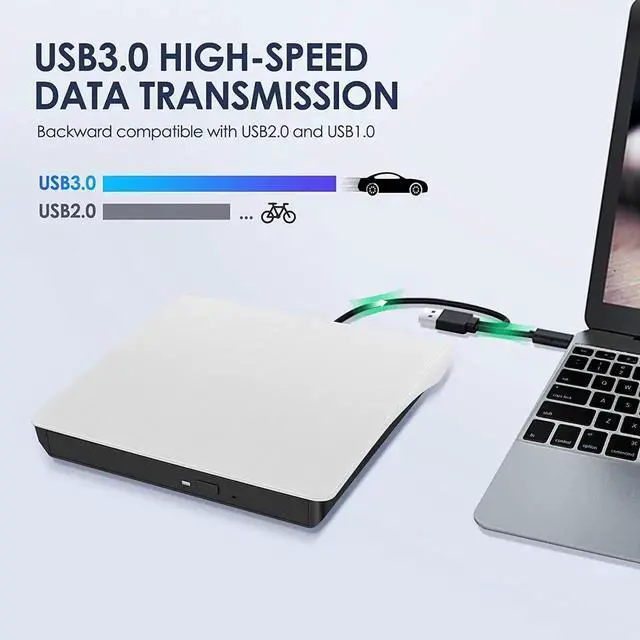
Luckily, we've got you covered. This ED001 not only has an ultra-thin and compact shape,but it also uses a true high-speed USB 3.0 solution. Simply connect to your computer via USB Type-A or Type-C, and it will automatically install the driver, and then you can experience smooth reading, burning, and ripping CD/DVD functions through the media player or burning software. The portable design and reliable performance are the reasons why this model has sold more than 1.8 million units and received the most positive reviews since it was launched in 2016.
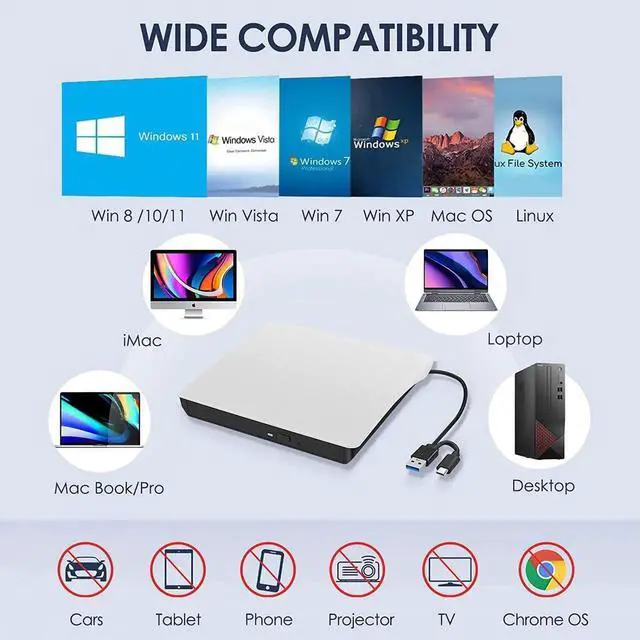
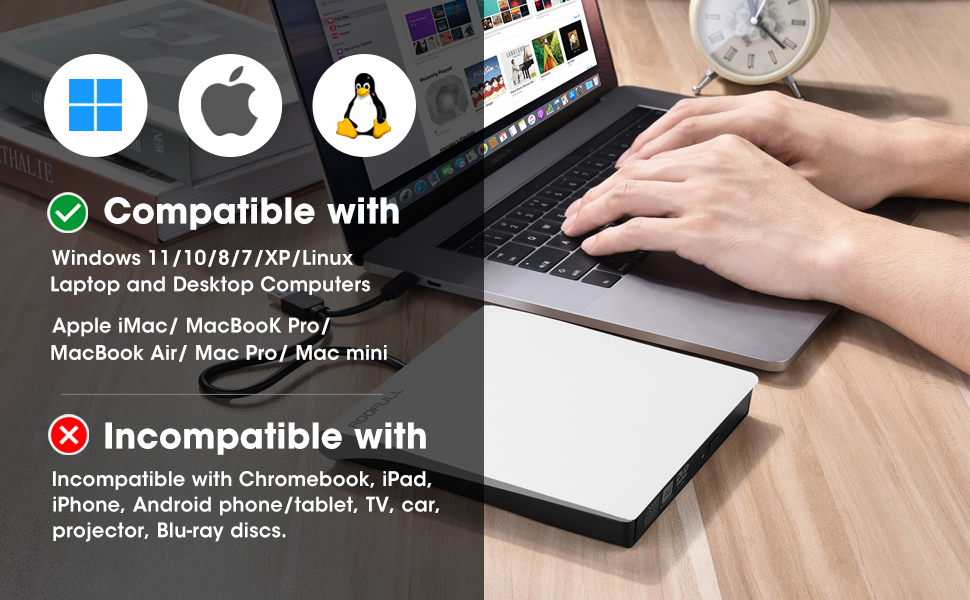
Of course, it should be noted that this external CD/DVD player is only compatible with Windows, Apple Mac, and Linux computers. It CAN NOT work with Chromebooks, smartphones, tablets, TVs, cars, projectors, PlayStation, Ubuntu, or Blu-ray discs.
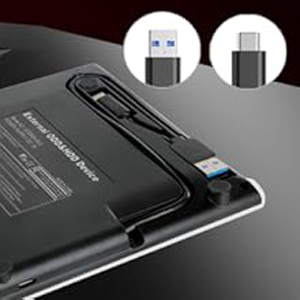
2-IN-1 USB 3.0 Connector
Equipped with USB-C and USB-A connectors make it easier to connect to more laptops and desktop computers, no USB hub/adapter required. Plug into your computer, insert your disc, it will be recognized by your computer automatically, then you can use the compatible software to read or burn your CDs/DVDs.
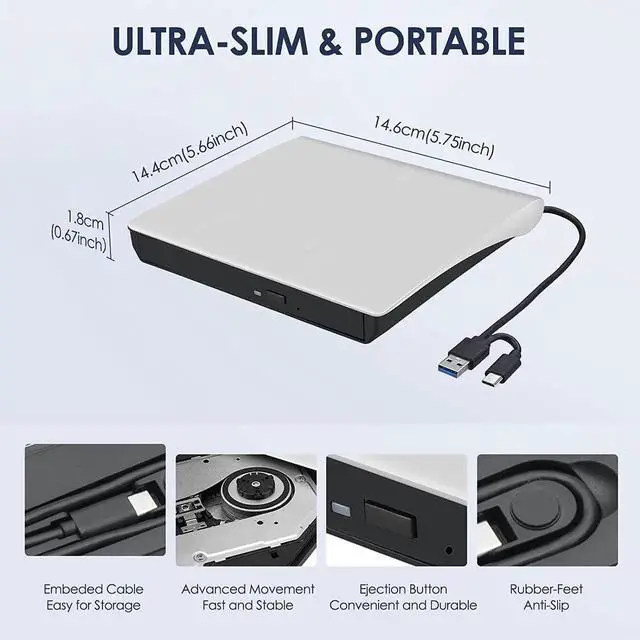
* The length of the cable is about 25 cm/ 9.8 inches.
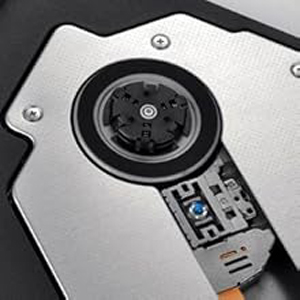
Powerful Performance
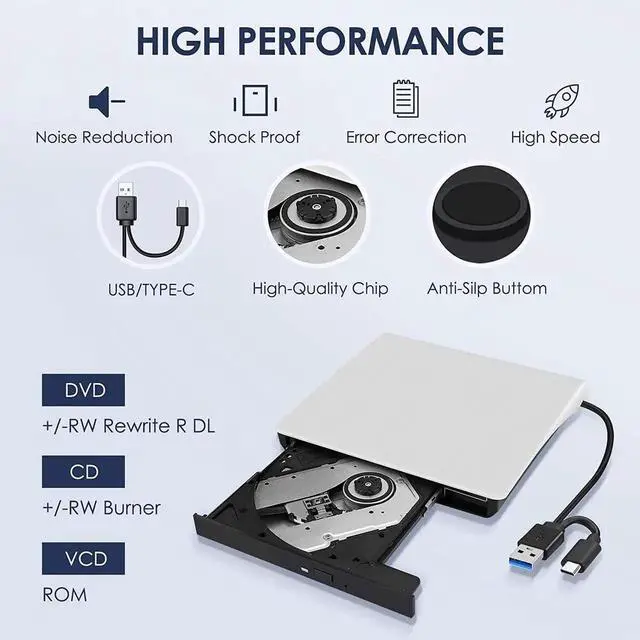
100% brand-new upgraded DVD loader with faster speed, low impedance & anti-interference ability, bring you a fast and more smooth experience.
* Max Speed: CD-ROM: 24X / CD-R: 24X / CD-RW: 8X / DVD-ROM: 8X / DVD-R: 8X / DVD+R: 8X / DVD-RW: 8X / DVD+RW: 8X / DVD+R DL: 4X / DVD-R DL: 4X / DVD RAM 3X
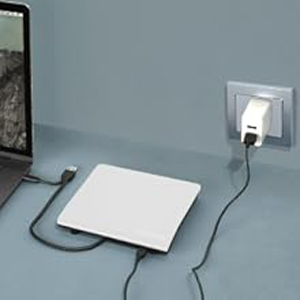
Separate Power Supply Cord
If your computer cannot supply sufficient power for this drive through a single data cable, please connect this separate power supply cord to a USB power bank/adapter or another USB port on your computer. If needn't, you can remove this power cord.
* This power supply cord can not use alone.
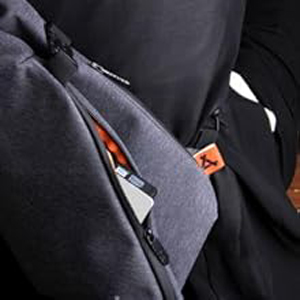
Slim and Portable
Slim design and lightweight allow us to carry and use this portable external CD/DVD drive anytime, anywhere no matter you are at home, in the office, or during a trip.
* Approximate size: 14.6*14.9*1.7 cm ( 5.74* 5.86* 0.67 inch)
How to Use this USB External CD/DVD Drive?
Troubleshooting Steps
If your Windows laptop PC cannot recognize this CD/DVD drive, please try the following suggestions:
If your MacBook, iMac, or Mac Pro/Studio cannot recognize this CD/DVD drive, please try the following suggestions:
Tips: If you need assistance, please feel free to reach out to us on Newegg (STEP: On this product detail page, click the name of the seller [AUBEAMTO] and send messages.)
Best to Know Before Buying
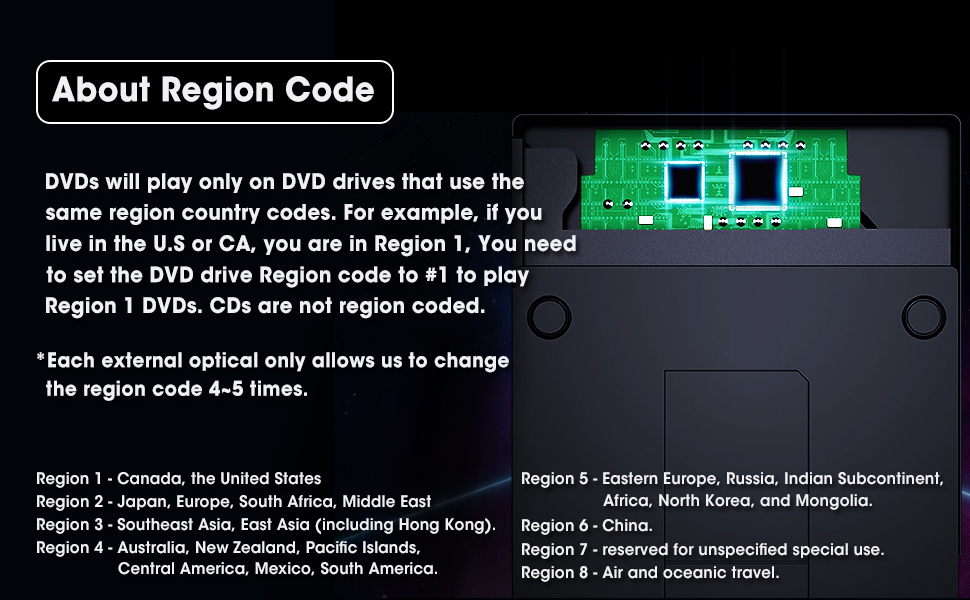
| Setting Region Code in Windows | To play video DVDs with a media player other than VLC player, the region code on your drive must match the DVD. Here's how to set it on Windows: 1. Right-click the "DVD-RW Drive" icon and select "Properties". 2. Go to the "Hardware" tab and select your CD/DVD drive. 3. Click "Properties" at the bottom. 4. Open the "DVD Region" tab. 5. Choose the correct region (e.g., USA is 1) and click "OK". (Note: You can only change the region code 4-5 times.) |
| Ensure the Drive is Recognized | Insert the external optical drive into the computer. After the Windows system recognizes the optical drive, the "DVD RW Drive" icon will be displayed in the Windows Explorer (This PC). The Mac OS computer will not display the device icon until the disc is placed in the optical drive and the disc is read successfully. If the computer fails to recognize the optical drive, it may be that the computer's driver is missing or the output current is insufficient. |
| How to Eject Your Disc? | For Windows, simply press the button on the front of the drive to eject the tray. For Mac OS, the drive button is limited by Mac OS and cannot open the tray, right-click the drive icon on the desktop and select "Eject", or select "File" - "Eject". If the device fails and cannot be opened, don't worry and let us know, we will solve the problem or resend you a new drive for free. |
| Data Cable & Power Cord | The USB A/C data cable is located at the bottom of the drive, and the charging cord (power cord) is a separate USB cord that comes with the package. The charging cord cannot be used as a data cable alone, it must be used together with the USB A/C data cable built into the back of the drive. Due to the limitation of the design, the length of the data cable is only about 10 inches / 26 cm. |
| Windows 11 Requirements | Windows 11 needs a network connection and a media player (such as VideoLAN VLC player) to play video DVDs, you can use Windows media player to read, burn, rip your audio CDs and data DVDs. |
| Reading/Writing Speed | Max reading and writing speed (CD: 24X/ DVD: 8X). Recommended speeds (CD: Reading Speed: 24x or lower/Writing Speed: 8x to 16x; DVD: Reading Speed: 8x or lower/Writing Speed: 4x to 8x). For DVDs, slower writing speeds like 4x or 8x are often ideal to ensure data integrity, particularly for high-capacity or dual-layer discs. These speeds allow for more precise data encoding, reducing the risk of read errors in the future. |
| How to Insert Discs? | Ensure discs are placed well and not scratched. The raised fixing post in the middle of the CD drive tray has three spring buckles. You need to gently press the disc into the spring buckles to secure the disc. |
| About Media Format & Burning | Before burning an audio or video disc, make sure the multimedia format is compatible with the disc, otherwise the burned disc will not play properly. You can use software (such as HandBrake or Freemake Video Converter) to convert video files to DVD-compatible formats (e.g., MPEG-2) or audio files to CD-compatible formats (e.g., WAV or MP3). |
| About Burning Discs | Before burning a CD or DVD, please ensure the data format is correct, your blank disc capacity is sufficient, and use the right burning software. |
| How to Import Music from CDs? | For Windows, use Windows media player to rip audio CDs to your Windows computer. For Mac, use Apple Music/iTunes to import music to your Mac computer. |
Plug and
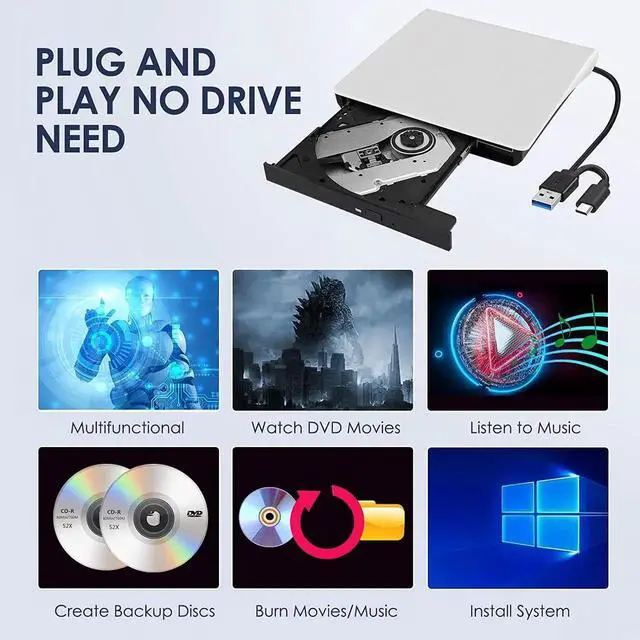
Play Convenience: Our external CD/DVD drive requires no additional drivers or applications! Simply connect it to your laptop via USB 3.0 or Type-C and its ready to go. Perfect for playing music, watching movies, installing software, or burning media. Its compact, travel-friendly design makes it a great addition to your laptop
Fast USB 3.0 & Type-C Performance: Equipped with both USB 3.0 and Type-C interfaces, this CD/DVD drive provides fast data transfer for smooth reading and writing without lag. Its backward compatible with USB 2.0, ensuring reliable performance whether you're installing software or streaming videos
Universal Compatibility: This dvd player for laptop supports a wide range of formats, including CD-ROM, DVD+/-R, DVD-RW, DVD-ROM, CD-RW, and CD-R. Compatible with Windows 11/10/8/7/XP, Mac OS, Linux, and
more. (Note: Not compatible with iPads, smartphones, Chromebooks, TVs, cars, or Blu-ray discs. )