

Your Browsing History

Meet Your Seller

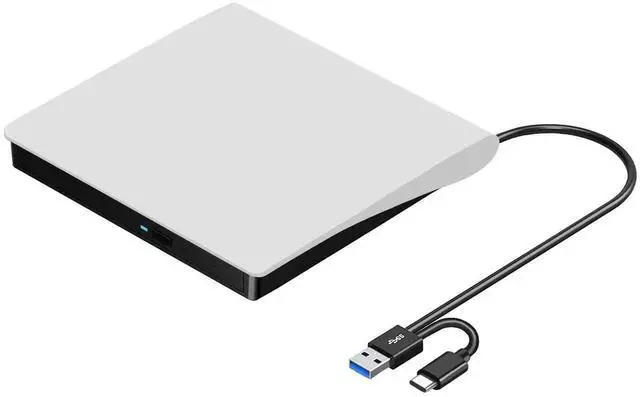
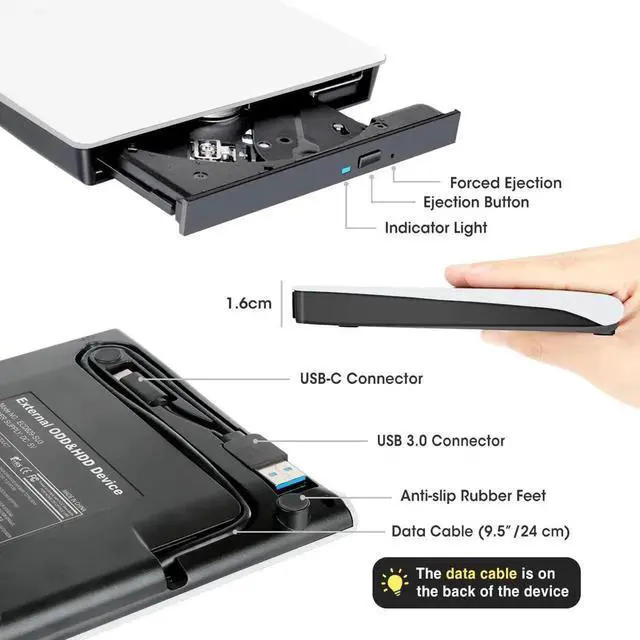


External CD DVD Drive for Mac Laptop, USB 3.0 & USB-C CD DVD Reader Writer Burner Player ROM/RW Portable Optical Disc Drive for Apple MacBook Pro, iMac, Windows 11/10/8/7 Computer PC, White
Limited time offer, ends 09/29 By Glovibe Tech
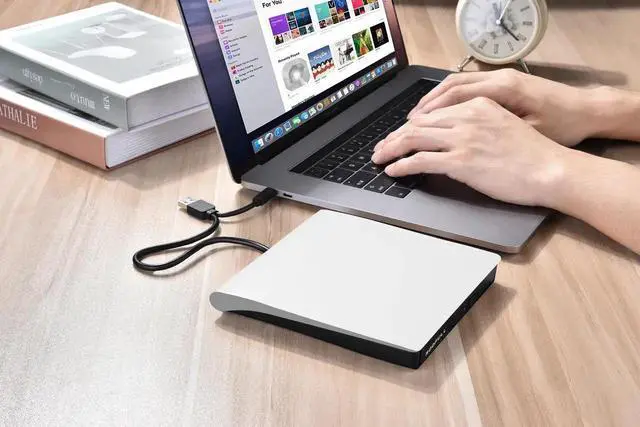
- [Best External CD Drive for Mac & Laptop]If you're looking for a simple and reliable external optical drive for reading and writing CDs and DVDs on your laptop or Mac, this white ECD829-Y, trusted by over one million users, is a good choice. Simply plug the data cable into your laptop PC > It will be recognized by your PC automatically (On Mac, the disc drive icon will appear on the desktop after a disc is inserted and successfully read) > Insert your CDs or DVDs > Use a media player, burning, or ripping software to read, write, and rip your CDs and DVDsno complex settings needed, plug and play! (Scroll down for recommended software and detailed steps)
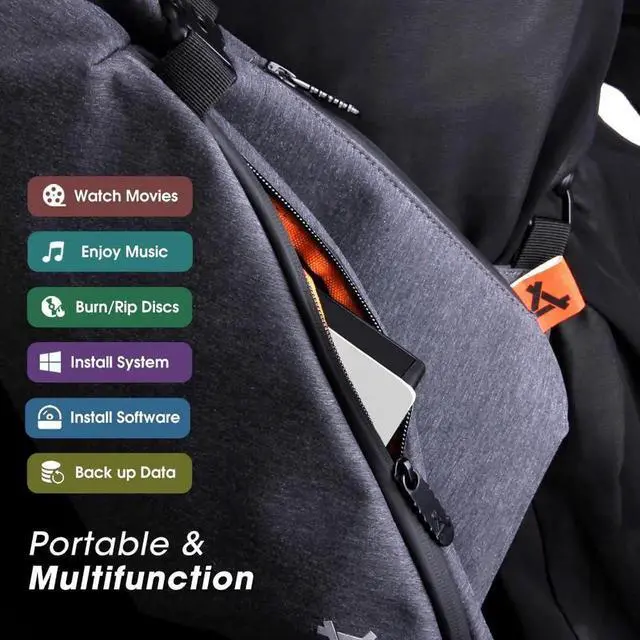
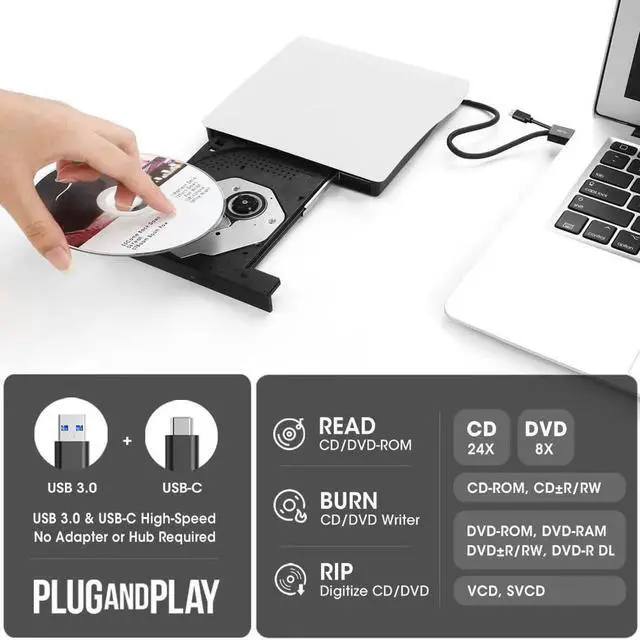
- [Not Just a CD/DVD-ROM]This external DVD drive does more than just play music CDs and movie DVDs it's also a CD/DVD burner, writer, rewriter, recorder, and ripper. With it, you can enjoy your old CD/DVD collection, burn music, photos, family videos, or data to blank discs, and rip (digitize) audio CDs or video DVDs into digital files like MP3, WMA, or MP4 to store on your computer. You can also view photo discs, install software or games, and back up important data for long-term storage or sharing. It supports all common disc formats, including CD-ROM, CD-R/RW, CD+R/RW, DVD-ROM, DVD±R/RW, DVD-RAM, and dual-layer DVD±R DL (VCD too). Note: Blu-ray and 4K discs are not supported
+
+
Overview
Specs
Reviews

Any questions? Our AI mode will help you find out quickly.
Try me now
 Common Faults That May Occur & Troubleshooting Steps
[Windows OS] If your Windows computer recognizes the optical drive, you can see the DVD-RW icon in Windows Explorer. If your Windows laptop PC cannot recognize this CD/DVD drive, please try the following suggestions:
- Use the Type A and Type C cables on the back (bottom) of the optical drive to connect your computer's USB port or a self-powered USB hub. For Windows 11/10, please make sure a network connection and a media player software (Such as Windows Media Player for audio CDs, VLC player for audio CDs and video DVDs)
- Try a different USB: Move the data cable to different USB ports on your computer.
- Reinstall the driver: 1. Right-click the Windows Start Button in the lower left corner of the screen, or press the Windows Logo + X key combination on the keyboard, from the list, and click to select Device Manager. 2. Click View. 3. Click Show Hidden Devices. 4. Find this DVD/CD-ROM drive or similar name. 5. Right-click and select Uninstall. 6. Reboot your computer and replug the external drive, Windows will detect the drive and then reinstall it.
[Windows OS] This drive supports CDs and DVDs. If this drive can only play audio CDs but cannot play video/movie DVDs on your Windows PC, please try the methods below:
- Use the right media player software (such as VLC player). Some media players, such as Windows Media Player, cannot play video DVDs.
- Before playing video DVDs, please set the region code to number 1 to play the U.S. or CA DVDs. Steps: 1. Right-click the "DVD-RW Drive" icon and select "Properties". 2. Go to the "Hardware" tab and select your CD/DVD drive. 3. Click "Properties" at the bottom. 4. Open the "DVD Region" tab. 5. Choose the correct region (e.g. Region 1 for US/Canada) and click "OK". (Note: You can only change the region code 4-5 times.)
[Mac OS] The Mac computer will show the device icon after the disc is placed in the optical drive. If your MacBook, iMac, or Mac Pro/Studio cannot recognize this CD/DVD drive, please try the following suggestions:
- Open Finder > Settings (or Preferences, depending on your macOS version) > Ensure "CDs, DVDs, and iOS Devices" is checked in General Tab and Sidebar Tab if available.
- The Mac OS computer will not display the device icon until the disc is placed in the optical drive and the disc is read successfully.
- Move the data cable to different USB ports on your mac computer, and try different discs.
 Compatibility, Incompatibility, Recommended Software, and Usage Instructions
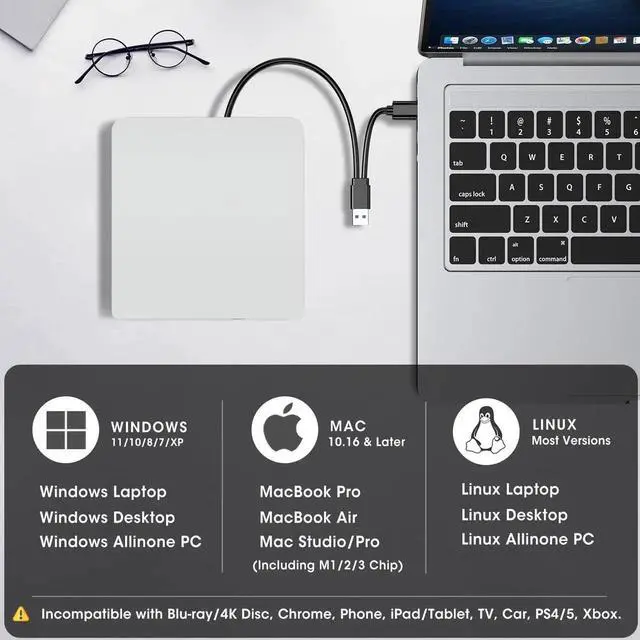
Compatibility: This USB external CD/DVD player for PC is compatible with Windows laptops and desktops (11, 10, 8, 7, Vista, XP), Linux computers, and Apple devices including MacBook Pro, MacBook Air, iMac, Mac mini, and Mac Studio (including M1, M2, M3, and M4 chips).
Incompatibility: This drive is not compatible with Chrome OS (Chromebooks), TVs, cars, trucks, projectors, tablets, iPads, smartphones, gaming consoles (PS4/PS5, Xbox, Nintendo Switch), and it cannot play Blu-ray discs.
How to Use on Windows Computers: Prepare playback, burning, or ripping software based on your needs, and network connection for Windows 11 > Connect the data cable (located under the drive) to your computer's USB-A or USB-C port directly, or through a self-powered USB hub > The system will automatically install the necessary driver, and a DVD RW icon will appear in Windows Explorer > For video DVDs, make sure to set the DVD region code to match your disc (e.g., Region 1 for US/Canada); CDs do not require a region setting > Insert the CD or DVD, then use your chosen software to play, burn, or rip > When finished, eject the disc by pressing the physical button or right-clicking the icon and selecting Eject.
Trusted Free Software for Windows: For audio CD playback, use Windows Media Player or VLC; for video DVD playback, try VLC, Kodi, or 5KPlayer; to burn audio CDs, use CDBurnerXP or ImgBurn; for burning video DVDs, use ImgBurn, BurnAware Free, or CDBurnerXP; to rip audio CDs, consider Windows Media Player, iTunes, Exact Audio Copy (EAC), or Fre:ac; to rip video DVDs, use HandBrake or MakeMKV.
How to Set the Region Code in Windows: Right-click the "DVD-RW Drive" icon and select "Properties" > Go to the "Hardware" tab and select your CD/DVD drive > Click "Properties" at the bottom > Open the "DVD Region" tab > Choose the correct region (e.g. Region 1 for US/Canada) and click "OK". (Note: You can only change the region code 4~5 times.)
How to Use it on Apple Mac Computers: Open Finder > Settings (or Preferences, depending on your macOS version) > Ensure "CDs, DVDs, and iOS Devices" is checked in the General Tab and Sidebar Tab if available > Prepare the media player, burning, or ripping software based on your needs (not all) > Plug the data cable (located under the drive) into your computer's USB-A or USB-C port directly or a self-powered USB hub > Insert your CDs or DVDs > The disc drive icon will appear on the desktop after a disc is successfully read > Use your installed software to play, burn, or rip the disc > After playback/burning, the tray cannot open via the button due to macOS limitations. To eject a disc on Mac computers after playback/burning, right-click on the desktop icon and select "eject," or choose "File" > "Eject" from the menu.
Trusted Free Software for Apple Mac: For audio CDs, use Apple Music, iTunes, or VLC; for video DVD playback, use VLC or Apple DVD Player; for burning audio CDs, try Apple Music, Burn, or Express Burn; to burn video DVDs, use Burn for Mac, HandBrake, DVDStyler, or iDVD (for older systems); to rip audio CDs, use Apple Music, X Lossless Decoder (XLD), or HandBrake; to rip video DVDs, use MakeMKV or HandBrake with VLC (to read protected DVDs).
What's the Burning & Ripping: Burning means copying music, videos, or files from your computer onto a blank CD or DVD, while ripping means copying content from a CD or DVD onto your computer. These processes let you create custom discs or save physical media digitally.
Note Before Burning Discs: Before burning, ensure your blank disc capacity is sufficient (CD-R/CD-RW: 700MB or 80 min audio; DVD-R/DVD+R: 4.7GB or 2 hours video; Dual Layer DVD: 8.5GB for long videos), use the proper burning software, set a safe burning speed (10X or lower for CDs and 4X to 8X for DVDs), and confirm the file format is compatible with the blank disc (Supported audio formats: WAV, MP3, WMA, AAC [M4A]. For car or home CD players, burn in CD-DA format; Use MPEG-2, VOB, or MPG for DVD-Video.). To convert files into disc-compatible formats, use Burn (for Mac), DVDStyler (for Windows & Mac), or CDBurnerXP (for Windows). If burning a data disc for storage, you can include any standard file types without format conversion.
About Photo/Image Discs: Some photos cannot be viewed or downloaded on Mac and Windows due to incompatible disc formats, unsupported image files, copy protection, or disc damage. Both systems support JPEG, PNG, TIFF, BMP, GIF, HEIF, and most RAW formats, but some RAW files may need Preview, Photos, or third-party software to open.
 Enhanced USB 3.0, Supported Disc Type, and Max Read/Write Speed
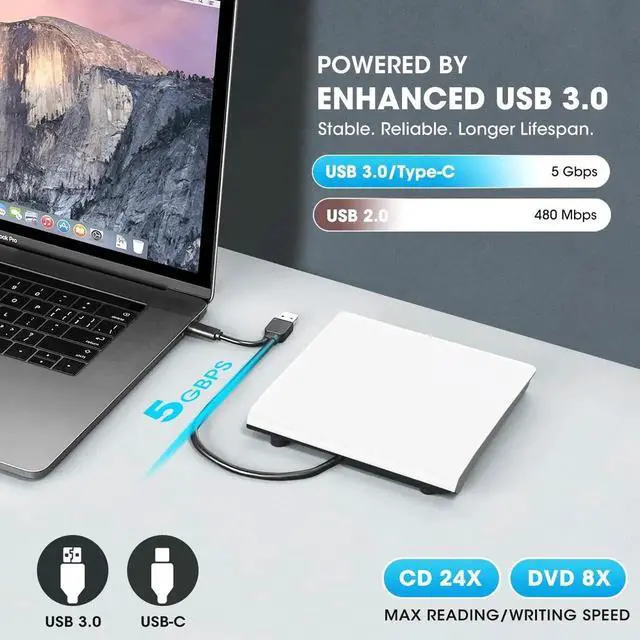
Upgraded USB 3.0 not only supports high-speed transfers up to 5 Gbps 10 times faster than USB 2.0 with DVD 8X and CD 24X max read/write, but also offers smooth, stable, and reliable operation with enhanced error correction and noise reduction for long-lasting use.
Supported Disc Types: Support the reading, burning (writing/rewriting), and ripping (digitizing) of multiple types of discs, including CD-ROM, CD-R, CD±RW, DVD-ROM, DVD-RAM, DVD±R, DVD±RW, DVD±R DL, VCD, SVCD. (Blu-ray, 4K, and some M-discs are NOT supported)
Max Read/Write Speeds: CD-ROM 24x, CD-R 24x, CD±RW 8x, DVD-ROM 8x, DVD±R 8x, DVD±RW 8x, DVD±R DL 4x. (Tips: The drive gradually increases speed from the inner to the outer edge, with a slower startup speed that reaches maximum performance as it progresses.)
Safe Burning & Ripping Speed: While the maximum read/write speeds for CDs are 24X and 8X for DVDs, we recommend burning or ripping at 10X or lower for CDs, and 4X to 8X for DVDs. Slower speeds, such as 4X or 8X, are ideal for ensuring data integrity, especially with high-capacity or dual-layer discs. These speeds enable more precise data encoding, reducing the risk of read errors.
Warranty & Returns
Warranty, Returns, And Additional Information
Warranty
- Please contact the Seller directly for warranty information. Warranty information may also be found on the Manufacturer's website.
- CONTACT
Return Policies
- Return for refund within: 30 days
- Return for replacement within: non-replaceable
- This item is covered by Glovibe Tech Return Policy
Manufacturer Contact Info
- For a directory of all our manufacturers, please click below.
- Manufacturers Directory
LOADING...