

Your Browsing History




Any questions? Our AI beta will help you find out quickly.
Specification
Support existing CAT-5 UTP cabling with automatic crossover detection
Fully compliant with PCI-Express Base Specification Revision1.1
Single-Lane(x1)PCI-Express with throughput up to 2.5Gbps
Compatible with PCI-E MINI Card Electromechanical specification revision1.2
Compatible with Full/Half size MINI card type form factor
Fully Plug and Play compatible
A high performance 1000BASE-T Ethernet controller card
Backwards compatible to 10/100BASE-T networking
10/100/1000Mbps data rate auto negotiation operation
Fully compliant with IEEE802.3, 802.3 u,and 802.3ab
Support full duplex flow control(IEEE802.3x)
Support IEEE802.1P Layer 2 Priority Encoding
Support IEEE802.Q VLAN tagging
Support jumbo frame to 9K bytes
Crossover Detection and Auto Correction operation
Package content
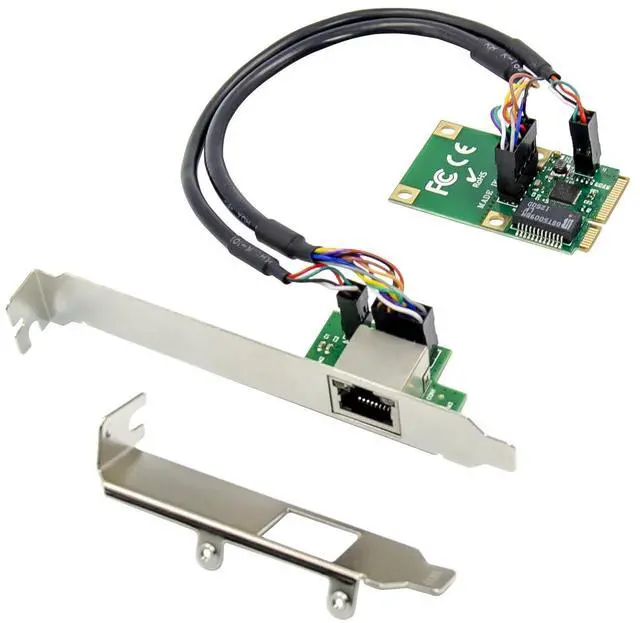
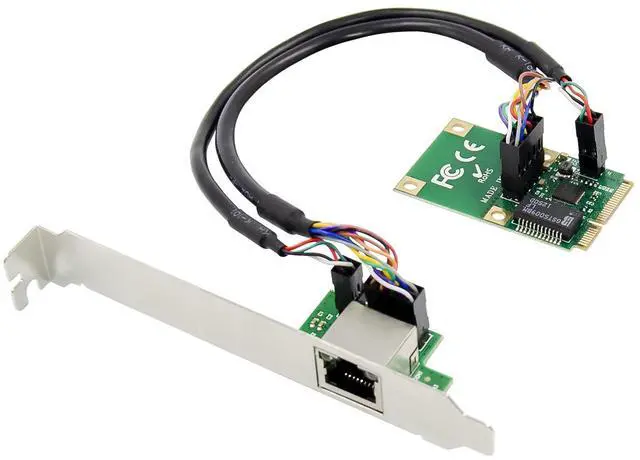
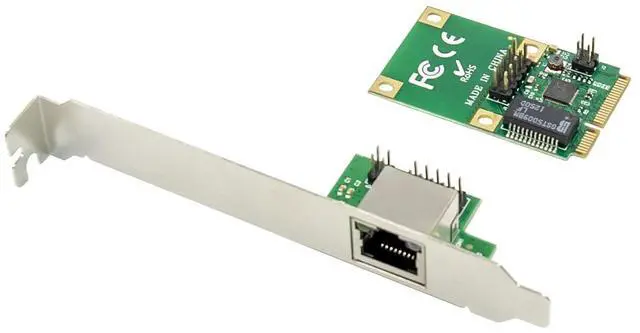
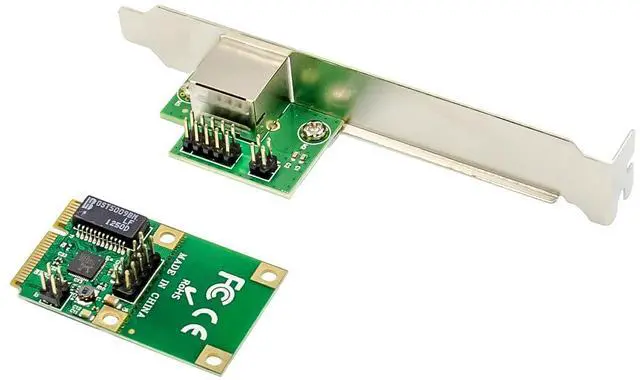
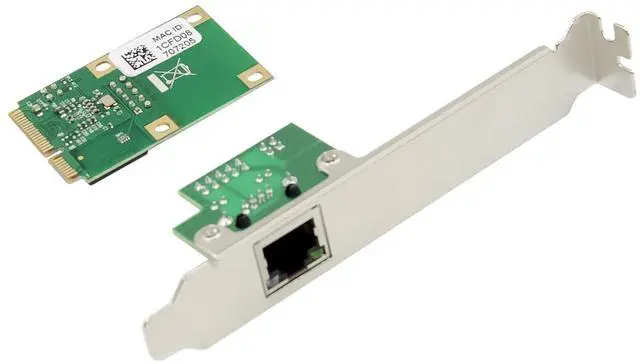
1 x Mini PCIe RTL8111F Gigabit network adapter-main card
1 x Mini PCIe RTL8111F Gigabit network adapter -daughter card
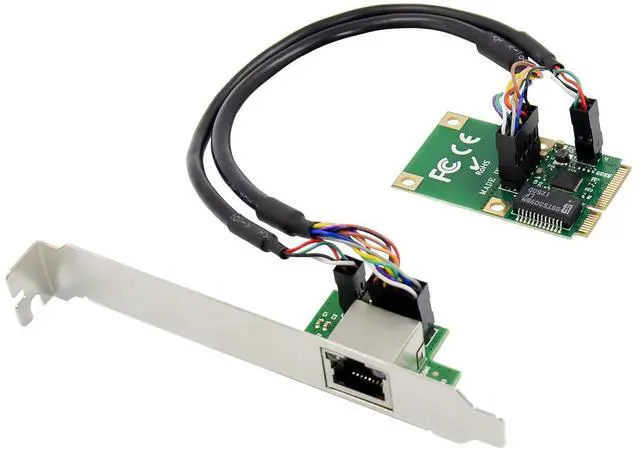
1 x 10-Pin network cable
1 x 4-Pin LED cable
1 x Users Manual
1 x CD
1 x Low profile bracket
System Requirements
WindowsME,98SE,2000,XP Vista,7,8 and 10 32/64bit
Windows server2003,2008,and 2012 32/64bit
Linux,DOS ,MAC OS X10.4.X or above
One available MINI PCIe slot
Hardware installation
1.Turn off your computer and all external devices connected to it.
2.Open the computer case. Refer to your computer user manual for more details
3.Find an available Mini PCIe slot and remove the slot bracket, Save the bracket screw for later use.
4.Insert the main card to the Mini PCIe slot firmly and evenly ,Take care not to force it into the slot. Once you have properly positioned the main card into the slot, secure it with the screw you have just saved.
*Note: If the computer just have a half Mini PCIe slot, you need to break the full-size main card into half-size along the split holes(cutting line).
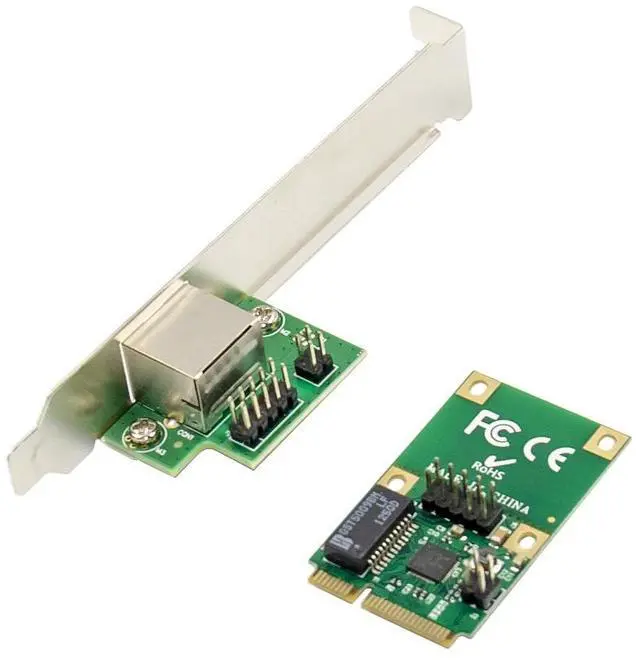
5.Connect the network cable and LED cable between the main card and the daughter card. The orientation of the cable socket must be same as the header which are shown as below:
The cable socket should always be inserted onto the header with the same orientation and the triangle ark on the PCB showing Pin 1 of the cable and the header.
6.Find an empty expansion slot on the back panel of the computer case and remove the metal bracket. Save the bracket for later use.
7.Place the bracket of the daughter card on the expansion slot on the back panel and secure it with the bracket screw you have just saved.
8.Connect the system to network by inserting the CAT-5 or above cable into RJ45 Port on the daughter card.
9.Secure the computer case and switch on your computer.
Install Drivers
Windows Operating Systems
1. Please insert the CD driver bound into your CD-ROM Drive.
2. At the Windows desktop, click Start, Run.
3. 1 For Windows® WIN98SE,WinME
TypeRTL8168,RTL8111C,RTL8111E\Windows\WIN98SE,WINME\PCIE_Install_5708_1119\setup. exe, Double click it.
3. 2 For Windows® WIN2K, XP, Server 2003 (32/64 bit)
TypeRTL8168,RTL8111C,RTL8111E\Windows\WIN2K,XP,2003\PCIE_Install_5790_11182011\setup.exe, Double click it.
3. 3 For Windows® Vista, WIN2008 (32/64 bit)
TypeRTL8168,RTL8111C,RTL8111E\Windows\VISTA,WIN2008\Install_Vista_6250_11182011\setup.exe, Double click it.
3.4 For Windows® Win7, WIN2008 (32/64 bit)
TypeRTL8168,RTL8111C,RTL8111E\Windows\WIN7,WIN2008\Install_Win7_7049_11182011\setup.exe, Double click it.
3.5 For Windows® Win8, Win8.1 (32/64 bit)
TypeRTL8168,RTL8111C,RTL8111E\Windows\Win8,Win8.1\Install_Win8_8.1_8020_09182013\setup.exe, Double click it.
3.6 For Windows® Win10 (32/64 bit)
Type
RTL8168,RTL8111C,RTL8111E\Windows\Win10\Install_Win10_10003_08202015\setup.exe, Double click it.
4. Follow the on-screen instructions to complete the installation.
Support
More information and settings, please refer to the Adapter User Guides or you can contact us.