

Your Browsing History
- Free 30-day Returns
$291.00
Ships from China.


Meet Your Seller

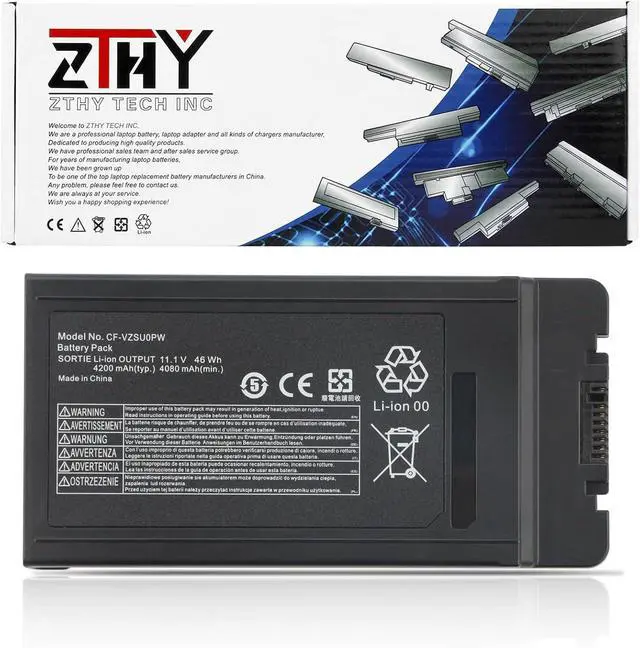
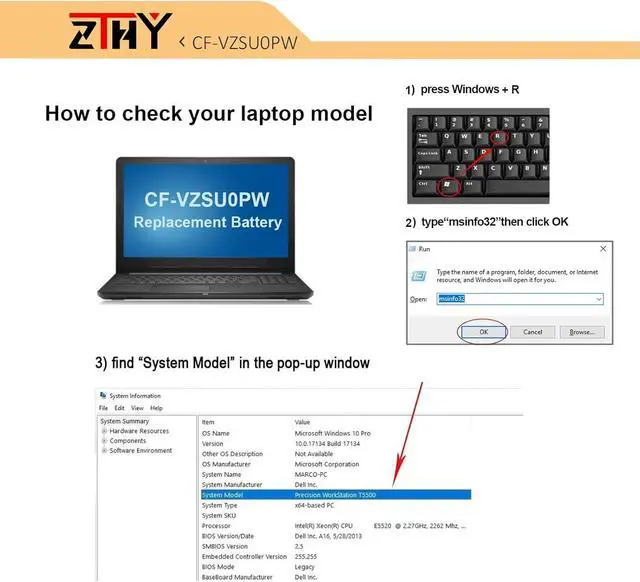
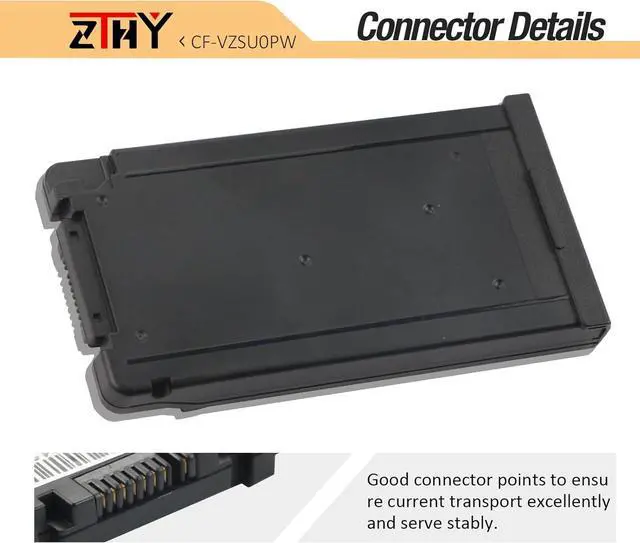
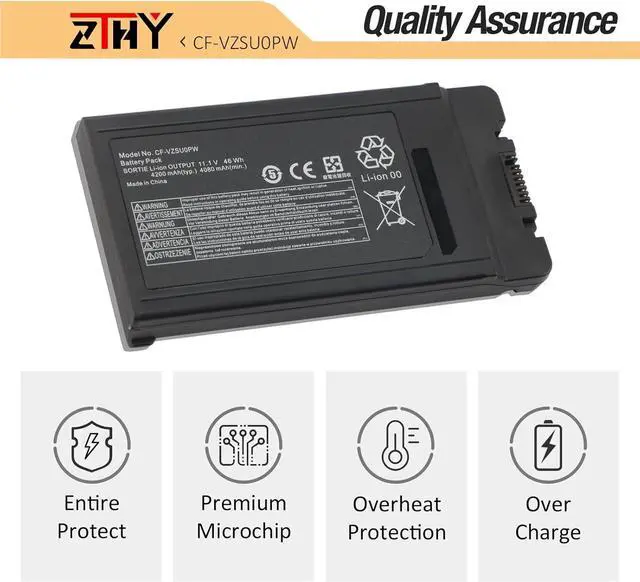
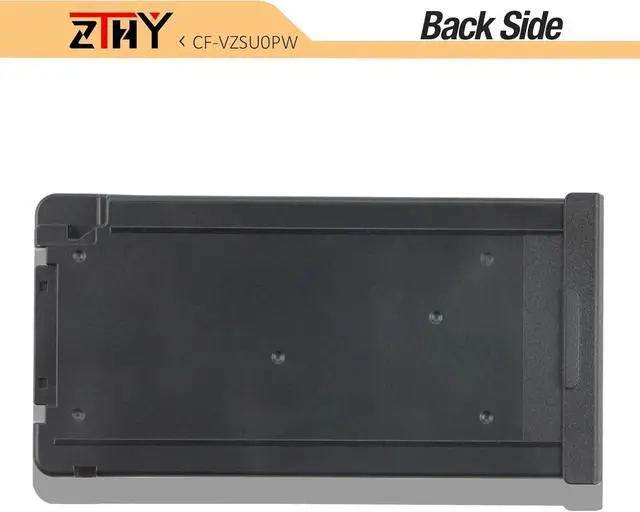
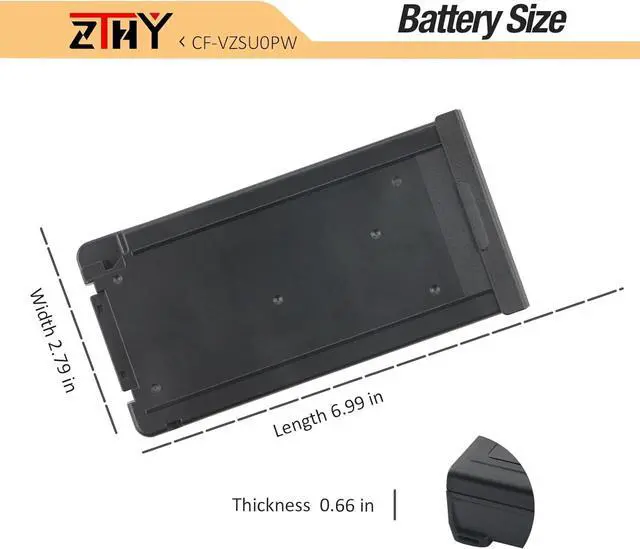


CF-VZSU0PW CF-VZSU0PR CF-54 Battery Replacement for PANASONIC TOUGHBOOK CF54 CF-54 Mk1 54 Gloved Multi Touch Series CF-VZSU0LW CF-VZSU0GW CF-VZSU0GJS CF-VZSU0GW CF-VZSUOPW CF-VZSU0KR CF-VZSU0KJS 46Wh
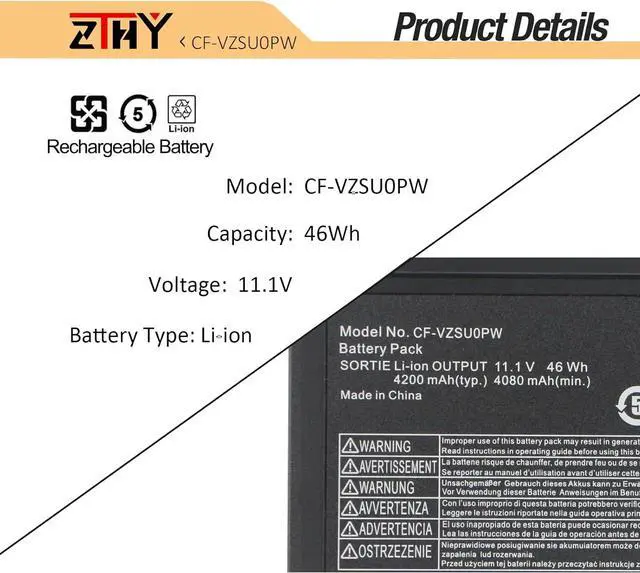
- Specifications: Battery type: Li-ion. Color: Black. Voltage: 11.1V. Capacity: 46Wh. ZTHY specializes in Laptop and Camera Accessories including Laptop Batteries, Tablet batteries, Camera Batteries, Camcorder Batteries, Vacuum Batteries, and chargers
- Compatible Part Number: CF-VZSU0GJS CF-VZSU0GW CF-VZSU0KJS CF-VZSU0KR CF-VZSU0KW CF-VZSU0LW CF-VZSU0PJS CF-VZSU0PK CF-VZSU0PR CF-VZSU0PW CF-VZSUOGW CF-VZSUOLW CF-VZSUOPW
- Compatible Models: Replacement for Panasonic Toughbook CF-54 Series; Replacement for Panasonic Toughbook 54 Gloved Multi Touch Series; Replacement for Panasonic Toughbook 54 Lite Series; Replacement for Panasonic Toughbook 54 Performance Series; Replacement for Panasonic Toughbook 54 Prime Series Series; Replacement for Panasonic Toughbook 54 Gloved Multi Touch Series; Replacement for Panasonic Toughbook CF-54F9001KM CF-54G2999VM CF-54F0961NE Series; Replacement for Panasonic Toughbook 54F0961VM 54A0005CM 54D2912VM 54D0005KM Series
- Security: All ZTHY products are Certif
+
+
Overview
Reviews

Any questions? Our AI mode will help you find out quickly.
Try me now
Welcome to ZTHY TECH INC
We are a professional laptop battery, laptop adapter and all kinds of chargers manufacture. Dedicated to producing high quality products. We have professional sales team. To each of our customers with high quality products. Wish you have a happy shopping experience and thank you for your trust!
1: High capacity circulatory function
2: Overheating protection
3: Overcurrent protection
4: Overcurrent protection
5: Low power consumption IC design
Battery Type: Li-ion
Battery Voltage: 11.1V
Battery Capacity: 46Wh/4200mAh
Replacement for Part Number:
CF-VZSU0GJS CF-VZSU0GW CF-VZSU0KJS CF-VZSU0KR CF-VZSU0KW
CF-VZSU0LW CF-VZSU0PJS CF-VZSU0PK CF-VZSU0PR CF-VZSU0PW
CF-VZSUOGW CF-VZSUOLW CF-VZSUOPW
Compatible Models:
Replacement for Panasonic Toughbook CF-54 Series;
Replacement for Panasonic Toughbook 54 Gloved Multi Touch Series;
Replacement for Panasonic Toughbook 54 Lite Series;
Replacement for Panasonic Toughbook 54 Performance Series;
Replacement for Panasonic Toughbook 54 Prime Series Series;
Replacement for Panasonic Toughbook 54 Gloved Multi Touch Series;
Replacement for Panasonic Toughbook CF-54F9001KM CF-54G2999VM CF-54F0961NE Series;
Replacement for Panasonic Toughbook 54F0961VM 54A0005CM 54D2912VM 54D0005KM Series.
1.Discharge the new battery use to 5%(not to 0%) and then charge to 95%, and cycle 3-4 times.
2.Do not disassemble, crush or puncture. Do not dispose of in fire or water.
3.If you remove battery for a long time, charge more than 80% at least one time within one months.
4.Don't connect adapter for a long time while using the battery. It may damage the battery.
5.When using the battery, care should be taken to prevent exposure and moisture.
1, You need to turn off your laptop and disconnect the power.
2, Disconnect the connection between the old battery and the motherboard to avoid unnecessary damage caused by disassembling the battery. Then unscrew the old battery screws one by one and carefully save each screw.
3, Remove the old battery, carefully install the new battery on the battery case, screw in the screw, and connect the wiring of the new battery.
4, If you don't understand the above steps, you can search for the video about laptop battery installation on YouTube. Maybe it will help you.
Q: Why my computer didn't recognize this battery or I install this battery and it doesn't seem to work?
A: The reason is residual power stored in the laptop components that was preventing the battery from working properly. Please disconnecting the old battery, and holding down the power button for 20 seconds, then connect the new battery. This drains the residual or flea power and once the laptop is reassembled the battery will function properly.
1.Turn off the laptop.
2.Unplug AC power.
3.Remove the battery.
4.Replace AC power.
5.Turn on laptop,allow OS to boot.
6.Once logged in to the machine,perform a normal shut donw.
7.Unplug AC power.
8.Replace battery.
Why should I choose this battery? Specifications: ZTHY laptop battery instruction: Easy to deal a variety of use environment Install A New Battery: Installing New Battery Frequently Asked Question Solution: The following are troubleshooting methods:
We are a professional laptop battery, laptop adapter and all kinds of chargers manufacture. Dedicated to producing high quality products. We have professional sales team. To each of our customers with high quality products. Wish you have a happy shopping experience and thank you for your trust!
1: High capacity circulatory function
2: Overheating protection
3: Overcurrent protection
4: Overcurrent protection
5: Low power consumption IC design
Battery Type: Li-ion
Battery Voltage: 11.1V
Battery Capacity: 46Wh/4200mAh
Replacement for Part Number:
CF-VZSU0GJS CF-VZSU0GW CF-VZSU0KJS CF-VZSU0KR CF-VZSU0KW
CF-VZSU0LW CF-VZSU0PJS CF-VZSU0PK CF-VZSU0PR CF-VZSU0PW
CF-VZSUOGW CF-VZSUOLW CF-VZSUOPW
Compatible Models:
Replacement for Panasonic Toughbook CF-54 Series;
Replacement for Panasonic Toughbook 54 Gloved Multi Touch Series;
Replacement for Panasonic Toughbook 54 Lite Series;
Replacement for Panasonic Toughbook 54 Performance Series;
Replacement for Panasonic Toughbook 54 Prime Series Series;
Replacement for Panasonic Toughbook 54 Gloved Multi Touch Series;
Replacement for Panasonic Toughbook CF-54F9001KM CF-54G2999VM CF-54F0961NE Series;
Replacement for Panasonic Toughbook 54F0961VM 54A0005CM 54D2912VM 54D0005KM Series.
1.Discharge the new battery use to 5%(not to 0%) and then charge to 95%, and cycle 3-4 times.
2.Do not disassemble, crush or puncture. Do not dispose of in fire or water.
3.If you remove battery for a long time, charge more than 80% at least one time within one months.
4.Don't connect adapter for a long time while using the battery. It may damage the battery.
5.When using the battery, care should be taken to prevent exposure and moisture.
1, You need to turn off your laptop and disconnect the power.
2, Disconnect the connection between the old battery and the motherboard to avoid unnecessary damage caused by disassembling the battery. Then unscrew the old battery screws one by one and carefully save each screw.
3, Remove the old battery, carefully install the new battery on the battery case, screw in the screw, and connect the wiring of the new battery.
4, If you don't understand the above steps, you can search for the video about laptop battery installation on YouTube. Maybe it will help you.
Q: Why my computer didn't recognize this battery or I install this battery and it doesn't seem to work?
A: The reason is residual power stored in the laptop components that was preventing the battery from working properly. Please disconnecting the old battery, and holding down the power button for 20 seconds, then connect the new battery. This drains the residual or flea power and once the laptop is reassembled the battery will function properly.
1.Turn off the laptop.
2.Unplug AC power.
3.Remove the battery.
4.Replace AC power.
5.Turn on laptop,allow OS to boot.
6.Once logged in to the machine,perform a normal shut donw.
7.Unplug AC power.
8.Replace battery.
Why should I choose this battery? Specifications: ZTHY laptop battery instruction: Easy to deal a variety of use environment Install A New Battery: Installing New Battery Frequently Asked Question Solution: The following are troubleshooting methods:
Warranty & Returns
Warranty, Returns, And Additional Information
Warranty
- Please contact the Seller directly for warranty information. Warranty information may also be found on the Manufacturer's website.
- CONTACT
Return Policies
- Return for refund within: 30 days
- Return for replacement within: 30 days
- This item is covered by TechHive Return Policy
Manufacturer Contact Info
- For a directory of all our manufacturers, please click below.
- Manufacturers Directory
LOADING...