Welcome to ANTIEE
We are a manufacturer specializing in various laptop batteries and tablet batteries. We emphasizes the basic product concept of high-quality, safety and reliability. ANTIEE Laptop batteries are 100% DIRECT from Manufacturer with over 10 years' Laptop Battery Production and Research experience.
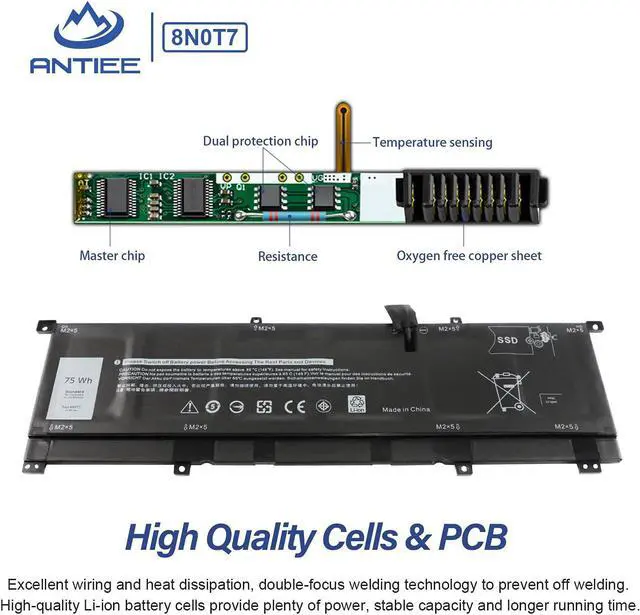
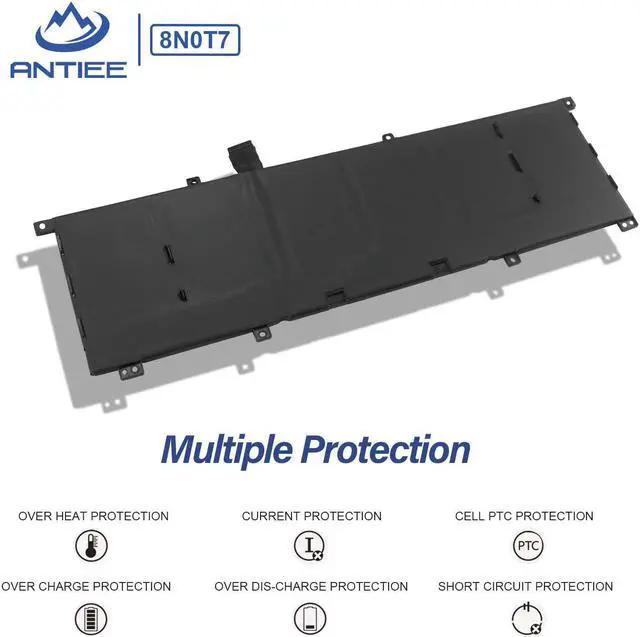
We are always working hard to ensure high quality laptop battery standards through multiple quality checks. Every one of our replacement notebook batteries are tested. With multi-protections such as short circuit, overheat, and overload, you can rest assured that you are in good hands. ANTIEE promises to deliver each customer to valuable, efficient and reliable battery. Let your notebook get more freedom.
Specification:
Battery Model:
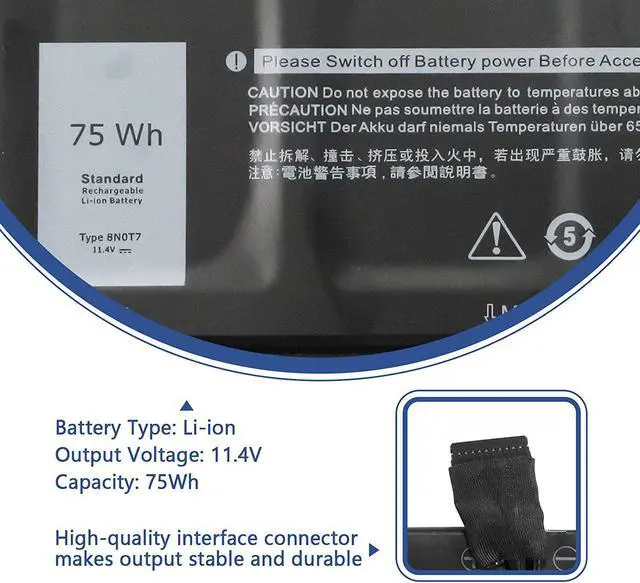
8N0T7
Voltage:
11.4V
Capacity:
75Wh
Cell:
6-Cell
Battery Type:
Li-ion
Condition:
100% New from Manufacturer
Matters Need Attention
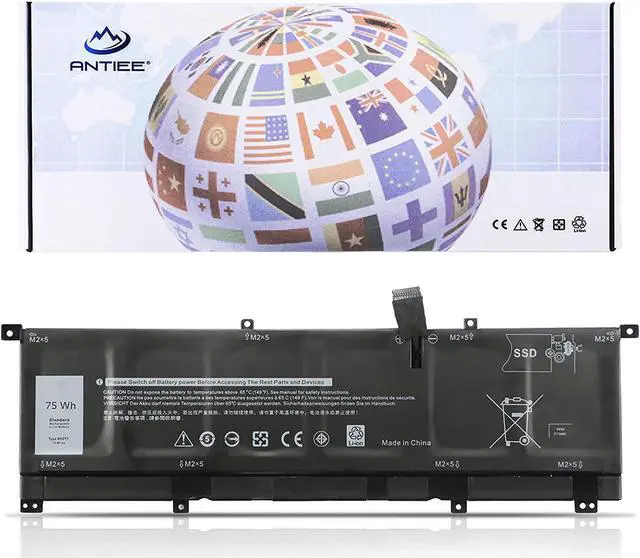
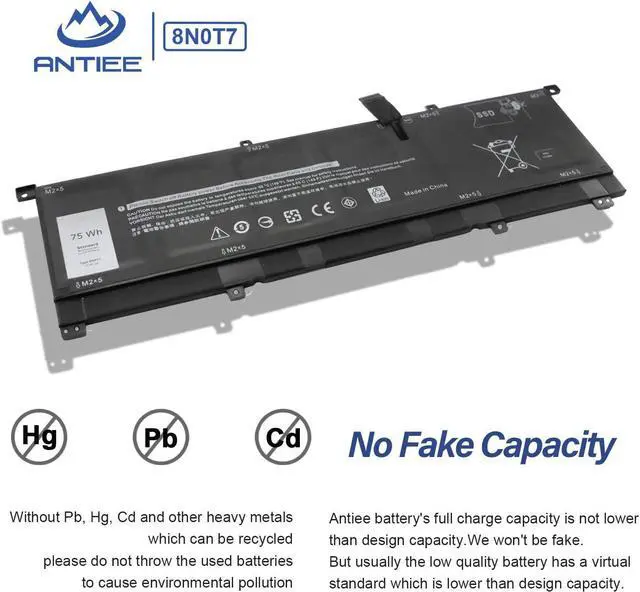
Before placing an order, please open the back cover of your laptop, check and confirm your original battery model and appearance, and compare with our battery pictures to ensure that this is what you need.
Compatible Part Number:
8N0T7 8NOT7 TMFYT 0TMFYT
Applicable Laptop Model:
Dell XPS 15 9575 Series
Dell XPS 15 9575 2-in-1 Series
XPS 15-9575-D1605TS, XPS 15-9575-D1805TS, XPS 15-9575-D2605TS, XPS 15-9575-D2601TS, XPS 15-9575-D2805TS, XPS 15-9575-D2801TS, XPS 15 9575 i5-8305G, XPS 15 9575 i7-8705G.
Dell Precision 5530 2-in-1 Series
P73F P73F001
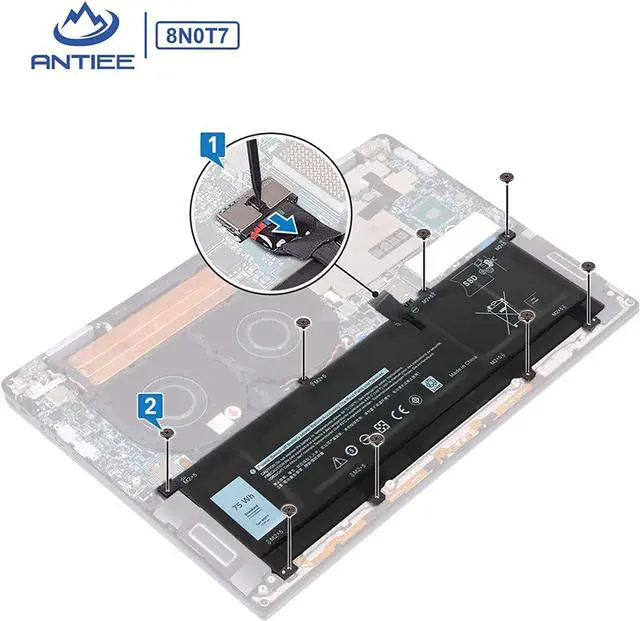
Skills For Installing A New Battery: No instructions. We recommend that you search for the battery removal tutorial from Google. It is best to check the tutorial before DIY to avoid unnecessary losses during the disassembly process.
Before disassembling your laptop, put the old battery charge below 25%. If a fully charged lithium battery is accidentally punctured, it will have serious consequences.
Please keep every screw you removed.
Make sure that interface is correctly connected to its socket.
Please protect your screen and touchpad.
Laptop Battery Instructions: New battery: Discharge the new battery to 10% (not 0%), then charge it to 100%. Cycle 3-5 times to activate its maximum capacity before use.
Overuse: Do not always run out of a battery to 0%, this would make it damaged or usage life shortened.
Charging sequence: When charging, first install the battery, then plug in the power; when fully charged, first cut off the power, then pull the power plug.
Long-term storage: Charge it to around 50% when you store it long term. (Charge it once a month) Do not store at low power to prevent reduce the lifespan of a battery.
Adapter: Use the adapter from a regular manufacturer. If the original adapter cannot be applied due to malfunction or damage, please replace it, so as not to reduce the service life of the battery due to incompatibility.
Usual Troubleshooting Methords: Why the laptop does not recognize the battery or the laptop does not display the battery?
Could be caused by battery loose. Please re-install the battery and make sure that the battery cable and the motherboard interface are tightly inserted.
May be due to conductive material damaged which the laptop motherboard and battery anode and cathode contact position, you can try to confirm it with your original battery.
Check whether the battery drive is in normal condition, if not, download the corresponding driver software to update.